
Volume vs Partition: What a Disk Volume Means in Windows
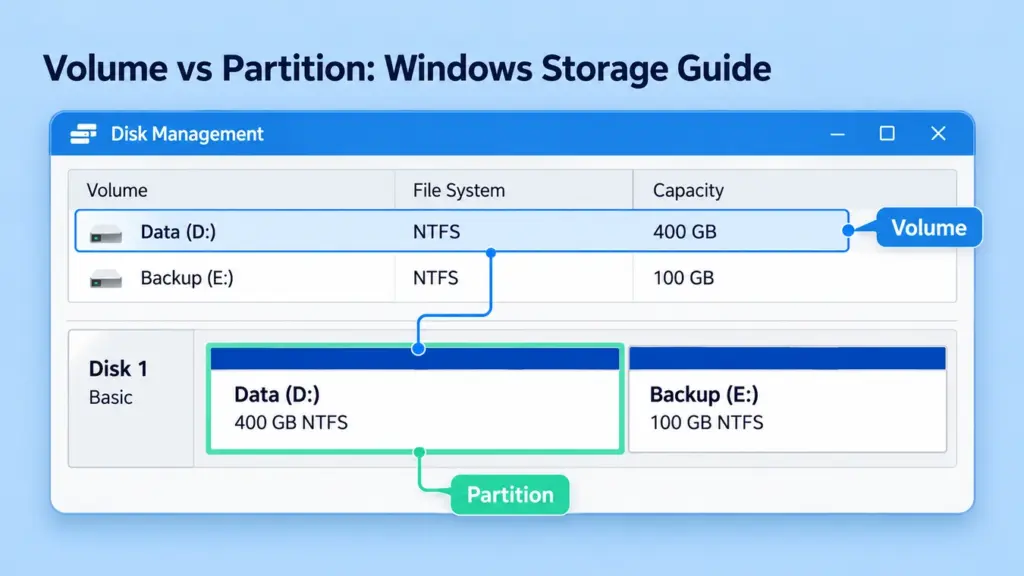
Volume vs partition describes two related aspects of Windows storage. A partition is a defined region in a disk’s layout. A volume is a logical storage unit that Windows presents and manages, normally with a file system for storing files. On an ordinary basic disk, a data partition and its volume usually occupy the same region, which explains why the terms are often used interchangeably.
The distinction becomes useful when Disk Management shows more partitions than File Explorer shows drives, or when a migration tool offers volume-level and whole-disk operations. This guide focuses on Windows 10 and Windows 11, with advanced storage examples included only where they clarify the relationship.
Inhaltsübersicht
Volume vs Partition at a Glance
A partition describes an area in a disk layout. A volume describes the logical storage unit that Windows works with. Neither term by itself identifies the underlying physical drive.
Vergleich | Partition | Band |
Hauptzweck | Defines a disk region and its role | Presents a logical storage unit to Windows |
Typical identifying information | Disk number, partition number, start position, size, type | Volume path, label, file system, capacity, access paths |
Relationship on a basic data disk | Usually backs one data volume | Usually corresponds to one data partition |
Relationship to a drive letter | Can have one through its associated volume | Can have a letter, another access path, or no ordinary user access path |
Advanced configurations | Describes regions on the disk presented to the system | May be backed by more complex storage mappings |
Calling a partition “physical” and a volume “logical” is an oversimplification. A partition is also a logical division, not a physical cut in an HDD or SSD.
What a Disk Volume Represents
A disk volume is a storage unit that the operating system can address as a whole. A file system such as NTFS or exFAT normally organizes its files and directories.
For users, a volume commonly appears as a drive in File Explorer. For Windows, however, it has an identity beyond that drive letter. A volume may have a label, a volume GUID path, and one or more access paths.
These names have different purposes:
- Volume label: A friendly name such as Documents or Backup. Labels do not have to be unique.
- Drive letter: An access path such as D:. Letters can change between environments.
- Folder mount point: A directory through which another volume is accessed.
- Volume GUID path: A Windows path used to identify and access a volume independently of a friendly label.
The file system is another property, not a synonym for the volume. Windows can recognize a volume while reporting its file system as RAW because no usable file system has been recognized.
For the role of a recognized Windows file system, see the NTFS file system overview.
What a Partition Records
A partition defines a contiguous region of the disk presented to Windows. Its partitioning information describes where it begins, how much space it occupies, and its type or intended role.
The disk may be a physical device or a virtual disk exposed to the operating system. Partitioning operates on that presented disk, so one visible disk does not always mean one physical storage device underneath it.
GPT and MBR are partition styles. They describe how partition information is recorded, rather than how individual files are organized. NTFS and exFAT are file systems, so they answer a different question.
For example, a GPT disk can contain an NTFS data partition. GPT describes the disk’s partition map; NTFS describes the file organization within the associated volume. The GPT partition table guide covers that layout in more detail.
Partition information also distinguishes ordinary data storage from system and reserved regions. Knowing a partition exists does not establish that it should appear as a user-accessible drive.
Why a Data Volume and Partition Often Match
On a basic Windows disk, an ordinary data partition usually backs one volume. Creating storage through Disk Management’s New Simple Volume wizard can prepare the partition, volume, formatting, and access path in one workflow. Users therefore encounter several related steps as a single operation.
Beispiel: A basic SSD contains a data partition formatted as NTFS and assigned D:. The partition identifies the region of that SSD. The volume is the storage unit Windows accesses through D:. NTFS organizes the files inside it.
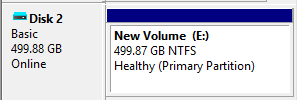
Microsoft Learn example: the same basic-disk region is shown as New Volume (E:) and Healthy (Primary Partition). The disk and volume are different objects even though the data volume corresponds to that partition.
That correspondence does not apply to every partition:
Partition role | Usual purpose in a Windows UEFI/GPT layout | Ordinary File Explorer drive? |
Windows or data partition | Holds an accessible file-system volume | Usually, when assigned a drive letter |
EFI-Systempartition | Holds startup files used by UEFI boot | Normally no drive letter |
Microsoft Reserved Partition | Reserves space for partition-management purposes | No ordinary file-storage volume |
Windows-Wiederherstellungspartition | Holds Windows recovery tools | Normally no drive letter |
Consequently, counting drive letters is not a reliable way to count partitions. A missing letter is also insufficient evidence that a partition has disappeared.
Logical Volumes, Logical Drives, and Virtual Disks
Logical Volume Is a General Storage Term
In a logical volume vs partition comparison, “logical volume” refers to the storage unit presented through a volume-management layer. It does not necessarily identify one specific Windows volume type.
A volume can correspond to a basic partition, but more advanced mappings can exist. A legacy dynamic spanned volume, for example, can use regions on multiple disks. This is one reason the two terms cannot be treated as universal synonyms.
Dynamic disks are deprecated for most uses. Their behavior helps explain the terminology, but converting a working basic disk to dynamic is not required to create an ordinary Windows data volume.
An MBR Logical Drive Has a Specific Meaning
An MBR logical drive is created inside an extended partition. The extended partition is a container, while its logical drives can hold file systems and provide basic volumes.
GPT does not use this extended-partition and logical-drive arrangement. A GPT data volume is therefore not missing anything simply because it has no MBR-style logical drive.
Virtual Disks Add a Storage Layer
With Storage Spaces, physical drives can contribute to a pool from which virtual disks are created. Windows can then partition and format the virtual disk exposed by that storage system.
The volume remains the logical file-storage unit, while the physical backing is managed beneath it. Pool capacity, virtual-disk capacity, partition layout, and volume properties should be checked at their respective layers. They are not interchangeable measurements or objects.
Identifying Partitions and Volumes in Windows
Start with Disk Management
Presse Fenster + R, eingeben diskmgmt.msc, and press Enter. Identify the relevant disk using its capacity and device details rather than assuming a disk number.
The lower map shows disk regions and partition roles. The upper list reports volumes and properties such as file system, capacity, and status. Compare the two views using the drive letter, label, and size.
For a data drive missing from File Explorer, check whether its volume still exists, whether Windows recognizes its file system, and whether it has an access path. The USB drive recognition troubleshooting guide explains how these observations differ from device detection failures.
Do not assign letters to system or recovery partitions merely to make them visible.
Compare the Associated PowerShell Objects
Open Windows PowerShell as administrator. For basic-disk inspection, these commands display partition and volume properties without changing them:
Get-Partition |- Sort-Object DiskNumber, PartitionNumber |
- Format-Table DiskNumber, PartitionNumber, DriveLetter, Type, Size
Get-Volume |- Format-Table DriveLetter, FileSystemLabel, FileSystem, HealthStatus, Size
To inspect the association for a particular ordinary data drive:
Get-Partition -DriveLetter D | Get-Volume
Hier, D is an example. Replace it with the verified letter of the intended data drive. The pipeline starts with a partition object and retrieves its associated volume; it does not convert one object into the other.
A reserved partition may have no corresponding file-storage volume. These queries also do not provide a complete description of legacy dynamic-disk mappings.
How the Distinction Changes Storage Decisions
Formatting and Deleting Affect Different Structures
Formatting an existing volume replaces its file system while normally retaining the partition boundaries. Deleting its basic-disk partition removes the region’s allocation and its associated volume.
Changing a label or drive letter changes identification or access, not the partition’s physical backing. Drive-letter changes can still disrupt applications that depend on existing paths, especially on volumes containing installed software.
If a volume disappears, first distinguish a missing access path from file-system damage or a missing partition. The Anleitung zur Wiederherstellung verlorener Partitionsdaten explains why file recovery and partition-table restoration are separate tasks.
System Migration Requires More Than a Familiar Drive Letter
A Windows installation can depend on startup files outside its main OS volume. Copying the files visible on the Windows drive does not by itself reproduce that boot environment.
When choosing a migration scope, inspect the actual disk layout and the tool’s documented behavior. A whole-disk operation and a selected-volume operation may include different objects. Do not infer what a tool copies from its menu label alone.
After migration, verify the destination layout, open important files, and test whether the destination can boot independently where applicable. A copy-success message does not establish that all startup dependencies are present.
FAQs
Is a disk volume the same as a drive letter?
Can a partition exist without a file system?
Can one physical disk contain several volumes?
Can one volume use more than one disk?
Are a logical volume and an MBR logical drive identical?
Is an NTFS volume automatically a Windows system partition?

Jason ist ein Spezialist für Datenwiederherstellung und technischen Support mit über 15 Jahren praktischer Erfahrung. Er hat intensiv mit Endnutzern zusammengearbeitet, schwierige Fälle von Datenverlust behoben und praktische Lösungen für versehentlich gelöschte Daten, formatierte Laufwerke, beschädigte Dateisysteme, verlorene Partitionen, Systemausfälle und andere Notfälle im Bereich der Datenwiederherstellung bereitgestellt. Zu seinen Fachgebieten gehören außerdem Datensicherung und -wiederherstellung, Dateireparatur sowie Notfallwiederherstellung, wobei er besonderen Wert auf eine sichere, zuverlässige und technisch korrekte Beratung legt.