
¿Necesitas un especialista en recuperación de datos cerca de ti? Ahorra ahora

Darse cuenta de repente de que has perdido tus archivos importantes puede ser aterrador. Ya sea que, sin querer, vaciado la papelera de reciclaje, has formateado una partición por error o te has encontrado con un fallo repentino del sistema de Windows, lo más probable es que tu primera reacción sea entrar en pánico. Por eso, es posible que cojas el móvil y te pongas a buscar a toda prisa a un profesional especialista en recuperación de datos cerca de mí para recuperar tus documentos de trabajo, registros financieros o fotos familiares irreemplazables. Lo primero que se te ocurrirá probablemente sea meter el ordenador en una bolsa y llevarte al servicio técnico más cercano, o enviar el disco duro por correo a un gran laboratorio comercial.
Sin embargo, antes de gastarte cientos o incluso miles de dólares en un especialista en recuperación de datos, hay algo que debes saber: más del 80% de los casos de pérdida de datos diarios se deben a problemas de software y no a fallos mecánicos. Esto significa que, a menudo, puedes recuperar archivos de discos duros tú mismo mediante la implementación de una herramienta inteligente como Magic Data Recovery. Siguiendo una sencilla lista de comprobación, podrás ahorrar tiempo fácilmente, proteger tu privacidad y mantener el dinero que tanto te ha costado ganar en tu bolsillo.
Compatible con Windows 7/8/10/11 y Windows Server
Índice
¿De verdad necesitas un especialista en recuperación de datos en el laboratorio?
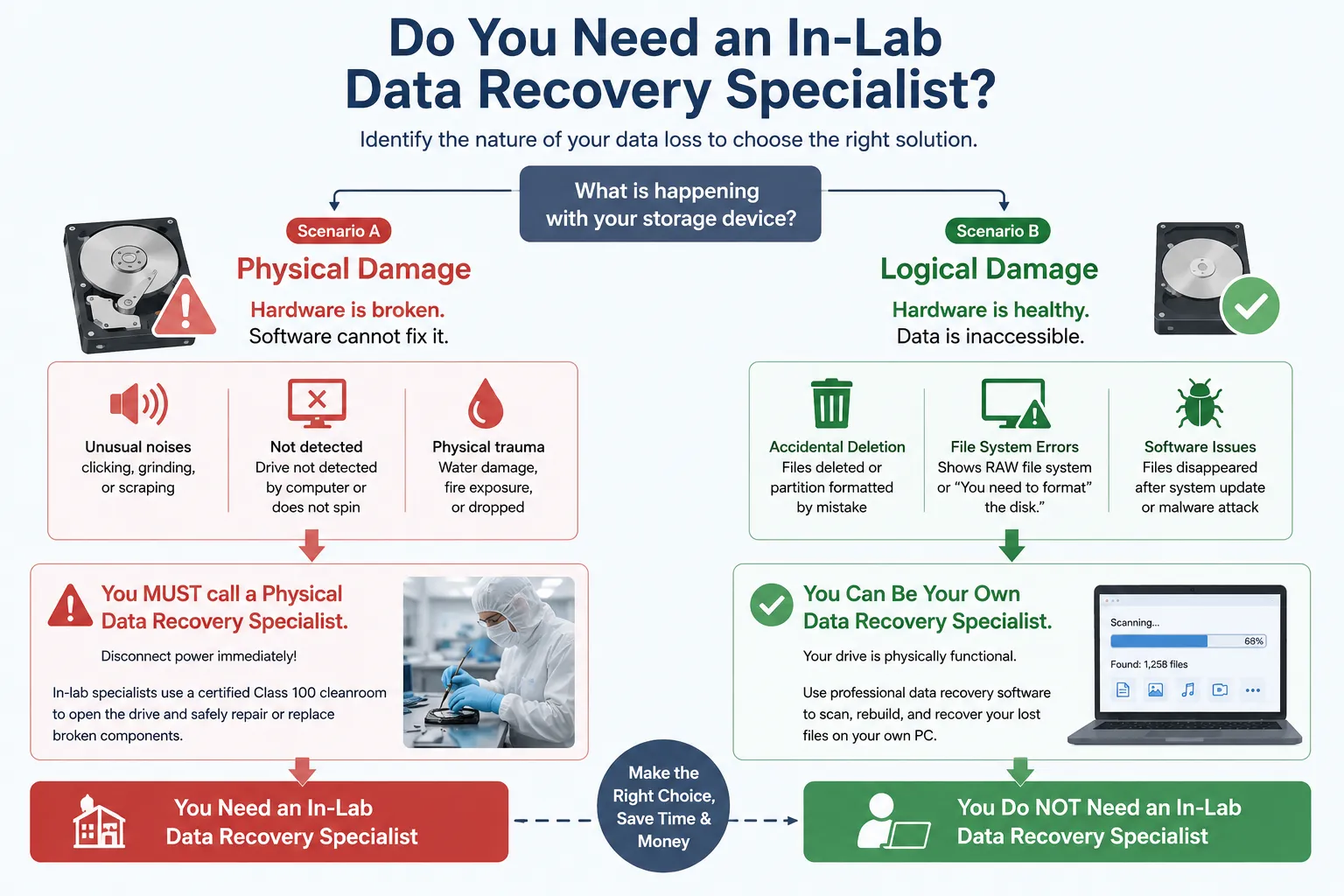
Para determinar cuál es la mejor forma de actuar, primero debes comprender la naturaleza exacta de la pérdida de datos. Los ingenieros profesionales en recuperación de datos clasifican los fallos de los discos duros en dos categorías principales: daños físicos y daños lógicos. Conocer la diferencia te evitará cometer errores costosos.
Situación A: Cuándo DEBES llamar a un especialista en recuperación física de datos
Los daños físicos se producen cuando los componentes mecánicos internos del dispositivo de almacenamiento se averían. Si el disco duro ha sufrido un impacto físico, el software no puede repararlo. Debes acudir inmediatamente a un servicio técnico local especialista en recuperación de datos cerca de mí si observas alguna de estas señales de alerta:
- El disco emite ruidos extraños, como chasquidos, chirridos o roces, cuando está enchufado.
- Tu ordenador no detecta en absoluto la unidad a nivel de hardware, o la unidad no gira en absoluto.
- El dispositivo se ha sumergido en agua, se ha expuesto al fuego o se ha dejado caer desde una altura considerable.
Si experimenta estos síntomas, desconecte inmediatamente la alimentación eléctrica. En estas situaciones extremas, un análisis en el laboratorio especialista en recuperación de datos Es necesario abrir la unidad en una sala limpia certificada de clase 100 para sustituir de forma segura las piezas averiadas.
Escenario B: Cuando puedes encargarte tú mismo de la recuperación de datos (daños lógicos)
Por otro lado, daño lógico significa que el hardware está en perfecto estado, pero ya no se puede acceder a los datos. Esto representa la gran mayoría de los casos de pérdida de datos. Se trata de un daño lógico si te enfrentas a las siguientes situaciones:
- Has borrado archivos por error o has formateado una partición.
- Tu unidad aparece en Gestión de discos de Windows pero da un error como “Sistema de archivos RAW” o “Tienes que formatear el disco”.”
- Los archivos desaparecieron tras una actualización repentina de Windows o un ataque de malware.
Cuando la unidad funciona correctamente, es necesario contratar a un técnico especialista en recuperación de datos suele ser un gasto innecesario. En su lugar, puedes utilizar con total seguridad un software de calidad profesional para escanear los sectores de almacenamiento y recuperar tus archivos perdidos directamente en tu propio ordenador.
La alternativa más inteligente: Magic Data Recovery (tu especialista en recuperación de datos a domicilio)
Si tu disco duro está en buen estado pero has perdido tus archivos, lo más lógico es recurrir a una herramienta de software especializada. Si buscas una solución muy eficaz, deberías probar Magic Data Recovery. Esta herramienta funciona como un sistema digital automatizado especialista en recuperación de datos, lo que elimina la necesidad de recurrir a costosa asistencia técnica externa. Sirve de puente entre las complicadas herramientas de ingeniería profesional y la accesibilidad para el usuario común.
Algoritmos avanzados compatibles con el software de laboratorio
Los laboratorios comerciales de recuperación de datos utilizan hardware costoso y código propio para extraer sectores de datos. Magic Data Recovery incorpora algoritmos de escaneo profundo igualmente avanzados en un paquete ligero para Windows.
El software elude la capa estándar del sistema de archivos de Windows para leer directamente los datos sin procesar subyacentes. Reconstruye minuciosamente las firmas de los archivos fragmentados, lo que te permite recuperar archivos de particiones muy dañadas, sin asignar o en formato RAW que Windows no puede abrir.
Diagnóstico sin compromiso con 500 MB de recuperación gratuita
Muchos talleres de reparación locales cobran una tarifa de diagnóstico obligatoria solo por echar un vistazo a tu unidad averiada. Además, enviar tu dispositivo a un laboratorio corporativo plantea graves problemas en materia de privacidad de datos.
Magic Data Recovery cambia esta dinámica al ofrecer una prueba totalmente transparente y sin riesgos. Puedes descargar el software, analizar la unidad de destino y obtener una vista previa de todos y cada uno de los archivos recuperables antes de comprometerte a realizar ningún pago.
Y lo que es aún mejor, la herramienta incluye una generosa Límite de 500 MB de datos gratuitos para la restauración de archivos. Esto te permite recuperar tus documentos más importantes de inmediato sin gastar ni un céntimo. Es una forma totalmente segura de comprobar la eficacia de la herramienta en tu propio ordenador.
Guía paso a paso: cómo recuperar datos perdidos por tu cuenta
No hace falta tener un título superior en informática para utilizar técnicas profesionales de recuperación de archivos. Sigue esta sencilla guía paso a paso para recuperar tus datos de forma segura.
Paso 1: Descargar e instalar Magic Data Recovery
En primer lugar, descargue Magic Data Recovery e instale el software en una partición del disco que esté en buen estado y que sea totalmente independiente de la zona afectada por la pérdida de datos. Este enfoque prudente evita de forma eficaz la sobrescritura accidental y protege los datos perdidos para que no se destruyan.
Compatible con Windows 7/8/10/11 y Windows Server
Paso 2: Seleccione la unidad de destino a escanear
Inicia el programa en tu ordenador. A continuación, en la interfaz principal, selecciona la unidad o partición concreta en la que se borraron los archivos y haz clic para iniciar el proceso de análisis.

Paso 3: Escanear la unidad en busca de archivos perdidos
El software realiza automáticamente un análisis avanzado para examinar a fondo los sectores de almacenamiento. Al mismo tiempo, organiza y muestra todos los archivos recuperables en tiempo real a medida que avanza el análisis.

Paso 4: Vista previa de los archivos antes de la recuperación
A continuación, utiliza la función de vista previa integrada para comprobar el contenido real de tus documentos o fotos. Este paso es fundamental para asegurarte de que recuperas únicamente los archivos que realmente necesitas antes de agotar tu límite de datos.

Paso 5: Recuperar archivos a una ubicación segura
Por último, selecciona los archivos de destino y guárdalos de forma segura en una unidad totalmente diferente o en un dispositivo de almacenamiento de copia de seguridad. Nunca restaures los datos en la misma partición de la unidad original, ya que hacerlo conlleva el riesgo de que los datos se dañen de forma permanente.

Especialista en recuperación de datos en laboratorio cerca de mí: qué hay que tener en cuenta si el software falla
En ocasiones, el software puede no ser suficiente. Si tu unidad de almacenamiento está físicamente averiada o si el software no puede leerla debido a un fallo mecánico grave, tendrás que acudir a un servicio técnico físico oficial especialista en recuperación de datos cerca de mí.
Para evitar caer en manos de prácticas de precios abusivos o de talleres de reparación poco profesionales, asegúrate de que el proveedor que elijas cumpla con estas estrictas normas del sector:
- Una política clara de “si no hay datos, no hay cargo”: Una empresa de renombre especialista en recuperación de datos Nunca te exigirán el pago íntegro si no consiguen recuperar tus archivos importantes. Asegúrate siempre de que solo tendrás que pagar una tarifa simbólica por el diagnóstico o el envío si el intento de recuperación no tiene éxito.
- Instalaciones con sala limpia certificada: Pregunte si el proveedor cuenta con un laboratorio local propio equipado con salas blancas certificadas. Si se abre un disco duro moderno fuera de una sala blanca libre de polvo, las partículas microscópicas presentes en el aire se depositarán en los platos, lo que arruinará para siempre sus posibilidades de recuperar los archivos.
- Acuerdos estrictos de confidencialidad de datos: Tu dispositivo de almacenamiento contiene información financiera de carácter altamente confidencial, contraseñas y datos personales. Un proveedor de confianza especialista en recuperación de datos debe presentar un acuerdo de confidencialidad (NDA) legalmente vinculante y cumplir con los protocolos de seguridad SOC 2 o equivalentes para proteger sus datos personales durante su tratamiento.
Comparación: especialista en software doméstico frente a servicios profesionales en laboratorio
Para ayudarte a tomar una decisión informada que se adapte a tu situación concreta, veamos en qué se diferencia una solución de software para uso doméstico de los servicios de laboratorio físicos habituales.
Criterio de evaluación | Magic Data Recovery (Solución de software) | Especialista local en laboratorio (laboratorio físico) |
Coste medio | 500 MB gratis / Licencia asequible | Normalmente, entre $300 y más de $2.000 por unidad |
Plazo de entrega | Resultados inmediatos (de 5 a 30 minutos) | Entre 3 y 14 días laborables de media |
Control de la privacidad de los datos | 100% Secure (Los datos nunca salen de tu casa) | Riesgo de tránsito físico y exposición de los empleados |
Mejor uso para | Borrado accidental, formateo, unidades RAW | Ruidos mecánicos, humo, inmersión en agua |
Conclusión y veredicto final
Que se te pierdan datos de repente no significa que tengas que gastarte automáticamente tus ahorros en un técnico caro. Siempre que Windows siga reconociendo tu disco duro, puedes hacerlo tú mismo especialista en recuperación de datos es siempre el primer paso más inteligente, rápido y rentable para recuperación de discos duros.
Te recomendamos encarecidamente que comiences tu proceso de recuperación con Magic Data Recovery. Esta herramienta especializada para Windows elimina el riesgo de pérdida de datos al ofrecerte una visibilidad completa de tu sistema de archivos.
En lugar de concertar una cita costosa o conducir hasta una tienda para encontrar un especialista en recuperación de datos cerca de mí, puedes tomar medidas inmediatas para proteger tus archivos. Descarga el software hoy mismo, aprovecha el límite de 500 MB de recuperación de archivos gratuita y rescata tus valiosos datos ahora mismo.
Compatible con Windows 7/8/10/11 y Windows Server
Preguntas frecuentes sobre el especialista en recuperación de datos
¿Cuánto cobra un especialista profesional en recuperación de datos?
Los especialistas de los talleres suelen cobrar entre 100 y 2000 euros o más, dependiendo de la gravedad de los daños. Sin embargo, puedes solucionar los problemas lógicos en casa por una fracción de ese coste utilizando un software de recuperación avanzado.
¿Cómo elijo al mejor especialista en recuperación de datos cerca de mí?
Busca especialistas locales que apliquen una política estricta de "si no hay datos, no hay cargo", cuenten con salas blancas certificadas y garanticen la total confidencialidad de los datos mediante acuerdos de confidencialidad antes de manipular tu dispositivo de almacenamiento.
¿Puede un software recuperar archivos de un disco duro que hace clic?
No, un chasquido indica un fallo físico y mecánico grave. El software no puede reparar los componentes físicos, por lo que debes apagar inmediatamente la unidad y ponerte en contacto con un especialista en recuperación de datos de un laboratorio cercano.
¿Es seguro utilizar programas de recuperación de datos en casa?
Sí, el uso de software profesional es totalmente seguro para la privacidad de tus datos. Sin embargo, debes instalar siempre el programa en una partición independiente y en buen estado para evitar sobrescribir los archivos borrados que deseas recuperar.
¿Por qué cobran tanto los especialistas en recuperación de datos?
Los especialistas en reparación física cobran tarifas elevadas porque realizan una importante inversión en salas blancas estériles, herramientas especializadas, mano de obra y los años de experiencia en ingeniería necesarios para abrir y reparar de forma segura unidades de disco delicadas.

Vasilii es un especialista en recuperación de datos con unos 10 años de experiencia práctica en este campo. A lo largo de su carrera, ha resuelto con éxito miles de casos complejos relacionados con archivos borrados, unidades formateadas, particiones perdidas y sistemas de archivos RAW. Su experiencia abarca tanto métodos de recuperación manual con herramientas profesionales como editores hexadecimales como soluciones automatizadas avanzadas con software de recuperación. La misión de Vasilii es poner los conocimientos sobre recuperación de datos al alcance tanto de los profesionales informáticos como de los usuarios de a pie, ayudándoles a salvaguardar sus valiosos activos digitales.