
Recuperación gratuita de archivos: 5 métodos seguros para Windows
Borrar por error documentos importantes, fotos, vídeos o archivos de trabajo puede resultar estresante. Sin embargo, los usuarios que buscan Recuperación gratuita de archivos suelen buscar una forma segura de restaurar datos borrados sin tener que pagar por adelantado. Afortunadamente, las herramientas de Windows, las copias de seguridad, los servicios en la nube y el software profesional de recuperación pueden ayudarte a recuperar archivos de forma gratuita en muchas situaciones habituales.
En esta guía se explican cinco formas prácticas de recuperar archivos de forma gratuita. En primer lugar, aprenderás a proteger los datos borrados. A continuación, compararás las opciones integradas de Windows. Por último, verás cómo Magic Data Recovery escanea, previsualiza y restaura archivos mediante un sencillo flujo de trabajo visual.
Compatible con Windows 7/8/10/11 y Windows Server
Índice
Respuesta rápida: ¿Cómo se pueden recuperar archivos de forma gratuita?
El método adecuado depende de cómo hayan desaparecido los archivos. Por lo tanto, empieza por la opción menos invasiva y pasa a un análisis más exhaustivo solo cuando sea necesario.
Situación | El mejor método inicial | Coste | Dificultad |
Los archivos permanecen en la Papelera de reciclaje | Papelera de reciclaje | Gratis | Fácil |
El «Historial de archivos» contiene una copia anterior | Versiones anteriores | Gratis | Fácil |
Un servicio en la nube sincronizó los archivos | Papelera de la nube o historial de versiones | Normalmente es gratis | Fácil |
Has eliminado definitivamente los archivos locales | Recuperación de archivos de Windows | Gratis | Avanzado |
Has vaciado la Papelera de reciclaje o has formateado una unidad | Magic Data Recovery | Hasta 500 MB gratis | Fácil |
Antes de recuperar archivos de forma gratuita, protege los datos
Tus acciones tras el borrado pueden determinar si la recuperación tiene éxito. Por ese motivo, sigue estas precauciones antes de intentar cualquier recuperación gratuita de archivos método.
Deje de utilizar la unidad afectada
No instales programas, no descargues archivos de gran tamaño ni copies carpetas en la unidad que contenía los datos perdidos. Es posible que Windows reutilice el espacio de almacenamiento del archivo eliminado. Una vez que la nueva información lo sobrescriba, ni siquiera el el mejor software gratuito de recuperación de datos puede fallar.
Seleccionar otra ubicación
Siempre que sea posible, instala el software de recuperación en otra partición. Del mismo modo, guarda los datos recuperados en una unidad diferente. Por ejemplo, recupera los archivos de la unidad C: a la unidad D:, o de una tarjeta de memoria a tu ordenador. De lo contrario, los datos recuperados podrían sobrescribir archivos que aún se pueden recuperar.
5 formas de recuperar archivos de forma gratuita en Windows
Los usuarios de Windows disponen de varias opciones de recuperación. Algunos métodos restauran una copia existente, mientras que otros analizan el dispositivo de almacenamiento en busca de datos eliminados. Aunque ningún método garantiza resultados en todos los casos, estas soluciones abarcan las situaciones más habituales.
Método 1: Recuperar archivos de la Papelera de reciclaje
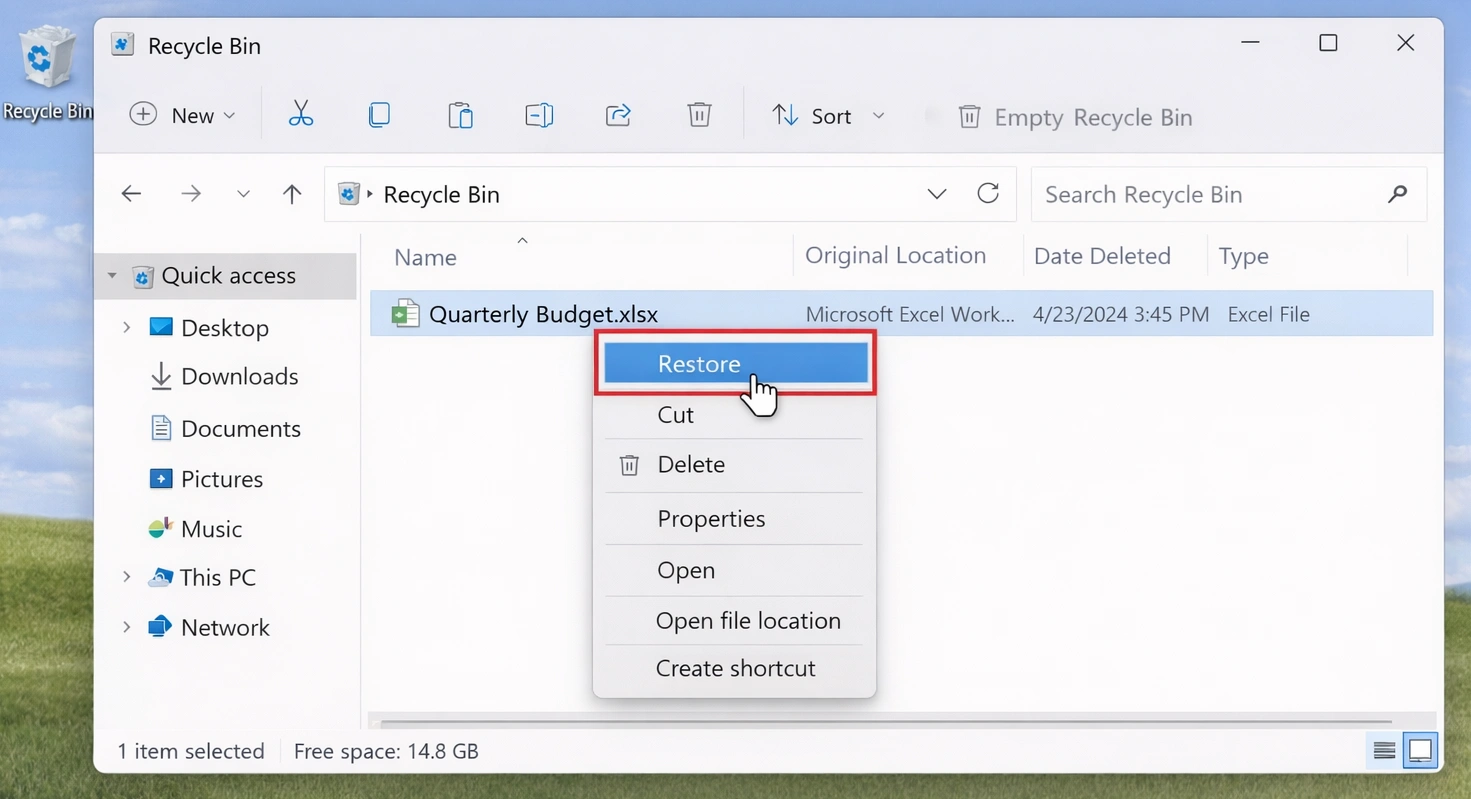
La Papelera de reciclaje es la forma más rápida de recuperar archivos de forma gratuita tras una supresión normal.
- Abre la papelera de reciclaje.
- Busca por nombre de archivo, tipo o fecha de eliminación.
- Selecciona los archivos o carpetas que necesites.
- Haga clic con el botón derecho y seleccione Restaurar.
- Comprueba la carpeta original.
Este método no analiza la unidad. Sin embargo, no sirve de nada después de Mayús+Supr, una Papelera de reciclaje vacía o la eliminación de algunos dispositivos extraíbles.
Método 2: Utilizar el historial de archivos
El historial de archivos puede restaurar una copia anterior si lo habías activado antes de que se produjera la pérdida.
- Abra el Explorador de archivos.
- Ve a la carpeta original.
- Haga clic con el botón derecho y seleccione Restaurar versiones anteriores.
- Abre una versión adecuada.
- Restaura el archivo necesario.
Por ejemplo, el Historial de archivos puede recuperar un informe anterior tras un sobrescrito accidental. Sin embargo, Windows no puede crear una copia de seguridad anterior una vez que el archivo ha desaparecido. Si no aparece ninguna versión, elige otra forma de recuperar archivos de forma gratuita.

Método 3: Comprobar el almacenamiento en la nube y las copias de seguridad
Antes de escanear una unidad, comprueba todas las ubicaciones en las que pueda haber otra copia. Este método suele ser la forma más segura de Recuperar archivos borrados de forma gratuita.
Revisa OneDrive, Google Drive, Dropbox, los archivos adjuntos de los correos electrónicos, las descargas de aplicaciones de mensajería, las unidades de copia de seguridad, las carpetas compartidas y otros dispositivos. Por ejemplo, es posible que OneDrive aún contenga la estructura original de archivos y carpetas. Por lo tanto, revisa los servicios sincronizados antes de iniciar un análisis en profundidad.
Método 4: Utilizar la herramienta de recuperación de archivos de Windows
Recuperación de archivos de Windows Es la utilidad de línea de comandos de Microsoft para archivos locales eliminados. Permite buscar en unidades internas y en dispositivos de almacenamiento extraíbles. Además, resulta muy útil para los usuarios que conocen las rutas de acceso a los archivos y los comandos básicos.
winfr C: E: /regular /n \Users\NYourName\Documents\
En este caso, la unidad C: contiene los datos que faltan, mientras que la unidad E: almacena los resultados. El origen y el destino deben ser unidades diferentes.
Windows File Recovery ofrece una opción totalmente gratuita sin límite de tamaño de recuperación. Sin embargo, carece de vista previa visual y los principiantes pueden encontrar sus comandos complicados. Por ello, los usuarios que quieran recuperar archivos de forma gratuita quienes utilizan una interfaz gráfica quizá prefieran una solución más sencilla.

Método 5: Utilizar Magic Data Recovery
Cuando fallan los métodos incorporados, Magic Data Recovery ofrece una forma visual de recuperar archivos de forma gratuita. Los usuarios pueden seleccionar una unidad, iniciar un análisis, filtrar los resultados, obtener una vista previa del contenido y restaurar los archivos seleccionados sin necesidad de introducir comandos.
Magic Data Recovery es compatible con más de 5.000 tipos de archivos y dispositivos habituales, como discos duros (HDD), discos SSD, memorias USB y tarjetas de memoria. Además, la versión gratuita permite recuperar hasta 500 MB. Por lo tanto, los usuarios pueden probar tareas de recuperación más pequeñas antes de plantearse una actualización.
Cómo Recuperar archivos gratis con Magic Data Recovery
Magic Data Recovery puede ayudarte tras pulsar Mayús+Supr, vaciar la Papelera de reciclaje, un formateo accidental o la pérdida de archivos de una unidad USB o una tarjeta de memoria. Y lo que es más importante, su función de vista previa te permite examinar los archivos detectados antes de recuperarlos.
Paso 1: Descargar e instalar Magic Data Recovery
Descarga Magic Data Recovery e instálalo en tu ordenador. Siempre que sea posible, elige una unidad o partición que no contenga los archivos eliminados. Esta precaución reduce el riesgo de sobrescribirlos accidentalmente.
Compatible con Windows 7/8/10/11 y Windows Server
Paso 2: Seleccione el Conducir ¿Quieres escanear?
Abre Magic Data Recovery. A continuación, revisa las unidades y particiones en la interfaz principal. Selecciona la ubicación en la que desaparecieron los archivos e inicia el análisis.

Paso 3: Escanear la unidad en busca de archivos borrados
Magic Data Recovery inicia automáticamente un análisis avanzado en busca de datos borrados y perdidos. Mientras tanto, la interfaz muestra los archivos detectados a medida que avanza el análisis. Por lo tanto, puedes revisar los resultados antes de que finalice el proceso.

Paso 4: Vista previa Archivos antes de la recuperación
A continuación, previsualiza el contenido y el estado de los archivos. También puedes filtrar los resultados por tipo de archivo, nombre o ubicación original. De este modo, podrás identificar los documentos, fotos, vídeos y demás archivos correctos antes de restaurarlos.

Paso 5: Recuperar archivos a una ubicación segura
Por último, selecciona los archivos que necesites e inicia la recuperación. Guárdalos en una unidad o partición diferente a la ubicación original. De lo contrario, los datos recuperados podrían sobrescribir otros archivos recuperables.

¿Por qué elegir Magic Data Recovery?
Muchos usuarios necesitan un análisis más exhaustivo, pero no quieren aprender la sintaxis de la línea de comandos. Por ello, Magic Data Recovery combina el análisis, el filtrado, la vista previa y la recuperación en una única interfaz.
Sus principales ventajas son:
- Un flujo de trabajo visual apto para principiantes
- Vista previa antes de la recuperación
- Compatibilidad con más de 5.000 tipos de archivos
- Compatibilidad con los dispositivos de almacenamiento habituales de Windows
- Hasta 500 MB de recuperación gratuita
- Filtros por tipo de archivo, nombre y ubicación
Por ejemplo, alguien que vaciado la papelera de reciclaje puede analizar la unidad afectada, obtener una vista previa de las fotos eliminadas y recuperar solo los elementos necesarios. Del mismo modo, un usuario que haya formateado una memoria USB puede examinar los documentos encontrados antes de restaurarlos.
Magic Data Recovery ofrece un flujo de trabajo más claro que las herramientas de línea de comandos. Sin embargo, no puede garantizar una recuperación completa. Los resultados dependen de la sobrescritura, las condiciones de almacenamiento, fragmentación de archivos, y el tipo de pérdida de datos. Esta limitación se aplica a todos los programas de recuperación.
Compara métodos gratuitos de recuperación de archivos
Método | Vista previa | Contenedor vaciado | Unidad formateada | Fácil para principiantes | Limitación principal |
Papelera de reciclaje | Sí | No | No | Sí | Los archivos deben permanecer allí |
Historial de archivos | Sí | A veces | No | Sí | Ya debe existir una copia de seguridad |
Copia de seguridad en la nube | Sí | A veces | No aplicable | Sí | Debe existir una copia sincronizada |
Recuperación de archivos de Windows | No | Sí | A veces | No | Requiere comandos |
Magic Data Recovery | Sí | Sí | Sí | Sí | Límite de 500 MB de espacio libre |
Las herramientas integradas funcionan mejor cuando aún existe otra copia. Por el contrario, el software de recuperación te ayuda a recuperar archivos de forma gratuita cuando Windows ya no muestre los archivos con normalidad. Por lo tanto, elige el método más sencillo que se adapte a tu situación.
Cuándo el software de recuperación de archivos no sirve de ayuda
Aunque los programas informáticos pueden recuperar archivos de forma gratuita En muchos casos de pérdida lógica, no puede resolver todos los problemas de almacenamiento. Deja de intentar la recuperación por tu cuenta si el disco duro hace clic repetidamente, se desconecta durante su uso, huele a quemado o no aparece de forma constante.
En estas situaciones, realizar escaneos repetidos puede suponer una mayor carga para el dispositivo. Por lo tanto, desconéctalo y plantéate recurrir a un servicio profesional de recuperación de datos. El software tampoco puede recuperar los datos una vez que se han sobrescrito por completo. Además, SSD la recuperación podría resultar difícil porque TRIM puede borrar rápidamente los datos eliminados.
Conclusión: La mejor forma de recuperar archivos de forma gratuita
Un proceso de recuperación seguro comienza con la opción menos invasiva método de recuperación de archivos borrados. En primer lugar, comprueba la Papelera de reciclaje. A continuación, revisa el Historial de archivos, el almacenamiento en la nube y las copias de seguridad. Después, utiliza la herramienta de recuperación de archivos de Windows si te sientes cómodo con las herramientas de línea de comandos.
Magic Data Recovery Resulta útil cuando necesitas una forma más sencilla de escanear una Papelera de reciclaje vacía, una unidad formateada, un dispositivo USB o una tarjeta de memoria. Ofrece una vista previa visual, es compatible con miles de tipos de archivos y permite recuperar hasta 500 MB de forma gratuita. Por lo tanto, proporciona a los usuarios particulares una forma práctica de evaluar los datos recuperables antes de emprender una tarea de recuperación más amplia.
Si necesita recuperar archivos de forma gratuita A través de un flujo de trabajo visual, prueba Magic Data Recovery. Analiza la unidad afectada, previsualiza los resultados y restaura los archivos necesarios en una ubicación segura.
Compatible con Windows 7/8/10/11 y Windows Server
Preguntas frecuentes sobre la recuperación gratuita de archivos
¿Puedo recuperar archivos de forma gratuita después de vaciar la Papelera de reciclaje?
Sí, aún puedes intentarlo si los datos nuevos no han sobrescrito el contenido eliminado. En primer lugar, deja de utilizar la unidad afectada. A continuación, ejecuta Windows File Recovery o Magic Data Recovery. Un análisis con vista previa te ayuda a identificar los archivos legibles antes de restaurarlos en otra ubicación.
¿Cuál es el mejor método gratuito para recuperar archivos en Windows?
Empieza por la Papelera de reciclaje, el Historial de archivos y las copias de seguridad en la nube, ya que estos métodos restauran copias existentes sin necesidad de realizar un análisis en profundidad. No obstante, si no funcionan, utiliza la herramienta de recuperación de archivos de Windows o Magic Data Recovery. Tu experiencia técnica, el tamaño de los archivos y las circunstancias de la pérdida de datos deben guiarte a la hora de tomar la decisión final.
¿Magic Data Recovery es totalmente gratuito?
Magic Data Recovery permite a los usuarios buscar archivos perdidos y recuperar hasta 500 MB de forma gratuita. Por lo tanto, resulta adecuado para documentos pequeños, fotos o archivos seleccionados. Las tareas de recuperación de mayor envergadura pueden requerir una licencia de pago, por lo que es recomendable revisar primero los resultados del análisis y el tamaño total de los archivos.
¿Puedo recuperar archivos eliminados de forma definitiva en Windows 11?
Es posible recuperar archivos eliminados de forma permanente si Windows no ha reutilizado el espacio de almacenamiento que ocupaban. Deja de utilizar la unidad inmediatamente. A continuación, prueba con la herramienta de recuperación de archivos de Windows o con una herramienta de recuperación gráfica. Sin embargo, ningún programa puede reconstruir un archivo una vez que nuevos datos han sobrescrito por completo su contenido original.
¿Puede un programa gratuito de recuperación restaurar una memoria USB formateada?
El software de recuperación puede encontrar archivos tras un formateo rápido, sobre todo si no has copiado datos nuevos en la unidad USB. Selecciona el dispositivo, realiza un análisis completo, previsualiza los resultados y guarda los archivos recuperados en otra ubicación. Un formateo completo o una sobrescritura intensiva reducen las posibilidades de recuperación.
¿Dónde debo guardar los archivos recuperados?
Guarda los archivos recuperados en otra unidad, partición o dispositivo de almacenamiento. Por ejemplo, recupera datos de la unidad C: a la unidad D:, o de una memoria USB a tu ordenador. De este modo, se evita que los datos restaurados sobrescriban otros archivos eliminados que aún puedan recuperarse durante la misma sesión.
¿Puedo recuperar archivos borrados de un SSD?
La recuperación de datos de un SSD puede resultar complicada, ya que la función TRIM puede borrar rápidamente los datos eliminados. Deja de utilizar el SSD lo antes posible y escanéalo desde otra unidad o sistema. Si el software no puede mostrar una vista previa de los archivos perdidos, es posible que los intentos repetidos de recuperación por tu cuenta no mejoren el resultado.

Vasilii es un especialista en recuperación de datos con unos 10 años de experiencia práctica en este campo. A lo largo de su carrera, ha resuelto con éxito miles de casos complejos relacionados con archivos borrados, unidades formateadas, particiones perdidas y sistemas de archivos RAW. Su experiencia abarca tanto métodos de recuperación manual con herramientas profesionales como editores hexadecimales como soluciones automatizadas avanzadas con software de recuperación. La misión de Vasilii es poner los conocimientos sobre recuperación de datos al alcance tanto de los profesionales informáticos como de los usuarios de a pie, ayudándoles a salvaguardar sus valiosos activos digitales.