
Méthodes éprouvées pour récupérer les fichiers supprimés sous Windows
La suppression accidentelle de fichiers importants sur votre ordinateur peut être un véritable cauchemar, surtout lorsqu'ils semblent perdus à jamais. Qu'il s'agisse d'un document, d'une photo ou d'une vidéo, la panique s'installe dès que vous avez vidé la corbeille. Heureusement, les fichiers définitivement supprimés ne sont pas toujours perdus pour de bon. Dans ce guide, nous vous expliquons comment récupérer les fichiers supprimés de Windows efficacement, en utilisant à la fois les outils intégrés de Windows et les solutions tierces de récupération de fichiers effacés comme Magic Data Recovery.
Prise en charge de Windows 7/8/10/11 et Windows Server
Vous vous demandez si vos fichiers peuvent être récupérés ? En savoir plus en quelques secondes grâce à notre vérification rapide ci-dessous.
Évaluation de la récupération des données
Répondez à 3 questions rapides pour évaluer vos chances de guérison
Table des matières
Comment récupérer les fichiers effacés de Windows : Méthodes éprouvées
Méthode 1 : Vérifier la corbeille
Si vous avez accidentellement supprimé un fichier, la première chose à faire est de le placer dans la corbeille. Windows place les fichiers supprimés dans la corbeille, où ils restent jusqu'à ce qu'ils soient vidés manuellement.
- Ouvrir la corbeille en double-cliquant sur son icône sur votre bureau.
- Recherche pour le fichier que vous souhaitez récupérer.
- Cliquer avec le bouton droit de la souris le fichier et sélectionnez Restaurer pour le ramener à son emplacement d'origine.
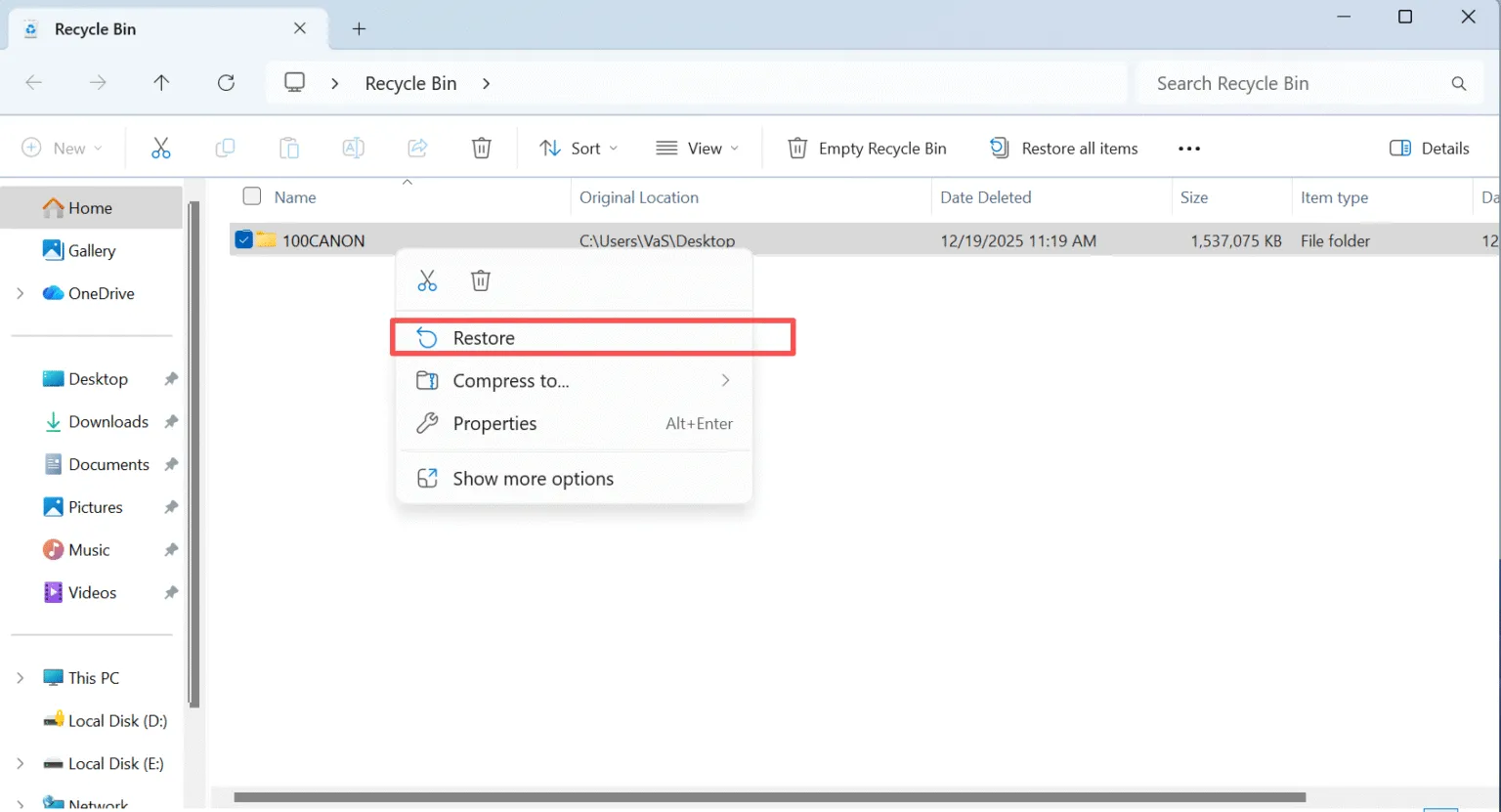
Si le fichier ne se trouve pas dans la corbeille, pas de panique. Il existe encore des moyens de le récupérer.
Méthode 2 : Utiliser l'historique des fichiers de Windows
Windows propose un outil intégré appelé Historique du dossier, qui peut vous aider à restaurer les fichiers perdus.
- Ouvrir le panneau de contrôle et naviguez jusqu'à Système et sécurité - Historique des fichiers.
- Sélectionner Restaurer des fichiers personnels. Vous verrez toutes les sauvegardes que vous avez effectuées avant la perte de données.
- Sélectionnez et restaurez les fichiers dont vous avez besoin.
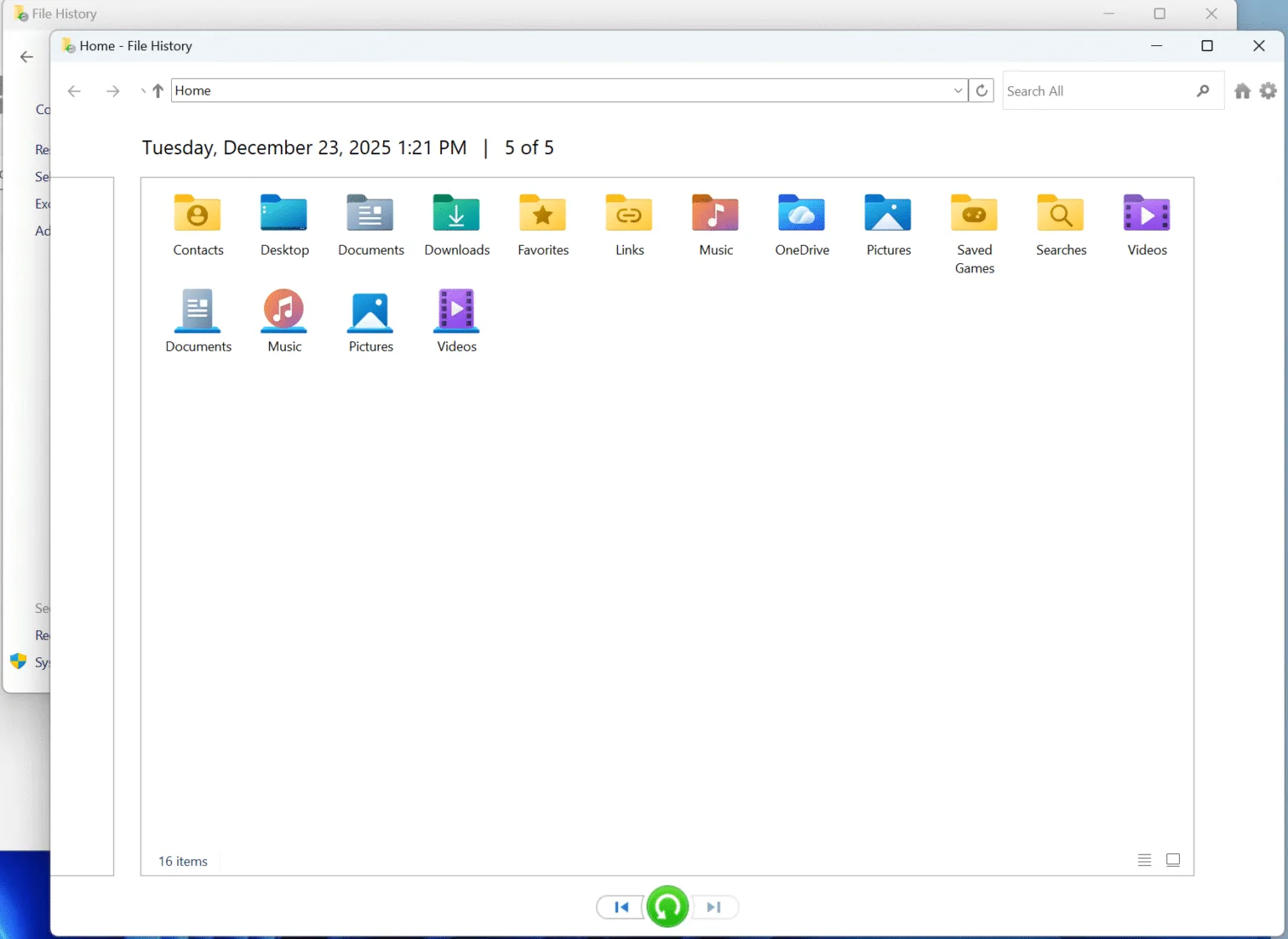
Si vous n'avez pas mis en place Historique du dossier auparavant, cette méthode ne fonctionnera pas. Mais si elle est activée, il s'agit de l'une des méthodes les plus simples pour restaurer des fichiers.
Méthode 3 : Récupération à l'aide d'une sauvegarde
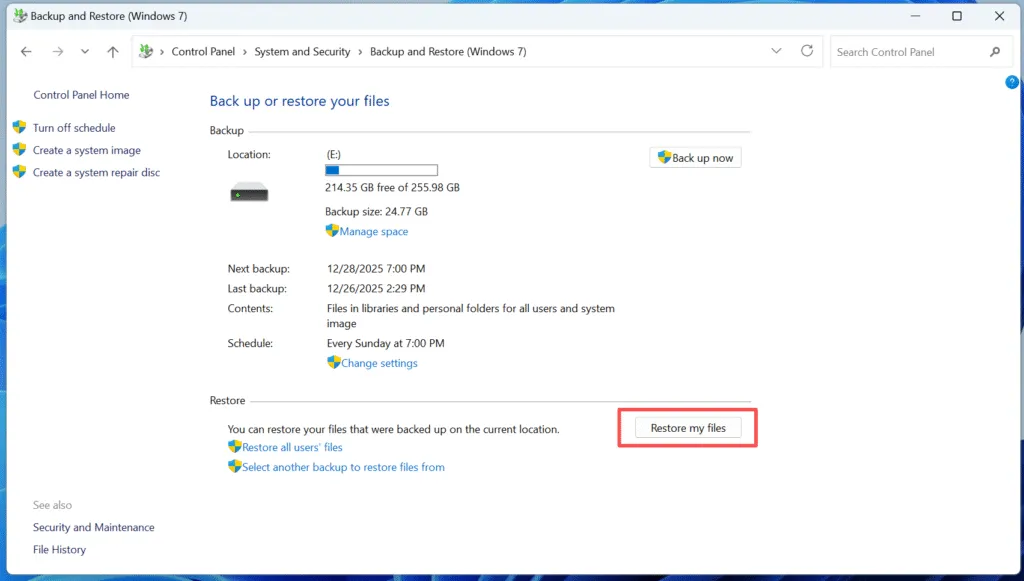
Si vous avez fait preuve de diligence pour sauvegarder vos fichiers à l'aide du logiciel Sauvegarde Windows, vous pouvez restaurer vos fichiers supprimés à partir d'une sauvegarde précédente.
- Ouvrir Panneau de contrôle et se rendre sur le site Système et sécurité > Sauvegarde et restauration (Windows 7).
- Cliquez sur Restaurer mes fichiers et suivez les invites pour sélectionner votre sauvegarde et récupérer les fichiers dont vous avez besoin.
Méthode 4 : Utiliser un logiciel de récupération de données après une suppression permanente
Si vous avez supprimé vos fichiers de façon permanente (en vidant la corbeille ou en utilisant la fonction Maj + Suppr), la récupération peut s'avérer plus difficile. Magic Data Recovery est un excellent outil pour vous aider à récupérer les fichiers supprimés qui ne se trouvent plus dans la corbeille.
Récupérer les fichiers supprimés de Windows à l'aide de Magic Data Recovery
Magic Data Recovery est un outil puissant qui peut analyser votre ordinateur à la recherche de fichiers définitivement supprimés et les restaurer en quelques étapes seulement. Voici comment l'utiliser :
Étape 1 : Télécharger et installer Magic Data Recovery
Commencez par télécharger Magic Data Recovery à partir du site officiel et en l'installant sur un disque différent de celui où se trouvaient les fichiers supprimés. Vous éviterez ainsi d'écraser accidentellement les fichiers supprimés, ce qui pourrait rendre leur récupération plus difficile.
Prise en charge de Windows 7/8/10/11 et Windows Server
Étape 2 : Sélectionner le disque dur externe à analyser
Dans l'interface principale, sélectionnez le disque dur sur lequel vous avez supprimé des fichiers et lancez une analyse.

Étape 3 : Recherche de fichiers supprimés sur le disque dur
Le logiciel effectue automatiquement une analyse avancée. Au cours de cette analyse, il détectera tous les fichiers pouvant être récupérés, y compris ceux qui ont été définitivement supprimés.

Étape 4 : Prévisualisation des fichiers supprimés avant la récupération
Une fois l'analyse terminée, utilisez la fonction Aperçu pour voir le contenu des fichiers trouvés. Cette étape garantit que vous ne récupérez que les fichiers dont vous avez réellement besoin, ce qui vous permet d'économiser du temps et de l'espace de stockage.

Étape 5 : Récupération des fichiers vers un emplacement sûr
Enfin, sélectionnez les fichiers que vous souhaitez récupérer et choisissez un autre lecteur pour les enregistrer. N'enregistrez PAS les fichiers sur le disque d'origine, car cela pourrait écraser les fichiers perdus.

Pourquoi Magic Data Recovery est la meilleure option pour récupérer les fichiers supprimés de Windows ?
Bien qu'il existe de nombreuses options pour récupérer les fichiers supprimés, Magic Data Recovery se distingue par ses fonctionnalités uniques et sa facilité d'utilisation.
- Technologie de balayage avancée: Contrairement à de nombreux autres outils, Magic Data Recovery utilise des algorithmes d'analyse avancés pour détecter les fichiers supprimés qui auraient pu être ignorés par des logiciels moins puissants.
- Fonction de prévisualisation: Vous pouvez prévisualiser les fichiers avant de les récupérer, ce qui vous permet de ne pas perdre de temps à récupérer des données inutiles.
- Prise en charge de plusieurs formats de fichiers: Le logiciel peut récupérer plus de 5 000 formats de fichiers, y compris des photos, des documents, des vidéos, etc.
- Sûre et sécurisée: Magic Data Recovery n'écrase pas vos fichiers pendant le processus de numérisation, ce qui réduit le risque de perte permanente de données.
Si vous souhaitez vraiment récupérer vos données perdues, vous pouvez le faire, Magic Data Recovery offre le meilleur équilibre entre vitesse, fiabilité et facilité d'utilisation.
Conclusion
Récupération des fichiers supprimés de Windows ne doit pas être une tâche décourageante. Vous pouvez certes utiliser des outils intégrés tels que la corbeille ou l'historique des fichiers, mais ils ne fonctionnent que si vous n'avez pas vidé la corbeille ou si vous avez effectué des sauvegardes avant la perte de données. La solution la plus efficace contre la perte de données est un outil tiers fiable comme Magic Data Recovery. Ce logiciel permet de récupérer facilement des fichiers qui semblaient perdus à jamais, garantissant ainsi la sécurité de vos données.
Prise en charge de Windows 7/8/10/11 et Windows Server
Windows Recover Deleted Files - FAQs
Comment récupérer des fichiers définitivement supprimés de Windows ?
Comment récupérer un fichier supprimé accidentellement ?
Est-il possible de récupérer des fichiers supprimés dans Windows 10 ?
Où vont les fichiers définitivement supprimés dans Windows ?
Puis-je encore récupérer des fichiers définitivement supprimés ?
Les fichiers définitivement supprimés sont-ils réellement effacés ?
Où trouver les fichiers supprimés qui ne se trouvent pas dans la corbeille ?
Les choses supprimées de l'espace récemment supprimé sont-elles à jamais perdues ?

Vasilii est un spécialiste de la récupération de données qui possède une dizaine d'années d'expérience pratique dans ce domaine. Tout au long de sa carrière, il a résolu avec succès des milliers de cas complexes impliquant des fichiers supprimés, des disques formatés, des partitions perdues et des systèmes de fichiers RAW. Son expertise couvre à la fois les méthodes de récupération manuelle à l'aide d'outils professionnels tels que les éditeurs hexagonaux et les solutions automatisées avancées à l'aide de logiciels de récupération. La mission de Vasilii est de rendre accessible aux professionnels de l'informatique et aux utilisateurs quotidiens des connaissances fiables en matière de récupération de données, afin de les aider à sauvegarder leurs précieuses ressources numériques.