콘텐츠로 건너뛰기
아매직소프트 로고 아이콘
  • 홈
  • 제품
    • Magic Data Recovery
    • Magic Recovery Key
  • 스토어
  • 블로그
  • 자세히 보기
    • 아마직소프트 소개
    • 문의하기
    • 개인정보 보호정책
    • 약관
    • 라이선스 계약
    • 환불 정책
  • 한국어
    • English
    • 日本語
    • Deutsch
    • Français
    • Español
    • 繁體中文
삭제된 파일 복구

Windows에서 삭제된 파일을 복구하는 입증된 방법
2025년 12월 28일 Vasilii 아직 댓글이 없습니다
Windows에서 삭제된 파일을 복구하는 입증된 방법

실수로 중요한 파일을 삭제하는 경우 from your computer can be a nightmare, especially when they seem to be lost forever. Whether it’s a document, photo, or video, the panic sets in once you have emptied the Recycle Bin . Fortunately, permanently deleted files aren’t always gone for good. In this guide, we’ll walk you through how to recover Windows deleted files efficiently, using both built-in Windows tools and third-party solutions like Magic Data Recovery.

Magic Data Recovery 다운로드

Windows 7/8/10/11 및 Windows Server 지원

파일을 복구할 수 있는지 궁금하신가요? 자세히 알아보기  아래의 빠른 확인을 통해 몇 초 만에 확인할 수 있습니다.

데이터 복구 평가
데이터 복구 확인 ▼

데이터 복구 평가

간단한 3가지 질문에 답하여 복구 가능성을 추정하세요.

1. 어떤 유형의 데이터 손실이 발생했나요?
실수로 삭제
서식 지정
파티션 손실
시스템 충돌
2. 분실 후 새로운 데이터를 작성했나요?
예
아니요
확실하지 않음
3. 데이터 손실은 어디에서 발생했나요?
HDD
SSD
USB 드라이브
SD 카드
복구 소프트웨어 다운로드

목차

How to Recover Deleted Files from Windows: Proven Methods

Method 1: Check the Recycle Bin

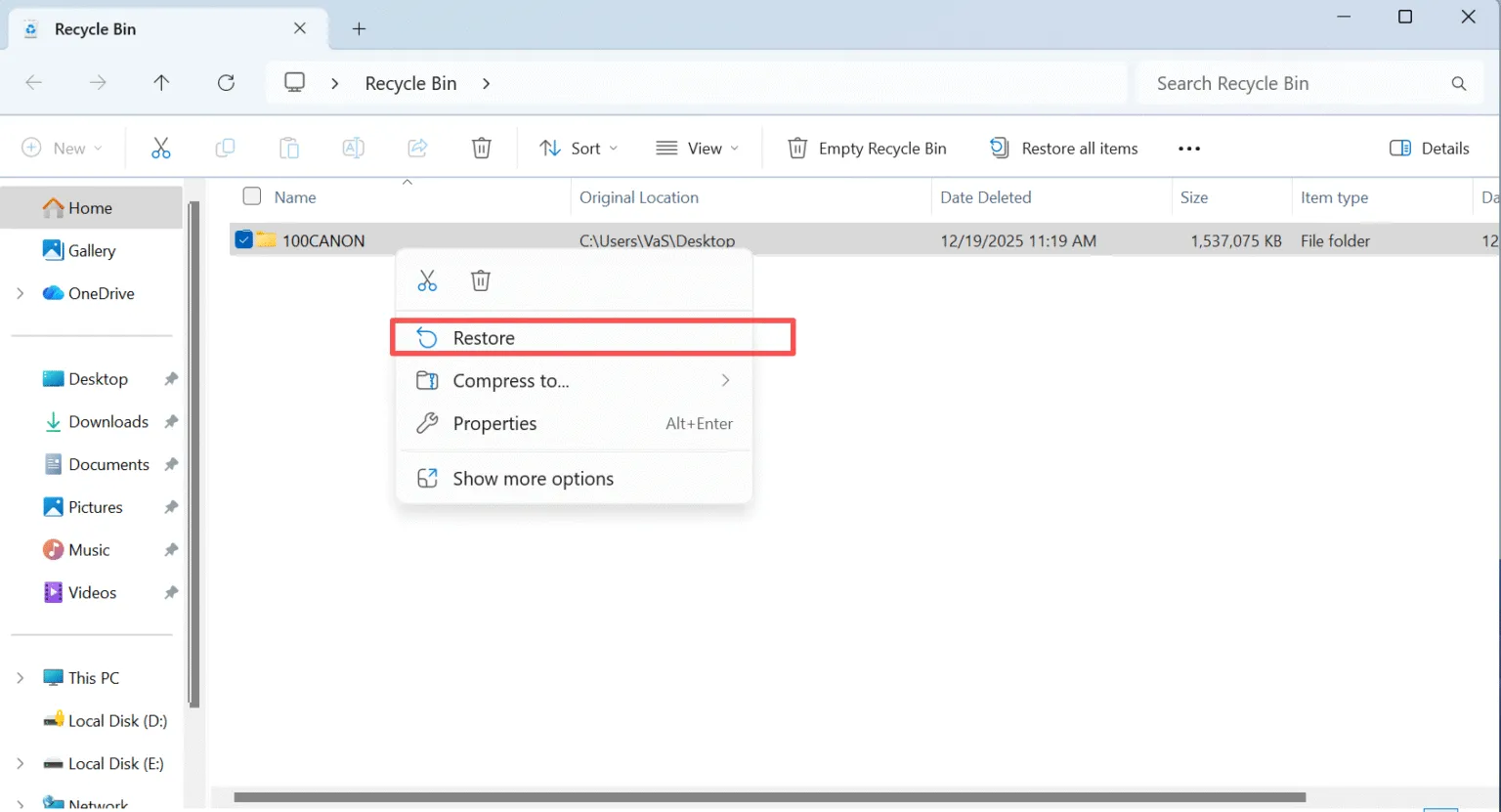
If you’ve accidentally deleted a file, the first place to check is the Recycle Bin. Windows moves deleted files to the Recycle Bin, where they remain until manually emptied.

  • Open the Recycle Bin by double-clicking its icon on your desktop.
  • 검색 for the file you want to recover.
  • 마우스 오른쪽 버튼 클릭 the file and select 복원 to return it to its original location.
windows-recover-deleted-files-from-recycle-bin

If the file isn’t in the Recycle Bin, don’t panic. There are still ways to retrieve it.

Method 2: Use Windows File History

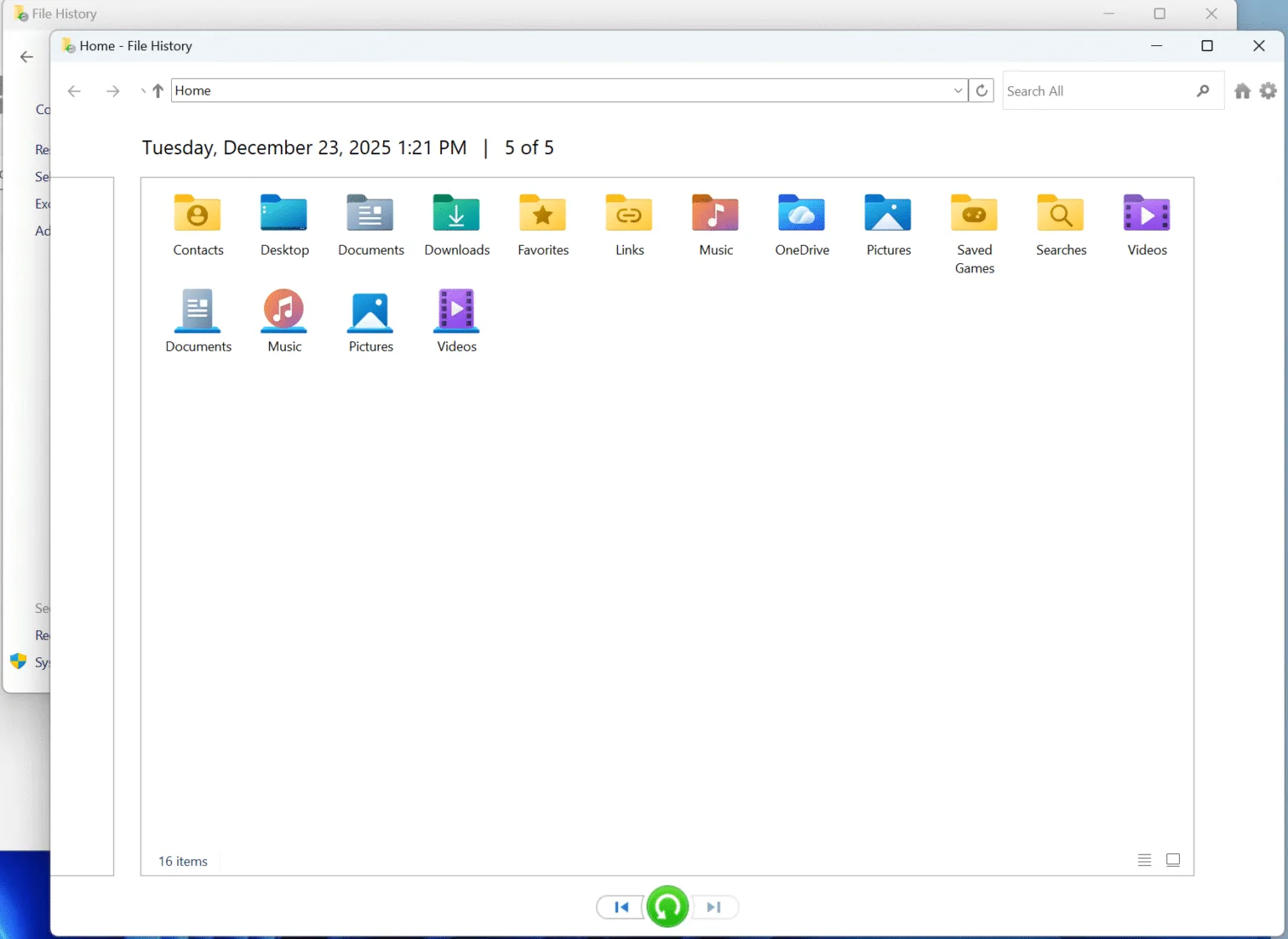
Windows offers a built-in tool called 파일 기록, which can help you restore lost files.

  • 제어판 열기 and navigate to System and Security — File History.
  • 선택 Restore personal files. You will see all the backups if you made before data loss.
  • Select and restore the files you need.
file-history

If you haven’t set up 파일 기록 previously, this method won’t work. But if you have it enabled, this is one of the easiest ways to restore files.

Method 3: Recover Using a Backup

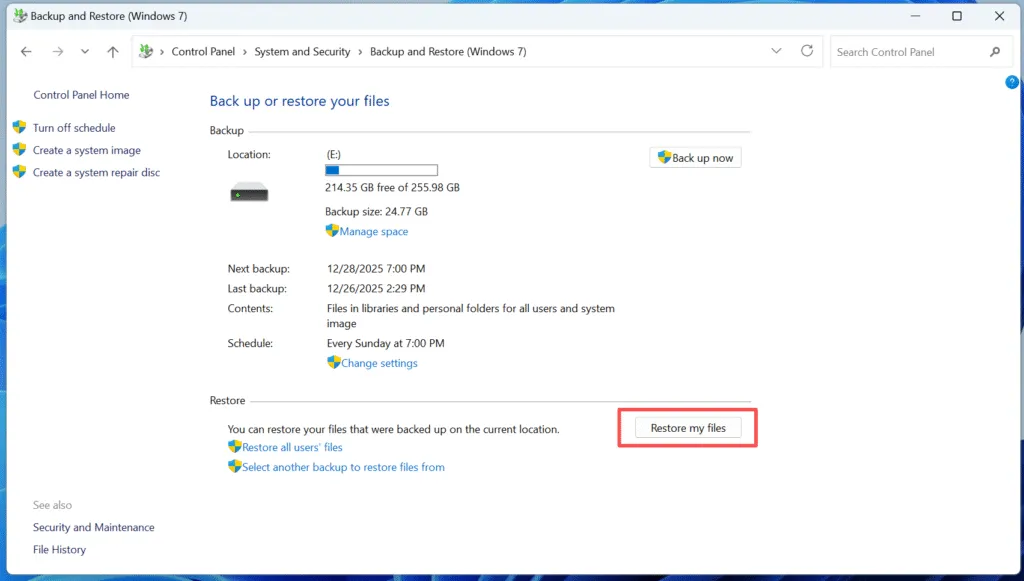
If you’ve been diligent about backing up your files using Windows 백업, you can restore your deleted files from a previous backup.

  • 열기 제어판 and go to 시스템 및 보안 > Backup and Restore (Windows 7).
  • 클릭 내 파일 복원 and follow the prompts to select your backup and recover the files you need.
windows-recover-deleted-files-from-backups

Method 4: Use Data Recovery Software After Permanent deletion

다음과 같은 경우 permanently deleted your files (i.e., emptied the 휴지통 or used Shift + 삭제), recovery can be more challenging. Magic Data Recovery is an excellent tool to help you recover deleted files that are no longer in the Recycle Bin.

Recover Windows Deleted Files Using Magic Data Recovery

Magic Data Recovery is a powerful tool that can scan your computer for 영구 삭제된 파일 and restore them in just a few steps. Here’s how to use it:

1단계: Magic Data Recovery 다운로드 및 설치

다운로드하여 시작하세요. Magic Data Recovery from the official website and installing it on a drive different from the one where your deleted files were located. This ensures that you don’t accidentally overwrite the deleted files, which could make recovery more difficult.

Magic Data Recovery 다운로드

Windows 7/8/10/11 및 Windows Server 지원

2단계: 스캔할 외장 하드 드라이브 선택

On the main interface, select the hard drive where you deleted files and start a scan.

마법 날짜 복구

3단계: 드라이브에서 삭제된 파일 검색하기

The software will automatically perform an Advanced Scan. During this scan, it will detect all the files that can be recovered, including those that are permanently deleted.

스캔 대기

4단계: 복구 전 삭제된 파일 미리보기

Once the scan is complete, use the Preview function to see the content of the files found. This step ensures that you recover only the files you actually need, saving you time and storage.

미리보기 파일

5단계: 파일을 안전한 위치로 복구하기

Finally, select the files you wish to recover and choose a different drive to save them. DO NOT save the files to the original drive, as this could overwrite the lost files.

파일 복구

Why Magic Data Recovery Is Your Best Option to Recover Windows Deleted Files

While there are many options available for recovering deleted files, Magic Data Recovery stands out due to its unique features and ease of use.

  • Advanced Scan Technology: Unlike many other tools, Magic Data Recovery uses advanced scanning algorithms to detect deleted files that might have been overlooked by less powerful software.
  • 미리보기 기능: You can preview files before recovery, ensuring that you don’t waste time recovering unnecessary data.
  • Multiple File Formats Supported: The software can recover over 5,000 file formats, including photos, documents, videos, and more.
  • Safe and Secure: Magic Data Recovery does not overwrite your files during the scanning process, reducing the risk of permanent data loss.

If you’re serious about recovering lost data, Magic Data Recovery offers the best balance of speed, reliability, and ease of use.

결론

Recovering deleted files from Windows doesn’t have to be a daunting task. While you can use built-in tools like the 휴지통 or File History, but they only works if you haven’t emptied the Recycle Bin or you made backups before data loss. The most effective solution for data loss is a reliable third-party tool like Magic Data Recovery. This software makes it easy to recover files that seem lost forever, ensuring that your data stays safe and secure.

Magic Data Recovery 다운로드

Windows 7/8/10/11 및 Windows Server 지원

Windows Recover Deleted Files – FAQs

1.How to recover permanently deleted files from Windows?

To recover permanently deleted files from Windows, you can use data recovery software like Magic Data Recovery or check for backups and previous versions.

2. 실수로 삭제한 파일은 어떻게 복구하나요?

You can recover accidentally deleted files from the Recycle Bin, File History, or by using a data recovery tool like Magic Data Recovery.

3.Is it possible to recover deleted files in Windows 10?

Yes, deleted files in Windows 10 can be recovered using tools like Magic Data Recovery, Windows File History, or previous backups.

4.Where do permanently deleted files go on Windows?

Permanently deleted files usually don’t go to the Recycle Bin. They are typically marked as free space and can be recovered using data recovery software.

5. 영구적으로 삭제된 파일도 복구할 수 있나요?

Yes, Magic Data Recovery can recover permanently deleted files as long as they haven’t been overwritten by new data.

6. 영구 삭제된 파일은 실제로 삭제되나요?

No, permanently deleted files aren’t truly gone. They remain on your hard drive until new data overwrites them. Magic Data Recovery can recover these files before that happens.

7.Where to find deleted files if not in the recycle bin?

If deleted files aren’t in the Recycle Bin, they can be found by using file recovery software like Magic Data Recovery.

8. 최근에 삭제한 항목은 영원히 삭제되나요?

Files deleted from the Recently Deleted folder in OneDrive or Dropbox can still be recovered with the help of file recovery tools like Magic Data Recovery.
  • Magic Data Recovery
Vasilii

바실리는 이 분야에서 약 10년간 실무 경험을 쌓은 데이터 복구 전문가입니다. 그는 경력 전반에 걸쳐 삭제된 파일, 포맷된 드라이브, 손실된 파티션 및 RAW 파일 시스템과 관련된 수천 건의 복잡한 사례를 성공적으로 해결했습니다. 그의 전문 지식은 헥스 에디터와 같은 전문 도구를 사용한 수동 복구 방법과 복구 소프트웨어를 사용한 고급 자동화 솔루션을 모두 다룹니다. 바실리의 사명은 IT 전문가와 일반 사용자 모두에게 신뢰할 수 있는 데이터 복구 지식을 제공하여 소중한 디지털 자산을 보호할 수 있도록 돕는 것입니다.

글 탐색

이전 게시물
다음

검색

카테고리

  • 비트 로커 복구
  • 삭제된 파일 복구
  • 디스크 문제 수정
  • 문서 복구
  • 포맷 파일 복구
  • 하드 드라이브 복구
  • 라이선스 키 복구
  • 손실된 파일 복구
  • 메모리 카드 복구
  • 뉴스
  • 비밀번호 복구
  • 사진 복구
  • SSD 복구
  • USB 드라이브 복구
  • 사용자 가이드
  • 비디오 복구
  • Wiki
  • Windows 문제 수정

최근 게시물

  • Restore Deleted Files from SD Card Free
    How to Restore Deleted Files from SD Card Free in 2026
  • Windows에서 삭제된 파일을 복구하는 입증된 방법
    Windows에서 삭제된 파일을 복구하는 입증된 방법
  • SD 드라이브가 인식되지 않음 6가지 입증된 복구 방법
    SD 드라이브가 인식되지 않음: 6가지 입증된 복구 방법

태그

CHKDSK 및 디스크 도구 디스크 복구 오류 문제 해결 방법 Magic Data Recovery Magic Recovery Key WiKi

관련 게시물

Restore Deleted Files from SD Card Free
삭제된 파일 복구

How to Restore Deleted Files from SD Card Free in 2026

2025년 12월 28일 Smith, Erin 아직 댓글이 없습니다

Losing important photos, videos, or documents from an SD card can be frustrating, especially when the files were deleted by mistake or lost after formatting. Fortunately, in many cases, it is still possible to restore deleted files from an SD card free using reliable recovery tools. This guide explains how SD card data recovery works, […]

30일 후에 삭제된 Dropbox 파일을 복원하는 방법
삭제된 파일 복구

30일 후에 삭제된 Dropbox 파일을 복원하는 방법

2025년 12월 27일 Vasilii How to Restore Deleted Dropbox Files After 30 Days에 댓글 닫힘

실수로 Dropbox에서 중요한 파일을 삭제한 경우, 특히 파일이 더 이상 “최근 삭제된 파일” 섹션에 없다는 사실을 알게 되면 스트레스를 받을 수 있습니다. 많은 사용자가 30일의 복구 기간이 지나고 나서야 삭제된 파일을 복원하기 위해 Dropbox를 검색하기 시작하는데, 이 때 상황이 훨씬 더 급박하게 느껴집니다. 좋은 소식은 삭제된 Dropbox 파일은 [...]

영구 삭제된 사진 복원
사진 복구

영구적으로 삭제된 사진을 복원하는 방법: 전체 가이드

2025년 12월 27일 Smith, Erin How to Restore Permanently Deleted Photos: Complete Guide에 댓글 닫힘

특히 휴지통에서 삭제되었거나 포맷 후 손실되었거나 파일 시스템 오류로 인해 영구 삭제된 사진을 복원해야 할 때 중요한 이미지를 잃어버리는 것은 실망스러운 일이 될 수 있습니다. 많은 상황에서 사용자들은 사진이 영구 삭제되면 더 이상 복구할 수 없다고 생각합니다. 실제로는 삭제된 사진이 저장소에 남아 있는 경우가 많습니다 [...]

아매직소프트 로고 아이콘

당사의 비전은 사용자에게 최고 수준의 제품과 서비스를 제공하는 세계적으로 유명한 소프트웨어 브랜드 및 서비스 제공업체가 되는 것입니다.

제품
  • Magic Data Recovery
  • Magic Recovery Key
정책
  • 약관
  • 개인정보 보호정책
  • 환불 정책
  • 라이선스 계약
회사
  • 아마직소프트 소개
  • 문의하기
  • 스토어
팔로우하기

저작권 © 2025 아마직소프트. 모든 권리 보유.

  • 약관
  • 개인정보 보호정책