
Settori danneggiati sul disco rigido: Correzioni e recupero dati
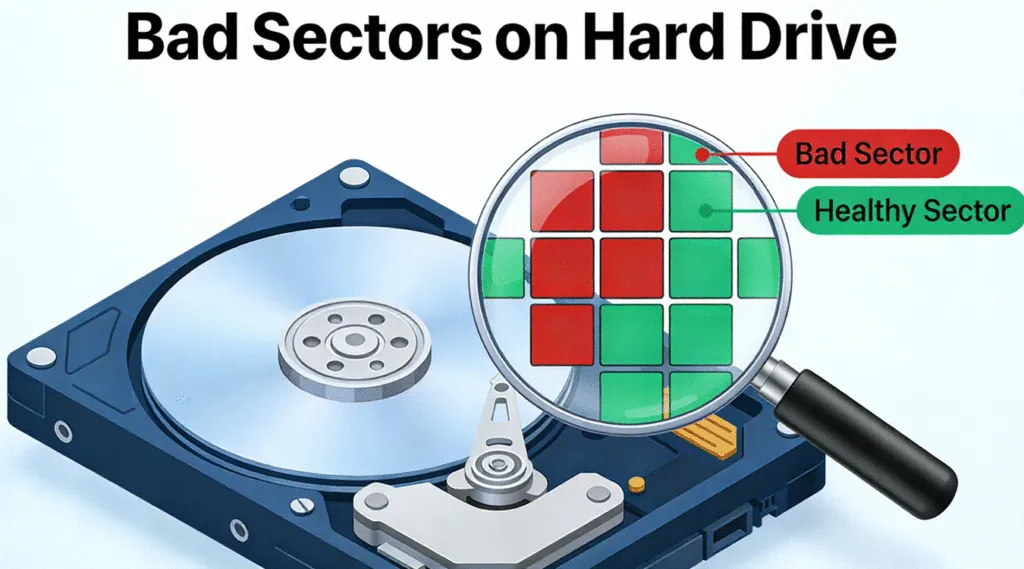
Un computer lento, file danneggiati, errori di lettura ricorrenti o un disco rigido che si blocca durante il trasferimento dei file potrebbero indicare settori danneggiati sul disco rigido. Sebbene un settore danneggiato non comporti sempre un guasto immediato dell'unità, un numero crescente di settori danneggiati può causare il danneggiamento dei file, prestazioni instabili e la perdita definitiva dei dati perdita di dati.
Il segreto sta nel scegliere la risposta giusta. Alcuni settori logici danneggiati può derivare da problemi del file system e talvolta può essere risolto. Al contrario, settori danneggiati fisici indicano un danno al supporto o all'hardware che il software non è in grado di riparare in modo definitivo. Pertanto, se l'unità contiene file importanti, è opportuno dare priorità alla protezione o al recupero dei dati piuttosto che a tentativi di riparazione aggressivi.
Questa guida spiega quali sono le cause settori danneggiati sul disco rigido, come controllarli con SMART e CHKDSK, quali interventi di riparazione siano appropriati e quando la sostituzione diventi la soluzione più sicura.
Indice dei contenuti
Cosa sono Settori danneggiati sul disco rigido?
Un disco rigido memorizza i dati in piccole unità indirizzabili chiamate settori. A seconda della struttura del disco, Windows può utilizzare settori logici da 512 byte, settori fisici da 4K o settori nativi da 4K.
Normalmente, l'HDD è in grado di leggere e scrivere in queste posizioni senza difficoltà. Tuttavia, quando un settore diventa inaffidabile o illeggibile, il sistema potrebbe considerarlo come un settore negativo.
In pratica, settori danneggiati sul disco rigido può causare diversi problemi:
- I file potrebbero risultare danneggiati o illeggibili.
- Il trasferimento dei file potrebbe interrompersi in modo imprevisto.
- Windows potrebbe segnalare errori CRC o errori del disco.
- Le applicazioni potrebbero bloccarsi durante l'accesso all'unità.
- L'HDD potrebbe diventare insolitamente lento.
- Le informazioni sanitarie SMART potrebbero presentare un numero crescente di errori.
Tuttavia, non tutti i settori danneggiati hanno la stessa causa. Comprendere la differenza tra danno logico e danno fisico aiuta a decidere se valga la pena tentare una riparazione.
Tipi di Settori danneggiati sul disco rigido
Settori danneggiati logici o "soft"
Settori logici danneggiati, talvolta denominato settori danneggiati soft, si verificano quando l'area di archiviazione rimane fisicamente utilizzabile, ma Windows non è in grado di accedere in modo affidabile al suo contenuto.
Le cause più comuni includono:
- Arresto improprio
- Improvvisa perdita di potenza
- Danneggiamento del file system
- Operazioni di scrittura interrotte
- Il software si blocca durante l'attività del disco
- Metadati del file system errati
Poiché la superficie del disco potrebbe essere ancora integra, a volte il software è in grado di correggere l'errore logico sottostante.
Settori difettosi fisici o "hard"
Settori danneggiati fisici riguardano problemi effettivi relativi ai supporti di memorizzazione o all'hardware dell'unità.
Tra le possibili cause figurano:
- Deterioramento della superficie dell'HDD
- Invecchiamento meccanico
- Difetti di produzione
- Urti fisici
- Calore eccessivo
- Danni alla testina o al piatto
- Uso prolungato
Il software non è in grado di ripristinare supporti magnetici danneggiati fisicamente. Tuttavia, il firmware dell'unità può talvolta rimappare un settore inaffidabile in una posizione di riserva.
Pertanto, un disco su cui continuano a formarsi settori danneggiati non dovrebbe essere utilizzato per i dati importanti.
Tipo di settore danneggiato | Causa tipica | Si può risolvere? | Azione raccomandata |
Settore difettoso logico | Errore del file system o di scrittura | A volte | Ripristina o esegui il backup, quindi ripara |
Settore difettoso fisico | Danni ai supporti o all'hardware | Non è una vera riparazione | Recuperare i dati e sostituire l'HDD |
Settore riallocato | Il firmware dell'unità ha rilevato un problema | Rimappato internamente | Monitorare SMART ed eseguire il backup |
Aumento dei settori danneggiati | Guasto progressivo del sistema di trasmissione | Di solito non è sicuro | Sostituire l'unità |
Quali sono le cause Settori danneggiati sul disco rigido?
Diversi fattori possono causare settori danneggiati sul disco rigido, e a volte si verificano più problemi contemporaneamente.
Invecchiamento e usura normale
I dischi rigidi meccanici contengono componenti mobili. Nel corso di molti anni di funzionamento, i loro piatti, le testine, i cuscinetti e altri componenti possono deteriorarsi.
Pertanto, un disco rigido (HDD) ormai vecchio che improvvisamente inizia a segnalare settori danneggiati merita un attento monitoraggio.
Perdita improvvisa di potenza
Se si verifica un'interruzione di corrente mentre l'unità sta scrivendo dati, le informazioni del file system potrebbero diventare incoerenti. Di conseguenza, Windows potrebbe segnalare errori logici del disco o aree illeggibili.
L'utilizzo di un alimentatore affidabile o di un UPS può ridurre questo rischio.
Shock fisico
La caduta di un disco rigido esterno mentre è in funzione può causare danni molto più gravi. Ad esempio, la testina di lettura/scrittura potrebbe entrare in contatto con la superficie del piatto.
Se un disco rigido inizia a emettere rumori simili a scatti o stridii dopo una caduta, smettete di utilizzarlo invece di eseguire ripetutamente operazioni di scansione.
Danneggiamento del file system
NTFS, FAT32, o exFAT I metadati possono danneggiarsi anche quando il disco rigido rimane fisicamente integro. In questi casi, Windows potrebbe comportarsi come se alcune aree fossero inaccessibili.
Gli strumenti di riparazione logica possono essere d’aiuto, ma è necessario mettere al sicuro prima i file importanti.
Caldo eccessivo
Il calore può ridurre la durata dei componenti elettronici e meccanici. Pertanto, un buon ricircolo dell'aria e temperature di funzionamento adeguate contribuiscono a ridurre i problemi legati allo stoccaggio a lungo termine.
Segni comuni di Settori danneggiati sul disco rigido
Di norma non è possibile individuare un settore danneggiato osservando direttamente l'unità. È invece necessario prestare attenzione alla comparsa di sintomi ricorrenti.
I segnali di allarme più comuni includono:
- I file improvvisamente non si aprono più.
- La copia di file di grandi dimensioni si interrompe o si blocca.
- Windows visualizza un Controllo di ridondanza ciclico (CRC) errore.
- Le cartelle scompaiono o diventano inaccessibili.
- L'HDD emette dei rumori di clic insoliti.
- Windows impiega molto più tempo ad avviarsi.
- Le applicazioni si bloccano durante il caricamento dei file.
- Le utilità SMART segnalano i settori in sospeso o riassegnati.
- L'unità si disconnette ripetutamente.
- Windows richiede inaspettatamente la formattazione.
Un singolo errore non dimostra che tu abbia settori danneggiati sul disco rigido. Tuttavia, la comparsa contemporanea di diversi sintomi giustifica l'esecuzione immediata di un backup e di un controllo dello stato del disco.
Come controllare Settori danneggiati sul disco rigido
Prima di provare a risolvere il problema, valuta se si tratta di un problema logico o fisico.
Metodo 1: Verifica delle informazioni SMART
SMART (Self-Monitoring, Analysis and Reporting Technology) registra le informazioni relative allo stato di salute segnalate dall'unità.
Tra gli attributi utili possono figurare:
- Numero di settori riallocati
- Numero attuale di settori in sospeso
- Numero di settori non correggibili offline
- Errori irrimediabili segnalati
Un settore riallocato indica che l'HDD ha sostituito una posizione fisica problematica con una proveniente dalla propria area di riserva.
Nel frattempo, un settore in sospeso rimane instabile poiché l'unità non ha ancora confermato di poterlo leggere o riscrivere in modo affidabile.
Non giudicare un disco rigido (HDD) basandoti esclusivamente su un singolo valore SMART grezzo, poiché i produttori potrebbero interpretare gli attributi in modo diverso. Presta invece attenzione agli avvisi e ai valori che continuano ad aumentare.
Metodo 2: Utilizzare la funzione di controllo degli errori di Windows
Windows offre una semplice opzione grafica per il controllo del disco.
- Aperto Esplora file.
- Selezionare Questo PC.
- Fare clic con il tasto destro del mouse sull'unità interessata.
- Scegliere Proprietà.
- Aprire la sezione Strumenti scheda.
- Trova Controllo degli errori.
- Cliccare Controllo.
Windows stabilirà se il file system richiede ulteriori controlli.
Questo metodo funziona bene per gli errori logici di routine. Tuttavia, se l'HDD si sta scollegando, emette rumori insoliti o contiene file insostituibili, è consigliabile recuperare i dati prima di eseguire scansioni approfondite.
Metodo 3: Controllare l'unità con CHKDSK
È inoltre possibile esaminare un'unità locale tramite un Prompt dei comandi con privilegi elevati.
Inizia con:
chkdsk X:
Sostituire X: con la lettera di unità corretta.
In assenza di parametri di riparazione, CHKDSK si limita principalmente a controllare il volume e a segnalarne lo stato.
Dopo aver protetto i file importanti, puoi utilizzare:
chkdsk X: /f /r
Il /f Questo parametro corregge gli errori del file system. Inoltre, Microsoft spiega che /r individua i settori danneggiati e cerca di recuperare le informazioni leggibili da essi.
Tuttavia, questo non Ciò significa che CHKDSK ripara fisicamente le superfici danneggiate dei piatti.
Come risolvere Settori danneggiati sul disco rigido In modo sicuro
La soluzione più sicura dipende dalla causa del problema.
Soluzione 1: recuperare o eseguire prima il backup dei dati importanti
Prima di modificare il file system, poniti una domanda:
Mi serve qualcosa da questa chiavetta?
Se la risposta è sì, proteggi innanzitutto quei file.
Questo approccio incentrato sul recupero è importante perché le operazioni di riparazione modificano il file system. Inoltre, un disco con problemi meccanici potrebbe subire un ulteriore deterioramento a causa delle ripetute scansioni.
Una regola utile è:
Prima recuperare → verificare i file recuperati → poi riparare.
Soluzione 2: Riparazione degli errori logici del file system
Se l'HDD sembra in buone condizioni dal punto di vista meccanico e il problema è di natura logica, lo strumento di controllo degli errori di Windows o CHKDSK possono correggere le incongruenze del file system.
Ad esempio:
chkdsk X: /f
è in grado di correggere gli errori dei file system supportati.
Se hai bisogno che Windows cerchi specificatamente i settori illeggibili dopo aver protetto i dati, usa:
chkdsk X: /f /r
Tuttavia, non eseguire ripetutamente CHKDSK su un disco fisico instabile.
Soluzione 3: Lasciare che sia l'unità a gestire la rimappatura dei settori
Il firmware dei moderni dischi rigidi è in grado di identificare determinati settori inaffidabili e di reindirizzare i futuri accessi verso settori di riserva.
Questo processo è noto come rimappatura dei settori oppure una riallocazione.
È importante sottolineare che le utility di terze parti per i dischi possono aiutare a individuare le aree danneggiate e a leggere le informazioni SMART, ma di norma è il firmware dell’HDD stesso a eseguire la rimappatura fisica.
Pertanto, la rimappatura non va confusa con la riparazione di supporti magnetici danneggiati.
Soluzione 4: Sostituire un'unità che presenta danni fisici sempre più gravi
Se i valori SMART continuano a peggiorare o se compaiono ulteriori settori danneggiati, la sostituzione rappresenta la soluzione più sicura a lungo termine.
Dovresti inoltre interrompere le riparazioni fai-da-te quando l'unità:
- Clic o cigolii
- Si disconnette ripetutamente
- Si ferma girando normalmente
- Scompare da “Gestione disco”
- Diventa estremamente lento durante ogni operazione di lettura
In quel caso, ricorrere a un servizio professionale di recupero dati potrebbe essere più sicuro, soprattutto se i file hanno un valore elevato.
Recuperare i dati prima di procedere alla riparazione Settori danneggiati sul disco rigido
A volte il problema principale non è il settore danneggiato in sé. Gli utenti si rendono invece conto che documenti, foto, video o intere cartelle non sono più accessibili.
Se Windows continua a rilevare l'HDD e non vi sono segni evidenti di gravi guasti meccanici, Magic Data Recovery offre una soluzione pratica per il recupero dei dati prima di formattare o riparare l'unità.
Il software risolve diversi problemi ricorrenti legati al recupero dei dati:
- File persi o cancellati
- Partizioni formattate
- Partizioni perse
- Spazio di archiviazione RAW o inaccessibile
- File mancanti dai dischi rigidi e da altri dispositivi di archiviazione supportati
- Diversi formati di documenti, foto, video, audio e file di archivio
Un altro vantaggio è la facilità d’uso. Anziché richiedere agli utenti comuni di utilizzare complessi editor di settori o strumenti di recupero da riga di comando, Magic Data Recovery offre un flusso di lavoro grafico che consente di eseguire la scansione dello spazio di archiviazione, visualizzare in anteprima i file recuperabili e salvare i dati selezionati.

È meglio riparare o sostituire il disco rigido?
Per prendere la decisione, basati sulle condizioni dell’unità piuttosto che sulla praticità.
Situazione | Il passo successivo migliore |
Errori logici di minore entità | Eseguire il backup, quindi riparare |
Alcuni avvisi SMART stabili | Eseguire il backup e monitorare attentamente |
I file non sono presenti, ma l'unità viene rilevata | Recuperare prima i dati |
Sistema di file RAW | Prima recupera i dati, poi ripara o formatta il disco |
I settori in sospeso continuano ad aumentare | Sostituire il disco rigido |
I settori riassegnati continuano ad aumentare | Sostituire il disco rigido |
Rumori simili a scricchiolii o stridii | Smetti di usare l'unità |
L'unità si disconnette ripetutamente | Riprenditi o chiedi aiuto a un professionista |
Anche se un disco rigido danneggiato torna a funzionare dopo l'esecuzione di CHKDSK, non affidargli automaticamente l'unica copia dei tuoi file importanti.
Come prevenire Settori danneggiati sul disco rigido
Non è possibile prevenire ogni guasto hardware. Tuttavia, seguire buone pratiche di archiviazione riduce i rischi superflui.
- Chiudi correttamente Windows.
- Evitare di scollegare i dischi rigidi durante il trasferimento dei file.
- Proteggi le unità esterne da cadute e urti.
- Utilizzare un gruppo di continuità (UPS) nei luoghi in cui si verificano spesso interruzioni improvvise di corrente.
- Garantire un raffreddamento adeguato.
- Controlla periodicamente SMART Health.
- Conserva almeno una copia di backup separata dei file importanti.
- Sostituire le unità obsolete quando gli indicatori di stato si deteriorano.
Soprattutto, non considerare mai un singolo disco rigido fisico come una strategia di backup completa.
Conclusione
Quando scopri settori danneggiati sul disco rigido, la protezione dei dati dovrebbe avere la priorità rispetto al tentativo di ripristinare il funzionamento del disco rigido. Gli errori logici possono essere risolti tramite la funzione di controllo degli errori di Windows o il comando CHKDSK, mentre i settori danneggiati fisicamente non possono essere realmente riparati e potrebbero indicare un’unità in via di guasto.
Pertanto, inizia verificando i sintomi e lo stato SMART. Se mancano file importanti ma Windows riesce comunque a rilevare l'unità, recuperali prima di formattare, eseguire operazioni di riparazione aggressive o sostituire il disco.
Per questi perdita logica dei dati situazioni, Magic Data Recovery è consigliato perché combina la scansione dell'HDD, l'anteprima dei file, un ampio supporto di tipi di file e un flusso di lavoro di recupero intuitivo per gli utenti Windows comuni. Ma soprattutto, garantisce una maggiore sicurezza prima il recupero, poi la riparazione una strategia piuttosto che incoraggiare gli utenti a riparare un disco difettoso prima di proteggere i propri file.
Infine, sostituite qualsiasi disco rigido (HDD) che presenti un numero crescente di settori danneggiati. Nessuna soluzione software è più importante del conservare i propri dati su un supporto di archiviazione affidabile.
Supporta Windows 7/8/10/11 e Windows Server
FAQ
È possibile riparare i settori danneggiati di un disco rigido?
CHKDSK è in grado di riparare definitivamente i settori danneggiati?
Quanti settori danneggiati sono accettabili su un disco rigido?
I settori danneggiati possono diffondersi nel tempo?
I settori danneggiati possono causare una perdita definitiva dei dati?
È il caso di sostituire un disco rigido che presenta settori danneggiati?
È possibile recuperare i dati da un disco rigido con settori danneggiati?

Vasilii è uno specialista del recupero dati con circa 10 anni di esperienza pratica nel settore. Nel corso della sua carriera, ha risolto con successo migliaia di casi complessi riguardanti file cancellati, unità formattate, partizioni perse e file system RAW. La sua esperienza copre sia i metodi di recupero manuale utilizzando strumenti professionali come gli editor esadecimali, sia le soluzioni automatiche avanzate con i software di recupero. La missione di Vasilii è quella di rendere accessibile la conoscenza del recupero dati affidabile sia ai professionisti IT che agli utenti di tutti i giorni, aiutandoli a salvaguardare i loro preziosi beni digitali.