
Che cos'è il file system FAT32
File system FAT32 (File Allocation Table 32) è un file system per dischi introdotto da Microsoft nel 1996 come estensione dell'architettura FAT originale. Utilizza una tabella di allocazione dei file a 32 bit per organizzare l'archiviazione dei dati, consentendo un utilizzo dello spazio più efficiente rispetto a FAT16 garantendo al contempo un’ampia compatibilità tra i vari sistemi operativi, i dispositivi elettronici di consumo e i dispositivi integrati.
Il File system FAT32 è ancora comunemente utilizzato su chiavette USB, schede SD, fotocamere, console di gioco, supporti di avvio e altri dispositivi di archiviazione rimovibili in cui la compatibilità è importante. Il suo principale limite è che un singolo file non può superare i 4 GB di dimensione. Pertanto, FAT32 rimane utile per l’archiviazione su più dispositivi, ma i file system più recenti, come exFAT e NTFS, sono spesso più adatti ai file di grandi dimensioni e ai computer moderni.
Indice dei contenuti
Come funziona il file system FAT32
Il File system FAT32 organizza i dati utilizzando una tabella di allocazione dei file (File Allocation Table, o FAT), che tiene traccia dei cluster associati a ciascun file. Un cluster è un gruppo di settori del disco di dimensioni fisse, utilizzato come unità di allocazione di base per la memorizzazione dei dati.
Il sistema FAT32 conserva solitamente due copie della tabella di allocazione dei file (FAT). La copia aggiuntiva garantisce la ridondanza nel caso in cui una delle due FAT risulti danneggiata, sebbene non debba essere considerata un backup completo del file system.
Ogni file può occupare uno o più cluster. Quando un file si estende su più cluster, il sistema FAT32 li registra come una catena di cluster. Il sistema legge le voci nella tabella di allocazione dei file (FAT) per determinare quale sia il cluster successivo, fino a raggiungere la fine del file.
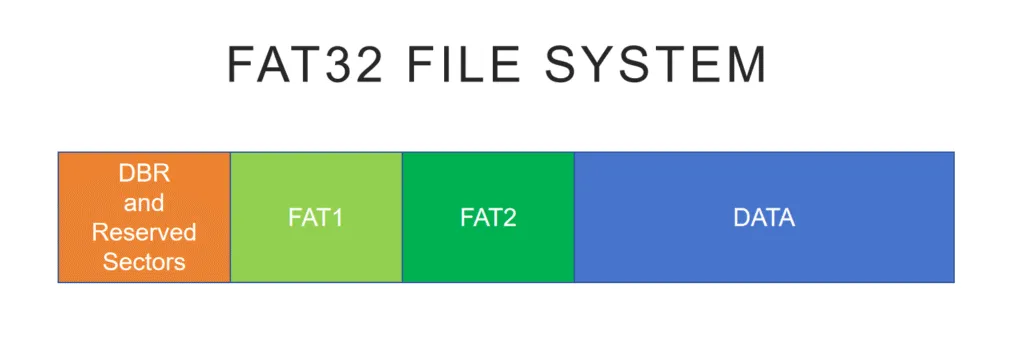
Quando il sistema operativo legge un file, utilizza le informazioni contenute nella directory per individuare il cluster iniziale del file e poi segue la catena di cluster registrata nella tabella FAT.
Rispetto a FAT16, FAT32 è in grado di gestire un numero significativamente maggiore di cluster. Ciò consente di utilizzare cluster di dimensioni inferiori su volumi più grandi e può ridurre lo spazio di archiviazione sprecato.
Limiti di dimensione e di volume del file system FAT32
Una delle caratteristiche più importanti del File system FAT32 è il suo Limite di 4 GB per la dimensione di ogni singolo file.
Tecnicamente, la dimensione massima di un singolo file FAT32 è 4 GiB meno 1 byte, ovvero 4.294.967.295 byte. Nell'uso quotidiano, questo valore viene comunemente indicato come il Limite di dimensione dei file di 4 GB in FAT32.
Questa limitazione deriva dal campo a 32 bit senza segno utilizzato per memorizzare la dimensione del file in una voce di directory FAT standard. Pertanto, il limite di 4 GB del FAT32 comunemente citato si riferisce alla dimensione di un singolo file piuttosto che alla capacità totale del dispositivo di archiviazione.
Ad esempio, una chiavetta USB da 128 GB formattata in FAT32 può contenere molti gigabyte di dati, ma non è possibile copiarvi un singolo file video da 6 GB.
La dimensione del volume è una questione a sé stante. Con i settori da 512 byte comunemente utilizzati, i volumi FAT32 hanno in genere una capacità massima di circa 2 TB. Il limite pratico può variare a seconda della dimensione del settore, della configurazione dei cluster, del sistema operativo e dello strumento utilizzato per creare il file system.
In breve:
- Dimensione massima di un singolo file: Circa 4 GB
- Volume FAT32: Può essere molto più grande di 4 GB
- Limite di formattazione: Dipende in parte dal sistema operativo e dall'utilità di formattazione
Questa distinzione è importante quando si sceglie il formato FAT32 per i dispositivi di archiviazione moderni.
Perché il file system FAT32 è ancora ampiamente utilizzato
Sebbene i file system più recenti, come NTFS e exFAT offrono supporto per file di dimensioni maggiori e funzionalità più avanzate, il File system FAT32 rimane rilevante per diversi motivi pratici.
- Compatibilità universale: Il formato FAT32 è supportato da Windows, macOS, Linux, fotocamere, smart TV, console di gioco, lettori multimediali e numerosi sistemi embedded.
- Spese generali ridotte: Grazie alla sua struttura relativamente semplice, il sistema di file FAT32 è adatto ai supporti di memorizzazione rimovibili e alle apparecchiature con risorse limitate.
- Supporto per l'avvio e il firmware: Molti ambienti BIOS, UEFI, di ripristino e di aggiornamento del firmware supportano o richiedono supporti formattati in FAT32.
- Supporto per dispositivi meno recenti: I dispositivi meno recenti potrebbero riconoscere il formato FAT32 anche se non sono in grado di leggere i formati exFAT o NTFS.
Di conseguenza, il FAT32 è ancora ampiamente utilizzato quando la compatibilità è più importante delle funzionalità avanzate del file system.
Quando è consigliabile utilizzare il file system FAT32?
Il File system FAT32 rimane una scelta ragionevole quando:
- Una fotocamera, una smart TV, una console per videogiochi, un sistema multimediale per auto o altri dispositivi richiedono specificatamente il file system FAT32.
- Si sta creando un supporto di avvio o di aggiornamento del firmware compatibile.
- Una chiavetta USB deve funzionare sia con i dispositivi più recenti che con quelli meno recenti.
- Non è necessario archiviare singoli file di dimensioni superiori a 4 GB.
- La compatibilità multipiattaforma è più importante delle funzionalità di sicurezza avanzate.
Tuttavia, il formato FAT32 è generalmente meno indicato nei seguenti casi:
- Lavori regolarmente con video, immagini disco, archivi o altri file di dimensioni superiori a 4 GB.
- Si sta formattando un sistema Windows o un'unità interna.
- Sono necessari i permessi sui file, la crittografia o il journaling.
- Gli SSD esterni di grandi dimensioni vengono utilizzati soprattutto con i computer di ultima generazione.
- I tuoi dispositivi supportano già il formato exFAT.
In questi casi, i file system exFAT o NTFS offrono solitamente un ambiente di archiviazione più pratico.
FAT32 vs NTFS
Sia FAT32 che NTFS sono file system Microsoft, ma sono stati progettati per scopi diversi.
Caratteristica | FAT32 | NTFS |
Dimensione massima di un singolo file | Circa 4 GB | Supporta file di dimensioni molto maggiori |
Utilizzo tipico | Chiavette USB, schede SD, supporti rimovibili | Unità interne e di sistema di Windows |
Diario | No | Sì |
Permessi | No | Sì |
Crittografia del file system | No | Sì |
Supporto multipiattaforma | Eccellente | Più limitato al di fuori di Windows |
Supporto per dispositivi meno recenti | Eccellente | Limitato |
FAT32 privilegia la compatibilità e la semplicità, mentre NTFS pone maggiore enfasi su affidabilità, sicurezza, autorizzazioni, journaling e supporto per le moderne soluzioni di archiviazione di Windows.
Per un disco rigido (HDD) o un SSD interno di Windows, il file system NTFS è generalmente più indicato. Tuttavia, il file system FAT32 può comunque essere preferibile per i supporti di archiviazione rimovibili che devono funzionare con fotocamere, televisori, console di gioco, strumenti per il firmware o dispositivi meno recenti.
FAT32 vs exFAT vs NTFS
Per quanto riguarda i supporti di archiviazione rimovibili moderni, è utile anche confrontare File system FAT32 sia con exFAT che con NTFS.
Caratteristica | FAT32 | exFAT | NTFS |
Ideale per | Massima compatibilità con i dispositivi | Soluzioni moderne di archiviazione rimovibile | Memoria interna di Windows |
File di dimensioni superiori a 4 GB | No | Sì | Sì |
Diario | No | No | Sì |
Lettura/scrittura su Windows | Sì | Sì | Sì |
macOS in lettura/scrittura | Sì | Sì | Supporto limitato alla scrittura su file system NTFS nativo |
Permessi dei file | No | No | Sì |
Dispositivi tipici | USB, SD, fotocamere, supporti per firmware | USB, SDXC, SSD esterni | Dischi rigidi e SSD per Windows |
Scegliere File system FAT32 quando è richiesta la massima compatibilità o un dispositivo richiede specificatamente il file system FAT32.
Scegliere exFAT quando hai bisogno di un supporto di archiviazione rimovibile in grado di contenere file di dimensioni superiori a 4 GB, pur rimanendo compatibile con i moderni computer Windows e macOS.
Scegliere NTFS principalmente per le unità interne di Windows o per i dispositivi di archiviazione che traggono vantaggio dal journaling, dai permessi, dalla crittografia e da altre funzionalità specifiche di Windows.
Limitazioni comuni del file system FAT32
Mentre il File system FAT32 Sebbene sia sufficientemente affidabile per molte applicazioni di archiviazione rimovibile, la sua architettura relativamente semplice comporta anche diverse limitazioni.
Limite di 4 GB per la dimensione di ogni singolo file
Il sistema di file FAT32 non consente di memorizzare singoli file di dimensioni superiori a 4 GB. Ciò può rappresentare un problema significativo per video di grandi dimensioni, immagini di macchine virtuali, immagini disco, pacchetti di installazione e archivi compressi.
Nessuna sicurezza a livello di file
FAT32 non supporta i permessi di controllo degli accessi in stile NTFS né la crittografia integrata del file system.
Pertanto, non è particolarmente adatto a situazioni in cui più utenti necessitano di livelli di accesso diversi ai file archiviati.
Nessuna registrazione nel diario
FAT32 non mantiene un registro delle transazioni dei metadati.
Di conseguenza, un'interruzione improvvisa dell'alimentazione, un arresto anomalo del sistema o la rimozione non corretta di un'unità possono rendere incoerenti i metadati del file system e aumentare il rischio di danneggiamento.
Frammentazione
I file possono frammentarsi a seguito di ripetute operazioni di creazione, eliminazione e modifica. Su sistemi di archiviazione sottoposti a un uso intensivo, ciò può influire sulle prestazioni, in particolare nel caso dei dischi meccanici.
Idoneità limitata per le unità di sistema moderne
FAT32 è privo di molte delle funzionalità relative all'affidabilità, alla sicurezza e alla gestione che ci si aspetta da un moderno sistema operativo per computer desktop.
Queste limitazioni rendono il File system FAT32 non sono adatti a molti carichi di lavoro moderni che prevedono l'archiviazione interna. Tuttavia, ciò non ne esclude l'utilità per i supporti rimovibili, le unità di avvio, i sistemi embedded e le soluzioni di archiviazione incentrate sulla compatibilità.
Come formattare un'unità USB con il file system FAT32
La formattazione crea un nuovo file system sulla partizione selezionata. Pertanto, è necessario eseguire il backup di tutti i file importanti prima di iniziare.
Per formattare una chiavetta USB compatibile in formato FAT32 in Windows:
- Inserire la chiavetta USB.
- Aperto Gestione del disco.
- Fai clic con il tasto destro sulla partizione USB e seleziona Formato.
- Scegliere FAT32 come file system.
- Se necessario, selezionare la dimensione dell'unità di allocazione preferita.
- Confermare l'operazione.
Per le unità USB supportate, il file system FAT32 potrebbe essere disponibile anche tramite Esplora file.
Windows ha ancora un limite di formattazione a 32 GB per il file system FAT32?
Il limite di 32 GB di cui si parla comunemente non corrisponde alla capacità massima effettiva del File system FAT32. In realtà, il problema era dovuto alle limitazioni imposte dagli strumenti di formattazione di Windows.
Le interfacce grafiche tradizionali di Windows potrebbero non supportare il file system FAT32 per partizioni di dimensioni superiori a 32 GB. Tuttavia, le versioni più recenti di Windows 11 hanno aumentato il limite di creazione di partizioni FAT32 tramite la riga di comando formato strumento fino a 2 TB.
Pertanto, il comportamento della formattazione FAT32 può dipendere da:
- Versione e build di Windows
- L'interfaccia di formattazione in uso
- Capacità di archiviazione
- Dimensione del settore
- Configurazione delle partizioni
Se il formato FAT32 non è disponibile per un'unità USB di grandi dimensioni, verificare innanzitutto se il dispositivo di destinazione richiede specificatamente il formato FAT32.
Per i supporti di archiviazione rimovibili di nuova generazione che devono contenere file di dimensioni superiori a 4 GB, exFAT rappresenta spesso la scelta migliore.
Considerazioni sulla sicurezza dei dati
Se un volume FAT32 diventa corrotto o formattato accidentalmente, alcuni metadati importanti del file system potrebbero risultare danneggiati o essere stati azzerati, mentre alcuni dati originali dei file rimangono sul dispositivo di archiviazione.
Ciò è particolarmente importante dal punto di vista del recupero dei dati. Un file FAT32 cancellato o formattato può rimanere recuperabile fino a quando i suoi cluster non vengono sovrascritti da nuovi dati.
Pertanto, se dei file importanti dovessero scomparire improvvisamente:
- Smetti di scrivere nuovi dati sull'unità FAT32.
- Evita di formattare nuovamente l'unità.
- Non copiare nuovi file sul supporto di archiviazione interessato.
- Recupera i file importanti prima di procedere alla riparazione del file system.
Un approccio di recupero controllato e in sola lettura può ridurre il rischio di sovrascrivere i dati recuperabili.
Strumenti di recupero professionali come Magic Data Recovery è in grado di eseguire la scansione dei volumi FAT32 e di identificare i file recuperabili in seguito a cancellazione accidentale, formattazione o determinati problemi logici del file system.
Se devi recuperare dati da un'unità FAT32, segui questi passaggi.
1. Scaricare e installare il software
Installare Magic Data Recovery su un'unità diversa, in modo che l'installazione non sovrascriva i file potenzialmente recuperabili presenti sul dispositivo FAT32 interessato.
Non installare il software direttamente sull'unità da cui è necessario recuperare i dati.
Supporta Windows 7/8/10/11 e Windows Server
2.Selezionare l'unità FAT32 e avviare la scansione
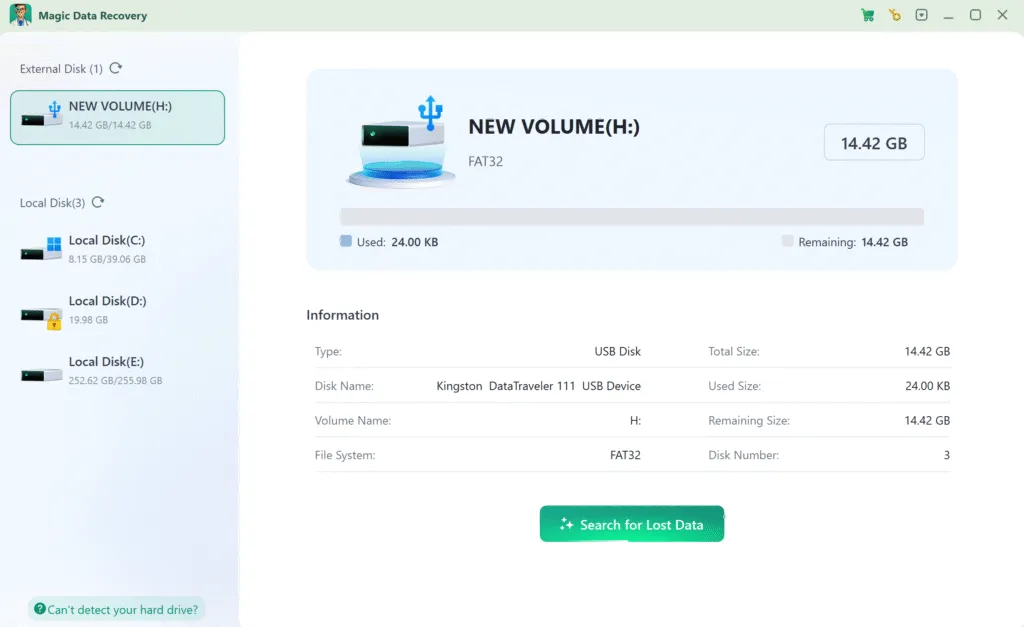
Avviare il software. Rileverà automaticamente tutte le unità collegate.
→ Selezionare l'unità FAT32 contenente i file persi.
→ Fare clic su “Ricerca”.” per iniziare il processo di recupero.
3. Attendere il completamento della scansione
Il software esegue una scansione avanzata per individuare tutti i file recuperabili. Il tempo di scansione dipende principalmente dalla capacità e dalle prestazioni dell'unità.

4. Anteprima dei file prima del recupero
Al termine della scansione, tutti i file trovati vengono visualizzati nell'elenco dei risultati. Utilizzare la funzione “Anteprima” per aprire i file (ad esempio, foto, documenti) e verificare che corrispondano ai dati persi.

5. Recuperare i dati in modo sicuro
Selezionare i file necessari e fare clic sul pulsante “Recupera” per scegliere un'altra unità (ad esempio, una USB esterna o un'unità interna secondaria).
⚠️ ASSOLUTAMENTE NON recuperare i file nell'unità FAT32 originale: si rischia la sovrascrittura e la perdita permanente dei dati.

Conclusione
Il File system FAT32 rimane un file system pratico e ampiamente supportato per i supporti di memorizzazione rimovibili, in particolare quando la compatibilità con un’ampia gamma di dispositivi è più importante rispetto alle funzionalità avanzate di sicurezza e gestione dei file.
Grazie al suo design semplice, il formato FAT32 è adatto per chiavette USB, schede SD, fotocamere, supporti di avvio, dispositivi per l'aggiornamento del firmware, smart TV, console di gioco e molti sistemi embedded. Tuttavia, il Limite di 4 GB per la dimensione di ogni singolo file, la mancanza di un sistema di journaling e l'assenza dei permessi moderni lo rendono meno adatto ai file di grandi dimensioni e alle unità dei sistemi operativi moderni.
Per i supporti di archiviazione rimovibili moderni che contengono file di grandi dimensioni, exFAT potrebbe essere più appropriato. Per i sistemi Windows e le unità interne, NTFS offre funzionalità di affidabilità e sicurezza più avanzate.
Se si verifica una perdita imprevista di dati su un volume FAT32, evitare di scrivere nuovi dati sul dispositivo interessato. È possibile utilizzare Magic Data Recovery eseguire una scansione dell'unità di archiviazione FAT32 alla ricerca di file recuperabili prima di tentare riparazioni o un'altra formattazione.
Supporta Windows 7/8/10/11 e Windows Server
FAQ sul sistema di file FAT32
Cosa significa FAT32 per l'USB?
Qual è la soluzione migliore, FAT32 o NTFS?
Tutte le schede SD da 32 GB sono FAT32?
FAT32 è ancora in uso?
Tutte le unità USB supportano FAT32?
Come faccio a mettere la mia USB in FAT32?
Quali sono gli svantaggi di FAT32?
È possibile convertire FAT32 in NTFS?

Vasilii è uno specialista del recupero dati con circa 10 anni di esperienza pratica nel settore. Nel corso della sua carriera, ha risolto con successo migliaia di casi complessi riguardanti file cancellati, unità formattate, partizioni perse e file system RAW. La sua esperienza copre sia i metodi di recupero manuale utilizzando strumenti professionali come gli editor esadecimali, sia le soluzioni automatiche avanzate con i software di recupero. La missione di Vasilii è quella di rendere accessibile la conoscenza del recupero dati affidabile sia ai professionisti IT che agli utenti di tutti i giorni, aiutandoli a salvaguardare i loro preziosi beni digitali.