
Recover Deleted User Account Windows 11: Safe Recovery Guide
You accidentally delete a Windows 11 user account and discover that its Desktop, Documents, and Downloads folders are missing. To recover deleted user account windows 11 data, first determine whether Windows removed the account itself, failed to load its profile, or deleted the underlying files. A missing account does not always mean its personal files are gone.
Recovery may still be possible. If the old profile folder remains, you can often copy its personal files into another account. Backups and suitable restore snapshots provide additional options. However, genuinely deleted files are harder to recover, especially after overwriting or SSD TRIM.
Before creating another account or editing the registry, check what still exists. This guide follows a data-first approach, starting with Windows account settings, existing profile folders, and built-in recovery options. If your personal files were actually deleted, follow the appropriate metodi di recupero dei file cancellati before taking actions that could overwrite them.
Indice dei contenuti
Important: Protect Your User Profile Data First
If you cannot find the original profile, avoid writing unnecessary data to the Windows drive until you understand what happened.
- Do not reset or reinstall Windows prima di proteggere i file importanti.
- Do not delete remaining profile folders or registry entries.
- Do not install recovery software on the affected partition.
- Do not save recovered files to the original data-loss location.
Special warning for temporary profiles: If Windows displays “You’ve been signed in with a temporary profile” or “We can’t sign in to your account,” save any new or modified work to a separate drive before signing out or restarting.
Microsoft explains that temporary profiles may be removed when the session ends. Consequently, files created or saved inside them can disappear.
Also, do not move surviving files from the original profile into a temporary profile. Copy them to independent storage instead.
For deleted files, continued drive activity can overwrite recoverable data. On SSDs, TRIM may further reduce recovery chances.
Recover Deleted User Account Windows 11: Quick Diagnosis
Quello che vedi | Situazione probabile | Azione consigliata |
Account missing, but old | Deleted account with surviving files | Back up files and create a clean account |
Windows opens a temporary desktop | Original profile failed to load | Protect temporary-session work, then diagnose |
Account and profile folder are gone | Possible deletion of personal files | Check backups, then scan for deleted data |
Microsoft account removed from this PC | Local account connection removed | Re-add the account and check cloud files |
Account disappeared after an update | Possible profile-loading problem | Check existing folders and restore options |
Work or school account removed | Organization-managed identity issue | Contact the IT administrator |
Key distinction: Recovering personal files is not the same as restoring the original Windows account.
Therefore, identify the missing component before selecting a method.
Why Account, Profile, and SID Are Different
Windows separates a user account from the files and settings associated with it.
- User account: The identity used for Windows sign-in and permissions.
- Security Identifier (SID): A unique identifier assigned to the account.
- User profile: The files and settings associated with that account, normally under
C:\Users\Username.
When Windows deletes a local account, recreating the same username generates a new SID.
However, removing an account does not prove that every file in its previous profile folder has disappeared. The actual result depends on how the account or profile was removed.
How to Check the Correct SID
A common mistake is to run whoami /user from an administrator account and compare that SID with the missing user’s registry entry.
That comparison is invalid unless the command runs in the affected user’s own sign-in session.
whoami /user reports the identity of the current session, not the account you are investigating.
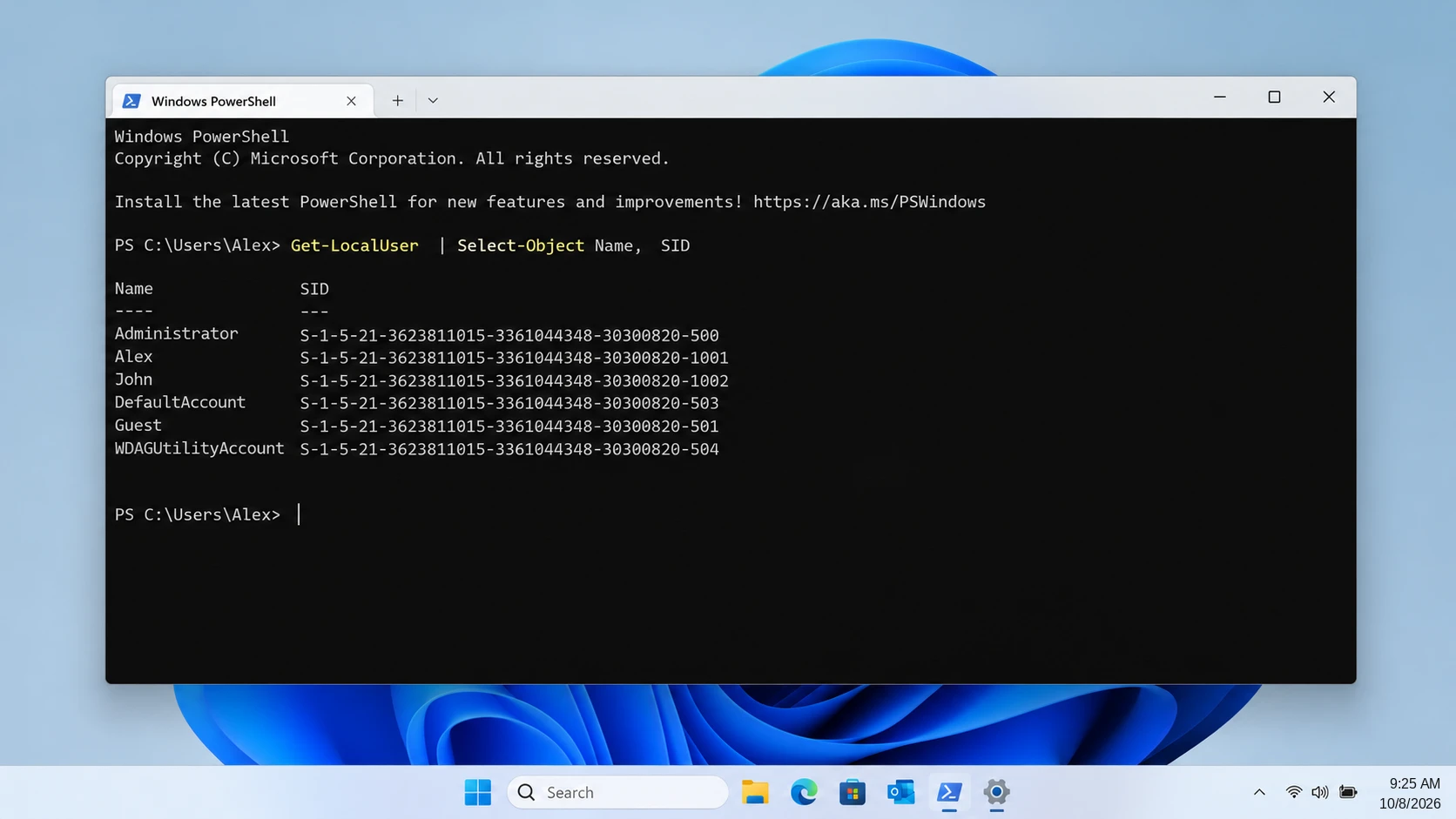
For an existing local account, open Windows PowerShell as an administrator and run:
Get-LocalUser | Select-Object Name, SID
Find the affected account by name and compare its SID with the corresponding ProfileList entry.
Alternatively, when signed in directly to the affected account, run:
whoami /user
If the account no longer appears in the local account list, a leftover profile folder or registry key does not prove that the original account still exists.
For domain or Microsoft Entra accounts, local-account commands may not provide the full identity information. Use the appropriate organizational account tools.
Method 1: Check Whether the Deleted Windows User Profile Still Exists
Ideale per: A user account that disappeared while the original files may still remain.
This is the safest first method because it checks existing files without attempting to recover deleted storage blocks.
Step 1: Check Windows Account Settings
Sign in using another administrator account.
Aperto:
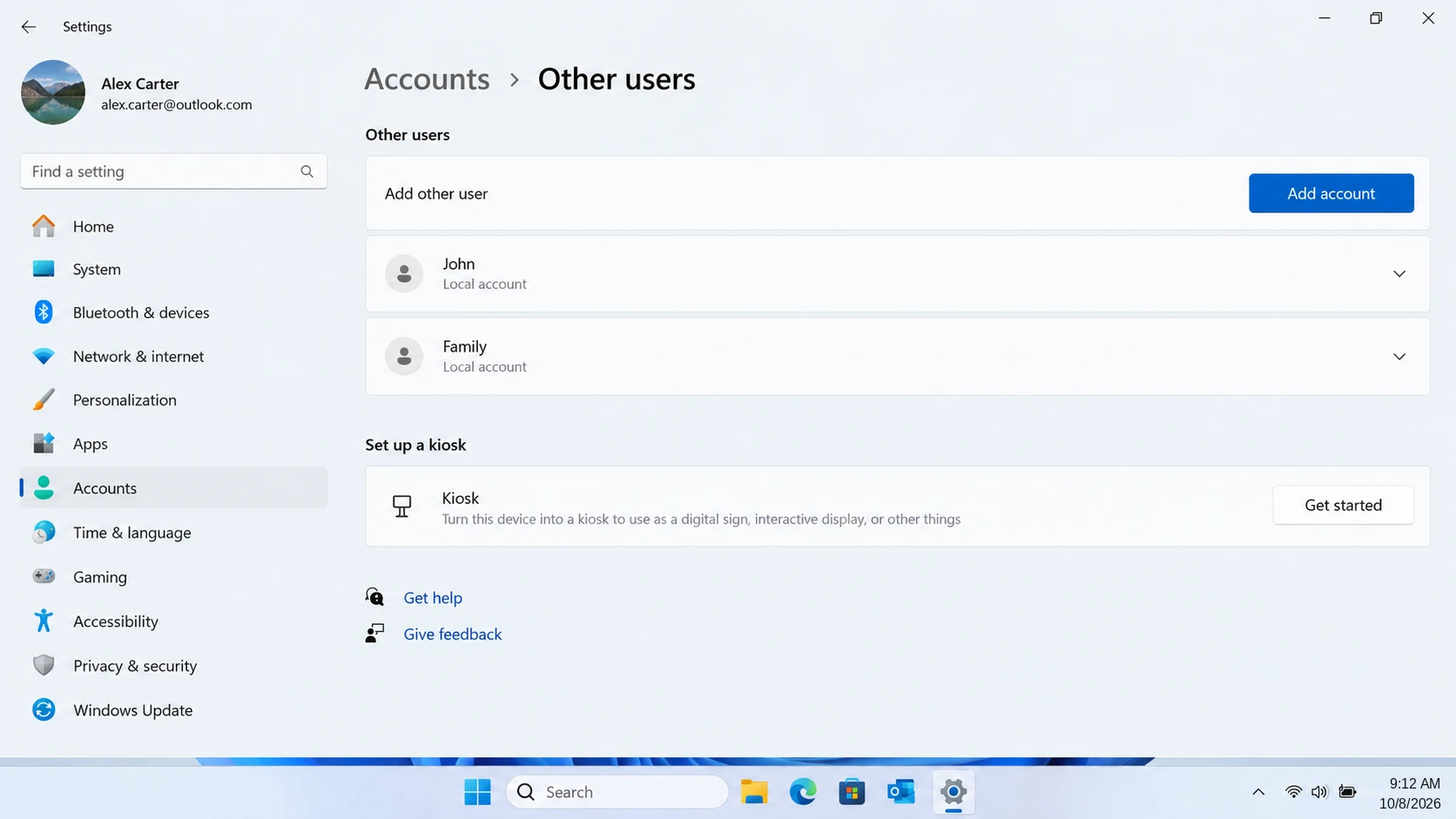
Settings > Accounts > Other users
Check whether the affected account still appears.
Microsoft’s Manage User Accounts in Windows documentation describes how Windows adds and removes local user accounts.
If the account still exists, investigate a profile-loading problem instead of recreating it.
Step 2: Inspect the Original Profile Folder
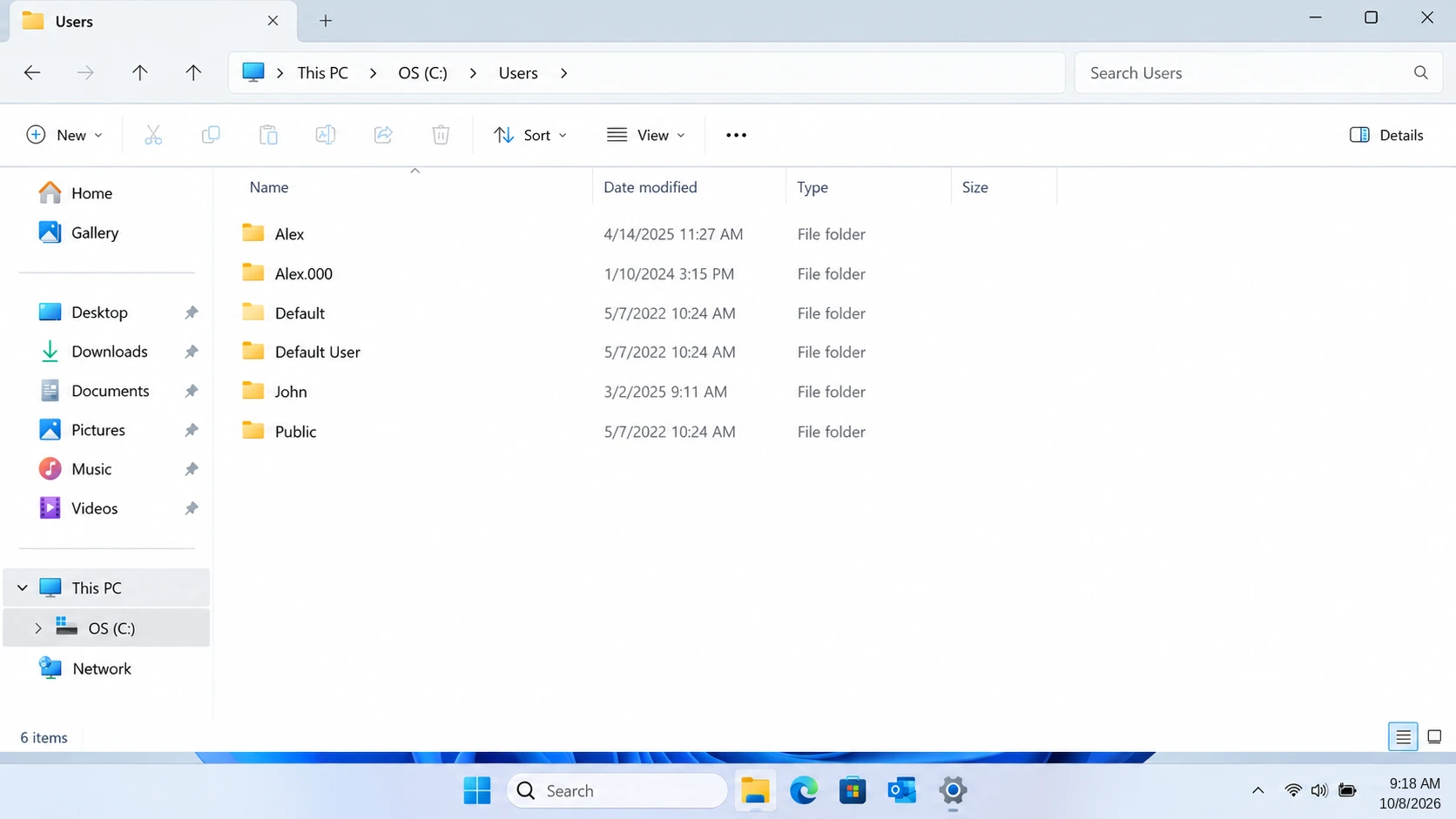
Open File Explorer and enter:
C:\Utenti
Look for the original username, including possible folders with suffixes such as .000.
Open the folder and inspect its Documents, Desktop, Downloads, and Pictures directories.
If the files exist, copy important data to a separate drive.
Risultato atteso: You locate and can open the original personal files.
In caso di errore: Check OneDrive and File History. If the folder was deleted, see the Guida al recupero delle cartelle cancellate.
Method 2: Restore Deleted Profile Files from Backups
Ideale per: Missing personal files when OneDrive, File History, or another backup was already enabled.
A usable backup is generally more reliable than attempting to reconstruct deleted files from disk.
Restore from OneDrive
- Sign in to OneDrive using the original Microsoft account.
- Check Desktop, Documents, and Pictures.
- Inspect the OneDrive Recycle Bin.
- Download or restore the missing files.
However, OneDrive only protects files that successfully synchronized.
Ripristino tramite la cronologia dei file
Se la Cronologia file è stata attivata:
- Connect the backup drive.
- Aperto Pannello di controllo > Sistema e sicurezza > Cronologia file.
- Selezionare Ripristino dei file personali.
- Browse to a backup created before deletion.
- Restore the required files to safe storage.
Microsoft explains this process in its File History recovery documentation.
Risultato atteso: Previously backed-up files return with usable content.
Limitazione: A backup cannot restore files it never saved. Restoring personal files also does not recreate the original Windows SID.
Method 3: Create a New Windows Account and Copy Surviving Files
Ideale per: A deleted account whose original C:\Utenti folder still contains personal files.
After protecting the surviving data, create a clean Windows account.
- Aperto Settings > Accounts > Other users.
- Selezionare Aggiungi account.
- Create a local account or add the Microsoft account.
- Sign in once to initialize the new profile.
- Sign out and return to an administrator account.
- Copy personal files from
C:\Users\OldNameto the appropriate folders underC:\Users\NewName.
Microsoft recommends creating a new profile when the existing one is corrupted. See Fix a corrupted user profile.
Avoid copying the entire old profile blindly. In particular, corrupted profile settings or registry hive files can reproduce the original problem.
Risultato atteso: The new account opens normally and the transferred files remain accessible.
Limitazione: The replacement account has a new SID. Application settings, encrypted files, and permissions may require additional attention.
If the old files are genuinely deleted, recover them before rebuilding the account on the affected drive.
Method 4: Fix a Temporary Windows 11 User Profile
Ideale per: An existing account that loads a temporary desktop instead of its original profile.
This situation is often mistaken for account deletion.
Step 1: Save Temporary-Session Work
Before signing out, copy any files created or modified during the temporary session to another drive.
Also preserve surviving files from the original C:\Users\OldName cartella.
Do not save copies into the temporary Desktop or Documents folder and assume they will remain after restarting.
Microsoft’s Temporary User Profiles documentation confirms that changes stored in a temporary profile may disappear at the end of the session.
Step 2: Verify the Affected Account’s SID
Use PowerShell:
Get-LocalUser | Select-Object Name, SID
Find the existing local account and record its SID.
Then open Registry Editor:
HKEY_LOCAL_MACHINE\SOFTWARE\Microsoft\Windows NT\CurrentVersion\ProfileList
Compare the affected account’s SID with the relevant registry entries.
Controllo ProfileImagePath to identify which folder the entry references.
Step 3: Inspect ProfileList Without Making Unverified Changes
Some temporary-profile problems involve two similar entries, including one ending in .bak.
Tuttavia, .bak does not prove that the account was deleted. It may reflect a profile-loading failure.
Export the relevant registry key before considering any changes.
Do not rename, merge, or delete SID entries unless you have confirmed the correct account, profile path, and repair procedure.
For most users, creating a clean account and copying intact personal files is safer than experimenting with registry mappings.
Risultato atteso: Windows either loads the original profile after the underlying issue is resolved or provides a working replacement profile.
Limitazione: ProfileList repair cannot recreate a deleted Windows account or recover missing file content.
Real-World Case: A Temporary Profile Mistaken for Deleted Files
A documented Microsoft Community case demonstrates why diagnosis matters before attempting file recovery.
In September 2023, a Windows user reported that their files seemed to have disappeared after an update. The symptoms resembled a deleted profile, but the support discussion identified temporary-profile behavior.
The recommended initial action was to restart Windows multiple times rather than immediately delete folders or modify registry entries.
Reported result: The user later confirmed that restarting the computer several times resolved the problem. Another participant also reported success. The original user did not need to report a successful deleted-sector recovery because the issue was access to the normal profile, not confirmed permanent deletion.
Source: Microsoft Q&A — Windows update and missing files.
What this case shows: A blank or unfamiliar desktop is not sufficient evidence that personal files were deleted. First confirm whether Windows loaded a temporary profile.
This is a real user-reported outcome, not an Amagicsoft laboratory test. It does not establish a recovery success rate, and restarting is not a substitute for protecting temporary-session files.
Method 5: Use Windows Restore Options Carefully
Ideale per: A recent account or profile problem when a suitable restore point already exists.
Windows offers two different restore mechanisms. Neither should be started before securing any newer files you need.
Option A: Point-in-Time Restore
On supported Windows 11 version 24H2 or later installations, Point-in-time restore can roll back the Windows system drive to an earlier snapshot.
However, the feature must have been available and enabled before the incident, and a suitable snapshot must still exist.
Microsoft states that snapshots are normally retained for up to 72 hours. Therefore, this is primarily an option for recent problems.
Before proceeding, confirm:
- The feature is available on your Windows installation.
- A snapshot exists from before the account was removed.
- Important files created after that snapshot are backed up.
- You have the BitLocker recovery key if required.
- The system has sufficient free space and reliable power.
Aperto Settings > System > Recovery > Point-in-time restore to inspect available configuration and snapshots.
To restore, enter Windows Recovery Environment and select:
Troubleshoot > Point-in-time restore
Then review the selected snapshot before confirming.
Critical risk: This operation rolls back the entire Windows system drive, not just one account. Documents, installed applications, passwords, certificates, encryption keys, and settings changed after the snapshot may be lost or reverted.
Cloud files stored in services such as OneDrive are not directly rolled back, but local synchronized copies and account settings may change.
Furthermore, restoration itself modifies the system drive. If you are trying to recover genuinely deleted files from that drive, secure or recover them first whenever possible.
See Microsoft’s Point-in-time restore documentation.
Option B: System Restore
System Restore is less comprehensive.
Stampa Vincere + R, digita:
rstrui.exe
Then select a suitable restore point.
System Restore can roll back certain system files and registry settings. However, it does not restore permanently deleted personal files.
Risultato atteso: A suitable Point-in-time snapshot may restore the earlier system state. System Restore may correct some existing profile-loading problems.
In caso di errore: Return to surviving files or backups. Do not repeatedly roll back Windows in an attempt to reconstruct deleted documents.
Method 6: Recover Deleted Profile Files with Windows File Recovery
Ideale per: Missing files that were actually deleted from a healthy, accessible Windows drive.
Microsoft fornisce Recupero file di Windows, a command-line tool for attempting recovery of deleted files.
Ad esempio:
winfr C: E: /regular /n \Users\OldName\Documents\
Qui, C: is the source drive and E: is a different recovery destination. The original profile folder name replaces OldName.
Regular mode is appropriate for many recent NTFS deletions. Extensive mode may be useful for other supported situations.
However, Windows File Recovery does not rebuild the user account, and recovered filenames or folder structures may be incomplete.
Risultato atteso: The tool saves discovered files to a recovery directory on the destination drive.
In caso di errore: Review the Windows 11 permanently deleted file recovery guide, or consider another appropriate recovery method.
Method 7: Recover Deleted User Profile Files with Magic Data Recovery
Ideale per: Deleted profile files when C:\Users\OldName no longer contains the necessary data and no usable backup exists.
After checking the built-in recovery options, Magic Data Recovery provides a graphical method for searching the affected storage device.
Unlike File History or OneDrive, it scans storage for recoverable deleted file data instead of restoring a previously saved copy.
This makes it relevant when documents, photos, videos, archives, or other personal files disappeared after a Windows account was removed.
However, it cannot recreate the original SID, restore Windows account permissions, repair profile loading, or reconstruct overwritten files.
Se le opzioni di recupero integrate non funzionano più, puoi provare Magic Data Recovery prima che i nuovi dati sovrascrivano i file eliminati.
How to Use Magic Data Recovery to Recover Deleted User Profile Files
Passo 1: Scaricare e installare Magic Data Recovery
Download Magic Data Recovery and install it on a different drive or partition, preferably a separate physical drive.
Do not install it on the affected Windows partition because installation may overwrite deleted profile data.
Supporta Windows 7/8/10/11 e Windows Server
Step 2: Select the Drive Where the Deleted User Profile Was Stored
Launch Magic Data Recovery and select the drive that previously contained C:\Users\OldName.
For most computers, this is the Windows system drive. Start the scan after confirming the correct source.

Step 3: Scan for Deleted User Profile Files
Allow the program to scan the selected drive. Review discovered documents, pictures, videos, archives, and other personal files.
Where available, use filenames and file-type categories to narrow the results.

Passo 4: Anteprima dei file prima del recupero
Select promising files and use Anteprima when supported. Check whether the displayed content matches the missing document or image.
However, preview support depends on the file type and condition. A filename appearing in the scan results does not guarantee usable file content.

Passo 5: Recuperare i file in una posizione sicura
Select the required files and restore them to another drive. Avoid writing them back to the original Windows system partition.
After recovery, open the restored files and verify their contents before transferring them into a replacement profile.

For detailed instructions, see the Guida dell'utente Magic Data Recovery.
Verify the Recovery Results Before Rebuilding the Profile
Finding file names during a scan is not the same as recovering usable files.
After recovery, check:
- File size: Confirm important files have plausible sizes rather than unexpected 0 KB values.
- Actual content: Open documents, images, spreadsheets, and videos using their normal applications.
- Completeness: Check several pages, images, or video sections rather than just the beginning.
- Folder coverage: Compare the restored files with a previous backup or known file list.
A recovered file may still be damaged even when its original filename appears.
Therefore, protect the restored data and confirm that important files work before resetting Windows or deleting old profile folders.
Recovery Limits: When Should You Stop DIY Recovery?
Situazione | Limitazione importante |
Deleted local Windows account | Recreating the username does not restore its original SID |
Overwritten personal files | Software cannot reconstruct overwritten content |
SSD deletion with TRIM | Some or all deleted content may be unrecoverable |
BitLocker-protected drive | The appropriate recovery key may be required |
EFS-encrypted user files | Original certificates and private keys may be necessary |
Un disco rigido con problemi fisici | Software cannot repair hardware damage |
If the drive clicks, disconnects repeatedly, or cannot be read reliably, stop scanning it.
Similarly, if the only copy of critical data exists on a failing or encrypted drive, professional assistance may be safer than repeated recovery attempts.
For healthy storage, logical file recovery remains an option. For damaged hardware, the recovery strategy must change.
How to Prevent Another Windows User Profile Loss
After recovering your files, establish a more reliable backup process.
Back up before account removal. Check Desktop, Documents, Downloads, Pictures, and important application folders before deleting any Windows account.
Keep independent backups. File History, cloud storage, and separate local backups serve different purposes. Do not assume cloud synchronization protects every version of a file.
Verify backup contents. Open sample documents and confirm that the important folders exist on the backup destination.
Preserve encryption keys. Keep BitLocker recovery keys and relevant EFS certificates accessible before making account or system changes.
Create a recovery checklist. Before removing an account, verify which files, applications, and permissions depend on it.
These precautions reduce the chance that a routine account-management task becomes a permanent file-loss incident.
Conclusione
A recover deleted user account windows 11 data, first determine whether the account disappeared, Windows loaded a temporary profile, or the underlying files were actually deleted.
If the old profile folder remains, back up its contents and create a clean account. If OneDrive or File History contains a copy, restore that first. When dealing with a temporary profile, protect new work before signing out. Use Point-in-time restore only after understanding its full-system rollback risks.
For genuinely deleted files, follow the appropriate Deleted File Recovery methods before making further changes to the drive.
If no usable backup remains and the storage device is healthy, Magic Data Recovery offers another way to search for recoverable personal files.
The safest sequence is straightforward: protect existing data, identify the problem, restore usable files, verify the results, and only then rebuild or repair the Windows profile.
Supporta Windows 7/8/10/11 e Windows Server
Domande frequenti
Can I recover deleted user account windows 11 after selecting Delete account and data?
Does the whoami /user command show the SID of a deleted Windows account?
Get-LocalUser can display its SID. A deleted account may no longer appear in that list.Will files saved in a Windows temporary profile disappear after restarting?
Can I recover deleted user profile windows 10 using the same methods?
C:\Utenti, OneDrive, File History, and suitable system restore points. Windows File Recovery and other recovery software may also help with genuinely deleted files. However, Point-in-time restore availability differs by Windows version, and Windows 10 reached the end of standard support in October 2025.Can I recover deleted user profile windows 11 after a failed Windows update?
C:\Utenti and protect any temporary-session work. If the old files remain, copy them to safe storage before attempting repairs. A restore point may help, but it cannot guarantee recovery of deleted personal files.Is Point-in-time restore safe when important files were created after the selected snapshot?
Can recovery software restore an entire Windows account, including permissions and encrypted files?

Vasilii è uno specialista del recupero dati con circa 10 anni di esperienza pratica nel settore. Nel corso della sua carriera, ha risolto con successo migliaia di casi complessi riguardanti file cancellati, unità formattate, partizioni perse e file system RAW. La sua esperienza copre sia i metodi di recupero manuale utilizzando strumenti professionali come gli editor esadecimali, sia le soluzioni automatiche avanzate con i software di recupero. La missione di Vasilii è quella di rendere accessibile la conoscenza del recupero dati affidabile sia ai professionisti IT che agli utenti di tutti i giorni, aiutandoli a salvaguardare i loro preziosi beni digitali.