
Come recuperare i file eliminati in modo permanente in Windows 11
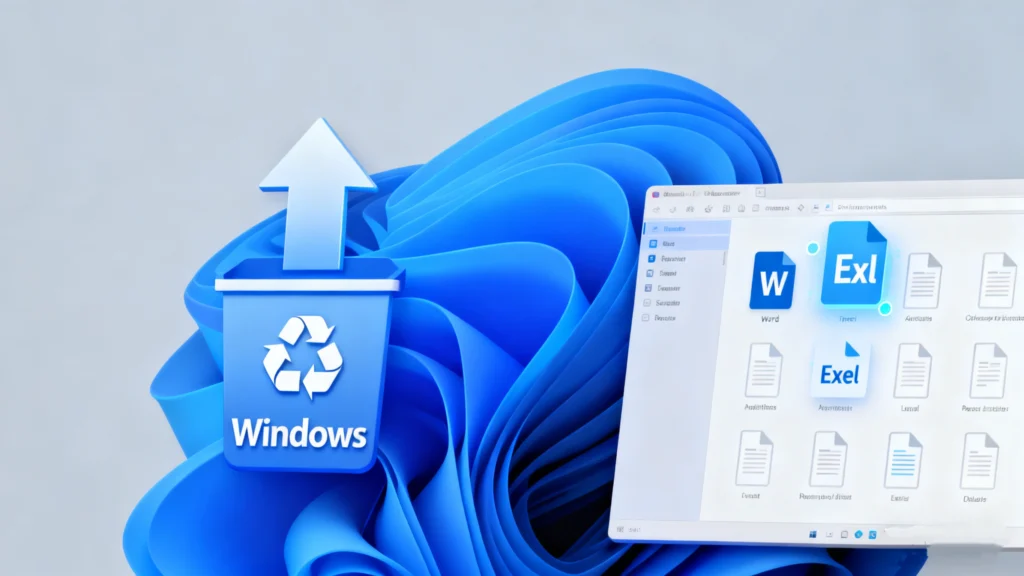
L'eliminazione accidentale di file importanti è un problema comune in Windows 11. Molti utenti credono che una volta che i file sono stati eliminati in modo permanente, soprattutto dopo aver usato Maiusc + Canc o svuotato il Cestino, non ci sia più modo di tornare indietro. In realtà, questa convinzione è spesso errata. In questa guida imparerete come recuperare i file eliminati in modo permanente in Windows 11, Perché il recupero è talvolta possibile e quali sono i metodi più efficaci nelle situazioni reali. Spiegheremo inoltre quando gli strumenti integrati in Windows sono sufficienti e quando software di recupero professionale come Magic Data Recovery diventa il più affidabile soluzione per il recupero dei file cancellati.
Questo articolo si concentra su scenari di recupero pratici, spiegazioni chiare e metodi comprovati, in modo che possiate prendere decisioni informate invece di tirare a indovinare.
Supporta Windows 7/8/10/11 e Windows Server
Indice dei contenuti
Cosa significa “Eliminato definitivamente” in Windows 11?
Quando i file vengono eliminati normalmente, Windows li sposta nella cartella Cestino. Tuttavia, quando si usa Maiusc + Elimina o si rimuovono i file dalle unità esterne, Windows salta completamente il Cestino.
Nonostante il termine “eliminato definitivamente”, Windows 11 non cancella immediatamente i dati del file. Al contrario:
- La voce del file diventa invisibile al sistema
- Lo spazio di archiviazione è contrassegnato come disponibile
- I dati attuali rimangono fino a quando non vengono sovrascritti
Questo comportamento spiega perché Recupero dei file eliminati in modo permanente in Windows 11 è spesso possibile, soprattutto se si agisce rapidamente.
È possibile recuperare i file eliminati in modo permanente in Windows 11?
Sì, in molti casi è possibile. Il successo del recupero dipende da diversi fattori:
- Se lo spazio di archiviazione è stato sovrascritto
- Il tipo di dispositivo di memorizzazione (SSD vs HDD)
- Se TRIM è abilitato
- Dopo quanto tempo inizia il recupero dopo l'eliminazione
Per i dischi rigidi tradizionali, le possibilità di recupero rimangono elevate se il disco non è stato utilizzato in modo intensivo. Sulle unità SSD, il recupero diventa più sensibile al tempo grazie all'ottimizzazione TRIM.
Che cosa fare immediatamente dopo la cancellazione permanente?
Prima di tentare qualsiasi metodo di recupero, seguite queste best practice:
- Interrompere immediatamente l'utilizzo dell'unità interessata
- Evitare di installare nuovo software sullo stesso disco.
- Non copiare nuovi file sul dispositivo di memorizzazione
- Scollegare le unità esterne, se del caso
Questi passaggi riducono il rischio di sovrascrivere i dati recuperabili.
Metodi integrati in Windows 11 per recuperare i file cancellati
Controllare la cronologia dei file (se precedentemente abilitata)
Cronologia file automatica fa marcia indietro file memorizzati nelle cartelle chiave. Se attivata in precedenza, può consentire di ripristinare le versioni eliminate.
Passi:
- Aprire il pannello di controllo
- Selezionare Cronologia file
- Scegliete “Ripristina file personali”.”
- Sfogliare e ripristinare il file necessario
Questo metodo funziona solo se la Cronologia file era attiva prima dell'eliminazione.
Ripristino delle versioni precedenti
Windows a volte memorizza versioni precedenti dei file attraverso la protezione del sistema.
Passi:
- Fare clic con il tasto destro del mouse sulla cartella originale
- Selezionare le proprietà
- Aprire la scheda Versioni precedenti
- Ripristino delle versioni disponibili
Questa opzione è limitata e dipende dalla configurazione del sistema.
Recupero dei file di Windows (strumento da riga di comando)
Microsoft mette a disposizione un'utilità di recupero a riga di comando. Pur essendo potente, richiede conoscenze tecniche e non offre anteprime dei file.
Questo approccio è adatto agli utenti avanzati, ma spesso si rivela scomodo per le esigenze di recupero quotidiane.
Perché gli strumenti integrati sono spesso insufficienti
Sebbene Windows 11 offra funzioni di recupero, queste presentano evidenti limitazioni:
- Nessuna scansione profonda per i dati eliminati
- Supporto limitato per i tipi di file
- Nessuna anteprima prima del ripristino
- Inefficace dopo errori di formattazione o partizione
Quando le soluzioni integrate falliscono, diventa necessario un software specializzato.
La soluzione migliore per recuperare i file eliminati in modo permanente in Windows 11
Utilizzo di Magic Data Recovery (consigliato)
Magic Data Recovery è uno strumento professionale per il recupero dei dati, progettato per gestire scenari di perdita complessi che vanno oltre l'eliminazione di base.
Supporta il recupero da:
- File eliminati in modo permanente
- Unità formattate
- Perdita di partizione o corruzione
- Errori del file system
A differenza degli strumenti a riga di comando, offre un'interfaccia chiara e un flusso di lavoro guidato.
Perché Magic Data Recovery è più affidabile
I vantaggi principali includono:
- Tecnologia di scansione profonda che individua le strutture dei file perduti
- Ampio supporto di tipi di file (documenti, foto, video, archivi)
- Compatibilità con HDD, SSD, unità USB e schede di memoria
- Anteprima prima del recupero per verificare l'integrità dei file
Per gli utenti che cercano di Recuperare i file eliminati in modo permanente in Windows 11, Queste caratteristiche migliorano significativamente le percentuali di successo.
Come recuperare i file eliminati in modo permanente con Magic Data Recovery
Seguite questi passaggi per recuperare i vostri dati in modo sicuro:
Fase 1: smettere di usare il disco rigido
L'uso continuato potrebbe sovrascrivere i dati cancellati. Scollegare immediatamente l'unità.
Passo 2: Installare un software di recupero HDD professionale
Installare lo strumento su un disco diverso (non quello interessato). Una scelta affidabile è Magic Data Recovery, noto per il suo motore di scansione profonda e per l'elevata percentuale di recupero.
Supporta Windows 7/8/10/11 e Windows Server
Fase 3: Selezionare l'HDD
Aprire il software e scegliere l'unità danneggiata dall'elenco dei dispositivi.

Passo 4: Eseguire una scansione completa
Iniziare con una scansione rapida per elencare alcuni file, quindi procedere con una scansione profonda per ottenere il massimo recupero.

Fase 5: Anteprima e ripristino
Visualizzare in anteprima i file, selezionare quelli necessari e salvarli su un'altra unità. In questo modo si evita la sovrascrittura dei settori originali e si aumenta la sicurezza dei dati ripristinati.

Errori comuni che riducono il successo del recupero
Evitate questi errori:
- Installazione del software di recupero sullo stesso disco
- Continuare a utilizzare l'unità interessata
- Tentativi ripetuti di formattazione
- Utilizzo contemporaneo di più strumenti di recupero
Ogni errore aumenta il rischio di perdita permanente dei dati.
Conclusione
Recuperare i file eliminati in Windows 11 è spesso possibile, ma solo se si adottano le giuste misure in anticipo. Gli strumenti integrati di Windows sono utili in casi limitati, ma spesso sono insufficienti dopo la formattazione, la perdita della partizione o l'eliminazione di Shift.
Per gli utenti che devono affrontare gravi perdite di dati, Magic Data Recovery offre una soluzione più affidabile e facile da usare. La capacità di scansione profonda, l'ampio supporto dei dispositivi e il recupero basato sull'anteprima ne fanno una scelta pratica quando i dati sono davvero importanti.
Se siete alla ricerca di una soluzione più efficiente modo di recupero dei file persi a Recuperare i file eliminati in modo permanente in Windows 11, Magic Data Recoveryè da considerare come parte di una strategia di recupero sicura e informata.
Supporta Windows 7/8/10/11 e Windows Server
Domande frequenti
È possibile recuperare i file eliminati in modo permanente?
I file eliminati in modo permanente vengono effettivamente cancellati?
Come recuperare i file eliminati con shift delete in Windows 11?
Windows 11 elimina i file in modo permanente?
Come recuperare i file eliminati in modo permanente in Windows 11?
I file eliminati in modo permanente non possono essere recuperati, vero o falso?
Dove vanno a finire i file eliminati definitivamente in Windows?
Come si fa a cancellare definitivamente i dati in modo che non possano essere recuperati?

Erin Smith è riconosciuta come una delle scrittrici più professionali di Amagicsoft. Negli ultimi 10 anni ha continuamente affinato le sue capacità di scrittura e ha aiutato milioni di lettori a risolvere i loro problemi tecnologici.