
Guida dell'utente Magic Data Recovery
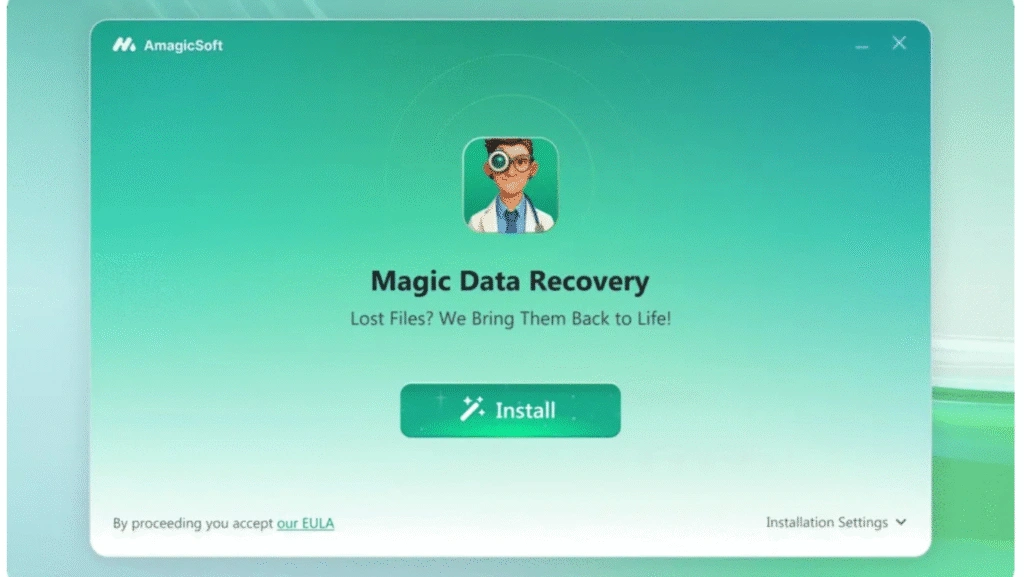
Benvenuti
Magic Data Recovery (by Amagicsoft) è uno strumento di recupero dati professionale e facile da usare che aiuta a ripristinare file cancellati, formattati o altrimenti persi da dischi rigidi, SSD, unità flash USB, schede di memoria e altri supporti di archiviazione.
Combina un'interfaccia amichevole con robusti algoritmi di scansione, in modo che sia gli utenti privati che i tecnici IT possano recuperare documenti, foto, video, audio, archivi e altro ancora, in modo sicuro e con un minimo di operazioni.
Come iniziare
Requisiti hardware
Hardware minimo per un funzionamento affidabile:
- CPU: 1 GHz o più veloce (compatibile con Intel/AMD)
- RAM: 1 GB minimo (2 GB consigliati)
- Spazio libero su disco: ≥ 100 MB per l'installazione + spazio per i file recuperati sull'unità di destinazione
- Porti: Porta USB per unità esterne o lettori di schede
Requisiti di sistema
Assicuratevi di utilizzare uno dei sistemi operativi elencati:
Windows 7/8/8.1/10/11
Windows Server 2003/2008/2008 R2/2012/2012 R2/2016/2019
Windows Small Business Server 2003/2008/2011
File System supportati
Magic Data Recovery supporta i comuni file system di Windows:
- FAT / exFAT
- NTFS
- ReFS
- EXT2/3/4
Dispositivi supportati
- HDD / SSD interni (SATA / NVMe se visibili a Windows)
- HDD / SSD esterni (USB / eSATA)
- Chiavette USB / unità miniaturizzate
- Schede SD / microSD, schede per fotocamere (tramite lettore)
- Alloggiamenti esterni e adattatori USB
- Dischi virtuali o immagini di dischi (se montati e accessibili in Windows)
- Dischi estratti dal NAS (quando è collegato a un PC Windows)
Lingue supportate
L'interfaccia utente del prodotto è disponibile in più lingue. Le lingue comunemente supportate sono:
Inglese, giapponese, cinese tradizionale, coreano, francese, tedesco, spagnolo, italiano, turco.

Tipi di file supportati
Magic Data Recovery può recuperare un'ampia gamma di tipi di file. Esempi per categoria:
- Documenti: DOC, DOCX, XLS, XLSX, PPT, PPTX, PDF, TXT, RTF
- Immagini / Foto: Formati JPG, JPEG, PNG, GIF, BMP, TIFF, RAW
- Video: MP4, MOV, AVI, MKV, WMV
- Audio: MP3, WAV, AAC, FLAC
- Archivi: ZIP, RAR, 7Z, ISO
- Email e database: PST
Attivazione
1. Acquisto una licenza da il negozio ufficiale Amagicsoft (riceverete un codice di licenza via e-mail).
2. Aprire l'Magic Data Recovery → fare clic sul pulsante della chiave in corrispondenza di angolo in alto a destra della pagina iniziale del prodotto.


Come utilizzare Magic Data Recovery
1. Scaricare e installare: Ottenere Magic Data Recovery da il sito web ufficiale.
2. Selezionare l'unità e avviare la scansione: Avviare il programma ed eseguire la scansione dell'unità in cui si trovano i file persi.




Aggiunte pratiche:
- Non installare Magic Data Recovery sull'unità da cui si desidera eseguire il ripristino - installare su un altro disco o su un PC funzionante.
- Se l'unità interessata è esterna, collegarla tramite un adattatore o un alloggiamento USB prima di avviare il software.
- Se i file sono critici, evitare di scrivere nuovi dati sull'unità interessata fino al completamento del ripristino.
Recupero disco hardware
Quando si esegue il ripristino da dischi rigidi interni o esterni:
1. Collegare il disco: Se possibile, rimuovere l'unità e collegarla a un PC sano tramite SATA o un adattatore USB/SATA.
2. Immagine del disco (consigliata per le unità in avaria): Se il disco è rumoroso o fa rumore, creare un'immagine settore per settore utilizzando uno strumento di imaging dedicato ed eseguire il ripristino dall'immagine. L'imaging previene ulteriori danni.
3. Eseguire Magic Data Recovery: Selezionare il disco collegato o l'immagine del disco, scegliere la modalità di scansione e procedere con la scansione.
4. Se il disco è fisicamente danneggiato: interrompere e consultare un servizio di recupero dati professionale: l'alimentazione continua può peggiorare il guasto.

Ecco alcuni suggerimenti utili per garantire un'esperienza di recupero dei dati senza problemi:
1. Provate a aggiornare l'elenco delle unità se la partizione di destinazione non appare o se è stato appena collegato un nuovo dispositivo.
2. Il Partizione persa La sezione viene visualizzata solo quando il programma rileva partizioni precedentemente eliminate o mancanti sul computer.
3. Se la periferica di archiviazione da cui si desidera eseguire il ripristino non è visualizzata o se è necessario eseguire la scansione di un intero disco, fare clic su “Impossibile rilevare il disco rigido”.” per risolvere i problemi di rilevamento.
Ulteriori suggerimenti:
- Se ancora non si riesce a trovare la partizione o l'unità desiderata, aprire Gestione disco di Windows per verificare se il sistema è in grado di riconoscerlo.
- Assicurarsi che il la connessione tra l'unità di destinazione e il computer è stabile, in quanto i collegamenti instabili possono causare il blocco della scansione o mostrare i file recuperati come 0 KB.
- Quando si recuperano i file da un partizione di sistema, è meglio rimuovere l'unità e collegarla a un altro computer per eseguire il recupero in modo sicuro ed efficace.
Ricerca dei file perduti

- Utilizzare il Ricerca per inserire frammenti di nomi di file o estensioni (ad esempio, .jpg, .doc).
- Utilizzare i filtri: Tipo di file, Gamma di dimensioni, Data di modifica per restringere i risultati.
- Ordinate i risultati per nome, data o dimensione per trovare più rapidamente i file più importanti.
- Recuperare i file in modo incrementale: selezionare un sottoinsieme, recuperarli, quindi continuare la scansione o selezionare altri file.
Feedback e supporto
Accogliamo con piacere i feedback e siamo pronti ad aiutare in caso di problemi tecnici.
E-mail: support@amagicsoft.com
Quando si contatta l'assistenza, si prega di includere:
- Versione del prodotto e numero di build (Guida → Informazioni)
- Dettagli sul sistema operativo e sul sistema Windows (versione del sistema operativo, 32/64 bit)
- Una descrizione chiara del problema e dei passi già compiuti.
- Screenshot o messaggi di errore e, se possibile, file di esempio.

Vasilii è uno specialista del recupero dati con circa 10 anni di esperienza pratica nel settore. Nel corso della sua carriera, ha risolto con successo migliaia di casi complessi riguardanti file cancellati, unità formattate, partizioni perse e file system RAW. La sua esperienza copre sia i metodi di recupero manuale utilizzando strumenti professionali come gli editor esadecimali, sia le soluzioni automatiche avanzate con i software di recupero. La missione di Vasilii è quella di rendere accessibile la conoscenza del recupero dati affidabile sia ai professionisti IT che agli utenti di tutti i giorni, aiutandoli a salvaguardare i loro preziosi beni digitali.