
CHKDSK Unità RAW: Come riparare un'unità danneggiata
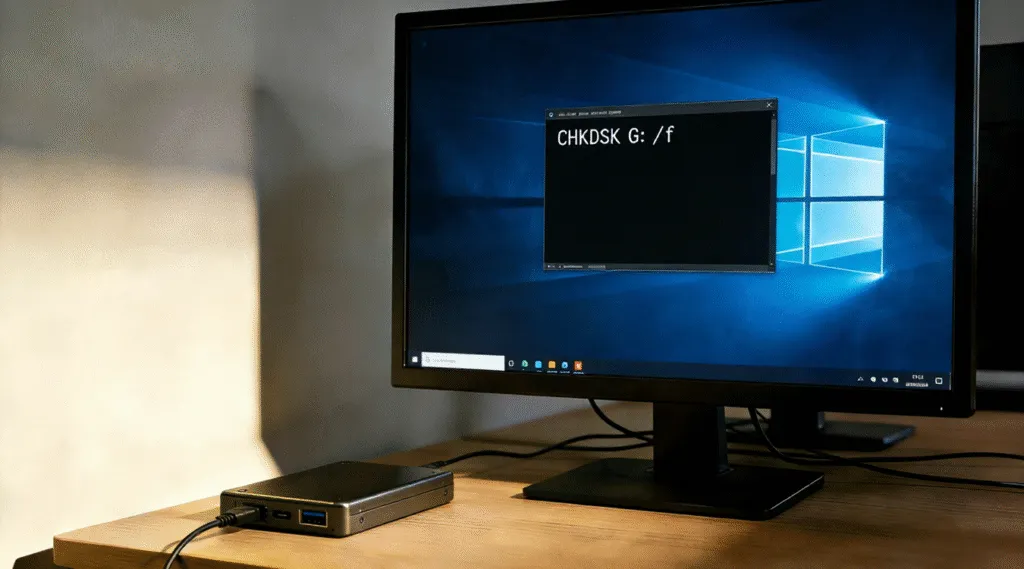
Vedere il messaggio “Il tipo di file system è RAW. CHKDSK non è disponibile per le unità RAW”.” può essere allarmante, soprattutto quando il dispositivo interessato è un disco rigido esterno contenente file importanti. Il fallimento dell'esecuzione CHKDSK su un'unità RAW indica che Windows non è più in grado di riconoscere il file system sull'unità, come ad esempio NTFS o FAT32.
Niente panico. Nella maggior parte dei casi, i dati sono ancora fisicamente presenti. Il problema risiede nei metadati del file system danneggiati o mancanti, non nella distruzione immediata dei dati.
Le unità esterne vengono comunemente trasformate in RAW a causa di:
- Rimozione non sicura o perdita improvvisa di potenza
- Corruzione del file system
- Settori danneggiati che interessano le strutture critiche
- Interferenze di virus o malware
- Invecchiamento dei supporti di memorizzazione
Secondo la documentazione Microsoft, quando Windows non riesce a leggere il settore di avvio o le strutture del file system, contrassegna il volume come RAW per evitare ulteriori danni.
Indice dei contenuti
Perché CHKDSK su un'unità RAW a volte fallisce
CHKDSK è uno strumento di riparazione dei file system logici progettato per rilevare e correggere le incongruenze nei file system supportati, come ad esempio NTFS, FAT32, e exFAT. In molti casi, un'unità appare come RAW perché i metadati del file system sono danneggiati ma ancora parzialmente recuperabili.
In questo caso, l'esecuzione di CHKDSK può riparare con successo il settore di avvio, la struttura delle directory o le tabelle di allocazione dei file, consentendo a Windows di riconoscere nuovamente il volume.
Tuttavia, se il danno al file system è grave, come ad esempio un settore di avvio NTFS mancante, una Master File Table (MFT) danneggiata o un'ampia settori danneggiati-CHKDSK potrebbe non essere in grado di procedere. In queste situazioni, Windows riporta il volume come RAW perché non è in grado di identificare in modo affidabile il file system sottostante.
Esecuzione di comandi come:
chkdsk X: /f
chkdsk X: /r
può dare luogo a errori, riparazioni incomplete o nessuna modifica visibile. In rari casi, la forzatura di riparazioni ripetute su un volume fortemente danneggiato può peggiorare la corruzione dei metadati e complicare il successivo recupero dei dati.
Il punto chiave è questo: CHKDSK può talvolta riparare un'unità RAW, ma non è garantito. Quando il file system è danneggiato in modo critico, CHKDSK può fallire e il recupero dei dati deve essere eseguito prima di ulteriori tentativi di riparazione.
Come eseguire CHKDSK su un'unità RAW (passo dopo passo)
Prima di eseguire CHKDSK, è importante capire cosa Windows può e non può riparare automaticamente. CHKDSK funziona meglio quando l'unità contiene ancora un file system parzialmente leggibile. Se il volume è completamente RAW a causa di un grave danneggiamento, è necessario eseguire prima il recupero dei dati.
Passo 1: aprire il Prompt dei comandi come amministratore
1. Tipo cmd nella barra di ricerca di Windows.
2. Cliccare con il tasto destro del mouse Prompt dei comandi e scegliere Eseguire come amministratore.
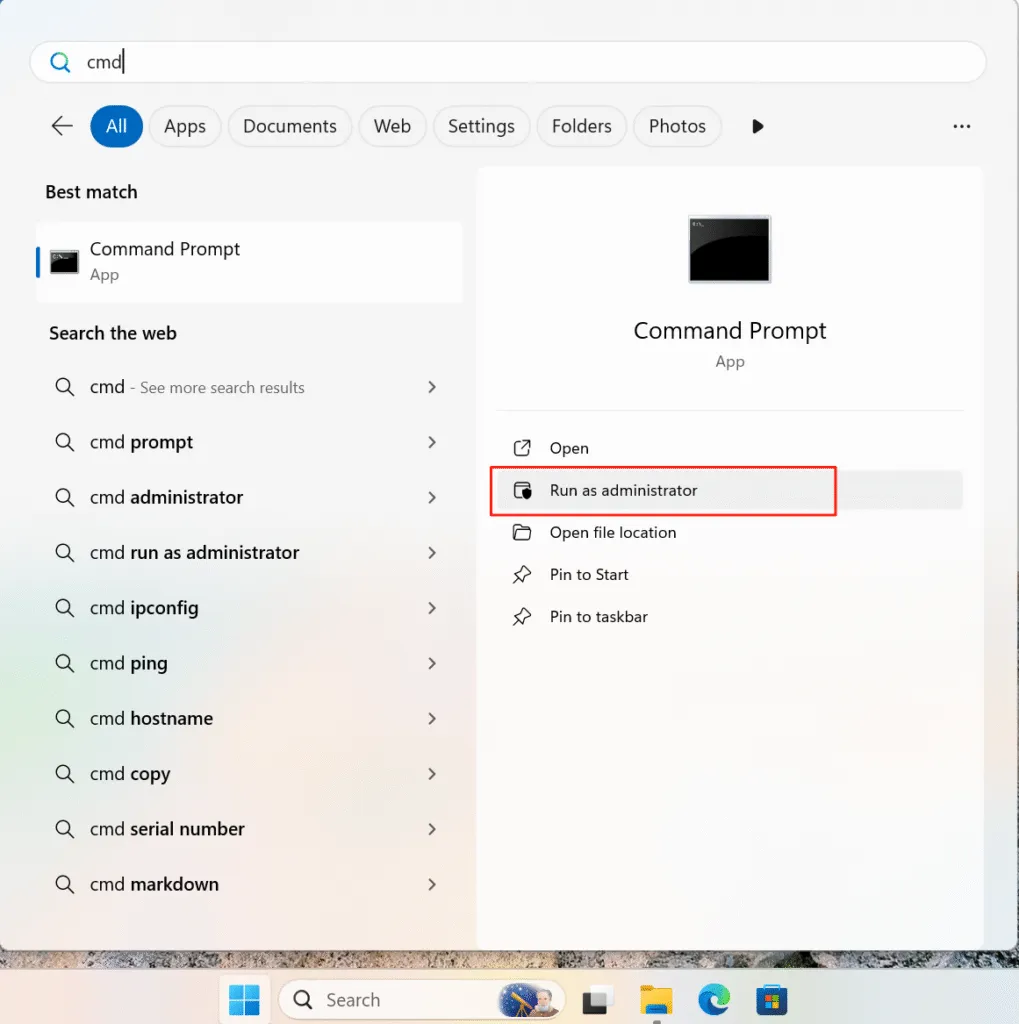
3. Confermare la richiesta di Controllo dell'account utente.
Per le riparazioni a livello di disco sono necessari i privilegi amministrativi.
Fase 2: Eseguire prima un controllo di sola lettura (consigliato)
Se si desidera verificare solo lo stato dell'unità, iniziare con una scansione non distruttiva:
chkdsk X:
Sostituire X: con la lettera di unità corretta.
Questo comando verifica la presenza di errori senza apportare modifiche, consentendo di valutare la gravità della corruzione in modo sicuro.
Passo 3: utilizzare CHKDSK /F sull'unità RAW per correggere gli errori del file system logico
Se vengono rilevati errori e l'unità è ancora leggibile, procedere con:
chkdsk X: /f
- Comando /f correzioni errori del file system logico come ad esempio record di file o voci di directory non corretti.
- Il processo può richiedere il blocco o lo smontaggio temporaneo dell'unità.
Questa è l'opzione di riparazione più sicura e dovrebbe essere sempre tentata prima di effettuare scansioni più aggressive.

Passo 4: Usare CHKDSK /R solo se necessario
Per le unità che mostrano errori di lettura o sospetti settori danneggiati:
chkdsk X: /r
/rindividua settori danneggiati e tenta di recuperare i dati leggibili.
Utilizzo /r con cautela. Sui dischi in avaria o invecchiati, una scansione prolungata può aumentare lo stress fisico.
Fase 5: capire i possibili risultati
Al termine di CHKDSK, può verificarsi uno dei seguenti casi:
- L'unità si monta normalmente e i file diventano accessibili
- Alcuni file vengono spostati nella cartella TROVATO.000 cartella
- CHKDSK riporta errori non recuperabili
- L'unità rimane RAW
Se l'unità rimane RAW, è improbabile che ulteriori tentativi di CHKDSK siano utili.
Passo 6: Recuperare i dati se CHKDSK fallisce
Quando CHKDSK non riesce a ripristinare il file system, interrompere ulteriori tentativi di riparazione. A questo punto, strumenti di recupero professionali come Magic Data Recovery possono scansionare il disco in modalità di sola lettura ed estrarre i file prima di formattare o sostituire l'unità.
Il modo sicuro per riparare un'unità RAW con CHKDSK
L'approccio corretto segue un flusso di lavoro di recupero professionale: Prima recuperare, poi riparare.
Fase 1: interrompere l'utilizzo dell'unità
Scollegare immediatamente il disco rigido esterno. Evitare formattazione, inizializzandolo o ricollegandolo ripetutamente.
Fase 2: Recupero dei dati dall'unità RAW
Prima di tentare qualsiasi riparazione, recuperare i file utilizzando uno strumento di recupero di sola lettura. Strumenti professionali come Magic Data Recovery è in grado di scansionare le unità RAW a livello di settore e di ricostruire i file senza modificare la struttura del disco.
Questo passaggio protegge i dati anche se il file system è gravemente danneggiato.
Fase 3: Riparazione o riformattazione dell'unità
Una volta completato il recupero dei dati, si può procedere in modo sicuro:
- Formattare l'unità in NTFS o exFAT
- Eseguire quindi CHKDSK per verificare lo stato di salute del disco.
- Monitoraggio degli errori ricorrenti
A questo punto, CHKDSK torna utile perché l'unità ha un file system valido.
Il modo sicuro per riparare un'unità RAW con CHKDSK
L'approccio corretto segue un flusso di lavoro di recupero professionale: Prima recuperare, poi riparare.
1. Interrompere l'uso dell'unità
Scollegare immediatamente il disco rigido esterno. Evitare di formattarlo, inizializzarlo o ricollegarlo ripetutamente.
2. Recupero dei dati dall'unità RAW
Prima di tentare qualsiasi riparazione, recuperare i file utilizzando uno strumento di recupero di sola lettura. Strumenti professionali come Magic Data Recovery sono in grado di scansionare le unità RAW a livello di settore e di ricostruire i file senza modificare la struttura del disco.
Questo passaggio protegge i dati anche se il file system è gravemente danneggiato.
3. Riparazione o riformattazione dell'unità
Una volta completato il recupero dei dati, si può procedere in modo sicuro:
- Formattare l'unità in NTFS o exFAT
- Eseguire quindi CHKDSK per verificare lo stato di salute del disco.
- Monitoraggio degli errori ricorrenti
A questo punto, CHKDSK torna utile perché l'unità ha un file system valido.
Errori comuni da evitare
- Formattazione dell'unità prima del ripristino
- Forzatura di CHKDSK con parametri non supportati
- Utilizzo di strumenti di “correzione rapida” che scrivono dati sul disco
- Ignorare i primi segnali di allarme, come l'accesso lento o le frequenti disconnessioni.
Recupero dati professionale dà sempre la priorità alla sicurezza dei dati rispetto alla riparazione immediata.
Conclusione
In corsa CHKDSK sull'unità RAW può riparare qualche problema logico. Tuttavia, quando CHKDSK fallisce, significa che Windows non è in grado di leggere il file system. Comprendendo i limiti di CHKDSK e seguendo un approccio di recupero sicuro, è possibile riparare un disco rigido esterno danneggiato senza inutili perdite di dati. Utilizzando una soluzione affidabile come Magic Data Recovery consente di riottenere l'accesso ai file prima di ricostruire il file system in tutta tranquillità.
Supporta Windows 7/8/10/11 e Windows Server
FAQ: CHKDSK Unità RAW
Come si ripara un disco rigido esterno danneggiato?
Come usare CHKDSK per riparare un'unità USB?
Come riparare un disco rigido esterno utilizzando CMD?
È meglio CHKDSK F o R?
Come risolvere un disco rigido esterno che non viene letto?
Esiste un software gratuito per riparare un disco rigido esterno danneggiato?
È possibile riparare un disco rigido danneggiato?
Qual è la durata di vita di un disco rigido esterno?

Vasilii è uno specialista del recupero dati con circa 10 anni di esperienza pratica nel settore. Nel corso della sua carriera, ha risolto con successo migliaia di casi complessi riguardanti file cancellati, unità formattate, partizioni perse e file system RAW. La sua esperienza copre sia i metodi di recupero manuale utilizzando strumenti professionali come gli editor esadecimali, sia le soluzioni automatiche avanzate con i software di recupero. La missione di Vasilii è quella di rendere accessibile la conoscenza del recupero dati affidabile sia ai professionisti IT che agli utenti di tutti i giorni, aiutandoli a salvaguardare i loro preziosi beni digitali.