
Esplora file non si vede più? 9 soluzioni
Se File Explorer disappeared from your Windows PC, you may wonder whether the app, its taskbar shortcut, or even your files are gone. Fortunately, these problems often have different causes. Sometimes Windows only removes the taskbar icon. In other cases, Windows Explorer stops responding, system files become damaged, or File Explorer opens while certain files no longer appear.
Therefore, the fastest fix starts with identifying what actually disappeared. This guide explains how to restore File Explorer in Windows 11 and Windows 10, how to fix the issue when File Explorer disappeared from taskbar, and what to do if Explorer returns but your files remain missing. If normal Windows checks cannot locate those files, Magic Data Recovery può fornire un pratico recupero del disco rigido opzione.
Supporta Windows 7/8/10/11 e Windows Server
Indice dei contenuti
File Explorer Disappeared? Start With a Quick Diagnosis
Before changing Windows settings, match your symptom to the most likely cause.
Quello che vedi | Probabile causa | Il miglior primo passo |
File Explorer icon is missing from the taskbar | The shortcut was unpinned | Press Windows + E and pin it again |
File Explorer will not open | Explorer process or Windows issue | Restart Windows Explorer |
Taskbar and desktop icons are also missing | explorer.exe may have stopped | Start explorer.exe from Task Manager |
File Explorer opens but files are missing | Files may be hidden, moved, or deleted | Search, check Recycle Bin, then recover if needed |
Ad esempio, se File Explorer disappeared from taskbar but Windows + E opens it, File Explorer itself is still available. You only need to restore the shortcut. However, if File Explorer disappeared together with the taskbar or desktop icons, Windows Explorer may have stopped.
File Explorer Disappeared From Taskbar? Try These Fixes First
Quando File Explorer disappeared from taskbar, begin with the least invasive fixes. These steps do not change personal files and often solve icon-related problems quickly.
Fix 1. Open File Explorer With Windows + E
First, press Windows + E, the standard Windows shortcut for File Explorer.
If the window opens normally, the program has not disappeared. Instead, Windows probably removed or unpinned its taskbar icon. This quick test separates a shortcut issue from a deeper Explorer problem.
Fix 2. Pin File Explorer Back to the Taskbar
Se File Explorer disappeared only from the taskbar, restore the icon in a few clicks:
- Stampa Windows + S e cercare Esplora file.
- Cliccare con il tasto destro del mouse Esplora file.
- Scegliere Pin to taskbar.
In alternativa, premi Windows + E, right-click the File Explorer icon on the taskbar, and select Pin to taskbar.
If the icon disappears again, continue with the next fix because Windows Explorer may not be running correctly.
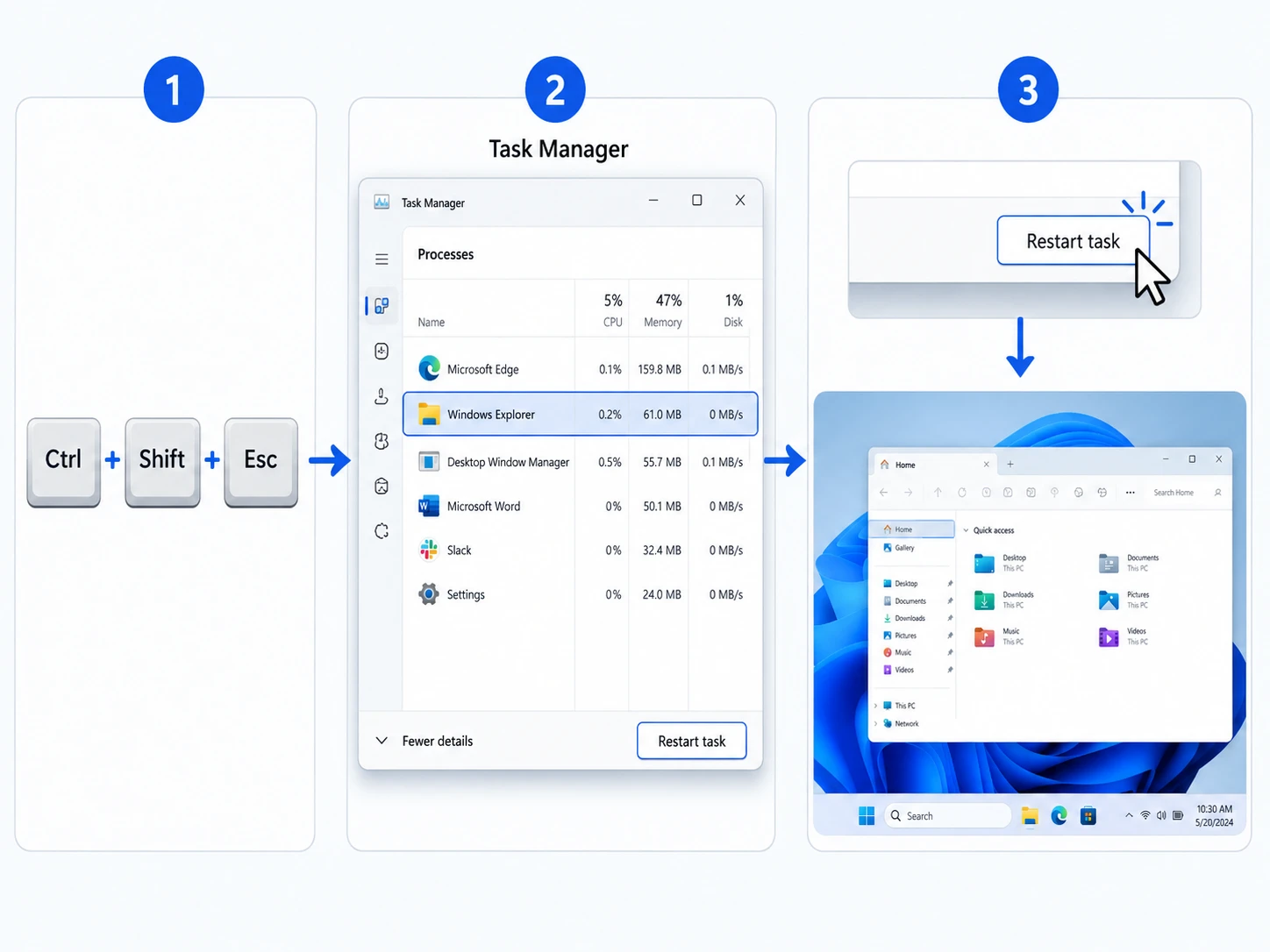
Fix 3. Restart Windows Explorer in Task Manager
A volte, File Explorer disappeared because Windows Explorer stopped responding.
- Stampa Ctrl + Shift + Esc per aprire il Task Manager.
- Trova Esplora risorse di Windows under Processes.
- Selezionalo e clicca Restart task.
During the restart, the taskbar and desktop may briefly vanish because Windows Explorer manages key parts of the interface. After a few seconds, they should return.
Importantly, restarting Windows Explorer does not delete your personal files. Therefore, it is a suitable fix for temporary Explorer or taskbar problems.
File Explorer Disappeared Completely or Won't Open? Try These Fixes
If Windows + E does nothing, or the desktop and taskbar disappear together, the issue goes beyond a missing shortcut.
Fix 4. Start explorer.exe Manually
Windows uses explorer.exe to run File Explorer and major parts of the desktop shell. If that process stops, several interface elements may disappear at once.
- Stampa Ctrl + Shift + Esc.
- Scegliere Run new task in Gestione attività.
- Tipo
explorer.exe. - Stampa Entrare.
If the taskbar and desktop return, Explorer had stopped or failed to launch. This method often helps when File Explorer disappeared after a crash, login issue, or temporary Windows error.
Fix 5. Restart Windows and Check for Updates
Next, restart the PC to clear temporary process errors. Then go to:
Settings > Windows Update > Check for updates
Install available updates and restart again if Windows requests it. Afterward, test File Explorer with Windows + E.
Se File Explorer disappeared only once and now works normally, you may not need another fix. However, repeated failures can point to damaged Windows components.
Fix 6. Repair Windows With DISM and SFC
Windows includes two built-in repair tools. DISM repairs the Windows component image, while System File Checker checks protected system files.
Aperto Prompt dei comandi come amministratore and run DISM first:
DISM.exe /Online /Cleanup-image /Restorehealth
After it finishes, run:
sfc /scannow
Then restart the computer.
Utilizzare questo metodo quando File Explorer disappeared repeatedly or refuses to launch after simpler fixes. In addition, avoid downloading replacement copies of explorer.exe from unknown websites. Built-in tools offer a safer way to repair Windows components.
File Explorer Disappeared, and Your Files Are Missing Too?
Restoring File Explorer and recovering personal files are separate tasks. Therefore, if Explorer opens again but documents, photos, videos, or folders remain missing, check whether Windows hid, moved, or deleted the data.
Fix 7. Show Hidden Files and Search This PC
First, choose:
Visualizza > Mostra > Elementi nascosti
Then open Questo PC and search for the missing filename. If you do not know the exact name, search by file type, such as .docx, .xlsx, .jpg, .png, o .pdf.
Also check Desktop, Documents, Downloads, OneDrive folders, and other local drives. For instance, a user may think File Explorer disappeared when only a folder or file location changed.
Fix 8. Check the Recycle Bin and Backups
Next, open the Cestino. Se trovate i file mancanti, fate clic con il tasto destro del mouse e scegliete Ripristino.
Also review any backup source you use, including File History, Previous Versions, OneDrive, another cloud backup, or a backup drive. Whenever a valid backup contains the file you need, use that copy first.
Tuttavia, se File Explorer disappeared temporarily and your files remain missing after Explorer returns, Search, Recycle Bin, and backups may not solve the problem. At that point, data recovery software becomes relevant.
Recover Missing Files After File Explorer Disappeared With Magic Data Recovery
Magic Data Recovery becomes useful when Windows works again but your actual files do not return. Unlike DISM, SFC, or restarting explorer.exe, it focuses on locating recoverable data rather than repairing the Windows interface.
Ad esempio, supponiamo che File Explorer disappeared during a system issue. You restart Explorer successfully, but an important project folder is still gone. After Search, Recycle Bin, and backups fail, Magic Data Recovery can scan the affected drive for recoverable files.
Magic Data Recovery supports more than 5,000 file types and common storage media such as HDDs, SSDs, USB drives, and memory cards. It also supports Windows 11, 10, 8, and 7. Moreover, its preview function lets you check detected files before recovery, helping you focus on the data you actually need.
Passo 1: Scaricare e installare Magic Data Recovery
Download Magic Data Recovery and install it on a drive different from the one where your missing files were stored. This reduces the risk that installation data will overwrite recoverable files.
Supporta Windows 7/8/10/11 e Windows Server
Fase 2: Selezionare l'unità da scansionare
Launch Magic Data Recovery. Then select the drive where the missing or deleted files were originally stored and start the scan.

Fase 3: Eseguire una scansione dell'unità alla ricerca di file mancanti
Next, Magic Data Recovery runs an Advanced Scan to look for recoverable files. Meanwhile, detected items appear in the results as the scan progresses, so you can start reviewing them before the scan finishes.

Passo 4: Anteprima dei file prima del recupero
After the scan finds data, use the preview feature to confirm file content. This step helps you identify the correct documents, photos, videos, or other files before recovery.

Passo 5: Recuperare i file in una posizione sicura
Finally, select the files you need and recover them to a different drive or safe storage location. Do not save recovered data to the same affected drive because new writes may overwrite other recoverable files.

This workflow makes Magic Data Recovery more relevant than Windows repair tools when the real problem is data loss. Nevertheless, no recovery program can guarantee every file. Overwriting, drive condition, file-system damage, and SSD behavior can affect the result.
File Explorer Disappeared: Why Does It Happen?
Several causes can make File Explorer appear to vanish.
The Taskbar Shortcut Was Removed
Se File Explorer disappeared from taskbar but Windows + E still opens it, the shortcut was probably removed or unpinned. Pin the app again.
Windows Explorer Stopped Responding
A temporary Explorer crash can remove File Explorer, the taskbar, or desktop elements from view. In that case, restart Windows Explorer from Gestione attività.
Windows System Files Became Damaged
Se File Explorer disappeared repeatedly, damaged Windows components may contribute to the issue. DISM and SFC can repair many system-file problems without third-party replacement files.
Your Files Disappeared, Not File Explorer
Sometimes File Explorer works normally, but specific files are gone. Therefore, search the drive, show hidden items, check the Recycle Bin, and review backups before using recovery software.
How to Prevent Another File Explorer Disappeared Problem
First, keep Windows updated and restart the computer when updates require it. In addition, avoid unnecessary Registry changes or downloads that replace Windows system files.
Second, maintain regular backups of important files. File Explorer gives you access to data, but it does not protect that data from deletion, corruption, or storage failure.
Finally, remember this rule: a missing File Explorer icon usually points to an interface issue, while missing personal files require a separate file-location or recovery check.
Conclusion: Fix File Explorer Disappeared Issues the Right Way
Quando File Explorer disappeared, first determine whether you lost a taskbar shortcut, the Explorer process, or actual personal files. If only the icon vanished, Windows + E and Pin to taskbar may solve the issue quickly. If Explorer itself will not open, restart Windows Explorer, run explorer.exe, update Windows, and use DISM and SFC when necessary.
However, if File Explorer works again while important files remain missing, switch from system repair to data recovery. After Search, Recycle Bin, and backups fail, Magic Data Recovery provides a focused way to scan the affected drive, preview recoverable files, and save selected data to a safe location.
Therefore, we recommend Magic Data Recovery only when the problem involves actual missing files—not when File Explorer disappeared from taskbar or a shortcut needs repair. If the methods fail to solve the issue, Magic Data Recovery can help recover the data from the drive before you formatting the drive or reinstalling system.
Supporta Windows 7/8/10/11 e Windows Server
FAQ About File Explorer Disappeared
Perché è scomparso il mio File Explorer?
Se Esplora file non è più visibile, è possibile che Windows abbia rimosso il collegamento dalla barra delle applicazioni, che Esplora file si sia arrestato o che dei file di sistema danneggiati stiano interferendo con il funzionamento dell'app. Per prima cosa, premi i tasti Windows + E. Se Esplora file si apre, significa che l'app è ancora presente e devi solo ripristinare il collegamento. In caso contrario, riavvia Esplora file dal Gestore attività.
Come faccio a ripristinare Esplora file?
Inizia premendo Windows + E, poiché così si apre direttamente Esplora file. Se funziona, aggiungi nuovamente l’icona alla barra delle applicazioni. Tuttavia, se il collegamento non apre l’applicazione, riavvia Esplora file da Gestione attività. Puoi anche eseguire manualmente explorer.exe. In caso di problemi ricorrenti, controlla gli aggiornamenti di Windows ed esegui DISM seguito da SFC.
Perché Esplora file è scomparso dalla barra delle applicazioni?
Se Esplora file è scomparso dalla barra delle applicazioni ma si apre comunque con Windows + E, probabilmente Windows ha rimosso o sbloccato il collegamento. Cerca Esplora file, fai clic con il pulsante destro del mouse e seleziona “Aggiungi alla barra delle applicazioni”. Se l’icona continua a scomparire, riavvia Esplora file perché potrebbe esserci un problema temporaneo della shell del desktop che influisce sulla barra delle applicazioni.
Come posso aprire Esplora file senza l'icona sulla barra delle applicazioni?
Premi Windows + E per aprire Esplora file senza utilizzare la barra delle applicazioni. In alternativa, premi Windows + S, digita "Esplora file" e aprilo dai risultati. Se nessuno dei due metodi funziona, apri Gestione attività ed esegui explorer.exe. Questa operazione consente di ripristinare Esplora file quando il processo di Esplora file di Windows si è arrestato.
Il riavvio di Esplora risorse comporterà la cancellazione dei miei file?
No. Il riavvio di Esplora risorse ricarica la shell di Windows e l'interfaccia di Esplora file; non comporta la rimozione intenzionale dei dati personali. Tuttavia, se possibile, si consiglia di salvare il lavoro nei programmi aperti prima di procedere alla risoluzione dei problemi. Se Esplora risorse torna a funzionare ma i file continuano a mancare, è opportuno effettuare una ricerca nell'unità, controllare il Cestino, verificare i backup e, infine, valutare la possibilità di un recupero dei dati.
Perché la barra delle applicazioni e Esplora file sono scomparse entrambe?
La barra delle applicazioni, le icone sul desktop e Esplora file dipendono in larga misura da Esplora file. Pertanto, se explorer.exe si arresta, diversi elementi dell'interfaccia potrebbero scomparire contemporaneamente. Apri Gestione attività e riavvia Esplora file. Se non compare nell'elenco dei processi, seleziona "Esegui nuova attività", digita explorer.exe e premi Invio.
Cosa devo fare se alcuni file continuano a mancare anche dopo il ripristino di Esplora file?
Per prima cosa, visualizza i file nascosti, effettua una ricerca in "Questo PC", controlla il Cestino e verifica i backup disponibili. Se questi metodi non consentono di individuare i dati, smetti di salvare nuovi file sull'unità interessata. Quindi utilizza Magic Data Recovery per eseguire una scansione alla ricerca di file recuperabili, visualizza l'anteprima dei risultati e salva i file selezionati in un'altra posizione sicura.

Vasilii è uno specialista del recupero dati con circa 10 anni di esperienza pratica nel settore. Nel corso della sua carriera, ha risolto con successo migliaia di casi complessi riguardanti file cancellati, unità formattate, partizioni perse e file system RAW. La sua esperienza copre sia i metodi di recupero manuale utilizzando strumenti professionali come gli editor esadecimali, sia le soluzioni automatiche avanzate con i software di recupero. La missione di Vasilii è quella di rendere accessibile la conoscenza del recupero dati affidabile sia ai professionisti IT che agli utenti di tutti i giorni, aiutandoli a salvaguardare i loro preziosi beni digitali.