
File Explorer Disappeared? 9 Fixes
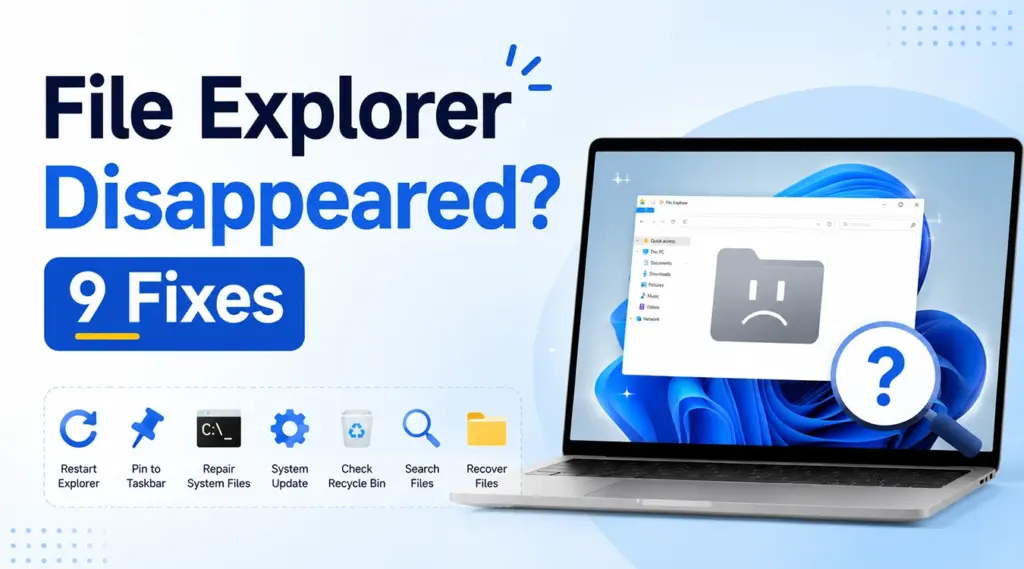
If File Explorer disappeared from your Windows PC, you may wonder whether the app, its taskbar shortcut, or even your files are gone. Fortunately, these problems often have different causes. Sometimes Windows only removes the taskbar icon. In other cases, Windows Explorer stops responding, system files become damaged, or File Explorer opens while certain files no longer appear.
Therefore, the fastest fix starts with identifying what actually disappeared. This guide explains how to restore File Explorer in Windows 11 and Windows 10, how to fix the issue when File Explorer disappeared from taskbar, and what to do if Explorer returns but your files remain missing. If normal Windows checks cannot locate those files, Magic Data Recovery can provide a practical hard drive recovery option.
Supports Windows 7/8/10/11 and Windows Server
Table of Contents
File Explorer Disappeared? Start With a Quick Diagnosis
Before changing Windows settings, match your symptom to the most likely cause.
What You See | Likely Cause | Best First Step |
File Explorer icon is missing from the taskbar | The shortcut was unpinned | Press Windows + E and pin it again |
File Explorer will not open | Explorer process or Windows issue | Restart Windows Explorer |
Taskbar and desktop icons are also missing | explorer.exe may have stopped | Start explorer.exe from Task Manager |
File Explorer opens but files are missing | Files may be hidden, moved, or deleted | Search, check Recycle Bin, then recover if needed |
For example, if File Explorer disappeared from taskbar but Windows + E opens it, File Explorer itself is still available. You only need to restore the shortcut. However, if File Explorer disappeared together with the taskbar or desktop icons, Windows Explorer may have stopped.
File Explorer Disappeared From Taskbar? Try These Fixes First
When File Explorer disappeared from taskbar, begin with the least invasive fixes. These steps do not change personal files and often solve icon-related problems quickly.
Fix 1. Open File Explorer With Windows + E
First, press Windows + E, the standard Windows shortcut for File Explorer.
If the window opens normally, the program has not disappeared. Instead, Windows probably removed or unpinned its taskbar icon. This quick test separates a shortcut issue from a deeper Explorer problem.
Fix 2. Pin File Explorer Back to the Taskbar
If File Explorer disappeared only from the taskbar, restore the icon in a few clicks:
- Press Windows + S and search for File Explorer.
- Right-click File Explorer.
- Choose Pin to taskbar.
Alternatively, press Windows + E, right-click the File Explorer icon on the taskbar, and select Pin to taskbar.
If the icon disappears again, continue with the next fix because Windows Explorer may not be running correctly.
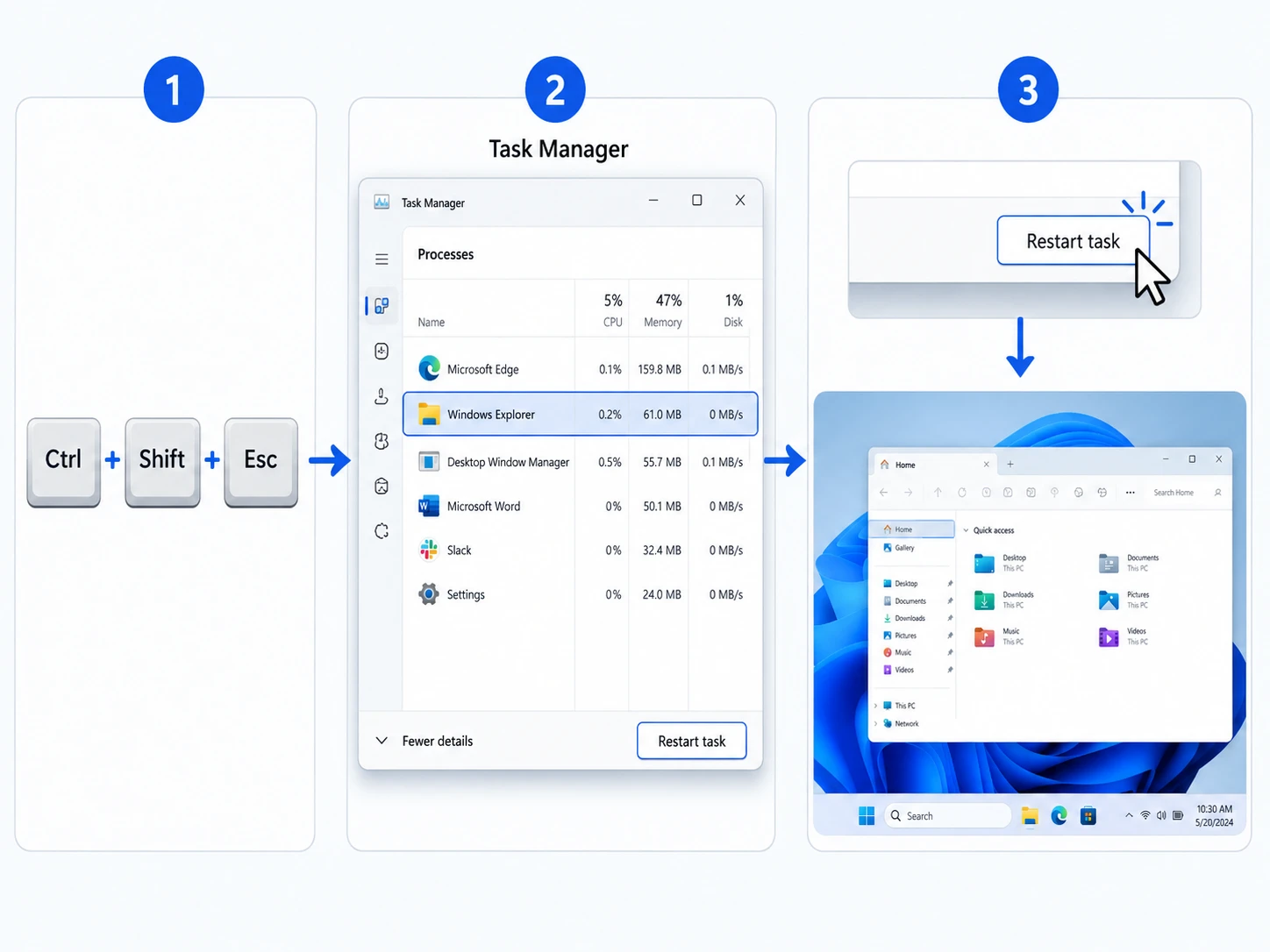
Fix 3. Restart Windows Explorer in Task Manager
Sometimes, File Explorer disappeared because Windows Explorer stopped responding.
- Press Ctrl + Shift + Esc to open Task Manager.
- Find Windows Explorer under Processes.
- Select it and click Restart task.
During the restart, the taskbar and desktop may briefly vanish because Windows Explorer manages key parts of the interface. After a few seconds, they should return.
Importantly, restarting Windows Explorer does not delete your personal files. Therefore, it is a suitable fix for temporary Explorer or taskbar problems.
File Explorer Disappeared Completely or Won't Open? Try These Fixes
If Windows + E does nothing, or the desktop and taskbar disappear together, the issue goes beyond a missing shortcut.
Fix 4. Start explorer.exe Manually
Windows uses explorer.exe to run File Explorer and major parts of the desktop shell. If that process stops, several interface elements may disappear at once.
- Press Ctrl + Shift + Esc.
- Choose Run new task in Task Manager.
- Type
explorer.exe. - Press Enter.
If the taskbar and desktop return, Explorer had stopped or failed to launch. This method often helps when File Explorer disappeared after a crash, login issue, or temporary Windows error.
Fix 5. Restart Windows and Check for Updates
Next, restart the PC to clear temporary process errors. Then go to:
Settings > Windows Update > Check for updates
Install available updates and restart again if Windows requests it. Afterward, test File Explorer with Windows + E.
If File Explorer disappeared only once and now works normally, you may not need another fix. However, repeated failures can point to damaged Windows components.
Fix 6. Repair Windows With DISM and SFC
Windows includes two built-in repair tools. DISM repairs the Windows component image, while System File Checker checks protected system files.
Open Command Prompt as Administrator and run DISM first:
DISM.exe /Online /Cleanup-image /Restorehealth
After it finishes, run:
sfc /scannow
Then restart the computer.
Use this method when File Explorer disappeared repeatedly or refuses to launch after simpler fixes. In addition, avoid downloading replacement copies of explorer.exe from unknown websites. Built-in tools offer a safer way to repair Windows components.
File Explorer Disappeared, and Your Files Are Missing Too?
Restoring File Explorer and recovering personal files are separate tasks. Therefore, if Explorer opens again but documents, photos, videos, or folders remain missing, check whether Windows hid, moved, or deleted the data.
Fix 7. Show Hidden Files and Search This PC
First, choose:
View > Show > Hidden items
Then open This PC and search for the missing filename. If you do not know the exact name, search by file type, such as .docx, .xlsx, .jpg, .png, or .pdf.
Also check Desktop, Documents, Downloads, OneDrive folders, and other local drives. For instance, a user may think File Explorer disappeared when only a folder or file location changed.
Fix 8. Check the Recycle Bin and Backups
Next, open the Recycle Bin. If you find the missing files, right-click them and choose Restore.
Also review any backup source you use, including File History, Previous Versions, OneDrive, another cloud backup, or a backup drive. Whenever a valid backup contains the file you need, use that copy first.
However, if File Explorer disappeared temporarily and your files remain missing after Explorer returns, Search, Recycle Bin, and backups may not solve the problem. At that point, data recovery software becomes relevant.
Recover Missing Files After File Explorer Disappeared With Magic Data Recovery
Magic Data Recovery becomes useful when Windows works again but your actual files do not return. Unlike DISM, SFC, or restarting explorer.exe, it focuses on locating recoverable data rather than repairing the Windows interface.
For example, suppose File Explorer disappeared during a system issue. You restart Explorer successfully, but an important project folder is still gone. After Search, Recycle Bin, and backups fail, Magic Data Recovery can scan the affected drive for recoverable files.
Magic Data Recovery supports more than 5,000 file types and common storage media such as HDDs, SSDs, USB drives, and memory cards. It also supports Windows 11, 10, 8, and 7. Moreover, its preview function lets you check detected files before recovery, helping you focus on the data you actually need.
Step 1: Download and Install Magic Data Recovery
Download Magic Data Recovery and install it on a drive different from the one where your missing files were stored. This reduces the risk that installation data will overwrite recoverable files.
Supports Windows 7/8/10/11 and Windows Server
Step 2: Select the Drive to Scan
Launch Magic Data Recovery. Then select the drive where the missing or deleted files were originally stored and start the scan.

Step 3: Scan the Drive for Missing Files
Next, Magic Data Recovery runs an Advanced Scan to look for recoverable files. Meanwhile, detected items appear in the results as the scan progresses, so you can start reviewing them before the scan finishes.

Step 4: Preview Files Before Recovery
After the scan finds data, use the preview feature to confirm file content. This step helps you identify the correct documents, photos, videos, or other files before recovery.

Step 5: Recover Files to a Safe Location
Finally, select the files you need and recover them to a different drive or safe storage location. Do not save recovered data to the same affected drive because new writes may overwrite other recoverable files.

This workflow makes Magic Data Recovery more relevant than Windows repair tools when the real problem is data loss. Nevertheless, no recovery program can guarantee every file. Overwriting, drive condition, file-system damage, and SSD behavior can affect the result.
File Explorer Disappeared: Why Does It Happen?
Several causes can make File Explorer appear to vanish.
The Taskbar Shortcut Was Removed
If File Explorer disappeared from taskbar but Windows + E still opens it, the shortcut was probably removed or unpinned. Pin the app again.
Windows Explorer Stopped Responding
A temporary Explorer crash can remove File Explorer, the taskbar, or desktop elements from view. In that case, restart Windows Explorer from Task Manager.
Windows System Files Became Damaged
If File Explorer disappeared repeatedly, damaged Windows components may contribute to the issue. DISM and SFC can repair many system-file problems without third-party replacement files.
Your Files Disappeared, Not File Explorer
Sometimes File Explorer works normally, but specific files are gone. Therefore, search the drive, show hidden items, check the Recycle Bin, and review backups before using recovery software.
How to Prevent Another File Explorer Disappeared Problem
First, keep Windows updated and restart the computer when updates require it. In addition, avoid unnecessary Registry changes or downloads that replace Windows system files.
Second, maintain regular backups of important files. File Explorer gives you access to data, but it does not protect that data from deletion, corruption, or storage failure.
Finally, remember this rule: a missing File Explorer icon usually points to an interface issue, while missing personal files require a separate file-location or recovery check.
Conclusion: Fix File Explorer Disappeared Issues the Right Way
When File Explorer disappeared, first determine whether you lost a taskbar shortcut, the Explorer process, or actual personal files. If only the icon vanished, Windows + E and Pin to taskbar may solve the issue quickly. If Explorer itself will not open, restart Windows Explorer, run explorer.exe, update Windows, and use DISM and SFC when necessary.
However, if File Explorer works again while important files remain missing, switch from system repair to data recovery. After Search, Recycle Bin, and backups fail, Magic Data Recovery provides a focused way to scan the affected drive, preview recoverable files, and save selected data to a safe location.
Therefore, we recommend Magic Data Recovery only when the problem involves actual missing files—not when File Explorer disappeared from taskbar or a shortcut needs repair. If the methods fail to solve the issue, Magic Data Recovery can help recover the data from the drive before you formatting the drive or reinstalling system.
Supports Windows 7/8/10/11 and Windows Server
FAQ About File Explorer Disappeared
Why did my File Explorer disappear?
If File Explorer disappeared, Windows may have unpinned its taskbar shortcut, Windows Explorer may have stopped, or damaged system files may interfere with the app. First, press Windows + E. If File Explorer opens, the app still exists and you only need to restore the shortcut. Otherwise, restart Windows Explorer in Task Manager.
How do I get File Explorer back?
Start with Windows + E because it opens File Explorer directly. If that works, pin the icon back to the taskbar. However, if the shortcut does not open the app, restart Windows Explorer from Task Manager. You can also run explorer.exe manually. For repeated problems, check Windows updates and run DISM followed by SFC.
Why has File Explorer disappeared from taskbar?
When File Explorer disappeared from taskbar but still opens with Windows + E, Windows probably removed or unpinned the shortcut. Search for File Explorer, right-click it, and choose Pin to taskbar. If the icon keeps vanishing, restart Windows Explorer because a temporary desktop-shell problem may be affecting the taskbar.
How can I open File Explorer without the taskbar icon?
Press Windows + E to open File Explorer without using the taskbar. Alternatively, press Windows + S, type File Explorer, and open it from the results. If neither method works, open Task Manager and run explorer.exe. That step can restore File Explorer when the Windows Explorer process has stopped.
Will restarting Windows Explorer delete my files?
No. Restarting Windows Explorer reloads the Windows shell and File Explorer interface; it does not intentionally remove your personal data. However, save work in open programs before troubleshooting when possible. If Explorer returns but files remain missing, search the drive, check the Recycle Bin, review backups, and then consider data recovery.
Why did my taskbar and File Explorer disappear together?
The taskbar, desktop icons, and File Explorer rely heavily on Windows Explorer. Therefore, if explorer.exe stops, several interface elements may disappear at once. Open Task Manager and restart Windows Explorer. If it does not appear in the process list, choose Run new task, type explorer.exe, and press Enter.
What should I do if files remain missing after File Explorer returns?
First, show hidden files, search This PC, check the Recycle Bin, and review available backups. If those methods cannot find the data, stop writing new files to the affected drive. Then use Magic Data Recovery to scan for recoverable files, preview the results, and save selected files to a different safe location.

Vasilii is a data recovery specialist with around 10 years of hands-on experience in the field. Throughout his career, he has successfully solved thousands of complex cases involving deleted files, formatted drives, lost partitions, and RAW file systems. His expertise covers both manual recovery methods using professional tools like hex editors and advanced automated solutions with recovery software. Vasilii's mission is to make reliable data recovery knowledge accessible to both IT professionals and everyday users, helping them safeguard their valuable digital assets.