
Come trovare il codice prodotto di Windows 11
Devi trovare il tuo Codice prodotto di Windows 11 prima di reinstallare, aggiornare o trasferire la licenza? In molti casi è possibile recuperarla utilizzando PowerShell, l’Editor del Registro di sistema, il Prompt dei comandi, l’e-mail di acquisto o uno strumento affidabile per il recupero dei codici prodotto.
Tuttavia, non tutti i PC con Windows 11 dispongono di un codice prodotto visibile di 25 caratteri. Molti dispositivi vengono infatti attivati tramite una licenza digitale, il che significa che Windows può riattivarsi automaticamente senza che sia necessario inserire un codice prodotto.
Questa guida illustra i modi più sicuri per trovare il codice prodotto di Windows 11, cosa è possibile e cosa non è possibile visualizzare con ciascun metodo e cosa fare se il risultato è vuoto. Ad esempio, se desideri una soluzione di recupero affidabile, puoi utilizzare Magic Recovery Key per garantire in modo sicuro recuperare il codice prodotto di Windows 11.
Supporta Windows 7/8/10/11 e Windows Server
Indice dei contenuti
1. Trovare il codice prodotto di Windows 11 Pro con Magic Recovery Key
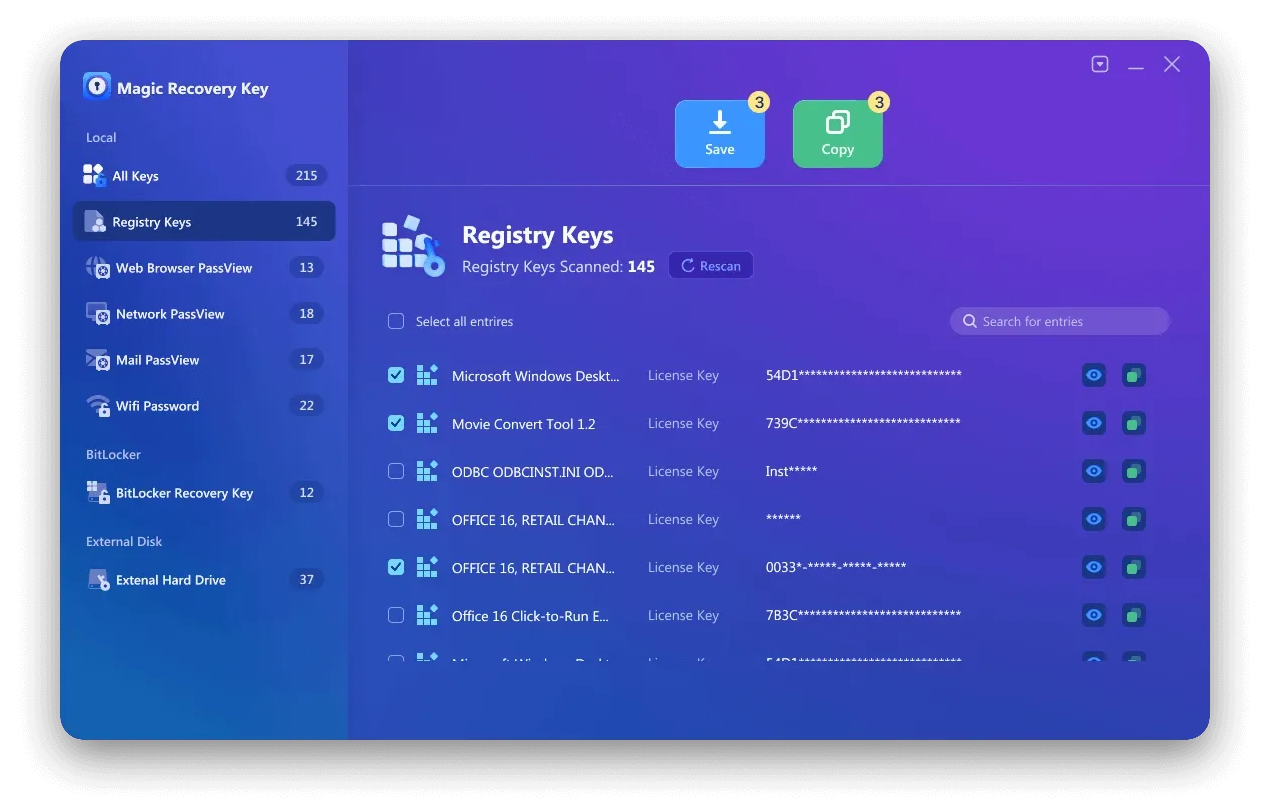
Magic Recovery Key è in grado di trovare facilmente la chiave di sistema di Windows sul computer in uso, indipendentemente dal fatto che sia in esecuzione Windows 11, Windows 10 o qualsiasi altra versione di Windows. È sufficiente eseguire il programma per ottenere l'elenco del codice prodotto.
Passo 1. Fare clic sulla scheda “Chiavi di registro” in “Locale”.

Fase 2. Nel pannello di destra, visualizzate le chiavi di registro delle applicazioni. Magic Recovery Key visualizzerà tutte le chiavi del software installato. Selezionare e copiare i numeri di serie desiderati. Inoltre, è possibile fare clic su “Copia” o “Salva” per comodità.
Ottenete il vostro codice prodotto di Windows scaricandolo all'istante Magic Recovery Key oggi stesso e assicuratevi l'attivazione in pochi minuti!
Supporta Windows 7/8/10/11 e Windows Server
2. Utilizzo di PowerShell per recuperare il codice prodotto di Windows
Se si preferisce utilizzare PowerShell, la procedura è simile, ma i comandi saranno diversi. Per iniziare, aprite lo strumento di ricerca di Windows 11 e digitate “powershell.” Individuare PowerShell nei risultati della ricerca e fare clic su “Eseguire come amministratore”.

Al prompt di PowerShell, digitare o incollare questo comando, quindi premere Invio:
powershell “(Get-WmiObject -query ‘select * from SoftwareLicensingService’).OA3xOriginalProductKey”
L'output mostrerà il vostro Codice prodotto di Windows 11. Inoltre, questo metodo è ideale per gli utenti avanzati che preferiscono gli script alle interfacce grafiche.
3. Utilizzare il Registro di sistema in Windows 11 per trovare il codice prodotto di Windows 11.
Il codice prodotto di Windows è memorizzato nel Registro di Windows, quindi è possibile individuarlo navigando nella posizione corretta. A tale scopo, aprite lo strumento di ricerca di Windows 11 e digitate “regedit.” Selezionare l'applicazione Registry Editor dai risultati della ricerca e fare clic su “Eseguire come amministratore.” Nell'Editor del Registro di sistema, utilizzare il riquadro sinistro della finestra per navigare fino alla seguente chiave:
Computer-HKEY_LOCAL_MACHINE-SOFTWARE-Microsoft-Windows NT-CurrentVersion-SoftwareProtectionPlatform
Come si può vedere nella figura seguente, la chiave BackupProductKeyDefault rivelerà un product key di Windows valido. Nota: questa chiave potrebbe essere diversa da quella rivelata dal prompt dei comandi o da PowerShell.

4. Utilizzo del prompt dei comandi per recuperare il codice prodotto di Windows 11
wmic path softwareLicensingService get OA3xOriginalProductKey
Questo comando visualizzerà il codice prodotto sullo schermo. Inoltre, è un metodo affidabile che non richiede software aggiuntivo. Digitare sempre i comandi con attenzione per evitare errori.

5. Ulteriori suggerimenti per trovare il codice prodotto di Windows 11
Sebbene esistano altri metodi che affermano di individuare e visualizzare il codice prodotto di Windows 11, i metodi sopra descritti sono generalmente più affidabili e sicuri. Gli altri metodi potrebbero non funzionare sempre come previsto o presentare rischi per la sicurezza.
Se avete acquistato Windows 11 dal Microsoft Store, potete accedere alla cronologia degli ordini del vostro account per trovare le informazioni sul codice prodotto. Si tratta di un modo comodo per recuperare il codice se lo si è perso o dimenticato.
Tenete presente che il codice prodotto è legato all'installazione specifica di Windows 11, quindi è importante tenerlo al sicuro. Non condividete il codice prodotto con nessuno, perché potrebbe essere usato per attivare copie non autorizzate di Windows.
Come controllare se il codice prodotto di Windows 11 è valido
Dopo aver recuperato il codice prodotto, assicuratevi che sia valido prima di utilizzarlo per l'attivazione. Per prima cosa, andate in Impostazioni → Aggiornamento e sicurezza → Attivazione. Quindi, se necessario, inserire la chiave. Inoltre, il controllo preventivo della chiave evita inutili problemi di attivazione.
Conclusione
Il modo più semplice per trovare un codice prodotto di Windows 11 è partire da PowerShell. Se il codice è incorporato nel firmware del dispositivo, PowerShell potrebbe visualizzarlo rapidamente. Se il risultato è vuoto, verifica se il tuo PC è invece attivato con una licenza digitale.
Per gli utenti che hanno bisogno di recuperare le chiavi di licenza di Windows e di altri software prima di reinstallare, aggiornare o sostituire un computer, Magic Recovery Key offre un modo più semplice per scansionare e recuperare le informazioni relative alle licenze disponibili in un unico posto.
Prima di reinstallare Windows 11, verifica sempre lo stato di attivazione, esegui il backup di tutti i codici prodotto disponibili e conserva le informazioni relative alla licenza in un luogo sicuro.
Supporta Windows 7/8/10/11 e Windows Server
FAQ
Come posso trovare il codice prodotto di Windows 11 se l'ho perso?
È legale utilizzare strumenti di terze parti per trovare il mio codice prodotto?
Posso utilizzare lo stesso codice prodotto di Windows 11 su un altro PC?
Qual è la differenza tra una licenza digitale e un codice prodotto?
Perché il mio codice prodotto di Windows 11 non funziona?
È necessario un codice prodotto per l'installazione di Windows 11?

Erin Smith è riconosciuta come una delle scrittrici più professionali di Amagicsoft. Negli ultimi 10 anni ha continuamente affinato le sue capacità di scrittura e ha aiutato milioni di lettori a risolvere i loro problemi tecnologici.