
How to Find Your Windows 11 Product Key
Need to find your Windows 11 product key before reinstalling, upgrading, or transferring your license? In many cases, you can recover it using PowerShell, Registry Editor, Command Prompt, your purchase email, or a trusted product key finder.
However, not every Windows 11 PC has a visible 25-character product key. Many devices are activated with a digital license instead, which means Windows can reactivate automatically without requiring you to type in a product key.
This guide explains the safest ways to find your Windows 11 product key, what each method can and cannot show, and what to do if the result is blank. For example, if you want a reliable recovery solution, you can use Magic Recovery Key to safely retrieve your Windows 11 product key.
Supports Windows 7/8/10/11 and Windows Server
Table of Contents
1. Find Windows 11 Pro Product Key using Magic Recovery Key
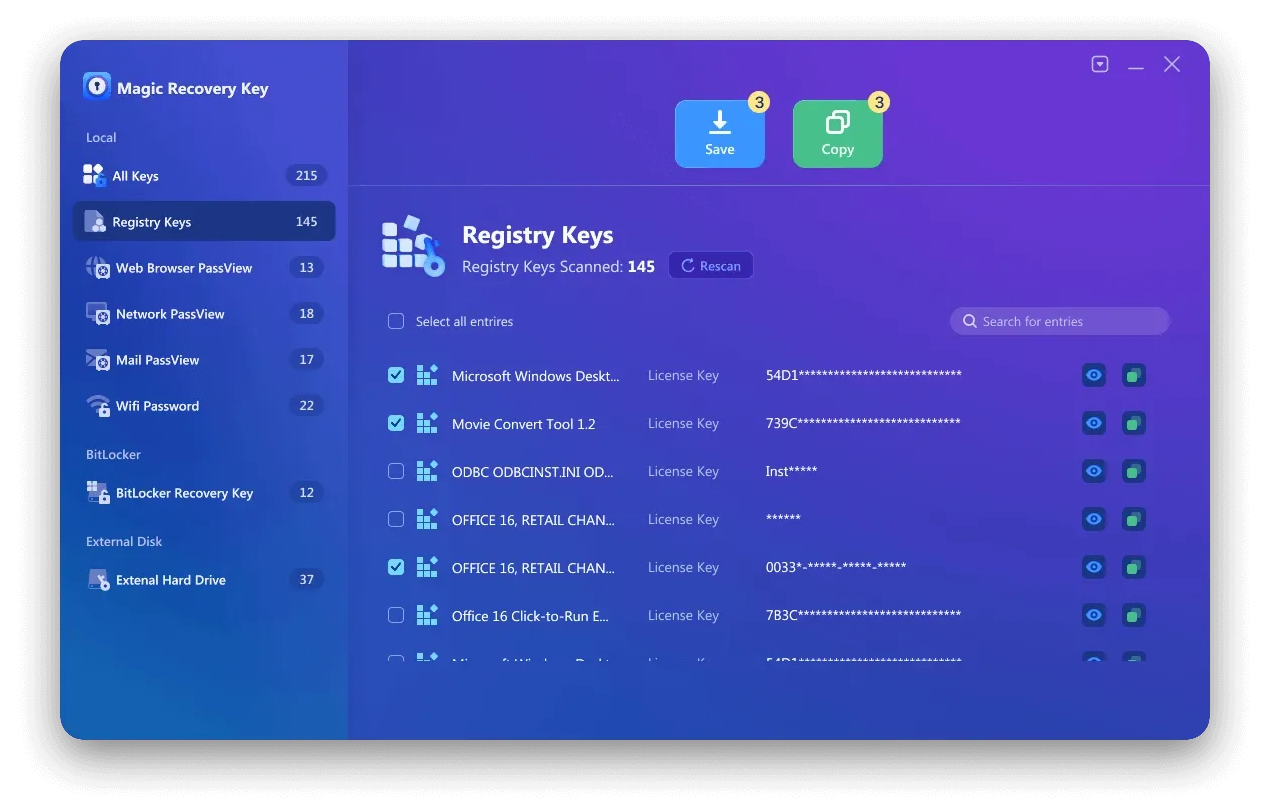
Magic Recovery Key can easily find the Windows system key on your current computer, regardless of whether it’s running Windows 11, Windows 10, or any other Windows version. Simply run the program, and it will list your product key for you.
Step1. Click “Registry Keys” tab under “Local”.

Step 2. On the right panel, view the Applications Registry Keys. Magic Recovery Key will display all keys for installed software. Select and copy the targeted serial numbers. Additionally, you have the option to click either “Copy” or “Save” for your convenience.
Get your Windows product key instantly—download Magic Recovery Key today and secure your activation in minutes!
Supports Windows 7/8/10/11 and Windows Server
2. Using PowerShell to Recover Windows Product Key
If you prefer to use PowerShell, the process is similar, but the commands will be different. To begin, open the Windows 11 search tool and type “powershell.” Locate PowerShell in the search results and click the “Run as administrator” option.

At the PowerShell prompt, type or paste this command, then press Enter:
powershell “(Get-WmiObject -query ‘select * from SoftwareLicensingService’).OA3xOriginalProductKey”
The output will show your Windows 11 product key. Furthermore, this method is ideal for advanced users who prefer scripts over graphical interfaces.
3. Use the Registry in Windows 11 to find Windows 11 Product key
The Windows product key is stored in the Windows Registry, so it’s possible to locate it by navigating to the correct location. To do this, open the Windows 11 search tool and type “regedit.” Select the Registry Editor application from the search results and click “Run as administrator.” In the Registry Editor, use the left-hand window pane to navigate to the following key:
Computer-HKEY_LOCAL_MACHINE-SOFTWARE-Microsoft-Windows NT-CurrentVersion-SoftwareProtectionPlatform
As you can see in the figure below, the BackupProductKeyDefault key will reveal a valid Windows product key. Note: This key may be different from the key revealed by the command prompt or PowerShell.

4. Using Command Prompt to Retrieve Your Windows 11 Product Key
wmic path softwareLicensingService get OA3xOriginalProductKey
This command will display your product key on the screen. In addition, it is a reliable method that does not require additional software. Always type commands carefully to prevent errors.

5. Additional tips for finding Windows 11 product key
While there are other methods that claim to locate and display your Windows 11 product key, the methods outlined above are generally more reliable and secure. The other methods may not always work as intended or could potentially pose security risks.
If you purchased Windows 11 from the Microsoft Store, you can access your account order history to find the product key information. This is a convenient way to retrieve your key if you’ve lost it or forgotten it.
Keep in mind that the product key is tied to your specific installation of Windows 11, so it’s important to keep it safe and secure. Do not share your product key with anyone, as it could be used to activate unauthorized copies of Windows.
How to Check if Your Windows 11 Product Key is Valid
After retrieving your product key, ensure it is valid before using it for activation. First, go to Settings → Update & Security → Activation. Then, enter your key if needed. Moreover, checking the key in advance prevents unnecessary activation issues.
Conclusion
The easiest way to find a Windows 11 product key is to start with PowerShell. If your key is embedded in your device firmware, PowerShell may display it quickly. If the result is blank, check whether your PC is activated with a digital license instead.
For users who need to recover Windows and other software license keys before reinstalling, upgrading, or replacing a computer, Magic Recovery Key provides a simpler way to scan and retrieve available license information in one place.
Before reinstalling Windows 11, always confirm your activation status, back up any available product keys, and keep your license information in a secure location.
Supports Windows 7/8/10/11 and Windows Server
FAQ
How can I find my Windows 11 product key if I lost it?
Is it legal to use third-party tools to find my product key?
Can I use the same Windows 11 product key on another PC?
What is the difference between a digital license and product key?
Why is my Windows 11 product key not working?
Do I need a product key for Windows 11 installation?

Erin Smith is recognized as one of the most professional writers at Amagicsoft. She has continually honed her writing skills over the past 10 years and helped millions of readers solve their tech problems.