Vai al contenuto
icona del logo amagicsoft
  • Casa
  • Prodotti
    • Magic Data Recovery
    • Magic Recovery Key
  • Negozio
  • Blog
  • Di più
    • Informazioni su Amagicsoft
    • Contatto
    • Informativa sulla privacy
    • Termini
    • Contratto di licenza
    • Politica di rimborso
  • Italiano
    • English
    • 日本語
    • 한국어
    • Deutsch
    • Français
    • Español
    • 繁體中文
Recupero della chiave di licenza

How Do I Repair My Microsoft Office License

29.04.2025 Smith, Erin Commenti disabilitati su How Do I Repair My Microsoft Office License

When working with Microsoft Office, maintaining a valid license is paramount for seamless productivity and full access to its vast array of features and benefits. However, at times, license issues may arise due to software updates, system glitches, or even inadvertent deletion of critical files. Fret not, as there are several effective ways to repair your Microsoft Office license and restore your access to essential tools like Word, Excel, and PowerPoint. Let’s delve into the steps and resources you can leverage to resolve these issues swiftly.

Scaricare Magic Recovery Key

Supporta Windows 7/8/10/11 e Windows Server

Indice dei contenuti

Solution 1: Utilize the Built-in Repair Option to Repair Microsoft Office License

The simplest approach is often the most effective. Microsoft Office includes a built-in Repair feature that can be accessed via the Control Panel. This feature automatically scans for and fixes common license issues, allowing you to quickly resume your work without any interruptions.

1.1 Repair Office from the Control Panel

repair-office-from-the-control-panel

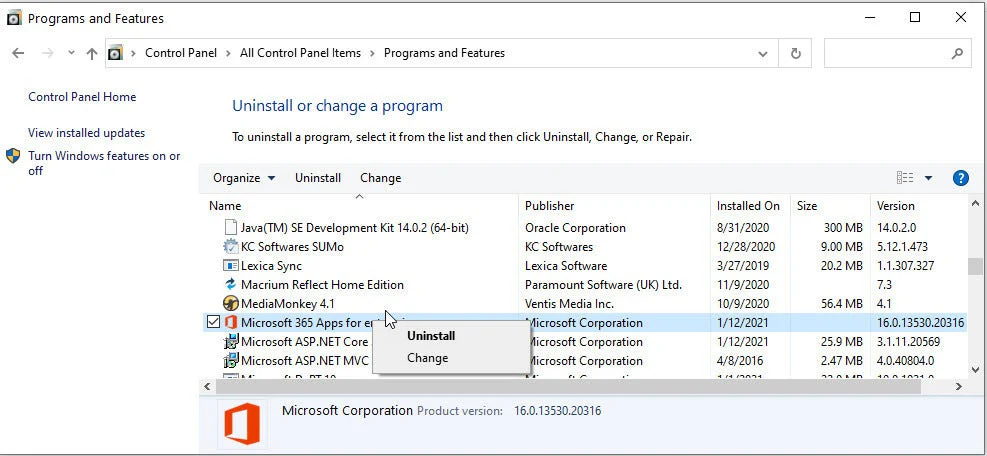
Go to your computer’s settings and navigate to the Control Panel. Look for the “Programs” or “Programs and Features” section. Find Microsoft Office in the list of installed programs, right-click on it, and select “Repair” or “Change”. Follow the prompts to repair your Office installation.

1.2 Use the Office Repair Tool

use-the-office-repair-tool

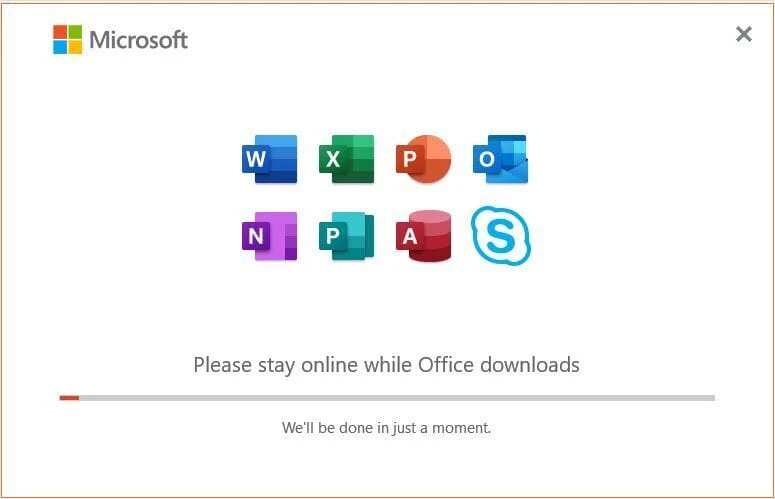
If the Control Panel method does not work, Microsoft offers the Office Repair Tool. This tool can automatically diagnose and repair issues with your Office installation. Download and run the tool from the official Microsoft website.

1.3 Restart and Update Office

If you are experiencing licensing issues with Office, a simple restart of the application or your computer can often resolve the problem. Close all Office applications and restart your computer for a clean start.

restart-and-update-office
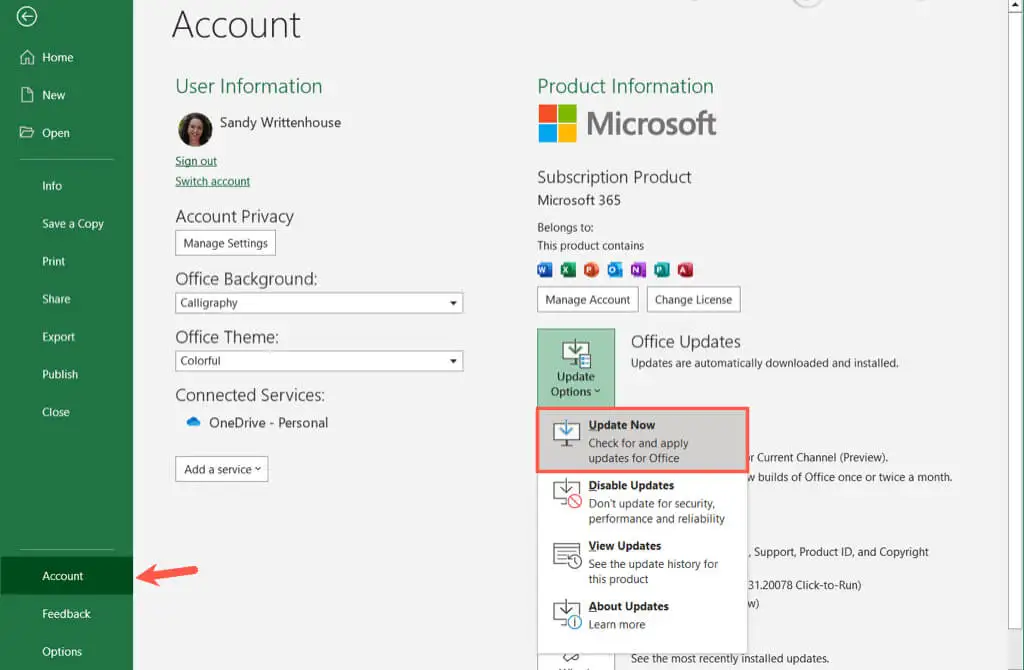
Additionally, ensure that your Office software is up to date with the latest updates and patches. Microsoft regularly releases updates to address bugs, security vulnerabilities, and improve overall performance. Open any Office application, go to the “File” tab, and click on “Account” or “Office Account” (depending on your Office version). From there, click on “Update Options” and select “Update Now.”

Allow the updates to install, and then restart your computer before attempting to use Office again.

1.4 Check for Network Connectivity for Office 365 License

In some cases, a lack of network connectivity can prevent Office from properly verifying your license. Ensure that you have a stable internet connection and try accessing any online services provided by Office to confirm connectivity.

If you are using a proxy server or a VPN, try disabling it temporarily and check if the issue persists. Sometimes, network configurations can interfere with license validation.

Solution 2: Consult Online Resources to solve Microsoft office product key issue

For more complex license problems, Microsoft offers a wealth of online resources, including troubleshooting guides, forums, and customer support. These resources can guide you through step-by-step solutions or connect you with experts who can provide personalized assistance.

2.1 Repair Office Using Microsoft Support and Recovery Assistant

repair-office-using-microsoft-support-and-recovery-assistant
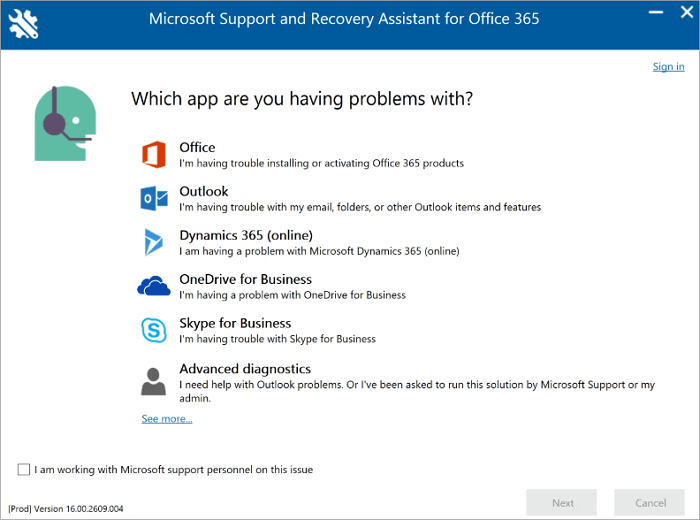
Microsoft provides a tool called the Microsoft Support and Recovery Assistant (SaRA) that can help diagnose and resolve issues with Microsoft Office, including licensing problems. To repair your Office installation using SaRA:

Download the Microsoft Support and Recovery Assistant tool from the official Microsoft website.
Run the downloaded tool and follow the on-screen instructions to diagnose and repair Office-related issues.

Once the repair process is complete, restart your computer.

2.2 Contact Microsoft Support to repair Microsoft office license

contact-microsoft-support-to-repair-microsoft-office-license

If the above methods do not resolve your license issue, it is recommended to contact Microsoft Support directly. They can provide personalized assistance and guide you through the steps to repair your Office license.

Solution 3: Reinstall Microsoft Office to repair Microsoft office license

If the above methods don’t resolve the issue, reinstalling Microsoft Office may be necessary. Ensure you have your Microsoft office product key handy and follow the re-installation instructions provided by Microsoft. This process will replace any corrupted files and restore your access to all Office applications.


Before reinstalling Microsoft Office, it is recommended that you first save your Microsoft Office key using the following method:


3.1 Download and install the smart key finder software, Magic Recovery Key, which supports Windows 11, 10, 8, and 7.
Scaricare Magic Recovery Key

Supporta Windows 7/8/10/11 e Windows Server

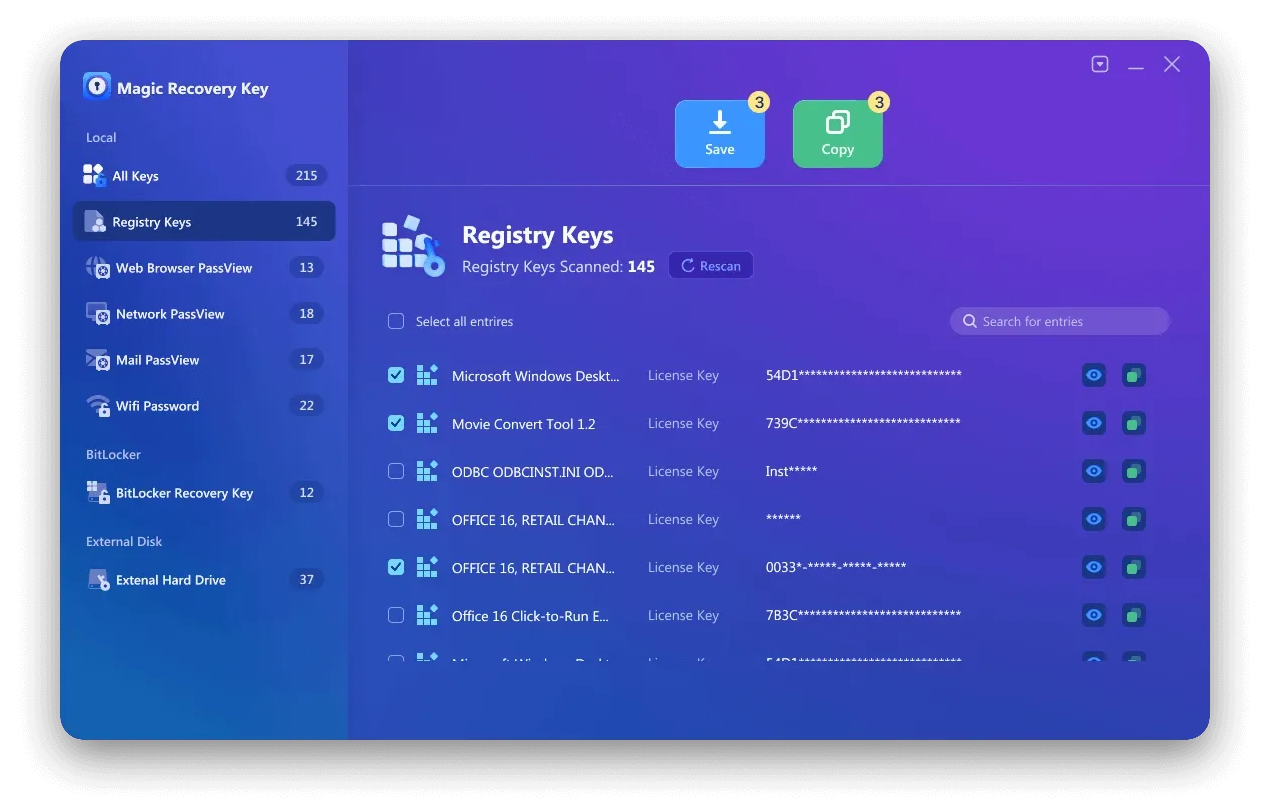
3.2 Click “Chiavi di registro” tab under “Local“.

magic-recovery-key-register-key-1.

3.3  On the right panel, view the Applications Registry Keys. Magic Recovery Key will display all keys for installed software. Select and copy the targeted serial numbers. Additionally, you have the option to click either “Copia” or “Risparmiare” for your convenience.

magic-recovery-key-register-key-2

Magic Recovery Key is a powerful tool that effortlessly locates Windows and Windows Server product keys. It quickly retrieves licenses in case of system or hard disk failure and restores keys for over 10,000 popular programs, keeping your software fully licensed and operational.

Conclusion: How to Effectively Repair Microsoft Office License Errors

When you encounter a Microsoft Office license error, such as “license expired,” “product key not recognized,” o “activation failed,” there’s no need to panic.
Most of these issues can be resolved by following the troubleshooting methods described in the guide — such as repairing activation files, resetting the license service, or restoring the Office product key with a License Key Recovery tool.

If the repair steps do not work and Office needs to be reinstalled, it’s strongly recommended to extract and back up your Office product key first utilizzando Magic Recovery Key. This ensures that your license information is safely recovered before reinstalling Office, preventing activation problems or key loss afterward.

By applying the proper repair solution and safeguarding your license key in advance, you can easily reactivate Microsoft Office and continue your work without interruptions.

Scaricare Magic Recovery Key

Supporta Windows 7/8/10/11 e Windows Server

Frequently Asked Questions (FAQ)

Q1: Why does my Microsoft Office say “Your license has expired”?

This message often appears when your Office activation data becomes corrupted or invalid. You can repair the activation files or use the License Key Recovery tool to restore your valid license information. Always verify that your Office installation and product key are genuine before reactivating.

Q2: What should I do if Microsoft Office shows “Product key not recognized” or “License status error”?

These errors are commonly caused by damaged registry entries or leftover activation files after a reinstall or Windows update. You can fix this by using the License Key Recovery software to scan for and repair license data. If reinstallation is required, back up your key with Magic Recovery Key to avoid losing it.

Q3: Do I need to reinstall Office to fix license problems?

In most cases, you can repair Microsoft Office license errors without reinstalling the program. However, if system corruption prevents activation from working, a clean reinstall may be necessary. Before doing so, extract your license key using Magic Recovery Key, so you can reactivate Office easily afterward.
  • Come
  • Magic Recovery Key
Smith, Erin

Erin Smith è riconosciuta come una delle scrittrici più professionali di Amagicsoft. Negli ultimi 10 anni ha continuamente affinato le sue capacità di scrittura e ha aiutato milioni di lettori a risolvere i loro problemi tecnologici.

Navigazione articoli

Precedente
Avanti

Ricerca

Categorie

  • Recupero di Bitlocker
  • Recupero dei file cancellati
  • Correzione del problema del disco
  • Recupero dei documenti
  • Recupero dei file di formato
  • Recupero del disco rigido
  • Recupero della chiave di licenza
  • Recupero dei file persi
  • Recupero della scheda di memoria
  • Notizie
  • Recupero password
  • Recupero foto
  • Recupero SSD
  • Recupero dell'unità USB
  • Guida per l'utente
  • Recupero video
  • Wiki
  • Correzione del problema di Windows

Messaggi recenti

  • recupero di file formattati gratis
    Recupero file unità formattata: Recuperare i dati in 3 passi
  • Unità SanDisk non riconosciuta Cause e soluzioni comprovate
    Unità SanDisk non riconosciuta? Cause e soluzioni
  • Risolvere il problema dell'unità disco esterna Seagate non riconosciuta
    Risolvere il problema dell'unità disco esterna Seagate non riconosciuta

Tag

CHKDSK e Strumenti disco Riparazione del disco Risoluzione degli errori Come Magic Data Recovery Magic Recovery Key WiKi

Messaggi correlati

Come recuperare i file eliminati su una scheda MicroSD
Recupero della scheda di memoria

Come recuperare i file eliminati su una scheda MicroSD

31.12.2025 Vasilii Non ci sono ancora commenti

L'eliminazione accidentale di file importanti dalla scheda MicroSD può essere un'esperienza frustrante. Che si tratti di foto, video, documenti o musica, la perdita di file essenziali può causare panico e stress. Se vi state chiedendo come recuperare i file cancellati dalla scheda MicroSD, non siete i soli. Molti utenti devono affrontare questo problema, ma la buona notizia è che spesso è [...]

Il miglior software per il recupero di unità grezze
Recupero dei file di formato

Come eseguire il ripristino del disco rigido in formato raw

31.12.2025 Jason Non ci sono ancora commenti

Quando il sistema operativo non riconosce il file system (come NTFS o FAT32), contrassegna la partizione come RAW. Di conseguenza, non è possibile aprire i file, ma i dati sono ancora presenti sui piatti o sulle celle flash. Se si agisce rapidamente e si utilizzano i metodi giusti, il recupero di un disco rigido in formato raw è [...]

Guida su come recuperare i file eliminati del cestino
Recupero dei file cancellati

Come recuperare i file del cestino eliminati

30.12.2025 Vasilii Commenti disabilitati su How to Recover Deleted Recycle Bin Files

L'eliminazione accidentale dei file è uno degli scenari più comuni che scatenano il panico, soprattutto quando ci si accorge di aver eliminato definitivamente il Cestino. Che si tratti di documenti importanti, foto care o file di lavoro critici, la loro perdita può essere devastante. La buona notizia è che, anche dopo aver svuotato il Cestino, è possibile recuperare [...]

icona del logo amagicsoft

La nostra visione è quella di diventare un marchio di software e un fornitore di servizi di fama mondiale, in grado di offrire prodotti e servizi di alto livello ai nostri utenti.

Prodotti
  • Magic Data Recovery
  • Magic Recovery Key
Politica
  • Termini
  • Informativa sulla privacy
  • Politica di rimborso
  • Contratto di licenza
Azienda
  • Informazioni su Amagicsoft
  • Contatto
  • Negozio
Seguiteci

Copyright © 2025 Amagicsoft. Tutti i diritti riservati.

  • Termini
  • Informativa sulla privacy