
GPT (Tabella delle partizioni GUID)
GPT (Tabella delle partizioni GUID) è un moderno standard per il partizionamento dei dischi che sostituisce il precedente standard MBR (Master Boot Record) sistema. Definisce come partizioni e dati sono strutturati su un dispositivo di archiviazione, come SSD o HDD, che offre maggiore affidabilità e flessibilità ai sistemi operativi odierni.
A differenza dell'MBR, che in genere supporta i dischi fino a circa 2 TB se si utilizzano settori tradizionali da 512 byte., GPT supporta i dischi più grandi e consente partizioni quasi illimitate, il che lo rende l'opzione preferita per le unità ad alta capacità.
Indice dei contenuti
Cosa significa GPT?
GPT significa Tabella di partizione GUID. Si tratta di uno schema di partizionamento del disco che definisce la disposizione e l'identificazione delle partizioni su un dispositivo di archiviazione.
Una tabella delle partizioni del disco funziona come una mappa. Indica al sistema operativo dove inizia e dove finisce ogni partizione, di che tipo di partizione si tratta e in che modo il sistema deve accedervi. Senza una tabella delle partizioni valida, Windows o un altro sistema operativo potrebbero non riconoscere correttamente il disco.
GPT è stato progettato come sostituto moderno di MBR, che sta per Master Boot Record. L'MBR è uno standard di partizionamento ormai datato che presenta diverse limitazioni, soprattutto se utilizzato con unità di grande capacità.
In parole povere:
- GPT è lo stile moderno di suddivisione degli spazi.
- MBR è lo stile di partizione più vecchio.
- A Disco GPT può supportare una maggiore capacità di archiviazione e un numero maggiore di partizioni.
- A Partizione GPT è comunemente utilizzato sui computer basati su UEFI.
Come funziona il GPT
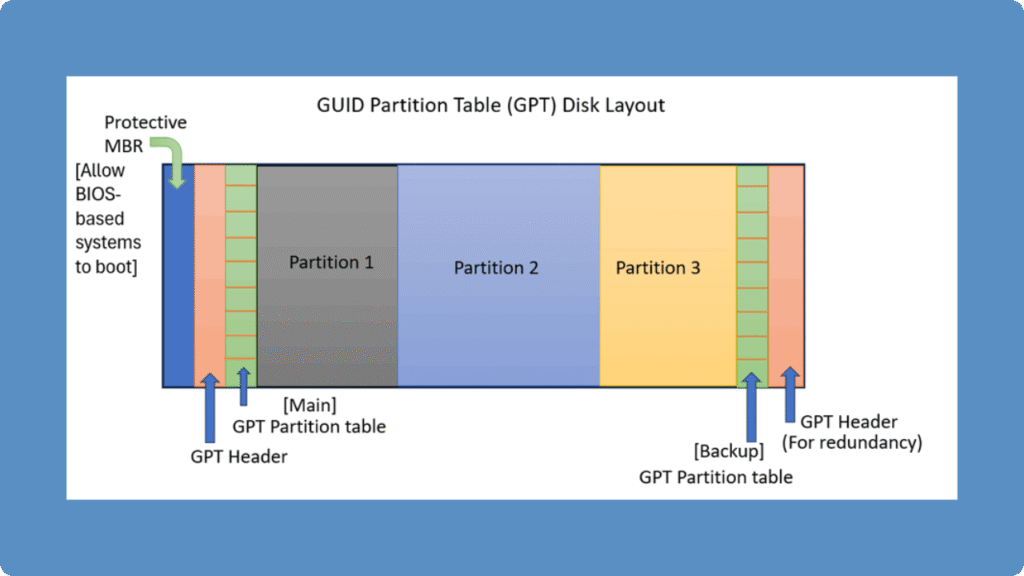
Un'unità formattata con tabella di partizione GUID contiene quattro strutture chiave:
1. MBR protettivo - Impedisce agli strumenti più vecchi di identificare erroneamente il disco.
2. Intestazione GPT primaria - Memorizza i dati del layout e le voci della partizione.
3. Voci di partizione - Definire il tipo, la dimensione e l'ID di ogni partizione.
4. Backup dell'intestazione GPT - Situato all'estremità del disco per garantire la ridondanza.
Poiché questa tabella di partizione mantiene metadati duplicati, Anche se l'intestazione primaria è danneggiata, il sistema è in grado di ripristinare il layout del disco dall'intestazione di backup, un miglioramento fondamentale rispetto all'MBR.
Vantaggi dello standard di suddivisione
La tabella delle partizioni GUID offre diversi vantaggi rispetto all'MBR sia per i professionisti IT che per gli utenti comuni:
Supporto per dischi più grandi: Gestisce senza problemi dischi da oltre 2 TB.
Altre partizioni: Supporta fino a 128 partizioni primarie su Windows.
Ridondanza e integrità: Il backup delle tabelle di partizione migliora le possibilità di ripristino.
Protezione CRC: Utilizza il controllo di ridondanza ciclica per verificare l'integrità dei dati.
Ampia compatibilità: Completamente supportato da Windows 10/11, macOS e Linux (basato su UEFI).
Questi vantaggi rendono questo formato ideale per lo storage aziendale, le moderne unità SSD e le unità di grande capacità.
Limitazioni del formato
Nonostante i suoi vantaggi, la tabella di partizione GUID presenta alcune limitazioni pratiche:
Incompatibilità del sistema legacy: I sistemi BIOS più vecchi non possono avviarsi da dischi GPT.
Complessità del recupero: Se sia l'intestazione primaria che quella di backup sono danneggiate, è necessario un ripristino manuale.
Rischio di conversione: La modifica di MBR in GPT senza un backup può causare perdita di dati.
Eseguire sempre un backup dei file importanti prima di ripartizionare o convertire il disco.
GPT vs. MBR: differenze chiave
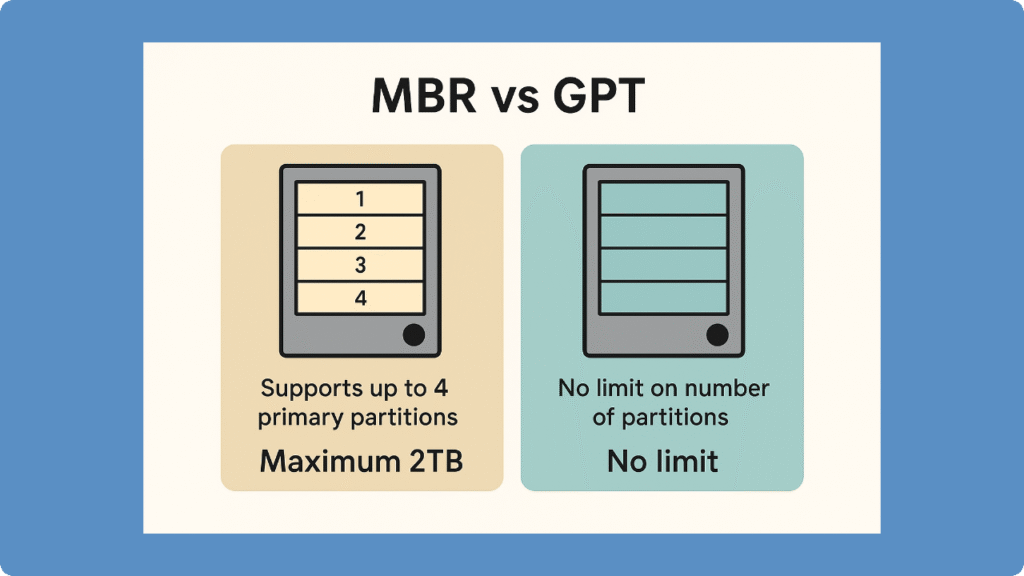
Il confronto tra MBR vs GPT è una delle domande più frequenti che gli utenti si pongono quando inizializzano un disco, installano Windows o convertono un'unità.
Ecco le principali differenze:
Caratteristica | GPT | MBR |
Nome completo | Tabella di partizione GUID | Master Boot Record |
Dimensione massima del disco | Supporta dischi di dimensioni molto grandi | Di norma limitato a 2 TB |
Numero di partizioni | Supporta numerose partizioni | Di norma supporta fino a 4 partizioni primarie |
Modalità di avvio | Funziona con UEFI | Funziona con i BIOS legacy |
Affidabilità | Memorizza le tabelle delle partizioni primarie e di backup | I negozi archiviano i dati principalmente in un'unica sede |
Supporto per i sistemi moderni | Consigliato per PC moderni | Ideale per i sistemi meno recenti |
Compatibilità con Windows 11 | Requisito comune per l'avvio UEFI | Non adatto all'installazione UEFI standard di Windows 11 |
Nella maggior parte dei casi, il GPT rappresenta la scelta migliore. Tuttavia, l'MBR può ancora rivelarsi utile se è necessaria la compatibilità con computer meno recenti o con sistemi BIOS legacy.
È meglio scegliere GPT o MBR?
Se sia meglio scegliere GPT o MBR Dipende dal computer, dal sistema operativo, dalla modalità di avvio e dalla capacità del disco.
Di norma, dovresti scegliere GPT se:
- Il tuo computer utilizza la modalità di avvio UEFI.
- Il tuo disco ha una capacità superiore a 2 TB.
- Stai installando Windows 10 o Windows 11 su un PC di ultima generazione.
- Vuoi più di quattro partizioni primarie.
- Stai utilizzando un nuovo SSD, HDD o disco rigido esterno.
- Vuoi una maggiore ridondanza della tabella delle partizioni.
Si può scegliere MBR se:
- Il tuo computer supporta solo il BIOS legacy.
- È necessaria la compatibilità con sistemi operativi molto datati.
- Stai utilizzando un disco obsoleto con hardware di vecchia generazione.
- Il disco ha una capacità inferiore a 2 TB e non richiede molte partizioni.
Per la maggior parte degli utenti Windows moderni, si consiglia di utilizzare il GPT.
Come verificare se un disco è GPT o MBR in Windows
È possibile verificare se il proprio disco utilizza il formato GPT o MBR in diversi modi.
Metodo 1: Verificare se il disco è in formato GPT o MBR in “Gestione disco”
- Fare clic con il tasto destro del mouse sul pulsante Start.
- Selezionare Gestione del disco.
- Fai clic con il tasto destro del mouse sul disco che desideri controllare.
- Selezionare Proprietà.
- Vai al sito Volumi scheda.
- Cercare Stile della partizione.
Se c'è scritto Tabella delle partizioni GUID (GPT), il disco utilizza il formato GPT.
Se c'è scritto Master Boot Record (MBR), il disco utilizza l'MBR.
Metodo 2: Verificare la presenza di GPT o MBR con DiskPart
- Stampa Vincere + R.
- Tipo
cmde premere Invio. - Digitare il seguente comando:
diskpart - Quindi digita:
elenco dischi
Se c'è un asterisco * Nella colonna "GPT", se è presente un valore, il disco utilizza il GPT. Se la colonna "GPT" è vuota, il disco utilizza l'MBR.
Metodo 3: Verificare la presenza di GPT o MBR con PowerShell
È possibile utilizzare anche PowerShell: Get-Disk
Guarda il Stile della partizione colonna. Indicherà se il disco è GPT o MBR.
Come inizializzare un disco in formato GPT
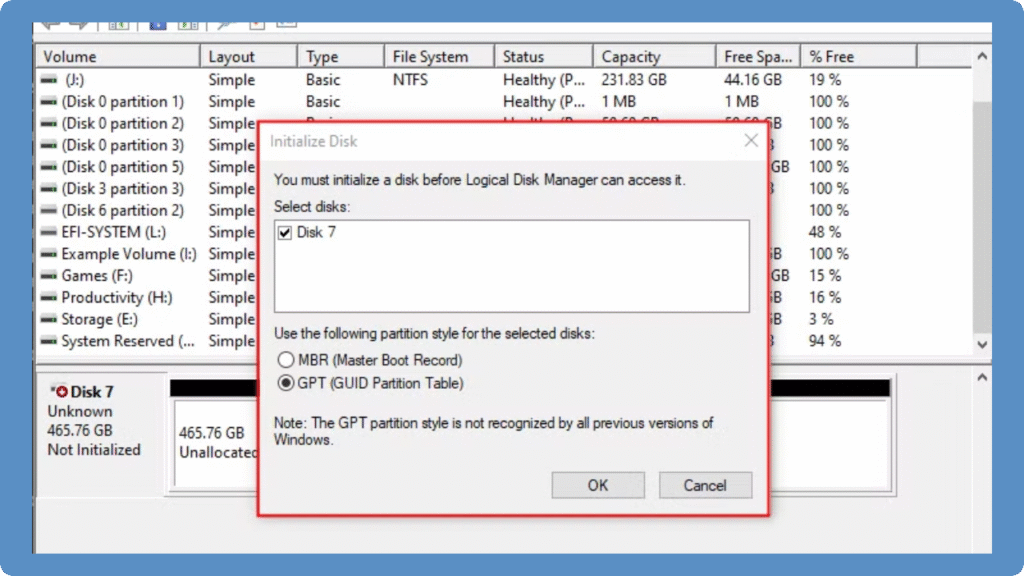
Se la nuova unità non viene riconosciuta o viene visualizzata come “non allocata”, potrebbe essere necessario inizializzarla come disco GUID Partition Table. La conversione o l'inizializzazione di un disco in GUID Partition Table consente ai sistemi moderni con firmware UEFI di accedere alla sua piena capacità e di creare più di quattro partizioni. Seguite questi passaggi per inizializzare in modo sicuro un disco nel formato GUID Partition Table:
1. Aprire Gestione disco
Cliccare con il tasto destro del mouse Questo PC o Il mio computer, selezionare Gestire, quindi aprire Gestione del disco sotto Immagazzinamento.
2. Individuare l'unità non inizializzata
Individuare l'unità contrassegnata come “Sconosciuta” o “Non inizializzata” nel pannello inferiore.
3. Inizializzare il disco
Fare clic con il tasto destro del mouse sull'etichetta del disco (ad esempio, Disco 1) e selezionare Inizializza il disco.
Nella finestra di dialogo, scegliere GPT come stile di partizione.
4. Creare nuovi volumi
Dopo l'inizializzazione, fare clic con il tasto destro del mouse sul campo spazio non allocato, scegliere Nuovo volume semplice, e seguire la procedura di configurazione guidata.
5. Formattazione e assegnazione di una lettera di unità
Selezionare il file system desiderato (NTFS o exFAT), assegnare una lettera di unità e completare la procedura.
Una volta completata l'operazione, l'unità sarà completamente accessibile come disco con tabella di partizione GUID, in grado di supportare capacità maggiori e maggiore affidabilità rispetto a MBR.
Recuperare l'unità in modo sicuro
Se la tabella GUID la partizione è persa o illeggibile, non preoccupatevi: potete ancora recuperare i vostri dati in modo sicuro.
👉 Scaricare Magic Data Recovery per ripristinare le partizioni GPT in modo sicuro con scansioni di sola lettura e alti tassi di successo.
Supporta Windows 7/8/10/11 e Windows Server
Conclusione
Il GPT è diventato lo standard moderno per la gestione dei dischi sia negli ambienti consumer che in quelli aziendali. Rispetto a MBR, GPT offre maggiore capacità, maggiore ridondanza e migliore compatibilità con i sistemi basati su UEFI. Se la nuova unità non viene riconosciuta o appare non allocata, l'inizializzazione come disco con tabella di partizione GUID garantisce prestazioni ottimali e l'utilizzo completo dello spazio di archiviazione.
Per chi gestisce dati importanti o sta passando da unità più vecchie, utilizzare sempre un software affidabile per gestire le partizioni in modo sicuro. Strumenti come Magic Data Recovery fornire un modo affidabile per Recuperare i dati dalle unità con tabella di partizione GUID in caso di problemi.
Assumete il controllo dell'archiviazione: inizializzate i dischi con GPT e mantenete i dati al sicuro con Amagicsoft.
Domande frequenti su GPT
Che cos'è la tabella di partizione GUID?
Qual è la differenza tra GPT e MBR?
È possibile utilizzare la tabella di partizione GUID Disk su Windows o macOS?
È possibile convertire MBR in GPT senza perdere i dati?
Perché il mio disco viene visualizzato come “non allocato”?
Quale tipo di disco è migliore per le unità SSD o HDD?
Cosa succede se l'intestazione GPT è danneggiata?
Come posso verificare se il mio disco utilizza l'MBR?
I dischi GUID possono essere utilizzati per il recupero dei dati?
La tabella delle partizioni GUID è adatta alle unità esterne o USB?

Erin Smith è riconosciuta come una delle scrittrici più professionali di Amagicsoft. Negli ultimi 10 anni ha continuamente affinato le sue capacità di scrittura e ha aiutato milioni di lettori a risolvere i loro problemi tecnologici.