Vai al contenuto
icona del logo amagicsoft
  • Casa
  • Prodotti
    • Magic Data Recovery
    • Magic Recovery Key
  • Negozio
  • Blog
  • Di più
    • Informazioni su Amagicsoft
    • Contatto
    • Informativa sulla privacy
    • Termini
    • Contratto di licenza
    • Politica di rimborso
  • Italiano
    • English
    • 日本語
    • 한국어
    • Deutsch
    • Français
    • Español
    • 繁體中文
Wiki

Folder Access Denied Error Solutions

12.11.2025 Smith, Erin Commenti disabilitati su Folder Access Denied Error Solutions
fix-folder-access-denied-error
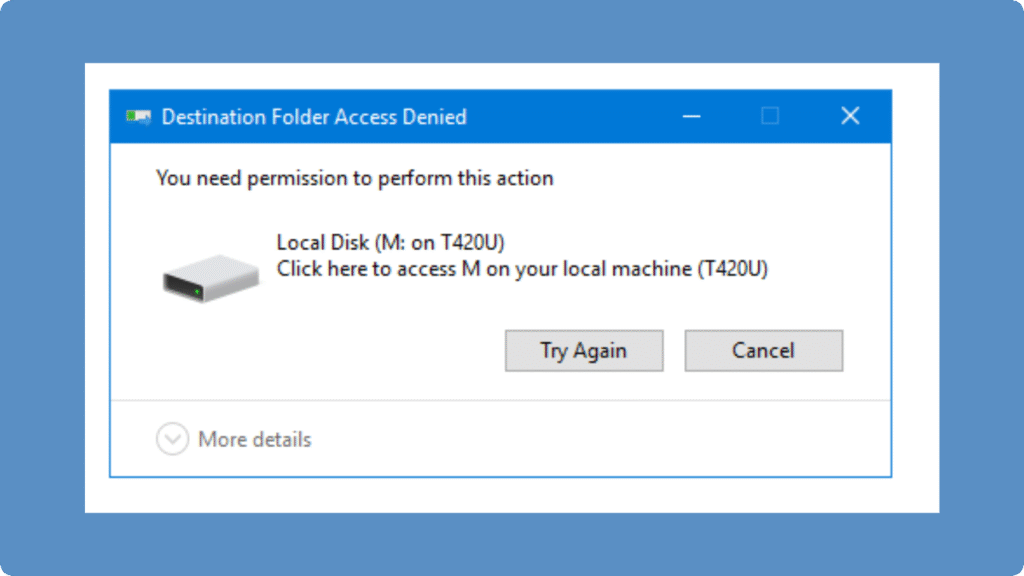
A Folder Access Denied error occurs when Windows or other operating systems prevent you from opening, modifying, or deleting a folder due to permission issues, encryption settings, or system restrictions. This is common in NTFS-formatted drives and shared network folders. It is not a sign of permanent perdita di dati.

Indice dei contenuti

How the Folder Access Denied Error Occurs

When you attempt to access a folder, the operating system checks your user permissions against the folder’s Access Control List (ACL). If your account lacks the required permissions, Windows displays an “Access Denied” message. Common scenarios include:

▪️ Trying to open a folder owned by another user.

▪️ Accessing system or program-protected directories.

▪️ Issues after transferring files from another computer or drive.

▪️ Conflicts in shared network folder permissions.

How the Folder Access Denied Error Occurs

Common Causes

Insufficient Permissions: Your account is not listed as an authorized user.

Ownership Conflicts: Files or folders transferred from another system retain the old owner’s ACL.

Read-Only or Encrypted Attributes: NTFS encryption or read-only settings restrict modifications.

Corrupted File System: Bad sectors or sudden shutdowns may cause folders to become inaccessible.

Step-by-Step Fixes

Follow these professional steps to regain access safely:

1. Take Ownership

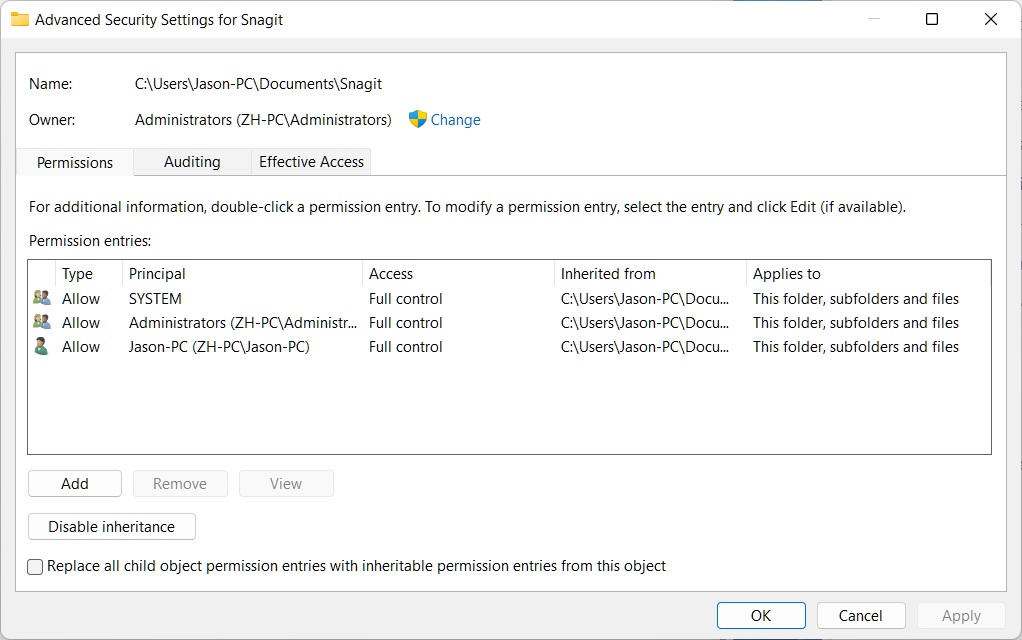
fix access denied error with ownership

① Right-click the folder → Properties → Security → Advanced.

② Click Change next to Owner → Enter your username → Check Replace owner on subcontainers and objects → Apply.

2. Adjust Permissions

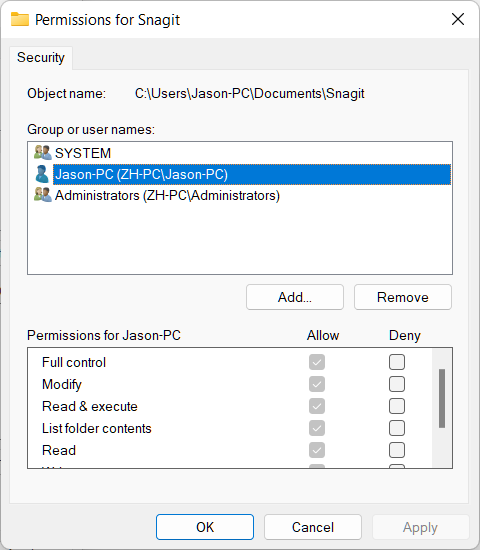
adjust permissions fix folder access denied

① Return to Properties → Security → Edit.

② Add your user account and assign Full Control.

③ Apply changes recursively to subfolders.

3. Check Read-Only or Encryption

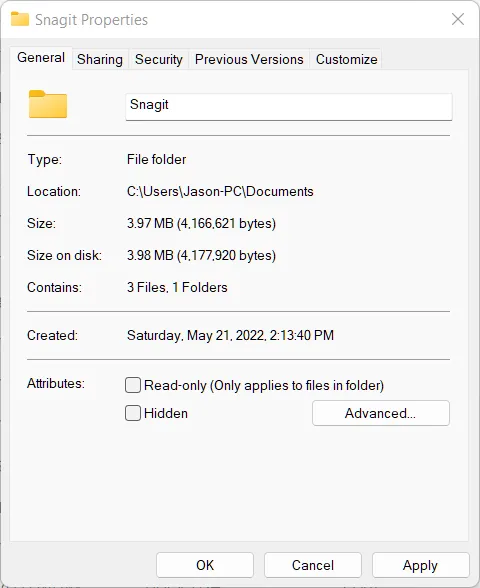
fix folder access-denied via check read only

① Right-click folder → Properties → General → Uncheck Read-only.

② For encrypted folders, ensure you have the correct encryption certificate or password.

4. Use Command-Line Tools (Advanced)

① Open Command Prompt as Administrator:

takeown /F "C:\Path\to\Folder" /R /D Y

icacls "C:\Path\to\Folder" /grant YourUsername:F /T

② These commands reclaim ownership and grant full control recursively.

5. Data Recovery Option

If the folder remains inaccessible due to corruption or cancellazione accidentale, software di recupero professionale can safely restore your files. Magic Data Recovery or similar tools provide efficient, reliable recovery without overwriting existing data.

Examples

Network Folder Issue: You cannot access a shared project folder after a Windows update.

Transferred Drive Issue: Files from an old laptop show “Access Denied” on a new system.

System Folder Restriction: Windows prevents modifications in C:\Program Files for security reasons.

Conclusione

A Folder Access Denied error is usually caused by permission, ownership, or encryption issues. By systematically checking ownership, adjusting permissions, and using strumenti di recupero professionali if needed, you can safely regain access to your files without losing data.

If you need reliable assistance to regain folder access, consider using Magic Data Recovery, a professional tool to help recover your files safely and efficiently. Please download it now.

Scaricare Magic Data Recovery

Supporta Windows 7/8/10/11 e Windows Server

Folder Access Denied FAQs

1. What does a Folder Access Denied error mean?

This error occurs when your user account lacks the necessary permissions to open, modify, or delete a folder. It often relates to ownership restrictions, NTFS permissions, or encryption. Don’t worry—your files are usually safe and recoverable.

2. Why can’t I access a folder after transferring files?

Files moved from another system may retain previous ownership and ACL settings. If your current account isn’t recognized, Windows will block access. Adjusting permissions or taking ownership can restore access efficiently.

3. Can I resolve a folder permissions issue without administrator rights?

Some folders, particularly system or program directories, require administrative privileges to modify. Without them, you may only be able to view files. Logging in as an administrator or contacting IT support is recommended for full access.

4. Does an access denied error mean my files are lost?

No. Typically, the data is intact. The problem lies in permissions or encryption. Using safe recovery tools, like Magic Data Recovery, can help retrieve your files without risk of data loss.

5. How can I regain access to a restricted folder?

Start by taking ownership and adjusting permissions to give your account full control. For encrypted folders, ensure the correct certificates or passwords are used. If manual steps fail, professional recovery software can help regain access safely.

6. Are system folders like C:Program Files always protected?

Yes. Critical system folders are intentionally restricted to prevent accidental modification that could destabilize Windows. Only administrators can make changes, and careful steps should be followed to avoid breaking installed programs.

7. Why can external drives show an access denied error?

External NTFS drives or drives from other systems may block access because of retained permissions. Reclaiming ownership and resetting ACLs usually resolves the issue without affecting stored files.

8. What tool can help recover inaccessible folders safely?

Magic Data Recovery is a professional tool that scans drives, detects inaccessible folders, and restores files securely. It works without overwriting existing data and supports a variety of storage devices.
  • WiKi
Smith, Erin

Erin Smith è riconosciuta come una delle scrittrici più professionali di Amagicsoft. Negli ultimi 10 anni ha continuamente affinato le sue capacità di scrittura e ha aiutato milioni di lettori a risolvere i loro problemi tecnologici.

Navigazione articoli

Precedente
Avanti

Ricerca

Categorie

  • Recupero di Bitlocker
  • Recupero dei file cancellati
  • Correzione del problema del disco
  • Recupero dei documenti
  • Recupero dei file di formato
  • Recupero del disco rigido
  • Recupero della chiave di licenza
  • Recupero dei file persi
  • Recupero della scheda di memoria
  • Notizie
  • Recupero password
  • Recupero foto
  • Recupero SSD
  • Recupero dell'unità USB
  • Guida per l'utente
  • Recupero video
  • Wiki
  • Correzione del problema di Windows

Messaggi recenti

  • recupero di file formattati gratis
    Recupero file unità formattata: Recuperare i dati in 3 passi
  • Unità SanDisk non riconosciuta Cause e soluzioni comprovate
    Unità SanDisk non riconosciuta? Cause e soluzioni
  • Risolvere il problema dell'unità disco esterna Seagate non riconosciuta
    Risolvere il problema dell'unità disco esterna Seagate non riconosciuta

Tag

CHKDSK e Strumenti disco Riparazione del disco Risoluzione degli errori Come Magic Data Recovery Magic Recovery Key WiKi

Messaggi correlati

Unità SanDisk non riconosciuta Cause e soluzioni comprovate
Correzione del problema del disco, Wiki

Unità SanDisk non riconosciuta? Cause e soluzioni

31.12.2025 Vasilii Non ci sono ancora commenti

Il mancato riconoscimento dell'unità SanDisk da parte del computer può essere frustrante e preoccupante, soprattutto quando sul dispositivo sono presenti file importanti. Sia che si utilizzi un'unità flash USB, una scheda SD o un disco rigido esterno SanDisk, i problemi di riconoscimento appaiono spesso all'improvviso e senza alcun preavviso. Fortunatamente, la maggior parte dei problemi di riconoscimento SanDisk deriva [...]

Risolvere il problema dell'unità disco esterna Seagate non riconosciuta
Correzione del problema del disco

Risolvere il problema dell'unità disco esterna Seagate non riconosciuta

31.12.2025 Vasilii Non ci sono ancora commenti

Quando un'unità disco esterna di Seagate non viene riconosciuta, in genere significa che il sistema operativo non è in grado di rilevare o accedere correttamente al dispositivo. L'unità potrebbe non apparire in Esplora file, Gestione disco o Gestione periferiche, anche se è fisicamente collegata. Questa situazione è comprensibilmente stressante. Tuttavia, non bisogna farsi prendere dal panico. Nella maggior parte dei casi, i dati sono [...]

Conoscere la tabella dei file master NTFS (MFT)
Wiki

Conoscere la tabella dei file master NTFS (MFT)

30.12.2025 Vasilii Commenti disabilitati su Understanding the NTFS Master File Table (MFT)

NTFS Master File Table (MFT) è un componente chiave di NTFS (New Technology File System), il file system predefinito dei sistemi operativi Windows. Serve come spina dorsale di NTFS e memorizza informazioni essenziali sui file e sulle directory presenti sul disco. L'MFT contiene metadati come i nomi dei file, le dimensioni, le date di creazione e le posizioni, [...]

icona del logo amagicsoft

La nostra visione è quella di diventare un marchio di software e un fornitore di servizi di fama mondiale, in grado di offrire prodotti e servizi di alto livello ai nostri utenti.

Prodotti
  • Magic Data Recovery
  • Magic Recovery Key
Politica
  • Termini
  • Informativa sulla privacy
  • Politica di rimborso
  • Contratto di licenza
Azienda
  • Informazioni su Amagicsoft
  • Contatto
  • Negozio
Seguiteci

Copyright © 2025 Amagicsoft. Tutti i diritti riservati.

  • Termini
  • Informativa sulla privacy