
실수로 포맷해 버린 외장 하드 드라이브: 복구 방법
만약 검색하셨다면 실수로 외장 하드 드라이브를 포맷해 버렸을 때 복구하는 방법, 아마도 잘못된 디스크를 선택했거나, 파일 시스템을 변경했거나, Windows에서 오류 메시지가 표시된 후 ‘포맷’을 클릭했을 가능성이 높습니다. 아직 해당 드라이브에 파일을 복사하거나, 다시 포맷하거나, 복구 명령을 실행하지 마십시오. 이 가이드에서는 가장 안전한 복구 순서, 백업이 도움이 되는 경우, 그리고 전문가가 포맷된 드라이브 복구 솔루션 새로운 데이터가 파일을 덮어쓰기 전에 해당 장치를 스캔할 수 있습니다.
간단한 답변: 외장 드라이브 사용을 즉시 중단하십시오. 포맷 유형이 ‘빠른 포맷’인지 ‘전체 포맷’인지 확인하고, 정상적으로 작동하는 다른 드라이브를 준비한 뒤, 백업 데이터가 있다면 이를 복원하십시오. 그렇지 않은 경우, 신뢰할 수 있는 소프트웨어로 포맷된 디스크를 스캔하십시오. 외장 드라이브 복구 소프트웨어. 복구된 파일은 항상 다른 물리적 드라이브에 저장하십시오.
목차
실수로 포맷한 외장 하드 드라이브에서 데이터를 복구할 수 있을까요?
대부분의 경우 그렇습니다. 하지만 결과는 포맷 방법, 저장 기술, 물리적 상태, 그리고 오류 발생 후의 조치에 따라 달라집니다.
빠른 포맷은 일반적으로 필수적인 파일 시스템 레코드를 삭제하거나 대체하고, 해당 저장 공간을 사용 가능한 상태로 표시합니다. 파일 내용은 새로운 데이터가 해당 섹터를 사용할 때까지 남아 있을 수 있습니다. 따라서, 빠른 포맷 복구 드라이브 사용을 즉시 중단하면 대개 가능합니다.
전체 포맷은 훨씬 더 파괴적입니다. 마이크로소프트에 따르면, 전체 포맷은 모든 섹터에 데이터를 기록하는 반면, 빠른 포맷은 이러한 전체 섹터 기록 과정을 생략합니다. 따라서 Windows에서 전체 포맷을 수행한 후의 데이터 복구는 대개 극히 제한적이거나 사실상 불가능합니다.
상황 | 회복 전망 | 권장 조치 |
새로운 데이터가 없는, 빠르게 포맷된 외장 HDD | 더 나은 | 즉시 드라이브 전체를 검사하세요 |
현재 Windows 환경에서 완전히 포맷된 HDD | 매우 낮음 | 형식 유형을 확인하고 기대치를 관리하십시오 |
포맷 후 외장 SSD | 더 불확실하다 | 가능한 한 빨리 연결을 끊고 스캔하십시오. |
드라이브가 RAW로 표시되지만 여전히 인식됩니다 | 자주 발생하는 논리적 데이터 손실 | 파일 시스템을 복구하기 전에 파일을 복구하세요 |
HDD에서 딸깍거리는 소리가 나거나, 화면이 꺼지거나, 회전하지 않는 경우 | 물리적 고장 가능성 | 전원을 켜는 것을 중단하고 복구 전문 업체에 문의하십시오. |
포맷 후 새 파일이 복사되었습니다. | 감소됨 | 모든 쓰기 작업을 중지하고, 우선 중요한 파일을 복구하십시오. |
빠른 포맷과 전체 포맷 비교
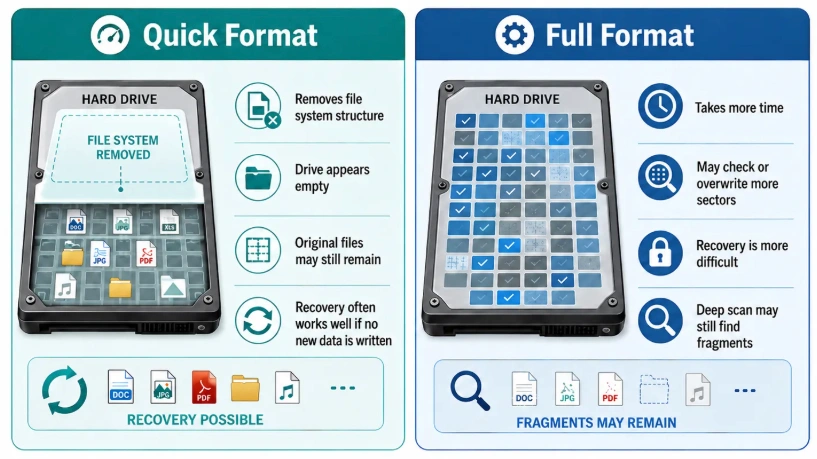
“포맷된 외장 하드 드라이브”라는 표현은 하나의 동일한 상황을 가리키는 것이 아닙니다.
A 빠른 포맷 모든 데이터 섹터를 의도적으로 덮어쓰지 않고도 새로운 파일 시스템 구조를 생성합니다. 원래의 파일 이름, 디렉터리 및 폴더 경로는 사라질 수 있지만, 파일 내용은 복구 가능한 상태로 남아 있을 수 있습니다.
반면, a 전체 형식 최신 Windows 시스템에서는 볼륨 전체에 걸쳐 쓰기 작업이 수행됩니다. 이러한 차이는 다음을 수행할 수 있는지 여부에 직접적인 영향을 미칩니다. 포맷된 외장 하드 드라이브에서 데이터 복구하기.
HDD 대 SSD 데이터 복구
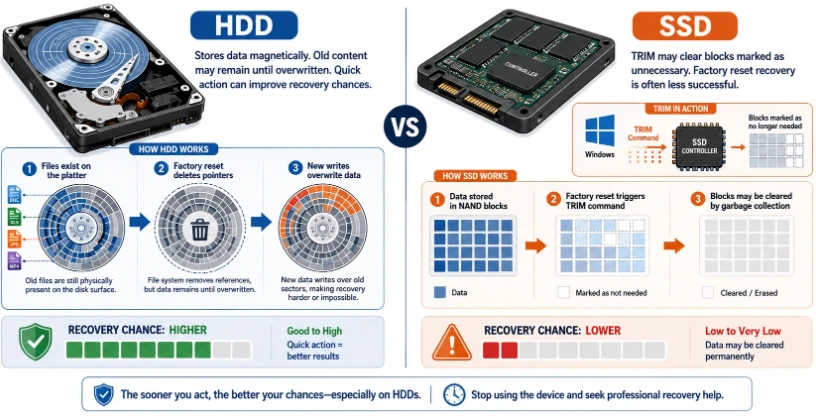
기존의 하드 디스크 드라이브는 정보를 자기 방식으로 저장합니다. 빠른 포맷을 수행한 후에도, 다른 파일이 덮어쓰기 전까지는 손대지 않은 섹터에서 정보를 계속 읽을 수 있습니다.
외장 SSD의 작동 방식은 다릅니다. TRIM 및 내부 가비지 컬렉션 기능으로 인해 운영 체제가 미사용으로 표시한 블록이 지워질 수 있습니다. 일부 USB 브리지 컨트롤러는 TRIM 명령을 일관되게 전달하지 않기 때문에, 결과는 외장 케이스와 장치에 따라 달라집니다.
어느 경우든 가장 안전한 대처 방법은 동일합니다. 외장 드라이브를 분리하고 새로운 데이터가 기록되는 것을 막아야 합니다.
실수로 포맷해 버린 외장 하드 드라이브: 안전하게 복구하는 방법
복구 방법을 선택하기 전에 먼저 상황을 안정화하십시오. 복구 소프트웨어는 저장 장치에 남아 있는 정보만 찾을 수 있습니다.
다음과 같은 즉각적인 조치를 취하십시오:
- 외장 하드 드라이브 사용을 중단하십시오. 이 폴더에 폴더를 만들거나, 테스트 파일을 복사하거나, 어떤 파일도 다운로드하지 마십시오.
- 안전하게 분리하십시오. 드라이브를 스캔할 준비가 되었을 때만 다시 연결하십시오.
- 무슨 일이 일어났는지 파악하십시오. ‘빠른 포맷’을 선택했는지, ‘빠른 포맷’의 선택을 해제했는지, NTFS를 exFAT로 변경했는지, 아니면 다른 운영 체제를 사용했는지 확인하십시오.
- 다른 드라이브를 준비하십시오. 대상 위치에는 복구된 모든 데이터를 저장할 수 있을 만큼 충분한 여유 공간이 있어야 합니다.
- 신체적 경고 징후가 있는지 확인하십시오. 딸깍거리는 소리, 삐걱거리는 소리, 반복적인 전원 차단, 타는 냄새, 또는 회전 불량 등의 증상이 나타나면 전문가의 도움이 필요합니다.
- 먼저 CHKDSK를 실행하지 마십시오. 복구 도구는 파일 시스템 메타데이터를 변경하므로, 이후 복구가 더 어려워질 수 있습니다.
- 디스크를 초기화하거나 파티션을 다시 나누지 마십시오. 이러한 작업은 해당 저장 장치에 새로운 구조를 기록합니다.
사용자가 다음과 같은 질문을 할 때 실수로 외장 하드 드라이브를 포맷해 버렸을 때 복구하는 방법, 가장 중요한 답은 특정 도구의 이름이 아닙니다. 바로 올바른 순서입니다:
드라이브 보존 → 파일 복구 → 결과 확인 → 장치 복구 또는 포맷.
방법 1: Magic Data Recovery를 사용하여 파일 복구하기
사용 가능한 백업이 없는 경우, 스캔 기반 복구 소프트웨어가 대개 가장 실용적인 해결책입니다.

Magic Data Recovery 이 프로그램은 실수로 포맷한 경우, 파일 삭제, 파일 시스템 오류, RAW 드라이브, 분실된 파티션 등 Windows 환경에서 발생하는 논리적 데이터 손실 상황을 해결하기 위해 설계되었습니다. 외장 하드 드라이브를 스캔하여 5,000개 이상의 파일 형식을 식별할 수 있습니다. 또한 미리보기 기능을 통해 사용자는 결과를 저장하기 전에 파일 상태를 확인할 수 있습니다.
Windows 7/8/10/11 및 Windows Server 지원
Magic Data Recovery가 이 시나리오에 적합한 이유
실수로 포맷된 외장 하드 드라이브는 다음과 같은 세 가지 일반적인 문제를 일으킵니다:
- 원본 폴더가 사라질 수 있습니다.
- 이전 파일 시스템이 교체되었을 수 있습니다.
- 사용자는 어떤 파일이 손상되지 않았는지 알지 못할 수도 있습니다.
Magic Data Recovery는 전체 드라이브 스캔, 파일 유형 필터링, 미리 보기, 별도의 저장 위치로의 복구 기능을 통해 이러한 문제들을 해결합니다.
주요 장점은 다음과 같습니다:
- 포맷된 HDD, 외장 SSD, USB 저장 장치 및 메모리 카드를 지원합니다.
- 문서, 사진, 동영상, 오디오, 압축 파일, 이메일 및 프로젝트 파일 복구.
- 명령줄 지식이 필요 없는 시각적 인터페이스.
- 복구 전 파일 미리 보기.
- 삭제, 포맷, RAW 파일 시스템 및 기타 논리적 오류에 대한 지원.
- 더 큰 규모의 라이선스를 구매하기 전에 복구 가능한 파일을 확인해 볼 수 있는 무료 테스트 혜택.
현재 제품 페이지에 따르면, 무료 버전은 최대 500MB의 데이터를 복구할 수 있다고 명시되어 있습니다.
Magic Data Recovery는 클릭 소리가 나는 하드웨어를 수리하지 않으며, 덮어쓴 파일의 복구를 보장하지도 않습니다. 대신, 논리적 데이터 손실 발생 후 정상적으로 작동하고 감지 가능한 드라이브를 체계적으로 평가할 수 있는 방법을 제공합니다.
1단계: 정상 작동하는 드라이브에 Magic Data Recovery 설치하기
컴퓨터의 내부 시스템 드라이브나 다른 정상적으로 작동하는 저장 장치에 Magic Data Recovery를 다운로드하여 설치하십시오.
Windows 7/8/10/11 및 Windows Server 지원
실수로 포맷한 외장 하드 드라이브에는 절대로 프로그램을 설치하지 마십시오. 설치 과정에서 새로운 파일이 생성되며, 해당 파일이 문제가 있는 디스크에 기록되면 복구 가능한 데이터가 덮어쓰일 수 있습니다.
2단계: 포맷된 외장 하드 드라이브 선택
외장 드라이브를 안정적인 USB 포트에 직접 연결하십시오. 가능하면 신뢰성이 떨어지는 USB 허브는 사용하지 마십시오.
Magic Data Recovery를 열고 다음 정보를 바탕으로 해당 장치를 확인하십시오:
- 저장 용량
- 모델명
- 드라이브 문자
- 파티션 정보
특히 여러 대의 외장 드라이브가 연결되어 있는 경우, 선택한 항목을 다시 한 번 확인하십시오.
3단계: 전체 드라이브 스캔
스캔을 시작하고 완료될 때까지 기다립니다.
포맷된 디스크의 경우, 새로운 파일 시스템에 이전 파일에 대한 유효한 참조 정보가 더 이상 포함되어 있지 않을 수 있으므로 대개 심층 스캔이 필요합니다. 심층 스캔은 저장 공간을 검색하여 남아 있는 파일 레코드와 식별 가능한 파일 시그니처를 찾아냅니다.
스캔 중:
- 파일 탐색기에서 해당 드라이브를 열지 마십시오.
- 다른 디스크 유틸리티를 실행하지 마십시오.
- 문제가 발생한 기기에 파일을 복사하지 마십시오.
- USB 연결이 안정적으로 유지되도록 하십시오.
스캔을 중단한다고 해서 반드시 디스크가 손상되는 것은 아니지만, 전체 스캔을 수행하면 대개 더 포괄적인 결과를 얻을 수 있습니다.
4단계: 검색된 파일 필터링 및 미리 보기
파일 유형, 파일 크기, 날짜, 이름 및 경로 필터를 사용하여 검색 결과를 좁힐 수 있습니다.
미리보기 중요:
- 사진
- Word 및 Excel 문서
- PDF 파일
- 동영상
- 음성 녹음
- 아카이브
- 디자인 및 프로젝트 파일
폴더 경로는 서식 지정 과정에서 항상 유지되는 것은 아닙니다. 따라서 원래의 디렉터리 구조가 사라진 경우에도 재구성된 폴더와 파일 유형별 결과 그룹을 꼼꼼히 확인해야 합니다.
미리 보기는 특히 다음 상황에서 유용합니다. 포맷된 HDD 복구 이는 사용 가능한 파일을 불완전하거나 손상된 결과물과 구분하는 데 도움이 되기 때문입니다.
5단계: 파일을 다른 물리적 드라이브로 복구하기
필요한 파일을 선택한 다음, 복구 대상으로 다른 물리적 디스크를 선택하십시오.
하지 마세요:
- 파일을 포맷된 외장 드라이브에 다시 저장하세요.
- 문제가 발생한 디스크에 새로운 대상 파티션을 생성하십시오.
- 임시 저장소로 동일한 외장 디스크를 사용하십시오.
- 복구된 파일을 확인하기 전에 장치를 다시 포맷하십시오.
복구가 완료된 후, 각 주요 폴더에서 여러 파일을 열어보세요. 문서를 확인하고, 동영상을 재생하고, 사진을 최대 해상도로 살펴보며, 압축 파일을 테스트해 보세요.
기타 외장 드라이브 사용 사례에 대해서는 이 가이드를 참고하여 외장 하드 드라이브에서 데이터 복구.
방법 2: 기존 백업에서 파일 복원하기
유효한 백업은 사용되지 않는 디스크 섹터에 남아 있는 데이터에 의존하지 않기 때문에 가장 깨끗한 복구 소스입니다.
다른 사본이 있을 가능성이 있는 모든 위치를 확인하십시오:
- 또 다른 외장 하드 드라이브
- NAS 장치
- Windows 파일 기록
- Windows 백업
- OneDrive
- Dropbox
- Google 드라이브
- 별도의 Mac 백업 디스크에 Time Machine 저장
- 애플리케이션별 백업 폴더
- 내보낸 프로젝트 아카이브
- 버전 관리 저장소
마이크로소프트는 ‘파일 기록’ 기능을 통해 이전에 백업된 개인 파일 버전을 복원할 수 있다고 설명합니다. 애플의 ‘타임 머신’은 선택한 항목, 폴더 또는 백업된 환경을 복원할 수 있습니다. 이러한 옵션은 포맷 전에 파일이 백업되어 있고, 삭제된 외장 드라이브가 유일한 백업 위치가 아니었던 경우에만 작동합니다.
장시간 스캔을 시작하기 전에 백업 내용을 확인하세요. 단, 먼저 자동 동기화를 일시 중지해야 합니다. 그렇지 않으면 클라우드 애플리케이션이 삭제된 파일을 동기화하거나 이전 버전의 파일을 덮어쓸 수 있습니다.
Windows 파일 기록으로 복원
Windows에서:
- 파일 기록 백업이 저장된 드라이브를 연결하세요.
- 제어판을 엽니다.
- 선택 시스템 및 보안.
- 열기 파일 기록.
- 선택 개인 파일 복원.
- 사용 가능한 버전을 살펴보세요.
- 필요한 폴더를 정상적인 드라이브로 복원하십시오.
파일 기록 기능은 백업에 한 번도 포함된 적이 없는 파일은 복원할 수 없습니다.
클라우드 스토리지에서 복원
누락된 폴더를 이전에 동기화했던 클라우드 서비스에 로그인하세요. 다음 사항을 확인하세요:
- 휴지통 또는 휴지통
- 삭제된 파일
- 버전 기록
- 공유 폴더
- 이전 파일 버전
- 보관된 프로젝트 폴더
새로 포맷한 드라이브에서는 즉시 동기화를 활성화하지 마십시오. 먼저 복구된 파일을 문제가 없는 위치로 다운로드하십시오.
타임머신을 사용하여 복원하기
Mac 사용자는 타임머신을 실행하여 백업 타임라인을 살펴보고, 파일이나 폴더를 선택한 뒤 복원할 수 있습니다.
하지만 실수로 포맷해 버린 외장 드라이브가 유일한 타임머신 백업 디스크였던 경우에는 이 방법이 통하지 않습니다. 이 경우, 다른 백업본에서 파일을 복구하거나 포맷된 디스크를 스캔해야 합니다.
방법 3: Windows 파일 복구 기능을 사용해 보세요
Windows를 잘 다루는 사용자는 Microsoft의 명령줄 기반 Windows 파일 복구 응용 프로그램을 사용해 볼 수 있습니다.
마이크로소프트는 내부 드라이브, 외부 드라이브 및 USB 장치에서의 복구를 지원합니다. 포맷 후 NTFS 디스크의 경우, 마이크로소프트는 ‘확장 모드’를 권장합니다. 소스 드라이브와 대상 드라이브는 서로 다른 드라이브여야 합니다.
포맷된 외장 하드 드라이브가 E:이고, 정상 상태의 복구 대상 드라이브가 D:라고 가정해 봅시다. 필터링된 명령어는 다음과 같을 수 있습니다:
- winfr E: D: /extensive /n *.docx /n *.xlsx /n *.jpg /n *.mp4
이 명령어는 E: 드라이브에서 Word 문서, Excel 스프레드시트, JPEG 이미지 및 MP4 동영상을 검색합니다. 검색된 파일은 D: 드라이브의 복구 폴더에 저장됩니다.
특정 이름을 검색할 수도 있습니다:
- winfr E: D: /extensive /n *invoice*
주요 제한 사항으로는 다음이 있습니다:
- 파일 미리보기 기능 없음
- 명령줄 구문
- 폴더 구조가 불완전할 가능성이 있음
- 분류되지 않은 결과가 다수 있습니다
- 경험이 부족한 사용자에 대한 제한적인 제어 기능
- 출처 드라이브와 대상 드라이브는 서로 달라야 합니다.
Windows 파일 복구는 무료 Microsoft 솔루션을 찾는 기술에 익숙한 사용자에게 적합할 수 있습니다. 대부분의 일반 사용자에게는 시각적인 외장 드라이브 복구 소프트웨어 필터링 및 미리보기 기능이 포함된 워크플로는 관리하기가 더 쉽습니다.
방법 4: 전문 데이터 복구 서비스를 이용하기
복구 소프트웨어는 논리적 문제에 적합합니다. 드라이브에 물리적 고장 증상이 나타나거나 대체할 수 없는 데이터가 포함되어 있는 경우에는 전문 복구 업체에 의뢰하는 것이 더 안전합니다.
다음과 같은 경우에는 직접 수리하려는 시도를 중단하십시오:
- HDD에서 딸깍거리는 소리, 삐걱거리는 소리, 삐 소리가 나거나, 반복적으로 회전이 멈춥니다.
- Windows 및 디스크 관리에서 해당 장치를 일관되게 감지하지 못합니다.
- 이 드라이브는 낙하, 침수, 화재 또는 전기 서지에 노출되었습니다.
- 스캔을 하면 연결이 반복적으로 끊어집니다.
- 케이스나 드라이브가 평소보다 유난히 뜨거워집니다.
- 이 디스크에는 중요한 법률, 비즈니스, 과학 또는 개인 데이터가 포함되어 있습니다.
- 외장 하드 드라이브가 전혀 회전하지 않습니다.
손상된 HDD를 반복적으로 켜면 내부 문제가 악화될 수 있습니다. 밀봉된 드라이브 본체를 절대 열지 마십시오. 먼지가 플래터 표면을 손상시킬 수 있으므로 하드 디스크는 통제된 환경에서 관리해야 합니다.
전문 서비스 업체에서는 드라이브 이미지를 생성하거나, 전자 부품을 수리하거나, 손상된 내부 부품을 일시적으로 교체해 줄 수 있습니다. 이 문서에서 논리적 문제와 물리적 문제를 비교해 볼 수 있습니다. 하드 드라이브 복구 서비스 안내서.
어떤 복구 방법을 선택해야 할까요?
방법 | 최상의 대상 | 주요 이점 | 주요 제한 사항 |
Magic Data Recovery | 빠른 포맷, RAW 드라이브, 파일 손실, 백업 없음 | 시각적 스캔, 필터링, 미리보기 및 광범위한 파일 지원 | 또 다른 건강한 여행지가 필요합니다 |
백업 복원 | 포맷하기 전에 복사된 파일들 | 깨끗하고 위험이 적은 회복 | 유효한 백업이 있을 때만 작동합니다. |
Windows 파일 복구 | Windows 기술 사용자 | 무료 Microsoft 명령줄 도구 | 시각적 미리보기가 없고 구문도 더 복잡함 |
전문 서비스 | 물리적 고장 또는 매우 중요한 데이터 | 하드웨어 수준의 진단 및 영상 분석 | 비용 증가 및 처리 기간 연장 |
일반적인 경우 실수로 외장 하드 드라이브를 포맷해 버렸을 때 복구하는 방법 이런 상황에서는 먼저 백업을 확인하세요.
백업 파일이 없고 외장 드라이브가 정상적으로 작동하며 인식되는 상태라면 다음 명령을 실행하십시오. 외장 하드 드라이브 포맷 데이터 복구 소프트웨어. 물리적 고장이 발생할 가능성이 있는 경우에는 전문 실험실을 이용하십시오.
복구 성공을 저해하는 일반적인 실수
모든 중요한 파일이 복구되고 확인될 때까지는 다음의 조치를 취하지 마십시오.
드라이브 다시 포맷하기
두 번째 포맷을 수행해도 이전 파일 시스템은 복원되지 않습니다. 대신 추가적인 메타데이터가 생성되며, 이로 인해 데이터 복구 가능성이 더욱 낮아질 수 있습니다.
테스트 파일을 드라이브에 복사하기
사용자들은 때때로 디스크가 정상적으로 작동하는지 확인하기 위해 작은 파일을 복사하기도 합니다. 아주 작은 쓰기 작업이라도 중요한 사진, 문서, 압축 파일 또는 동영상의 일부가 포함된 섹터를 덮어쓸 수 있습니다.
문제가 발생한 디스크에 복구 소프트웨어 설치하기
설치 과정에서 프로그램 파일, 로그, 임시 파일 및 구성 데이터가 생성됩니다. 대신 컴퓨터의 내부 드라이브에 복구 응용 프로그램을 설치하십시오.
복구된 파일을 동일한 드라이브에 저장하기
파일을 원래 저장 장치로 복구하면, 스캔 과정에서 아직 복구되지 않은 데이터가 덮어쓰일 수 있습니다. 항상 다른 물리적 디스크를 선택하십시오.
복구 전에 CHKDSK 실행하기
CHKDSK는 파일 시스템 구조를 복구하려고 시도합니다. 이 과정에서 디렉터리 항목, 할당 기록 및 기타 메타데이터가 변경될 수 있습니다.
먼저 파일을 복구하십시오. 데이터를 안전하게 확보한 후에야 파일 시스템을 복구하십시오.
새 파티션 만들기
파티셔닝은 디스크에 새로운 구조 정보를 기록합니다. 이는 외장 하드 드라이브 포맷 해제하기, 이로 인해 이후 스캔 작업이 복잡해질 수 있습니다.
오류가 발생한 HDD를 반복적으로 스캔하기
정상적으로 포맷된 드라이브는 대개 스캔 과정을 견딜 수 있습니다. 딸깍거리는 소리가 나거나 과열되거나 불안정한 하드 디스크는 반복적인 스캔 시도에 따라 상태가 더 악화될 수 있습니다.
발견된 모든 파일이 손상되지 않았다고 가정할 때
결과 목록에 파일 이름이 표시된다고 해서 해당 파일의 내용이 온전하게 남아 있다는 것을 보장하지는 않습니다. 복구 과정을 성공적으로 완료된 것으로 간주하기 전에 파일을 미리 보고 복구된 파일을 열어 확인하십시오.
파일을 복구한 후 해야 할 일
먼저, 복구된 데이터를 확인해 보십시오.
- 대표 문서를 엽니다.
- 여러 개의 동영상을 처음부터 끝까지 재생하세요.
- 사진을 최대 해상도로 확인해 보세요.
- 중요한 ZIP 또는 RAR 압축 파일을 추출하세요.
- 프로젝트 파일을 원래의 애플리케이션에서 테스트하십시오.
- 복구된 파일 크기와 예상 크기를 비교하십시오.
다음으로, 원래 외장 드라이브를 수리하기 전에 중요한 파일의 사본을 최소 두 개 이상 만들어 두십시오.
드라이브의 물리적 상태가 양호하다면, 적절한 파일 시스템을 사용하여 다시 포맷할 수 있습니다:
NTFS:Windows 중심의 저장 공간, 대용량 파일, 파일 권한 및 기타 Windows 기능을 사용하려면 NTFS를 선택하십시오.
exFAT:Windows와 macOS 간에 대용량 파일을 자주 옮길 때는 exFAT를 선택하세요.
APFS:주로 현재 Mac 시스템에서 사용할 저장 장치로는 APFS를 선택하십시오.
FAT32:FAT32는 다양한 장치와 호환되지만, 4GB를 초과하는 개별 파일은 저장할 수 없습니다.
마지막으로, 드라이브의 상태를 확인하십시오. 오류가 다시 발생하거나, 연결이 계속 불안정하거나, 디스크에 반복적으로 접근할 수 없는 경우에는 해당 장치를 교체하십시오.
Windows에서 계속해서 포맷 확인 메시지가 표시되거나 디스크가 다시 RAW 상태가 되면, 먼저 파일을 복구하십시오. 그런 다음 이 내용을 확인하십시오. RAW 하드 드라이브 복구 가이드 를 클릭한 후 수리를 시도하세요.
또 다른 실수로 인한 포맷을 방지하는 방법
신뢰할 수 있는 예방 전략은 매번 올바른 드라이브를 클릭해야 한다는 점에 의존해서는 안 됩니다.
다음과 같은 방법을 활용하세요:
- 모든 외장 디스크에 설명이 명확한 볼륨 레이블을 지정하십시오.
- 백업 드라이브를 사용하지 않을 때는 연결을 해제하십시오.
- 중요한 파일은 최소한 세 부씩 보관하십시오.
- 사본을 최소 두 가지 유형의 저장 매체에 보관하십시오.
- 오프라인 또는 외부 백업을 하나 유지하십시오.
- 파일 기록, 타임 머신 또는 기타 버전 관리 백업 시스템을 활성화하십시오.
- 포맷하기 전에 디스크 모델과 용량을 확인하십시오.
- 시작하기 전에 선택한 파일 시스템을 확인하십시오.
- 일상 업무에 사용하는 계정에서 서식을 지정하지 마십시오.
- 백업 복원 기능을 주기적으로 테스트하십시오.
백업은 데이터를 복원할 수 있을 때만 신뢰할 수 있습니다.
결론
직면할 때 실수로 외장 하드 드라이브를 포맷해 버렸을 때 복구하는 방법, 다른 조치를 취하기 전에 해당 디스크의 사용을 중단하십시오. 유효한 백업이 가장 안전한 복구 방법입니다. 숙련된 사용자의 경우 ‘Windows 파일 복구’ 기능을 활용할 수 있지만, 물리적 손상의 경우에는 전문 서비스 이용이 여전히 올바른 선택입니다.
빠른 포맷, 파일 삭제, RAW 상태 또는 파일 시스템 오류의 영향을 받은 정상적인 외장 드라이브의 경우, Magic Data Recovery 심층 스캔, 필터링, 미리보기 및 광범위한 파일 지원 기능을 실용적으로 조화롭게 제공합니다.
이 도구는 비현실적인 약속을 하지 않습니다. 대신, 파일을 안전한 위치에 저장하기 전에 복구 가능한 데이터가 얼마나 남았는지 파악할 수 있도록 도와줍니다. 예방, 진단 및 복구에 대한 더 자세한 안내를 보려면 포맷된 드라이브 복구 센터.
Windows 7/8/10/11 및 Windows Server 지원
실수로 포맷된 외장 하드 드라이브 복구에 관한 자주 묻는 질문
실수로 외장 하드 드라이브를 포맷해 버렸습니다. 모든 데이터를 복구할 수 있을까요?
빠른 포맷 후 즉시 드라이브 사용을 중단했다면 많은 파일을 복구할 수 있습니다. 하지만 새로운 데이터 쓰기, 조각화, 손상된 섹터, 암호화, 포맷 방식 등이 결과에 영향을 미치기 때문에 어떤 도구도 완벽한 복구를 보장할 수는 없습니다. 디스크 전체를 스캔하고, 중요한 파일을 미리 확인한 뒤, 복구된 데이터를 다른 물리적 드라이브에 저장하십시오.
빠른 포맷을 하면 외장 하드 드라이브의 데이터가 영구적으로 삭제되나요?
빠른 포맷은 일반적으로 필수적인 파일 시스템 구조를 재구축하고, 기존 저장 공간을 사용 가능한 상태로 표시합니다. 빠른 포맷은 전체 포맷과 같은 전체 섹터 쓰기 과정을 수행하지 않습니다. 따라서 새로운 데이터로 덮어쓰기 전까지는 기존 파일을 복구할 수 있을 수도 있습니다. 드라이브를 분리하고, 어떤 데이터도 다시 복사하기 전에 복구 작업을 시작하십시오.
전체 포맷 후에도 데이터를 복구할 수 있나요?
전체 포맷 후에는 데이터 복구 가능성이 훨씬 낮아집니다. 현재 Windows 시스템에서 전체 포맷을 수행하면 모든 섹터에 데이터가 기록되는데, 이는 단순히 파일 시스템 레코드를 초기화하는 것이 아니라 기존 내용을 덮어쓰는 방식입니다. 여전히 발생한 상황을 확인해 볼 수는 있거나 심각한 경우에는 전문가와 상담할 수도 있지만, 볼륨 전체가 덮어쓰인 경우에는 데이터 복구 가능성을 낮게 예상해야 합니다.
실수로 드라이브를 포맷한 후 CHKDSK를 사용해도 안전한가요?
중요한 파일을 복구하기 전에 CHKDSK를 실행하지 마십시오. CHKDSK는 파일 시스템 구조를 복구하며, 복구 소프트웨어가 분석할 수 있는 메타데이터, 디렉터리 항목 또는 할당 정보를 변경할 수 있습니다. 먼저 데이터를 복구하고 확인하십시오. 그 후, 하드웨어 진단 결과 장치가 정상으로 확인되면 드라이브를 복구하거나 다시 포맷할 수 있습니다.
Magic Data Recovery로 포맷된 외장 하드 드라이브의 데이터를 복구할 수 있나요?
Magic Data Recovery는 빠른 포맷, 삭제, RAW 파일 시스템, 파티션 손실 및 기타 논리적 오류의 영향을 받은 외장 하드 드라이브를 스캔할 수 있습니다. 미리보기 기능과 다른 드라이브로의 복구 기능을 지원합니다. 결과는 데이터 덮어쓰기 여부, 디스크 상태, 암호화 여부 및 포맷 유형에 따라 달라질 수 있으므로, 해당 장치의 사용을 중단하고 가능한 한 빨리 스캔을 진행하십시오.
포맷된 외장 SSD에서 파일을 복구할 수 있나요?
그럴 수도 있지만, TRIM 및 가비지 컬렉션 기능으로 인해 운영 체제가 미사용으로 표시한 블록이 지워질 수 있으므로 SSD 복구는 HDD 복구보다 더 어려울 수 있습니다. 즉시 SSD를 분리하고 추가 쓰기 작업을 피하십시오. 다른 Windows 드라이브에서 SSD를 스캔한 후, 복구 가능한 파일은 별도의 물리적 장치에 저장하십시오.
복구된 파일 이름이나 폴더가 왜 없는 건가요?
포맷 과정을 거치면 원래의 이름, 폴더 경로, 타임스탬프 및 할당 세부 정보가 저장되어 있던 파일 시스템 레코드가 덮어쓰일 수 있습니다. 심층 스캔을 수행하면 이러한 메타데이터가 사라진 경우에도 시그니처를 통해 파일을 식별할 수 있습니다. 그 결과, 복구된 항목은 재구성된 폴더에 표시되거나 생성된 이름을 사용할 수 있지만, 파일 내용 자체는 여전히 정상적으로 열릴 수 있습니다.
소프트웨어 또는 전문 복구 서비스를 사용해야 하나요?
외장 드라이브가 안정적으로 작동하고 Windows에 정상적으로 인식되며, 데이터 손실이 빠른 포맷이나 기타 논리적 오류로 인해 발생한 경우에는 소프트웨어를 사용하십시오. HDD에서 딸깍거리는 소리가 나거나, 떨어뜨린 적이 있거나, 스캔 도중 연결이 끊기거나, 대체할 수 없는 데이터가 저장되어 있는 경우에는 전문 복구 서비스를 이용하십시오. 고장 난 하드웨어에서 계속해서 직접 스캔을 진행하면 손상이 심화되고 향후 복구 가능성이 줄어들 수 있습니다.

Jason는 15년 이상의 실무 경험을 갖춘 데이터 복구 및 기술 지원 전문가입니다. 그는 현장 사용자와 폭넓게 협력하며, 까다로운 데이터 손실 사례를 해결하고, 실수로 인한 삭제, 드라이브 포맷, 파일 시스템 손상, 파티션 손실, 시스템 장애 및 기타 긴급 복구 상황에 대한 실용적인 복구 솔루션을 제공해 왔습니다. 또한 백업 및 복원, 파일 복구, 재해 복구 분야에서도 전문성을 갖추고 있으며, 안전하고 신뢰할 수 있으며 기술적으로 정확한 지침을 제공하는 데 중점을 두고 있습니다.