
How to Recover Deleted Sticky Notes on Windows 11
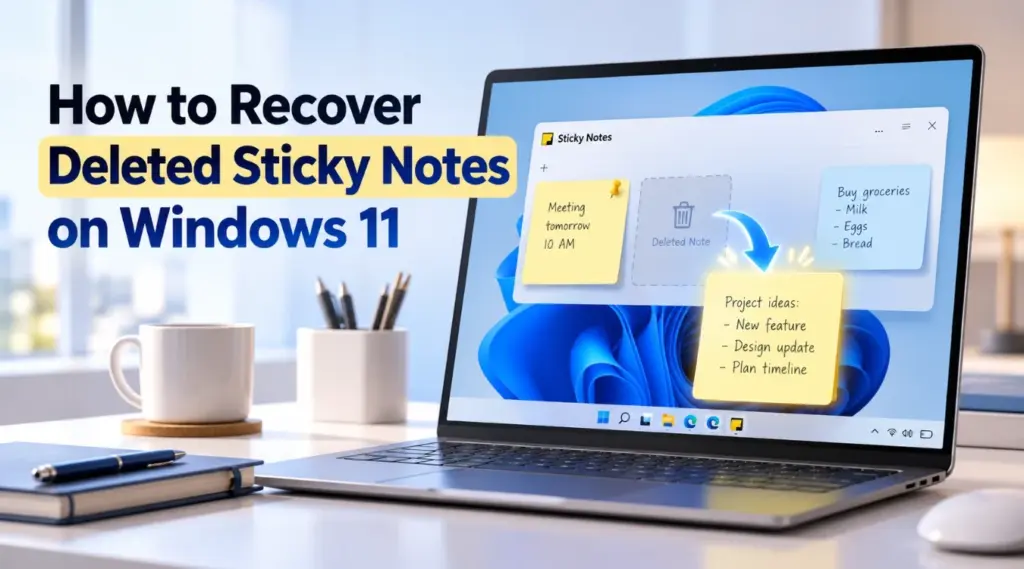
If a Sticky Note vanished after you clicked X, restarted Windows, changed accounts, or selected Delete note, the first step to recover deleted Sticky Notes is to identify what actually happened. A closed note, a sync problem, an app-level deletion, and a missing database file need different recovery paths.
You may still recover deleted Sticky Notes in some situations, but the recovery source matters. Microsoft says a note removed with Delete note is permanently deleted inside Sticky Notes, while clicking X only closes the note. An older independent backup may still contain the missing content. If the local Sticky Notes database file itself was deleted, file-level recovery may also remain possible until its data is overwritten or cleared on an SSD.
Before changing the app, preserve what is still available. Do not reset or uninstall Sticky Notes until you have copied any local data you can still access. If the database itself is missing, minimize activity on the Windows drive. For broader file-loss guidance, see our 삭제된 파일 복구 가이드.
목차
Before You Recover Deleted Sticky Notes: Protect Current Data
Do not start by resetting Sticky Notes or deleting its AppData folder. Microsoft warns that if you are not signed in, resetting or uninstalling Sticky Notes can remove locally stored notes.
Close Sticky Notes and copy this folder to another safe location if it exists:
%LocalAppData%\Packages\Microsoft.MicrosoftStickyNotes_8wekyb3d8bbwe\LocalState
Preserve the whole folder rather than only one file. You may find plum.sqlite and related database files such as plum.sqlite-wal. Microsoft Q&A guidance identifies this LocalState folder as the common location for the classic Sticky Notes database.
만약 plum.sqlite is already gone, avoid large downloads, cleanup utilities, or unnecessary installations on the affected drive. New writes can reuse space previously occupied by a deleted database file.
Quick Diagnosis: Which Sticky Notes Recovery Path Fits Your Case?
만약 검색하셨다면 recover deleted sticky notes windows 11, use the situation first—not the method name—to decide what to do.
보이는 것 | 일반적으로 의미하는 바 | First Action |
You clicked X | The note may only be closed | Open Notes list |
All notes disappeared | Account, sync, or app-state issue | 로그인된 계정 확인하기 |
You selected Delete note | The note was removed inside the database | Look for an older backup |
Sticky Notes will not open | Local data may still exist | Copy LocalState before repair/reset |
| The database file itself is lost | Check backups, then use file recovery |
Windows drive is unstable | Storage hardware may be involved | Stop DIY scanning |
This distinction determines whether you can recover deleted Sticky Notes with an app feature, a backup, or storage-level recovery.
An individual Sticky Note is not normally stored as a separate .txt file. The classic app keeps many notes inside a SQLite database. Therefore, deleting one note changes data inside that database; it does not normally create a standalone deleted file for ordinary file-recovery software to find.
That technical difference is why “recover one deleted note” and “recover a deleted plum.sqlite file” should not be treated as the same problem.
Method 1: Recover Deleted Sticky Notes That Were Only Closed
최적 대상: A note disappeared after you clicked X.
Microsoft states that in Sticky Notes 3.0 and later, the X button closes a note instead of deleting it. The note remains in the Notes list so you can reopen it later.
Open Sticky Notes. If only one note appears, select the three-dot menu and open Notes list. Then scroll through the list or search for a distinctive word from the missing note.
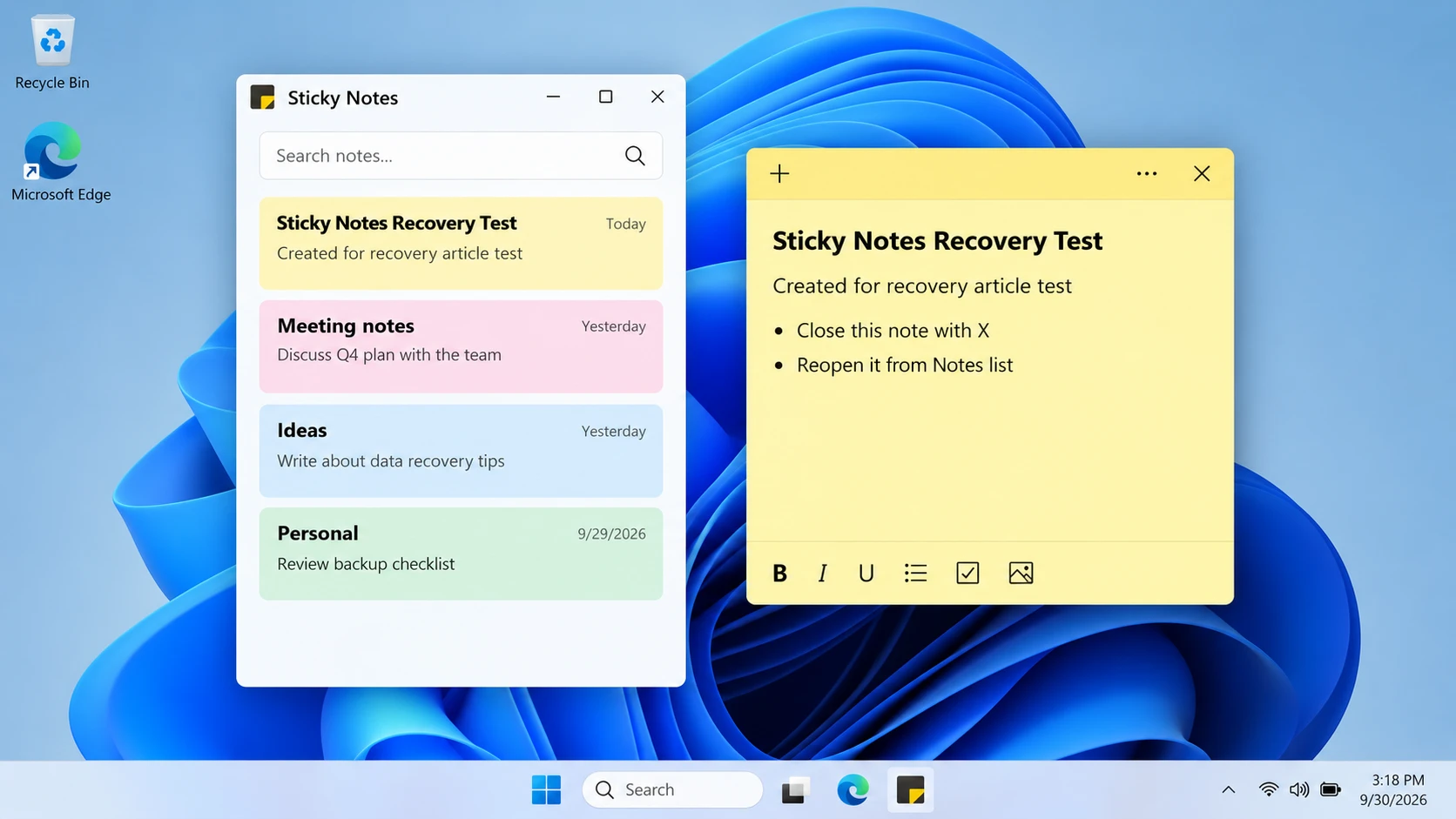
If it appears, reopen it and verify the content. This is the fastest way to recover deleted Sticky Notes when no deletion actually occurred.
제한 사항: Notes list cannot restore a note after you intentionally chose Delete note. Microsoft documents that action as permanent.
If the note is absent, continue with the account and sync checks.
Method 2: Check the Correct Microsoft Account and Sync
최적 대상: All notes disappeared, you changed PCs, or Sticky Notes looks empty after an update or account change.
To recover deleted Sticky Notes that are actually missing because of sync, first confirm that Sticky Notes uses the same Microsoft account that held your notes. Microsoft notes that using the wrong account can make synced Sticky Notes appear missing. It also recommends forcing a sync when the account is correct but notes are not appearing.
If you use OneNote on another supported device, check the same Microsoft account there as well.
If the note appears on another device, preserve any critical text before resetting or reinstalling the Windows app.
제한 사항: Sync is not the same as a permanent backup. If a deletion synchronizes, the missing note may disappear across devices.
Also, do not assume the OneNote notebook Recycle Bin will recover deleted Sticky Notes. Microsoft documents Sticky Notes deletion separately as permanent, so the OneNote Recycle Bin should not be treated as a guaranteed Sticky Notes trash folder.
Method 3: Recover Deleted Sticky Notes from an Older plum.sqlite
최적 대상: You truly deleted the note but have a database copy from before the deletion.
The classic local Sticky Notes database is commonly stored here:
%LocalAppData%\Packages\Microsoft.MicrosoftStickyNotes_8wekyb3d8bbwe\LocalState\plum.sqlite
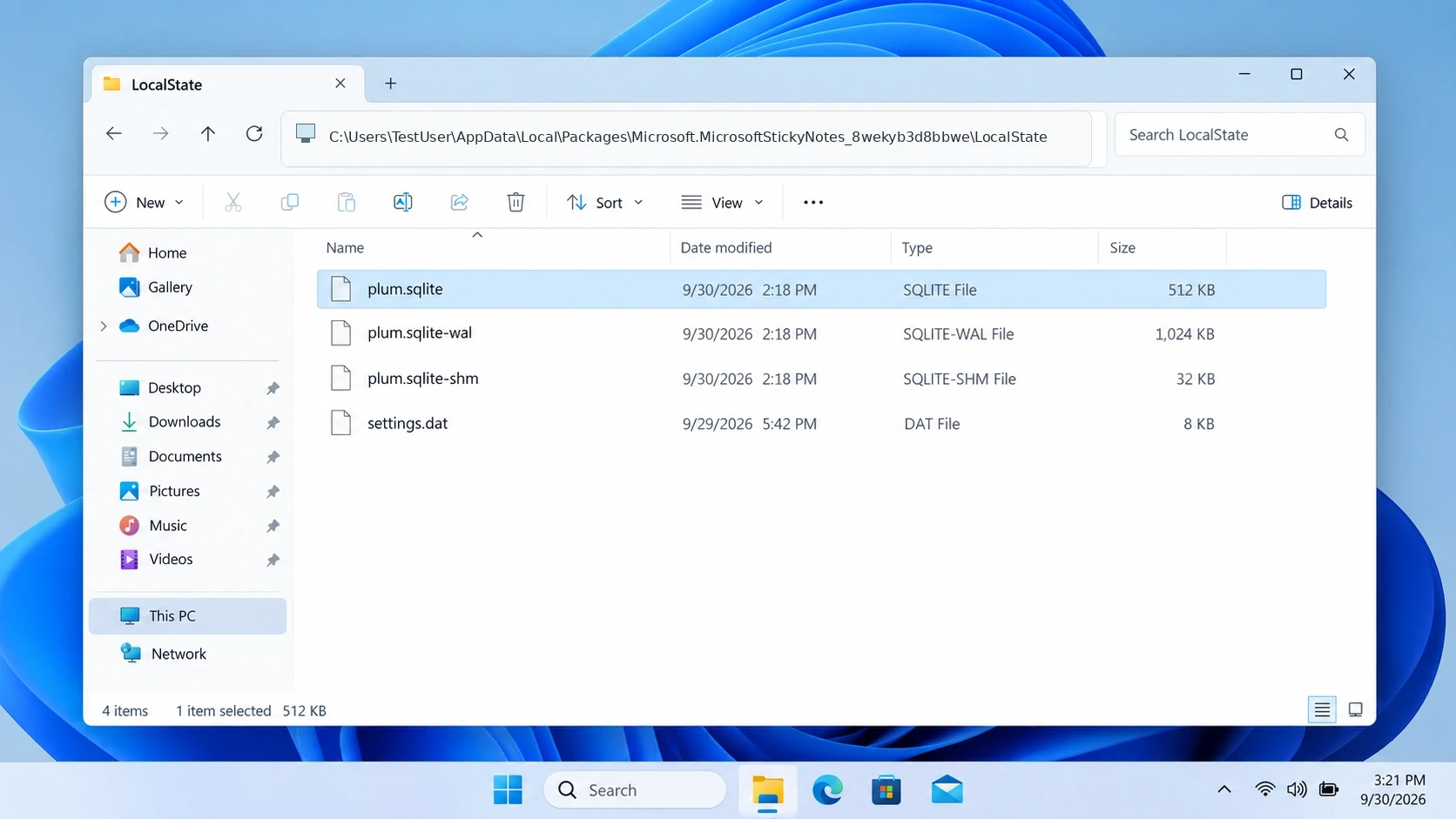
plum.sqlite in this LocalState folder.First, close Sticky Notes. Then copy the current LocalState folder somewhere safe.Next, look for an older version in:- a manual backup
- a previous Windows user profile
- a full-system backup
- a backup image
- Previous Versions, when a suitable copy exists
Why an Older Database Can Help
Autosave and backup solve different problems. Sticky Notes keeps the current note state automatically. However, autosave is not a permanent timeline containing every earlier state of a note.An independentplum.sqlite copy created before deletion is different. That database may still contain the note as it existed at the time of the backup.Therefore, an older database can sometimes recover deleted Sticky Notes even though the current database no longer contains a normal recoverable copy.제한 사항: Do not assume File History backed up 앱데이터. Microsoft explains that File History primarily protects libraries and folders included in its backup configuration. If this LocalState location was never covered, there may be no older version to restore.Free Alternative: Recover a Deleted plum.sqlite with Windows File Recovery
만약 plum.sqlite itself was deleted, Microsoft provides another option before you use commercial software.
Windows 파일 복구 is a command-line utility for Windows 11에서 최근에 삭제된 파일 복구하기. Microsoft says it supports Windows 11 and requires the source drive and recovery destination to be different.
This tool may help recover deleted Sticky Notes only when the Sticky Notes database file itself is missing. It cannot reverse one note deleted inside an otherwise intact plum.sqlite.
For example, if the database was deleted from C:, Windows File Recovery needs another destination drive such as E:. Microsoft also advises minimizing computer use because new data can overwrite deleted-file space.
This is a useful free option if you are comfortable with command-line syntax. If you prefer a graphical interface for scanning and reviewing results, a dedicated recovery tool is the next option.
Recover Deleted Sticky Notes Database Files with Magic Data Recovery
When no usable backup exists and plum.sqlite or the entire Sticky Notes data folder itself was deleted, Magic Data Recovery 가 관련성이 높아집니다.
It works at the storage level, which makes it different from Notes list, sync, autosave, and database backups. Those methods find an existing copy of the note or database. Recovery software instead looks for the database file after the file itself has disappeared from storage.
This distinction is important when you recover deleted Sticky Notes. Magic Data Recovery is not an Undo command for a single note removed from an intact SQLite database.
Instead, its role here is to locate a missing plum.sqlite file or another lost database copy.
A recovered database also does not prove that your specific note still exists inside it. You still need to verify the recovered file afterward.
내장된 복구 옵션이 더 이상 작동하지 않는다면, 새로운 데이터가 삭제된 파일을 덮어쓰기 전에 Magic Data Recovery를 사용해 볼 수 있습니다.
How to Use Magic Data Recovery for Sticky Notes Database Recovery
1단계: Magic Data Recovery 다운로드 및 설치
Install Magic Data Recovery on a different drive or partition from the one where the Sticky Notes database was lost.
만약 plum.sqlite was stored on C:, avoid installing the software to C: when another safe location is available. This reduces unnecessary writes to the affected storage area.
Windows 7/8/10/11 및 Windows Server 지원
Step 2: Select the Drive Where Sticky Notes Data Was Stored
Launch Magic Data Recovery and choose the drive that contained your Windows user profile and Sticky Notes data.
On most PCs, this is the Windows system drive. Confirm the source before starting the scan.

Step 3: Scan for the Lost Sticky Notes Database
Let the software scan for deleted and lost files.
찾습니다:
plum.sqlite- related SQLite database files
- files associated with the former
LocalStatefolder when path information remains available

4단계: 복구 the Database to a Safe Location
Save the recovered database to another drive or other safe location.
Do not recover it directly over the current Sticky Notes database. Keep both copies until you have verified which database contains the information you need.

How to Verify That You Really Recover Deleted Sticky Notes
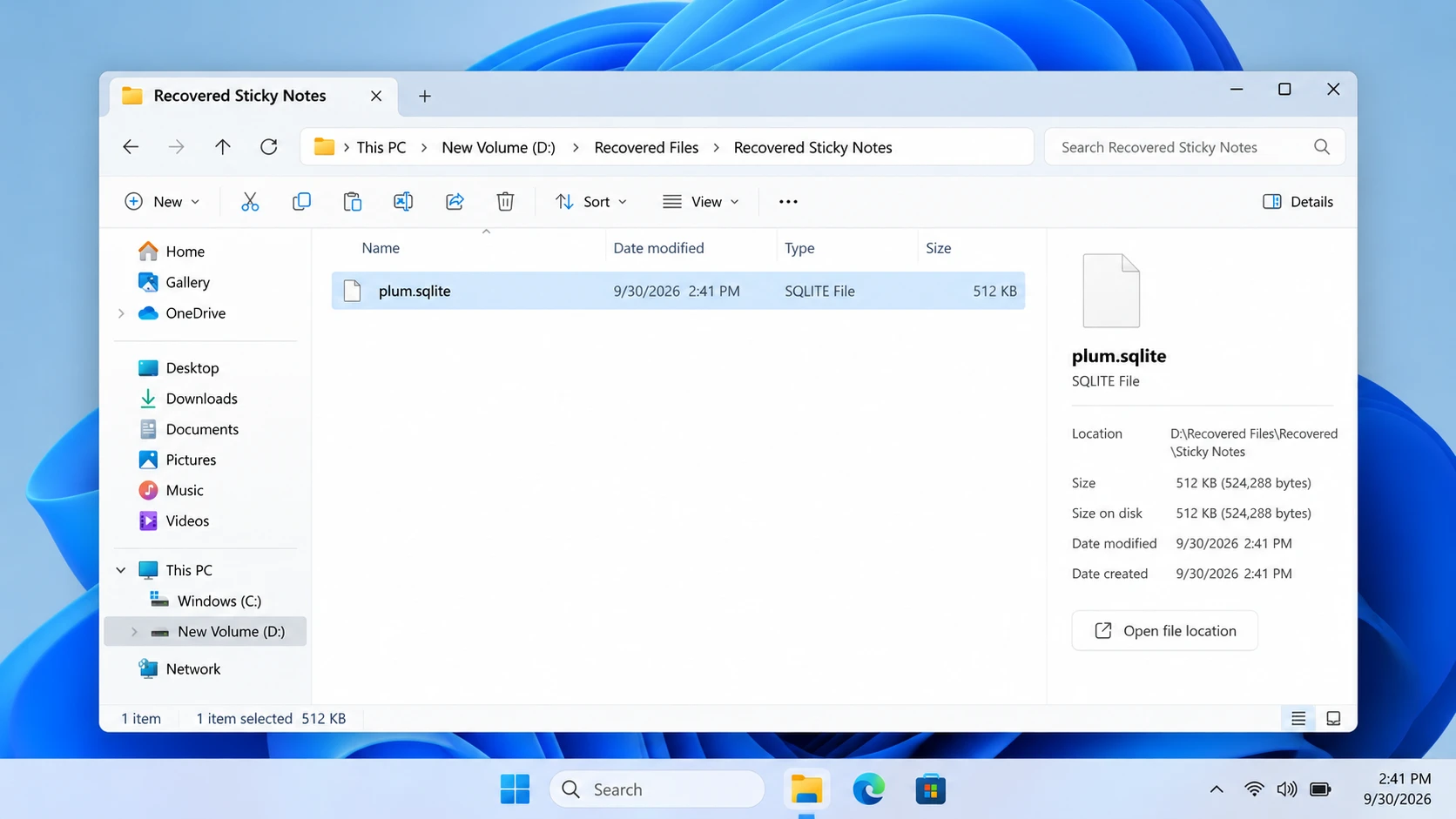
Finding a database file and successfully restoring a note are not the same result. If Notes list or sync restored the note, open it and confirm that the text, links, and other information you need are present.
If you recovered an older plum.sqlite, keep it separate from the current database while you verify it. Compare its modification date and file size with the date of the deletion.
A 0 KB database, an obviously unrelated modification date, or a file that cannot be read should not be treated as a successful recovery.
Therefore, when you recover deleted Sticky Notes from a database backup or scan result, verify the actual note content before replacing any current Sticky Notes data.
SSD TRIM Can Limit Database Recovery
Many Windows 11 computers use SSDs. If plum.sqlite itself was deleted from an SSD, TRIM can reduce the chance of file-level recovery. Microsoft explains that Windows trims SSDs by telling the drive which storage areas can safely be cleaned up. Microsoft documentation also describes TRIM as notifying storage that previously allocated sectors are no longer needed and may be purged.
Therefore, stopping new writes is useful, but it cannot guarantee that the deleted database still exists.
This matters when you try to recover deleted Sticky Notes because the database file itself was deleted. TRIM is not the reason a single note disappears after you choose Delete note inside Sticky Notes.
When DIY Recovery Should Stop
Most missing-note cases do not require professional recovery. However, stop software scanning if the Windows drive repeatedly disappears, reports serious I/O errors, or an HDD makes clicking or grinding noises.
Also consider professional recovery when the drive contains the only copy of high-value data and you cannot read it reliably.
Recovery software cannot repair physical storage damage. Repeatedly scanning an unstable drive may increase stress on failing hardware.
How to Avoid Having to Recover Deleted Sticky Notes Again
After you restore the note or rebuild the missing information, improve the protection around Sticky Notes.
켜기 Confirm before deleting in Sticky Notes settings. Microsoft specifically recommends this option to reduce accidental deletions.
Also, use the correct Microsoft account when you rely on sync. However, do not treat synchronization as a permanent backup because deletion can synchronize too.
For important work notes, keep a separate versioned or backed-up copy outside the live Sticky Notes database. Finally, preserve the local Sticky Notes data folder before you reset, uninstall, or troubleshoot the application.
결론
To recover deleted Sticky Notes, first match the recovery method to the type of loss. If you clicked X, reopen the note from Notes list. When all notes disappear, verify the Microsoft account and sync first. A note removed with Delete note requires an independent database copy created before the deletion. If plum.sqlite itself has disappeared, move from backups to file-level recovery.
For the same recovery-first approach in other Windows deletion scenarios, see our 삭제된 파일 복구 가이드.
When the Sticky Notes database is genuinely missing and built-in or backup options cannot restore it, Magic Data Recovery can scan the affected drive for the lost database file. Save recovered data elsewhere and verify the note before replacing anything. Overwriting, SSD TRIM, and physical drive damage can still limit recovery.
Windows 7/8/10/11 및 Windows Server 지원
자주 묻는 질문
Does clicking X delete a Sticky Note in Windows 11?
Where is the Sticky Notes database stored on Windows 11?
%LocalAppData%\Packages\Microsoft.MicrosoftStickyNotes_8wekyb3d8bbwe\LocalState, 와 함께 plum.sqlite as the main database file. Preserve the entire LocalState folder during troubleshooting because companion database files may also exist. Storage behavior can vary with app versions and newer Microsoft note experiences.Can the OneNote Recycle Bin restore a deleted Sticky Note?
Can System Restore recover a deleted Sticky Note?
Can I recover deleted Sticky Notes for free without third-party software?
plum.sqlite itself was deleted, Microsoft's free Windows File Recovery is another option, although it requires command-line use.Does SSD TRIM affect Sticky Notes recovery?
Should I replace my current plum.sqlite with an older recovered copy?

바실리는 이 분야에서 약 10년간 실무 경험을 쌓은 데이터 복구 전문가입니다. 그는 경력 전반에 걸쳐 삭제된 파일, 포맷된 드라이브, 손실된 파티션 및 RAW 파일 시스템과 관련된 수천 건의 복잡한 사례를 성공적으로 해결했습니다. 그의 전문 지식은 헥스 에디터와 같은 전문 도구를 사용한 수동 복구 방법과 복구 소프트웨어를 사용한 고급 자동화 솔루션을 모두 다룹니다. 바실리의 사명은 IT 전문가와 일반 사용자 모두에게 신뢰할 수 있는 데이터 복구 지식을 제공하여 소중한 디지털 자산을 보호할 수 있도록 돕는 것입니다.