
포맷된 USB 드라이브를 무료로 복구하는 4가지 방법
실수로 USB 드라이브를 포맷한 후 파일 탐색기에서 열어보니 사진, 문서 또는 동영상이 사라진 것을 발견했습니다. 만약 여러분이 포맷된 USB 드라이브를 무료로 복구하기, 해당 파일이 영구적으로 손실되었다고 단정하지 마세요.
원본 데이터를 읽을 수 있는 상태라면, 빠른 포맷 후에도 데이터를 복구할 수 있는 경우가 많습니다. 하지만 전체 포맷을 하거나, 드라이브에 새로운 파일이 기록되거나, 하드웨어 문제가 발생한 경우에는 복구 가능성이 크게 낮아질 수 있습니다. 가장 중요한 요소는 포맷 후 데이터에 어떤 일이 일어났느냐입니다.
즉시 USB 사용을 중단하십시오. 이 가이드에서는 네 가지 복구 방법을 단계별로 안내하고, 적합한 방법을 선택하는 데 도움을 주며, 결과를 확인하는 방법을 설명합니다. 다른 포맷된 저장 장치의 경우, 당사의 포맷된 드라이브 복구 가이드.
목차
USB 드라이브를 포맷한 직후에 해야 할 일
시도하기 전에 포맷된 USB 데이터 복구, 나머지 데이터가 더 이상 변경되지 않도록 보호하십시오.
- USB에 아무것도 저장하지 마세요. 새 파일을 추가하면 기존 내용이 덮어쓰일 수 있습니다.
- 다시 서식을 지정하지 마세요. 다른 형식으로 추가 파일 시스템 정보를 대체할 수 있습니다.
- CHKDSK 및 디스크 복구 도구는 사용하지 마십시오. 복구 작업 과정에서 복구에 필요한 레코드가 변경될 수 있습니다.
- 복구 소프트웨어를 다른 곳에 설치하십시오. 컴퓨터의 내장 드라이브를 사용하세요.
- 다른 목적지를 준비하세요. 복구된 파일은 절대로 문제가 발생한 USB에 다시 저장하지 마십시오.
- 하드웨어 문제 발생 여부를 주의 깊게 살펴보세요. 장치가 과열되거나, 연결이 반복적으로 끊기거나, 용량이 잘못 표시될 경우 사용을 중단하십시오.
Windows에서 USB를 열기 전에 포맷하라는 메시지가 나타나면 다음을 선택하세요. 취소. 해당 메시지는 드라이브를 다시 포맷해야 한다는 뜻이라기보다는 파일 시스템이 손상되었음을 나타낼 수 있습니다.
이러한 예방 조치는 이미 발생한 손상을 되돌릴 수는 없지만, 남아 있는 회복 가능성을 유지하는 데 도움이 될 수 있습니다.
포맷된 USB 드라이브에서 파일을 복구할 수 있나요?
네, 가끔은요. 결과는 주로 포맷 방식, 이후의 데이터 기록, 그리고 장치의 상태에 따라 달라집니다.
복구 방법을 선택하기 전에 아래 표를 참고하여 본인의 상황에 해당하는 항목을 확인하십시오.
USB 관련 상황 | 회복 전망 | 다음에 무엇을 해야 할까요? |
빠른 포맷, 새 파일 없음 | 더 유리한 | 백업을 확인한 다음 스캔하세요 |
빠른 포맷 후 재사용 | 일부 파일은 남아 있을 수도 있습니다 | 글쓰기를 멈추고 스캔하세요 |
Windows 전체 포맷 완료 | 매우 제한적 | 백업에 우선순위를 두세요 |
USB를 Windows 설치 미디어로 변환 | 손대지 않은 지역은 살아남을 수도 있다 | 설치 미디어 사용을 중지하십시오 |
USB가 ‘RAW’로 표시되거나 포맷을 요청합니다 | 파일 시스템 손상 정도에 따라 다릅니다. | 수리하기 전에 복구하세요 |
USB가 연결이 끊기거나 용량이 0으로 표시됨 | 하드웨어 오류 가능성 | DIY 복구 중단 |
For 포맷 후 펜 드라이브 데이터 복구, 재사용된 적이 없는 정상적인 USB는 일반적으로 새로운 데이터가 저장된 USB보다 더 나은 전망을 보여줍니다.
스캔하기 전에 Windows에서 USB를 확인하세요
먼저, [열기]를 클릭하세요. 파일 탐색기 > 이 PC 그리고 라벨과 용량을 확인하여 해당 USB를 찾아보세요.
드라이브가 열리지만 내용이 비어 있는 것처럼 보이면 다음을 선택하세요. 보기 > 표시 > 숨겨진 항목 Windows 11에서. 이렇게 하면 숨김 속성이 설정된 기존 파일을 확인할 수 있지만, 실제 포맷 작업은 되돌릴 수 없습니다.
다음으로, 누르세요 승리 + X 를 열고 디스크 관리.
드라이브에 표시된 상태를 확인하십시오:
- FAT32, exFAT 또는 NTFS: Windows는 현재 파일 시스템을 인식합니다.
- RAW: Windows에서 파일 시스템을 정상적으로 해석할 수 없습니다.
- 할당되지 않음: 파티션 정보가 누락되었을 수 있습니다.
- 매체가 없거나 용량이 잘못된 경우: 저장 장치에 하드웨어 문제가 있을 수 있습니다.
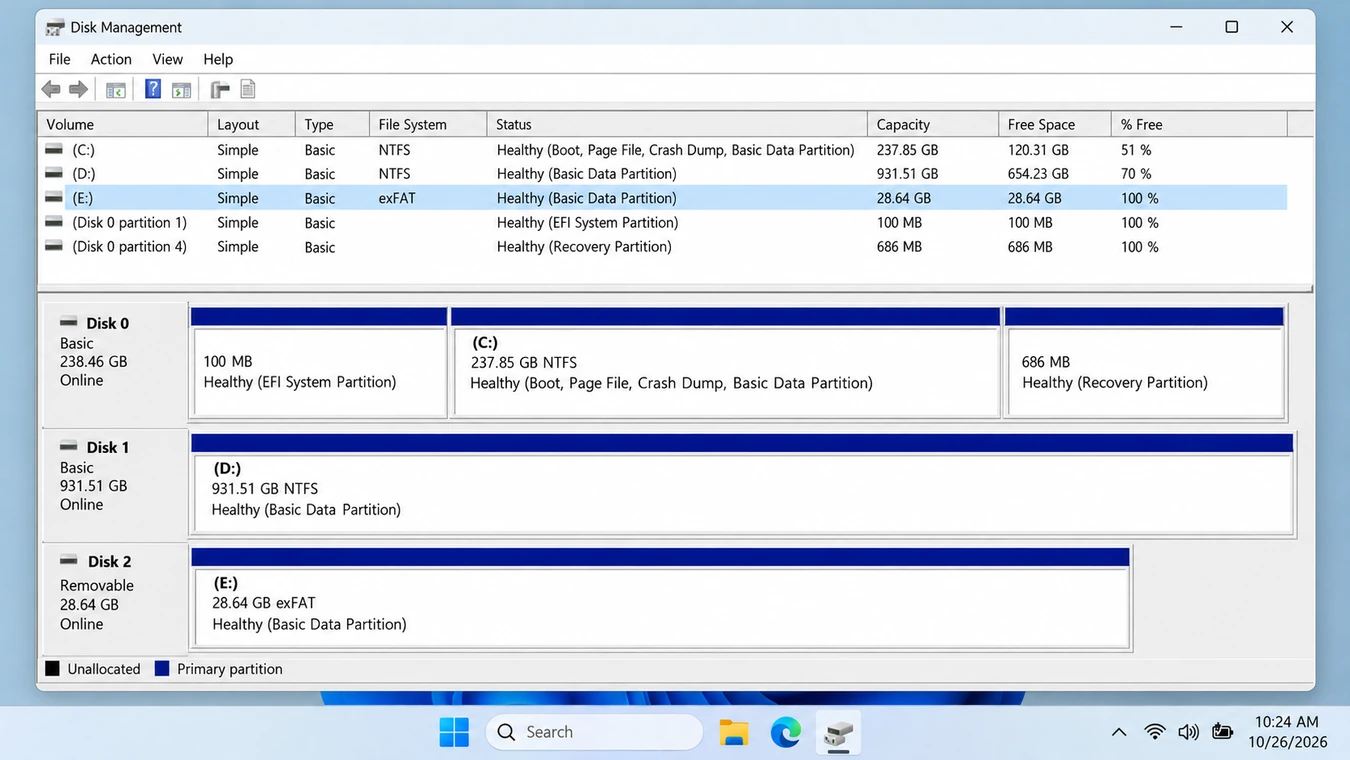
RAW 볼륨이라고 해서 데이터가 자동으로 사라지는 것은 아닙니다. Windows에서 여전히 정확한 용량을 인식한다면, 복구 소프트웨어를 통해 해당 장치를 읽을 수 있을 수도 있습니다. 자세한 내용은 당사의 RAW USB 메모리 복구 가이드.
USB에 물리적 문제가 있는 경우, 소프트웨어적 해결 방법은 생략하고 전문가의 도움을 받는 것을 고려해 보십시오.
빠른 포맷과 전체 포맷이 서로 다른 결과를 낳는 이유
FAT32, exFAT, NTFS와 같은 파일 시스템은 파일 이름, 디렉터리 및 저장 위치를 관리합니다.
A 빠른 포맷 이전 데이터 섹터를 의도적으로 모두 덮어쓰지 않고 새로운 파일 시스템 구조를 생성합니다. 따라서 복구 도구를 사용하면 여전히 이전 파일 레코드를 찾거나 파일 내용을 식별할 수 있습니다.
A 전체 형식 최신 Windows에서는 일반적으로 접근 가능한 섹터를 덮어씁니다. 일단 데이터가 덮어쓰여지면, 일반 소프트웨어로는 이를 복원할 수 없습니다. 마이크로소프트는 이러한 동작을 자사의 format 명령어 참조.
플래시 메모리의 경우, USB 컨트롤러가 내부적으로 기본 저장 장치를 관리하기 때문에 불확실성이 다소 존재합니다. 따라서 빠른 포맷을 수행한 후에도 데이터가 온전하게 보존된다고 보장할 수는 없습니다.
이 말의 의미는 다음과 같습니다: USB 사용을 중단하고, 수리를 시도하기 전에 파일을 복구한 다음, 복구된 파일이 실제로 열리는지 여부를 기준으로 수리 성공 여부를 판단하십시오.
포맷된 USB 드라이브를 무료로 복구하는 방법: 4가지 방법
모든 도구를 무작위로 시도하기보다는 데이터 손실 상황에 따라 적절한 방법을 선택하십시오.
백업을 먼저 수행해야 합니다. 그래야 문제가 발생한 USB를 스캔할 필요가 없기 때문입니다. 복사본이 없는 경우, Windows 파일 복구 기능을 통해 무료로 공식적인 복구 옵션을 이용할 수 있습니다. PhotoRec은 디렉터리 정보가 없는 경우 파일 시그니처를 검색할 수 있습니다. 미리 보기와 선택적 복구가 필요한 사용자를 위해 그래픽 기반 복구 프로그램이 또 다른 작업 방식을 제공합니다.
방법 1: 백업본을 통해 포맷된 USB 파일 복구하기
최적 대상: 이미 해당 파일의 다른 사본을 가지고 있을 수 있는 사용자들.
백업은 포맷된 USB를 읽을 필요가 없기 때문에 데이터를 복원하는 데 있어 가장 위험이 적은 방법입니다.
이전 사본을 찾는 방법
- OneDrive, Google Drive 또는 Dropbox에서 누락된 파일 이름을 검색해 보세요.
- 클라우드 휴지통 폴더와 버전 기록을 확인해 보세요.
- 컴퓨터에서 원본 파일을 찾아보세요.
- 해당 폴더에 대해 이전에 ‘Windows 파일 기록’ 기능을 활성화한 적이 있다면 이를 확인해 보세요.
- 다른 저장 장치, 이메일 첨부 파일, 그리고 원본 카메라나 녹화 장치를 확인해 보십시오.
예를 들어, 프로젝트 문서가 들어 있는 USB 메모리를 포맷했다 하더라도, 해당 파일들은 노트북의 원래 프로젝트 폴더에 여전히 남아 있을 수 있습니다.
예상 결과: 원래의 내용, 이름, 폴더 구조가 그대로 유지된 사용 가능한 사본을 찾게 됩니다.
제한 사항: Windows 파일 기록 기능은 모든 이동식 USB 드라이브를 자동으로 백업하지는 않습니다. 포맷하기 전에 이미 다른 사본이 존재했어야 합니다.
만약 실패할 경우: USB는 그대로 두고 ‘Windows 파일 복구’로 이동하세요.
방법 2: Windows 파일 복구 기능을 사용하여 포맷된 USB 드라이브를 무료로 복구하기
최적 대상: 무료 Microsoft 복구 유틸리티를 원하며 명령어 입력을 익숙하게 다룰 수 있는 Windows 10 및 11 사용자.
Windows 파일 복구 유료 복구 라이선스 없이도 저장 장치에서 누락된 파일을 검색합니다.
Microsoft 권장 사항 광역 모드 포맷된 NTFS 드라이브 및 FAT 및 exFAT 파일 시스템의 복구용입니다.
1단계: 소스 및 대상 준비하기
포맷된 USB를 Windows 컴퓨터에 연결하세요.
파일 탐색기나 디스크 관리에서 드라이브 문자를 확인하십시오.
이 예제의 경우:
- 포맷된 USB:
E: - 복구 대상 위치:
D:
복구된 파일은 별도의 물리적 드라이브에 저장하십시오.
2단계: Windows 파일 복구 도구 설치
Microsoft Store에서 ‘Windows File Recovery’를 다운로드하세요.
포맷된 USB가 아닌 컴퓨터에 설치하십시오. 그런 다음 관리자 권한으로 유틸리티를 실행하십시오.
3단계: 복구 명령 실행
Word 문서, PDF 파일 및 JPG 사진을 검색하려면 다음을 입력하세요:
winfr E: D: /extensive /n *.docx /n *.pdf /n *.jpg
드라이브 문자를 실제 위치로 바꾸십시오.
이 명령어는 다음과 같이 사용합니다:
/광범위한더 철저한 검색을 수행하기 위해./n *.docxWord 문서를 필터링하려면./n *.pdfPDF 파일을 필터링하기 위해./n *.jpgto filter JPG images.
You can add more filters, such as *.xlsx, *.png, 또는 *.mp4, depending on the missing files.
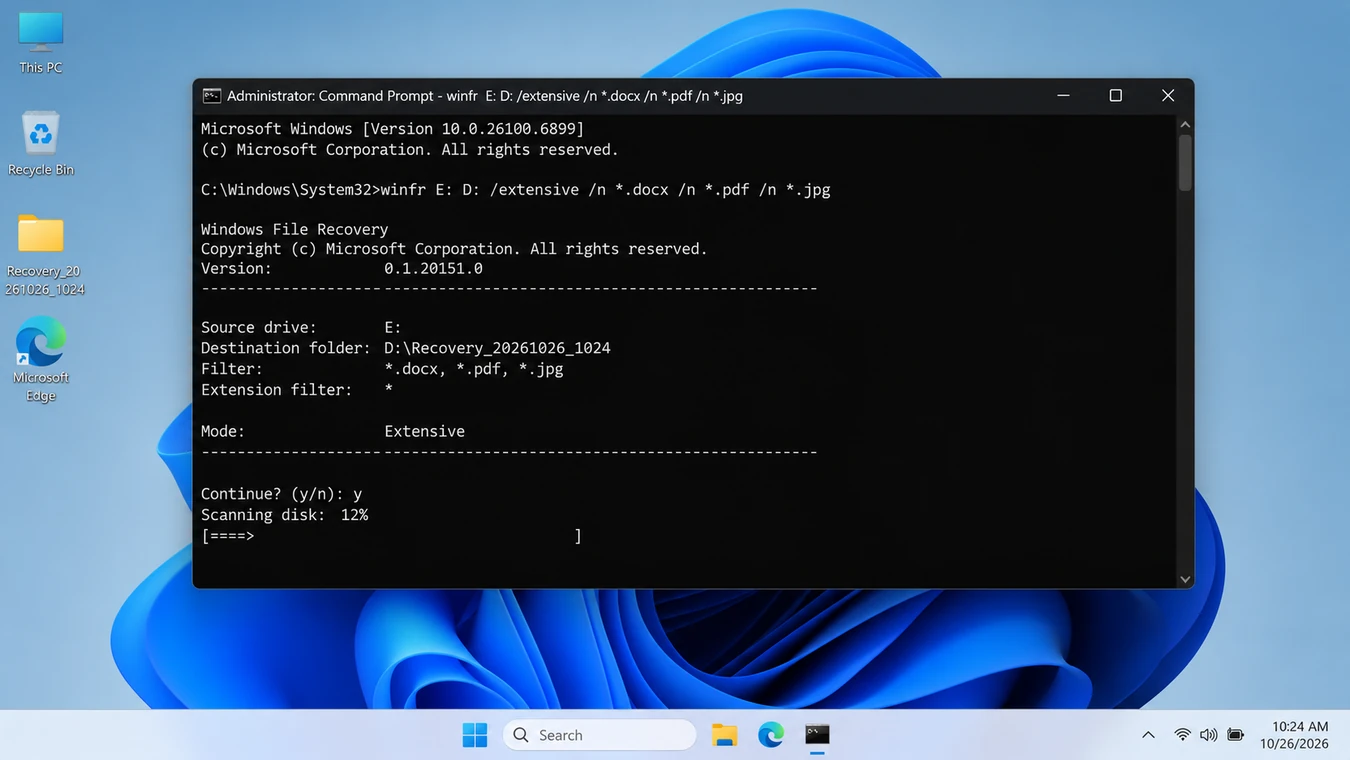
Step 4: Check the Recovered Files
Confirm the operation when prompted.
Windows File Recovery creates a folder named Recovery_<date and time> on the destination drive.
Open the folder and try opening several recovered files.
예상 결과: The destination contains readable documents, images, or other recovered content.
제한 사항: Windows File Recovery doesn’t provide a graphical file-preview interface, and results may lack original names or complete content.
만약 실패할 경우: PhotoRec offers an alternative scanning approach, particularly when the file-system records are missing.
Method 3: Recover Formatted Pen Drive Files with PhotoRec
최적 대상: Users who need free file-signature recovery and can organize files manually afterward.
PhotoRec is an open-source recovery tool available for Windows, macOS, and Linux.
Rather than depending entirely on file-system records, it identifies recognizable file content. This can help recover formatted pen drive files when the original directory structure is damaged or missing.
How to Recover Formatted Data from Pen Drive Using PhotoRec
- CGSecurity 공식 웹사이트에서 TestDisk와 PhotoRec을 다운로드하세요.
- Extract the archive to your computer.
- Open PhotoRec with administrator permissions, or launch QPhotoRec for a graphical interface.
- Select the formatted USB using its device name and capacity.
- Choose the relevant partition or disk area.
- 선택 기타 for common FAT32, exFAT, and NTFS file systems in PhotoRec’s file-system options.
- For a reformatted partition, choose the whole-partition scan when appropriate, rather than restricting the search to free space.
- Select the file types you need and choose a destination on another drive.
- Start recovery and review the saved output.
CGSecurity의 official PhotoRec tutorial explains these settings in more detail.
What Results Should You Expect?
Suppose a formatted USB stick previously held JPG photos, MP4 videos, and PDF documents.
PhotoRec may identify those files through their internal signatures, even when the original folders no longer exist.
However, it often assigns generated names such as f123456.jpg and saves results inside directories such as recup_dir.1.
예상 결과: You recover recognizable files, although their original names or folders may be missing.
제한 사항: Fragmented files can remain incomplete, and sorting large quantities of recovered content may take considerable effort.
만약 실패할 경우: If the USB remains healthy, consider another recovery tool with file-system analysis and preview features. Don’t expect a second scanner to restore overwritten content.
Method 4: Recover Formatted USB Files with Magic Data Recovery
최적 대상: Windows users who prefer guided scanning, file filtering, and previews instead of command-line recovery.
If no usable backup exists and Windows can reliably access the USB hardware, Magic Data Recovery offers a graphical alternative.
It supports logical recovery from formatted USB drives using common file systems, including FAT32, exFAT, and NTFS.
왜 Magic Data Recovery를 고려해야 할까요?
The main difficulty after formatting isn’t always finding files. Sometimes it’s identifying which results are worth recovering.
For example, imagine a 32 GB USB containing PDF contracts, Excel spreadsheets, and travel photos.
PhotoRec may retrieve numerous files with generic names. Magic Data Recovery lets you browse discovered files, apply filters, and preview supported content before choosing what to restore.
Its relevant capabilities include:
- Formatted USB scanning: Searches for recoverable content after logical formatting-related data loss.
- 파일 미리보기: Helps identify potentially readable documents and photos.
- Search and filters: Narrows results by file type, name, or other available properties.
- Broad file support: Supports more than 5,000 file formats, according to Amagicsoft’s product documentation.
- Windows interface: Provides a guided workflow without recovery commands.
These features make file selection more convenient, but they don’t establish a higher recovery success rate than every free alternative.
How to Recover Formatted Data from Pen Drive with Magic Data Recovery
1단계: 다운로드 및 설치
Download Magic Data Recovery from the 공식 제품 페이지. Install it on your computer’s internal drive rather than the affected USB.
Windows 7/8/10/11 및 Windows Server 지원
Step 2: Select the Formatted USB
Launch the software and locate the USB by its drive letter and capacity. Select the correct device or partition before starting the scan.
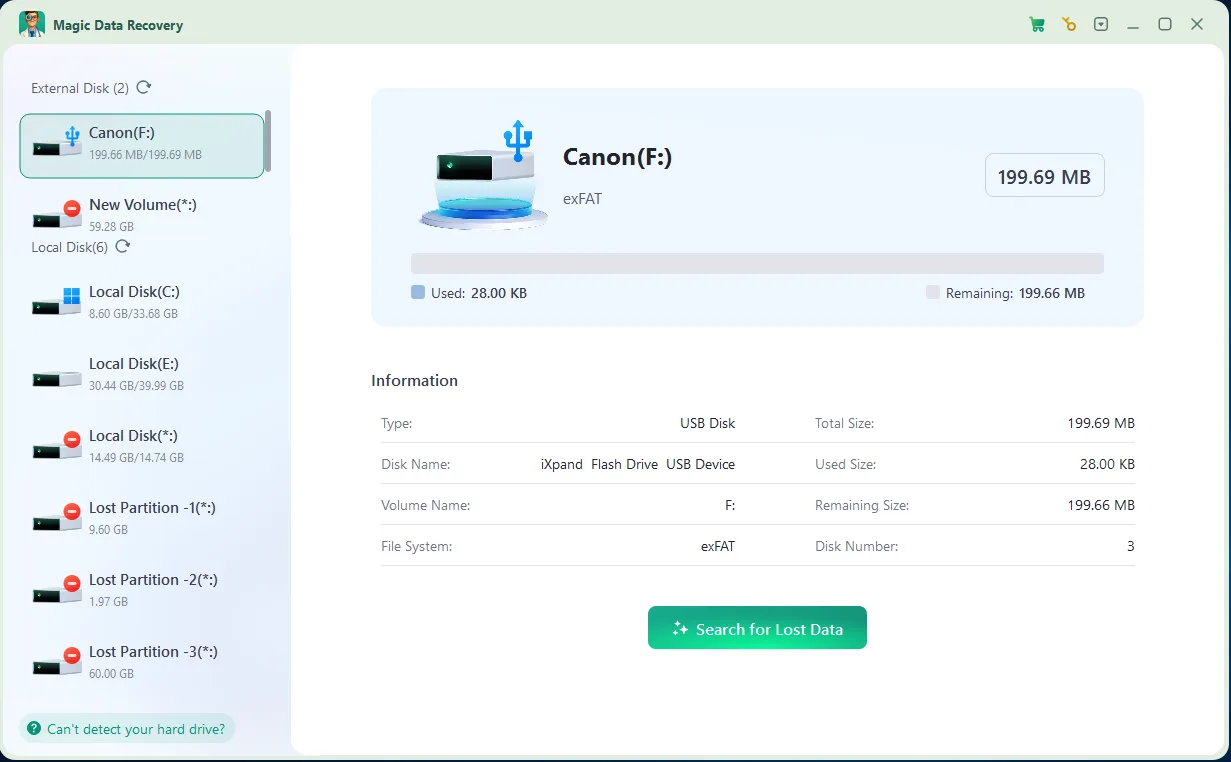
3단계: 손실된 파일 검색
Allow Magic Data Recovery to scan the USB for recoverable file-system information and file content. Keep the connection stable while the scan runs.
Step 4: Preview and Filter
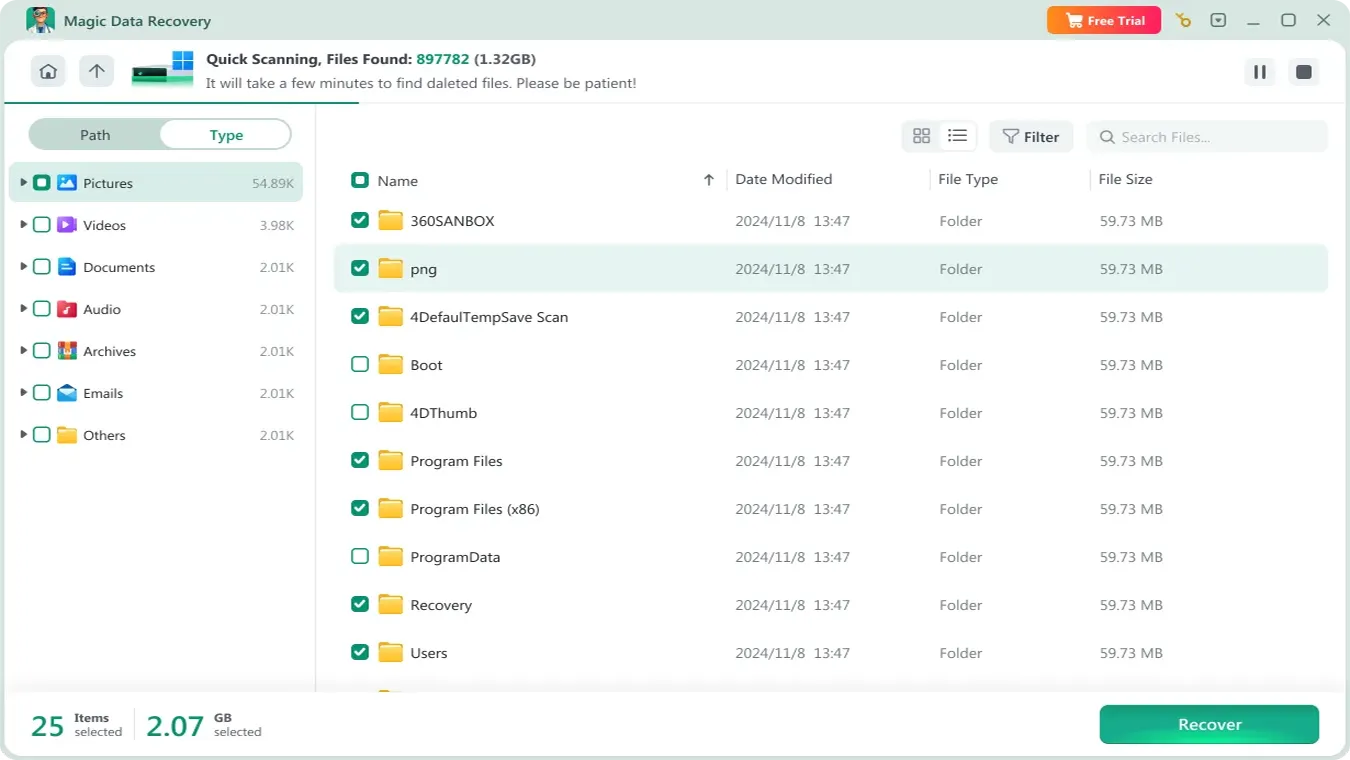
Browse the scan results and use the available filters to locate relevant documents, photos, or videos. Preview supported files when possible. A preview that looks correct is useful evidence, but you should still verify the saved copy.

5단계: 다른 드라이브로 복구
필요한 파일을 선택한 다음 클릭하세요 복구. Choose your computer’s internal drive or another healthy storage device as the destination.
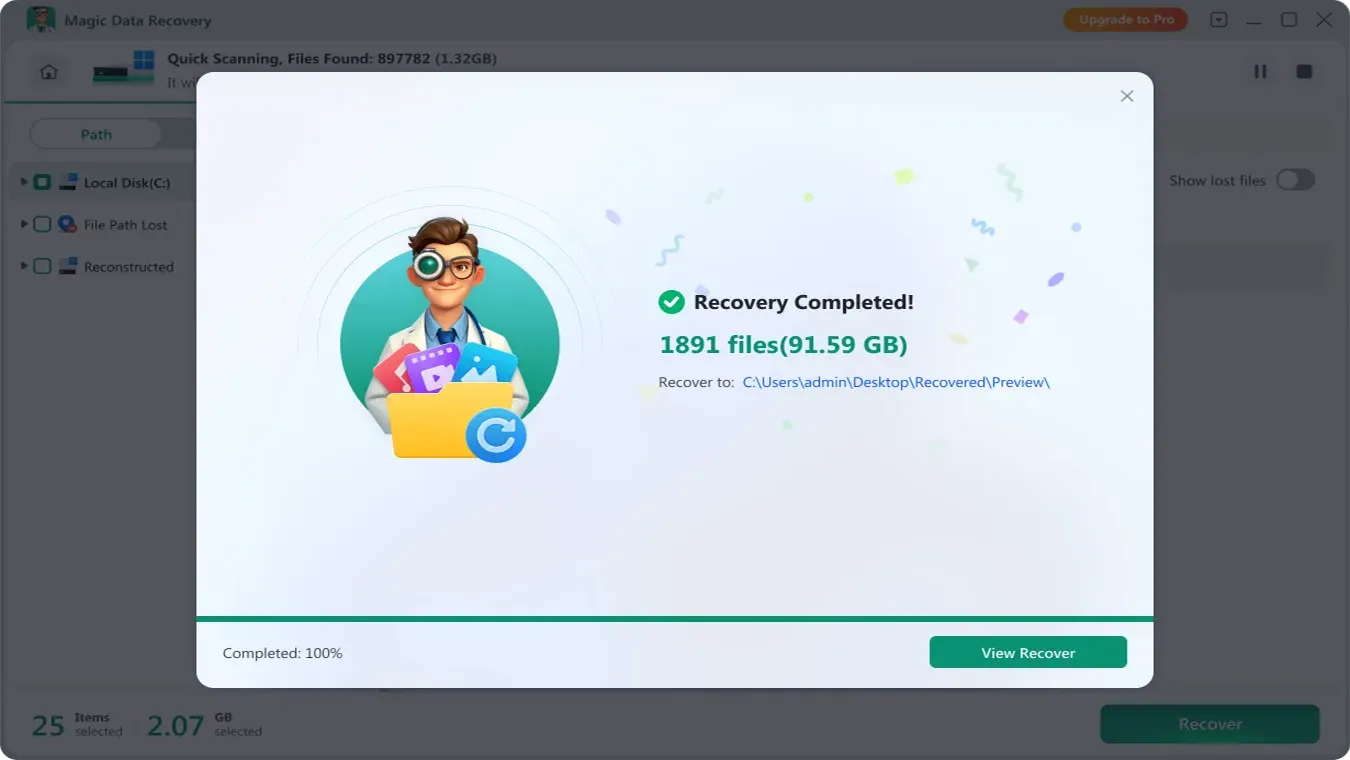
Finally, open the recovered files to check their integrity. For the detailed interface workflow, see the Magic Data Recovery 사용자 가이드.
Free Allowance and Recovery Limits
Magic Data Recovery currently allows up to 500 MB of free recovery. This can cover a small collection of documents or photos. Larger jobs may require a paid license.
Its limitations are the same fundamental boundaries that affect other software recovery tools:
- Overwritten content cannot be reconstructed.
- Physical USB hardware failures require different handling.
- Completed secure erasure or full overwriting can prevent recovery.
- A discovered filename doesn’t guarantee a usable file.
예상 결과: You identify, select, and save readable files to another drive.
만약 실패할 경우: Review whether the original content may have been overwritten. If the USB becomes unstable, stop scanning and seek specialist advice.
How to Verify Your Recovered USB Files
A recovery scan may report hundreds of discovered files, but found files are not necessarily usable files.
Before declaring recovery successful, inspect the copies saved on your destination drive.
파일 유형 | How to verify it | Warning signs |
DOCX, PDF, XLSX | Open the document and inspect several pages or sheets | Errors, missing text, unreadable content |
JPG, PNG | View at full resolution | Gray areas, incomplete image, artifacts |
MP4, MOV | Play the beginning, middle, and end | Playback stops, missing footage |
ZIP, RAR | Test or extract the archive | CRC errors, failed extraction |
프로젝트 파일 | Open in the original application | Missing assets or corrupted structure |
Also, check file sizes. A zero-byte file or a suspiciously small recovered video deserves closer inspection.
For especially important documents, compare them with any available previous versions or backups.
If recovered files have generic names, use embedded metadata, recognizable content, and file extensions to identify them.
The recovery is only useful when the saved files contain the information you actually need.
Can CMD Unformat a USB Drive?
Some instructions recommend ATTRIB, CHKDSK, or DiskPart as solutions for 포맷 후 펜 드라이브 데이터 복구.
However, these utilities don’t reverse a completed format.
- ATTRIB changes file attributes and can reveal files that are merely hidden. It cannot rebuild data removed by formatting.
- CHKDSK checks and repairs certain file-system errors. Its repair operations may modify metadata needed for later recovery.
- DiskPart manages disks and partitions. Commands such as
clean그리고형식can make recovery more difficult.
There is no standard Windows command that restores a formatted USB to its exact previous state.
실제로, unformat USB drive usually refers to retrieving surviving files through backups or data recovery software.
Recover your important files before attempting to repair or reformat the device.
When Should You Stop DIY USB Recovery?
Software recovery is most appropriate when the device remains stable and exposes readable storage to Windows.
Stop repeated scanning and consider professional assistance if:
- The USB repeatedly disconnects during reading.
- Windows reports zero or an obviously incorrect capacity.
- The connector is damaged or the device overheats.
- Multiple computers cannot recognize the storage device.
- Read errors become more frequent.
- The files are irreplaceable, and you cannot afford further risk.
These symptoms may indicate controller, connector, or flash-memory problems that ordinary recovery software cannot repair.
For valuable data, a specialist may attempt to create a sector-by-sector image before deeper recovery work. However, imaging also requires reading the device and isn’t automatically safe for severely failing hardware.
How to Prevent USB Formatting Data Loss
Once your important files are recovered and verified, take a few precautions before reusing the USB.
- 별도의 백업을 보관하십시오. Don’t store the only copy of valuable files on a flash drive.
- Check the device before formatting. Verify its label, capacity, and contents.
- Use cloud version history or File History. These can preserve earlier copies of frequently edited documents.
- Replace unreliable USB drives. Repeated disconnections or capacity errors may indicate hardware deterioration.
If the USB works normally after recovery, you can prepare it for reuse. See our guide on USB 드라이브를 FAT32로 포맷하기 if you need compatibility with older devices.
However, don’t format or repair the original USB until you’ve verified that your recovered files are safely stored elsewhere.
Conclusion: Recover a Formatted USB Drive Safely
다음과 같은 경우 포맷된 USB 드라이브를 무료로 복구하기, your first priority should be protecting the existing data. A quick-formatted pen drive may still contain recoverable files, while full formatting, heavy reuse, or hardware damage can sharply reduce your options.
Start with backups. If no copy exists, Windows File Recovery provides a free Microsoft solution, and PhotoRec offers open-source file-signature scanning.
For Windows users who prefer a guided workflow, Magic Data Recovery is worth considering. Its file previews, filtering options, and 500 MB free recovery allowance can simplify smaller recovery tasks without requiring command-line experience.
Whichever option you choose, save recovered files elsewhere and verify them before reusing the USB. For additional recovery situations, visit Amagicsoft’s 포맷된 드라이브 복구 가이드.
Windows 7/8/10/11 및 Windows Server 지원
자주 묻는 질문
Recuva로 포맷된 USB 메모리에서 파일을 복구할 수 있나요?
USB 메모리를 두 번 포맷한 후에도 파일을 복구할 수 있나요?
USB를 Windows 설치 미디어로 만든 후에도 파일을 복구할 수 있나요?
포맷된 USB 메모리 복구에는 얼마나 걸리나요?
비용을 지불하지 않고도 포맷된 USB 파일을 복구할 수 있나요?
Mac에서 포맷된 USB 드라이브의 데이터를 복구할 수 있나요?
포맷된 USB를 스캔하면 데이터가 변경되거나 덮어쓰게 되나요?

Jason는 15년 이상의 실무 경험을 갖춘 데이터 복구 및 기술 지원 전문가입니다. 그는 현장 사용자와 폭넓게 협력하며, 까다로운 데이터 손실 사례를 해결하고, 실수로 인한 삭제, 드라이브 포맷, 파일 시스템 손상, 파티션 손실, 시스템 장애 및 기타 긴급 복구 상황에 대한 실용적인 복구 솔루션을 제공해 왔습니다. 또한 백업 및 복원, 파일 복구, 재해 복구 분야에서도 전문성을 갖추고 있으며, 안전하고 신뢰할 수 있으며 기술적으로 정확한 지침을 제공하는 데 중점을 두고 있습니다.