
Puran 데이터 복구 리뷰: 기능, 한계 및 대안
스크래치가 난 DVD나 손상된 USB 드라이브에서 파일을 복사할 수 없을 때는, 읽기 오류를 처리할 수 있는 도구가 필요합니다. Puran 데이터 복구 이 도구는 읽을 수 없는 섹터를 건너뛰면서 접근 가능한 콘텐츠를 복사하도록 설계되었습니다. 하지만 이 도구는 영구적으로 삭제된 파일을 복구하는 데 주된 목적이 있는 것은 아닙니다. 이 리뷰에서는 이 도구의 실제 용도를 설명하고, Puran File Recovery 및 Magic Data Recovery와 비교하여, 사용자에게 적합한 솔루션을 선택하는 데 도움을 드립니다. 원본 장치 자체에 문제가 있는 경우, 당사의 하드 드라이브 복구 솔루션 추가 지침을 제공하십시오.
핵심은 손상된 매체 복사와 삭제된 파일 복구를 구분하는 것입니다. 이 두 작업에는 서로 다른 방법이 필요하기 때문에, 단일 복구 성공률만으로는 모든 도구를 공정하게 평가할 수 없습니다.
목차
한눈에 알아보는 추천: 어떤 복구 도구를 선택해야 할까요?
- Puran 데이터 복구: 손상된 저장 매체에서 파일이 여전히 표시되지만 일반적인 복사 작업 시 읽기 오류가 발생하는 경우 이 옵션을 선택하십시오.
- Puran 파일 복구: 실수로 삭제한 파일, 포맷된 드라이브, 또는 분실된 파티션의 경우 이 방법을 고려해 보세요.
- Magic Data Recovery: 백업 및 기본 제공 복구 옵션을 사용할 수 없는 경우, 지원되는 논리적 데이터 손실 시나리오에 대한 대안으로 고려해 보십시오.
이러한 권장 사항은 문서화된 기능과 입수 가능한 증거를 바탕으로 한 것이며, 특정 제품이 다른 제품보다 우수하다는 주장을 의미하지는 않습니다. Magic Data Recovery는 Amagicsoft 제품으로, 두 가지 Puran 유틸리티와 동일한 비교 기준을 적용하여 평가됩니다.
Puran 데이터 복구 vs. Puran 파일 복구 vs. Magic Data Recovery
평가 요소 | Puran 데이터 복구 | Puran 파일 복구 | Magic Data Recovery |
주요 목적 | 손상된 저장 매체에서 파일 복사하기 | 삭제된 파일 및 손실된 파티션 복구 | 삭제되거나 분실된 파일 복구하기 |
최상의 시나리오 | 표시된 파일로 인해 읽기 오류가 발생합니다 | 파티션 삭제, 포맷 또는 분실 | 지원되는 논리적 데이터 손실 시나리오 |
문서화된 버전 | 2013년 9월 1.2 | 2.0.1, 2026년 1월 | 3.13.271, 빌드 151 |
Windows 호환성 | 공식 목록은 Windows 10에서 끝납니다. | 공식 목록에는 Windows 11이 포함되어 있습니다 | 제품 설명서에는 Windows 7~11이 기재되어 있습니다. |
가격 | 무료 유틸리티 | 출판사에 따르면 무료로 이용할 수 있다 | 최대 500MB까지 체험 가능; 유료 라이선스 제공 |
주요 한계 | 삭제된 파일을 전문으로 스캔하는 프로그램은 아닙니다 | 복구한다고 해서 파일이 온전하게 복원된다는 보장은 없습니다. | 물리적 하드웨어 손상은 복구할 수 없습니다. |
성과 입증 자료 | 직접 비교할 수 있는 공개된 벤치마크는 확인되지 않았습니다. | 외장 USB 복구 관련 연구 자료 제공 | 인용된 연구에는 직접적으로 비교할 수 있는 결과가 없다 |
출처: Puran 데이터 복구, Puran 파일 복구, 및 Magic Data Recovery.
이 도구들을 선정한 방법
우리는 세 가지 선정 기준을 적용했습니다.
- 직접적인 관련성: ‘Puran Data Recovery’가 주요 주제인 이유는, 이를 검색하는 사용자들이 손상된 저장 매체에서 파일을 복사해야 할 필요가 있을 수 있기 때문입니다.
- 제품명 관련 설명: Puran File Recovery가 포함된 이유는, 제작사가 삭제된 파일을 복구해야 하는 사용자에게 이 별도의 유틸리티를 안내하기 때문입니다.
- 관련된 대안: Magic Data Recovery는 지원되는 논리적 데이터 손실 시나리오를 다룹니다. 이는 손상된 매체의 복사 기능을 대체하기 위한 것이 아닙니다.
이 리뷰의 초점을 명확히 하기 위해, 본 비교 대상에서 관련성이 없는 도구들은 제외했습니다. Recuva와 EaseUS가 나중에 언급된 이유는, 독립적인 연구에서 이 두 도구를 Puran File Recovery와 함께 테스트했기 때문입니다.
시험 방법론 및 근거
이 리뷰에서는 검증된 원본 데이터셋의 증거와, 아직 진행 중인 제3자 연구 및 복구 테스트 결과를 구분하여 다룹니다. 당사는 계획 중인 테스트를 완료된 실험으로 제시하지 않으며, 스캔 시간, 복구율 또는 복구된 파일 결과를 임의로 조작하지 않습니다.
표준화된 테스트 환경
계획된 복구 테스트를 위해 다음과 같은 목표 구성을 정의했습니다.
매개변수 | 정의된 구성 |
운영 체제 | Windows 11 Pro 25H2, 64비트 |
대상 OS 빌드 | 26200.9711 (KB5127648) |
CPU 및 메모리 | vCPU 4개 및 RAM 16GB |
시스템 디스크 | 100 GB 목표 용량 |
소스 장치 | 전용 32GB USB 3.x 드라이브 |
파일 시스템 | 삭제 및 빠른 포맷 테스트를 위한 NTFS |
테스트 데이터셋 | 총 3,355,523바이트에 달하는 18개의 파일 |
소프트웨어 버전 | Puran Data Recovery 1.2; Puran File Recovery 2.0.1; Magic Data Recovery 3.13.271 |
복구 대상 위치 | 별도의 물리적 디스크 |
무결성 검사 | 원본 SHA-256 매니페스트 |
계획된 반복 횟수 | 해당 도구 및 시나리오당 3회 실행 |
이 구성은 목표 환경을 명시하는 것이지, 해당 컴퓨터에서 복구 애플리케이션이 이미 테스트되었다는 증거는 아닙니다. 실행 전에 실제 Windows 빌드, 장치 모델, 할당된 리소스 및 설치 프로그램 해시 값을 기록해야 합니다.
데이터셋 무결성 검증 결과: 18개 파일 중 18개 모두 통과
복구 애플리케이션을 테스트하기 전에, 패키지화된 18개 파일로 구성된 소스 데이터셋을 원래의 SHA-256 매니페스트와 대조하여 검증했습니다. 이 사전 검사는 복구 소프트웨어와 별개로 수행되었습니다.
검증 보고서에는 각 파일 이름, 예상 및 실제 파일 크기, 예상 및 계산된 SHA-256 해시, 그리고 최종 기준 상태가 기록되어 있습니다. 총 18개의 파일 모두 크기 비교와 해시 비교를 모두 통과했습니다. 계산된 합계도 매니페스트와 일치합니다.
이 데이터셋에는 문서, 스프레드시트, 프레젠테이션, 이미지, 오디오 파일, 텍스트, HTML, JSON, ZIP 아카이브 및 바이너리 데이터가 포함되어 있습니다. 매니페스트를 사용하면 복구된 파일이 원본과 동일한지 여부를 판단할 수 있는 재현 가능한 기준을 마련할 수 있습니다.
중요한 차이점: 이 결과는 원본 테스트 샘플의 무결성을 입증합니다. 이는 어떤 복구 프로그램이든 파일을 성공적으로 복구했다는 사실을 입증하는 것은 아닙니다. 실제 복구 횟수, 소요 시간 및 복구 후 SHA-256 일치 여부는 복구 테스트가 실행된 후 별도로 측정해야 합니다.
재현 가능한 회수 절차
삭제된 파일 복구와 손상된 매체 복사는 서로 다른 작업이므로, 계획된 테스트를 분리했습니다.
테스트 A: 삭제된 파일
- 원본 데이터 세트를 전용 NTFS 테스트 볼륨에 복사하십시오.
- 18개의 파일을 모두 원본 SHA-256 매니페스트와 대조하여 확인하십시오.
- 테스트 볼륨의 기준 이미지를 생성합니다.
- Shift+Delete 키를 사용하여 파일을 삭제하고, 그 결과로 생성된 디스크 상태를 캡처하십시오.
- Puran File Recovery와 Magic Data Recovery를 테스트하기 전에 삭제 전과 동일한 상태로 복원하십시오.
- 스캔 설정, 소요 시간, 발견된 파일, 저장된 파일 및 무결성 검사 결과를 기록합니다.
테스트 B: 빠른 포맷
- 원래 테스트 볼륨의 기준선을 복원합니다.
- 빠른 포맷을 수행하고 그 결과 상태를 기록하십시오.
- 비교 가능한 각 스캔을 수행하기 전에 동일한 게시물 형식 상태로 복원하십시오.
- 각 애플리케이션에서 사용하는 스캔 모드와 설정을 기록하십시오.
- 복구된 파일을 별도의 물리적 디스크에 저장하고 해당 파일의 해시 값을 확인하십시오.
테스트 C: 손상된 미디어 복사
Puran Data Recovery는 손상된 저장 매체에서 접근 가능한 파일을 복사하는 것이 주된 목적이므로 별도의 테스트가 필요합니다.
읽기 오류가 확인된 희생용 저장 매체를 사용하십시오. 장치 모델, 연결 방식, 영향을 받은 파일, 그리고 정상적인 복사 과정에서 발생한 오류를 기록해 두십시오. 그런 다음 Puran Data Recovery를 사용하여 접근 가능한 콘텐츠를 별도의 저장 위치로 복사하십시오.
복사 설정, 소요 시간, 출력 크기 및 SHA-256 결과를 기록하십시오. 이 실험에는 귀중한 원본 매체를 사용하지 마십시오.
회복 성과는 어떻게 측정될 것인가
해당 시나리오마다, 이 프로토콜은 동일한 초기 상태 기준선에서 세 번의 실행을 규정하고 있습니다. 다음 정의들은 모든 도구에서 일관되게 적용될 것입니다.
Metric | 정의 |
Files found | Files listed in the application results |
Files recovered | Files successfully saved to the destination |
Intact files | Recovered files whose SHA-256 matches the original |
Hash mismatches | Recovered files whose SHA-256 differs from the original |
Files not found | Original files without a corresponding recovered output |
Median time | Median elapsed time across three completed runs |
A filename appearing in a scan result does not prove that the file is recoverable. Likewise, a preview does not establish that the complete file was restored.
Current testing limitation: The source dataset has passed its integrity preflight, but the additional three-tool recovery tests remain pending. No original scan times, recovery counts, or post-recovery hash results are claimed in this review.
What the Published Recovery Research Shows
A 2025 paper in the DS Journal of Cyber Security, Assessing the Performance of Forensic File Recovery Tools on Deleted Files from a USB Device, evaluated Recuva, Puran File Recovery, and EaseUS Data Recovery.
The researchers used an 8 GB USB flash drive formatted as FAT32. Their dataset contained 18 files totaling 187 MB. They measured file recovery counts, elapsed time, recovered output sizes, and hash matching to evaluate the integrity of recovered files.
The study reported the following results:
Published metric | Recuva | Puran 파일 복구 | EaseUS |
Files reported recovered | 13/18 | 16/18 | 14/18 |
Reported recovery rate | 72.22% | 88.89% | 77.78% |
Reported elapsed time | 6 min 33 sec | 5 min 20 sec | 9 min 29 sec |
Files matching original hashes | 11/13 | 9/16 | 11/15 |
Hash-matching rate | 84.62% | 56.25% | 73.33% |
These figures come from the external paper, not our own recovery tests.
The difference between recovered files and intact files is significant. Although Puran File Recovery reportedly recovered 16 files, only nine of those 16 reportedly matched the original hashes. The paper also reports 296 MB of recovered output from an original dataset of 187 MB, which raises questions about its file-size measurement.
There is another reporting inconsistency: the abstract attributes an 84.62% hash-matching result to EaseUS, while the detailed table assigns that figure to Recuva. The table’s figures are shown above, but this discrepancy limits confidence in the study’s summary.
Consequently, the reported 88.89% recovery rate does not establish that 88.89% of the original data was restored intact. The study also did not test Puran Data Recovery or Magic Data Recovery, so it cannot establish a performance ranking among all three products reviewed here.
Puran Data Recovery: Features, Pros, and Cons
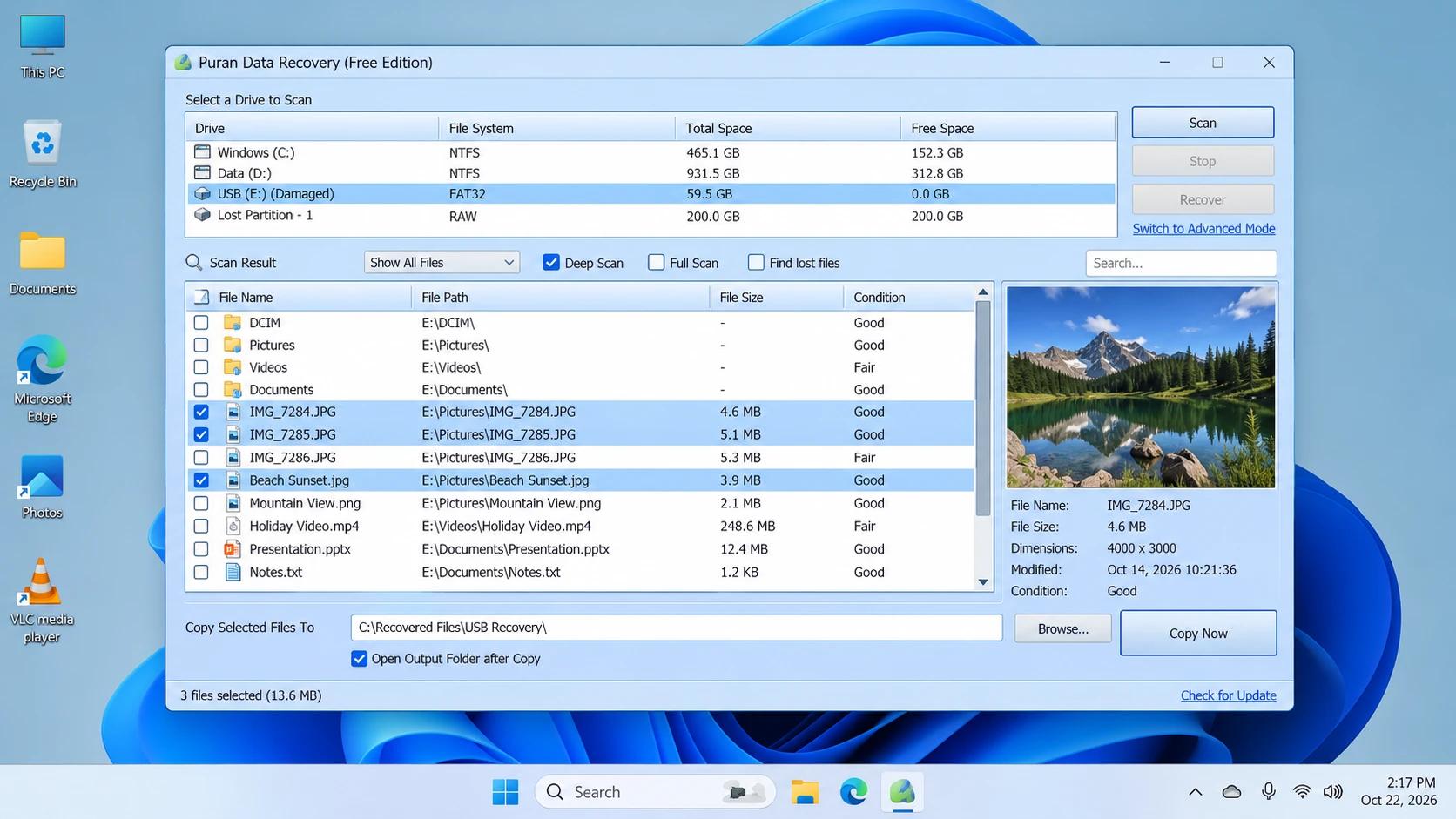
에 따르면 공식 제품 페이지, Puran 데이터 복구 is a free utility for copying accessible files from damaged media, including scratched CDs, DVDs, Blu-ray discs, USB drives, and memory cards.
Its defining behavior is simple: when it encounters an unreadable sector, it attempts to skip that area and continue copying the remaining data. This may preserve readable portions of a file, but it cannot reconstruct missing bytes from a sector that the device cannot read.
Main strengths
- Error-tolerant copying: Attempts to continue past unreadable sectors.
- Flexible selection: Copies entire drives or individual files and folders.
- Adjustable speed levels: Provides settings to balance copying speed and recovery effort.
제한 사항
- Not a deleted-file scanner: It is not intended primarily to locate permanently deleted directory entries.
- Old documented release: Version 1.2 was released on September 7, 2013.
- Windows 11 support is unconfirmed: The official compatibility list ends at Windows 10.
- Incomplete copies remain possible: Skipping unreadable sectors cannot restore missing content.
최적 대상: Copying visible files from damaged media when normal Windows copying encounters read errors.
다음과 같은 경우에는 적합하지 않습니다: Searching primarily for deleted files, recovering overwritten content, or repairing physical hardware damage.
Five-step workflow
- Download: Get the utility from the 공식 다운로드 페이지.
- Connect: Attach the source device. Stop if it repeatedly disconnects or shows signs of serious physical failure.
- 선택: Choose the accessible files, folders, or drive that you need to copy.
- Copy: Select an appropriate speed level and save the output to a healthy, separate destination.
- 확인합니다: Open representative files and check their contents. Keep the original media unchanged until you confirm the copies are usable.
Puran File Recovery: Deleted Files and Lost Partitions
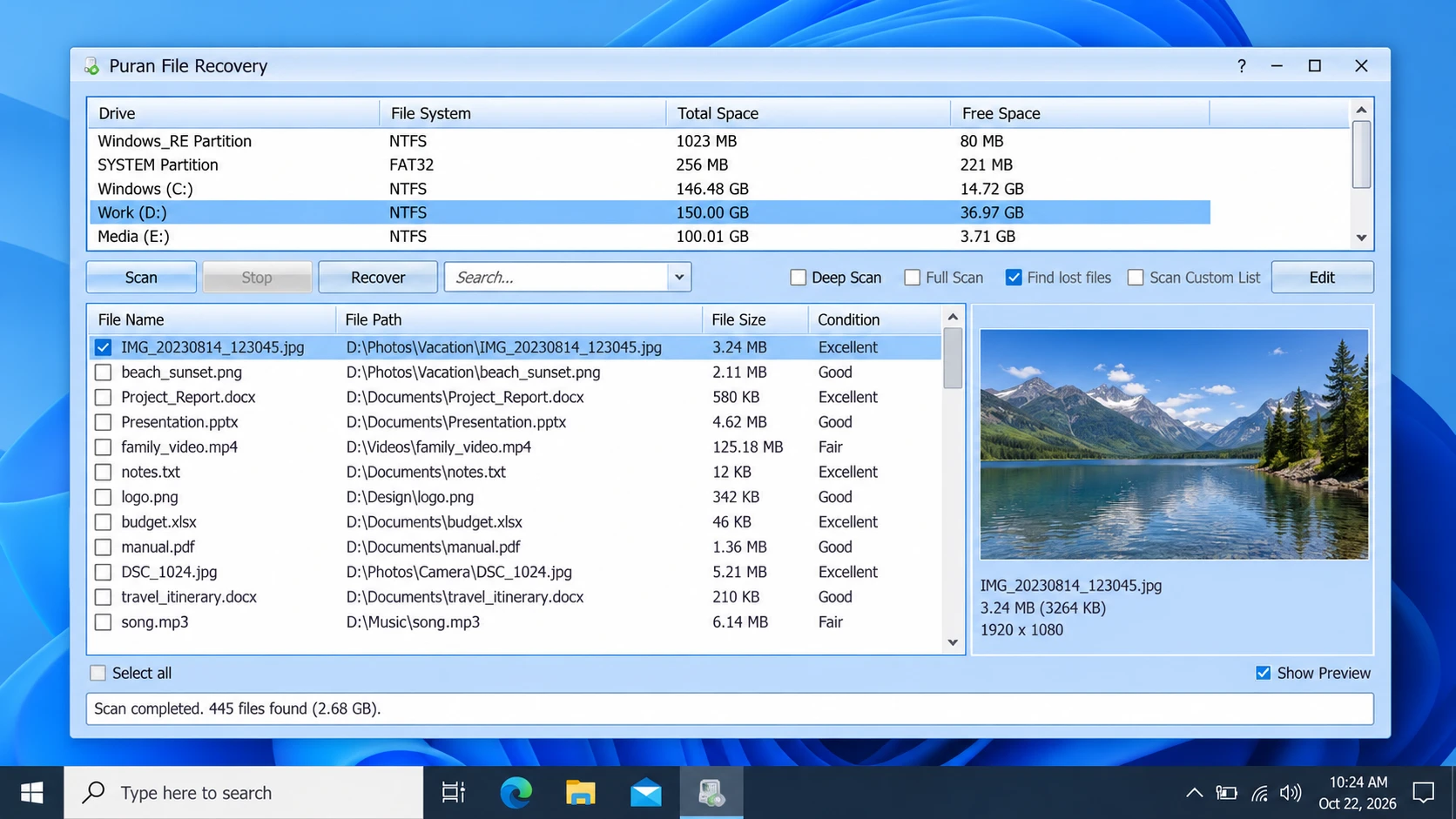
Puran File Recovery is a separate application for recovering deleted or lost files. The 공식 제품 페이지 also describes support for formatted drives and lost partitions.
It provides three scan modes:
- 빠른 스캔: Searches available file-system information for deleted files. The publisher identifies support for FAT12, FAT16, FAT32, and NTFS.
- 딥 스캔: Searches byte by byte for additional files using data patterns.
- Full Scan: Searches for lost partitions and files on formatted or RAW drives.
The program also includes file search, preview, and an option to preserve folder structures when the necessary information remains available.
Main strengths
- Covers deleted files, formatted drives, and lost partitions.
- Offers multiple scan modes for different scenarios.
- Provides search and preview functions.
- Includes a portable version.
제한 사항
- A listed file may not be completely recoverable.
- Deep scans can take time depending on the device and scan scope.
- A recovered file may be corrupted.
- Commercial-use conditions should be verified if relevant to your deployment.
The official version history lists version 2.0.1 on January 21, 2026, and explicitly includes Windows 11 compatibility. These details apply to Puran File Recovery, not to Puran Data Recovery.
최적 대상: Users who need a free utility to search for deleted files, formatted volumes, or lost partitions.
다음과 같은 경우에는 적합하지 않습니다: Copying visible files from damaged media when the main problem is unreadable sectors.
Five-step workflow
- Download: 방문하기 official Puran File Recovery page.
- 선택: Choose the original drive or partition containing the missing files.
- 스캔: Use Quick Scan for a first search, Deep Scan for additional file-pattern searching, or Full Scan for lost partitions and formatted volumes.
- Review: Search the results and preview supported files where possible.
- 복구: Save the selected files to a different physical drive, then verify their contents.
Magic Data Recovery: An Alternative for Logical Data Loss
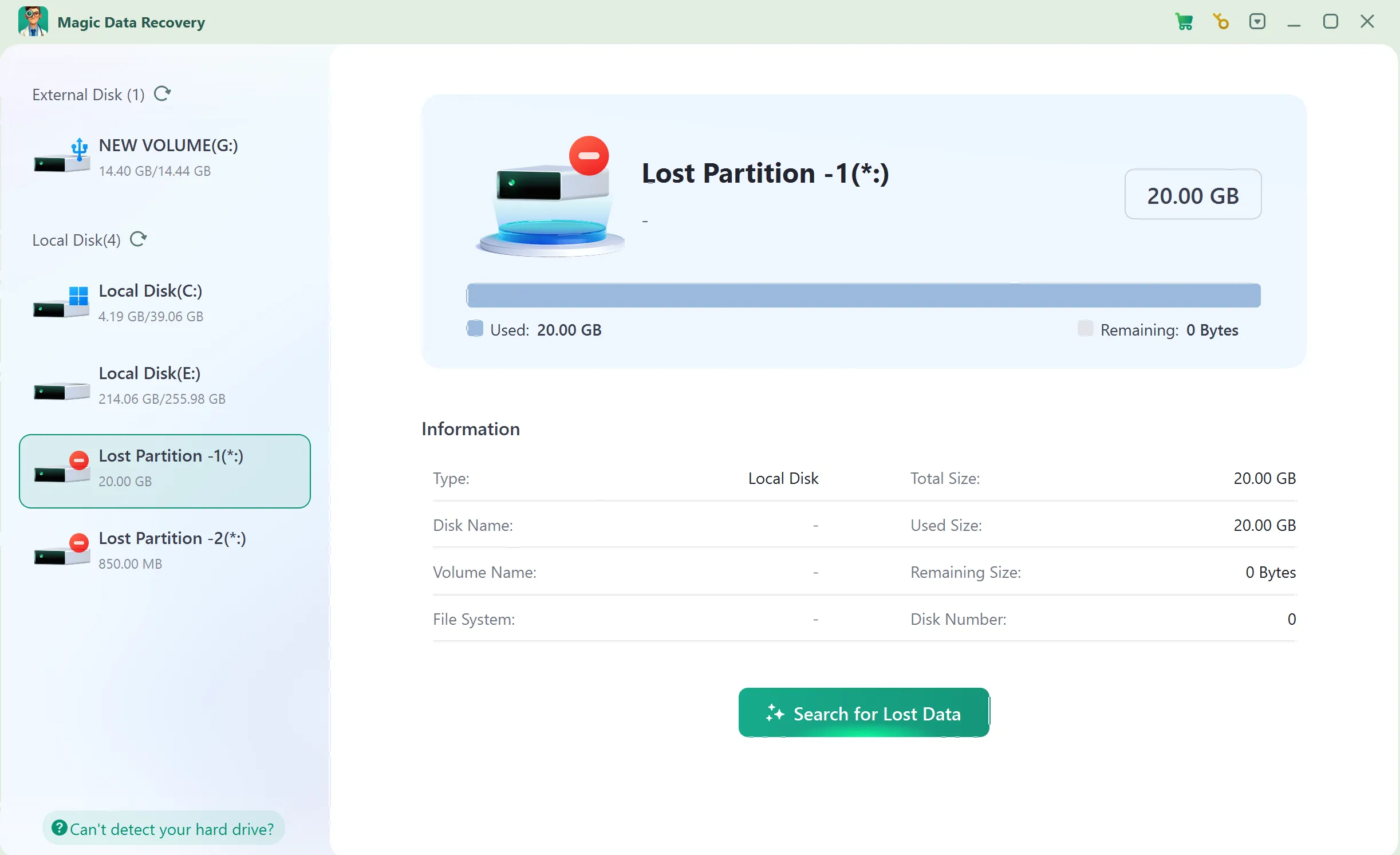
Magic Data Recovery provides a guided workflow for supported deleted-file and logical data-loss scenarios. Users select a storage device, scan for lost data, inspect results, preview supported files, and recover selected items.
It is included as an alternative, not as a performance winner. The published USB study did not test Magic Data Recovery, and our additional comparative tests remain pending.
Main strengths
- Guided workflow: Supports drive selection, scanning, browsing, and recovery.
- File filtering: Helps narrow down scan results.
- 미리보기 지원: Helps identify supported files before recovery, although not every file can necessarily be previewed.
- Trial availability: The official product page states that users can recover up to 500 MB for evaluation.
제한 사항
- It cannot repair physical hardware damage.
- Overwriting and SSD TRIM can reduce recovery prospects.
- A scan result does not guarantee an intact file.
- Recovery beyond the trial allowance requires an appropriate paid license.
최적 대상: Users who need a guided workflow for supported deleted-file or logical data-loss scenarios.
다음과 같은 경우에는 적합하지 않습니다: Repairing a physically damaged device or reconstructing data from unreadable hardware.
Five-step workflow
1단계: Magic Data Recovery 다운로드 및 설치
Install the program on a different drive or partition from the one that lost data. This reduces the risk of overwriting recoverable content.
Windows 7/8/10/11 및 Windows Server 지원
Step 2: Select the Drive Where the Files Were Stored
Launch the program, select the original drive or partition, and start the scan.
3단계: 분실되거나 삭제된 파일 검색
Allow the scan to run and review the files that appear.
4단계: 복구 전 파일 미리보기
Use Preview for supported file types to help identify the intended files. A preview does not guarantee that the complete file is intact.
5단계: 파일을 안전한 위치로 복구하기
Save selected files to a different physical drive. Do not write them back to the source location where data was lost.
Pricing and License Comparison
The three tools differ in pricing and available licensing information.
제품 | 가격 | License information |
Puran 데이터 복구 | 무료 유틸리티 | Confirm current terms before business deployment |
Puran 파일 복구 | Officially described as free to use | A third-party review describes possible commercial-use restrictions; verify with the publisher |
Magic Data Recovery | Trial up to 500 MB; paid plans available | One-computer PRO licenses and Technician plans are listed |
그리고 Magic Data Recovery 가격 안내 페이지 displayed the following promotional prices when checked on October 22, 2026:
계획 | 표시된 가격 | License terms |
무료 | $0 | 500MB 무료 |
PRO — 1 year | $49.95 | 컴퓨터 한 대, 1년간의 업그레이드 |
PRO — perpetual | $69.95 | 컴퓨터 한 대, 평생 무료 업그레이드 |
The pricing page also displays reference prices and a 30-day money-back guarantee. Prices and terms can change, so check the current offer before purchasing.
The comparison does not assume that paid software is better than free software. Instead, the choice depends on the task, supported platform, license terms, and whether the recovered files are intact.
어떤 도구를 선택해야 하나요?
귀하의 상황 | 다음 단계로 권장되는 사항 | 이유 |
Files remain visible on a scratched disc but copying fails | Puran 데이터 복구 | Designed to continue copying readable content |
실수로 삭제된 파일 | Check Recycle Bin and backups, then consider Puran File Recovery | Designed for deleted-file recovery |
A drive was formatted or a partition disappeared | Consider Puran File Recovery | Provides Full Scan for lost partitions and formatted volumes |
You prefer a guided logical-recovery workflow | Evaluate Magic Data Recovery’s trial | Allows you to inspect actual results before purchasing |
A drive clicks, repeatedly disconnects, or shows physical damage | Stop DIY scans and seek professional diagnosis | Software cannot repair serious hardware damage |
신뢰할 수 있는 백업이 존재합니다 | 먼저 백업에서 복원하세요 | Avoids unnecessary scanning and further writes |
Before recovery, stop writing new data to the affected device. Do not install recovery software on the source partition, and save recovered files elsewhere. On SSDs, TRIM may make deleted content unrecoverable even when a scanner detects remnants.
Conclusion: Is Puran Data Recovery Worth Trying?
Puran 데이터 복구 remains relevant for copying visible files from damaged media when ordinary copying encounters unreadable sectors. However, its documented version is old, and the official compatibility list does not explicitly include Windows 11.
For deleted files, formatted drives, and lost partitions, Puran File Recovery is the more appropriate Puran utility. An external study reported a high file-count recovery rate, but its hash-matching results and reporting inconsistencies show why recovered files must be checked for integrity.
If built-in recovery methods and backups fail, Magic Data Recovery offers an alternative for supported logical data-loss scenarios. It is not a universal replacement for Puran Data Recovery, and this review does not claim a performance winner without directly comparable tests.
Choose according to the cause of data loss, device condition, compatibility, and file integrity. For further device-specific guidance, visit our 하드 드라이브 복구 솔루션.
Windows 7/8/10/11 및 Windows Server 지원
자주 묻는 질문
Puran Data Recovery는 어떤 용도로 사용되나요?
Puran Data Recovery와 Puran File Recovery의 차이점은 무엇인가요?
Puran Data Recovery는 무료인가요?
Puran Data Recovery는 Windows 11에서도 작동하나요?
Puran File Recovery로 영구적으로 삭제된 파일을 복구할 수 있나요?
공개된 88.89% 복구율이 Puran File Recovery가 신뢰할 수 있음을 입증하는 것일까요?
Puran File Recovery와 Magic Data Recovery 중 어떤 것을 선택해야 할까요?

바실리는 이 분야에서 약 10년간 실무 경험을 쌓은 데이터 복구 전문가입니다. 그는 경력 전반에 걸쳐 삭제된 파일, 포맷된 드라이브, 손실된 파티션 및 RAW 파일 시스템과 관련된 수천 건의 복잡한 사례를 성공적으로 해결했습니다. 그의 전문 지식은 헥스 에디터와 같은 전문 도구를 사용한 수동 복구 방법과 복구 소프트웨어를 사용한 고급 자동화 솔루션을 모두 다룹니다. 바실리의 사명은 IT 전문가와 일반 사용자 모두에게 신뢰할 수 있는 데이터 복구 지식을 제공하여 소중한 디지털 자산을 보호할 수 있도록 돕는 것입니다.