
CHKDSK /f Explained: How to Safely Repair Disk Errors
“CHKDSK /f” is a Windows Command Prompt parameter used with the Check Disk (CHKDSK) utility to automatically detect and repair logical file system errors on a storage volume. The /f switch instructs Windows to fix inconsistencies such as corrupted file records, incorrect directory entries, and cross-linked files. It is commonly used when a drive shows errors, becomes inaccessible, or triggers warnings like “The file system is corrupt and unusable.”
According to Microsoft documentation, CHKDSK operates directly on file system metadata (such as NTFS Master File Table entries), making it a low-level but reliable diagnostic and repair tool.
Table of Contents
What Does chkdsk /f Do?
When executed, chkdsk /f performs three core tasks:
1. Scans the file system structure
It checks file records, directory indexes, and metadata integrity.
2. Repairs logical file system errors
Issues such as invalid timestamps, orphaned files, or mismatched allocation tables are corrected automatically.
3. Marks bad file references (not physical sectors)
Unlike /r, /f does not scan for physical disk damage. It focuses strictly on logical consistency.
The good news is that /f operates in a controlled, read-aware manner. In most cases, it does not erase user data intentionally. However, repairs may detach corrupted files if metadata is severely damaged.
When Should You Use chkdsk /f?
chkdsk /f is appropriate in the following scenarios:
- The drive suddenly appears as RAW
- Windows prompts: “You need to scan and fix this drive”
- Files disappear after an improper shutdown
- Applications report file system errors
- External drives cannot be safely accessed
If Windows still recognizes the drive letter, running chkdsk /f is often the first corrective step.
How to Run chkdsk /f (Step-by-Step)
Follow these steps carefully to avoid unnecessary data risk:
1. Press Windows + S, type cmd
2. Right-click Command Prompt → select Run as administrator
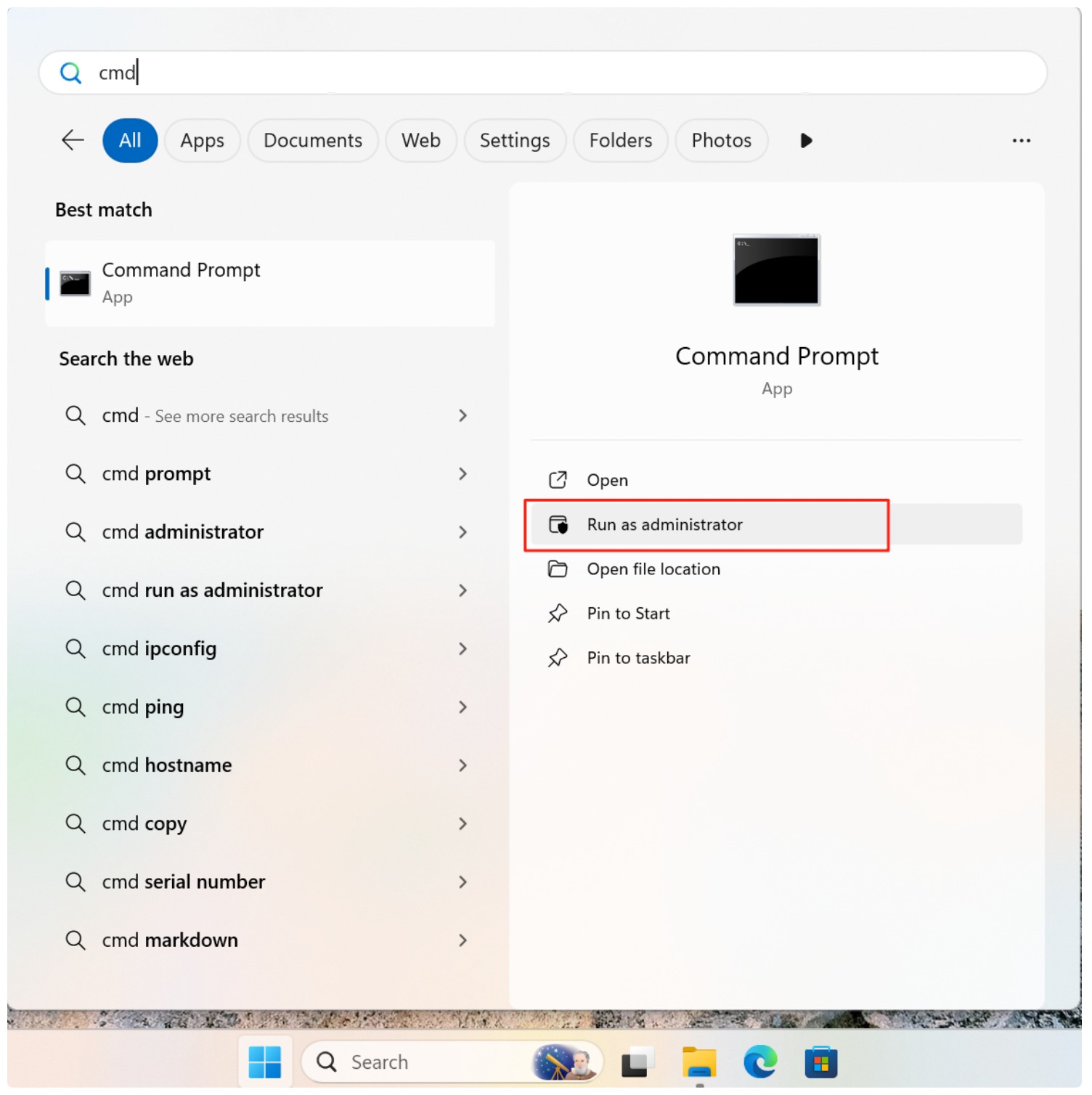
3. Enter the command:
chkdsk X: /f
Replace X: with the actual drive letter.

4. If prompted to schedule the check (for system drives), type Y and restart the computer.
During the scan, Windows will temporarily lock the volume to ensure repair accuracy. This is normal behavior.
Can chkdsk /f Cause Data Loss?
In normal conditions, chkdsk /f does not delete files arbitrarily. However, if file system corruption is extensive, Windows may move damaged entries to a FOUND.000 folder or turn the data to chk files. This can appear as data loss, even though the underlying file content may still exist.
For this reason, professionals recommend scanning and recovering critical data before applying repairs on unstable drives.
Recovering Files After chkdsk /f
If files are missing or inaccessible after running chkdsk /f, the data is often still present on disk but disconnected from the file system index.
In such cases, a read-only recovery solution like Magic Data Recovery can safely scan the volume without modifying it further. The software reconstructs files based on known file structures rather than relying on damaged metadata, which is especially effective after CHKDSK repairs.
Best Practices Before Using chkdsk /f
- Back up important files if the drive is accessible
- Avoid interrupting the scan once started
- Do not run
/frepeatedly on failing hardware - Use professional recovery software for critical data first
Conclusion
chkdsk /f is a reliable and essential Windows utility for correcting logical file system errors. When used appropriately, it restores drive consistency and prevents further corruption. However, because it modifies file system structures, caution is required when valuable data is involved.
If data accessibility is a concern, performing a safe scan with Magic Data Recovery before or after CHKDSK ensures your files remain protected and recoverable. Download Magic Data Recovery to safely recover files affected by file system errors and CHKDSK repairs—without risking further damage.
Supports Windows 7/8/10/11 and Windows Server
FAQ
Which is better, CHKDSK /r or /f?
What does F do in CHKDSK?
Can I run CHKDSK /f on SSD?
How to use CHKDSK to repair disk?
Does CHKDSK /f fix bad sectors?
How long will CHKDSK /f take?
Is running CHKDSK /f safe?

Vasilii is a data recovery specialist with around 10 years of hands-on experience in the field. Throughout his career, he has successfully solved thousands of complex cases involving deleted files, formatted drives, lost partitions, and RAW file systems. His expertise covers both manual recovery methods using professional tools like hex editors and advanced automated solutions with recovery software. Vasilii's mission is to make reliable data recovery knowledge accessible to both IT professionals and everyday users, helping them safeguard their valuable digital assets.