DNS Cache
When Websites Stop Resolving but the Network Looks Fine
You open a browser, type a familiar address, and get an error.
Another device on the same network reaches the site immediately.
In many cases, the problem sits not in the website or the router but in a small, local database called the DNS cache.
Understanding this cache helps you troubleshoot network issues without guesswork and keeps recovery work smoother when you bring systems back online.
What the DNS Cache Actually Stores
DNS translates human-readable names (like example.com) into IP addresses.
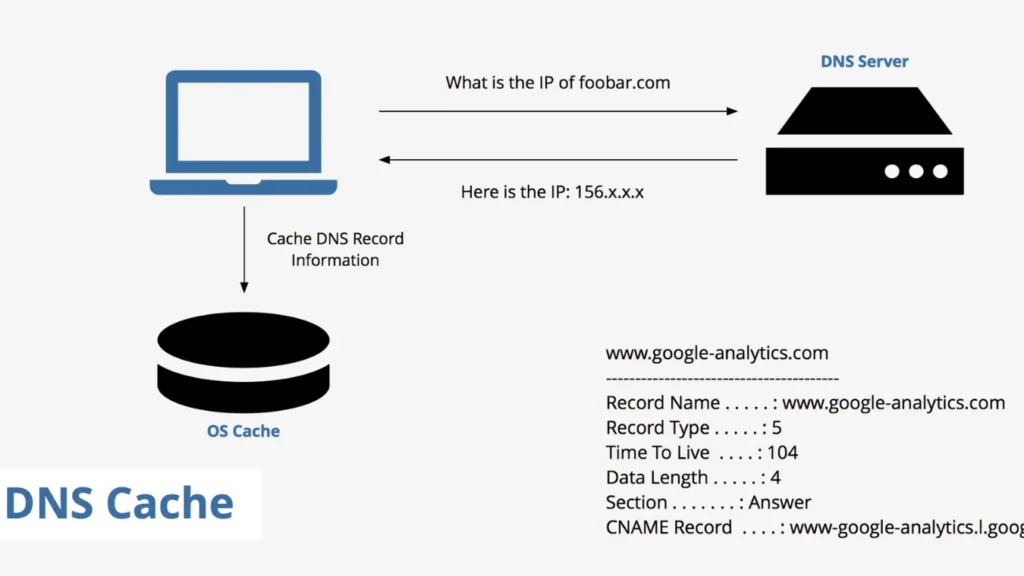
To avoid asking DNS servers for the same name every time, your system keeps a temporary list of recent answers: the DNS cache.
Each cached record usually contains:
The domain name
The resolved IP address (IPv4 and/or IPv6)
The record type (A, AAAA, CNAME, and others)
The remaining time-to-live (TTL) before the entry expires
When an application looks up a domain, the resolver checks this cache first.
If it finds a fresh entry, it reuses that IP and skips the external query.
Layers of DNS Caching: Browser, OS, and Beyond
Caching does not happen in a single place. Several layers may keep their own DNS cache.
Typical layers include:
Browser cache: Some browsers cache DNS results inside the browser process.
Operating system cache: Windows keeps a DNS Client cache shared by applications.
Router or gateway: Many home routers cache DNS responses for local devices.
ISP or public resolver: Upstream DNS servers also cache responses for many users.
When you flush one cache layer, other layers may still hold older data.
That is why network troubleshooting sometimes feels inconsistent until you clear the right cache.
Why DNS Cache Helps Performance and Stability
DNS cache exists for three main reasons.
Performance: Local lookups finish much faster than remote queries, which reduces page load times.
Reduced traffic: Reusing cached answers cuts unnecessary DNS requests over the network.
Resilience: When an upstream DNS resolver responds slowly, cached entries still allow access to recently used sites.
For everyday browsing, this cache improves responsiveness and reduces load on DNS servers.
For administrators, it can smooth transitions during minor outages, as long as entries do not become stale.
When DNS Cache Starts Causing Problems
The same cache that speeds up normal operation can introduce errors when information changes or becomes compromised.
Typical issues include:
Stale records: A site moves to a new IP, but your cache still points at the old address.
Failed migrations: After DNS changes for file servers or backup endpoints, clients still try to contact previous addresses.
Poisoning or tampering: Malware or misconfigured software inserts incorrect entries, redirecting traffic to malicious or dead hosts.
In these cases, clearing the cache forces the resolver to request fresh DNS data, which often restores connectivity.
Checking and Flushing DNS Cache on Windows
For most desktop users and technicians, the Windows DNS Client cache is the main focus.
View the Current Cache
Open Command Prompt as Administrator.
Run:


You see a list of cached entries, including host names and record details.
Clear the Cache
To flush the cache and remove all current entries:

Windows prints a confirmation message when the DNS Resolver cache clears.
New lookups then go to the configured DNS servers and repopulate the cache with fresh data.
DNS Cache, Security, and Data Recovery
DNS plays a direct role in many security incidents.
Malware may attempt to alter DNS behavior so traffic flows to phishing sites or command-and-control servers.
A secure workflow after an infection often looks like this:
Disconnect the system from the network.
Use trusted tools to remove malware.
Clear the DNS cache to drop any manipulated entries.
Reconnect and verify DNS settings and resolver addresses.
Recover damaged or encrypted files using a professional tool such as Amagicsoft Data Recovery.
Amagicsoft does not rely on DNS cache for local disk scanning, but clean name resolution helps you safely reconnect to backup locations, license servers, and cloud storage after recovery.
Supports Windows 7/8/10/11 and Windows Server.