復原 Windows 上已刪除檔案的成熟方法

意外刪除重要檔案 from your computer can be a nightmare, especially when they seem to be lost forever. Whether it’s a document, photo, or video, the panic sets in once you have emptied the Recycle Bin . Fortunately, permanently deleted files aren’t always gone for good. In this guide, we’ll walk you through how to recover Windows deleted files efficiently, using both built-in Windows tools and third-party solutions like Magic Data Recovery.
支援 Windows 7/8/10/11 和 Windows Server
想知道您的檔案是否可以復原嗎? 找出 透過以下的快速檢查,您可以在幾秒鐘內完成檢查。.
資料復原評估
回答 3 個快速問題以估計您的復原機會
目錄
How to Recover Deleted Files from Windows: Proven Methods
Method 1: Check the Recycle Bin
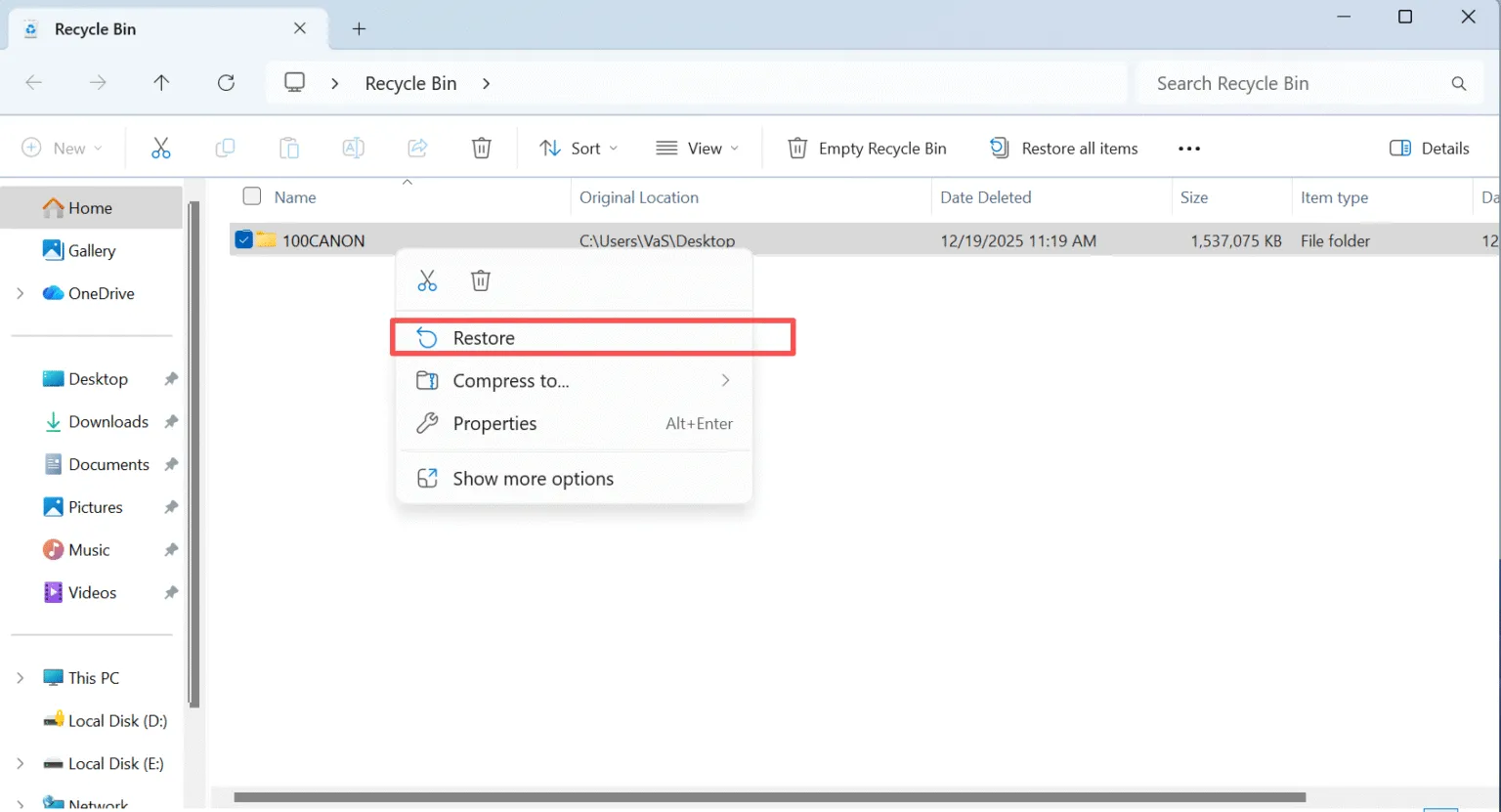
If you’ve accidentally deleted a file, the first place to check is the Recycle Bin. Windows moves deleted files to the Recycle Bin, where they remain until manually emptied.
- Open the Recycle Bin by double-clicking its icon on your desktop.
- 搜尋 for the file you want to recover.
- 按一下滑鼠右鍵 the file and select 還原 to return it to its original location.

If the file isn’t in the Recycle Bin, don’t panic. There are still ways to retrieve it.
Method 2: Use Windows File History
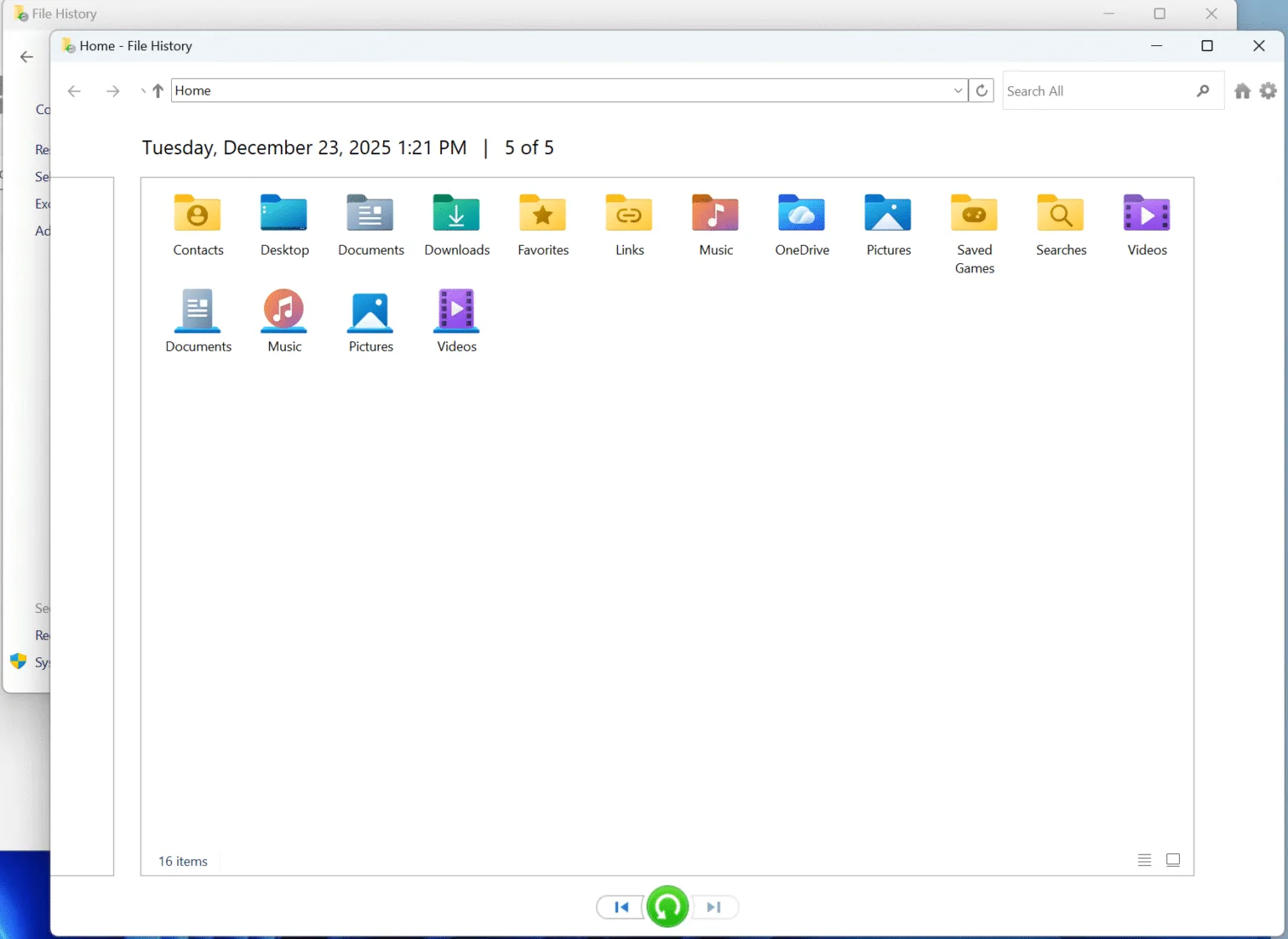
Windows offers a built-in tool called 檔案歷史, which can help you restore lost files.
- 開啟控制面板 and navigate to System and Security — File History.
- 選擇 Restore personal files. You will see all the backups if you made before data loss.
- Select and restore the files you need.

If you haven’t set up 檔案歷史 previously, this method won’t work. But if you have it enabled, this is one of the easiest ways to restore files.
Method 3: Recover Using a Backup
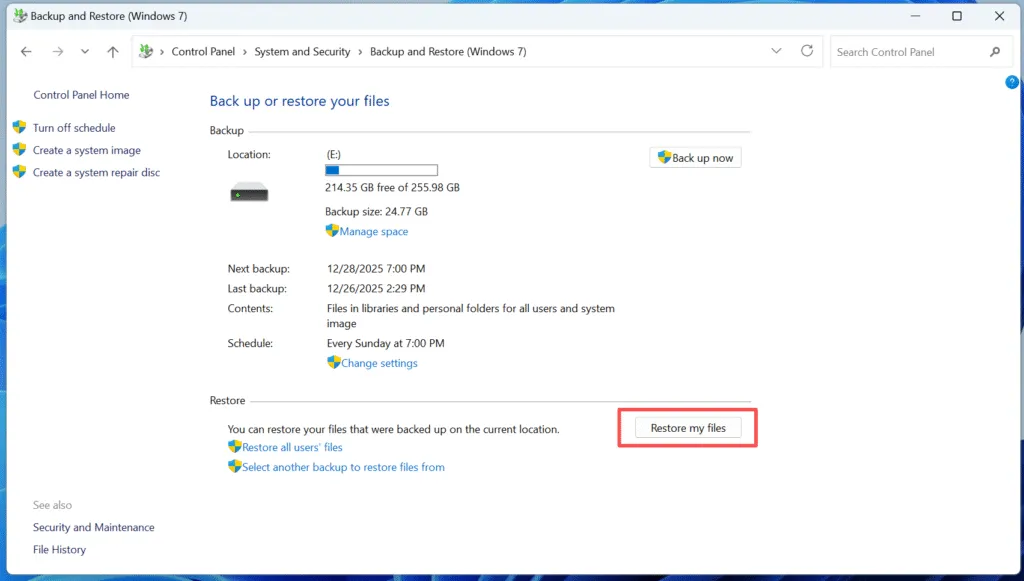
If you’ve been diligent about backing up your files using 視窗備份, you can restore your deleted files from a previous backup.
- 開啟 控制面板 and go to 系統與安全性 > Backup and Restore (Windows 7).
- 鍵點選 還原我的檔案 and follow the prompts to select your backup and recover the files you need.

Method 4: Use Data Recovery Software After Permanent deletion
如果您已經 permanently deleted your files (i.e., emptied the 回收站 or used Shift + 刪除), recovery can be more challenging. Magic Data Recovery is an excellent tool to help you recover deleted files that are no longer in the Recycle Bin.
Recover Windows Deleted Files Using Magic Data Recovery
Magic Data Recovery is a powerful tool that can scan your computer for 永久刪除的檔案 and restore them in just a few steps. Here’s how to use it:
步驟 1:下載並安裝 Magic Data Recovery
開始下載 Magic Data Recovery from the official website and installing it on a drive different from the one where your deleted files were located. This ensures that you don’t accidentally overwrite the deleted files, which could make recovery more difficult.
支援 Windows 7/8/10/11 和 Windows Server
步驟 2:選取要掃描的外接式硬碟機
On the main interface, select the hard drive where you deleted files and start a scan.

步驟 3:掃描磁碟機中已刪除的檔案
The software will automatically perform an Advanced Scan. During this scan, it will detect all the files that can be recovered, including those that are permanently deleted.

步驟 4:復原前預覽刪除的檔案
Once the scan is complete, use the Preview function to see the content of the files found. This step ensures that you recover only the files you actually need, saving you time and storage.

步驟 5:將檔案復原至安全位置
Finally, select the files you wish to recover and choose a different drive to save them. DO NOT save the files to the original drive, as this could overwrite the lost files.

Why Magic Data Recovery Is Your Best Option to Recover Windows Deleted Files
While there are many options available for recovering deleted files, Magic Data Recovery stands out due to its unique features and ease of use.
- Advanced Scan Technology: Unlike many other tools, Magic Data Recovery uses advanced scanning algorithms to detect deleted files that might have been overlooked by less powerful software.
- 預覽功能: You can preview files before recovery, ensuring that you don’t waste time recovering unnecessary data.
- Multiple File Formats Supported: The software can recover over 5,000 file formats, including photos, documents, videos, and more.
- Safe and Secure: Magic Data Recovery does not overwrite your files during the scanning process, reducing the risk of permanent data loss.
If you’re serious about recovering lost data, Magic Data Recovery offers the best balance of speed, reliability, and ease of use.
總結
Recovering deleted files from Windows doesn’t have to be a daunting task. While you can use built-in tools like the 回收站 or File History, but they only works if you haven’t emptied the Recycle Bin or you made backups before data loss. The most effective solution for data loss is a reliable third-party tool like Magic Data Recovery. This software makes it easy to recover files that seem lost forever, ensuring that your data stays safe and secure.
支援 Windows 7/8/10/11 和 Windows Server
Windows Recover Deleted Files – FAQs
1.How to recover permanently deleted files from Windows?
2.如何復原不小心刪除的檔案?
3.Is it possible to recover deleted files in Windows 10?
4.Where do permanently deleted files go on Windows?
5.我還能復原被永久刪除的檔案嗎?
6.永久刪除的檔案真的會被刪除嗎?
7.Where to find deleted files if not in the recycle bin?
8.從最近刪除中刪除的東西會永遠消失嗎?
Vasilii 是一位在該領域擁有約 10 年實務經驗的資料復原專家。在他的職業生涯中,他已成功解決數千個複雜的個案,包括刪除的檔案、格式化的硬碟機、遺失的磁碟分割和 RAW 檔案系統。他的專業知識涵蓋使用十六進位編輯器等專業工具的手動復原方法,以及使用復原軟體的進階自動解決方案。Vasilii 的使命是讓 IT 專業人士和一般使用者都能獲得可靠的資料復原知識,協助他們保護寶貴的數位資產。.