How to Recover Formatted Hard Drive Safely

Formatting the wrong drive can feel like a disaster, especially when it contains work documents, family photos, videos, or project files. The good news is that you may still 復原格式化的硬碟機 data if you act quickly and avoid writing new files to the same disk. However, recovery success depends on the format type, the drive condition, and whether new data has overwritten the lost files.
本指南說明如何 從格式化的硬碟中復原檔案 safely. You will learn what to do first, which recovery methods work best, and when a tool like Magic Data Recovery can help. Instead of making unrealistic promises, this article gives you practical steps, clear warnings, and reliable options.
支援 Windows 7/8/10/11 和 Windows Server
目錄
What to Do First Before You Recover Formatted Hard Drive Data
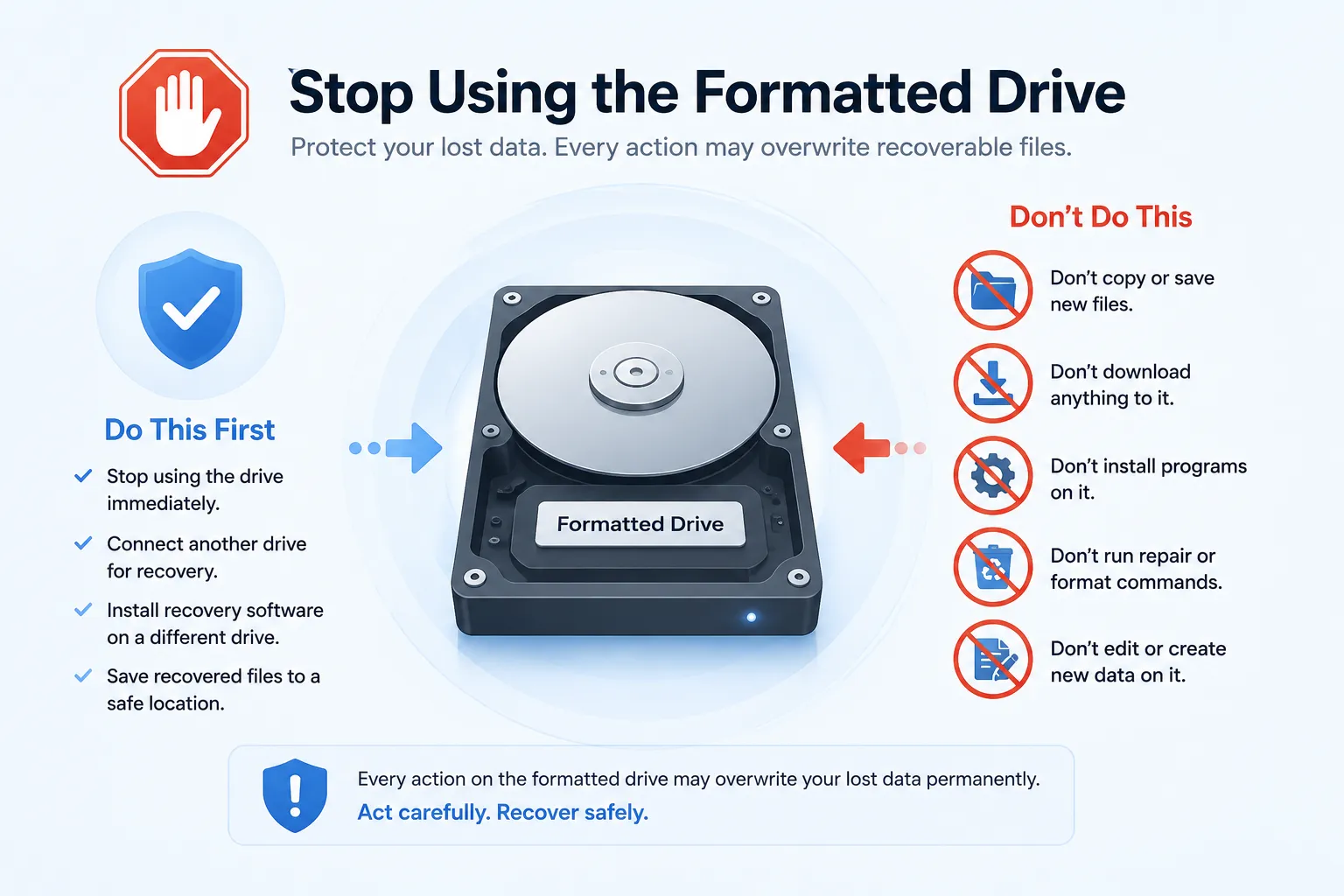
Before you try any 格式化硬碟機復原 method, stop using the formatted drive immediately. This step matters more than most users realize.
When you format a drive, the system may remove file records or rebuild the 檔案系統. In many cases, the actual file content still remains on the disk until new data replaces it. If you keep saving, downloading, installing, or copying files to that drive, you reduce your chance to 復原格式化的硬碟機 資料。.
Follow these first steps:
- Stop using the formatted drive.
- Do not install recovery software on the formatted disk.
- 請勿將已復原的檔案儲存回同一個磁碟機。.
- Connect an external drive or another partition as the recovery destination.
- Avoid running repair commands before scanning for lost files.
Microsoft also advises users to reduce or avoid computer use after file loss because new files may overwrite the space where lost data still exists. Microsoft Windows File Recovery uses a command-line workflow and supports recovery from local storage devices such as internal drives, external drives, and USB devices.

Can You Really Recover Formatted Hard Drive Data?
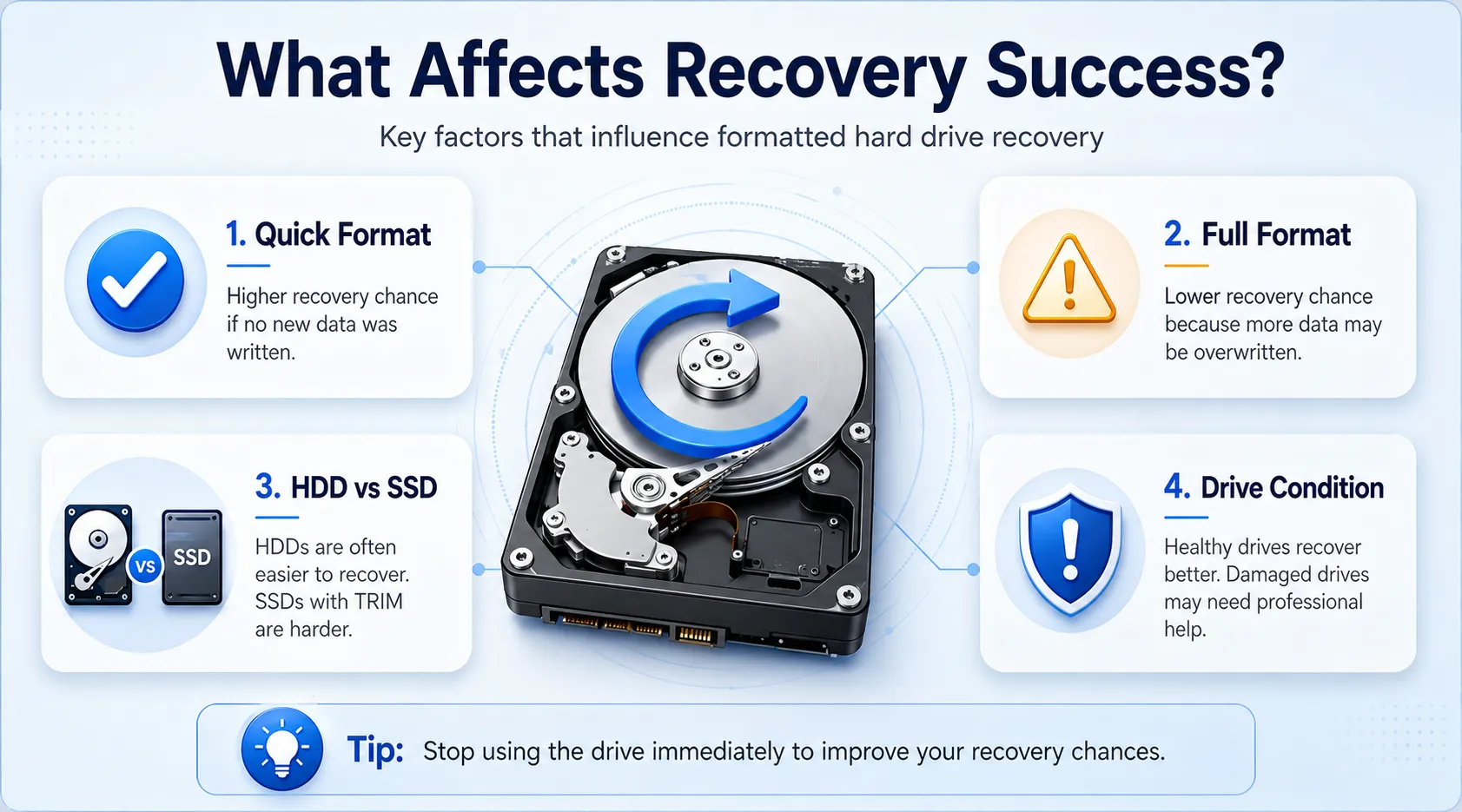
是的,您可以經常 復原格式化的硬碟機 data, but the result depends on several factors. A 快速格式 usually removes file system references and marks space as available. Because of that, recovery software may still locate lost files through a deep scan.
However, a 完整格式 can make recovery harder. In addition, SSDs may use 調整, which can clear deleted data blocks faster than traditional HDDs. If the drive has physical damage, such as clicking noises, slow detection, or repeated disconnection, you should avoid repeated DIY scans and contact a professional service.
Here is a simple way to judge your chance of recovery:
情況 | 復原機會 | 建議行動 |
Quick format, no new files saved | 更高 | 使用可靠的資料復原軟體 |
完整格式 | 較低 | Try scanning, but manage expectations |
SSD with TRIM enabled | 較低 | Stop use immediately and scan quickly |
External HDD accidentally formatted | Often good | Run external hard drive recovery soon |
Drive has physical damage | 風險 | Contact a professional recovery lab |
This is why timing matters. The sooner you begin 格式化硬碟機復原, the better your chances.

Best Method: Use Magic Data Recovery to Recover Formatted Hard Drive Files
For most users, the easiest way to 復原格式化的硬碟機 files is to use a dedicated recovery tool with a clear interface, preview function, and deep scan capability. Magic Data Recovery is designed for deleted, formatted, and lost file recovery on Windows. Its official guide describes support for hard drives, SSDs, USB flash drives, memory cards, and other storage media.
Magic Data Recovery also provides a focused solution for formatted drives, RAW disks, and SD cards, which makes it useful when Windows can still detect the storage device but files no longer appear.
為何 Magic Data Recovery 是實用的解決方案
Magic Data Recovery solves the biggest pain point after formatting: you need to locate lost files without making the situation worse. Many users panic and try random fixes, but a guided recovery workflow helps reduce mistakes.
主要優勢包括
- 格式化硬碟機復原 for hard drives, external drives, USB drives, and memory cards.
- Support for common file systems such as NTFS, FAT32, and exFAT.
- File preview before recovery, so you can check whether photos, documents, or videos are usable.
- A beginner-friendly scan process that does not require command-line skills.
- Useful recovery scenarios, including accidental format, RAW drive problems, deleted files, and lost partitions.
For example, imagine that you formatted an external hard drive during a Windows reinstall. You realize later that the drive contained client files and personal photos. In that case, Magic Data Recovery can scan the formatted disk, list recoverable files, and let you save them to another safe location.
Compared with command-line tools, Magic Data Recovery gives ordinary users a clearer recovery path. It does not replace professional lab recovery for physically damaged drives, but it offers a more accessible first step for common formatting mistakes.
Steps to Recover Files from a Formatted Hard Drive
The recovery process is simple, but you must follow it carefully. Saving recovered files to the wrong place can overwrite data.
Step 1: Install Magic Data Recovery on Another Drive
Download and install Magic Data Recovery on a separate drive healthy disk. Do not install it on the formatted drive. This helps protect the lost files from being overwritten.
If you formatted your system partition, remove the drive and connect it to another computer when possible. This approach gives you a safer environment to recover data from formatted hard disk 儲存。.
支援 Windows 7/8/10/11 和 Windows Server
步驟 2:選擇 的 格式化磁碟機
Open Magic Data Recovery and select the formatted hard drive, external drive, USB drive, or memory card. Make sure you choose the correct device. This step also helps with formatted partition recovery when only one partition disappeared or changed after formatting.

步驟 3:掃描 為 Lost Files
Start the scan. A quick scan may find recently lost records, while a deeper scan can search more thoroughly for file signatures and remaining data. For a formatted disk, deep scanning often gives better results. During the scan, avoid using the formatted drive. Let the software complete the process so it can build a more complete file list.

步驟 4:預覽 Recoverable 檔案
After scanning, preview the files before recovery. This is especially useful for photos, videos, PDFs, Word documents, Excel spreadsheets, and archives. Preview helps you confirm file quality and choose the most important data first.
This step makes Magic Data Recovery more practical than blind recovery methods. Instead of restoring thousands of unknown files, you can focus on what you actually need.

步驟 5:復原 檔案 to a Different Drive
Choose another disk as the destination. Never save recovered files back to the formatted drive. For best results, use an external hard drive, a separate internal partition, or another storage device with enough free space.

Other Ways to Recover Formatted Hard Drive Data
Magic Data Recovery works well for many users, but it is not the only option. A trustworthy guide should explain alternatives too.
Method 1: Restore from a Backup
If you use File History, Windows Backup, OneDrive, Google Drive, Dropbox, or an external backup disk, check those sources first. A backup restore usually gives the cleanest result because it does not depend on scanning lost data blocks.
However, many users only discover the missing backup after formatting the drive. In that case, 資料復原軟體 becomes the next practical choice.
Method 2: Try Windows File Recovery
Windows 檔案復原 is a free Microsoft command-line app. It can help recover files from local storage devices when they cannot return from the Recycle Bin. However, it does not support cloud storage or network file shares, and many beginners find the command syntax difficult.
If you know how to use commands, it may help. If you want a visual workflow with file preview, Magic Data Recovery gives a simpler option.
Method 3: Contact a Professional Recovery Service
Choose a professional service if your drive clicks, overheats, fails to mount, or disappears from BIOS or Disk Management. Software cannot fix severe hardware damage. Also, if the data has high legal, business, or financial value, avoid repeated scanning attempts.
A lab service costs more, but it may offer the safest path when the disk has physical failure.
| 選項 | 最適合 | 優勢 | 限制條件 |
| Magic Data Recovery | Most accidental format cases | Easy scan, preview, formatted drive support | Needs another drive for saving files |
| 備份還原 | Users with existing backups | Safest and cleanest | Only works if backup exists |
| Windows 檔案復原 | Advanced Windows users | Free Microsoft tool | 指令行介面 |
| 專業服務 | Damaged or high-value drives | Best for hardware failure | More expensive and slower |
This comparison shows why Magic Data Recovery fits many real-world cases. It gives users a balance between ease of use, recovery depth, and practical safety. More importantly, it helps users take action before new data overwrites lost files.
降低復原成功率的常見錯誤
Many users lose recoverable files because they act too quickly. Avoid these mistakes when you try to 復原格式化的硬碟機 資料:
- Reformatting the drive again.
- Installing recovery tools on the formatted disk.
- Saving recovered files to the same drive.
- Running random disk repair commands before recovery.
- Copying new files to test whether the drive still works.
- Assuming every file will return perfectly.
- Continuing to use an SSD after formatting.
Instead, pause and follow a controlled process. This approach improves your chance to unformat hard drive 資料安全。.
Tips to Improve Formatted Hard Drive Recovery Results
Use these tips before and during recovery:
- 儘快開始恢復。.
- Keep the formatted drive disconnected until scanning.
- Use another disk as the installation and recovery destination.
- Scan the full formatted drive, not only one folder.
- Preview important files before saving them.
- Recover critical documents first.
- 立即備份已復原的檔案。.
These steps apply whether you need 外接式硬碟機復原, USB recovery, SD card recovery, or formatted partition recovery.
Conclusion: Start Before the Data Is Overwritten
A formatted drive does not always mean permanent data loss. If you stop using the disk quickly and choose the right method, you may still recover data from the formatted drive 安全。.
Backups should always come first. Windows File Recovery can help advanced users. Professional services remain the best choice for physically damaged drives. However, for most accidental formatting cases, Magic Data Recovery offers a practical balance of usability, scanning capability, file preview, and device support.
If you need a clear and efficient way to 復原格式化的硬碟機 data, Magic Data Recovery is worth trying because it helps you scan the formatted disk, preview recoverable files, and restore them to a safe location without requiring advanced technical skills.
支援 Windows 7/8/10/11 和 Windows Server
FAQs About How to Recover Formatted Hard Drive Data
Can I recover a quick formatted drive?
Yes. A quick format usually removes file system records rather than instantly erasing every file. Therefore, you may still recover formatted hard drive data if you stop using the disk right away. Run a reliable scan, preview the results, and save recovered files to another drive to avoid overwriting remaining data.
Is recovery possible on SSDs?
It depends on TRIM, drive usage, and how much time has passed since formatting. SSDs can clear deleted data blocks quickly, so recovery may be harder than on HDDs. Even so, you should stop using the SSD immediately and scan it as soon as possible. Avoid installing software or saving files on that SSD.
Can I recover external drives or USB sticks?
Yes, you can often recover files from a formatted hard drive if the external disk still appears in Windows and has not stored new data. Connect it carefully, scan it with recovery software, and preview the found files. Most importantly, save recovered data to another drive, not the formatted external hard drive.
Where should I save files after formatted partition recovery?
Always save recovered files to a different drive, external disk, or safe storage location. Do not save them back to the formatted partition, because that may overwrite other recoverable files. After recovery, open several restored files to check quality. Then, create a backup to prevent future data loss.
How long does it take to recover data from a formatted hard disk?
The time depends on the drive size, scan mode, file system, and disk condition. A quick scan may finish in minutes, while a deep scan on a large hard drive can take much longer. For better results, let the scan complete fully, then preview important files before starting the final recovery process.
Is it safe to use Magic Data Recovery?
Yes. Magic Data Recovery is a practical choice for formatted hard drive recovery because it helps users scan, preview, and restore lost files through a clear workflow. To use it safely, install the software on another disk and recover files to a separate location. This helps reduce the risk of overwriting recoverable data.
Vasilii 是一位在該領域擁有約 10 年實務經驗的資料復原專家。在他的職業生涯中,他已成功解決數千個複雜的個案,包括刪除的檔案、格式化的硬碟機、遺失的磁碟分割和 RAW 檔案系統。他的專業知識涵蓋使用十六進位編輯器等專業工具的手動復原方法,以及使用復原軟體的進階自動解決方案。Vasilii 的使命是讓 IT 專業人士和一般使用者都能獲得可靠的資料復原知識,協助他們保護寶貴的數位資產。.