Ubuntu 刪除檔案安全恢復指南

Ubuntu 刪除檔案安全恢復指南

Have you ever experienced that heart-stopping moment after executing an rm command, only to realize you targeted the wrong directory? You are not alone. Whether you accidentally emptied the Trash bin or wiped an entire partition, 資料遺失 on Linux happens to both beginners and seasoned system administrators. Therefore, finding a reliable 已刪除檔案復原 method becomes an urgent priority. Fortunately, when critical data disappears, many users immediately search for a safe way to Ubuntu deleted files recovery without destroying the remaining data. However, the unique nature of the Linux EXT4 file system makes this process a time-sensitive challenge. If you continue using the operating system to browse for answers, background system logs might overwrite your missing data permanently, which is why a dedicated external utility like Magic Data Recovery 強烈建議使用。.

支援 Windows 7/8/10/11 和 Windows Server

目錄

The Core Principle of Ubuntu Deleted Files Recovery

Before running any recovery command, you must understand how Linux manages file deletion. When you delete a file on an EXT4 or EXT3 partition, the operating system does not immediately erase the data blocks from your storage drive. Instead, it simply removes the file’s pointers and marks that specific space as available for future use.

Consequently, your original data remains intact on the storage sectors until new data takes its place. If you want to successfully complete an Ubuntu deleted files recovery task and Ubuntu recover deleted files safely, you must follow these three golden rules immediately:

  • Minimize Disk Activity: First, stop downloading files, running updates, or launching applications.
  • Unmount the Partition: Second, if you lost data on a secondary drive, unmount it right away to prevent background write processes.
  • Avoid Installing Software Locally: Third, avoid installing recovery tools directly onto the affected Ubuntu system, because doing so can write new data over the exact sectors you want to rescue.

Ubuntu Deleted Files Recovery via the Native System Trash (GUI)

If you deleted a file using the desktop graphical user interface (GUI), your data is likely sitting in the system Trash. This is undoubtedly the simplest way to initiate an Ubuntu deleted files recovery process because it requires no technical knowledge.

逐步指南:

  1. First, open your default file manager (Files) from the Ubuntu dock.
  2. Next, click on the 垃圾 icon located at the bottom of the left sidebar.
  3. Then, browse through the deleted items to locate your missing files.
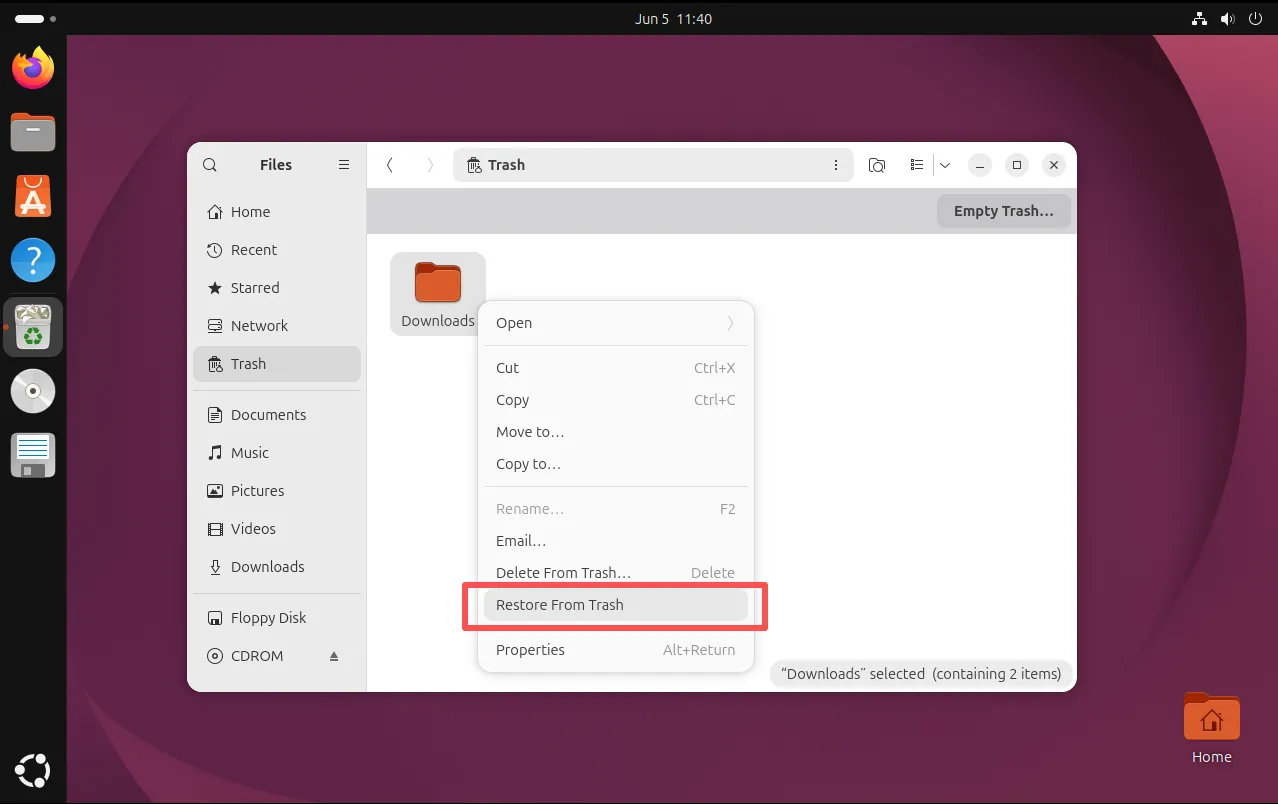
  4. Finally, right-click the file or folder you wish to retrieve and select 還原.
Restoring-Files-from-Trash-for-Ubuntu-Deleted-Files-Recovery
請注意: This basic method only works for files deleted via the desktop GUI. If you used the terminal command rm or pressed Shift + 刪除, the file bypasses the Trash entirely, meaning you must find another way to handle an Ubuntu recover deleted files emergency.

Using TestDisk for Ubuntu Deleted Files Recovery

When files are permanently deleted, you need advanced utilities to scan the raw sectors of your drive. Therefore, many users turn to , which is a widely respected open-source command-line tool that specializes in partition repair and data retrieval on Linux systems. It provides a free way to achieve an Ubuntu deleted files recovery result.

How to Use TestDisk on Ubuntu:

1. First, open your terminal (Ctrl + Alt + T).

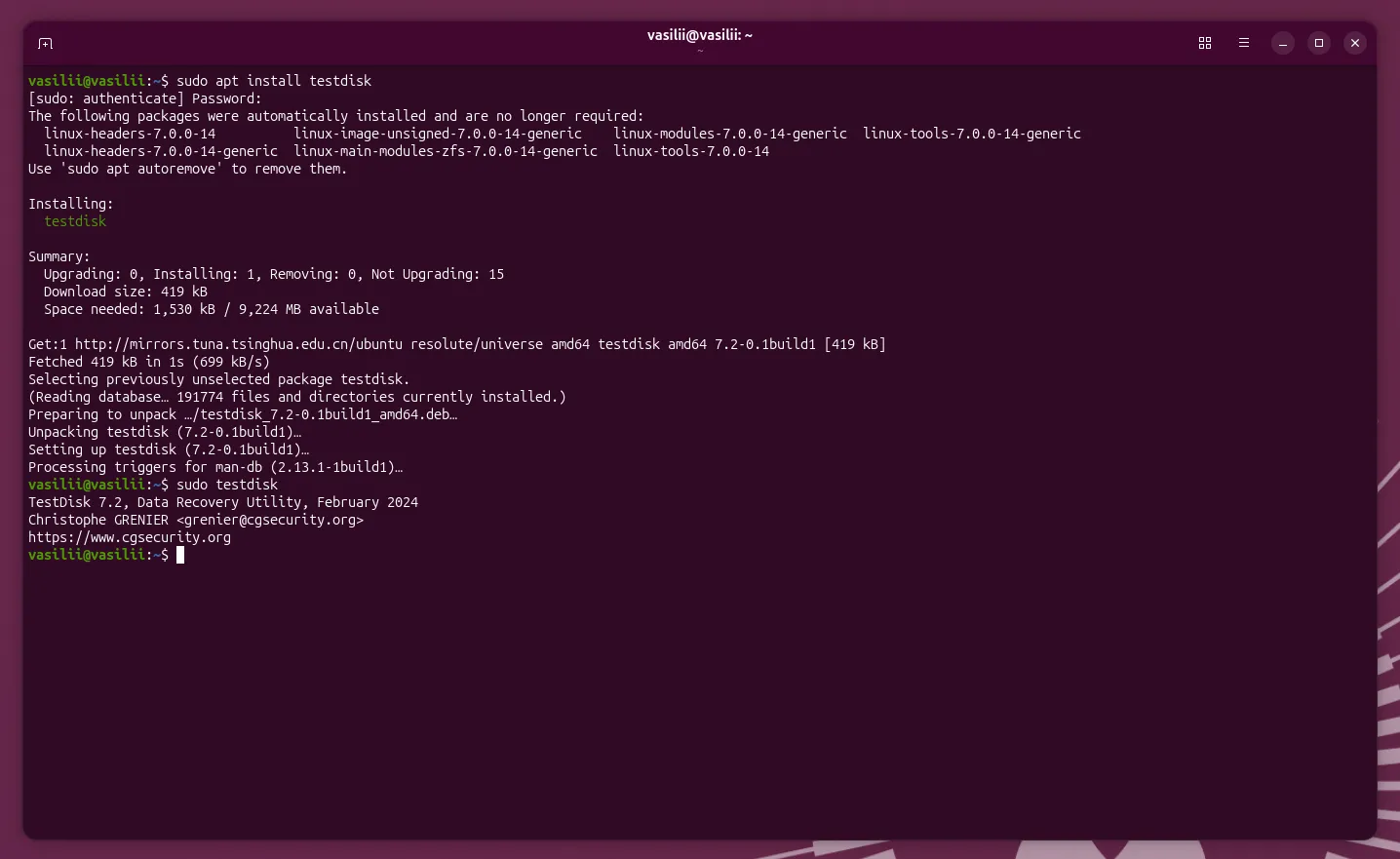
2. Next, install the utility by typing: sudo apt install testdisk

3. Then, launch the application with administrative privileges: sudo testdisk

Install-TestDisk-for-Ubuntu-Deleted-Files-Recovery

4.選擇 建立 to start a new log file.

5. Select the hard drive that contains your deleted Linux files and press Enter.

6. Select your partition table type (usually IntelEFI GPT).

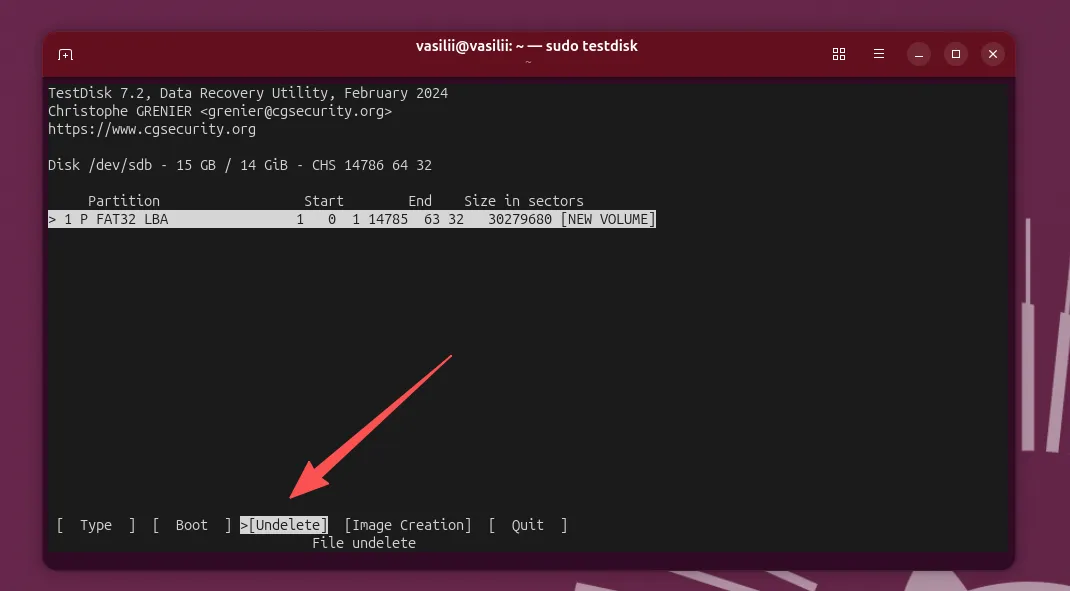
7. Navigate to 進階, choose your specific Ubuntu partition, and select the 刪除 command at the bottom.

TestDisk-Undelete

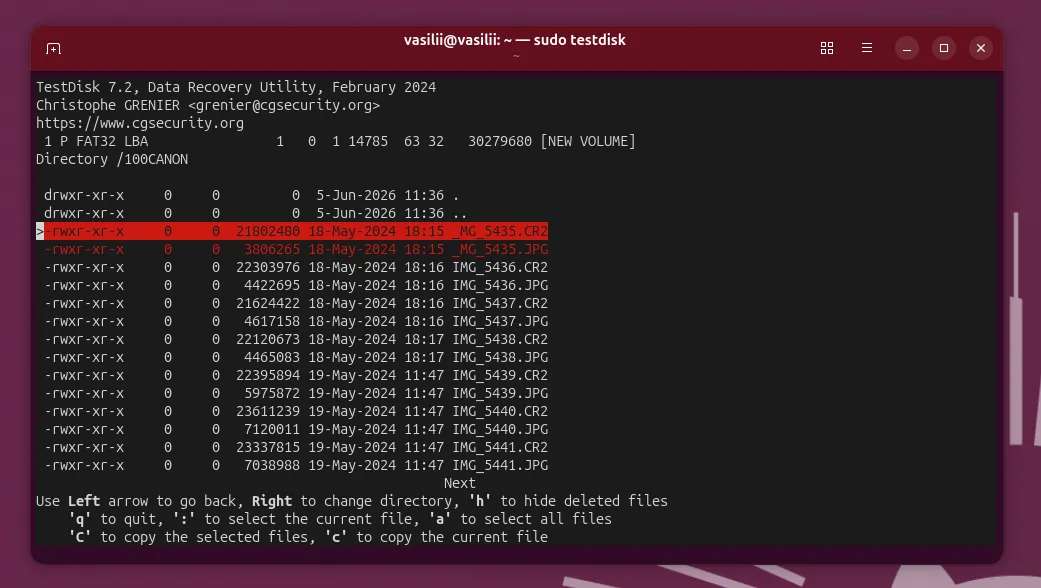
8. Finally, use the arrow keys to browse through the red-colored deleted files, then press C to copy the selected file to a safe directory.

Using-TestDisk-for-Ubuntu-Deleted-Files-Recovery

The Limitations of This Approach:

While TestDisk is highly effective, it presents serious challenges for ordinary users who want to perform an Ubuntu recover deleted files operation. The text-only interface can feel intimidating, and a single incorrect keystroke can damage your entire partition table. Furthermore, TestDisk struggles to safely Ubuntu restore deleted files when dealing with complex folder hierarchies on heavily fragmented EXT4 drives.

Why Native Ubuntu Recover Deleted Files Methods Can Fail

Many technical blogs recommend installing various command-line tools directly onto your running Ubuntu machine. However, this advice contradicts standard industry best practices for data recovery.

When your Ubuntu system boots up, it constantly writes background application logs, browser caches, and temporary system files to the drive. This continuous activity creates a massive risk of data corruption. If the system overwrites the storage sectors before you finish your Ubuntu deleted files recovery attempt, no Linux utility will ever be able to retrieve those files.

Therefore, tech-savvy users often look for a cross-platform strategy to Ubuntu restore deleted files that keeps the source Ubuntu drive entirely untouched.

A Safer Way for Ubuntu Deleted Files Recovery: Use Windows

If you want to complete an Ubuntu deleted files 復甦 job with the lowest possible risk, you should perform the recovery from a secondary, stable operating system like Windows. By physically removing your Ubuntu hard drive and connecting it to a Windows computer, you put the drive into a strict read-only environment.

Because Windows cannot write temporary files to an unknown Linux system layout by default, this approach completely eliminates the risk of accidental data overwriting. Consequently, it becomes much easier to achieve an optimal Ubuntu deleted files recovery outcome safely. Once connected, you can use advanced graphical software to safely rebuild your EXT4 directory tree.

If you are looking for a highly efficient solution to execute this cross-platform method, we highly recommend trying Magic Data Recovery.

How to Complete an Ubuntu Deleted Files Recovery Process with Magic Data Recovery

Magic Data Recovery bridges the gap between complex Linux file architectures and user-friendly Windows interfaces. While the software runs on a Windows environment, it features advanced forensic algorithms that natively read and decode Linux-native file systems, including EXT2, EXT3, and EXT4. Thus, it offers a reliable answer for anyone trying to execute an Ubuntu deleted files recovery 工作流程。.

Core Advantages of This Solution:

  • Zero-Overwriting Safety: Running the scan from a Windows machine ensures that your Ubuntu drive suffers absolutely no background write operations.
  • Intuitive Visual Interface: You do not need to memorize cryptic terminal commands to successfully Ubuntu deleted files recovery or risk messing up your partition configuration.
  • Advanced File Reconstruction: The software performs a deep sector scan to find original file signatures, successfully reconstructing lost photos, documents, databases, and source code files.
  • 復原前預覽: You can view your missing data inside a structured folder tree before deciding to save it.

實用情境:

Imagine your Ubuntu desktop suddenly fails to boot after a bad terminal update, and you realize your unbacked-up project files are missing. Instead of panicking with a Linux live USB to figure out how to handle the Ubuntu deleted files recovery problem, you can plug the drive into a friend’s Windows laptop. Magic Data Recovery will instantly recognize the EXT4 partition, allowing you to Ubuntu restore deleted files over to safety within minutes.

Step-by-Step Restoration Guide

步驟 1:下載並安裝 Magic Data Recovery

First, connect the drive and download the software on your Windows computer. Make sure you install Magic Data Recovery onto the computer’s internal local drive, ensuring it remains completely separate from the connected Ubuntu hard drive to prevent any accidental overwriting of your lost partitions.

支援 Windows 7/8/10/11 和 Windows Server

Step 2: Select the Ubuntu Hard Drive to Scan

Next, launch the program to open the main dashboard. Identify and choose the specific Linux partition or hard drive where your files were deleted, then initiate the scanning process to begin your Ubuntu deleted files recovery 操作。.

Using Magic Data Recovery for Ubuntu Deleted Files Recovery

Step 3: Scan the Storage Sectors for Deleted Files

Subsequently, the software automatically performs an Advanced Scan of the EXT data blocks. Meanwhile, you can monitor the progress bar as the utility dynamically lists all items to help you find deleted files in real time.

等待掃描

步驟 4:復原前預覽刪除的檔案

Once the deep sector scan finishes, navigate through the visual directory tree. Use the built-in preview function to verify the file content of your lost photos or scripts, ensuring you perform your Ubuntu deleted files 復甦 task successfully.

預覽檔案

步驟 5:將檔案復原至安全位置

Finally, check the boxes next to your target files and click the main restoration button to restore deleted files. Always save these rescued files onto your Windows local drive instead of restoring them back onto the same Ubuntu drive, because writing data back to the source drive risks immediate data corruption.

檔案復原

Crucial Tips to Prevent Future Data Loss on Ubuntu

While knowing how to execute an Ubuntu deleted files recovery procedure provides peace of mind, implementing a proactive protection strategy remains the best long-term solution.

  • Configure Automated Backups: Ubuntu includes a built-in application called Déjà Dup Backups. Open this tool from your application menu and set up weekly automated snapshots to an external storage drive or cloud account.
  • Add a Safety Net to the Terminal: You can modify your command-line environment to double-check destructive actions. Open your ~/.bashrc file and add the line alias rm='rm -i'. This shortcut forces the terminal to prompt you for confirmation every single time you attempt to delete a file.
  • Utilize Separate Home Partitions: When installing Ubuntu, consider placing your /home directory on a completely separate partition from the main root / system. This layout protects your personal documents if the main operating system encounters a fatal boot failure.

總結

Losing critical data due to a wrong keystroke is always an incredibly stressful experience. Fortunately, finishing a successful Ubuntu deleted files recovery project is entirely possible if you act quickly and avoid writing new data to the affected disk.

While native Linux command-line tools like TestDisk are effective choices for experienced terminal users, they carry inherent risks of accidental data overwriting during installation. If you prefer a safer, stress-free alternative that completely bypasses complex commands, extracting the drive and scanning it with Magic Data Recovery on a Windows computer provides the ultimate combination of safety, convenience, and file restoration power to 已刪除檔案復原 成功。.

支援 Windows 7/8/10/11 和 Windows Server

常見問題

Can I recover files deleted with rm -rf on Ubuntu?

Yes, you can retrieve them. The rm -rf command removes file pointers but leaves actual data on the drive sectors. However, you must stop using the system immediately and connect the drive to a Windows PC using Magic Data Recovery to achieve a successful Ubuntu deleted files recovery outcome.

Why should I avoid recovering files back to the same Ubuntu partition?

Writing data to the same partition creates a massive risk of permanent data corruption. As the software saves the restored files, it may write over the exact storage blocks that still hold other missing data. Therefore, always choose a secure Windows drive when performing an Ubuntu recover deleted files task.

Is it possible to restore deleted files from a non-booting Ubuntu system?

Yes, this cross-platform method handles this scenario perfectly. Because you physically remove the drive and attach it to a healthy Windows machine, the boot status of your Ubuntu operating system does not matter, making it the safest way to complete your Ubuntu deleted files recovery workflow.

Can I preview my lost Linux source code files before restoring them?

Yes, the utility includes a powerful visual preview feature. Once the deep scan analyzes the drive layout, you can click on discovered text files, scripts, documents, or photos to inspect their contents, ensuring you can restore deleted files that you actually need.

What is the main disadvantage of native terminal utilities like TestDisk?

The main drawback involves the high risk of human error. Text-based interfaces require precise navigation, and executing an incorrect command can easily wipe your entire partition table. Additionally, manual terminal tools often fail when handling an Ubuntu deleted files recovery task with complex folder structures.

Vasilii 是一位在該領域擁有約 10 年實務經驗的資料復原專家。在他的職業生涯中,他已成功解決數千個複雜的個案,包括刪除的檔案、格式化的硬碟機、遺失的磁碟分割和 RAW 檔案系統。他的專業知識涵蓋使用十六進位編輯器等專業工具的手動復原方法,以及使用復原軟體的進階自動解決方案。Vasilii 的使命是讓 IT 專業人士和一般使用者都能獲得可靠的資料復原知識,協助他們保護寶貴的數位資產。.