跳至內容
amagicsoft 標誌圖示
  • 首頁
  • 產品
    • Magic Data Recovery
    • Magic Recovery Key
  • 商店
  • 部落格
  • 更多資訊
    • 關於 Amagicsoft
    • 聯絡我們
    • 隱私權政策
    • 條款
    • 許可協議
    • 退款政策
  • 繁體中文
    • English
    • 日本語
    • 한국어
    • Deutsch
    • Français
維基

CHKDSK:修復磁碟錯誤的終極指南

2025 年 12 月 17 日 Smith, Erin 尚未有評論
如何執行 chkdsk
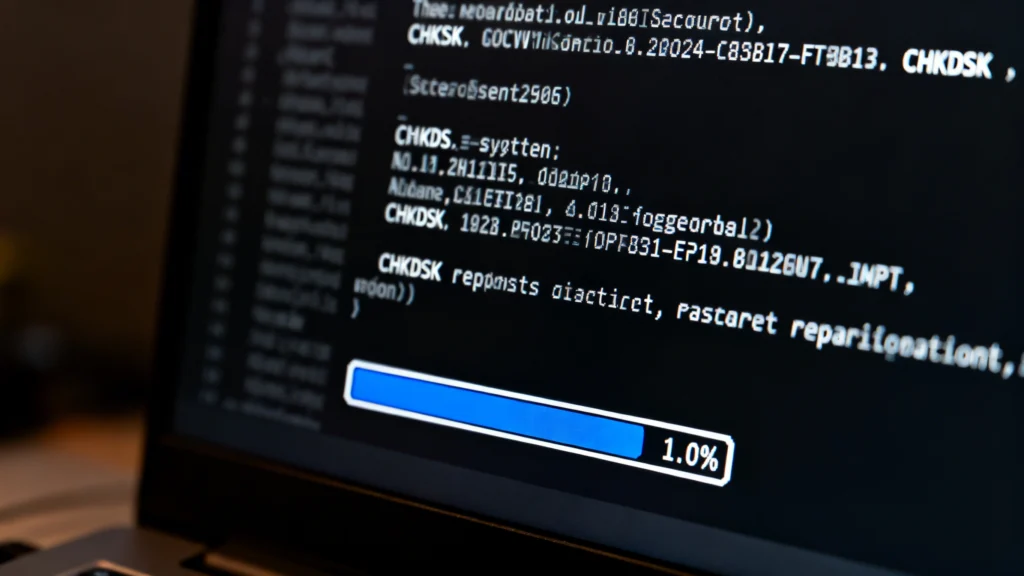
In this comprehensive guide, we will dive deep into CHKDSK—what it is, what does chkdsk do, and the precise steps on 如何執行 chkdsk. We’ll explore its benefits, limitations, and the potential risks. Most importantly, we’ll provide a reliable safety net for scenarios where running CHKDSK might result in inaccessible partitions 或 lost data, introducing a proven recovery solution from Amagicsoft.

目錄

Understanding CHKDSK – Your First Line of Defense

What is CHKDSK? A Core Windows Utility

CHKDSK, short for “Check Disk,” is a command-line utility built into every version of the Windows operating system. Its primary function is to scan the file system and physical integrity of a disk volume (like your C: drive or an external USB drive). Think of it as a diagnostic scanner for your hard drive. It doesn’t just look at your files; it examines the very structure that holds your data—the NTFS or FAT32 file system—and the disk surface itself.

的 CHKDSK command has been a cornerstone of Windows maintenance for decades. When you experience symptoms like system crashes, failed boots, or corrupted files, running this tool is often the first troubleshooting step recommended by IT professionals. Its core purpose is to find logical errors and, in some cases, physical defects, then attempt to repair them.

What Does CHKDSK Do? The Two-Phase Scan

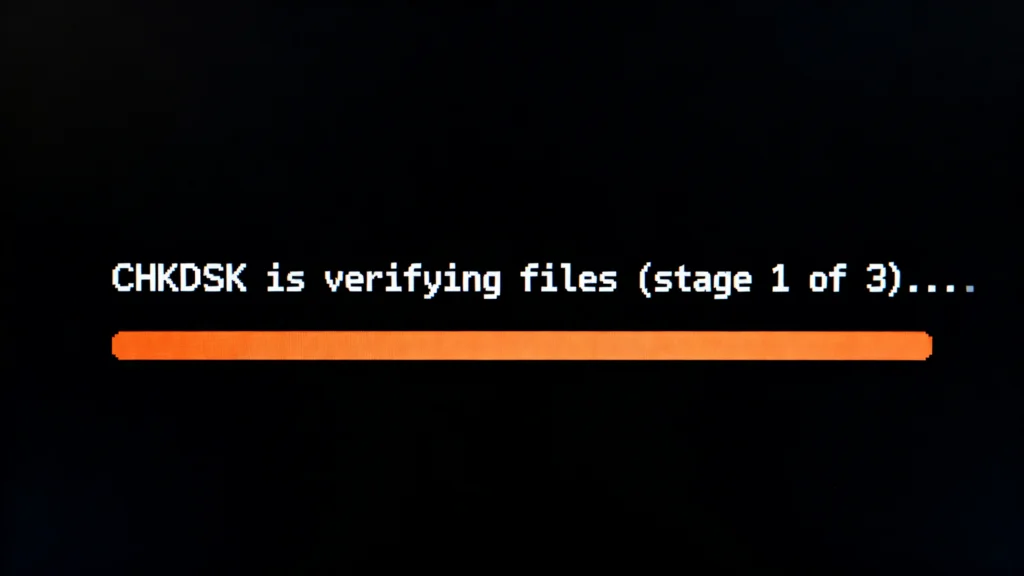
所以、, what does chkdsk do in detail? The utility operates in two distinct, sequential phases, each targeting a different aspect of disk health.

  1. File System Integrity Check: In this phase, CHKDSK verifies the file system’s metadata. It checks crucial structures like the Master File Table (MFT), security descriptors, file indexes, and folder structures. It looks for inconsistencies—for example, a file that is listed in the MFT but has no actual data clusters assigned, or clusters marked as “in use” but not linked to any file (lost clusters). Fixing these logical errors helps Windows locate and access your files correctly.
  2. Disk Surface (Bad Sector) Scan: After checking the file system, CHKDSK can optionally scan the disk’s surface for physical errors. A “sector” is the smallest unit of storage on a disk. A “bad sector” is a tiny portion of the disk that is physically damaged and can no longer reliably store data. When CHKDSK finds a 壞扇區, it marks it as unusable. It then attempts to recover any readable information from that sector and moves it to a healthy, reserved area of the disk. This process prevents Windows from writing future data to a faulty spot, protecting your data from corruption.

In summary, CHKDSK works to ensure the logical file system is sound and to isolate physical disk flaws, thereby stabilizing your system and preventing data loss from these specific types of errors.

When Should You Run CHKDSK? Key Use Cases

認識 如何執行 chkdsk is important, but knowing when to run it is crucial. Here are the most common scenarios where initiating a CHKDSK scan is advisable:

  • Frequent System Crashes or Blue Screens of Death (BSOD): If your computer randomly freezes or crashes, especially with disk-related error codes, a corrupted file system might be the culprit.
  • File Corruption Errors: You try to open a document, photo, or program and receive errors stating the file is corrupt, damaged, or unreadable.
  • Unusually Slow Computer Performance: If your disk is struggling with bad sectors, the read/write heads have to work harder, skipping faulty areas, which drastically slows down data access.
  • Failed Drive Detection: Windows may fail to recognize an external hard drive or USB stick, or it might ask you to format it before use—a classic sign of 檔案系統損壞.
  • Post-Power Failure or Improper Shutdown: A sudden loss of power can interrupt file system writes, leaving it in an inconsistent state. Running CHKDSK after such an event is a wise precaution.
  • General System Maintenance: Some users schedule a periodic CHKDSK scan (every few months) as part of proactive system care, especially for older mechanical hard drives (硬碟機) which are more prone to developing bad sectors over time.

A Critical Warning: If you suspect your drive is suffering from severe physical failure (e.g., making clicking/grinding noises, is completely undetected, or has massive corruption), do not run CHKDSK. Its intensive scan can push a failing drive over the edge. In such cases, your immediate priority should be data recovery, not repair.

How to Run CHKDSK: A Step-by-Step Guide

There are two primary methods to execute the CHKDSK command. Let’s walk through both.
Run CHKDSK via Command Prompt

Method 1: How to Run CHKDSK via Command Prompt (with Parameters)

This method offers the most control. You can use specific parameters to tailor the scan.

  1. Open Command Prompt as Administrator:
    • Type “cmd” in the Windows Start menu search bar.
    • Right-click on “Command Prompt” and select “Run as administrator.”
  2. Understand Basic Parameters:
    • /f: Tells CHKDSK to fix any logical file system errors it finds. This is the most common parameter.
    • /r: Locates bad sectors and recovers readable information. This implies /f and is a more intensive scan.
    • /x: Forces the volume to dismount (unlock) before the scan starts. Also implies /f.
  3. Execute the Command:
    • To fix errors on your C: drive, type: chkdsk C: /f
    • To perform a full surface scan and repair, type: chkdsk C: /r
    • If the drive is in use, you will be prompted to schedule the scan for the next system restart. Type Y and restart your computer.

Method 2: Running CHKDSK from Windows File Explorer (Graphical Interface)

For users less comfortable with the command line, this is a simpler approach.

  1. Open “This PC” or “File Explorer.”
  2. Right-click on the drive you want to check (e.g., Local Disk C:) and select “Properties.”
  3. Go to the “Tools” tab.
  4. Under the “Error checking” section, click the “Check” button.
  5. Windows may state “You don’t need to scan this drive.” To proceed with a scan, click “Scan drive.” For a deeper scan with bad sector check, you often need to use the Command Prompt method.

Best Practice: For a thorough maintenance scan, using the chkdsk /r command from an elevated Command Prompt is considered the industry standard. Be prepared for it to take several hours on large, traditional hard drives.

The Risks: When CHKDSK Might Cause Problems

雖然 CHKDSK is a powerful repair tool, it is not without risks. Understanding these is key to using it responsibly.

  • Data Loss During Repair: To fix file system inconsistencies, CHKDSK might delete file entries it deems irreparably corrupt or truncate files. If its assessment is wrong, valid data can be lost.
  • Inaccessible Partitions: In severe corruption cases, the repair process can alter partition table or boot sector information, sometimes rendering a partition inaccessible or “未熟的” in Disk Management.
  • Stress on Failing Drives: As mentioned, the exhaustive read/write operations of the /r scan can be the final straw for a physically deteriorating drive.
  • Incomplete or Interrupted Scans: If a CHKDSK scan is interrupted by a power cut or forced shutdown, the file system can be left in a worse state than before.

This is a critical point of experience: A tool designed to save your data can, under specific circumstances, contribute to its loss. Therefore, the universal best practice—one I cannot stress enough—is to ensure you have a verified backup of your important data before running any disk repair utility, including CHKDSK.

Data Recovery After a Failed CHKDSK Operation

What if you’ve already run CHKDSK and now find files missing or a partition gone? Panic is not the solution. When built-in tools fall short or cause new issues, you need a dedicated, professional-grade recovery tool.

Why Magic Data Recovery Is the Recommended Solution

If you are facing data loss following a CHKDSK operation, Magic Data Recovery 從 Amagicsoft provides a robust and user-friendly path to get your files back. Here’s why it stands out as the go-to solution for this specific problem:

  • Solves the Core Pain Point: It specializes in recovering data from formatted, corrupted, RAW, or inaccessible partitions—exactly the situations that can arise from an aggressive CHKDSK repair. It bypasses the damaged file system and performs a deep scan of the raw disk sectors to reconstruct your files and folder structure.
  • Key Product Advantages:
    • 高回收率: Advanced algorithms can recover a vast array of file types—documents, photos, videos, emails, and archives—even from challenging scenarios.
    • Non-Destructive & Safe: The software operates in a read-only mode. It never writes to the damaged drive you are trying to recover from, eliminating the risk of further data overwriting.
    • 復原前的預覽: You can see a preview of recoverable files (like photos and documents) before purchasing the software, ensuring the data you need is indeed retrievable.
    • 直覺式介面: Designed for all user levels, it guides you through a simple three-step process: Select Drive > Scan > Recover.
  • Typical Use Case: Imagine you ran chkdsk /r on an external drive that was behaving strangely. After the scan, the drive appears empty in File Explorer, or Windows asks you to format it. Instead of formatting (which would permanently destroy data), you would run Magic Data Recovery, select the problematic drive, run the quick and deep scan, and browse the recovered files it finds.
  • Why It’s More Reliable: 雖然 free file recovery software exists, they often lack the sophisticated engine needed to handle complex file system damage. Magic Data Recovery is built on professional recovery logic, offering a much higher chance of successful, structured recovery compared to basic tools. Its focused design for partition-level issues makes it specifically suited for post-CHKDSK complications.

If you find yourself in a situation where CHKDSK has left your data inaccessible, a professional tool like Magic Data Recovery offers your best chance at restoration. You can download and try the software to scan your drive and see what can be recovered before making any commitment.

下載 Magic Data Recovery

支援 Windows 7/8/10/11 和 Windows Server

Conclusion and Best Practices Summary

CHKDSK remains an essential, first-response tool in the Windows user’s maintenance kit for addressing disk errors. Understanding what does chkdsk do and knowing precisely 如何執行 chkdsk empowers you to tackle many common system stability issues head-on. Its ability to repair logical file system errors and remap 壞扇區 can extend the life of your drive and protect your data.

However, its power comes with responsibility. Always back up data before running disk checks, and be aware of the potential risks involved. In the event that a repair attempt leads to further data loss or an inaccessible drive, do not resort to further DIY methods that might overwrite your data.

This is why we recommend having a reliable solution like Magic Data Recovery in your digital toolkit. It serves as a critical safety net, specializing in the very 資料遺失 scenarios that can occur from disk repair utilities. By combining cautious use of built-in tools like CHKDSK with the power of a dedicated recovery solution, you create a comprehensive strategy for both maintaining your system’s health and safeguarding your invaluable digital information.

常見問題

1. How do I run a CHKDSK scan?

The easiest way is via Command Prompt (Admin). Type chkdsk C: /f and press Enter (replace “C” with your drive letter). For a deeper scan, use chkdsk C: /r instead. You can also run it from the Properties menu of any drive in File Explorer.

2. Can CHKDSK fix SD card?

Yes, it can fix logical errors on SD cards. Connect the card, open Command Prompt as Admin, and run chkdsk [SD Card Drive Letter]: /f. It cannot repair physical damage. If the card is failing, avoid running CHKDSK and use data recovery software first.

3. Which is better, chkdsk r or f?

Use /f to quickly fix file system errors. Use /r for a more thorough scan that also checks for and repairs bad sectors. The /r command includes /f but takes much longer to complete.

4. Does CHKDSK fix corrupted files?

It fixes the file system structure to make corrupted files accessible again, but it does not repair the actual content of a corrupted file. For files damaged at the content level, you need a backup or a dedicated file repair tool.

5. Can CHKDSK fix a hard drive?

It can fix logical errors and isolate physical bad sectors, which can stabilize a drive. However, it cannot repair hardware failures (e.g., clicking sounds, a dead drive). For physical damage, consult a professional data recovery service.

6. How often should I run CHKDSK?

Run it only when you notice problems like crashes, slow performance, or file errors. For preventative maintenance on an older hard drive, running chkdsk /r once a year is sufficient. There’s no need to run it frequently on modern, healthy SSDs.

7. How to uncorrupt corrupted files?

First, try restoring from a backup. If that’s not available, use specialized file repair software for specific file types (e.g., DOCX, JPG). For widespread corruption or inaccessible drives, professional data recovery software like Magic Data Recovery is often the most effective solution.

8. What does CHKDSK c:/f do?

The command chkdsk c: /f scans the C: drive and fixes any logical errors it finds in the file system, such as directory or security descriptor issues. It does not scan for physical disk errors. Windows will usually schedule this scan for the next restart if the drive is in use.
  • WiKi
Smith, Erin

Erin Smith 是 Amagicsoft 公認最專業的作家之一。過去 10 年來,她不斷磨練自己的寫作技巧,幫助數百萬讀者解決技術問題。.

文章導覽

上一頁
下一頁

搜尋

類別

  • Bitlocker 復原
  • 刪除的檔案復原
  • 格式化檔案復原
  • 硬碟復原
  • 授權金鑰復原
  • 遺失檔案復原
  • 記憶卡復原
  • 新聞
  • 密碼復原
  • 照片復原
  • SSD 復原
  • USB 磁碟機復原
  • 使用者指南
  • 視訊復原
  • 維基

最近發表的文章

  • 如何使用 CHKDSK 指令
    CHKDSK 指令:完整指南
  • 如何執行 chkdsk
    CHKDSK:修復磁碟錯誤的終極指南
  • 什麼是 ExFAT 檔案系統
    什麼是 exFAT 檔案系統

標籤

如何 Magic Data Recovery Magic Recovery Key WiKi

相關文章

如何使用 CHKDSK 指令
維基

CHKDSK 指令:完整指南

2025 年 12 月 17 日 Smith, Erin 尚未有評論

CHKDSK (Check Disk) 是內建的 Windows 工具,可透過檢查錯誤、損壞磁區和零碎檔案,協助維護和修復硬碟上的檔案系統。它是保持磁碟健康和最佳化效能的必要工具。它提供多種 CHKDSK 指令,可修復檔案系統錯誤、損壞磁區和零碎檔案。表 [...]

什麼是 ExFAT 檔案系統
維基

什麼是 exFAT 檔案系統

2025 年 12 月 16 日 Vasilii 尚未有評論

exFAT (Extended File Allocation Table) 是微軟為克服 FAT32 的限制 (尤其是 4 GB 的最大檔案大小限制) 而開發的現代檔案系統。exFAT 已針對大型檔案、跨平台 [...] 進行最佳化。

什麼是 NTFS 檔案系統
維基

什麼是 NTFS 檔案系統

2025 年 12 月 16 日 Vasilii 尚未有評論

NTFS(新技術檔案系統)是微軟開發的專屬記錄檔案系統,用作現代 Windows 作業系統(包括 Windows 10 和 Windows 11)的預設檔案系統。其設計目的在於克服 FAT32 等早期檔案系統的限制,為 [...] 提供更佳的可靠性、安全性、可擴充性和效能。

amagicsoft 標誌圖示

我們的願景是成為全球知名的軟體品牌和服務供應商,為使用者提供頂級的產品和服務。

產品
  • Magic Data Recovery
  • Magic Recovery Key
政策
  • 條款
  • 隱私權政策
  • 退款政策
  • 許可協議
公司簡介
  • 關於 Amagicsoft
  • 聯絡我們
  • 商店
追蹤我們

版權所有 © 2025 Amagicsoft。版權所有。

  • 條款
  • 隱私權政策