
CHKDSK: Ihr ultimativer Leitfaden zur Behebung von Festplattenfehlern
Inhaltsübersicht
CHKDSK verstehen - Ihre erste Verteidigungslinie
Was ist CHKDSK? Ein zentrales Windows-Dienstprogramm
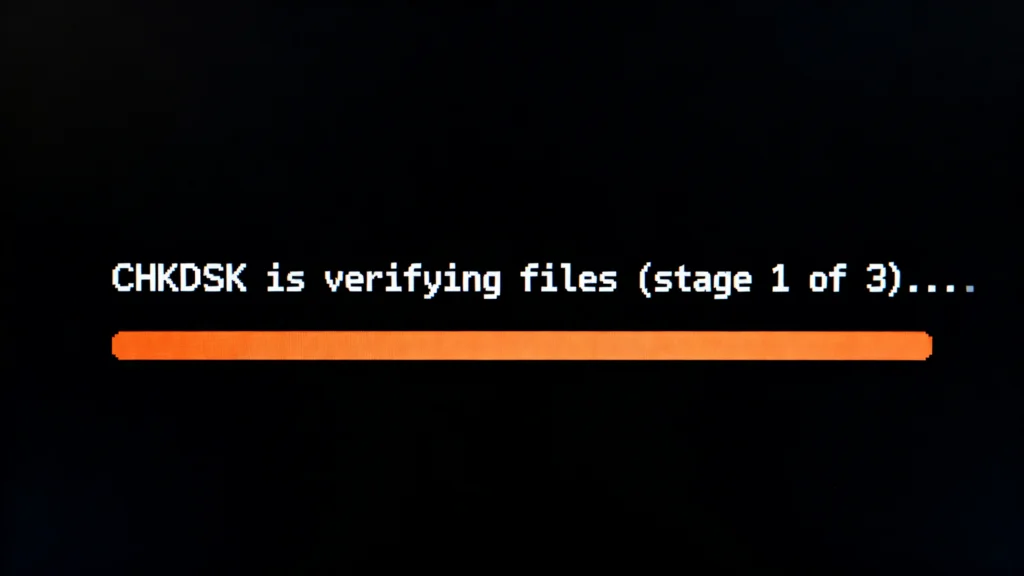
CHKDSK, kurz für “Check Disk”, ist ein Befehlszeilendienstprogramm, das in jede Version des Windows-Betriebssystems integriert ist. Seine Hauptfunktion besteht darin, das Dateisystem und die physische Integrität eines Datenträgers (z. B. Ihres Laufwerks C: oder eines externen USB-Laufwerks) zu überprüfen. Betrachten Sie es als einen Diagnosescanner für Ihre Festplatte. Es sieht sich nicht nur Ihre Dateien an, sondern untersucht auch die Struktur, in der Ihre Daten gespeichert sind - NTFS oder FAT32 Dateisystem und die Festplattenoberfläche selbst.
Die CHKDSK Befehl ist seit Jahrzehnten ein Eckpfeiler der Windows-Wartung. Wenn Sie Symptome wie Systemabstürze, fehlgeschlagene Systemstarts oder beschädigte Dateien feststellen, ist die Ausführung dieses Tools oft der erste Schritt zur Fehlerbehebung, der von IT-Experten empfohlen wird. Sein Hauptzweck besteht darin, logische Fehler und in einigen Fällen auch physische Defekte zu finden und dann zu versuchen, sie zu reparieren.
Was macht CHKDSK? Der Zwei-Phasen-Scan
Also, was macht chkdsk im Detail? Das Dienstprogramm arbeitet in zwei verschiedenen, aufeinanderfolgenden Phasen, die jeweils auf einen anderen Aspekt des Festplattenzustands abzielen.
- Integritätsprüfung des Dateisystems: In dieser Phase, CHKDSK verifiziert die Metadaten des Dateisystems. Dabei werden wichtige Strukturen wie die Master File Table (MFT), Sicherheitsdeskriptoren, Dateiindizes und Ordnerstrukturen überprüft. Es wird nach Inkonsistenzen gesucht, z. B. nach einer Datei, die in der MFT aufgeführt ist, der aber keine Datencluster zugewiesen sind, oder nach Clustern, die als “in Gebrauch” markiert, aber mit keiner Datei verknüpft sind (verlorene Cluster). Die Behebung dieser logischen Fehler hilft Windows, Ihre Dateien korrekt zu finden und darauf zuzugreifen.
- Disk Surface (Bad Sector) Scan: Nach der Überprüfung des Dateisystems, CHKDSK kann optional die Oberfläche der Festplatte auf physikalische Fehler untersuchen. Ein “Sektor” ist die kleinste Speichereinheit auf einer Festplatte. Ein “fehlerhafter Sektor” ist ein winziger Teil der Festplatte, der physisch beschädigt ist und keine Daten mehr zuverlässig speichern kann. Wenn CHKDSK findet eine schlechter Sektor, markiert es ihn als unbrauchbar. Anschließend wird versucht, alle lesbaren Informationen aus diesem Sektor wiederherzustellen, und er wird in einen gesunden, reservierten Bereich der Festplatte verschoben. Dieser Prozess verhindert, dass Windows zukünftige Daten in einen fehlerhaften Bereich schreibt und schützt Ihre Daten vor Beschädigung.
Zusammenfassend lässt sich sagen, dass CHKDSK dafür sorgt, dass das logische Dateisystem intakt ist und physische Festplattenfehler isoliert werden, um Ihr System zu stabilisieren und Datenverluste durch diese speziellen Fehlertypen zu verhindern.
Wann sollten Sie CHKDSK ausführen? Wichtige Anwendungsfälle
Wissen wie man chkdsk ausführt ist wichtig, aber zu wissen wenn um sie auszuführen, ist entscheidend. Hier sind die häufigsten Szenarien, in denen die Initiierung eines CHKDSK Scan ist ratsam:
- Häufige Systemabstürze oder Blue Screens of Death (BSOD): Wenn Ihr Computer nach dem Zufallsprinzip einfriert oder abstürzt, insbesondere bei Fehlercodes, die sich auf die Festplatte beziehen, könnte ein beschädigtes Dateisystem der Übeltäter sein.
- Fehler bei der Dateibeschädigung: Sie versuchen, ein Dokument, ein Foto oder ein Programm zu öffnen und erhalten die Fehlermeldung, dass die Datei beschädigt oder unlesbar ist.
- Ungewöhnlich langsame Computerleistung: Wenn Ihre Festplatte mit fehlerhaften Sektoren zu kämpfen hat, müssen die Lese-/Schreibköpfe härter arbeiten und fehlerhafte Bereiche überspringen, was den Datenzugriff drastisch verlangsamt.
- Fehlerhafte Laufwerkserfassung: Windows erkennt eine externe Festplatte oder einen USB-Stick möglicherweise nicht, oder Sie werden aufgefordert, sie vor der Verwendung zu formatieren - ein klassisches Anzeichen für Beschädigung des Dateisystems.
- Nach Stromausfall oder unsachgemäßem Abschalten: Ein plötzlicher Stromausfall kann die Schreibvorgänge im Dateisystem unterbrechen und es in einen inkonsistenten Zustand versetzen. Ausführen von CHKDSK nach einem solchen Ereignis ist eine kluge Vorsichtsmaßnahme.
- Allgemeine Systemwartung: Einige Benutzer planen eine regelmäßige CHKDSK Scan (alle paar Monate) als Teil der proaktiven Systempflege, insbesondere bei älteren mechanischen Festplatten (HDDs), die im Laufe der Zeit anfälliger für fehlerhafte Sektoren sind.
Eine kritische Warnung: Wenn Sie vermuten, dass Ihr Laufwerk einen schwerwiegenden physischen Defekt aufweist (z. B. klickende/schleifende Geräusche macht, völlig unerkannt bleibt oder massiv beschädigt ist), CHKDSK nicht ausführen. Sein intensiver Scan kann ein defektes Laufwerk über den Rand treiben. In solchen Fällen sollte Ihre unmittelbare Priorität die Datenwiederherstellung sein, nicht die Reparatur.
So führen Sie CHKDSK aus: Eine schrittweise Anleitung
Methode 1: So führen Sie CHKDSK über die Eingabeaufforderung aus (mit Parametern)
Diese Methode bietet die meiste Kontrolle. Sie können bestimmte Parameter verwenden, um den Scan anzupassen.
- Öffnen Sie die Eingabeaufforderung als Administrator:
- Geben Sie in der Suchleiste des Windows-Startmenüs “cmd” ein.
- Klicken Sie mit der rechten Maustaste auf “Eingabeaufforderung” und wählen Sie “Als Administrator ausführen”.”
- Verstehen Sie die grundlegenden Parameter:
/f: Sagt CHKDSK um alle gefundenen logischen Dateisystemfehler zu beheben. Dies ist der häufigste Parameter./r: Findet fehlerhafte Sektoren und stellt lesbare Informationen wieder her. Dies impliziert/fund ist ein intensiverer Scan./x: Erzwingt das Aushängen (Entsperren) des Datenträgers vor Beginn der Überprüfung. Bedeutet auch/f.
- Führen Sie den Befehl aus:
- Um Fehler auf Ihrem Laufwerk C: zu beheben, geben Sie ein:
chkdsk C: /f - Um eine vollständige Oberflächenprüfung und Reparatur durchzuführen, geben Sie ein:
chkdsk C: /r - Wenn das Laufwerk in Gebrauch ist, werden Sie aufgefordert, den Scan für den nächsten Systemneustart zu planen. Geben Sie ein.
Yund starten Sie Ihren Computer neu.
- Um Fehler auf Ihrem Laufwerk C: zu beheben, geben Sie ein:
Methode 2: Ausführen von CHKDSK über den Windows-Datei-Explorer (grafische Oberfläche)
Für Benutzer, die mit der Befehlszeile weniger vertraut sind, ist dies ein einfacheres Verfahren.
- Öffnen Sie “Dieser PC” oder “Datei-Explorer”.”
- Klicken Sie mit der rechten Maustaste auf das zu prüfende Laufwerk (z. B. Lokale Festplatte C:) und wählen Sie “Eigenschaften”.”
- Gehen Sie auf die Registerkarte “Werkzeuge”.
- Klicken Sie unter dem Abschnitt “Fehlerprüfung” auf die Schaltfläche “Prüfen”.
- Windows meldet möglicherweise “Dieses Laufwerk muss nicht gescannt werden”. Um mit der Überprüfung fortzufahren, klicken Sie auf “Laufwerk überprüfen”. Für eine gründlichere Überprüfung mit einer Prüfung auf fehlerhafte Sektoren müssen Sie oft die Eingabeaufforderung verwenden.
Bewährte Praxis: Für einen gründlichen Wartungsscan verwenden Sie die chkdsk /r aus einer erweiterten Eingabeaufforderung ist der Industriestandard. Stellen Sie sich darauf ein, dass dies auf großen, herkömmlichen Festplatten mehrere Stunden dauern kann.
Die Risiken: Wann CHKDSK zu Problemen führen kann
Während CHKDSK ein leistungsfähiges Reparaturwerkzeug ist, ist es nicht ohne Risiken. Diese zu kennen, ist der Schlüssel zu einem verantwortungsvollen Umgang damit.
- Datenverlust während der Reparatur: Um Inkonsistenzen im Dateisystem zu beheben, CHKDSK kann Dateieinträge löschen, die es für irreparabel beschädigt hält, oder Dateien abschneiden. Wenn seine Einschätzung falsch ist, können gültige Daten verloren gehen.
- Unzugängliche Partitionen: In schweren Korruptionsfällen kann der Reparaturprozess Folgendes verändern Partitionstabelle oder Bootsektorinformationen, wodurch eine Partition manchmal unzugänglich wird oder “roh” in der Datenträgerverwaltung.
- Stress bei defekten Laufwerken: Wie bereits erwähnt, sind die ausführlichen Lese- und Schreibvorgänge der
/rEin Scan kann der letzte Strohhalm für einen körperlich nachlassenden Antrieb sein. - Unvollständige oder unterbrochene Scans: Wenn ein CHKDSK Wenn der Scanvorgang durch einen Stromausfall oder ein erzwungenes Herunterfahren unterbrochen wird, kann das Dateisystem in einem schlechteren Zustand sein als zuvor.
Dies ist ein kritischer Punkt der Erfahrung: Ein Tool, das Ihre Daten retten soll, kann unter bestimmten Umständen zu deren Verlust beitragen. Daher ist die allgemein beste Praxis - die ich nicht genug betonen kann - die folgende Stellen Sie sicher, dass Sie ein verifiziertes Backup Ihrer wichtigen Daten haben, bevor Sie ein Festplattenreparaturprogramm, einschließlich CHKDSK, ausführen.
Datenwiederherstellung nach einer fehlgeschlagenen CHKDSK-Operation
Was ist, wenn Sie bereits CHKDSK und nun feststellen, dass Dateien fehlen oder eine Partition verschwunden ist? Panik ist nicht die Lösung. Wenn eingebaute Tools versagen oder neue Probleme verursachen, brauchen Sie ein spezielles Tool, professionelles Wiederherstellungstool.
Warum Magic Data Recovery die empfohlene Lösung ist
Wenn Sie einen Datenverlust nach einem CHKDSK Betrieb, Magic Data Recovery von Amagicsoft bietet einen robusten und benutzerfreundlichen Weg, um Ihre Dateien wiederherzustellen. Hier ist der Grund, warum es sich als die beste Lösung für dieses spezielle Problem herausstellt:
- Löst den zentralen Schmerzpunkt: Sie ist spezialisiert auf Wiederherstellung von Daten aus formatierten, verdorben, RAW, oder unzugängliche Partitionen - genau die Situationen, die durch ein aggressives System entstehen können. CHKDSK Reparatur. Es umgeht das beschädigte Dateisystem und führt einen Tiefenscan der Rohsektoren der Festplatte durch, um Ihre Dateien und Ordnerstruktur wiederherzustellen.
- Die wichtigsten Produktvorteile:
- Hohe Rückgewinnungsrate: Fortschrittliche Algorithmen können eine Vielzahl von Dateitypen wiederherstellen - Dokumente, Fotos, Videos, E-Mails und Archive - selbst in schwierigen Situationen.
- Zerstörungsfrei und sicher: Die Software arbeitet in einem Nur-Lese-Modus. Sie niemals schreibt auf das beschädigte Laufwerk, von dem Sie versuchen, es wiederherzustellen, und eliminiert so das Risiko, dass weitere Daten überschrieben werden.
- Vorschau vor der Wiederherstellung: Sie können eine Vorschau der wiederherstellbaren Dateien sehen (wie Fotos und Dokumente), bevor Sie die Software kaufen, um sicherzustellen, dass die von Ihnen benötigten Daten auch tatsächlich abrufbar sind.
- Intuitive Schnittstelle: Das Programm ist für alle Benutzerebenen geeignet und führt Sie durch einen einfachen Drei-Schritte-Prozess: Wählen Sie Laufwerk > Scannen > Wiederherstellen.
- Typischer Anwendungsfall: Stellen Sie sich vor, Sie haben
chkdsk /rauf einem externen Laufwerk, das sich seltsam verhielt. Nach der Überprüfung wird das Laufwerk im Datei-Explorer leer angezeigt, oder Windows fordert Sie auf, es zu formatieren. Anstatt das Laufwerk zu formatieren (was die Daten dauerhaft zerstören würde), können Sie Magic Data Recovery starten, das problematische Laufwerk auswählen, die Schnell- und Tiefensuche durchführen und die wiederhergestellten Dateien durchsuchen. - Warum es zuverlässiger ist: Während kostenlose Software zur Wiederherstellung von Dateien existieren, fehlt ihnen oft die ausgeklügelte Engine, die für die Behandlung komplexer Dateisystemschäden erforderlich ist. Magic Data Recovery basiert auf einer professionellen Wiederherstellungslogik und bietet im Vergleich zu einfachen Tools eine viel höhere Chance auf eine erfolgreiche, strukturierte Wiederherstellung. Durch die gezielte Ausrichtung auf Probleme auf Partitionsebene eignet sich das Programm besonders für Post- undCHKDSK Komplikationen.
Wenn Sie sich in einer Situation befinden, in der CHKDSK Ihre Daten unzugänglich gemacht hat, kann ein professionelles Tool wie Magic Data Recovery bietet Ihre beste Chance auf Wiederherstellung. Sie können die Software herunterladen und ausprobieren, um Ihr Laufwerk zu scannen und zu sehen, was wiederhergestellt werden kann, bevor Sie eine Verpflichtung eingehen.
Unterstützt Windows 7/8/10/11 und Windows Server
Schlussfolgerung und Zusammenfassung bewährter Praktiken
CHKDSK ist nach wie vor ein unverzichtbares Werkzeug für die Behebung von Festplattenfehlern in der Wartungskiste des Windows-Benutzers. Verstehen was macht chkdsk und genau zu wissen wie man chkdsk ausführt versetzt Sie in die Lage, viele häufige Probleme mit der Systemstabilität direkt anzugehen. Seine Fähigkeit, logische Dateisystemfehler zu reparieren und schlechte Sektoren kann die Lebensdauer Ihrer Festplatte verlängern und Ihre Daten schützen.
Mit der Leistung kommt jedoch auch die Verantwortung. Sichern Sie immer Ihre Daten, bevor Sie Festplattenprüfungen durchführen, und seien Sie sich der möglichen Risiken bewusst. Sollte ein Reparaturversuch zu weiterem Datenverlust oder einem unzugänglichen Laufwerk führen, greifen Sie nicht zu weiteren DIY-Methoden, die Ihre Daten überschreiben könnten.
Aus diesem Grund empfehlen wir eine zuverlässige Lösung wie Magic Data Recovery in Ihrem digitalen Werkzeugkasten. Es dient als kritisches Sicherheitsnetz, das sich auf die sehr Datenverlust Szenarien, die mit Festplattenreparaturprogrammen auftreten können. Durch die Kombination von vorsichtigem Gebrauch von eingebauten Werkzeugen wie CHKDSK Mit der Leistung einer speziellen Wiederherstellungslösung erstellen Sie eine umfassende Strategie, um sowohl den Zustand Ihres Systems aufrechtzuerhalten als auch Ihre unschätzbaren digitalen Daten zu schützen.
FAQs
Wie führe ich einen CHKDSK-Scan durch?
Kann CHKDSK die SD-Karte reparieren?
Was ist besser, chkdsk r oder f?
Kann CHKDSK beschädigte Dateien reparieren?
Kann CHKDSK eine Festplatte reparieren?
Wie oft sollte ich CHKDSK ausführen?
Wie kann man beschädigte Dateien wiederherstellen?
Was bewirkt CHKDSK c:/f?

Erin Smith gilt als eine der professionellsten Autorinnen bei Amagicsoft. In den letzten 10 Jahren hat sie ihre schriftstellerischen Fähigkeiten kontinuierlich verfeinert und Millionen von Lesern bei der Lösung ihrer technischen Probleme geholfen.