
Testbericht zu Cisdem Data Recovery
Der Verlust von Dateien durch versehentliches Löschen, das Leeren des Papierkorbs, eine Formatierung oder ein beschädigtes Laufwerk kann schnell zu Stress führen. Bevor Sie ein Wiederherstellungstool ausprobieren, sollten Sie wissen, was damit wiederhergestellt werden kann, was nicht behoben werden kann und wie Sie vermeiden können, Ihre verlorenen Daten zu überschreiben. Dies Cisdem Datenwiederherstellung In diesem Testbericht werden die Funktionen, Anwendungsfälle, Einschränkungen und besten Alternativen des Tools erläutert. Für einen umfassenderen Wiederherstellungs-Workflow können Sie auch hier ansetzen Anleitung zur Wiederherstellung gelöschter Dateien.
Inhaltsübersicht
Was ist Cisdem Data Recovery?
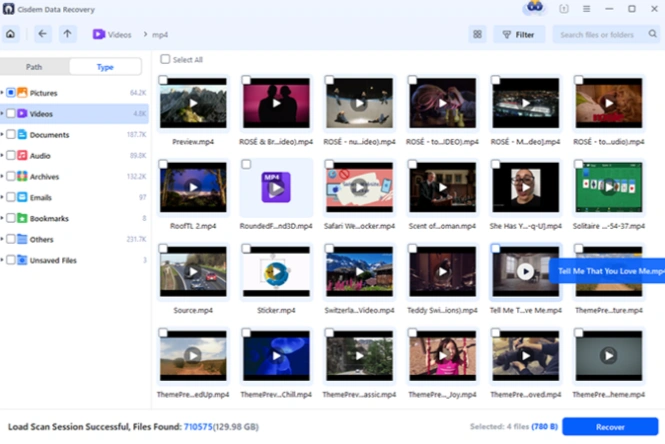
Cisdem Datenwiederherstellung ist eine Software zur Datenwiederherstellung für Windows- und Mac-Nutzer. Sie dient dazu, verlorene Dateien von internen Laufwerken, externen Festplatten, SSDs, USB-Sticks, SD-Karten, Kameras und andere Speichermedien.
Laut der offiziellen Windows-Produktseite von Cisdem unterstützt die Windows-Version Windows 11/10/8/7 und ist darauf ausgelegt, mehr als 1.000 Dateitypen aus verschiedenen Szenarien wiederherzustellen, darunter gelöschte Dateien, ein geleerter Papierkorb, formatierte Laufwerke, beschädigte Laufwerke, RAW-Laufwerke, Partitionsverlust, Windows-Abstürze und Virenbefall.
Die Mac-Version richtet sich an macOS-Nutzer und unterstützt Dokumente, Fotos, Videos, Audiodateien, E-Mails, Festplatten, SSDs, Fusion Drive, SD-Karten, USB-Sticks, APFS, HFS+, FAT16, FAT32, exFAT, und NTFS.
In einfachen Worten, Cisdem Datenwiederherstellung ist nützlich, wenn Dateien aufgrund eines logischen Datenverlusts verschwinden. Ein logischer Datenverlust bedeutet, dass das Speichermedium zwar noch funktioniert, das Dateisystem, die Dateitabelle oder die Dateisätze die Dateien jedoch nicht mehr wie gewohnt anzeigen.
Ist Cisdem Data Recovery sicher und seriös?
Bei normalen Fällen der logischen Wiederherstellung, Cisdem Datenwiederherstellung ist ein seriöses Wiederherstellungstool. Eine sichere Wiederherstellung hängt jedoch nicht nur von der Software ab, sondern auch davon, wie Sie sie einsetzen.
Die wichtigste Regel ist ganz einfach: Verwenden Sie das betroffene Laufwerk nicht mehr. Wenn Sie weiterhin neue Dateien speichern, Programme installieren, Videos herunterladen oder Daten auf dieselbe Festplatte kopieren, können die alten Dateieinträge durch neue Daten überschrieben werden. Sind die Dateien erst einmal überschrieben, kann keine Wiederherstellungssoftware die Originaldateien zuverlässig wiederherstellen.
Verwenden Sie Cisdem Datenwiederherstellung nur wenn:
- Das Laufwerk wird weiterhin angezeigt in Windows Datenträgerverwaltung, den Datei-Explorer, das Festplatten-Dienstprogramm von macOS oder die Software selbst.
- Das Laufwerk gibt keine Klick-, Knirsch- oder wiederholten Trenngeräusche von sich.
- Die Dateien wurden gelöscht, formatiert, ausgeblendet, gingen nach einem Dateisystemfehler verloren oder wurden von einem Speichermedium entfernt, das noch funktionsfähig ist.
- Sie können die wiederhergestellten Dateien auf einem anderen intakten Laufwerk speichern.
Verzichten Sie auf eine Software-Wiederherstellung, wenn das Gerät offensichtliche äußere Schäden aufweist. In diesem Fall ist ein professionelles Datenrettungslabor die sicherere Wahl.
Wichtigste Funktionen von Cisdem Data Recovery
Wiederherstellung gelöschter und verlorener Dateien
Der Hauptgrund, warum Nutzer nach Cisdem Datenwiederherstellung ist die Wiederherstellung gelöschter Dateien. Dazu gehören Dateien, die mit „Umschalt + Entf“ gelöscht, aus dem Papierkorb oder dem Mülleimer entfernt oder nach einer versehentlichen Bereinigung verloren gegangen sind.
Ein Wiederherstellungstool durchsucht das Laufwerk nach Dateieinträgen und Dateisignaturen. Wenn die ursprünglichen Datenblöcke noch vorhanden sind, kann es die wiederherstellbaren Dateien zur Vorschau auflisten. Wenn diese Blöcke durch neue Daten überschrieben wurden, ist eine Wiederherstellung nur unvollständig oder gar nicht möglich.
Wiederherstellung formatierter Laufwerke
Cisdem Datenwiederherstellung zielt auch auf die Wiederherstellung formatierter Speichermedien ab. Dies ist wichtig, wenn ein Benutzer versehentlich einen USB-Stick, eine externe Festplatte, eine SD-Karte oder eine Computerpartition formatiert.
Bei einer Schnellformatierung werden häufig die Dateisystemeinträge gelöscht, ohne dass dabei sofort alle Datenblöcke überschrieben werden. Aus diesem Grund ist eine Wiederherstellung unter Umständen noch möglich. Eine vollständige Formatierung, eine sichere Löschung oder eine intensive Wiederverwendung nach der Formatierung verringern die Erfolgschancen.
Dateisystemfehler und Wiederherstellung von RAW-Laufwerken
Ein Dateisystemfehler kann dazu führen, dass ein Laufwerk als „RAW“, „nicht zugewiesen“, „nicht zugänglich“ oder „unlesbar“ angezeigt wird. In diesen Fällen fordert Windows oder macOS Sie möglicherweise auf, das Laufwerk vor der Verwendung zu formatieren.
Formatieren Sie das Laufwerk vor der Wiederherstellung nicht. Durch das Formatieren können neue Dateisystemstrukturen entstehen, was die Chancen auf eine Wiederherstellung alter Dateien verringert. Scannen Sie stattdessen zunächst das betroffene Laufwerk und stellen Sie wichtige Dateien auf einem anderen Datenträger wieder her.
Vorschau vor Wiederherstellung
Die Vorschau ist wichtig, da sie Ihnen hilft, vor der Wiederherstellung zu überprüfen, ob eine gefundene Datei verwendbar ist. Laut der offiziellen Windows-FAQ von Cisdem kann die Testversion ein ausgewähltes Gerät scannen und eine Vorschau der wiederherstellbaren Dateien anzeigen, doch zur Wiederherstellung der Dateien benötigen Nutzer die Vollversion.
Dies ist ein gängiges Modell bei Tools zur Datenwiederherstellung. Es ermöglicht es den Nutzern, zu prüfen, ob die Software die fehlenden Daten finden kann, bevor sie sich entscheiden, ob sie dafür bezahlen möchten.
So nutzen Sie Cisdem Data Recovery sicher
Befolgen Sie diesen Arbeitsablauf, bevor Sie Reparaturversuche unternehmen.
Schritt 1: Beenden Sie die Verwendung des betroffenen Laufwerks
Falls Dateien von Laufwerk D: gelöscht wurden, speichern Sie nichts mehr auf Laufwerk D:. Falls eine SD-Karte in einer Kamera formatiert wurde, entfernen Sie sie sofort aus der Kamera. Falls eine externe Festplatte den Status „RAW“ anzeigt, formatieren Sie sie nicht.
Dieser Schritt verhindert, dass wiederherstellbare Daten überschrieben werden.
Schritt 2: Installieren Sie die Wiederherstellungssoftware auf einem anderen Laufwerk
Niemals installieren Cisdem Datenwiederherstellung auf demselben Laufwerk, auf dem die Dateien verloren gegangen sind. Wenn Sie Dateien auf Ihrem Systemlaufwerk verloren haben, installieren Sie die Software auf einem anderen Computer und schließen Sie das betroffene Laufwerk als externes Laufwerk an.
Dadurch wird das Risiko verringert, dass neue Programmdateien über gelöschte Daten geschrieben werden.
Schritt 3: Wählen Sie den Speicherort der verlorenen Datei
Öffnen Sie die Software und wählen Sie den ursprünglichen Speicherort aus, von dem die Dateien verschwunden sind. Dabei kann es sich um eine lokale Partition, eine externe Festplatte, einen USB-Stick, eine Speicherkarte oder den Speicher einer Kamera handeln.
Falls die ursprüngliche Partition nicht mehr angezeigt wird, scannen Sie die gesamte Festplatte, anstatt nur die sichtbaren Laufwerksbuchstaben zu überprüfen.
Schritt 4: Scannen und auf die Ergebnisse warten
Führen Sie den Scan durch und warten Sie, bis die Ergebnisse angezeigt werden. Bei größeren Laufwerken kann dies länger dauern, insbesondere wenn die Software einen Tiefenscan durchführt.
Verwenden Sie das betroffene Gerät während des Scans nicht. Das Trennen des Laufwerks oder die gleichzeitige Durchführung von Reparaturen kann die Wiederherstellung unterbrechen.
Schritt 5: Vorschau wichtiger Dateien
Nutzen Sie die Vorschau, die Suche sowie Filter nach Dateityp, Größe und Änderungsdatum, um die wichtigsten Dateien zuerst zu finden. Suchen Sie beispielsweise nach .docx, .xlsx, .jpg, .mp4, .pdf oder einem bekannten Teil des Dateinamens.
Legen Sie den Schwerpunkt auf Geschäftsunterlagen, Kundenakten, Familienfotos, Projektvideos und Archive.
Schritt 6: Dateien an einem anderen sicheren Ort wiederherstellen
Speichern Sie die wiederhergestellten Dateien auf einem anderen, fehlerfreien Laufwerk. Stellen Sie sie nicht auf demselben Laufwerk wieder her, auf dem die Daten verloren gegangen sind.
Wenn beispielsweise Dateien von einer SD-Karte verloren gegangen sind, stellen Sie diese auf Ihrem Computer oder einer externen Festplatte wieder her. Wenn Dateien vom Laufwerk C: verloren gegangen sind, stellen Sie diese auf dem Laufwerk D: oder einem anderen Speichermedium wieder her.
Vor- und Nachteile von Cisdem Data Recovery
Aspekt | Profis | Nachteile |
Benutzerfreundlichkeit | Übersichtlicher Arbeitsablauf für das Scannen, die Vorschau und die Wiederherstellung | Manche komplexe Festplattenfälle erfordern nach wie vor fachmännische Bearbeitung |
Wiederherstellung von Dateien | Unterstützt gängige Szenarien mit gelöschten, formatierten und beschädigten Dateien | Überschriebene Daten können nicht wiederhergestellt werden |
Plattformen | Separate Windows- und Mac-Versionen | Eine Windows-Lizenz gilt möglicherweise nicht für Mac und umgekehrt. |
Prozesspraxis | Ermöglicht das Scannen und Anzeigen einer Vorschau vor der Wiederherstellung | Für die vollständige Wiederherstellung ist eine kostenpflichtige Lizenz erforderlich |
Geräteunterstützung | Funktioniert mit gängigen Laufwerken, USB-Geräten, SD-Karten und externen Speichermedien | Nicht geeignet für physisch beschädigte Laufwerke |
Übereinstimmung mit der Suchabsicht | Ideal für Nutzer, die Wiederherstellungstools vergleichen möchten | Benutzer benötigen möglicherweise weiterhin eine klarere Alternative für die Windows-spezifische Wiederherstellung |
Cisdem Data Recovery im Vergleich zu Magic Data Recovery
Wenn Sie vergleichen Cisdem Datenwiederherstellung mit Magic Data Recovery, die beste Wahl hängt von Ihrer Plattform, dem Wiederherstellungsszenario und Ihrem bevorzugten Arbeitsablauf ab.
Vergleichspunkt | Cisdem Datenwiederherstellung | Magic Data Recovery |
Am besten für | Nutzer, die ein Windows- oder Mac-Wiederherstellungstool von Cisdem suchen | Windows-Benutzer, die einen übersichtlichen Wiederherstellungsablauf benötigen |
Wichtigste Szenarien | Gelöschte Dateien, formatierte Laufwerke, RAW-Laufwerke, Partitionsverlust, beschädigte Laufwerke | Gelöschte Dateien, formatierte Laufwerke, Dateisystemfehler, nicht zugängliche Laufwerke, Datenverlust auf gängigen Speichermedien |
Dateitypen | Auf der offiziellen Seite werden über 1000 Dateiformate für Windows genannt | Auf der Produktseite sind über 5.000 Dateiformate aufgeführt, darunter Dokumente, Fotos, Videos, Audiodateien, Archivdateien, E-Mails und Disk-Image-Formate. |
Unterstützte Geräte | Interne Laufwerke, externe Laufwerke, USB-Sticks, SD-Karten, Kameras und vieles mehr | Festplatten, SSDs, USB-Sticks, Speicherkarten, Kameras und andere Speichermedien |
Arbeitsablauf | Ort auswählen, scannen, Vorschau, wiederherstellen | Herunterladen, Laufwerk auswählen, scannen, Vorschau anzeigen und an einem sicheren Ort wiederherstellen |
Dateisysteme | Die Unterstützung für Windows und Mac variiert je nach Version | In der Bedienungsanleitung wird die Unterstützung von FAT/exFAT, NTFS, ReFS und EXT2/3/4 aufgeführt. |
Bester alternativer Anwendungsfall | Nutzer, die bereits Cisdem-Produkte verwenden | Benutzer, die eine zielgerichtete Windows-Wiederherstellungslösung mit einfachen Schritten suchen |
Warum Magic Data Recovery eine praktische Alternative zur Datenwiederherstellung mit Cisdem ist
Cisdem Datenwiederherstellung kann nützlich sein, aber Windows-Nutzer wünschen sich vielleicht eine Alternative, die sich stärker auf den alltäglichen Datenverlust konzentriert. Hier kommt Magic Data Recovery wie gerufen ins Spiel.

Magic Data Recovery löst die zentralen Probleme, mit denen Nutzer nach einem Datenverlust üblicherweise konfrontiert sind:
- Die Dateien sind nach dem Löschen verschwunden.
- Der Papierkorb wurde geleert.
- Ein Laufwerk wurde versehentlich formatiert.
- Eine Partition wurde unzugänglich.
- Ein USB-Stick oder eine SD-Karte zeigt Fehler an.
- Windows meldet ein Problem mit dem Dateisystem.
- Wichtige Dateien müssen vor der Wiederherstellung in der Vorschau angezeigt werden.
Der größte Vorteil ist der einfache Arbeitsablauf. Anstatt von den Benutzern zu verlangen, dass sie sich mit komplexen Festplattenstrukturen auseinandersetzen, Magic Data Recovery führt sie durch die Schritte des Scannens, der Vorschau, des Filterns und des Speicherns von Dateien an einem anderen sicheren Ort.
Stellen Sie sich zum Beispiel vor, Sie hätten einen USB-Stick formatiert, bevor Sie Arbeitsdokumente auf Ihren Laptop kopiert haben. Kostenlose manuelle Methoden helfen in diesem Fall möglicherweise nicht weiter, da die Dateieinträge nicht mehr angezeigt werden. Magic Data Recovery kann den USB-Stick scannen, wiederherstellbare Dokumente anzeigen und Ihnen ermöglichen, diese auf Ihrem Computer zu speichern.
Ein weiteres Beispiel ist eine externe Festplatte, bei der plötzlich eine Formatierung verlangt wird. Eine Reparatur im Vorfeld könnte die Datenwiederherstellung erschweren. Eine sicherere Vorgehensweise besteht darin, das Laufwerk zu scannen, eine Vorschau der Dateien anzuzeigen, wichtige Daten wiederherzustellen und das Laufwerk erst später zu reparieren oder neu zu formatieren.
Dadurch ist Magic Data Recovery in der Praxis zuverlässiger als einfache manuelle Methoden. Es verspricht keine unmöglichen Ergebnisse. Stattdessen bietet es den Anwendern eine strukturierte Möglichkeit, zu prüfen, was noch wiederhergestellt werden kann, bevor sie riskantere Maßnahmen ergreifen.
Wenn Sie nach einer effizienteren Lösung für die Wiederherstellung von Windows suchen, sollten Sie Magic Data Recovery bevor Sie das betroffene Laufwerk formatieren, reparieren oder neu beschreiben.
Unterstützt Windows 7/8/10/11 und Windows Server
Wann Cisdem Data Recovery ausreichen kann
Cisdem Datenwiederherstellung Das kann ausreichen, wenn Sie einen Mac nutzen, ein Produkt von Cisdem möchten und lediglich gängige Dateien von einem intakten Laufwerk wiederherstellen müssen. Es kann auch sinnvoll sein, wenn die Vorschau des Test-Scans genau die Dateien anzeigt, die Sie benötigen.
Wählen Sie diese Option, wenn:
- Sie nutzen macOS und bevorzugen ein speziell auf den Mac zugeschnittenes Tool.
- Die fehlenden Dateien werden in der Vorschau deutlich angezeigt.
- Das Laufwerk weist keine äußeren Beschädigungen auf.
- Sie wissen, dass für die Wiederherstellung das Speichern der Dateien an einem anderen Ort erforderlich ist.
- Sie akzeptieren das Lizenzmodell, nachdem Sie den aktuellen Preis überprüft haben.
Wann Magic Data Recovery die bessere Wahl sein kann
Magic Data Recovery kann eine bessere Wahl sein, wenn Sie Windows verwenden und einen direkten, einsteigerfreundlichen Wiederherstellungsweg benötigen. Es eignet sich gut für gängige Anwendungsfälle wie gelöschte Dateien, formatierte Laufwerke, Dateisystemfehler, die Wiederherstellung von USB-Sticks, SD-Karten und externen Laufwerken.
Es ist zudem eine gute Möglichkeit, wenn Sie sich vor einer Entscheidung einen Überblick über die wiederherstellbaren Dateien verschaffen möchten. Das Magic Data Recovery Benutzerhandbuch Außerdem werden die Nutzer daran erinnert, die Software nicht auf dem betroffenen Laufwerk zu installieren und die wiederhergestellten Dateien an einem sicheren Ort zu speichern – nicht auf dem ursprünglichen Laufwerk.
Dieser Ratschlag folgt einer wichtigen bewährten Vorgehensweise der Branche: Zuerst das Quelllaufwerk sichern, dann die Dateien wiederherstellen und erst danach die Festplatte reparieren.
Häufige Fehler bei der Datenrettung vermeiden
Fehler 1: Software auf dem Laufwerk installieren, auf dem die Dateien verloren gegangen sind
Wenn Sie ein Wiederherstellungsprogramm auf demselben Laufwerk installieren, auf dem die Dateien verloren gegangen sind, kann das Installationsprogramm möglicherweise noch wiederherstellbare Daten überschreiben. Installieren Sie die Software daher immer auf einem anderen Laufwerk.
Fehler 2: Formatierung vor der Wiederherstellung
Wenn Windows oder macOS Sie auffordert, ein Laufwerk zu formatieren, klicken Sie nicht auf „Formatieren“, bevor Sie die Daten wiederhergestellt haben. Scannen Sie das Laufwerk zunächst. Stellen Sie die wichtigen Dateien wieder her. Reparieren oder formatieren Sie das Laufwerk erst, nachdem Ihre Daten in Sicherheit sind.
Fehler 3: Speichern der wiederhergestellten Dateien auf demselben Laufwerk
Das Speichern wiederhergestellter Dateien auf dem ursprünglichen Laufwerk kann andere verlorene Dateien überschreiben, die noch nicht wiederhergestellt wurden. Verwenden Sie ein anderes internes Laufwerk, eine externe Festplatte oder ein USB-Speichergerät.
Fehler 4: Physischen Schaden ignorieren
Software kann defekte Leseköpfe, zerkratzte Platten, durchgebrannte Steuerplatinen oder schwerwiegende NAND-Ausfälle nicht beheben. Wenn das Laufwerk ungewöhnliche Geräusche macht oder wiederholt die Verbindung unterbricht, sollten Sie es nicht weiter verwenden und sich an einen professionellen Datenrettungsdienst wenden.
Fehler 5: Die Erwartung, dass ein beliebiges Tool überschriebene Daten wiederherstellen kann
Keine Software kann eine Wiederherstellung nach dem Überschreiben garantieren. Die Wiederherstellung hängt davon ab, ob der alte Dateiinhalt noch auf dem Speichermedium vorhanden ist.
Fazit: Lohnt es sich, Cisdem Data Recovery auszuprobieren?
Cisdem Datenwiederherstellung ist einen Versuch wert, wenn Ihr Speichermedium noch erkannt wird und Sie verlorene Dateien vor der Wiederherstellung scannen und in der Vorschau anzeigen möchten. Es deckt gängige Szenarien ab, wie beispielsweise gelöschte Dateien, formatierte Laufwerke, RAW-Laufwerke, Probleme mit Partitionen und die Wiederherstellung externer Speichermedien.
Wenn Sie jedoch ein Windows-Nutzer sind, der sich einen übersichtlicheren und gezielteren Wiederherstellungsablauf wünscht, Magic Data Recovery ist eine praktische Alternative. Das Programm hilft dabei, gelöschte, formatierte und nicht mehr zugängliche Dateien von gängigen Speichermedien wiederherzustellen, unterstützt eine Vielzahl von Dateiformaten und führt den Benutzer durch den Vorgang, um Dateien in der Vorschau anzuzeigen und sicher zu speichern.
Um optimale Ergebnisse zu erzielen, sollten Sie das betroffene Laufwerk nicht mehr verwenden, es vor der Reparatur scannen, eine Vorschau der Dateien anzeigen und diese an einem anderen intakten Speicherort wiederherstellen. Weitere Informationen zur sicheren Wiederherstellung gelöschter Dateien finden Sie hier Anleitung zur Wiederherstellung gelöschter Dateien.
Unterstützt Windows 7/8/10/11 und Windows Server
Häufig gestellte Fragen zur Cisdem-Datenwiederherstellung
Ist Cisdem Data Recovery kostenlos?
Cisdem Datenwiederherstellung Bietet in der Regel eine Testversion an, mit der Nutzer ein Laufwerk scannen und eine Vorschau der wiederherstellbaren Dateien anzeigen können. Für die vollständige Wiederherstellung ist jedoch normalerweise eine kostenpflichtige Lizenz erforderlich. Dieses Modell hilft Ihnen dabei, zu prüfen, ob die Dateien gefunden werden können, bevor Sie sich für den Kauf der Vollversion entscheiden.
Kann Cisdem Data Recovery dauerhaft gelöschte Dateien wiederherstellen?
Ja, Cisdem Datenwiederherstellung kann dauerhaft gelöschte Dateien wiederherstellen, sofern die ursprünglichen Daten nicht überschrieben wurden. Stellen Sie nach dem Löschen von Dateien die Nutzung des betroffenen Laufwerks unverzüglich ein. Je mehr Sie auf diesem Laufwerk speichern, installieren, herunterladen oder kopieren, desto höher ist die Wahrscheinlichkeit, dass der Inhalt der gelöschten Dateien überschrieben wird.
Ist die Nutzung von Cisdem Data Recovery sicher?
Cisdem Datenwiederherstellung ist im Allgemeinen sicher, wenn es von der offiziellen Website oder einer anderen vertrauenswürdigen Quelle heruntergeladen wird. Die Sicherheit hängt auch von Ihrem Verhalten ab. Installieren Sie das Programm nicht auf dem Laufwerk, auf dem Daten verloren gegangen sind, speichern Sie wiederhergestellte Dateien nicht auf demselben Laufwerk und vermeiden Sie den Einsatz von Wiederherstellungssoftware auf physisch beschädigten Festplatten.
Warum hat Cisdem Data Recovery Dateien gefunden, die sich nicht öffnen lassen?
Wiederhergestellte Dateien lassen sich möglicherweise nicht öffnen, wenn sie teilweise überschrieben, fragmentiert oder vor der Wiederherstellung beschädigt waren oder aus einem beschädigten Dateisystem wiederhergestellt wurden. Mithilfe der Vorschau können Sie vor der Wiederherstellung feststellen, welche Dateien noch verwendbar sind. Wenn sich viele Dateien nicht öffnen lassen, sollten Sie das Laufwerk nicht weiter verwenden und entweder einen erneuten Scan versuchen oder professionelle Hilfe in Anspruch nehmen.
Was ist die beste Alternative zu Cisdem Data Recovery für Windows?
Magic Data Recovery ist eine starke Alternative zu Cisdem Data Recovery für Windows-Nutzer. Das Programm unterstützt gelöschte Dateien, formatierte Laufwerke, Dateisystemfehler und Datenverluste auf gängigen Speichermedien wie Festplatten, SSDs, USB-Sticks und Speicherkarten. Der Arbeitsablauf mit Scan, Vorschau und Wiederherstellung ist auch für technisch weniger versierte Nutzer geeignet.
Kann Magic Data Recovery Dateien von einem formatierten Laufwerk wiederherstellen?
Ja, Magic Data Recovery kann dabei helfen, Dateien von einem formatierten Laufwerk wiederherzustellen, sofern die alten Daten noch nicht überschrieben wurden. Bei einer Schnellformatierung bleiben oft noch wiederherstellbare Daten zurück. Um bessere Ergebnisse zu erzielen, sollten Sie das formatierte Laufwerk nicht mehr verwenden, es zunächst scannen, eine Vorschau der Dateien anzeigen und die wiederhergestellten Daten an einem anderen Ort speichern.
Soll ich Dateien auf demselben Laufwerk wiederherstellen?
Nein. Sie sollten Dateien niemals auf demselben Laufwerk wiederherstellen, auf dem die Daten verloren gegangen sind. Das Speichern der wiederhergestellten Dateien an dieser Stelle könnte andere Dateien überschreiben, die noch wiederherstellbar sind. Wählen Sie immer einen anderen intakten Speicherort, beispielsweise eine andere interne Partition, eine externe Festplatte oder ein USB-Speichergerät.
Wann sollte ich einen professionellen Datenrettungsdienst in Anspruch nehmen?
Wenden Sie sich an einen professionellen Dienstleister, wenn das Laufwerk physische Schäden aufweist, Klickgeräusche macht, wiederholt die Verbindung unterbricht, nach Verbranntem riecht oder im BIOS, in der Datenträgerverwaltung oder im Festplatten-Dienstprogramm nicht angezeigt wird. Software-Tools eignen sich am besten für den Fall eines logischen Datenverlusts. Physische Ausfälle erfordern eine kontrollierte Handhabung und spezielle Laborausrüstung.

Jason ist ein Spezialist für Datenwiederherstellung und technischen Support mit über 15 Jahren praktischer Erfahrung. Er hat intensiv mit Endnutzern zusammengearbeitet, schwierige Fälle von Datenverlust behoben und praktische Lösungen für versehentlich gelöschte Daten, formatierte Laufwerke, beschädigte Dateisysteme, verlorene Partitionen, Systemausfälle und andere Notfälle im Bereich der Datenwiederherstellung bereitgestellt. Zu seinen Fachgebieten gehören außerdem Datensicherung und -wiederherstellung, Dateireparatur sowie Notfallwiederherstellung, wobei er besonderen Wert auf eine sichere, zuverlässige und technisch korrekte Beratung legt.