
Dateien kostenlos wiederherstellen: 5 sichere Methoden unter Windows
Das versehentliche Löschen wichtiger Dokumente, Fotos, Videos oder Arbeitsdateien kann sehr stressig sein. Nutzer, die nach Dateien kostenlos wiederherstellen sind in der Regel auf der Suche nach einer sicheren Möglichkeit, gelöschte Daten wiederherstellen ohne im Voraus bezahlen zu müssen. Glücklicherweise können Ihnen Windows-Tools, Backups, Cloud-Dienste und professionelle Wiederherstellungssoftware dabei helfen Dateien kostenlos wiederherstellen in vielen alltäglichen Situationen.
In diesem Leitfaden werden fünf praktische Möglichkeiten erläutert, um Dateien kostenlos wiederherstellen. Zunächst erfahren Sie, wie Sie gelöschte Daten sichern können. Anschließend vergleichen Sie die integrierten Windows-Optionen. Schließlich sehen Sie, wie Magic Data Recovery scannt, zeigt eine Vorschau an und stellt Dateien mithilfe eines einfachen visuellen Arbeitsablaufs wieder her.
Unterstützt Windows 7/8/10/11 und Windows Server
Inhaltsübersicht
Kurzantwort: Wie kann man Dateien kostenlos wiederherstellen?
Die richtige Vorgehensweise hängt davon ab, wie die Dateien verschwunden sind. Beginnen Sie daher mit der schonendsten Option und führen Sie erst dann einen gründlicheren Scan durch, wenn dies erforderlich ist.
Situation | Die beste erste Methode | Kosten | Schwierigkeitsgrad |
Die Dateien bleiben im Papierkorb | Papierkorb | Kostenlos | Einfach |
Der Dateiverlauf enthält eine ältere Kopie | Frühere Versionen | Kostenlos | Einfach |
Ein Cloud-Dienst hat die Dateien synchronisiert | Cloud-Papierkorb oder Versionsverlauf | In der Regel kostenlos | Einfach |
Sie haben lokale Dateien endgültig gelöscht. | Windows Dateiwiederherstellung | Kostenlos | Fortgeschrittene |
Sie haben den Papierkorb geleert oder ein Laufwerk formatiert | Magic Data Recovery | Bis zu 500 MB kostenlos | Einfach |
Bevor Sie Dateien kostenlos wiederherstellen, sichern Sie die Daten
Ihre Handlungen nach dem Löschen können darüber entscheiden, ob die Wiederherstellung gelingt. Befolgen Sie daher diese Vorsichtsmaßnahmen, bevor Sie versuchen, Kostenlose Dateiwiederherstellung Methode.
Beenden Sie die Verwendung des betroffenen Laufwerks
Installieren Sie keine Programme, laden Sie keine großen Dateien herunter und kopieren Sie keine Ordner auf das Laufwerk, auf dem sich die fehlenden Daten befanden. Windows könnte den Speicherplatz der gelöschten Datei wiederverwenden. Sobald dieser durch neue Daten überschrieben wird, ist sogar die Die beste kostenlose Software zur Datenwiederherstellung scheitern kann.
Anderen Standort verwenden
Installieren Sie Wiederherstellungssoftware nach Möglichkeit auf einer anderen Partition. Speichern Sie wiederhergestellte Daten ebenfalls auf einem anderen Laufwerk. Stellen Sie Dateien beispielsweise von C: auf D: oder von einer Speicherkarte auf Ihren Computer wieder her. Andernfalls könnten die wiederhergestellten Daten Dateien überschreiben, die noch wiederherstellbar sind.
5 Möglichkeiten, Dateien unter Windows kostenlos wiederherzustellen
Windows-Nutzern stehen mehrere Wiederherstellungsoptionen zur Verfügung. Einige Methoden stellen eine vorhandene Kopie wieder her, während andere den Speicher nach gelöschten Daten durchsuchen. Auch wenn keine Methode ein hundertprozentiges Ergebnis garantiert, decken diese Lösungen die häufigsten Fälle ab.
Methode 1: Dateien aus dem Papierkorb wiederherstellen
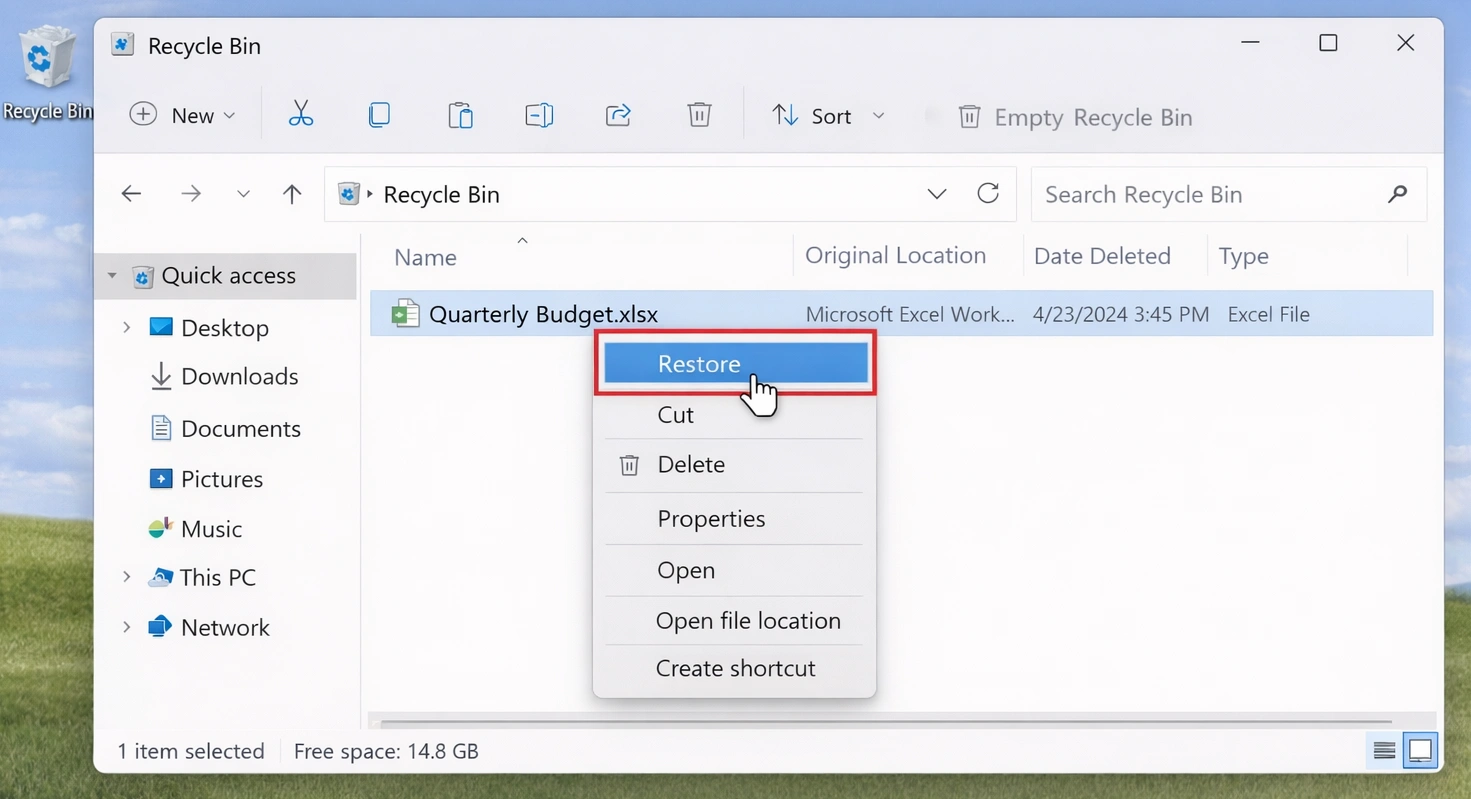
Der Papierkorb bietet den schnellsten Weg, um Dateien kostenlos wiederherstellen nach einer normalen Löschung.
- Öffnen Sie den Papierkorb.
- Suche nach Dateiname, Dateityp oder Löschdatum.
- Wählen Sie die gewünschten Dateien oder Ordner aus.
- Klicken Sie mit der rechten Maustaste und wählen Sie Wiederherstellen.
- Überprüfen Sie den Originalordner.
Bei dieser Methode wird das Laufwerk nicht gescannt. Allerdings hilft sie nicht, nachdem Umschalt+Löschen, ein geleerter Papierkorb oder das Löschen von Daten auf bestimmten Wechseldatenträgern.
Methode 2: „Dateiversionsverlauf“ verwenden
Mit der Dateiversionsgeschichte können Sie eine frühere Version wiederherstellen, sofern Sie diese Funktion vor dem Datenverlust aktiviert hatten.
- Öffnen Sie den Datei-Explorer.
- Wechsle in den ursprünglichen Ordner.
- Klicken Sie mit der rechten Maustaste darauf und wählen Sie Frühere Versionen wiederherstellen.
- Öffnen Sie eine passende Version.
- Stellen Sie die gewünschte Datei wieder her.
Beispielsweise kann „Dateiversionsverlauf“ einen älteren Bericht nach einem versehentlichen Überschreiben wiederherstellen. Windows kann jedoch keine frühere Sicherung erstellen, nachdem die Datei verschwunden ist. Wenn keine Version angezeigt wird, wählen Sie eine andere Methode, um Dateien kostenlos wiederherstellen.

Methode 3: Cloud-Speicher und Backups überprüfen
Bevor Sie ein Laufwerk scannen, überprüfen Sie alle Speicherorte, an denen sich möglicherweise eine weitere Kopie befinden könnte. Diese Vorgehensweise ist oft der sicherste Weg, um Gelöschte Dateien kostenlos wiederherstellen.
Überprüfen Sie OneDrive, Google Drive, Dropbox, E-Mail-Anhänge, Downloads aus Messaging-Apps, Backup-Laufwerke, freigegebene Ordner und andere Geräte. Beispielsweise kann OneDrive möglicherweise noch die ursprüngliche Datei- und Ordnerstruktur enthalten. Überprüfen Sie daher synchronisierte Dienste, bevor Sie einen Tiefenscan starten.
Methode 4: Windows-Dateiwiederherstellung verwenden
Windows Dateiwiederherstellung ist das Befehlszeilenprogramm von Microsoft für gelöschte lokale Dateien. Es kann interne Laufwerke und Wechseldatenträger durchsuchen. Darüber hinaus eignet es sich gut für Benutzer, die sich mit Dateipfaden und grundlegenden Befehlen auskennen.
winfr C: E: /regelmäßig /n \Benutzer\IhrName\Dokumente\
Hier enthält C: die fehlenden Daten, während E: die Ergebnisse speichert. Quelle und Ziel müssen sich auf unterschiedlichen Laufwerken befinden.
Windows File Recovery bietet eine völlig kostenlose Option ohne Begrenzung der wiederherstellbaren Dateigröße. Allerdings fehlt eine visuelle Vorschau, und Anfänger könnten die Befehle als schwierig empfinden. Daher sollten Nutzer, die Dateien kostenlos wiederherstellen die eine grafische Benutzeroberfläche nutzen, ziehen möglicherweise eine einfachere Lösung vor.

Methode 5: Magic Data Recovery verwenden
Wenn integrierte Methoden versagen, Magic Data Recovery bietet eine visuelle Möglichkeit, Dateien kostenlos wiederherstellen. Benutzer können ein Laufwerk auswählen, einen Scan starten, Ergebnisse filtern, eine Vorschau der Inhalte anzeigen und ausgewählte Dateien wiederherstellen, ohne Befehle eingeben zu müssen.
Magic Data Recovery unterstützt mehr als 5.000 Dateiformate und gängige Speichermedien, darunter Festplatten, SSDs, USB-Sticks und Speicherkarten. Darüber hinaus können mit der kostenlosen Version bis zu 500 MB wiederhergestellt werden. Daher können Nutzer kleinere Wiederherstellungsaufgaben testen, bevor sie ein Upgrade in Betracht ziehen.
Wie man Dateien kostenlos wiederherstellen mit Magic Data Recovery
Magic Data Recovery kann Ihnen helfen, wenn Sie die Tastenkombination „Umschalt+Entf“ gedrückt haben, der Papierkorb geleert wurde, eine versehentliche Formatierung stattgefunden hat oder Dateien von einem USB-Stick oder einer Speicherkarte verloren gegangen sind. Vor allem aber können Sie dank der Vorschaufunktion die gefundenen Dateien vor der Wiederherstellung überprüfen.
Schritt 1: Herunterladen und Installieren von Magic Data Recovery
Laden Sie Magic Data Recovery herunter und installieren Sie das Programm auf Ihrem Computer. Wählen Sie nach Möglichkeit ein Laufwerk oder eine Partition aus, auf der sich die gelöschten Dateien nicht befinden. Diese Vorsichtsmaßnahme verringert das Risiko eines versehentlichen Überschreibens.
Unterstützt Windows 7/8/10/11 und Windows Server
Schritt 2: Wählen Sie die Antrieb Sie möchten scannen
Öffnen Sie Magic Data Recovery. Überprüfen Sie anschließend auf der Hauptoberfläche die Laufwerke und Partitionen. Wählen Sie den Speicherort aus, an dem die Dateien verschwunden sind, und starten Sie den Scanvorgang.

Schritt 3: Scannen des Laufwerks nach gelöschten Dateien
Magic Data Recovery startet automatisch einen erweiterten Scan nach gelöschten und verlorenen Daten. Währenddessen werden die gefundenen Dateien im Laufe des Scans in der Benutzeroberfläche angezeigt. So können Sie die Ergebnisse bereits vor Abschluss des Vorgangs einsehen.

Schritt 4: Vorschau Dateien vor der Wiederherstellung
Sehen Sie sich anschließend den Inhalt und den Zustand der Dateien in der Vorschau an. Sie können die Ergebnisse auch nach Dateityp, Name oder ursprünglichem Speicherort filtern. Auf diese Weise können Sie die richtigen Dokumente, Fotos, Videos und anderen Dateien identifizieren, bevor Sie sie wiederherstellen.

Schritt 5: Dateien an einem sicheren Ort wiederherstellen
Wählen Sie abschließend die gewünschten Dateien aus und starten Sie die Wiederherstellung. Speichern Sie diese auf einem anderen Laufwerk oder einer anderen Partition und nicht am ursprünglichen Speicherort. Andernfalls könnten die wiederhergestellten Daten andere wiederherstellbare Dateien überschreiben.

Warum Magic Data Recovery wählen?
Viele Nutzer benötigen eine gründlichere Überprüfung, möchten sich aber nicht mit der Syntax der Befehlszeile auseinandersetzen. Deshalb vereint Magic Data Recovery Überprüfung, Filterung, Vorschau und Wiederherstellung in einer einzigen Benutzeroberfläche.
Seine wichtigsten Vorteile sind:
- Ein für Anfänger geeigneter visueller Arbeitsablauf
- Vorschau vor der Wiederherstellung
- Unterstützung für mehr als 5.000 Dateiformate
- Kompatibilität mit gängigen Windows-Speichergeräten
- Bis zu 500 MB kostenlose Wiederherstellung
- Filter nach Dateityp, Name und Speicherort
Zum Beispiel jemand, der den Papierkorb geleert kann das betroffene Laufwerk scannen, eine Vorschau der gelöschten Fotos anzeigen und nur die benötigten Elemente wiederherstellen. Ebenso kann ein Benutzer, der einen USB-Stick formatiert hat, die gefundenen Dokumente vor der Wiederherstellung überprüfen.
Magic Data Recovery bietet einen übersichtlicheren Arbeitsablauf als Befehlszeilentools. Eine vollständige Wiederherstellung kann jedoch nicht garantiert werden. Die Ergebnisse hängen von Überschreibungen, den Lagerbedingungen, Dateifragmentierung, sowie die Art des Datenverlusts. Diese Einschränkung gilt für jedes Wiederherstellungsprogramm.
Kostenlose Methoden zur Dateiwiederherstellung vergleichen
Methode | Vorschau | Leerer Mülleimer | Formatiertes Laufwerk | Einfach für Anfänger | Wichtigste Einschränkung |
Papierkorb | Ja | Nein | Nein | Ja | Die Dateien müssen dort verbleiben |
Datei-Geschichte | Ja | Manchmal | Nein | Ja | Es muss bereits ein Backup vorhanden sein |
Cloud-Sicherung | Ja | Manchmal | Nicht zutreffend | Ja | Es muss eine synchronisierte Kopie vorhanden sein |
Windows Dateiwiederherstellung | Nein | Ja | Manchmal | Nein | Dazu sind Befehle erforderlich |
Magic Data Recovery | Ja | Ja | Ja | Ja | 500 MB Freigrenze |
Integrierte Tools funktionieren am besten, wenn noch eine weitere Kopie vorhanden ist. Im Gegensatz dazu hilft Ihnen Wiederherstellungssoftware dabei, Dateien kostenlos wiederherstellen wenn Windows die Dateien nicht mehr normal anzeigt. Wählen Sie daher die einfachste Methode, die Ihrer Situation entspricht.
Wenn Dateiwiederherstellungssoftware nicht helfen kann
Software kann zwar Dateien kostenlos wiederherstellen In vielen Fällen von logischen Datenverlusten kann es nicht jedes Speicherproblem lösen. Brechen Sie die eigenständige Datenwiederherstellung ab, wenn eine Festplatte wiederholt klackt, während des Betriebs die Verbindung unterbricht, nach Verbranntem riecht oder nicht mehr zuverlässig erkannt wird.
In solchen Fällen können wiederholte Scans das Gerät zusätzlich belasten. Trennen Sie es daher vom Stromnetz und ziehen Sie eine professionelle Datenrettung in Betracht. Auch mit Software lassen sich Daten nach einer vollständigen Überschreibung nicht wiederherstellen. Darüber hinaus, SSD Die Erholung könnte sich als schwierig erweisen, weil TRIM kann gelöschte Daten schnell entfernen.
Fazit: Der beste Weg, Dateien kostenlos wiederherzustellen
Ein sicherer Genesungsprozess beginnt mit der schonendsten Methode Methode zur Wiederherstellung gelöschter Dateien. Überprüfen Sie zunächst den Papierkorb. Sehen Sie sich anschließend den Dateiverlauf, den Cloud-Speicher und die Sicherungskopien an. Wenn Sie mit Befehlszeilentools vertraut sind, nutzen Sie danach die Windows-Dateiwiederherstellung.
Magic Data Recovery Das Programm ist besonders nützlich, wenn Sie eine einfachere Möglichkeit suchen, einen geleerten Papierkorb, ein formatiertes Laufwerk, ein USB-Gerät oder eine Speicherkarte zu scannen. Es bietet eine visuelle Vorschau, unterstützt Tausende von Dateiformaten und ermöglicht eine kostenlose Wiederherstellung von bis zu 500 MB. Damit bietet es normalen Nutzern eine praktische Möglichkeit, wiederherstellbare Daten vor einer umfangreicheren Wiederherstellung zu prüfen.
Wenn Sie Folgendes benötigen Dateien kostenlos wiederherstellen Probieren Sie Magic Data Recovery aus, das einen visuellen Arbeitsablauf bietet. Scannen Sie das betroffene Laufwerk, sehen Sie sich eine Vorschau der Ergebnisse an und stellen Sie die benötigten Dateien an einem sicheren Ort wieder her.
Unterstützt Windows 7/8/10/11 und Windows Server
Häufig gestellte Fragen zur kostenlosen Wiederherstellung von Dateien
Kann ich Dateien kostenlos wiederherstellen, nachdem ich den Papierkorb geleert habe?
Ja, Sie können es trotzdem versuchen, sofern der gelöschte Inhalt nicht durch neue Daten überschrieben wurde. Verwenden Sie das betroffene Laufwerk zunächst nicht mehr. Führen Sie anschließend „Windows File Recovery“ oder „Magic Data Recovery“ aus. Dank einer Scan-Vorschau können Sie lesbare Dateien identifizieren, bevor Sie diese an einem anderen Speicherort wiederherstellen.
Was ist die beste kostenlose Methode zur Dateiwiederherstellung unter Windows?
Beginnen Sie mit dem Papierkorb, der Dateiversionsgeschichte und Cloud-Backups, da diese Methoden vorhandene Kopien ohne gründliche Suche wiederherstellen. Sollten diese jedoch fehlschlagen, nutzen Sie die Windows-Dateiwiederherstellung oder Magic Data Recovery. Ihre technischen Kenntnisse, die Dateigröße und die Umstände des Datenverlusts sollten bei der endgültigen Entscheidung eine Rolle spielen.
Ist Magic Data Recovery komplett kostenlos?
Mit Magic Data Recovery können Nutzer nach verlorenen Dateien suchen und bis zu 500 MB kostenlos wiederherstellen. Daher eignet sich das Programm gut für kleinere Dokumente, Fotos oder ausgewählte Dateien. Für umfangreichere Wiederherstellungsvorgänge ist möglicherweise eine kostenpflichtige Lizenz erforderlich. Überprüfen Sie daher zunächst die Scanergebnisse und die Gesamtdateigröße.
Kann ich unter Windows 11 dauerhaft gelöschte Dateien wiederherstellen?
Sie können dauerhaft gelöschte Dateien wiederherstellen, sofern Windows den dafür belegten Speicherplatz noch nicht wiederverwendet hat. Nutzen Sie das Laufwerk ab sofort nicht mehr. Versuchen Sie es anschließend mit der Windows-Dateiwiederherstellung oder einem grafischen Wiederherstellungstool. Allerdings kann keine Software eine Datei wiederherstellen, wenn neue Daten deren ursprünglichen Inhalt vollständig überschrieben haben.
Kann eine kostenlose Wiederherstellungssoftware einen formatierten USB-Stick wiederherstellen?
Wiederherstellungssoftware kann nach einer Schnellformatierung möglicherweise Dateien finden, insbesondere wenn Sie noch keine neuen Daten auf den USB-Stick kopiert haben. Wählen Sie das Gerät aus, führen Sie einen vollständigen Scan durch, sehen Sie sich die Ergebnisse in der Vorschau an und speichern Sie die wiederhergestellten Dateien an einem anderen Ort. Eine vollständige Formatierung oder ein umfassendes Überschreiben verringert die Chancen auf eine Wiederherstellung.
Wo sollte ich wiederhergestellte Dateien speichern?
Speichern Sie die wiederhergestellten Dateien auf einem anderen Laufwerk, einer anderen Partition oder einem anderen Speichermedium. Sie können beispielsweise Daten von Laufwerk C: auf Laufwerk D: oder von einem USB-Stick auf Ihren Computer wiederherstellen. Auf diese Weise wird verhindert, dass die wiederhergestellten Daten andere gelöschte Dateien überschreiben, die während derselben Sitzung möglicherweise noch wiederherstellbar sind.
Kann ich gelöschte Dateien von einer SSD wiederherstellen?
Die Datenwiederherstellung auf einer SSD kann schwierig sein, da TRIM gelöschte Daten möglicherweise schnell löscht. Stellen Sie die Nutzung der SSD so schnell wie möglich ein und scannen Sie sie von einem anderen Laufwerk oder System aus. Wenn die Software keine Vorschau der fehlenden Dateien anzeigen kann, führen wiederholte eigene Versuche möglicherweise nicht zu einem besseren Ergebnis.

Vasilii ist ein Datenrettungsspezialist mit rund 10 Jahren praktischer Erfahrung in diesem Bereich. Im Laufe seiner Karriere hat er Tausende von komplexen Fällen mit gelöschten Dateien, formatierten Laufwerken, verlorenen Partitionen und RAW-Dateisystemen erfolgreich gelöst. Sein Fachwissen umfasst sowohl manuelle Wiederherstellungsmethoden mit professionellen Tools wie Hex-Editoren als auch fortschrittliche automatische Lösungen mit Wiederherstellungssoftware. Vasilii hat es sich zur Aufgabe gemacht, zuverlässiges Wissen zur Datenwiederherstellung sowohl IT-Fachleuten als auch normalen Nutzern zugänglich zu machen und ihnen dabei zu helfen, ihre wertvollen digitalen Ressourcen zu schützen.