
Windows 10-Schlüssel wiederverwenden: So funktioniert es
Wiederverwendung des Windows 10-Schlüssels Bezieht sich auf die erneute Aktivierung von Windows 10 unter einer bestehenden Lizenz, in der Regel nach einer Neuinstallation des Betriebssystems oder einem Austausch von Computerhardware. Ob dies funktioniert, hängt von Ihrem Lizenztyp, der Windows-Edition und dem Gerät ab, auf dem die Aktivierung erfolgt.
Ein Produktschlüssel ist nicht gleichbedeutend mit dem rechtlichen Anspruch, Windows auf einem anderen Computer zu nutzen. Zudem verwenden einige Systeme digitale Lizenzen, bei denen die Benutzer keinen 25-stelligen Schlüssel eingeben müssen. In dieser Anleitung werden diese Unterschiede erläutert, wie die Windows-Aktivierung funktioniert und wann eine bestehende Lizenz wiederverwendet werden kann. Weitere Informationen zum Auffinden und Verwalten von Softwarelizenzen finden Sie auf unserer Zentrum zur Wiederherstellung von Lizenzschlüsseln.
Inhaltsübersicht
Was bedeutet die Wiederverwendung eines Windows 10-Schlüssels?
Wiederverwendung eines Windows 10-Schlüssels bedeutet, dass versucht wird, Windows mithilfe eines vorhandenen Produktschlüssels oder einer Aktivierungsberechtigung erneut zu aktivieren. Dabei kann es sich um den ursprünglichen Computer, Ersatzhardware oder ein anderes Gerät handeln.
Aktivierung und Lizenzübertragung sind jedoch nicht austauschbar.
Bei der Windows-Aktivierung wird geprüft, ob für ein Gerät eine gültige Aktivierungsberechtigung vorliegt. Die jeweilige Softwarelizenz legt hingegen fest, wo und wie der Eigentümer Windows nutzen darf.
Kurzinfo zur Wiederverwendung von Windows-10-Schlüsseln
Artikel | Erläuterung |
Betriebssystem | Windows 10 |
Produktschlüssel | Ein 25-stelliger Code zur Windows-Aktivierung |
Digitale Lizenz | Ein Aktivierungsverfahren, bei dem keine manuelle Eingabe eines Produktschlüssels erforderlich ist |
Lizenzarten | Einzelhandel, OEM und Großhandel |
Hauptanforderung | Eine gültige Lizenz und eine kompatible Windows-Version |
Transferrechte | Es gilt die ursprüngliche Lizenzvereinbarung |
Aktivierungsort | Einstellungen > Update und Sicherheit > Aktivierung |
Hardware-Empfindlichkeit | Größere Änderungen, insbesondere der Austausch des Mainboards, erfordern unter Umständen eine erneute Aktivierung. |
Der entscheidende Unterschied ist ganz einfach: Nur weil Sie einen Produktschlüssel besitzen, heißt das noch lange nicht, dass Sie ihn auf einer unbegrenzten Anzahl von Computern nutzen können.
Wie funktioniert die Aktivierung von Windows 10?
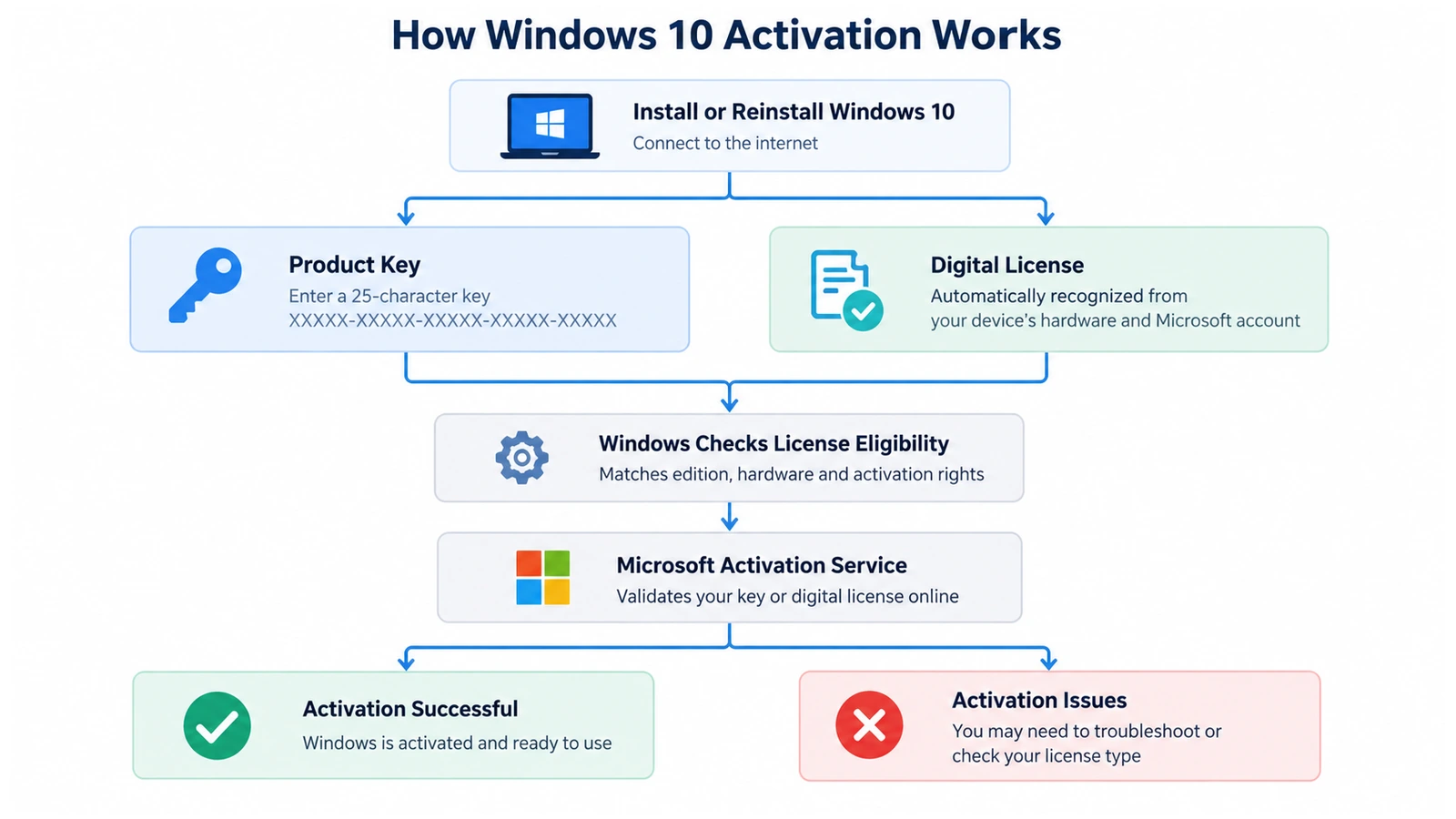
Mithilfe der Windows-Aktivierung kann Microsoft überprüfen, ob eine Windows-Installation über eine gültige Lizenz verfügt und die zulässige Anzahl an Geräten nicht überschreitet.
Stellen Sie sich einen Produktschlüssel als eine Art Zugangsdaten vor, mit denen sich ein Aktivierungsanspruch nachweisen lässt. Eine digitale Lizenz hingegen ermöglicht es Windows, einen bereits bestehenden, mit dem Gerät verknüpften Anspruch zu erkennen.
Keine der beiden Methoden hebt jedoch die ursprüngliche Lizenzvereinbarung auf.
Schritt 1: Windows ermittelt die Aktivierungsmethode
Bei der Installation oder Aktivierung prüft Windows, ob der Computer über eine gültige digitale Lizenz verfügt oder ob der Benutzer einen Produktschlüssel angibt.
A Digitale Windows 10-Lizenz funktioniert in der Regel, ohne dass ein 25-stelliger Code manuell eingegeben werden muss.
Im Gegensatz dazu erfordert die Aktivierung per Produktschlüssel einen gültigen Schlüssel, der der richtigen Windows-Edition zugeordnet ist.
Schritt 2: Windows überprüft das Gerät und die Lizenz
Windows kommuniziert mit den Aktivierungsdiensten von Microsoft, wenn eine Online-Aktivierung stattfindet.
Das System berücksichtigt den verfügbaren Aktivierungsanspruch und die mit dem Gerät verbundenen Informationen.
Wenn man beispielsweise Windows 10 Home auf einem bereits aktivierten Computer neu installiert, ist oft eine automatische Reaktivierung möglich.
Der Austausch des Mainboards kann jedoch die Geräteidentität so stark verändern, dass eine erneute Aktivierungsprüfung erforderlich wird.
Schritt 3: Windows zeigt das Ergebnis der Aktivierung an
Nach der Bearbeitung der Anforderung meldet Windows den Aktivierungsstatus.
Wenn die Aktivierung erfolgreich war, wird auf der Seite „Aktivierung“ bestätigt, dass Windows aktiviert ist. Andernfalls zeigt Windows möglicherweise eine Option zur Fehlerbehebung oder einen Fehlercode an.
Microsoft erläutert diese Methoden in seiner offiziellen Dokumentation zur Windows-Aktivierung.
Arten von Windows 10-Lizenzen und deren Wiederverwendungsregeln
Es ist wichtig, die Art der Lizenz zu verstehen, da unterschiedliche Erwerbsmethoden unterschiedliche Nutzungsrechte mit sich bringen.
Einzelhandelslizenz
Eine Retail-Lizenz wird in der Regel beim separaten Kauf von Windows erworben.
Gemäß den Lizenzbedingungen für eigenständige Software von Microsoft ist bei berechtigten Einzelhandelslizenzen grundsätzlich eine Übertragung auf andere Geräte zulässig, sofern die Kopie auf dem bisherigen Gerät nicht mehr genutzt wird.
Beispielsweise kann jemand, der Windows 10 separat erworben hat, diese Lizenz möglicherweise auf einen Ersatzcomputer übertragen.
Es ist jedoch nicht zulässig, Windows mit einer Standardlizenz für ein einzelnes Gerät auf zwei Computern gleichzeitig zu aktivieren.
OEM-Lizenz
Eine Original Equipment Manufacturer (OEM)-Lizenz ist in der Regel bereits auf einem Desktop-PC oder Laptop vorinstalliert. Diese Lizenzen bleiben in der Regel an den ursprünglich lizenzierten Computer gebunden.
Therefore, replacing an SSD usually does not require a new license, while transferring a preinstalled OEM license to a completely different computer generally falls outside its standard transfer rights.
Certain manufacturer warranty repairs and applicable legal exceptions may affect specific situations.
Volume License
Organizations use Volume Licensing to manage Windows across multiple devices. These licenses may use Key Management Service (KMS), Multiple Activation Keys (MAK), or other organization-managed activation arrangements.
Consequently, employees should contact their IT administrator rather than attempting to transfer an organizational Windows key independently.
For exact transfer conditions, consult Microsoft’s Windows 10 Retail License Terms.
Windows 10 Product Key vs. Digital License: What's the Difference?
A common misconception is that every activated computer has a unique product key that users can retrieve and reuse. In reality, Microsoft supports more than one activation method.
Merkmal | Windows 10 Product Key | Windows 10 Digital License |
Form | 25-stelliger Code | Activation entitlement |
Manual entry | May be required | In der Regel unnötig |
Where it comes from | Purchase, packaging, firmware, or licensing records | Established through eligible activation |
Same-device reinstall | Can be entered again if appropriate | Usually reactivates automatically |
Hardware-Änderungen | May require key re-entry | May require account-linked troubleshooting |
Transferability | Depends on license terms | Depends on underlying license rights |
A digital license can also be associated with a Microsoft account. This association helps eligible users reactivate Windows after major hardware changes.
However, linking an account does not convert an OEM license into a transferable Retail license.
Likewise, retrieving an installed product key does not guarantee that it represents the computer’s original purchased license.
Why Does Reusing a Windows 10 Key Matter?
The consequences of reusing a Windows 10 key depend on what changes to the computer.
Reinstalling Windows 10 on the Same Computer
A clean installation removes the existing operating system, but it does not automatically cancel the computer’s license.
If the device already has a valid digital license, installing the same Windows edition usually allows automatic reactivation after connecting to the internet.
For example, a computer previously activated with Windows 10 Pro should generally receive Windows 10 Pro again.
Replacing an HDD or SSD
Storage upgrades normally have little effect on Windows activation because the license does not depend solely on the storage drive.
Therefore, an SSD replacement usually does not require purchasing another Windows license.
Nevertheless, backing up personal files and software license information remains important before performing the upgrade.
Replacing the Motherboard
Motherboard replacement creates a more significant activation issue because Windows may no longer recognize the device.
The result depends on the original license and whether Microsoft’s supported reactivation process applies.
For eligible digital licenses, linking the license to a Microsoft account before making changes can simplify the process.
Moving Windows to Another PC
Moving a license to another computer requires more than knowing the original product key.
A qualifying Retail license may permit the transfer, while a preinstalled OEM license generally remains with the original device.
As a result, users should verify the license agreement before attempting activation elsewhere.
Where Can You Check Windows 10 Activation Information?
Windows provides several built-in ways to inspect activation-related information. These methods help you understand the current state without changing the license.
Check Activation Status in Settings
- Presse
Gewinn + Ium die Einstellungen zu öffnen. - Gehe zu Update & Security > Activation.
- Check the Windows edition and activation message.
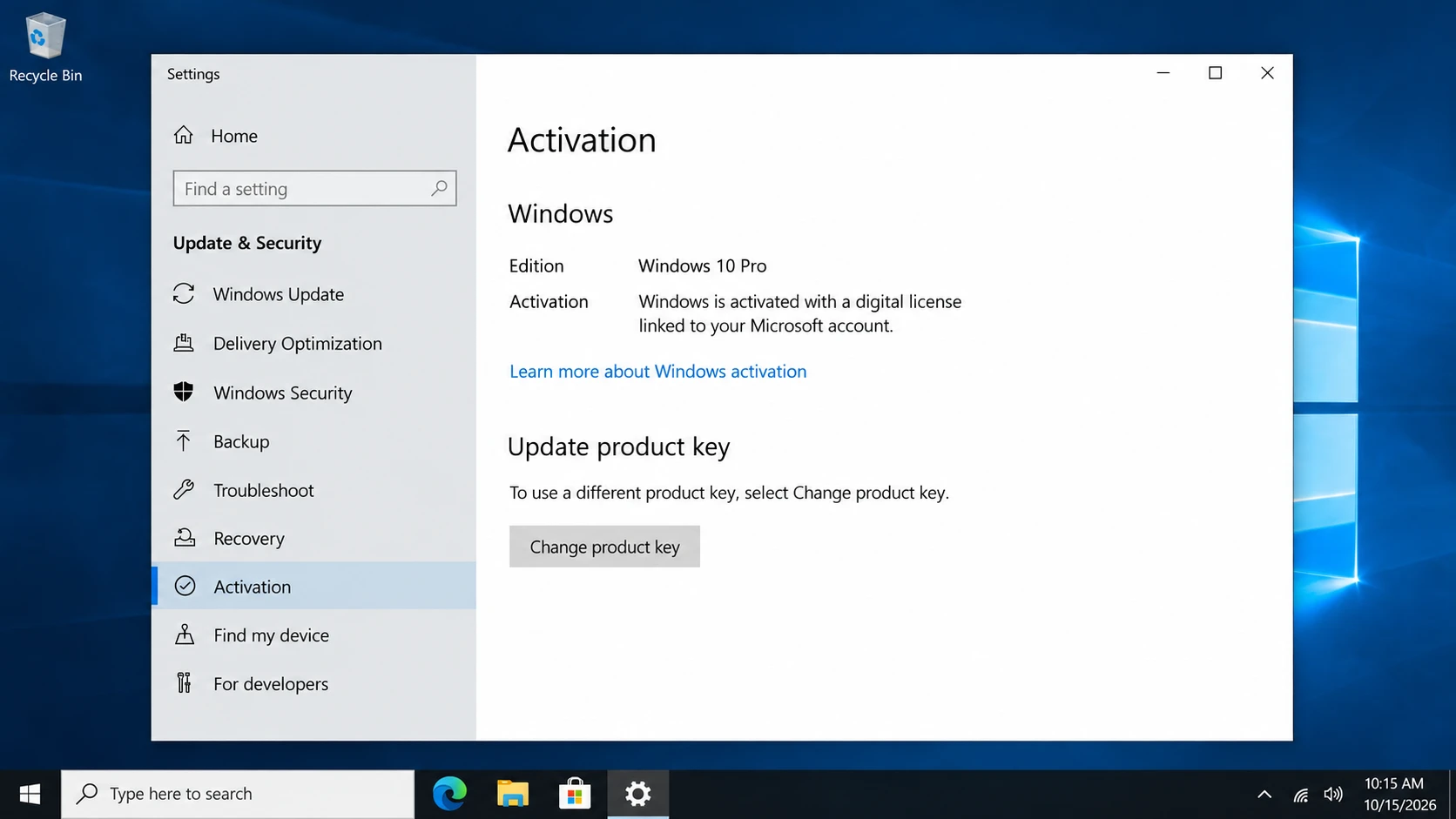
Windows may display:
- Windows ist mit einer digitalen Lizenz aktiviert.
- Windows wird mit einer digitalen Lizenz aktiviert, die mit Ihrem Microsoft-Konto verknüpft ist.
- Windows ist nicht aktiviert.
These messages help determine whether a new product key is necessary.
Check License Information with Command Prompt
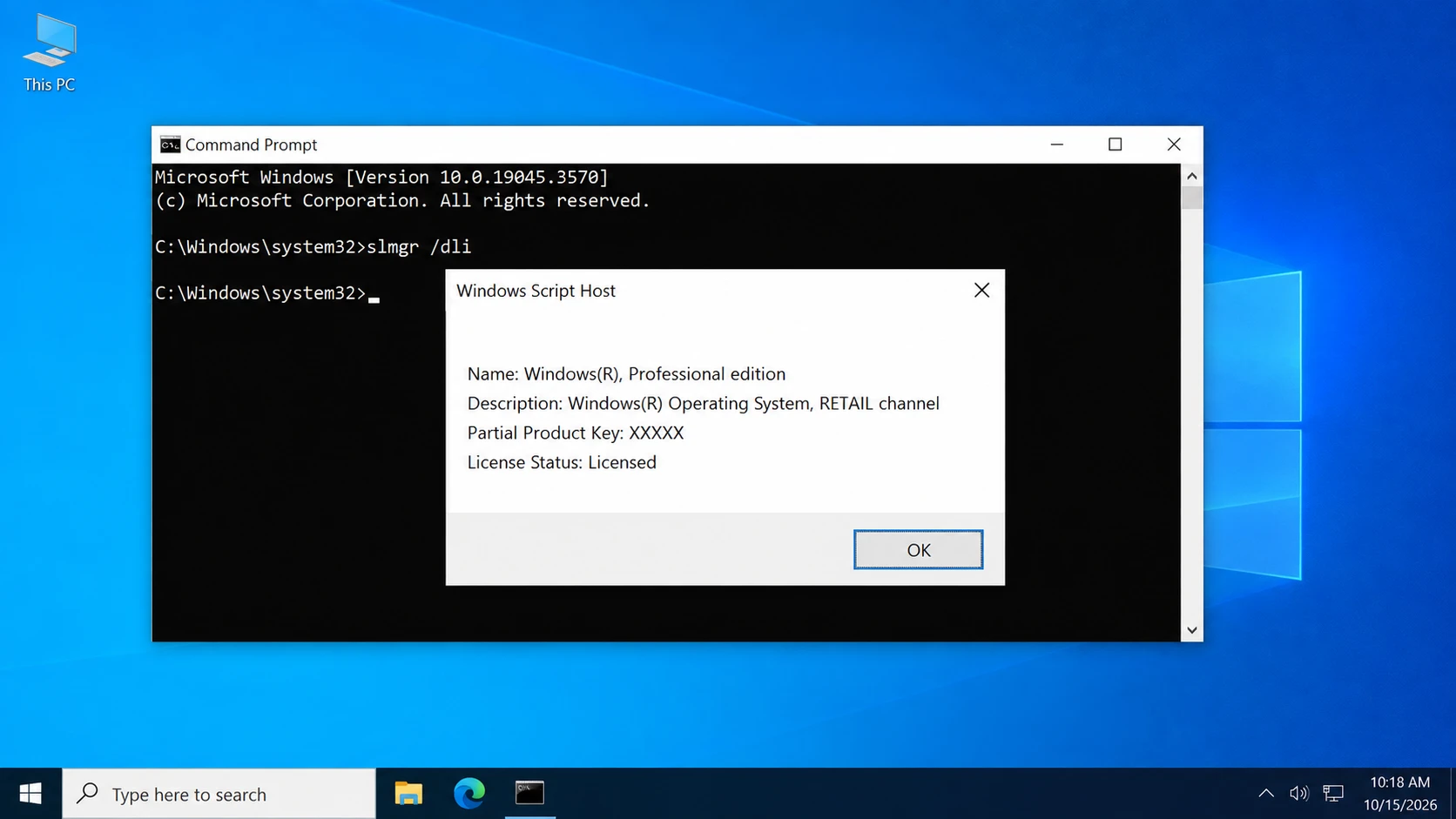
Open Command Prompt as administrator and run slmgr /dli.
The resulting window may show information about the installed licensing channel, such as Retail or OEM.
However, this command cannot reliably establish every license’s original purchase conditions. It may also report a generic installed key.
Check for an OEM Product Key with PowerShell
Some manufacturers store the original OEM product key in UEFI firmware.
Open PowerShell and run:
(Get-CimInstance -ClassName SoftwareLicensingService).OA3xOriginalProductKey
If the firmware contains a key, Windows may display it.
An empty result does not necessarily indicate an activation problem. For additional methods, see our guide on how to get your Windows 10 product key.
Common Misconceptions About Reusing Windows 10 Keys
Several misunderstandings can lead to unnecessary purchases or unsuccessful activation attempts.
Misconception 1: A Product Key Can Always Be Used Again
Not every license allows transfers between computers. Retail, OEM, and Volume licenses follow different rules. Additionally, some product keys act as generic installation keys rather than independent proof of a valid license.
Misconception 2: Reinstalling Windows Always Requires a New Key
A computer with an existing digital license often reactivates automatically after reinstalling the same Windows edition. Therefore, users should check activation before assuming they need to purchase another license.
Misconception 3: Uninstalling a Product Key Transfers the License
The command slmgr /upk removes the installed product key from the local Windows installation. However, it does not automatically transfer license rights, clear every server-side activation record, or guarantee activation on another computer.
Misconception 4: Finding a Key Guarantees Successful Activation
A retrieved key may be an OEM firmware key, a generic installation key, or another stored value.
Consequently, its presence does not guarantee that the key can activate a different device.
Is It Safe to Reuse or Change a Windows 10 Key?
Wiederverwendung eines Windows 10-Schlüssels through Microsoft’s supported activation methods is generally safe when you have the necessary license rights.
However, changing activation information carelessly may leave Windows unactivated.
Before making changes:
- Confirm that Windows Home or Pro matches your license.
- Save relevant purchase documentation.
- Link an eligible digital license to your Microsoft account before significant hardware changes.
- Avoid unknown activation scripts and unofficial KMS services.
- Never publish complete product keys or account credentials.
If the system uses an organization’s license, consult the IT administrator before modifying its activation configuration.
What Should You Do When You Need to Reuse Windows 10?
After understanding how activation works, choose the next step according to your circumstances.
Same Computer: Reinstall and Reactivate
For a previously activated computer, reinstall the corresponding Windows edition.
During setup, users with a valid digital license can usually select I don’t have a product key.
Next, connect to the internet and check Activation settings.
Changed Motherboard: Use Microsoft’s Reactivation Process
If Windows becomes unactivated after a significant hardware change, open Settings > Update & Security > Activation > Troubleshoot.
For eligible, previously linked digital licenses, follow I changed hardware on this device recently and select the appropriate device.
Microsoft provides the complete procedure in its hardware-change reactivation guide.
New Computer: Check Transfer Rights First
If you purchased a qualifying stand-alone Retail license, review the transfer terms and stop using the licensed copy on the old device.
Then install the matching Windows edition on the new computer and enter the eligible product key through Activation settings.
If activation fails, contact Microsoft rather than repeatedly entering unrelated keys.
Missing Product Key: Check Existing Records
When the original key is unavailable, start with purchase emails, retail accounts, packaging, and Windows’ built-in inspection methods.
If you need to locate and back up accessible software keys before reinstalling Windows, Magic Recovery Key offers a convenient way to check supported Windows and application license information. Unlike manually searching multiple locations, it provides a centralized interface for reviewing available keys.
However, it cannot generate missing licenses, bypass Microsoft activation requirements, or guarantee that every original key can be recovered.

Can You Still Reuse a Windows 10 Key in 2026?
Yes. Windows 10 license reuse can remain possible in 2026 when the relevant activation requirements and license terms permit it.
Microsoft ended regular Windows 10 support on October 14, 2025. However, the end of support did not automatically invalidate existing legitimate licenses.
Windows 10 computers can continue operating, although systems without ongoing security updates face increased risks.
Therefore, eligible users should consider Windows 11. Others can review Microsoft’s Windows 10 Extended Security Updates options.
Schlussfolgerung
Wiederverwendung des Windows 10-Schlüssels means activating Windows again under an existing license, but the ability to do so depends on the original license rights, hardware configuration, and activation method. Digital licenses simplify same-device reinstalls, while transferring a license to another computer requires additional consideration.
Understanding the distinction between product keys, digital licenses, and license transfer rights helps prevent unnecessary activation problems.
When license information is missing, Windows’ built-in tools and purchase records should come first. Magic Recovery Key is worth considering when you need a convenient way to locate and back up accessible software keys before reinstalling Windows. For further information, explore our Zentrum zur Wiederherstellung von Lizenzschlüsseln.
Unterstützt Windows 7/8/10/11 und Windows Server
FAQs About Reusing Windows 10 Keys
Kann ich meinen Windows 10-Schlüssel nach der Formatierung meines Computers wiederverwenden?
Kann ich meinen Windows 10-Schlüssel nach dem Austausch einer SSD wiederverwenden?
Kann ich einen OEM-Schlüssel für Windows 10 auf einen neuen Computer übertragen?
Kann ich einen Windows 10-Produktschlüssel auf zwei Computern verwenden?
Ist eine digitale Windows 10-Lizenz dasselbe wie ein Produktschlüssel?
Wie oft kann ein Windows 10-Retail-Schlüssel wiederverwendet werden?
Hat das Ende des Supports für Windows 10 Auswirkungen auf die Aktivierung mit dem Produktschlüssel?

Vasilii ist ein Datenrettungsspezialist mit rund 10 Jahren praktischer Erfahrung in diesem Bereich. Im Laufe seiner Karriere hat er Tausende von komplexen Fällen mit gelöschten Dateien, formatierten Laufwerken, verlorenen Partitionen und RAW-Dateisystemen erfolgreich gelöst. Sein Fachwissen umfasst sowohl manuelle Wiederherstellungsmethoden mit professionellen Tools wie Hex-Editoren als auch fortschrittliche automatische Lösungen mit Wiederherstellungssoftware. Vasilii hat es sich zur Aufgabe gemacht, zuverlässiges Wissen zur Datenwiederherstellung sowohl IT-Fachleuten als auch normalen Nutzern zugänglich zu machen und ihnen dabei zu helfen, ihre wertvollen digitalen Ressourcen zu schützen.