
Lo que debe saber antes de solicitar servicios de recuperación de datos a Docomo

El “Servicio de recuperación de datos” de Docomo se ocupa principalmente de fallos físicos (como daños en la placa de circuitos, daños por agua o problemas de suministro eléctrico). En estos casos, lo óptimo es solicitar el servicio de recuperación de datos de Docomo, ya que se requieren entornos especializados de sala blanca y sustituciones de componentes o análisis a nivel de chip.
Sin embargo, para cuestiones lógicas como eliminación accidental, unidades formateadas, o discos no reconocidos, la recuperación podría ser posible mediante el reanálisis de la estructura de datos en lugar de la reparación física. Estos fallos lógicos pueden ser reparados por personas con los conocimientos y las herramientas adecuadas.
Compatible con Windows 7/8/10/11 y Windows Server
Índice
¿Qué es un Error Lógico? Casos No Soportados por el Servicio de Recuperación de Datos de Docomo
Un “error lógico” se refiere a una situación en la que, aunque el propio hardware funciona con normalidad, los problemas con el sistema de archivos o la información de las particiones impiden que los datos sean visibles.
Algunos ejemplos típicos son:
Eliminación accidental de archivos o carpetas
Formatear la unidad
Muestra “No se puede acceder” o “Formato RAW”.”
Estos problemas pueden ser recuperables por Docomo, pero el proceso de recuperación puede llevar de varios días a semanas y puede ser costoso. Además, puede haber preocupaciones sobre la privacidad ya que los datos personales podrían ser entregados a un servicio externo. A continuación, presentaremos las formas en que puede intentar la recuperación por su cuenta.
Recuperación manual de datos con WinHex (para usuarios avanzados)
Para analizar los fallos de datos lógicos, se utiliza un editor binario como WinHex (de X-Ways).
Esta herramienta permite ver y editar directamente los datos sin procesar de un disco y reconstruir particiones dañadas o archivos borrados.
Pasos básicos de recuperación utilizando WinHex (ejemplo: NTFS):
1. Abra Administración de discos (pulse Win + R, escriba “diskmgmt.msc”) y compruebe el estado del disco.

2. Si la unidad aparece como RAW, suele ser necesario analizar el sistema de archivos.

3. Abra la unidad con WinHex. Analice el sistema de archivos NTFS (consulte la Documentación oficial sobre la estructura NTFS de Microsoft). En este caso, el sistema de archivos estaba dañado.

4. Busque la firma DBR de copia de seguridad (EB5290) desde el final de la partición.

5. Sobrescriba el sector que contiene el DBR con el DBR de copia de seguridad.

6. Compruebe de nuevo la Administración de discos para confirmar que se puede acceder a la unidad con normalidad.

👉 Sin embargo, este método requiere conocimientos avanzados y experiencia, y las operaciones incorrectas podrían provocar más daños en los datos.
Solución Alternativa para Recuperar Datos Docomo Sin Conocimientos de Experto
Si desea recuperar los datos de un error lógico de forma segura, se recomienda utilizar una herramienta automatizada como Magic Data Recovery.
Características de Magic Data Recovery:
Admite eliminación accidental, discos formateados, y discos no reconocidos.
Totalmente compatible con los principales sistemas de archivos, incluidos NTFS, FAT, exFAT y ReFS.
Vista previa de los archivos detectados tras el escaneado → Recuperación con un solo clic
Sin necesidad de conocimientos técnicos como WinHex. Seguro para principiantes
Compatible con Windows 11 / 10 / 8 / 7
Magic Data Recovery automatiza las técnicas avanzadas utilizadas en WinHex, haciendo accesible a todo el mundo una recuperación de nivel profesional. Antes de optar por el servicio de recuperación de datos de Docomo, se recomienda probar primero este método seguro por su cuenta.
Comparación entre el servicio de recuperación de datos de Docomo y la recuperación autogestionada
| Característica | Servicio de recuperación de datos de Docomo | Magic Data Recovery |
|---|---|---|
| Cobertura | Foco de daño físico | Errores lógicos (borrado, formateo, RAW, etc.) |
| Coste | Caro (varios miles de yenes) | Escaneado gratuito → Recupera solo los datos necesarios |
| Conocimientos necesarios | Ninguno | Ninguna (proceso automatizado) |
| Tiempo | De varios días a semanas | Inmediato (se puede hacer en casa) |
Cómo utilizar Magic Data Recovery
1. Descargue e instale Magic Data Recovery desde el sitio web oficial.
Compatible con Windows 7/8/10/11 y Windows Server
2. Después de iniciar, seleccione el disco o unidad que desea recuperar.

3. Haga clic en “Iniciar exploración” y buscará automáticamente los archivos o carpetas perdidos.

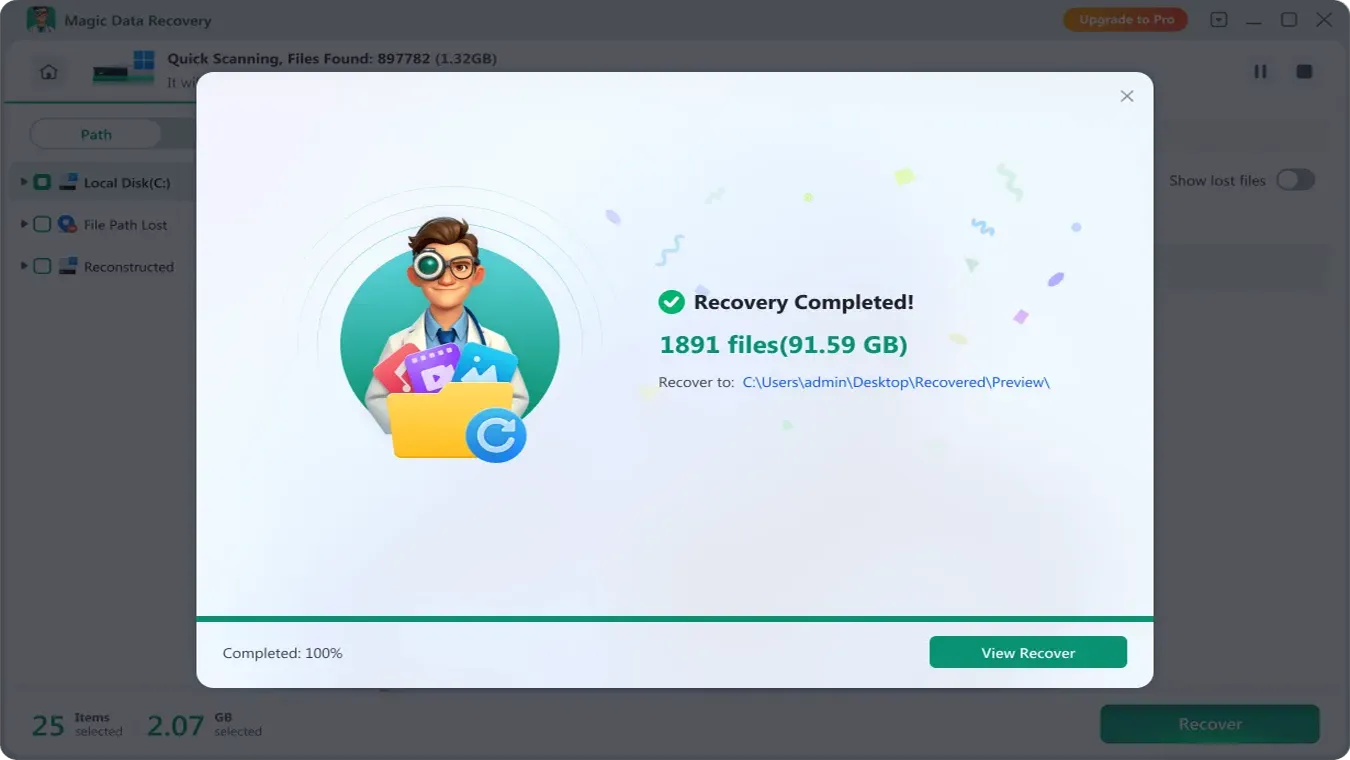
4. Una vez finalizado el escaneo, previsualice los datos detectados y seleccione los archivos que desea recuperar.

5. Pulsa el botón “Recuperar” y especifica la carpeta de destino para completar el proceso.
Conclusión
Para fallos físicos, lo mejor es utilizar el servicio de recuperación de Docomo. Sin embargo, para errores lógicos (borrado, formateo, archivos inaccesibles), es inteligente intentar primero Magic Data Recovery en casa. Ofrece una precisión de recuperación de nivel técnico con un solo clic, lo que la convierte en la herramienta más práctica. Solución HDD para los usuarios de recuperación de datos de Docomo hoy mismo.
Compatible con Windows 7/8/10/11 y Windows Server
PREGUNTAS FRECUENTES
¿Cuándo debo utilizar el servicio de recuperación de datos de Docomo?
¿Puedo recuperar datos borrados o formateados a través de Docomo?
¿Existe algún método de recuperación de datos más barato y seguro que Docomo?

Vasilii es un especialista en recuperación de datos con unos 10 años de experiencia práctica en este campo. A lo largo de su carrera, ha resuelto con éxito miles de casos complejos relacionados con archivos borrados, unidades formateadas, particiones perdidas y sistemas de archivos RAW. Su experiencia abarca tanto métodos de recuperación manual con herramientas profesionales como editores hexadecimales como soluciones automatizadas avanzadas con software de recuperación. La misión de Vasilii es poner los conocimientos sobre recuperación de datos al alcance tanto de los profesionales informáticos como de los usuarios de a pie, ayudándoles a salvaguardar sus valiosos activos digitales.