
Cose da sapere prima di richiedere i servizi di recupero dati a Docomo

Il “Servizio di recupero dati” di Docomo si occupa principalmente di guasti fisici (come danni alle schede elettroniche, all'acqua o problemi di alimentazione). In questi casi, è ottimale richiedere il servizio di recupero dati di Docomo, poiché sono necessari ambienti specializzati in camera bianca e sostituzioni di componenti o analisi a livello di chip.
Tuttavia, per questioni logiche come cancellazione accidentale, dischi formattati, o dischi non riconosciuti, il recupero potrebbe essere possibile attraverso la rianalisi della struttura dei dati piuttosto che la riparazione fisica. Questi guasti logici possono essere riparati da persone con le conoscenze e gli strumenti giusti.
Supporta Windows 7/8/10/11 e Windows Server
Indice dei contenuti
Che cos'è un errore logico? Casi non supportati dal servizio di recupero dati Docomo
Un “errore logico” si riferisce a una situazione in cui, anche se l'hardware funziona normalmente, problemi con il file system o le informazioni della partizione impediscono la visibilità dei dati.
Esempi tipici sono:
Eliminazione accidentale di file o cartelle
Formattazione dell'unità
Visualizzazione di “Impossibile accedere” o “Formato RAW”.”
Questi problemi possono essere recuperati da Docomo, ma il processo di recupero può richiedere diversi giorni o settimane e può essere costoso. Inoltre, potrebbero esserci problemi di privacy poiché i dati personali potrebbero essere consegnati a un servizio esterno. In seguito, vi illustreremo i modi in cui potete tentare il recupero da soli.
Recupero manuale dei dati con WinHex (per utenti esperti)
Per analizzare i guasti dei dati logici, si utilizza un editor binario come WinHex (by X-Ways).
Questo strumento consente di visualizzare e modificare direttamente i dati grezzi su un disco e di ricostruire partizioni danneggiate o file eliminati.
Operazioni di ripristino di base con WinHex (esempio: NTFS):
1. Aprire Gestione disco (premere Win + R, digitare “diskmgmt.msc”) e controllare lo stato del disco.

2. Se l'unità viene visualizzata come RAW, in genere è necessaria un'analisi del file system.

3. Aprire l'unità con WinHex. Analizzare il file system NTFS (fare riferimento alla documentazione ufficiale documentazione sulla struttura NTFS di Microsoft). In questo caso, il file system era danneggiato.

4. Cercare la firma DBR di backup (EB5290) dalla fine della partizione.

5. Sovrascrivere il settore contenente il DBR con il DBR di backup.

6. Controllare nuovamente Gestione disco per verificare che l'unità sia accessibile normalmente.

👉 Tuttavia, questo metodo richiede conoscenze avanzate ed esperienza, e operazioni non corrette potrebbero causare ulteriori danni ai dati.
Soluzione alternativa per il recupero dati Docomo senza conoscenze specialistiche
Se si desidera recuperare i dati in modo sicuro da un errore logico, si consiglia di utilizzare uno strumento automatico come Magic Data Recovery.
Caratteristiche di Magic Data Recovery:
Supporta cancellazione accidentale, dischi formattati, e dischi non riconosciuti.
Supporta completamente i principali file system, tra cui NTFS, FAT, exFAT e ReFS.
Anteprima dei file rilevati dopo la scansione → Recupero con un solo clic
Non richiede conoscenze tecniche come WinHex. Sicuro per i principianti
Compatibile con Windows 11 / 10 / 8 / 7
Magic Data Recovery automatizza le tecniche avanzate utilizzate in WinHex, rendendo accessibile a tutti un recupero di livello professionale. Prima di optare per il servizio di recupero dati di Docomo, si consiglia di provare questo metodo sicuro da soli.
Confronto tra il servizio di recupero dati Docomo e il recupero autogestito
| Caratteristica | Servizio di recupero dati Docomo | Magic Data Recovery |
|---|---|---|
| Copertura | Focus sui danni fisici | Errori logici (cancellazione, formattazione, RAW, ecc.) |
| Costo | Costoso (diverse migliaia di yen) | Scansione gratuita → Recupera solo i dati necessari |
| Conoscenze richieste | Nessuno | Nessuno (processo automatizzato) |
| Tempo | Da alcuni giorni a settimane | Immediato (può essere fatto a casa) |
Come utilizzare Magic Data Recovery
1. Scaricate e installate Magic Data Recovery dal sito ufficiale.
Supporta Windows 7/8/10/11 e Windows Server
2. Dopo l'avvio, selezionare il disco o l'unità che si desidera ripristinare.

3. Fare clic su “Avvia scansione” per cercare automaticamente i file o le cartelle persi.

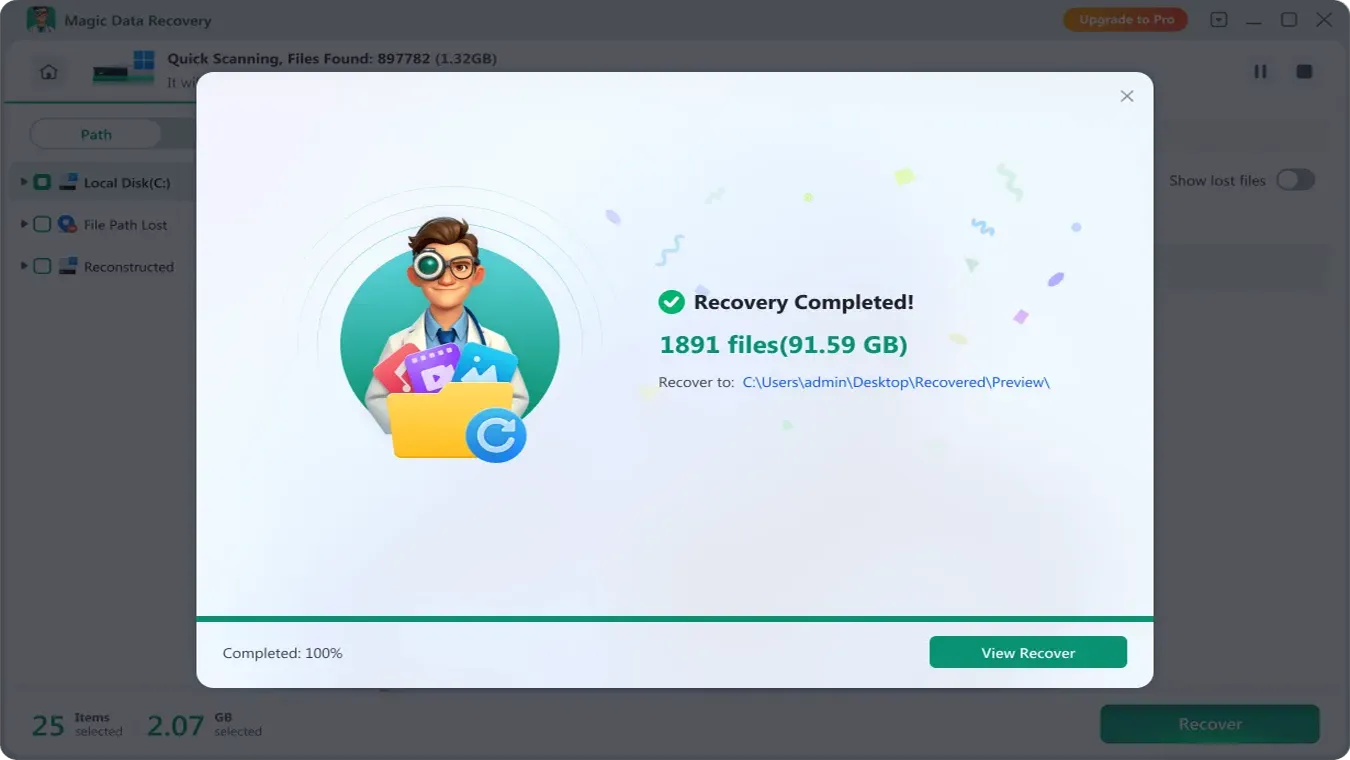
4. Una volta completata la scansione, visualizzare l'anteprima dei dati rilevati e selezionare i file che si desidera recuperare.

5. Premere il pulsante “Recupera” e specificare la cartella di destinazione per completare il processo.
Conclusione
Per i guasti fisici, è meglio utilizzare il servizio di recupero di Docomo. Tuttavia, per errori logici (cancellazione, formattazione, file inaccessibili), è consigliabile provare prima di tutto a Magic Data Recovery a casa. Offre una precisione di recupero a livello tecnico con un semplice clic, il che lo rende il sistema più pratico. Soluzione HDD per gli utenti del recupero dati Docomo oggi.
Supporta Windows 7/8/10/11 e Windows Server
FAQ
Quando è necessario utilizzare il servizio di recupero dati di Docomo?
È possibile recuperare i dati cancellati o formattati tramite Docomo?
Esiste un metodo di recupero dati più economico e sicuro di Docomo?

Vasilii è uno specialista del recupero dati con circa 10 anni di esperienza pratica nel settore. Nel corso della sua carriera, ha risolto con successo migliaia di casi complessi riguardanti file cancellati, unità formattate, partizioni perse e file system RAW. La sua esperienza copre sia i metodi di recupero manuale utilizzando strumenti professionali come gli editor esadecimali, sia le soluzioni automatiche avanzate con i software di recupero. La missione di Vasilii è quella di rendere accessibile la conoscenza del recupero dati affidabile sia ai professionisti IT che agli utenti di tutti i giorni, aiutandoli a salvaguardare i loro preziosi beni digitali.