
Recuperación de archivos de un disco duro externo: 7 métodos
Cuando necesites Recuperar archivos de un disco duro externo soluciones, tu prioridad principal es proteger los datos que aún puedan quedar en el disco duro. La eliminación accidental, el formateo, una partición RAW, o que el sistema de archivos esté dañado no siempre significa que tus archivos se hayan perdido para siempre. En muchos casos de pérdida lógica de datos, la recuperación sigue siendo posible siempre y cuando los nuevos datos no hayan sobrescrito el espacio de almacenamiento original.
Esta guía explica cómo recuperar archivos de un disco duro externo de forma segura, cómo elegir el adecuado método de recuperación de un disco duro externo, y cuándo conviene utilizar un programa de recuperación de datos. Además, aprenderás cómo Magic Data Recovery puede simplificar el proceso para los usuarios de Windows que prefieren un flujo de trabajo visual en lugar de herramientas de línea de comandos.
Compatible con Windows 7/8/10/11 y Windows Server
Índice
Recuperación de archivos de un disco duro externo: qué hacer primero
Antes de probar cualquier Recuperar archivos de un disco duro externo método, deje de utilizar la unidad afectada. Las nuevas operaciones de escritura podrían sobrescribir datos recuperables.
Por lo tanto:
- Deja de copiar, mover o crear archivos en la unidad.
- No formatees una unidad RAW o inaccesible.
- Evite CHKDSK antes de guardar archivos importantes.
- Instala el software de recuperación en otra unidad que funcione correctamente.
- Guarda los archivos recuperados en otro dispositivo de almacenamiento.
- Desconecta la unidad si hace ruido, chirría o se apaga repetidamente.
Por lo tanto, hay que evitar que se realicen más escrituras antes de la recuperación.
¿Aún se puede recuperar tu disco duro externo?
La respuesta depende de si el problema es de carácter lógico o físico. La pérdida lógica incluye el borrado, el formateo, la pérdida de particiones, los archivos ocultos y los problemas con unidades RAW. El fallo físico se debe a daños en el hardware.
Síntoma | Posible problema | El mejor primer paso |
Archivos eliminados | Pérdida lógica | Deja de utilizar la unidad y comprueba las copias de seguridad |
Unidad formateada | Pérdida lógica | Deja de utilizarlo y haz un análisis |
La partición se convierte en RAW | Daños en el sistema de archivos | Recuperar antes de formatear |
Los archivos desaparecen, pero la unidad se abre | Archivos ocultos o error lógico | Comprueba los atributos y, a continuación, realiza un escaneo |
La unidad solo aparece en «Administración de discos» | Problema con la partición o el sistema de archivos | No le apliques formato |
Chasquidos o crujidos | Fallo físico | Desconecta la unidad |
Olor a quemado, daños por líquido o falta de centrifugado | Fallo físico | Ponte en contacto con un servicio de asistencia en carretera |
Si Windows sigue detectando la unidad, hazlo tú mismo Recuperación de datos de discos duros externos Puede que funcione. En caso de avería de hardware, es necesario recurrir a un profesional.
7 métodos para recuperar archivos de un disco duro externo
Método 1: Comprobar el disco duro externo en «Administración de discos»
Antes de empezar un Recuperar archivos de un disco duro externo proceso, comprueba que Windows siga detectando el dispositivo.
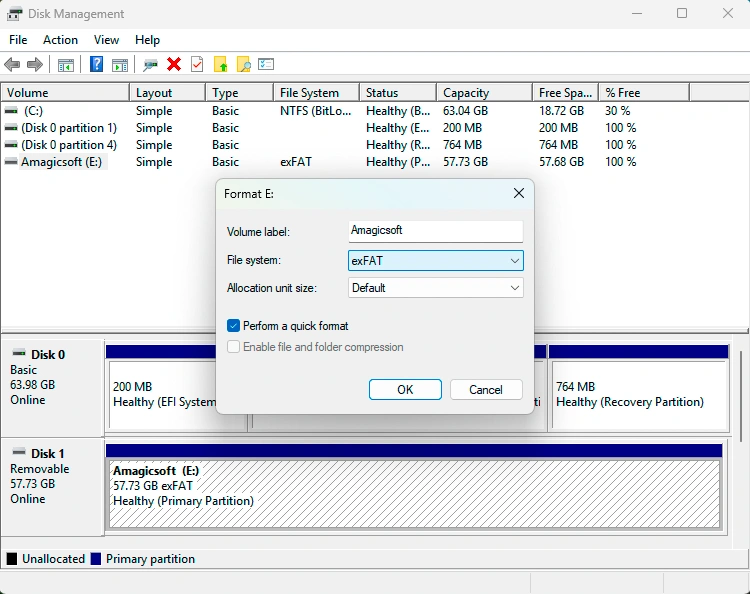
Pulse Windows + X, seleccione Gestión de discos, y localiza la unidad. Comprueba su capacidad, el estado de las particiones y la letra de la unidad.
Si «Administración de discos» detecta la unidad pero el Explorador de archivos no, es posible que haya un problema con la letra de la unidad, la partición o el sistema de archivos. No formatees el disco, aunque Windows te lo pida. Si la unidad hace ruido, se desconecta repetidamente o no gira, deja de intentar recuperarla por tu cuenta.
Método 2: Recuperar archivos desde una copia de seguridad
A continuación, comprueba el Historial de archivos, OneDrive, Google Drive, Dropbox, un dispositivo de almacenamiento NAS, otro disco externo o tu sistema de copias de seguridad habitual.
Una copia de seguridad suele ser la solución más segura. Si no hay ninguna copia válida, pasa a software de recuperación de discos duros externos.
Método 3: Recuperar archivos de un disco duro externo con Magic Data Recovery
Cuando no existe ninguna copia de seguridad válida, Magic Data Recovery ofrece una solución práctica Recuperar archivos de un disco duro externo opción para los usuarios de Windows.
Es compatible con los dispositivos de almacenamiento más habituales y con numerosos tipos de archivos. Además, su interfaz gráfica permite gestionar la eliminación, el formateo, las particiones RAW y otros casos de pérdida lógica de datos en unidades legibles. Su flujo de trabajo de análisis, vista previa y recuperación permite Recuperación de archivos de un disco duro externo más fácil.
Paso 1: Descargar e instalar Magic Data Recovery
Descarga Magic Data Recovery e instálalo en una unidad que funcione correctamente. No instales el programa en el disco externo afectado, ya que los nuevos datos de instalación podrían sobrescribir los archivos perdidos.
Compatible con Windows 7/8/10/11 y Windows Server
Paso 2: Selecciona el disco duro externo
A continuación, conecta la unidad, abre Magic Data Recovery y selecciona el disco o la partición de donde han desaparecido los archivos.

Paso 3: Buscar archivos perdidos
Inicia el análisis. Mientras tanto, evita utilizar la unidad afectada para otras tareas.

Paso 4: Previsualizar los resultados de la recuperación
Una vez finalizado el escaneo, previsualiza los archivos compatibles y comprueba cuáles necesitas.

Paso 5: Recuperar archivos en otra unidad
Por último, guarda los archivos que necesites en otro dispositivo de almacenamiento. Nunca los restaures en el disco de origen.
A modo de ejemplo Recuperar archivos de un disco duro externo En cuanto al flujo de trabajo, Magic Data Recovery resulta más sencillo que la recuperación mediante la línea de comandos. Sin embargo, el software no puede recuperar datos que hayan sido sobrescritos por completo ni reparar daños físicos graves.

Método 4: Utilizar la herramienta de recuperación de archivos de Windows
«Windows File Recovery» es la utilidad de recuperación de Microsoft que se ejecuta desde la línea de comandos:
winfr E: D: /regular /n *.docx
Aquí, E: es la fuente y D: es el destino; deben ser unidades diferentes. La herramienta es gratuita, pero requiere una sintaxis correcta y la selección del modo adecuado. Por lo tanto, es posible que los principiantes prefieran Magic Data Recovery por su interfaz gráfica Recuperar archivos de un disco duro externo proceso.

Método 5: Restaurar una versión anterior
Si «Historial de archivos» u otra función de copia de seguridad ha creado una copia anterior, haz clic con el botón derecho del ratón en la carpeta original y selecciona Propiedades, y abrir Versiones anteriores. Restaura una versión adecuada si Windows muestra alguna en la lista.
Sin embargo, este método depende de que exista una copia de seguridad y no analiza la unidad en busca de datos eliminados.
Método 6: Recuperar archivos ocultos con CMD
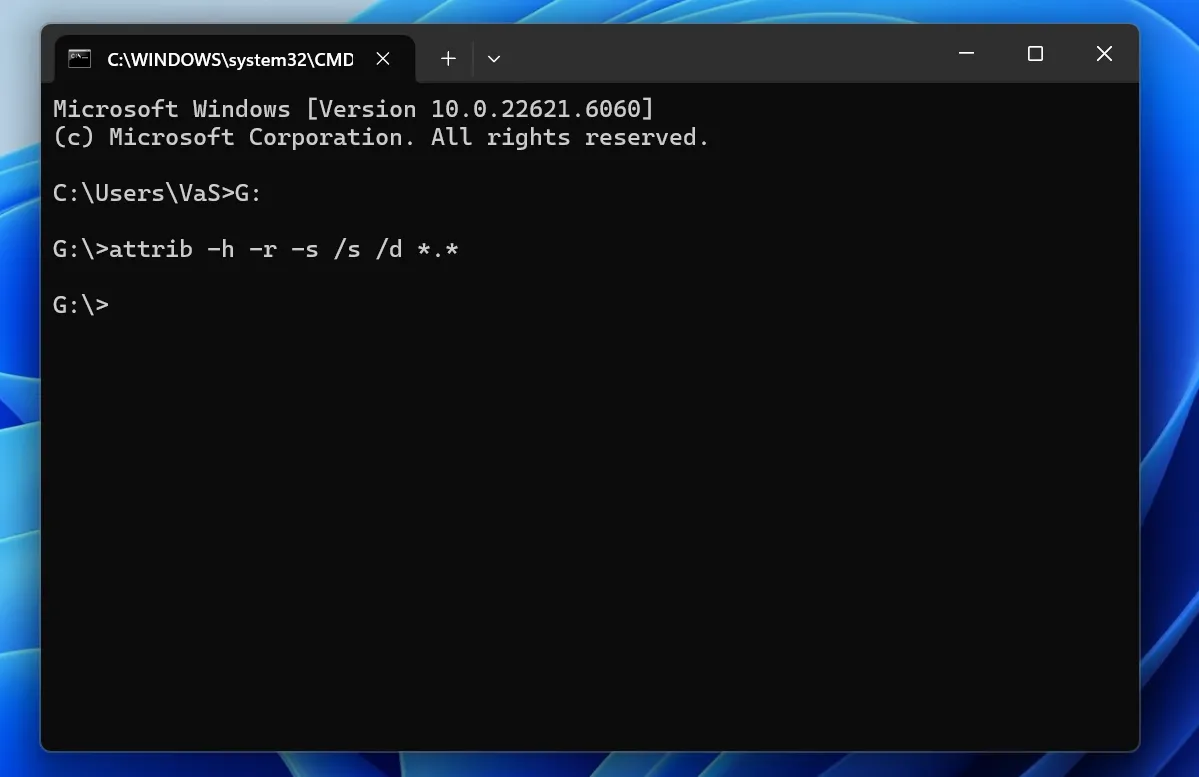
A veces, el malware o los atributos de los archivos ocultan los archivos existentes en el Explorador de archivos.
Inténtalo:
attrib -h -r -s /s /d G:\*.*
Sustituir G: con la letra de unidad correcta.
Este comando permite mostrar los archivos ocultos, pero no puede recuperar datos que se hayan eliminado de forma permanente o se hayan sobrescrito. Por lo tanto, si los archivos siguen sin aparecer, utiliza un Recuperar archivos de un disco duro externo escanear.
Método 7: Recurrir a un servicio profesional de recuperación de datos
Deja de intentar recuperar los datos por tu cuenta si el disco duro hace ruidos como chasquidos o chirridos, se desconecta repetidamente, huele a quemado, ya no gira o ha sufrido daños por líquido o por golpes. Estos síntomas pueden indicar un fallo físico, por lo que debes acudir a un laboratorio de recuperación profesional.
Recuperación de archivos de un disco duro externo: ¿qué método es el mejor?
El mejor método depende de la causa y del estado de la unidad.
Solución | Lo mejor para | Dificultad |
Gestión de discos | Comprobar si Windows detecta la unidad | Fácil |
Copia de seguridad / Historial de archivos | Copias de seguridad existentes | Fácil |
Magic Data Recovery | Datos borrados, formateados, en formato RAW o inaccesibles | Fácil |
Recuperación de archivos de Windows | Casos eliminados y algunos con formato incorrecto o dañados | Avanzado |
Versiones anteriores | Copias de seguridad anteriores | Fácil |
CMD | Archivos ocultos | Medio |
Servicio profesional | Fallo físico | No se admiten trabajos de bricolaje |
En primer lugar, comprueba que Windows detecte la unidad. A continuación, utiliza una copia de seguridad existente, si la hay. Si ninguna copia de seguridad contiene los archivos y la unidad sigue siendo legible, el software de recuperación se convierte en la siguiente opción lógica.
Por lo tanto, este Recuperar archivos de un disco duro externo Esta secuencia mantiene despejada la ruta de recuperación.
¿Deberías ejecutar CHKDSK antes de recuperar archivos de un disco duro externo?
Normalmente, no, sobre todo cuando los archivos importantes no tienen copia de seguridad.
CHKDSK comprueba y repara los problemas del sistema de archivos, pero las operaciones de reparación pueden modificar los metadatos del sistema de archivos. Por lo tanto, recupera primero los archivos importantes. A continuación, ejecuta CHKDSK o reformatea la unidad si es necesario.
Si tu prioridad es un Recuperar archivos de un disco duro externo Antes de realizar la operación, guarda los datos antes de reparar el disco.
Errores habituales que hay que evitar al recuperar datos de un disco duro externo
Evita estos errores habituales:
- Copiar archivos nuevos en la unidad afectada
- Formatear el disco cuando Windows te lo pida
- Ejecutar herramientas de reparación antes de recuperar archivos importantes
- Instalación de software de recuperación en el disco afectado
- Volver a guardar los archivos recuperados en la misma unidad
- Volver a conectar repetidamente un disco duro con fallos mecánicos
Por ejemplo, al copiar nuevos datos tras un borrado, se pueden sobrescribir sectores que aún contienen archivos perdidos. Como consecuencia, incluso los programas fiables software de recuperación de discos duros externos puede fallar.
Cómo prevenir futuras pérdidas de datos en discos duros externos
Una vez realizada la recuperación, guarda otra copia de los datos importantes, retira las unidades portátiles de forma segura y protege los discos duros mecánicos contra las caídas. Además, sigue la regla 3-2-1 copia de seguridad Principio: conservar tres copias, utilizar dos tipos de almacenamiento y guardar una copia en otro lugar.
Conclusión: Recuperación segura de archivos de un disco duro externo
El más seguro Recuperar archivos de un disco duro externo El método depende de cuál haya sido la causa de la pérdida. En primer lugar, comprueba que Windows pueda detectar la unidad externa. A continuación, comprueba si alguna copia de seguridad existente contiene los archivos que faltan. Si no hay ninguna copia de seguridad y la unidad sigue siendo legible físicamente, lo más práctico es recurrir a un programa de recuperación. En caso de fallo físico, deja de utilizar la unidad y busca ayuda profesional.
Magic Data Recovery merece la pena tenerlo en cuenta para los usuarios de Windows que prefieran un flujo de trabajo gráfico. Permite a los usuarios seleccionar la unidad afectada, buscar datos perdidos, previsualizar los archivos compatibles y guardar los archivos recuperados en otra ubicación. Además, evita la curva de aprendizaje de la línea de comandos que supone la herramienta de recuperación de archivos de Windows.
Ninguna herramienta puede recuperar datos que hayan sido sobrescritos por completo ni reparar daños graves en el hardware. Sin embargo, en el caso de una pérdida lógica habitual de datos, Magic Data Recovery ofrece una solución clara solución de recuperación de discos duros externos.
Compatible con Windows 7/8/10/11 y Windows Server
Preguntas frecuentes: recuperación de archivos de un disco duro externo
¿Puedo recuperar archivos de un disco duro externo?
Sí, muchos casos de pérdida de datos por causas lógicas siguen siendo recuperables. Es posible recuperar archivos borrados, formateados o inaccesibles siempre que los nuevos datos no hayan sobrescrito el espacio de almacenamiento original y la unidad siga funcionando físicamente. Para tener más posibilidades de recuperar los archivos de un disco duro externo, deja de utilizarlo primero, comprueba que Windows lo detecta y, a continuación, revisa las copias de seguridad o utiliza un programa de recuperación.
¿Cómo puedo recuperar archivos borrados definitivamente de un disco duro externo?
En primer lugar, deja de escribir datos nuevos en la unidad. A continuación, comprueba si hay otra copia en el Historial de archivos, en un almacenamiento en la nube, en otra unidad de copia de seguridad o en un dispositivo NAS. Si no hay ninguna copia de seguridad, analiza el disco con un programa de recuperación de discos duros externos, como Magic Data Recovery. Por último, guarda los archivos recuperados en otra unidad para evitar sobrescribir otros datos que puedan recuperarse.
¿Puedo recuperar archivos de un disco duro externo formateado?
A menudo, sí. El formateo puede eliminar las referencias del sistema de archivos antes de que los nuevos datos sobrescriban todos los sectores subyacentes. Por lo tanto, un análisis de recuperación de archivos en un disco duro externo aún puede encontrar datos si dejas de utilizar la unidad rápidamente. No vuelvas a formatear el disco, no añadas nuevos archivos ni ejecutes herramientas de reparación innecesarias antes de intentar la recuperación.
¿Cómo puedo recuperar archivos de un disco duro externo sin necesidad de software?
Comprueba el «Historial de archivos», las «Versiones anteriores», el almacenamiento en la nube, otra unidad de copia de seguridad o una copia de seguridad en un NAS. Estos métodos permiten restaurar archivos sin necesidad de software de terceros cuando ya existe otra copia válida. Sin embargo, los archivos eliminados de forma permanente, las particiones formateadas y algunos casos de corrupción suelen requerir un software específico para la recuperación de datos de discos duros externos o un servicio de recuperación profesional.
¿Puedo recuperar archivos si no se detecta el disco duro externo?
Depende de dónde pueda detectar Windows la unidad. Si «Administración de discos» la detecta pero el «Explorador de archivos» no, es posible que, si se trata de un problema lógico, aún se pueda recuperar. Sin embargo, si el ordenador no detecta la unidad en ningún sitio, o si el disco duro hace ruidos, se apaga o se desconecta repetidamente, deja de intentar arreglarlo por tu cuenta y ponte en contacto con un servicio profesional de recuperación de datos.
¿Debería ejecutar CHKDSK antes de recuperar mis archivos?
Normalmente no, cuando los archivos importantes no tienen copia de seguridad. CHKDSK repara los problemas del sistema de archivos y puede modificar las estructuras del disco durante ese proceso. Por lo tanto, siempre que sea posible, recupera primero los datos críticos. Una vez que hayas puesto a salvo los archivos, puedes ejecutar CHKDSK o reformatear la unidad para solucionar los errores restantes sin poner en riesgo innecesario la única copia recuperable.
¿Se puede recuperar un disco duro externo que haya sufrido daños físicos?
A veces sí, pero el software no suele ser la primera solución adecuada. Los chasquidos, los chirridos, los daños por líquido, los golpes fuertes o un disco que ya no gira pueden indicar un fallo de hardware. En ese caso, desconecta el dispositivo y ponte en contacto con un laboratorio de recuperación profesional, en lugar de encenderlo repetidamente o probar varias aplicaciones de recuperación.

Vasilii es un especialista en recuperación de datos con unos 10 años de experiencia práctica en este campo. A lo largo de su carrera, ha resuelto con éxito miles de casos complejos relacionados con archivos borrados, unidades formateadas, particiones perdidas y sistemas de archivos RAW. Su experiencia abarca tanto métodos de recuperación manual con herramientas profesionales como editores hexadecimales como soluciones automatizadas avanzadas con software de recuperación. La misión de Vasilii es poner los conocimientos sobre recuperación de datos al alcance tanto de los profesionales informáticos como de los usuarios de a pie, ayudándoles a salvaguardar sus valiosos activos digitales.