
Cómo recuperar fotos eliminadas permanentemente

Borrar por error fotos importantes puede resultar estresante, sobre todo después de que… vaciar la papelera de reciclaje o darte cuenta de que la tarjeta de la cámara ya se ha formateado. Por suerte, es posible que aún puedas recuperar fotos borradas de forma definitiva, dependiendo de dónde se hubieran almacenado las imágenes y de lo que ocurriera tras su eliminación.
Lo más seguro es empezar por las opciones de recuperación integradas y las copias de seguridad. Si esos métodos fallan y las fotos estaban almacenadas en un ordenador con Windows, un disco duro, una unidad USB o una tarjeta de memoria, una herramienta de recuperación de datos como Magic Data Recovery puede analizar el dispositivo de almacenamiento en busca de datos de imagen recuperables.
Esta guía explica cómo recuperar fotos borradas permanentemente mediante siete métodos prácticos. Además, aborda el TRIM de los SSD, Google Fotos, los límites de recuperación del iPhone y los pasos que debes seguir inmediatamente después de perder fotos.
Compatible con Windows 7/8/10/11 y Windows Server
Índice
¿Se pueden recuperar fotos borradas de forma definitiva?
Sí, a veces se puede recuperar fotos borradas de forma definitiva, pero ningún método puede garantizar la recuperación en todas las situaciones.
Cuando se borra un archivo de muchos dispositivos de almacenamiento tradicionales, como un disco duro o una tarjeta SD, el sistema operativo suele eliminar la referencia del sistema de archivos y marcar su espacio de almacenamiento como disponible. Los datos subyacentes pueden permanecer allí hasta que nueva información sobrescriba ese espacio.
Sin embargo, hay varios factores que influyen en el resultado:
- Si los nuevos datos han sobrescrito las fotos borradas
- Independientemente de si las fotos estaban almacenadas en un disco duro (HDD), un SSD, una tarjeta SD o una memoria USB
- Si la función TRIM del SSD ya ha borrado los bloques eliminados
- Si existe «Historial de archivos» u otra copia de seguridad
- Si el servicio en la nube sigue conservando las fotos eliminadas
- Si el dispositivo de almacenamiento presenta daños lógicos o físicos
Por lo tanto, deja de escribir nuevos datos en el dispositivo de almacenamiento afectado lo antes posible.
Microsoft también recomienda reducir al mínimo el uso del ordenador tras eliminar archivos, ya que Windows puede reutilizar en cualquier momento el espacio ocupado por los archivos eliminados.
¿Qué método de recuperación de fotos deberías probar primero?
Situación de pérdida de fotografías | La mejor primera opción | Lo que hay que saber |
Se elimina de forma habitual en Windows | Papelera de reciclaje | Normalmente, la recuperación más fácil |
Papelera de reciclaje vaciada | Historial de archivos o Recuperación de archivos de Windows | Evitar guardar archivos nuevos |
Se ha utilizado la combinación de teclas Mayús+Supr | Herramienta de copia de seguridad o recuperación | El archivo no pasa por la Papelera de reciclaje |
Fotos borradas de una tarjeta SD o de un dispositivo USB | Dejar de utilizar el dispositivo | Los archivos eliminados suelen saltarse la Papelera de reciclaje |
Eliminación de fotos de Google Fotos | Revisar la papelera | La retención depende del estado de la copia de seguridad |
Se ha borrado una foto del iPhone | Eliminados recientemente | Apple conserva las fotos eliminadas durante 30 días |
Eliminación de fotos del SSD | Comprueba primero las copias de seguridad | La función TRIM puede reducir las posibilidades de recuperación |
Tarjeta de cámara formateada | Software de recuperación de fotos | No hagas fotos nuevas primero |

Método 1: Recuperar fotos eliminadas definitivamente de la Papelera de reciclaje
Antes de utilizar herramientas avanzadas, comprueba que las fotos se hayan eliminado definitivamente.
En Windows:
- Abrir Papelera de reciclaje.
- Busca los archivos de imagen JPG, PNG, HEIC, RAW u otros que hayan desaparecido.
- Selecciona las fotos que necesites.
- Haz clic con el botón derecho del ratón sobre ellos y selecciona Restaurar.
- Windows los devuelve a sus carpetas originales.
Este método no funcionará si ya has vaciado la Papelera de reciclaje o has utilizado Mayús+Supr, o han borrado las fotos directamente de muchos dispositivos extraíbles.
Si las imágenes ya no están ahí, sigue los métodos de copia de seguridad que se indican a continuación, en lugar de descargar o copiar nuevos archivos en la unidad afectada.
Método 2: Recuperar fotos eliminadas de forma definitiva con «Historial de archivos»
La función «Historial de archivos» de Windows puede restaurar copias anteriores de las fotos si la habías activado antes de borrarlas.
Para comprobarlo:
- Abra el Explorador de archivos.
- Ve a la carpeta en la que tenías guardadas las fotos.
- Haz clic con el botón derecho en la carpeta.
- Seleccione Mostrar más opciones > Restaurar versiones anteriores.
- Elige una versión creada antes de que desaparecieran las fotos.
- Ábrelo para comprobar las imágenes.
- Seleccione Restaurar o Restaurar a.
Microsoft explica que «Historial de archivos» guarda copias de las carpetas personales y permite restaurar archivos eliminados o versiones anteriores cuando existe una copia de seguridad adecuada.
Por lo tanto, «Historial de archivos» debería aparecer normalmente antes que las aplicaciones de terceros recuperación de fotos borradas software.
La principal limitación es muy sencilla: no sirve de nada si nunca se ha activado el «Historial de archivos» o si ninguna copia de seguridad adecuada contiene las fotos que faltan.
Método 3: Recuperar fotos eliminadas de forma definitiva de Google Fotos
Si las fotos que has perdido proceden de Google Fotos, no escanees el ordenador inmediatamente. La eliminación en la nube funciona de forma diferente a la eliminación del disco local.
En primer lugar, abre Google Fotos y comprueba Basura.
Actualmente, Google indica que las fotos eliminadas permanecen en la Papelera durante:
- 60 días si Google Fotos las hubiera guardado en una copia de seguridad
- 30 días si no se hubiera hecho una copia de seguridad
Puedes recuperar las fotos mientras sigan ahí. Una vez que Google Fotos elimine definitivamente un elemento de la Papelera, el proceso de recuperación estándar de Google no podrá recuperarlo.
Por lo tanto, si quieres Recuperar fotos borradas definitivamente de Google Fotos, consulta también:
- Otro teléfono u ordenador que aún pueda contener una copia local
- Archivo de Google Fotos
- Otras cuentas de Google
- Carpetas del dispositivo que no se han sincronizado
- Copias de seguridad externas
- Descargas o bibliotecas de fotos exportadas
Un programa de recuperación de Windows no puede escanear los servidores en la nube de Google. Sin embargo, si la imagen original también se encontraba en una tarjeta SD, en el disco duro del ordenador o en un dispositivo de almacenamiento externo, puedes escanear ese soporte físico por separado.
Método 4: Recuperar fotos eliminadas de forma permanente con la herramienta de recuperación de archivos de Windows
Cuando la Papelera de reciclaje, el Historial de archivos, el almacenamiento en la nube y otras copias de seguridad no permiten recuperar las imágenes, el análisis del disco se convierte en la siguiente opción viable.
Magic Data Recovery está diseñado para esta situación. Puede escanear dispositivos de almacenamiento accesibles desde Windows, como discos duros, SSD, memorias USB, tarjetas SD y tarjetas de memoria de cámaras, en busca de archivos eliminados o perdidos.
Es compatible con más de 5.000 tipos de archivos, incluidos formatos de foto habituales como JPG, PNG, TIFF, WEBP y HEIC, así como formatos RAW de cámara, entre los que se encuentran CR2, CR3, NEF, ARW, RAF y DNG. La versión gratuita actual también permite a los usuarios recuperar hasta 500 MB de datos a modo de prueba.
Siga el flujo de trabajo completo que se indica a continuación para garantizar los mejores resultados de recuperación:
1. Descargue e instale Magic Data Recovery
Instalar el software en una unidad independiente para evitar sobrescribir los archivos perdidos.
Compatible con Windows 7/8/10/11 y Windows Server
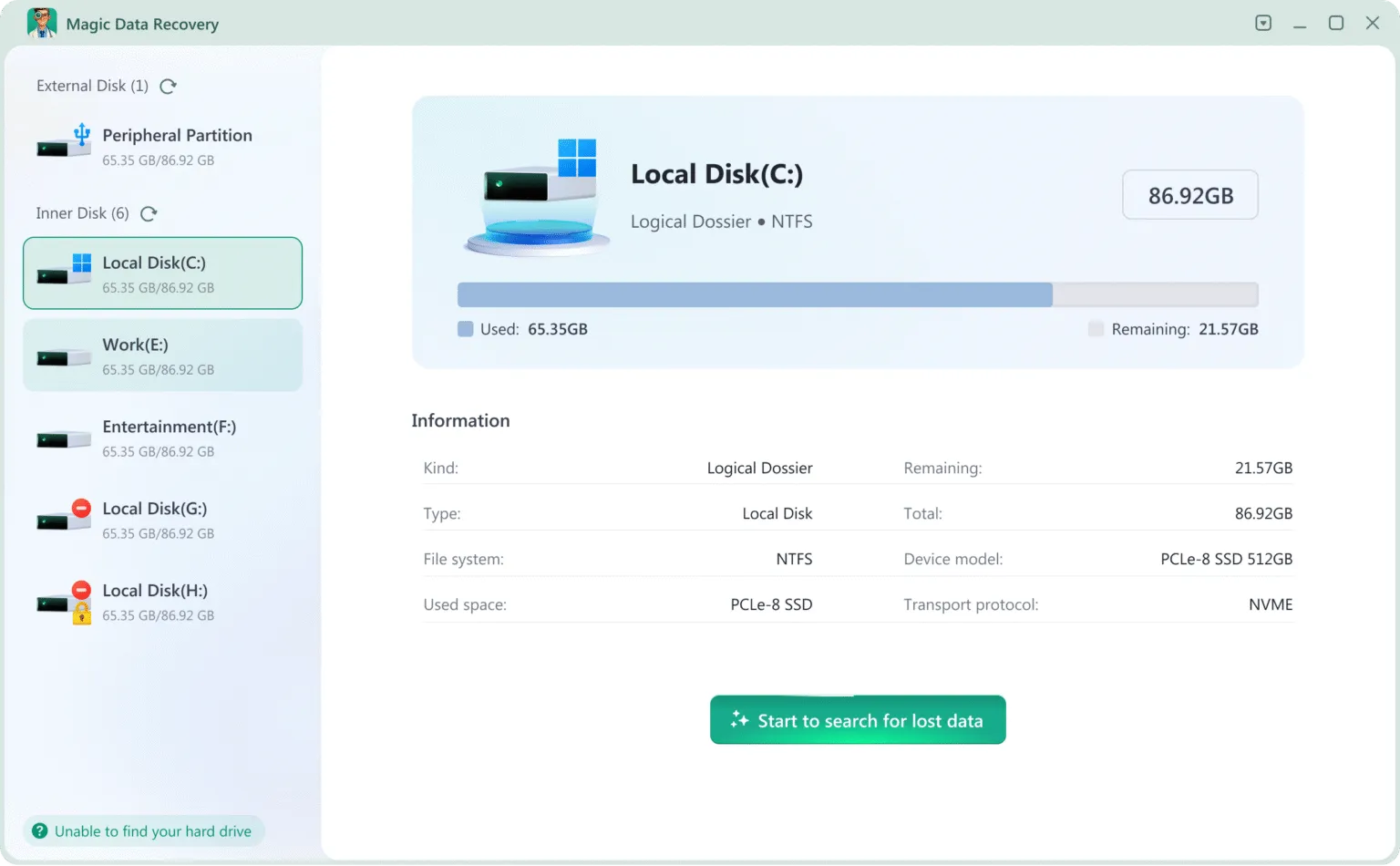
2. Seleccione la unidad o dispositivo a escanear
Elige el disco interno, HDD/SSD externo, tarjeta SD, unidad USB o tarjeta de la cámara donde se borraron las fotos.
3. Espere a que finalice el escaneado.
Ejecuta automáticamente la Exploración Profunda, que analiza los sectores de datos sin procesar para restaurar todos los archivos.

4. Previsualizar fotos
Puedes ver la calidad de la imagen, la resolución y los detalles del archivo antes de restaurarlo.

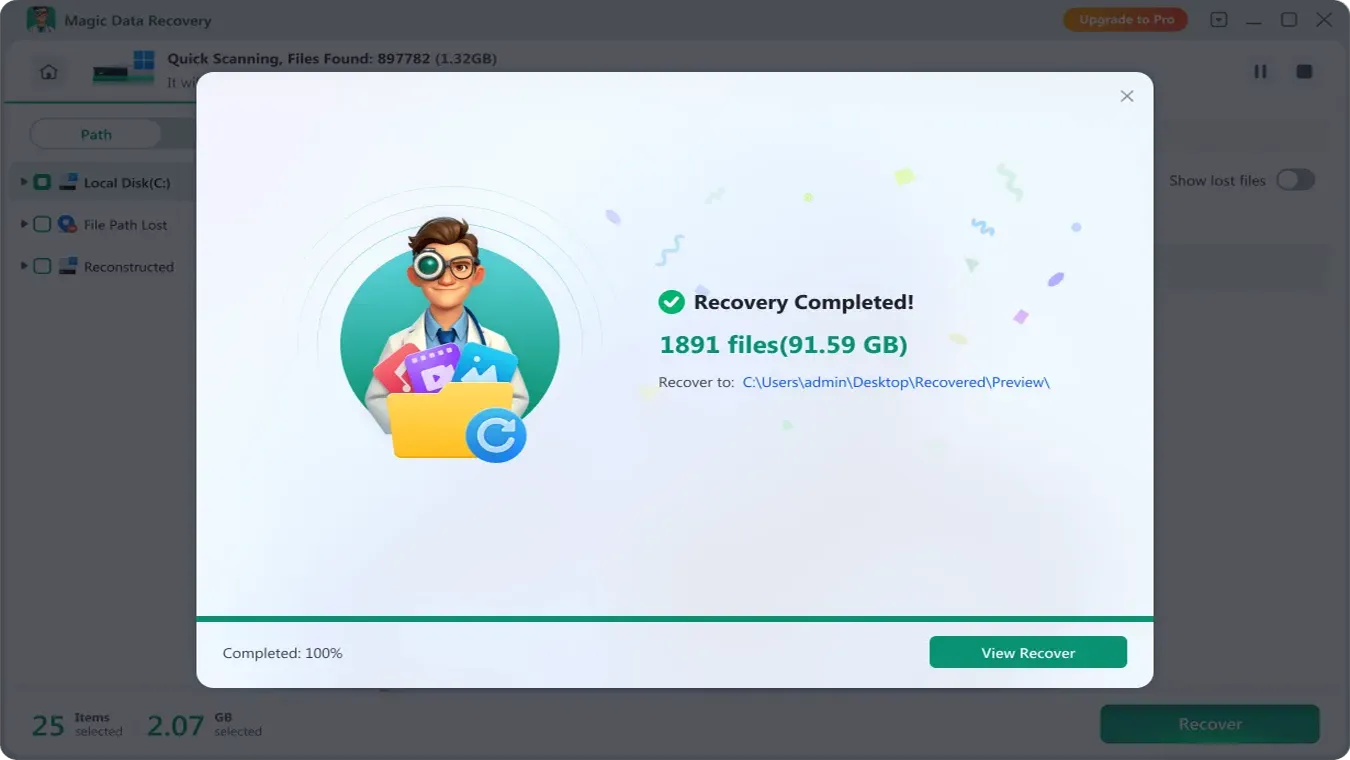
5. Recuperar fotos y guardarlas en un destino seguro.
Almacena las fotos recuperadas en una unidad diferente para proteger los datos recuperables restantes.
Por qué Magic Data Recovery es la mejor herramienta de recuperación de fotos
Magic Data Recovery ofrece un rendimiento de escaneado y reconstrucción de fotos líder en el sector, por lo que es adecuado tanto para usuarios domésticos como para técnicos profesionales. A diferencia de las utilidades básicas, está diseñado para restaurar imágenes incluso cuando el sistema de archivos ya no guarda información de directorios.
Capacidad | Beneficio |
Algoritmo forense digital profundo | Recupera fotos después de su eliminación, formateo, RAW / unidad sin asignar, y la pérdida de la partición |
Admite más de 5000 formatos | JPG, PNG, HEIC, CR2, NEF, ARW, RAF, DNG, TIFF y otros formatos RAW de cámaras profesionales |
Compatible con todos los dispositivos de almacenamiento | HDD / SSD, tarjeta SD, unidad flash USB, discos duros externos, tarjetas de cámaras DSLR / mirrorless |
Alto índice de éxito en la recuperación | La recuperación a nivel de sector por sector hace que la tasa de recuperación sea del 99,7% (si no hay cambios en la unidad después de la pérdida de datos). |
Si la pérdida de la foto fue causada por borrado accidental, formato, o error del sistema de archivos, Magic Data Recovery ofrece una solución completa y fiable para recuperar imágenes de forma segura.
Consejos para aumentar las posibilidades de recuperar fotos borradas de forma definitiva
Independientemente de la herramienta que elijas, lo que hagas después de borrarlo es importante.
Sigue estas reglas:
- Deja de utilizar inmediatamente el dispositivo de almacenamiento afectado.
- No descargues archivos en la unidad afectada.
- No formatees una tarjeta SD simplemente porque Windows te lo pida.
- Evita ejecutar CHKDSK antes de recuperar archivos importantes.
- No crees una nueva partición en el espacio perdido o no asignado.
- Instale el software de recuperación en otra unidad.
- Guarda las fotos recuperadas en otro lugar.
- Comprueba las copias de seguridad antes de llevar a cabo medidas de resolución de problemas más invasivas.
En resumen, utiliza un Primero recuperarse, luego reparar flujo de trabajo.
La recuperación protege los datos restantes. Las operaciones de reparación pueden modificar las estructuras del sistema de archivos y dificultar la recuperación posterior.
Conclusión
Las fotos borradas permanentemente no se destruyen en el momento del borrado. A menos que los sectores del disco se hayan sobrescrito, los datos de la imagen siguen siendo recuperables, incluso después de vaciar la papelera de reciclaje o formatear un dispositivo de almacenamiento.
La solución más eficaz y segura es utilizar una herramienta profesional de recuperación de fotos que realice un escaneado en profundidad de nivel forense. Para usuarios que buscan la mayor tasa de éxito con un flujo de trabajo sencillo, Magic Data Recovery es una opción ideal. Si se produce una pérdida de datos, deje de utilizar inmediatamente el dispositivo afectado y realice recuperación de fotos lo antes posible para obtener los mejores resultados.
PREGUNTAS FRECUENTES
¿Es posible recuperar realmente las fotos que se han eliminado de forma definitiva?
¿Cómo puedo recuperar fotos borradas definitivamente sin tener una copia de seguridad?
¿Puedo recuperar fotos borradas definitivamente después de vaciar la Papelera de reciclaje?
¿Puedo recuperar fotos eliminadas definitivamente de Google Fotos?
¿Puedo recuperar fotos borradas definitivamente de un iPhone?
¿Se pueden recuperar las fotos borradas definitivamente de un SSD?
¿Puedo recuperar fotos borradas definitivamente de una tarjeta SD formateada?

Vasilii es un especialista en recuperación de datos con unos 10 años de experiencia práctica en este campo. A lo largo de su carrera, ha resuelto con éxito miles de casos complejos relacionados con archivos borrados, unidades formateadas, particiones perdidas y sistemas de archivos RAW. Su experiencia abarca tanto métodos de recuperación manual con herramientas profesionales como editores hexadecimales como soluciones automatizadas avanzadas con software de recuperación. La misión de Vasilii es poner los conocimientos sobre recuperación de datos al alcance tanto de los profesionales informáticos como de los usuarios de a pie, ayudándoles a salvaguardar sus valiosos activos digitales.