
Qué significa un error de dispositivo de E/S en un disco duro externo: Una guía completa
Introducción: Por qué su disco duro externo muestra un error de dispositivo de E/S
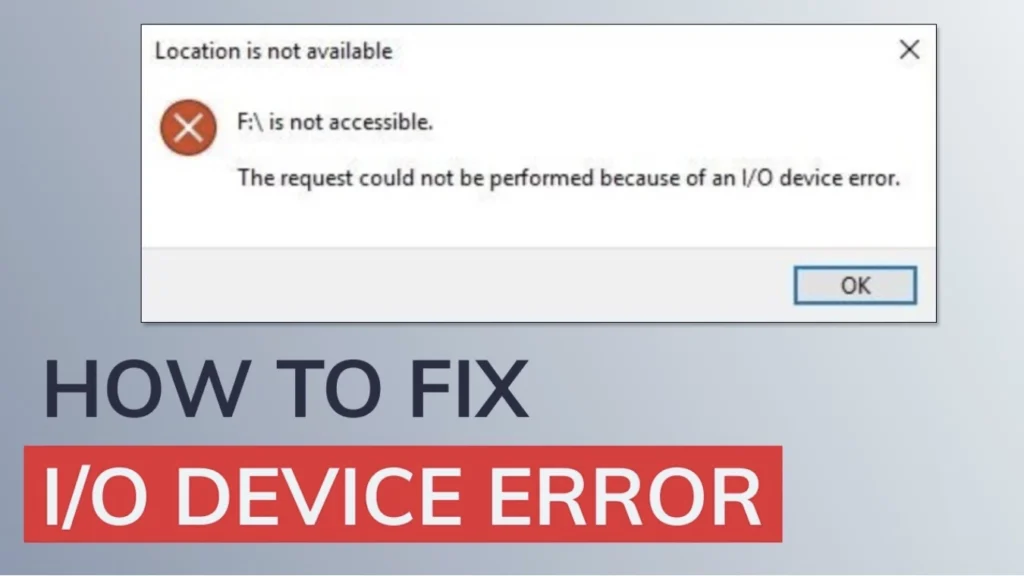
Cuando su disco duro externo se vuelve inaccesible de repente y Windows muestra el mensaje “No se pudo realizar la solicitud debido a un error del dispositivo de E/S”, puede resultar alarmante, especialmente si en el dispositivo hay almacenados documentos importantes o copias de seguridad.
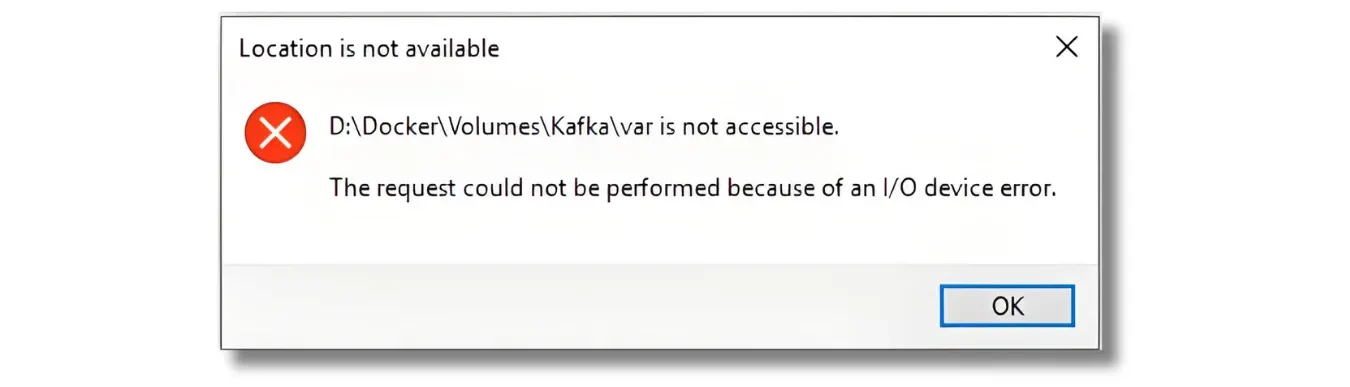
La buena noticia es que este error es común, y no significa automáticamente que sus datos han desaparecido. En la mayoría de los casos, Windows simplemente no puede completar una solicitud de lectura o escritura.
Esta guía explica qué significa el error de dispositivo de E/S, por qué se produce y cómo solucionarlo paso a paso mientras mantienes tus datos a salvo en todo momento. la solución de disco duro externo.
I/O significa “entrada/salida”. En el caso de los dispositivos de almacenamiento, la entrada suele referirse a la lectura de datos, mientras que la salida se refiere a su escritura. Windows muestra un Error en el dispositivo de E/S cuando la operación de lectura/escritura solicitada no puede completarse correctamente.
Las causas más comunes son:
- Un cable USB dañado o suelto
- Un puerto USB o un concentrador defectuoso
- Potencia insuficiente para un disco duro externo
- Un sistema de archivos dañado
- Información sobre la partición dañada
- Problemas con el almacenamiento o con el controlador USB
- Sectores defectuosos o deterioro del soporte
- Fallo físico del disco duro (HDD) o del SSD
El error por sí solo no demuestra que una unidad esté averiada. Estos síntomas pueden deberse a un problema de conexión, a un error lógico o a un fallo de hardware, por lo que el estado de la unidad es lo que debe determinar el siguiente paso.

Los signos comunes incluyen:
El mensaje “La solicitud no se ha podido realizar debido a un error del dispositivo de E/S”.”
El mensaje “Sólo se completó parte de un proceso de lectura o escritura”.”
La unidad aparece como “Desconocido” o “No Inicializado” en Gestión de discos.
La letra de la unidad desaparece o no se puede acceder a la unidad.
Aunque la unidad deje de estar disponible, los datos subyacentes suelen seguir presentes. Comprender la causa ayuda a abordar el problema con calma y metódicamente.
Por qué los discos duros externos provocan errores en los dispositivos de E/S
Los errores de E/S se producen por una amplia gama de razones, desde simples problemas de conexión hasta defectos de hardware más graves. La mayoría son reversibles.

1. Problemas de conexión y hardware
Cables USB/datos sueltos o dañados
Puertos USB defectuosos o inestables
Fuente de alimentación insuficiente (habitual cuando se utilizan concentradores USB).
Problemas internos de hardware, como fallos del cabezal, del motor o de la placa de circuito impreso.
2. Problemas de software y controladores
Controladores de controlador USB/SATA obsoletos o dañados
Errores del sistema de archivos que hacen que la unidad aparezca como RAW
Conflictos de letras de unidad que impiden un montaje correcto
3. Problemas a nivel de sistema o de transferencia
Modo de transferencia incorrecto (PIO vs. DMA) en la configuración del canal IDE.
Infección por malware que interfiere en el acceso al dispositivo
Conflictos con software de terceros
Identificar la causa probable ayuda a determinar el método de reparación más seguro.
Antes de reparar el Error en el dispositivo de E/S, Comprueba el riesgo al que están expuestos tus datos
Antes de cambiar el disco, comprueba si contiene archivos que no puedas recuperar. Esto es especialmente importante cuando un Error del dispositivo de E/S del disco duro externo aparece junto con los estados «RAW», «Sin asignar», «Desconocido» o «Sin inicializar».
Lo que ves | Posible problema | La mejor primera acción |
Se produce un error en uno de los puertos USB | Problema con el puerto o el controlador | Prueba con otro puerto directo |
La unidad funciona en otro ordenador | Problema con Windows o con el controlador | Solucionar problemas del ordenador original |
Drive se emite en formato RAW | Daños en el sistema de archivos | Recupera primero los archivos importantes |
La unidad aparece como «No inicializada» | Problema con los metadatos del disco | No inicialices si los datos antiguos son importantes |
La unidad se desconecta una y otra vez | Problema con el cable, la alimentación o el hardware | Sustituir el cable y reducir su uso |
El disco duro hace clic o chirría | Posible fallo físico | Apágalo y busca ayuda profesional |
Si aún quedan datos importantes en el disco, evita formatearlo, inicializarlo o utilizar primero la opción «Clean» de DiskPart. Según la documentación de Microsoft, DiskPart limpiar elimina la información de formato de las particiones o volúmenes del disco seleccionado.
Cómo solucionar un error de dispositivo de E/S de disco duro externo (Guía paso a paso)
El enfoque más eficaz es la resolución progresiva de problemas, desde comprobaciones sencillas del hardware hasta diagnósticos avanzados. Empiece por los primeros pasos y avance gradualmente; esto reduce el riesgo y evita tensiones innecesarias en la unidad.
Etapa 1: Empezar con comprobaciones básicas de hardware para detectar errores de E/S
La mayoría de los errores de los dispositivos de E/S son el resultado de problemas de conexión. Estos pasos solo llevan unos minutos y suelen resolver el problema de inmediato.
1. Vuelva a conectar todos los cables
Asegúrese de que ambos extremos del cable USB o SATA están firmemente conectados. Si el cable parece desgastado o poco fiable, sustitúyalo por otro que sepa que está en buen estado.

2. Pruebe con otro puerto USB
Utilice otro puerto USB del ordenador, preferiblemente uno situado directamente en la placa base. Los puertos del panel frontal o los concentradores USB pueden suministrar una alimentación más débil o inestable.

3. Compruebe la fuente de alimentación
Si el disco duro externo requiere un adaptador de corriente independiente, compruebe que está enchufado y funcionando. En el caso de unidades portátiles alimentadas por USB, evita los concentradores sin alimentación.
4. Pruebe la unidad en otro ordenador
Conectar la unidad a un sistema diferente ayuda a determinar si el problema reside en el ordenador original o en la propia unidad.
Si el problema persiste después de estas comprobaciones, pase a la etapa siguiente.

Etapa 2: Actualizar los controladores y ajustar la configuración del sistema para resolver los errores de E/S
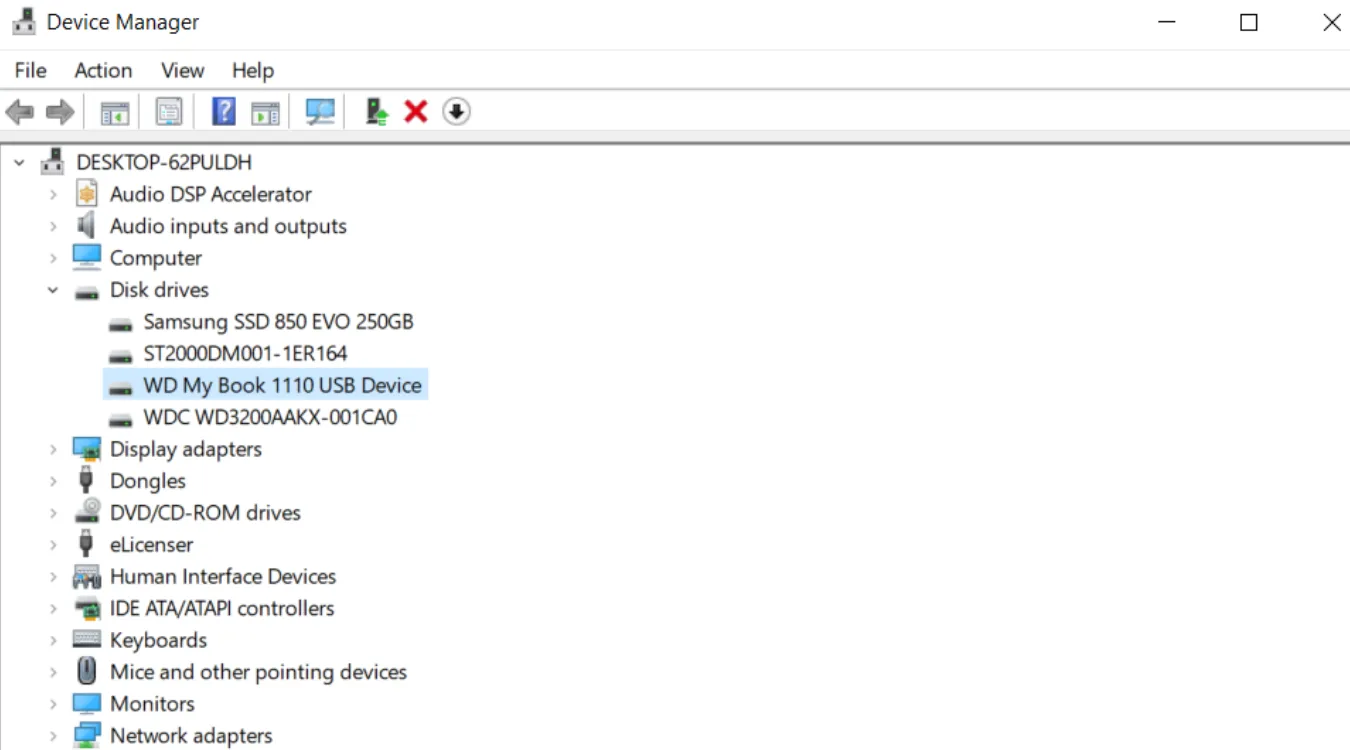
1. Actualizar o reinstalar los controladores de dispositivo
Haga clic con el botón derecho del ratón en Inicio → Administrador de dispositivos.
Ampliar Unidades de disco y Controladores de bus serie universal.
Localice su unidad externa → haga clic con el botón derecho Actualizar controlador → Búsqueda automática.
Si no se encuentra ninguna actualización, seleccione Desinstalar dispositivo, Reinicie el PC y deje que Windows reinstale el controlador.
2. Cambiar la letra de unidad
Haga clic con el botón derecho del ratón en Este PC → Gestione → Gestión de discos.
Haga clic con el botón derecho en la partición de la unidad externa → Cambiar letra de unidad y rutas → Cambia.
Seleccione una letra de unidad no utilizada.
Una letra de unidad no coincidente o conflictiva puede impedir que Windows acceda a la unidad correctamente.
3. Ajuste el modo de transferencia del canal IDE (para discos duros antiguos).
Abrir Administrador de dispositivos.
Ampliar Controladoras IDE ATA/ATAPI.
Haga clic con el botón derecho del ratón en el canal utilizado por la unidad → externa. Propiedades.
Seleccione Configuración avanzada.
Cambia el modo de transferencia del dispositivo correcto a Sólo PIO.
Importante: No modificar Canal IDE primario - Dispositivo 0, ya que contiene el disco del sistema.
Etapa 3: Utilizar las herramientas de Windows para reparar errores de E/S en unidades externas
1. Utilice CHKDSK para reparar errores del sistema de archivos
CHKDSK puede reparar la corrupción del sistema de archivos lógicos, que es una causa común de errores de E/S.
Tipo cmd en el menú Inicio.
Haga clic con el botón derecho del ratón en Símbolo del sistema → Ejecutar como administrador.
Entra:

chkdsk X: /f /r /x
Sustituir X con la letra de su unidad.
Deje que finalice el escaneado. Si la unidad muestra signos de fallo físico (chasquidos, rechinidos, zumbidos), omita este paso para evitar daños mayores.
2. Inicialice el disco si aparece como “No inicializado”.”
Abrir Gestión de discos.
Haga clic con el botón derecho en el disco etiquetado No inicializado.
Seleccione Inicializar disco y elija MBR o GPT.
La inicialización restaura el acceso pero elimina la tabla de particiones existente. Después será necesario realizar un análisis de recuperación.
Etapa 4: Solución avanzada de errores de E/S persistentes
1. Realizar un arranque limpio
Un arranque limpio desactiva el software no esencial que pueda entrar en conflicto con la unidad.
Pulse Ganar + R, Tipo msconfig.
Ir a Servicios → seleccionar Ocultar todos los servicios de Microsoft → clic Desactivar todo.
Ir a Puesta en marcha → Abrir el Administrador de tareas → desactivar todos los elementos.
Reinicie el PC.
2. Utilice DiskPart para limpiar el disco (se eliminarán los datos)
Utilice DiskPart sólo cuando no necesite los datos o cuando piense recuperarlos después.
Abra el símbolo del sistema como administrador.
Introduce lo siguiente:

diskpart
disco de lista
seleccionar disco X
limpiar
Sustituir X con el número de disco correcto.
A continuación, cree una nueva partición y formatee la unidad.
Cómo recuperar datos después de solucionar un error de dispositivo de E/S
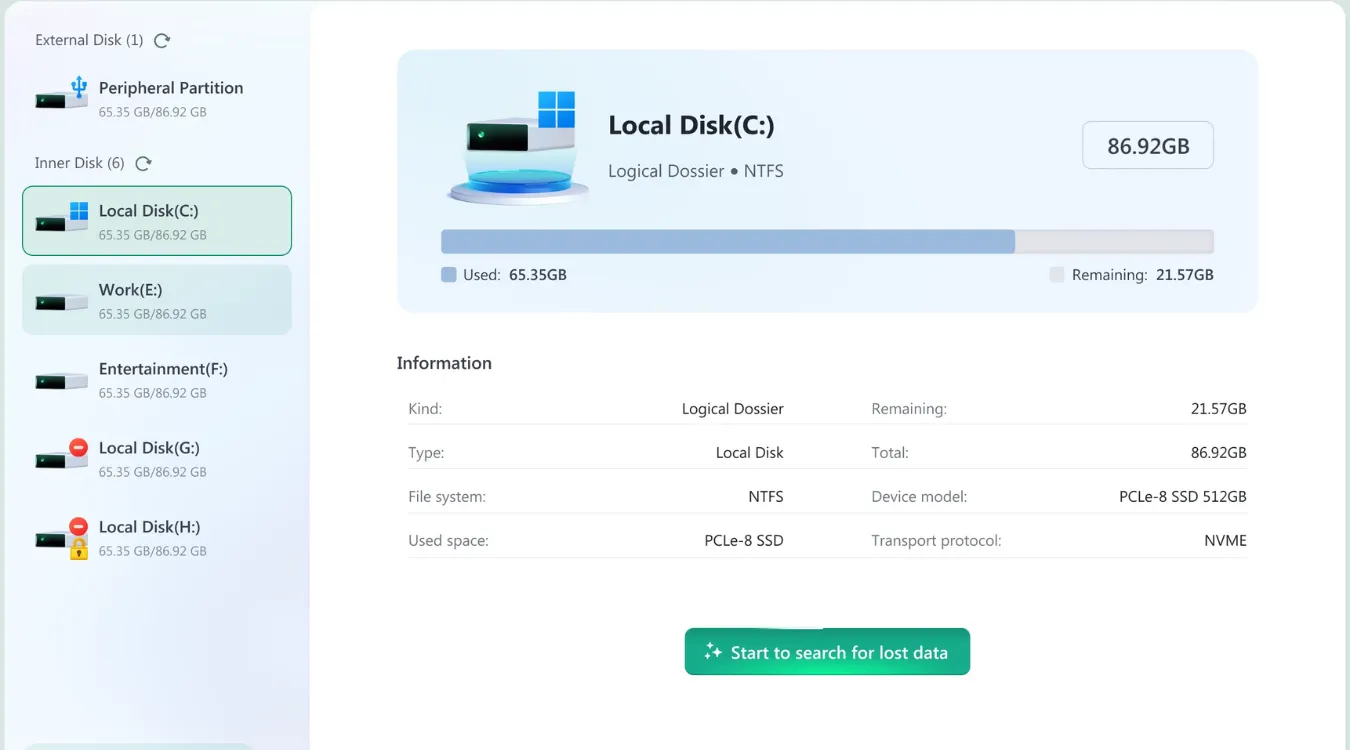
Si ha realizado una inicialización, un formateo o una limpieza de DiskPart, el sistema de archivos ya no aparecerá, pero es posible que sus datos puedan recuperarse. Antes de escribir nuevos datos en la unidad, ejecute un análisis de recuperación.
Flujo de trabajo de recuperación
Seleccione la unidad externa reparada en la herramienta de recuperación.
Ejecute un escaneo completo o profundo.
Revisa la lista de archivos recuperados.
Guarda los archivos recuperados en otro dispositivo de almacenamiento.
Integración natural Amagicsoft
Para los usuarios que desean un sistema seguro y de sólo lectura recuperación de discos externos proceso, Amagicsoft Recuperación de datos proporciona un motor de escaneado estructurado diseñado para detectar archivos recuperables sin modificar la unidad original.
Es muy adecuado para casos en los que el disco duro externo vuelve a ser legible después de la reparación, pero el sistema de archivos sigue parcialmente dañado o desaparecido.
Cuándo debe elegir ayuda profesional para un error de dispositivo de E/S
Si el disco duro externo sigue mostrando errores de dispositivo de E/S en distintos ordenadores o emite sonidos inusuales -como chasquidos, arañazos o giros repetidos-, es posible que se trate de un fallo físico del hardware.
En estas situaciones, otros intentos basados en software pueden empeorar los daños. Deje de utilizar la unidad y consulte a un servicio profesional de recuperación de datos, especialmente si los datos son irreemplazables.
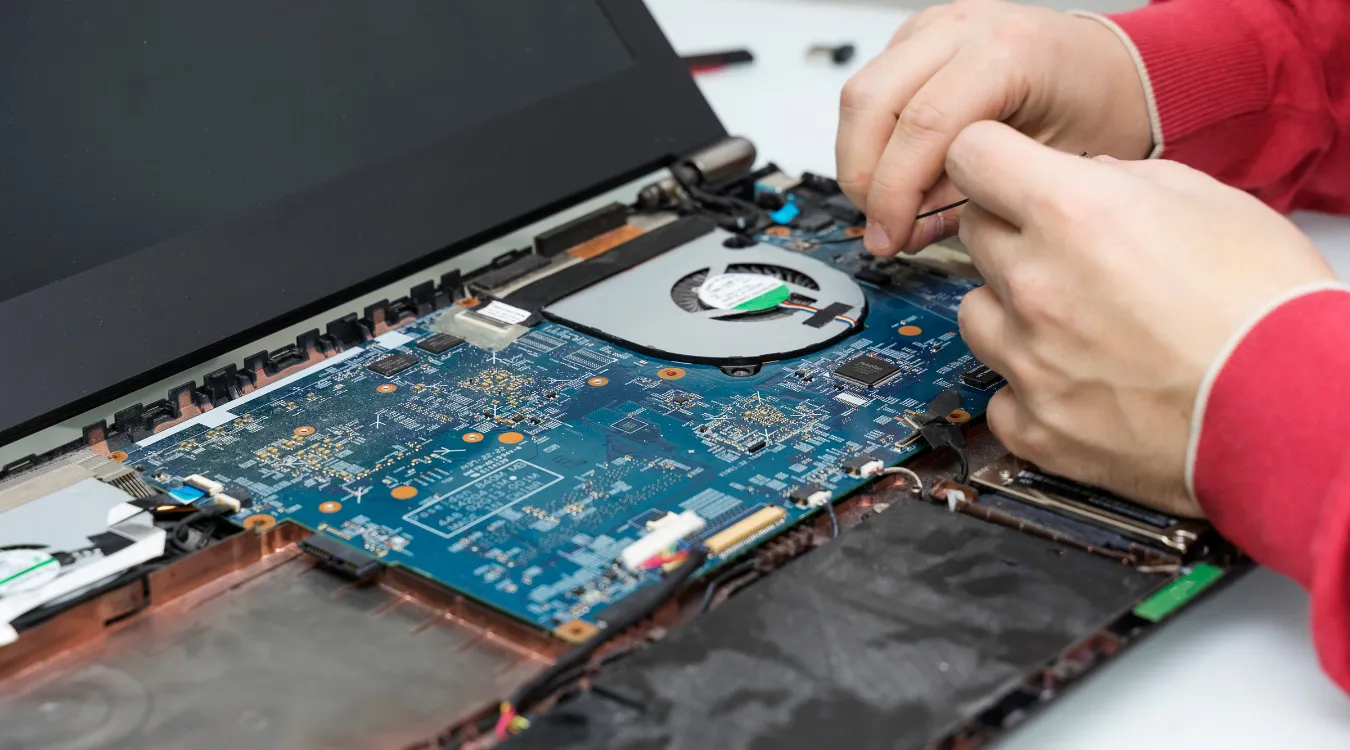
Antes de enviar la unidad a un laboratorio, puede intentar realizar un análisis no intrusivo de sólo lectura con Amagicsoft Recup. datos para determinar si parte del sistema de archivos es accesible.
Conclusión: Solucionar el Error en el dispositivo de E/S Sin dejar los datos en un segundo plano
En Error en el dispositivo de E/S significa que Windows no ha podido completar una operación de lectura o escritura, pero el mensaje no identifica una causa concreta.
Empieza por realizar comprobaciones de seguridad. Vuelve a conectar la unidad, cambia el cable, prueba con otro puerto USB y otro ordenador, revisa la gestión de discos y comprueba el controlador. Solo entonces deberías plantearte reparar el sistema de archivos.
Y lo que es más importante, distingue entre dos objetivos: recuperar tus archivos y volver a poder utilizar el disco.
CHKDSK, la inicialización, el formateo y DiskPart pueden modificar las estructuras del disco. Si aún no se puede acceder a datos importantes, protégelos antes de intentar aplicar esas soluciones.
Magic Data Recovery Es una opción a tener en cuenta cuando Windows sigue detectando la unidad y no se aprecian signos claros de fallo físico. Es compatible con los dispositivos de almacenamiento más habituales y ofrece un proceso sencillo de análisis y recuperación.
Si buscas una solución más eficaz antes de reparar el disco afectado, prueba primero Magic Data Recovery. Recupera los archivos importantes en otra unidad y, a continuación, elige el método de reparación adecuado que presente menos riesgos.
