
What an I/O Device Error Means on an External Hard Drive: A Complete Guide
Introduction: Why Your External Hard Drive Shows an I/O Device Error
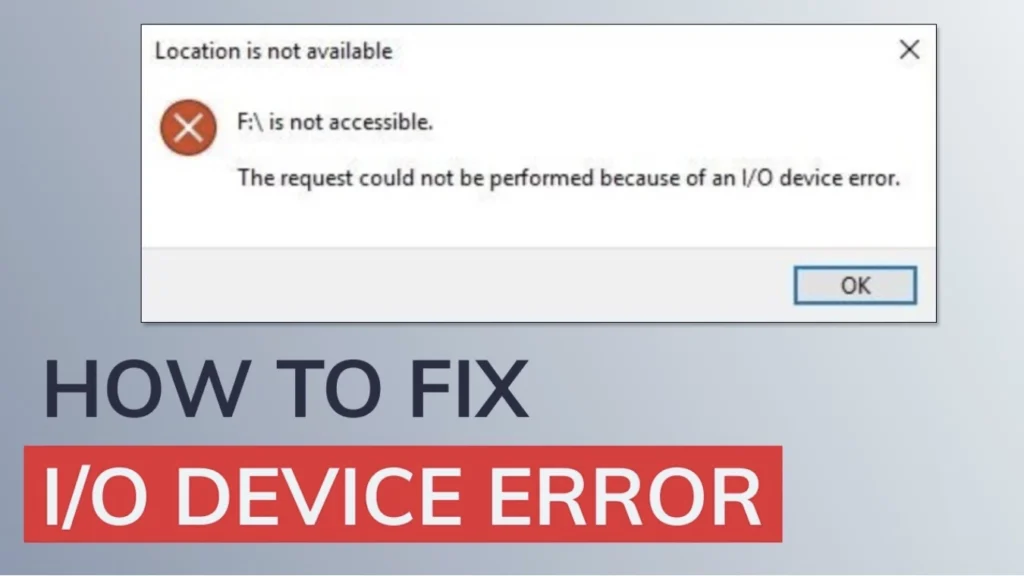
When your external hard drive suddenly becomes inaccessible and Windows displays the message “The request could not be performed because of an I/O device error,” it can feel alarming—especially if important documents or backups are stored on the device.
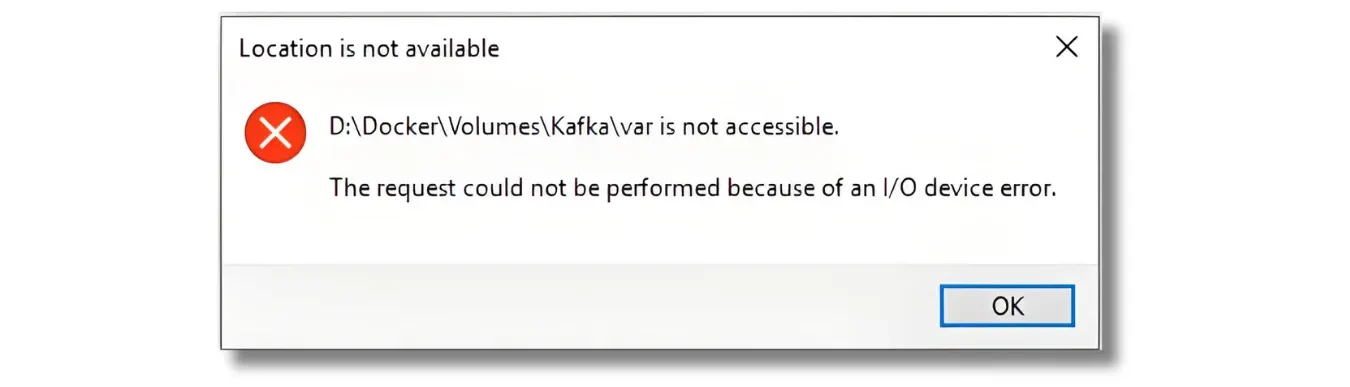
The good news is that this error is common, and it does not automatically mean your data is gone. In most cases, Windows simply cannot complete a read or write request.
This guide explains what the I/O device error means, why it occurs, and how to fix it step by step while keeping your data safe throughout the external drive solution.
I/O means “input/output.” For storage devices, input usually refers to reading data, while output refers to writing it. Windows reports an I/O Device Error when the requested read/write operation cannot finish correctly.
Common causes include:
- A damaged or loose USB cable
- A faulty USB port or hub
- Insufficient power for an external HDD
- A corrupted file system
- Damaged partition information
- Storage or USB driver problems
- Bad sectors or media degradation
- Physical HDD or SSD failure
The error alone does not prove that a drive is dead. Similar symptoms can come from a connection problem, logical corruption, or hardware failure, so the drive’s condition should determine the next step.

Common signs include:
The message “The request could not be performed because of an I/O device error.”
The message “Only part of a read or write process was completed.”
The drive appears as “Unknown” or “Not Initialized” in Disk Management.
The drive letter disappears, or the drive cannot be accessed.
Although the drive becomes unavailable, the underlying data is often still present. Understanding the cause helps you approach the issue calmly and methodically.
Why External Hard Drives Trigger I/O Device Errors
I/O errors occur for a wide range of reasons, from simple connection issues to more serious hardware defects. Most are reversible.

1. Connection and Hardware Issues
Loose or damaged USB/data cables
Faulty or unstable USB ports
Insufficient power supply (common when using USB hubs)
Internal hardware problems, including head failure, motor issues, or PCB faults
2. Software and Driver Issues
Outdated or corrupted USB/SATA controller drivers
File system errors that cause the drive to appear as RAW
Drive letter conflicts that prevent proper mounting
3. System-Level or Transfer Problems
Incorrect transfer mode (PIO vs. DMA) in IDE channel settings
Malware infection interfering with device access
Conflicts with third-party software
Identifying the likely cause helps determine the safest repair method.
Before Fixing the I/O Device Error, Check Your Data Risk
Before changing the disk, decide whether it contains files you cannot replace. This is especially important when an external hard drive I/O device error appears together with RAW, Unallocated, Unknown, or Not Initialized status.
What you see | Likely issue | Best first action |
Error occurs on one USB port | Port/controller issue | Try another direct port |
Drive works on another PC | Windows/driver issue | Troubleshoot the original PC |
Drive shows RAW | File-system damage | Recover important files first |
Drive shows Not Initialized | Disk metadata issue | Do not initialize if old data matters |
Drive disconnects repeatedly | Cable, power, or hardware issue | Replace cable and reduce use |
HDD clicks or grinds | Possible physical failure | Power it off and seek professional help |
If important data is still on the disk, avoid formatting, initializing, or using DiskPart Clean first. Microsoft documents that DiskPart clean removes partition or volume formatting information from the selected disk.
How to Fix an External Hard Drive I/O Device Error (Step-by-Step Guide)
The most effective approach is progressive troubleshooting—from simple hardware checks to advanced diagnostics. Start with early steps and move gradually; this lowers risk and avoids unnecessary stress on the drive.
Stage 1: Start with Basic Hardware Checks for I/O Errors
Most I/O device errors are the result of connection problems. These steps only take a few minutes and often resolve the issue immediately.
1. Reconnect All Cables
Ensure both ends of the USB or SATA cable are firmly connected. If the cable appears worn or unreliable, replace it with a known-good cable.

2. Try a Different USB Port
Use another USB port on the computer—preferably one located directly on the motherboard. Ports on the front panel or USB hubs may supply weaker or unstable power.

3. Check the Power Supply
If the external hard drive requires a separate power adapter, verify that it is plugged in and working. For portable USB-powered drives, avoid unpowered hubs.
4. Test the Drive on Another Computer
Connecting the drive to a different system helps determine whether the issue lies with the original computer or with the drive itself.
If the problem persists after these checks, continue to the next stage.

Stage 2: Update Drivers and Adjust System Settings to Resolve I/O Errors
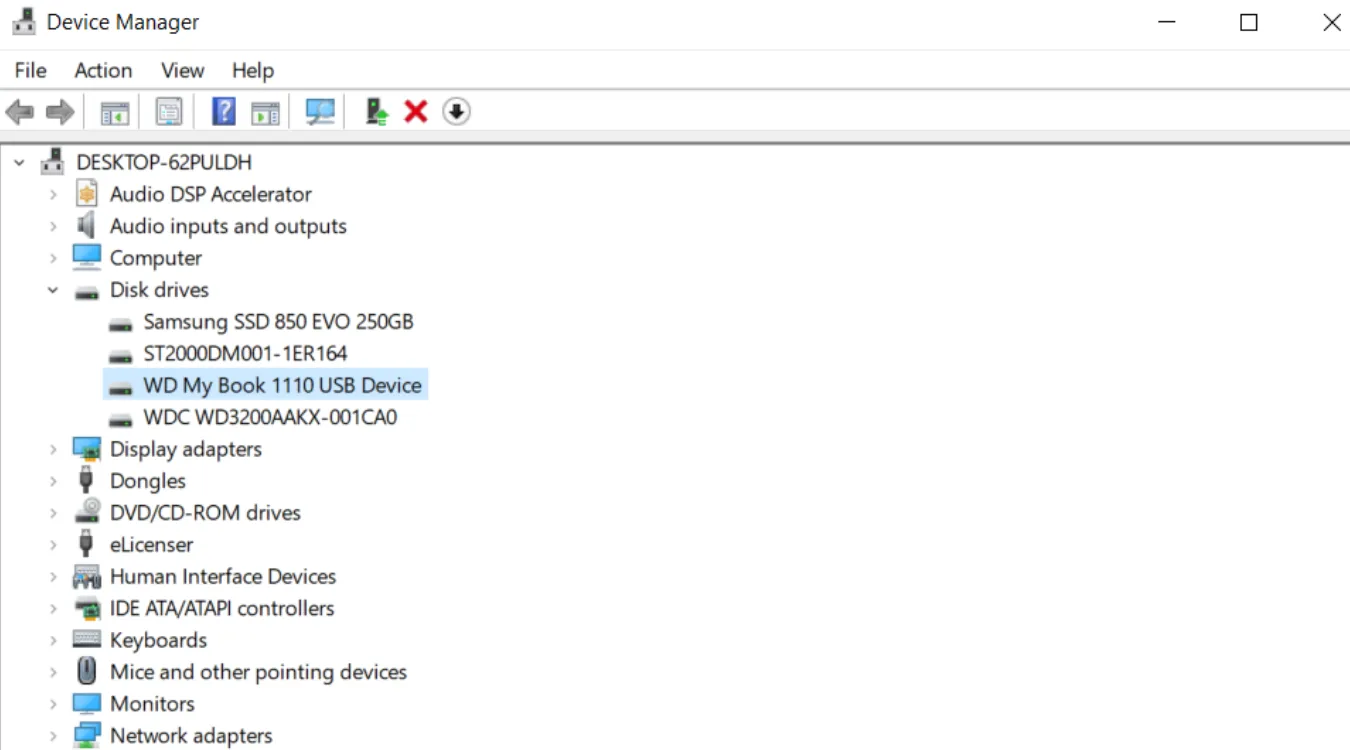
1. Update or Reinstall the Device Drivers
Right-click Start → Device Manager.
Expand Disk drives and Universal Serial Bus controllers.
Locate your external drive → right-click Update driver → Search automatically.
If no update is found, choose Uninstall device, restart the PC, and let Windows reinstall the driver.
2. Change the Drive Letter
Right-click This PC → Manage → Disk Management.
Right-click the external drive partition → Change Drive Letter and Paths → Change.
Select an unused drive letter.
A mismatched or conflicting drive letter can prevent Windows from accessing the drive properly.
3. Adjust the IDE Channel Transfer Mode (for older HDDs)
Open Device Manager.
Expand IDE ATA/ATAPI controllers.
Right-click the channel used by the external drive → Properties.
Select Advanced Settings.
Change the transfer mode for the correct device to PIO Only.
Important: Do not modify Primary IDE Channel – Device 0, as this contains the system disk.
Stage 3: Use Windows Tools to Repair I/O Errors on External Drives
1. Use CHKDSK to Repair File System Errors
CHKDSK can repair logical file system corruption, which is a common cause of I/O errors.
Type cmd in the Start menu.
Right-click Command Prompt → Run as administrator.
Enter:

chkdsk X: /f /r /x
Replace X with your drive letter.
Allow the scan to finish. If the drive exhibits signs of physical failure (clicking, grinding, buzzing), skip this step to prevent further damage.
2. Initialize the Disk if Shown as “Not Initialized”
Open Disk Management.
Right-click the disk labeled Not Initialized.
Select Initialize Disk and choose MBR or GPT.
Initialization restores access but removes the existing partition table. A recovery scan will be required afterward.
Stage 4: Advanced Troubleshooting for Persistent I/O Errors
1. Perform a Clean Boot
A clean boot disables nonessential software that may conflict with the drive.
Press Win + R, type msconfig.
Go to Services → select Hide all Microsoft services → click Disable all.
Go to Startup → Open Task Manager → disable all items.
Restart the PC.
2. Use DiskPart to Clean the Disk (Data Will Be Removed)
Only use DiskPart when you do not need the data or when you plan to recover it afterward.
Open Command Prompt as administrator.
Enter the following:

diskpart
list disk
select disk X
clean
Replace X with the correct disk number.
Afterward, create a new partition and format the drive.
How to Recover Data After Fixing an I/O Device Error
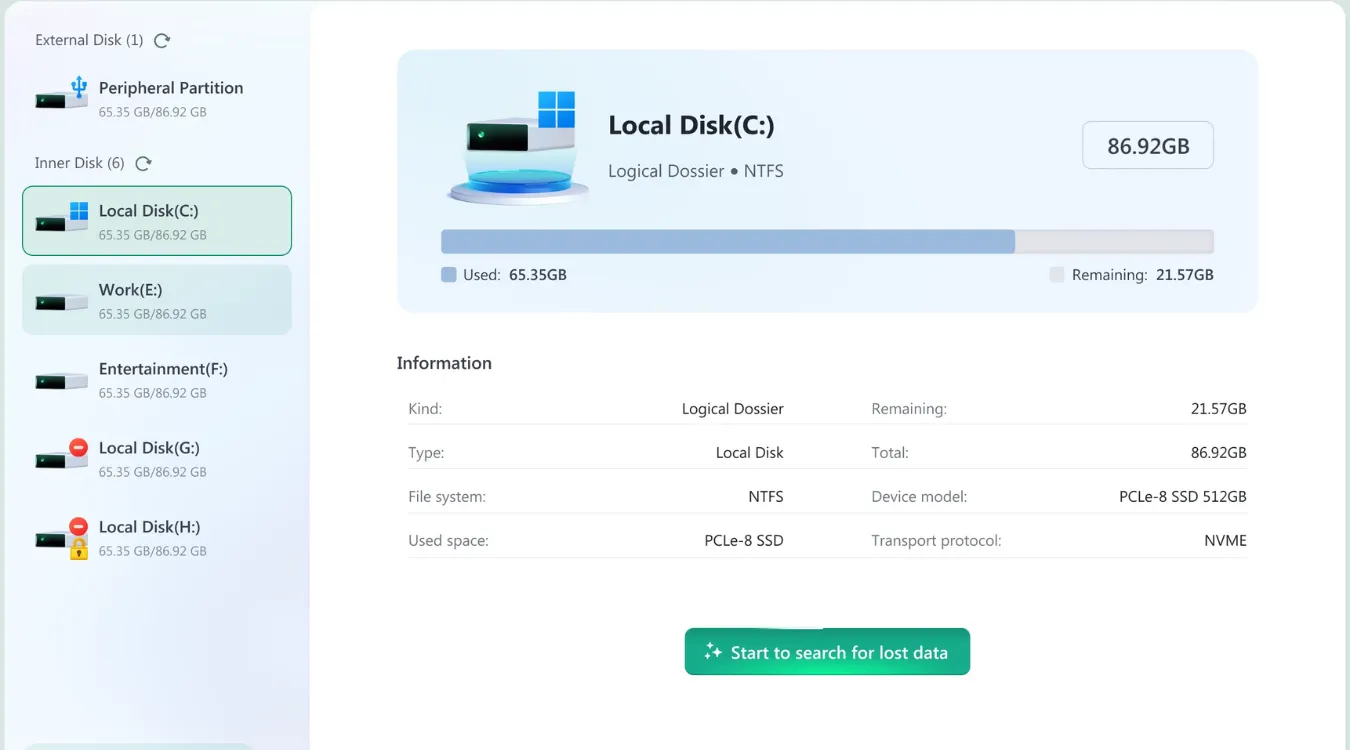
If you performed initialization, formatting, or a DiskPart clean, the file system will no longer appear—but your data may still be recoverable. Before writing new data to the drive, run a recovery scan.
Recovery Workflow
Select the repaired external drive in your recovery tool.
Run a full or deep scan.
Review the recovered file list.
Save recovered files to a different storage device.
Natural Amagicsoft Integration
For users who want a safe, read-only external drive recovery process, Amagicsoft Data Recovery provides a structured scanning engine designed to detect recoverable files without modifying the original drive.
It is well suited for cases where the external hard drive becomes readable again after repair but the file system remains partially damaged or missing.
When You Should Choose Professional Help for an I/O Device Error
If the external hard drive continues to show I/O device errors across different computers or emits unusual sounds—such as clicking, scraping, or repeated spin-ups—the issue may involve physical hardware failure.
In these situations, further software-based attempts may worsen the damage. Stop using the drive and consult a professional data recovery service, especially if the data is irreplaceable.
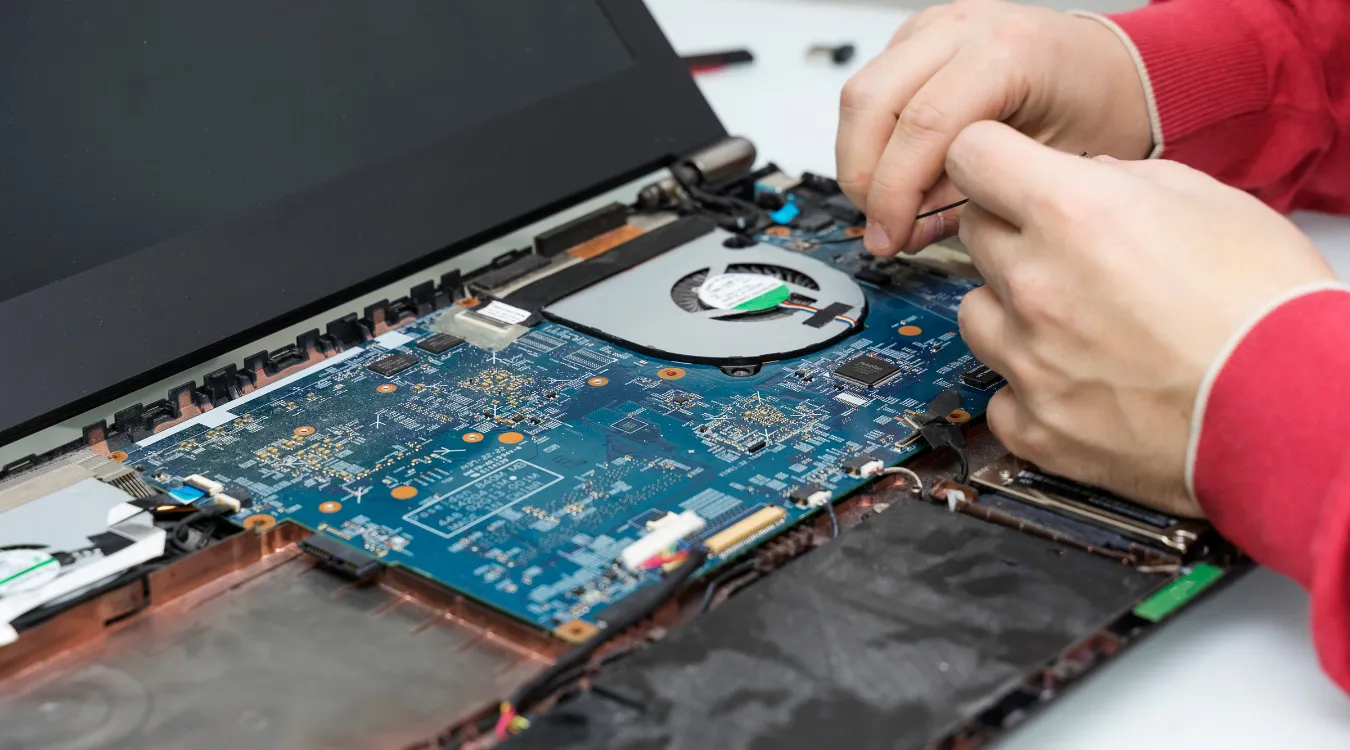
Before sending the drive to a lab, you may still attempt a nonintrusive, read-only scan with Amagicsoft Data Recovery to determine whether part of the file system is accessible.
Conclusion: Fix the I/O Device Error Without Putting Data Second
An I/O Device Error means Windows could not complete a read or write operation, but the message does not identify one single cause.
Start with safe checks. Reconnect the drive, replace the cable, test another USB port and computer, inspect Disk Management, and verify the driver. Only then should you consider file-system repair.
More importantly, separate two goals: recovering your files and making the disk usable again.
CHKDSK, initialization, formatting, and DiskPart can modify disk structures. If important data is still inaccessible, protect it before attempting those fixes.
Magic Data Recovery is worth considering when Windows still detects the drive and no clear signs of physical failure appear. It supports common storage devices and offers a straightforward scan-and-recovery workflow.
If you are looking for a more efficient solution before repairing the affected disk, try Magic Data Recovery first. Recover important files to another drive, and then choose the appropriate repair method with less risk.
