
Comment récupérer des fichiers dans Excel sans perdre de données
La perte d'un classeur Excel peut paralyser votre travail en quelques secondes. Un rapport peut disparaître à la suite d'un plantage, d'une suppression ou d'un écrasement accidentel. Par conséquent, Comment récupérer des fichiers dans Excel Cela dépend de ce qui s'est passé avant la disparition du fichier.
Ce guide explique Comment récupérer des fichiers dans Excel pour les classeurs non enregistrés, supprimés, écrasés, endommagés ou perdus. Vous utiliserez la fonction de récupération automatique d'Excel, les fichiers temporaires d'Excel, la corbeille, l'historique des versions, les sauvegardes dans le cloud et Magic Data Recovery. De plus, vous saurez quand Logiciel de récupération de fichiers Excel vous aide à mieux déterminer la prochaine étape.
Prise en charge de Windows 7/8/10/11 et Windows Server
Table des matières
Choisissez la bonne méthode pour récupérer des fichiers Excel
Commencez par associer le problème à la bonne méthode.
Problème | La meilleure méthode |
Excel s'est bloqué avant l'enregistrement | Récupération de documents ou fonction « Récupération automatique » d'Excel |
Vous avez fermé Excel sans l'enregistrer | Récupérer des classeurs non sauvegardés |
Vous avez supprimé le classeur | Corbeille ou Trash |
La corbeille est vide | Magic Data Recovery |
Vous avez enregistré la mauvaise version | Historique des versions ou versions précédentes |
Le fichier a disparu de la clé USB, de la carte SD, du disque dur ou du SSD | Magic Data Recovery |
Le classeur s'ouvre vide ou est endommagé | Ouvrir et réparer |
Le fichier a été synchronisé en ligne | Historique des versions du cloud |
Cette liste de contrôle permet de Comment récupérer des fichiers dans Excel plus simple et plus sûr.
Méthode 1 : Récupérer des fichiers dans Excel après un plantage ou une fermeture sans enregistrement
Si Excel a planté, s'est bloqué ou s'est fermé lors d'une coupure de courant, commencez par consulter le volet « Récupération de documents ». Rouvrez Excel, ouvrez la dernière version récupérée, puis enregistrez-la sous un nouveau nom.
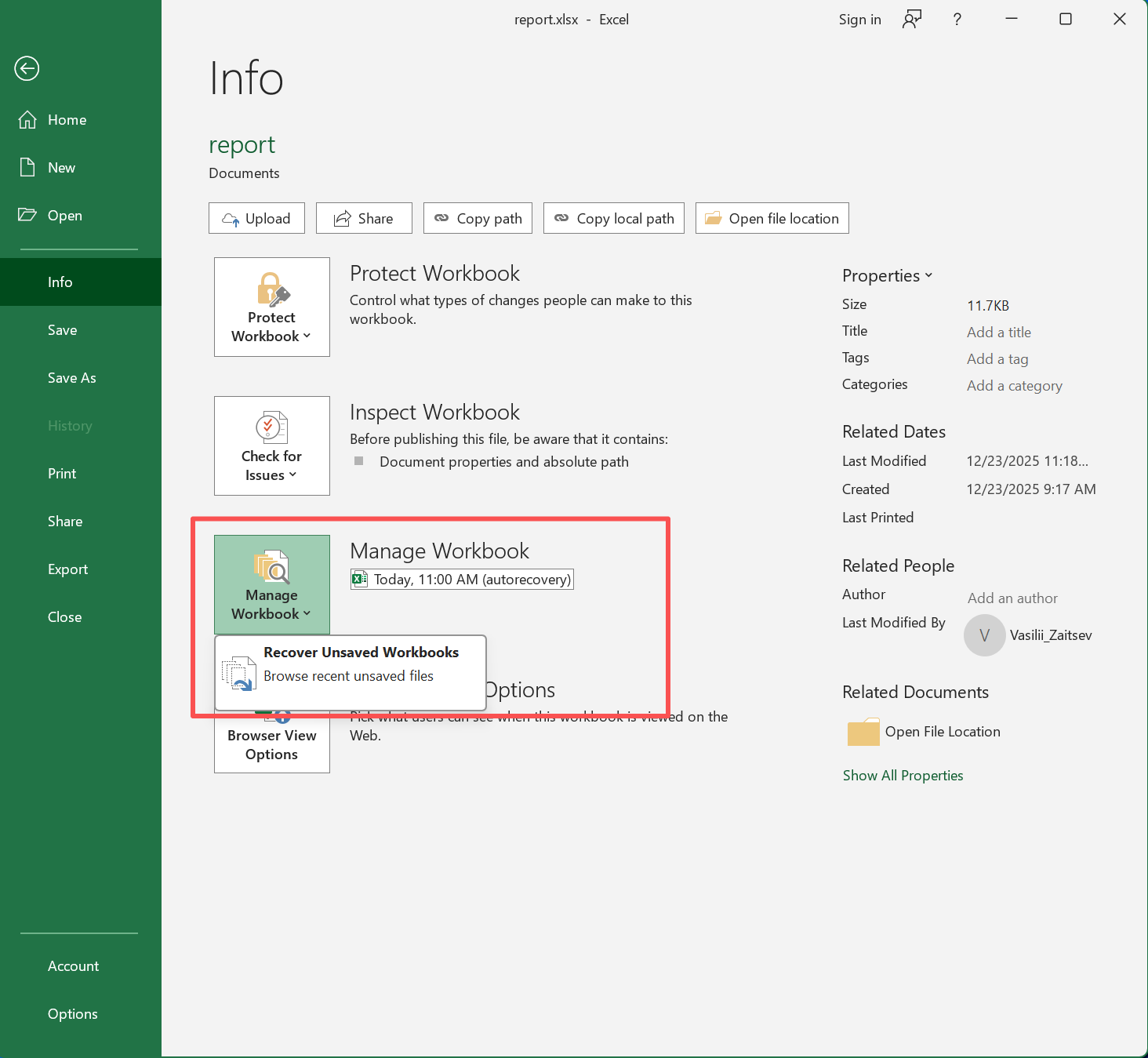
Si le volet ne s'affiche pas, essayez la fonction « Récupérer les classeurs non enregistrés » :
- Ouvrir Excel.
- Cliquez sur Fichier > Info.
- Sélectionnez Gérer le classeur.
- Cliquez sur « Récupérer les classeurs non enregistrés ».
- Sélectionnez le fichier dont vous avez besoin.
- Ouvrez-le et enregistrez-le immédiatement.
Cette méthode vous aide à récupérer un fichier Excel non enregistré le contenu, si Excel avait conservé une copie temporaire récente. Toutefois, cette opération peut échouer si Excel a supprimé cette copie. Vérifiez ensuite les paramètres de récupération automatique et les emplacements des fichiers temporaires.
Méthode 2 : Récupérer des fichiers Excel à l'aide de la fonction de récupération automatique et des fichiers temporaires
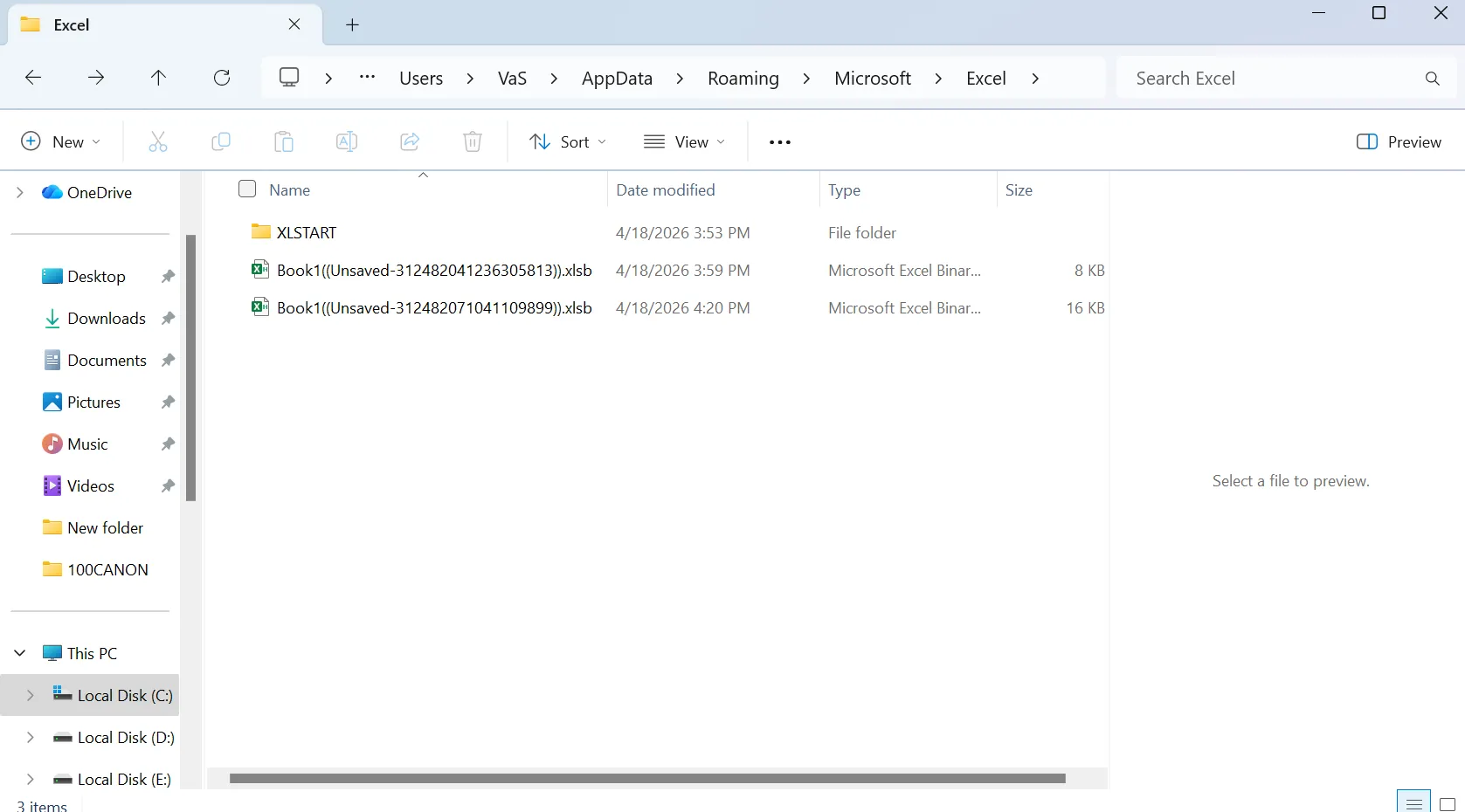
Récupération automatique d'Excel enregistre des informations de récupération à intervalles réguliers. Cette fonctionnalité ne remplace pas l'enregistrement manuel, mais elle peut s'avérer utile en cas de plantage ou d'erreur système. Pour vérifier son activation, ouvrez Fichier > Options > Enregistrement, assurez-vous que l'option « Récupération automatique » est activée, puis vérifiez l'emplacement du fichier.
Ensuite, effectuez une recherche dans les dossiers Windows suivants :
%AppData%\Microsoft\Excel\%LocalAppData%\Microsoft\Office\UnsavedFiles%temp%
Recherchez également .xlsx, .xls, .xlsm, .tmp, et ~$. Lors de la vérification Fichiers temporaires d'Excel, triez les résultats par date de modification. Les fichiers temporaires portent souvent des noms inhabituels ; la date, la taille et l'extension peuvent donc vous aider. Une fois que vous avez repéré un fichier susceptible d'être celui-ci, ouvrez-le et enregistrez-en une nouvelle copie.
Méthode 3 : Récupérer des fichiers Excel après leur suppression ou leur écrasement
Si vous a supprimé un fichier Excel En règle générale, commencez par vérifier la Corbeille. Effectuez une recherche par nom de fichier ou .xlsx, cliquez avec le bouton droit sur le classeur, puis sélectionnez « Restaurer ». Cela permet de récupérer un fichier Excel supprimé les données rapidement.
Cependant, la corbeille ne peut rien faire après avoir appuyé sur Maj + Suppr, Vider la corbeille, des erreurs de formatage ou liées au périphérique de stockage. Dans ces cas-là, cessez d'utiliser le disque concerné et analysez-le à l'aide d'un logiciel de récupération.
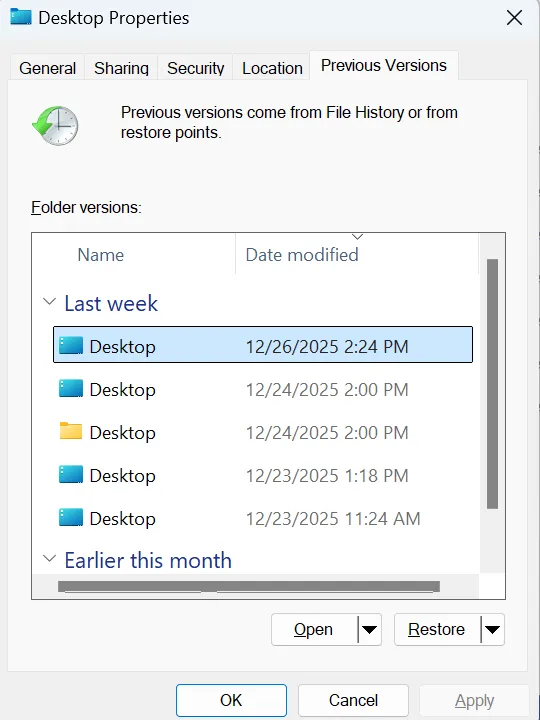
Si vous avez enregistré par erreur par-dessus un classeur Excel, vous pouvez essayer de le restaurer à partir de la fonction « Versions précédentes » sous Windows. Cette fonctionnalité peut contenir des copies antérieures de vos fichiers créées par l'Historique des fichiers, des points de restauration ou des paramètres de sauvegarde.
Procédez comme suit :
- Ouvrir Explorateur de fichiers puis accédez au dossier dans lequel le fichier Excel écrasé avait été initialement enregistré.
- Cliquez avec le bouton droit de la souris sur le dossier contenant le classeur Excel, puis sélectionnez Propriétés.
- Dans la fenêtre « Propriétés », cliquez sur le Versions précédentes tabulation.
- Windows affichera une liste des versions antérieures disponibles de ce dossier. Sélectionnez une version créée avant que le fichier Excel ne soit écrasé.
- Cliquez sur Ouvrir Commencez par vérifier si l'ancienne version du fichier Excel se trouve bien dans ce dossier.
- Si vous trouvez le classeur recherché, copiez-le dans un autre emplacement sûr, comme le Bureau ou un disque dur externe.
- Si vous êtes certain qu'il s'agit bien de la version dont vous avez besoin, vous pouvez également cliquer sur Restaurer pour restaurer le dossier à cet état antérieur. Attention : la restauration de l'intégralité du dossier risque de remplacer les fichiers les plus récents qu'il contient.
- Ouvrez le classeur Excel récupéré et vérifiez si les données sont complètes.
Si aucune version antérieure n'apparaît dans la liste, cela signifie généralement que l'historique des fichiers, la protection du système ou les paramètres de sauvegarde n'étaient pas activés avant que le fichier ne soit écrasé. Dans ce cas, essayez de consulter l'historique des versions sur OneDrive ou SharePoint si le fichier a été synchronisé en ligne, ou utilisez un logiciel professionnel de récupération de fichiers pour analyser le disque.
Méthode 4 : Récupérer des fichiers Excel lorsque le classeur est endommagé
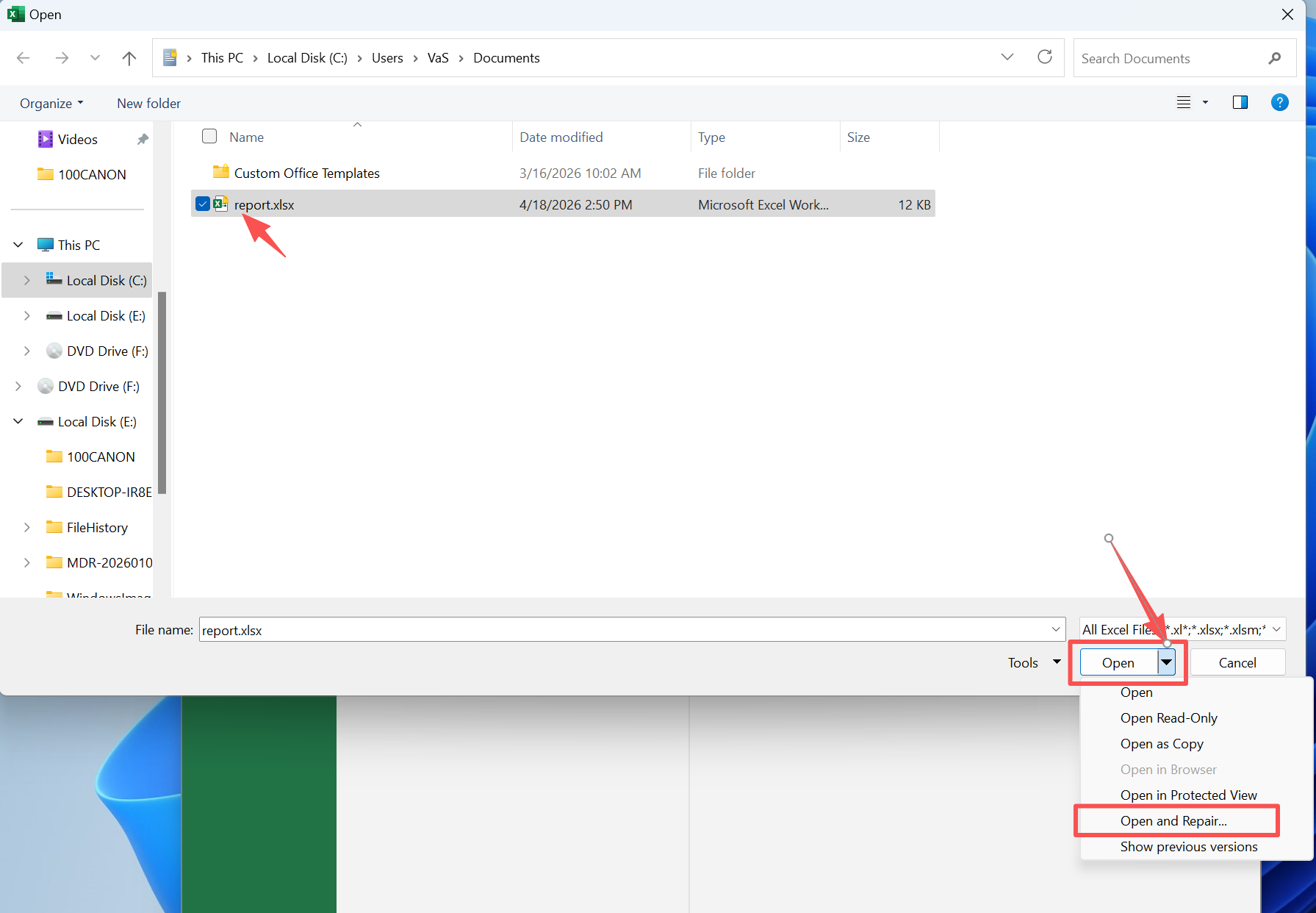
Il arrive parfois que le classeur existe toujours, mais qu'il s'ouvre vide, affiche un message d'erreur ou indique que le format n'est pas valide. Dans ce cas, essayez l'outil « Ouvrir et réparer » d'Excel.
- Ouvrir Excel.
- Sélectionnez Fichier > Ouvrir > Parcourir.
- Sélectionnez le classeur endommagé.
- Cliquez sur la flèche située à côté de « Ouvrir ».
- Choisissez Ouvrir et réparer.
- Essayez d'abord la fonction « Réparer », puis « Extraire les données ».
Cette méthode permet de récupérer les valeurs et les formules. Cependant, elle ne permet pas nécessairement de restaurer tous les graphiques, toutes les macros ou tous les formats. Par conséquent, enregistrez le classeur réparé sous forme de nouvelle copie et conservez l'original tel quel.
Méthode n° 5 : Récupérer des fichiers à partir d'un espace de stockage dans le cloud
De nombreux classeurs Excel sont stockés sur OneDrive, SharePoint, Google Drive, Dropbox ou iCloud. Si votre fichier a disparu après une synchronisation ou une collaboration, vérifiez la corbeille du cloud, l'historique des versions, les dossiers partagés, les fichiers récents, les dossiers de synchronisation hors ligne et les pièces jointes aux e-mails.
La récupération via le cloud fonctionne bien pour les classeurs partagés. Cependant, elle ne sera d'aucune utilité si le classeur n'existait que sur un disque local, une clé USB, une carte SD, un disque dur (HDD) ou un SSD. Dans ce cas, Magic Data Recovery pourrait être une meilleure solution.
Méthode n° 6 : Comment récupérer des fichiers Excel avec Magic Data Recovery
Lorsque les options intégrées d'Excel ne parviennent pas à localiser votre classeur, Magic Data Recovery permet d'analyser le disque concerné. Cette méthode s'avère utile lorsqu'un classeur a été supprimé définitivement, supprimés de la corbeille, perdus après un formatage ou manquants sur un périphérique de stockage.
Magic Data Recovery fonctionne comme Logiciel de récupération de fichiers Excel pour les cas plus graves perte de données. Il analyse directement les emplacements de stockage, répertorie les fichiers récupérables au cours de l'analyse et vous permet de prévisualiser les fichiers avant leur récupération. Vous pouvez ainsi vous concentrer sur le classeur dont vous avez besoin.
Utilisez Magic Data Recovery lorsque votre fichier Excel ne se trouve pas dans la corbeille, que vous l'avez supprimé définitivement, qu'il a disparu d'une clé USB ou d'une carte SD, qu'un disque a été formaté par erreur, Récupération automatique d'Excel n'affiche rien, ou la recherche Windows ne parvient pas à le localiser.
Par rapport aux méthodes manuelles, Magic Data Recovery permet de traiter des cas plus complexes. La Corbeille gère les suppressions normales. L'historique des versions nécessite des sauvegardes ou une synchronisation dans le cloud. La fonction de récupération automatique (AutoRecover) est principalement utile en cas de plantage et fichiers non enregistrés. En revanche, Magic Data Recovery analyse l'emplacement de stockage lui-même.
Comment utiliser Magic Data Recovery
Suivez les étapes suivantes pour récupérer des fichiers Excel avec Magic Data Recovery.
Étape 1 : Télécharger et installer Magic Data Recovery
Commencez par télécharger Magic Data Recovery et installez-le sur un disque différent de celui où se trouvait votre fichier Excel perdu. Cette étape est importante, car l'installation d'un nouveau logiciel sur le disque concerné risque d'écraser les données Excel récupérables.
Prise en charge de Windows 7/8/10/11 et Windows Server
Étape 2 : Sélectionner le lecteur à analyser
Lancez Magic Data Recovery. Ensuite, depuis l'interface principale, sélectionnez le disque ou la partition sur lequel/laquelle votre classeur Excel a été supprimé, perdu ou précédemment enregistré. Lancez ensuite l'analyse.

Étape 3 : Analyser le disque dur à la recherche de fichiers Excel perdus
Le logiciel commence à analyser le disque sélectionné. Parallèlement, il répertorie les fichiers récupérables au fur et à mesure qu’il les trouve, ce qui vous permet de vérifier si vos fichiers manquants .xlsx, .xls, ou .xlsm Le classeur apparaît dans les résultats.

Étape 4 : Prévisualisation des fichiers Excel avant la récupération
Ensuite, utilisez la fonction d'aperçu pour vérifier le contenu du fichier avant la récupération. Cette étape vous permet de vous assurer que vous avez bien sélectionné le classeur souhaité, afin d'éviter de restaurer des fichiers inutiles, obsolètes ou en double.

Étape 5 : Récupérer les fichiers Excel dans un emplacement sûr
Enfin, sélectionnez les fichiers Excel que vous souhaitez récupérer et enregistrez-les sur un autre disque ou dans un dossier sécurisé. Ne restaurez pas les fichiers récupérés à l'emplacement où ils ont été perdus, car cela pourrait écraser d'autres données récupérables ou endommager les fichiers.

Les meilleurs conseils après la récupération de fichiers Excel perdus
Une fois que vous avez compris Comment récupérer des fichiers dans Excel, réduisez les risques futurs. Activez la sauvegarde automatique, conservez Récupération automatique d'Excel activez cette fonctionnalité, réduisez l'intervalle de récupération automatique et sauvegardez vos classeurs importants à la fois sur un espace de stockage dans le cloud et sur un autre disque local.
Évitez également de modifier des fichiers importants directement à partir de clés USB instables, enregistrez les mises à jour majeures sous forme de versions distinctes et testez vos sauvegardes de temps à autre, car une sauvegarde n'est utile que si vous pouvez la restaurer.
Conclusion
La meilleure réponse à Comment récupérer des fichiers dans Excel Cela dépend du problème. En cas de plantage, commencez par utiliser les options « Récupération de documents » et « Récupération automatique ». Pour les classeurs non enregistrés, essayez l'option « Récupérer les classeurs non enregistrés ». Pour les fichiers supprimés, vérifiez la Corbeille. Pour les classeurs écrasés, utilisez l'historique des versions ou les versions précédentes.
Cependant, les outils intégrés ne permettent pas de résoudre tous les cas de figure. Lorsqu’un classeur est supprimé définitivement, qu’il a disparu de la Corbeille, qu’il a été perdu à la suite d’un formatage ou qu’il n’est pas accessible via les sauvegardes dans le cloud, Magic Data Recovery vous offre une solution de récupération plus efficace. Il analyse le disque concerné, aide à localiser les fichiers Excel récupérables, permet de prévisualiser les fichiers avant la récupération et guide les utilisateurs tout au long d'un processus simple.
C'est pourquoi Magic Data Recovery constitue un choix pratique lorsque la norme Récupération d'Excel ces méthodes échouent. Si vous vous demandez encore Comment récupérer des fichiers dans Excel Après avoir essayé des solutions manuelles, cet outil peut vous aider à poursuivre vos démarches en réduisant les tâtonnements.
Prise en charge de Windows 7/8/10/11 et Windows Server
FAQ
Puis-je récupérer un fichier Excel que je n'ai pas enregistré ?
Oui. Ouvrez Excel, puis allez dans Fichier > À propos > Gérer le classeur > Récupérer les classeurs non enregistrés. Vérifiez également la fonction de récupération automatique d'Excel et le dossier « UnsavedFiles ». Attention toutefois : cette méthode ne fonctionne que si Excel a conservé une copie temporaire. Veillez donc à enregistrer immédiatement le classeur récupéré dans un dossier sûr.
Comment récupérer un fichier Excel supprimé ?
Commencez par ouvrir la Corbeille et recherchez le nom du fichier ou l'extension .xlsx. Si vous le trouvez, restaurez-le. Toutefois, si la Corbeille est vide, utilisez des outils de sauvegarde, l'historique du cloud ou Magic Data Recovery pour récupérer les données du fichier Excel supprimé sur le disque concerné.
Puis-je récupérer un fichier Excel qui a été écrasé ?
Oui, s'il existe une version antérieure. Vérifiez d'abord l'historique des versions dans OneDrive ou SharePoint. Ensuite, essayez la fonctionnalité « Versions précédentes » de Windows si l'historique des fichiers ou des points de restauration sont disponibles. Si aucune de ces options ne fonctionne, arrêtez de modifier le fichier et lancez une analyse de l'emplacement de stockage.
Où sont stockés les fichiers temporaires d'Excel ?
Excel peut stocker des fichiers temporaires dans les dossiers suivants : %AppData%\Microsoft\Excel\, %LocalAppData%\Microsoft\Office\UnsavedFiles ou %temp%. Comme les fichiers temporaires d'Excel peuvent porter des noms inhabituels, recherchez les extensions .xlsx, .xls, .xlsm, .tmp et ~$, puis triez les résultats par date de modification pour trouver les copies récentes des classeurs.
Magic Data Recovery permet-il de récupérer des fichiers Excel à partir d'une clé USB ?
Oui. Magic Data Recovery permet d'analyser une clé USB et de récupérer des fichiers Excel qui ont disparu à la suite d'une suppression, d'un formatage ou d'erreurs du périphérique. Pour obtenir de meilleurs résultats, cessez d'utiliser la clé USB au préalable. Ensuite, analysez-la et enregistrez les classeurs récupérés dans un autre emplacement sûr.
Pourquoi mon fichier Excel récupéré s'ouvre-t-il vide ?
Un classeur récupéré peut s'ouvrir vide si le fichier a été endommagé par une corruption ou un écrasement partiel. Commencez par essayer la fonction « Ouvrir et réparer » dans Excel. Vérifiez ensuite les versions précédentes ou lancez une nouvelle analyse. Veillez également à ne pas modifier le fichier original récupéré afin de pouvoir essayer une autre méthode de récupération.

Vasilii est un spécialiste de la récupération de données qui possède une dizaine d'années d'expérience pratique dans ce domaine. Tout au long de sa carrière, il a résolu avec succès des milliers de cas complexes impliquant des fichiers supprimés, des disques formatés, des partitions perdues et des systèmes de fichiers RAW. Son expertise couvre à la fois les méthodes de récupération manuelle à l'aide d'outils professionnels tels que les éditeurs hexagonaux et les solutions automatisées avancées à l'aide de logiciels de récupération. La mission de Vasilii est de rendre accessible aux professionnels de l'informatique et aux utilisateurs quotidiens des connaissances fiables en matière de récupération de données, afin de les aider à sauvegarder leurs précieuses ressources numériques.