
Récupérer des fichiers Illustrator : 7 méthodes éprouvées
.ai fichier, et un problème de stockage peut faire disparaître un projet. Heureusement, on peut souvent récupérer des fichiers Illustrator si vous choisissez un récupération du disque dur une méthode adaptée à la cause du problème. Ce guide présente sept solutions pratiques, allant d’Adobe Auto-Recovery et Creative Cloud à Magic Data Recovery pour les fichiers qui se trouvaient autrefois sur le système de stockage.Prise en charge de Windows 7/8/10/11 et Windows Server
Table des matières
Peut-on récupérer des fichiers Illustrator ? Vérifiez d'abord la situation
Avant de commencer, déterminez ce qui s'est passé avec le projet. Un fichier non enregistré nécessite une solution différente de celle d'un supprimé définitivement ou un fichier corrompu. Par conséquent, utilisez le tableau ci-dessous pour choisir le point de départ le plus sûr.
Situation | La meilleure première méthode |
Illustrator s'est bloqué | Récupération automatique |
Le fichier non enregistré ne s'est pas rouvert | Dossier « DataRecovery » |
Supprimé | Corbeille ou Trash |
Fichier supprimé définitivement | Logiciel de récupération de données |
Document cloud supprimé | Creative Cloud supprimé |
Projet écrasé | Historique des versions ou sauvegarde |
Corrompu | Mode de récupération du contenu |
Périphérique de stockage formaté | Logiciel de récupération de données |
Avant tout, demandez-vous si vous avez déjà enregistré le projet. Si Illustrator n'a jamais enregistré le fichier sur le disque et qu'il n'existe aucune donnée de récupération, un logiciel de récupération de disque n'aura rien à restaurer. Dans ce cas, commencez par utiliser les fonctions de récupération d'Illustrator.
Que faire avant de récupérer des fichiers Illustrator ?
Quelques précautions suffisent à protéger les données récupérables. Tout d'abord, cessez d'enregistrer de nouveaux fichiers sur le disque qui contenait le projet manquant. Les nouvelles données risquent d'écraser le contenu des fichiers supprimés. Ensuite, évitez de formater, de réparer ou d'utiliser intensivement ce disque jusqu'à la fin de la récupération.
Veillez également à installer un logiciel de récupération sur un autre disque et à enregistrer les fichiers restaurés ailleurs. Enfin, vérifiez si le projet se trouvait sur un support de stockage local, sur Creative Cloud, ou les deux. Ces vérifications simples peuvent vous éviter une perte de données évitable et vous aider à choisir la bonne méthode de récupération.
Méthode 1 : Récupérer automatiquement des fichiers Illustrator après un plantage
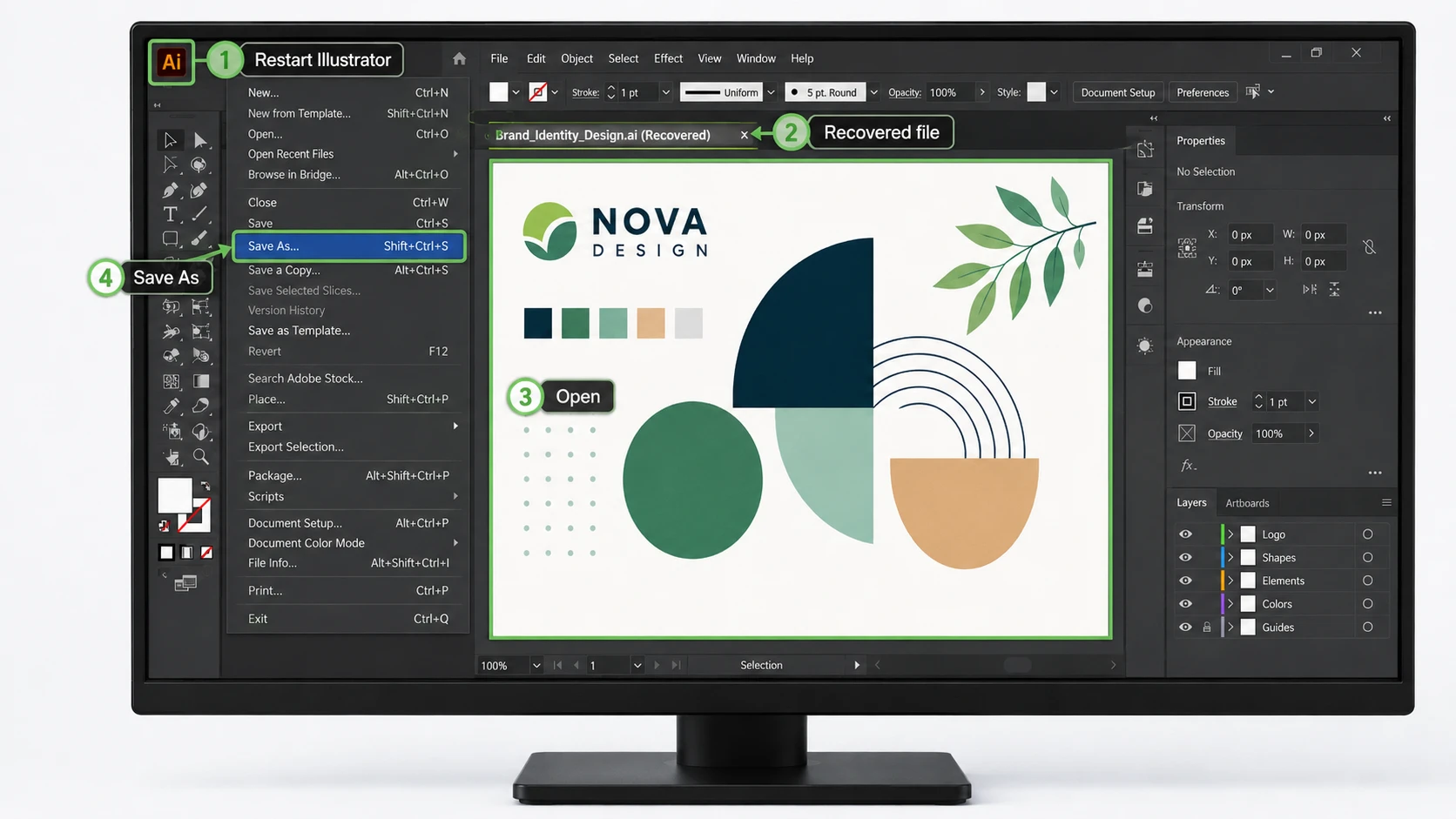
Si Illustrator plante, redémarrez-le avant d'essayer des solutions avancées. Illustrator peut détecter des données de récupération et rouvrir le projet en ajoutant la mention “ Récupéré ” au nom du fichier.
- Fermez tout processus Illustrator bloqué.
- Redémarrez Illustrator.
- Attendez que le processus de restauration soit terminé.
- Ouvrez le document intitulé Récupéré.
- Choisir Fichier > Enregistrer sous et créer une nouvelle copie.
C'est généralement la manière la plus sûre de récupérer des fichiers Illustrator après un plantage, car Illustrator utilise ses propres données de récupération. Toutefois, les modifications très récentes peuvent tout de même être perdues si le plantage s'est produit avant le dernier point de sauvegarde.
Si rien ne s'ouvre, ne pensez pas pour autant que le projet a disparu. Vérifiez plutôt le dossier « DataRecovery » en suivant la méthode suivante.
Méthode 2 : Récupérer des fichiers Illustrator à partir du dossier « DataRecovery »
Si la récupération automatique ne s'affiche pas, le dossier « DataRecovery » d'Illustrator peut tout de même contenir des données utiles pour la récupération.
Emplacement des fichiers de récupération d'Illustrator sous Windows
Presse Victoire + R, tapez %AppData%, puis ouvrez :
Adobe\Adobe Illustrator Paramètres\\x64\DataRecovery
Rechercher .ai ou .aid fichiers. Si vous trouvez un projet qui vous semble intéressant, ouvrez-le dans Illustrator et enregistrez immédiatement une nouvelle copie.
Emplacement des fichiers de récupération d'Illustrator sur Mac
Dans le Finder, sélectionnez Aller > Aller au dossier, tapez ~/Bibliothèque/, puis accédez à :
Préférences/Adobe Illustrator Paramètres//DataRecovery
Une fois encore, ouvrez n'importe quel fichier de récupération disponible et enregistrez-le sous un nouveau nom.
Vérifiez la version d'Illustrator avant la restauration
Les différentes versions d'Illustrator ne gèrent pas toutes les données de récupération de la même manière. Par exemple, les versions 29.2 à 29.8 d'Illustrator utilisent .aishm données de récupération ; il est donc possible que les anciennes instructions de récupération manuelle ne fonctionnent pas comme prévu. Dans Illustrator 30.0, Enregistrer en arrière-plan joue également un rôle plus important dans le comportement de sauvegarde.
Par conséquent, vérifiez toujours la version exacte d'Illustrator dont vous disposez avant de conclure que les données de récupération ne sont pas disponibles.
Méthode 3 : Récupérer des fichiers Illustrator à partir de Creative Cloud
Si vous avez enregistré le projet sous forme de document Creative Cloud, vérifiez d'abord les outils cloud d'Adobe avant de parcourir le stockage local.
Pour récupérer un document Cloud supprimé, ouvrez Creative Cloud et rendez-vous dans Fichiers > Supprimés. Restaurez le projet s'il y figure toujours. En attendant, si vous avez besoin d'une version antérieure plutôt que d'un fichier supprimé, ouvrez le document stocké dans le cloud dans Illustrator et vérifiez Fichier > Historique des versions.
Cette méthode peut vous aider récupérer des fichiers Illustrator après des modifications accidentelles, des changements indésirables ou une suppression dans le cloud. De plus, l'historique des versions peut s'avérer plus utile que la récupération de disque lorsque vous avez besoin d'une copie antérieure connue plutôt que des données brutes supprimées.
Méthode n° 4 : Récupérer des fichiers Illustrator supprimés à partir de la corbeille
Si vous avez récemment supprimé un fichier enregistré .ai fichier, vérifiez d'abord le système d'exploitation.
Sous Windows, ouvrez Corbeille, repérez le fichier, cliquez dessus avec le bouton droit de la souris, puis sélectionnez Restaurer. Sous macOS, ouvrez Poubelle, cliquez avec le bouton droit sur le fichier Illustrator, puis sélectionnez Remettre en place.
Cette approche vous offre le moyen le plus rapide de récupérer des fichiers Illustrator après une suppression normale. Toutefois, cela ne servira à rien si vous avez vidé la Corbeille, utilisé la suppression définitive ou formaté le disque. Dans ces cas-là, tournez-vous vers vos sauvegardes ou vers une restauration au niveau du support de stockage.
Méthode n° 5 : Récupérer des fichiers Illustrator à partir d'une sauvegarde
Les sauvegardes permettent de restaurer des projets supprimés ou écrasés sans avoir à analyser le stockage brut. Sous Windows, vérifiez Historique du dossier ou Versions précédentes si vous les aviez activées avant la perte. Sous macOS, utilisez La machine à remonter le temps puis revenez au dossier qui contenait à l'origine le projet Illustrator.
Les sauvegardes s'avèrent particulièrement efficaces pour les fichiers écrasés, car elles permettent de conserver des copies antérieures connues. Il est donc conseillé de vérifier l'historique des sauvegardes avant d'essayer des outils de niveau inférieur.
Si vous conservez vos fichiers de projet dans un espace de stockage en ligne, consultez également l'historique des versions de ce service. Dans de nombreux cas concrets, une sauvegarde constitue le moyen le plus rapide et le plus simple de récupérer des fichiers Illustrator sans risquer d'apporter d'autres modifications au disque d'origine.
Méthode 6 : Récupérer des fichiers Illustrator avec Magic Data Recovery
Si un fichier enregistré .ai Si un fichier disparaît à la suite d'une suppression définitive, d'un formatage, de la perte d'une partition ou d'un autre problème de stockage logique, une récupération au niveau du support de stockage peut s'avérer nécessaire.
Magic Data Recovery offre une solution pratique sous Windows pour ce type de situation. Il prend en charge les fichiers graphiques AI, les périphériques de stockage courants et des milliers d’autres formats de fichiers. Mieux encore, il analyse directement le périphérique de stockage lui-même au lieu de s’appuyer sur le dossier de récupération d’Illustrator.
Cette différence est importante. La fonction « Récupération automatique » d'Adobe se concentre sur les travaux non enregistrés à la suite d'un plantage, tandis que Magic Data Recovery cible les fichiers qui existaient auparavant sur le périphérique de stockage et qui ont disparu par la suite. Elle convient donc aux cas où la Corbeille, les sauvegardes et les fonctions de récupération d'Adobe ne suffisent plus.
Étape 1 : Télécharger et installer Magic Data Recovery
Téléchargez Magic Data Recovery et installez-le sur un disque différent de celui qui contenait le fichier Illustrator perdu. Cela réduit le risque que les données d'installation écrasent les données récupérables. .ai le contenu.
Prise en charge de Windows 7/8/10/11 et Windows Server
Étape 2 : Sélectionnez le disque sur lequel le fichier Illustrator a été enregistré
Lancez le programme. Ensuite, depuis l'interface principale, sélectionnez la partition ou le périphérique de stockage qui contenait à l'origine le projet Illustrator manquant, puis lancez l'analyse.

Étape 3 : Analysez le disque dur à la recherche de fichiers Illustrator perdus
Magic Data Recovery lance automatiquement une analyse avancée et recherche les données récupérables sur le disque sélectionné. Parallèlement, les fichiers récupérables s'affichent au fur et à mesure que l'analyse progresse.
Pour obtenir des résultats aussi complets que possible, laissez l'analyse se terminer, en particulier après un formatage ou une suppression remontant à quelque temps.

Étape 4 : Prévisualiser et localiser le fichier Illustrator
Ensuite, utilisez la recherche par nom de fichier, les chemins d'accès, les types de fichiers ou les filtres disponibles pour localiser le projet .ai manquant. Si l'aperçu est disponible, vérifiez le contenu avant la récupération afin de vous assurer que vous avez bien trouvé la bonne version.
Cette étape vous permet également d'éviter de restaurer des fichiers inutiles lorsqu'une analyse renvoie un grand nombre de résultats.

Étape 5 : Sauvegarder le fichier Illustrator dans un emplacement sûr
Enfin, sélectionnez le fichier Illustrator que vous souhaitez restaurer et enregistrez-le sur un autre disque ou périphérique de stockage. Ne l'enregistrez pas à nouveau à l'emplacement d'où il a disparu, car de nouvelles données pourraient écraser d'autres éléments récupérables.
Une fois la restauration terminée, ouvrez le fichier restauré .ai fichier dans Illustrator et enregistrez une nouvelle copie de travail.

Magic Data Recovery propose également jusqu'à 500 Mo d'espace de récupération gratuit, ce qui vous permet de tester le processus de restauration avant de décider si vous avez besoin de plus de capacité.
Pour les utilisateurs qui essaient de récupérer des fichiers Illustrator Après une suppression définitive ou un formatage, cette méthode est plus efficace que la fonction de récupération automatique, car elle intervient au niveau du stockage. Elle ne permet toutefois pas de recréer un projet qu’Illustrator n’a jamais enregistré ni sauvegardé.
En d'autres termes, utilisez les outils intégrés d'Adobe pour les travaux non enregistrés et recourez à la fonction de récupération des données stockées lorsque cela s'avère nécessaire. récupérer des fichiers Illustrator qui se trouvait auparavant sur un disque dur.
Méthode 7 : Réparer un fichier Illustrator endommagé
Parfois, le .ai Le fichier existe toujours, mais Illustrator ne parvient pas à l'ouvrir. Dans ce cas, il s'agit d'un fichier endommagé et non d'un fichier supprimé.
Adobe’s Mode de récupération du contenu peut permettre de réparer certains documents endommagés. Commencez par faire une copie du fichier endommagé. Activez ensuite l'option « Récupération de contenu » dans les préférences d'Illustrator, rouvrez le document à l'aide du raccourci de récupération approprié, puis recherchez dans le même dossier une copie réparée dont le nom de fichier commence par un trait de soulignement.
Utilisez cette méthode lorsque le fichier existe mais ne s'ouvre pas. En revanche, utilisez la récupération de fichiers supprimés lorsque le fichier a bel et bien disparu.
Pourquoi vous pourriez ne pas parvenir à récupérer des fichiers Illustrator
Même les meilleures méthodes de récupération ont leurs limites. Il se peut qu’Illustrator n’ait jamais créé de données de récupération avant un plantage. De même, de nouvelles données peuvent écraser un fichier supprimé .ai fichier.
Les SSD peuvent compliquer la récupération car TRIM peut effacer des blocs après que le système d'exploitation les a marqués comme libres. De plus, un fichier corrompu doit être réparé plutôt que d'être soumis à une analyse des fichiers supprimés. Les différences entre les versions peuvent également avoir une incidence sur l'emplacement et le format des données de récupération.
Par conséquent, aucun outil ne peut garantir le succès de la récupération dans tous les cas. Plus tôt vous cesserez d'utiliser le disque concerné et choisirez la bonne méthode, plus vous aurez de chances de récupérer des données exploitables.
Comment éviter de perdre à nouveau des fichiers Illustrator
Après avoir récupérer des fichiers Illustrator, améliorez votre procédure de sauvegarde afin que le prochain incident entraîne moins de perturbations.
Commencez par vérifier les paramètres de gestion des fichiers d’Illustrator et assurez-vous que les fonctions de récupération ou d’enregistrement en arrière-plan sont activées. Dans les versions plus récentes, Enregistrer en arrière-plan joue un rôle important dans le fonctionnement des sauvegardes.
Ensuite, conservez vos projets importants à au moins deux emplacements différents. Creative Cloud, l’historique des fichiers, Time Machine ou tout autre système de sauvegarde vous permet de disposer d’une deuxième copie. Évitez également de modifier des projets critiques directement à partir d’un support amovible instable.
Enfin, utilisez des noms de version clairs, tels que Logo_v01.ai, Logo_v02.ai, et Logo_Final.ai. Cette pratique permet de revenir beaucoup plus facilement à une version antérieure sans avoir à recourir à une restauration d'urgence.
Conclusion : la méthode la plus sûre pour récupérer des fichiers Illustrator
La meilleure façon de récupérer des fichiers Illustrator Cela dépend de la manière dont le projet a disparu. En cas de plantage, commencez par utiliser la fonction de récupération automatique et consultez le dossier « DataRecovery ». Pour les projets stockés dans le cloud ou qui ont été écrasés, vérifiez l'historique des versions et les sauvegardes. Si le fichier existe toujours mais ne s'ouvre pas, essayez le mode de récupération de contenu.
Pour les fichiers supprimés définitivement, formatés ou perdus .ai les fichiers qui se trouvaient autrefois sur le support de stockage, Magic Data Recovery constitue une solution pratique pour la suite. Il analyse le disque sous-jacent, prend en charge les fichiers AI, fonctionne avec les périphériques de stockage Windows courants et offre jusqu'à 500 Mo de récupération gratuite.
Avant tout, privilégiez d'abord l'option la moins invasive. Cette approche permet de protéger les données restantes et vous offre la meilleure récupération du disque dur occasion de récupérer des fichiers Illustrator sans créer de problèmes supplémentaires.
Prise en charge de Windows 7/8/10/11 et Windows Server
FAQ sur la récupération des fichiers Illustrator
Illustrator peut-il récupérer un fichier non enregistré après un plantage ?
Oui, à condition qu’Illustrator ait créé des données de récupération avant le plantage. Redémarrez d’abord Illustrator et recherchez un document portant la mention “ Récupéré ”. Si rien n’apparaît, consultez le dossier DataRecovery. Cependant, il se peut que la version récupérée ne contienne pas vos dernières modifications, car Illustrator ne peut restaurer que les informations enregistrées lors de son dernier cycle de récupération.
Où sont stockés les fichiers de récupération d'Illustrator sous Windows ?
Illustrator stocke généralement les données de récupération dans le dossier %AppData%\Adobe\Adobe Illustrator Settings\\x64\DataRecovery. Recherchez les fichiers .ai ou .aid. Cependant, les versions 29.2 à 29.8 d'Illustrator utilisent des données de récupération au format .aishm ; le processus de récupération diffère donc de celui des versions antérieures. Vérifiez donc votre version avant de suivre d'anciens tutoriels de récupération.
Puis-je récupérer des fichiers Illustrator supprimés après avoir vidé la corbeille ?
C'est possible. Commencez par ne plus utiliser le disque concerné, car de nouvelles données pourraient écraser le contenu des fichiers supprimés. Vérifiez ensuite vos sauvegardes ou analysez le disque à l'aide d'un outil tel que Magic Data Recovery. La récupération dépend de la présence ou non de données .ai exploitables ; aucun logiciel de récupération ne peut donc garantir un résultat positif dans tous les cas.
Puis-je récupérer un fichier Illustrator qui a été écrasé ?
Commencez par consulter l'historique des versions de Creative Cloud, l'historique des fichiers Windows, les versions précédentes, Time Machine ou toute autre sauvegarde. Ces options peuvent vous permettre de retrouver une copie antérieure dont l'intégrité est garantie. Les logiciels de récupération sont moins fiables pour les fichiers écrasés, car les données plus récentes peuvent déjà occuper les blocs de stockage qui contenaient le projet Illustrator d'origine.
Pourquoi mon dossier « DataRecovery » d'Illustrator est-il vide ?
Il se peut qu'Illustrator n'ait pas créé de données de récupération, que les paramètres de récupération aient été désactivés ou que le plantage se soit produit avant le point de sauvegarde suivant. La version d'Illustrator que vous utilisez a également son importance. Par exemple, les versions 29.2 à 29.8 utilisent des données de récupération au format .aishm ; vérifiez donc la version exacte avant de conclure que le projet est perdu.
Magic Data Recovery permet-il de récupérer des fichiers Illustrator à partir d'un disque formaté ?
Il peut analyser les périphériques de stockage formatés à la recherche de fichiers AI récupérables s'il reste encore des données exploitables. Cessez d'utiliser le périphérique, analysez-le dès que possible et enregistrez les fichiers récupérés ailleurs. Cependant, un écrasement intensif ou la fonction TRIM des SSD peuvent réduire les chances de récupération, car ces processus peuvent supprimer les données sous-jacentes dont le logiciel de récupération a besoin.
Un logiciel de récupération peut-il restaurer un projet Illustrator qui n'a jamais été enregistré ?
En général, non. Les logiciels de récupération fonctionnent mieux lorsqu'un fichier existait déjà sur le support de stockage. Si vous n'avez jamais enregistré le projet et qu'Illustrator n'a jamais créé de données de récupération, un analyseur de disque risque de ne rien trouver à restaurer. Dans ce cas, vérifiez d'abord la fonction de récupération automatique d'Illustrator et le dossier « DataRecovery » avant de vous lancer dans une récupération au niveau du support de stockage.

Vasilii est un spécialiste de la récupération de données qui possède une dizaine d'années d'expérience pratique dans ce domaine. Tout au long de sa carrière, il a résolu avec succès des milliers de cas complexes impliquant des fichiers supprimés, des disques formatés, des partitions perdues et des systèmes de fichiers RAW. Son expertise couvre à la fois les méthodes de récupération manuelle à l'aide d'outils professionnels tels que les éditeurs hexagonaux et les solutions automatisées avancées à l'aide de logiciels de récupération. La mission de Vasilii est de rendre accessible aux professionnels de l'informatique et aux utilisateurs quotidiens des connaissances fiables en matière de récupération de données, afin de les aider à sauvegarder leurs précieuses ressources numériques.