
Recuperar archivos de Illustrator: 7 métodos probados
.ai archivo, y un problema de almacenamiento puede hacer que un proyecto desaparezca. Afortunadamente, a menudo se puede Recuperar archivos de Illustrator si eliges un recuperación de discos duros método adecuado para cada causa. En esta guía se explican siete soluciones prácticas, desde la función de recuperación automática de Adobe y Creative Cloud hasta Magic Data Recovery para archivos que en su momento estuvieron almacenados.Compatible con Windows 7/8/10/11 y Windows Server
Índice
¿Se pueden recuperar archivos de Illustrator? Comprueba primero cuál es la situación
Antes de empezar, averigua qué ha pasado con el proyecto. Un archivo sin guardar requiere una solución diferente a la de un eliminado permanentemente o un archivo dañado. Por lo tanto, utiliza la tabla que figura a continuación para elegir el punto de partida más seguro.
Situación | El mejor método inicial |
Illustrator se ha bloqueado | Recuperación automática |
El archivo sin guardar no se ha vuelto a abrir | Carpeta «DataRecovery» |
Suprimido | Papelera de reciclaje o papelera |
Archivo eliminado definitivamente | Software de recuperación de datos |
Documento de la nube eliminado | Creative Cloud eliminado |
Proyecto sobrescrito | Historial de versiones o copia de seguridad |
Corrupted | Modo de recuperación de contenidos |
Dispositivo de almacenamiento formateado | Software de recuperación de datos |
Lo más importante es que te preguntes si guardaste el proyecto en algún momento. Si Illustrator nunca guardó el diseño en el disco y no hay datos de recuperación, el software de recuperación de discos no tendrá nada que restaurar. En ese caso, empieza por las propias funciones de recuperación de Illustrator.
Qué hay que hacer antes de recuperar archivos de Illustrator
Hay algunas precauciones que pueden ayudar a proteger los datos recuperables. En primer lugar, deja de guardar archivos nuevos en la unidad que contenía el proyecto perdido. Los nuevos datos podrían sobrescribir el contenido de los archivos eliminados. A continuación, evita formatear, reparar o hacer un uso intensivo de esa unidad hasta que finalice el proceso de recuperación.
Además, instala un programa de recuperación en otra unidad y guarda los archivos recuperados en otro lugar. Por último, comprueba si el proyecto se encontraba en el almacenamiento local, en Creative Cloud o en ambos. Estas sencillas comprobaciones pueden evitar una pérdida de datos innecesaria y ayudarte a elegir la mejor forma de recuperación.
Método 1: Recuperar archivos de Illustrator automáticamente tras un fallo del programa
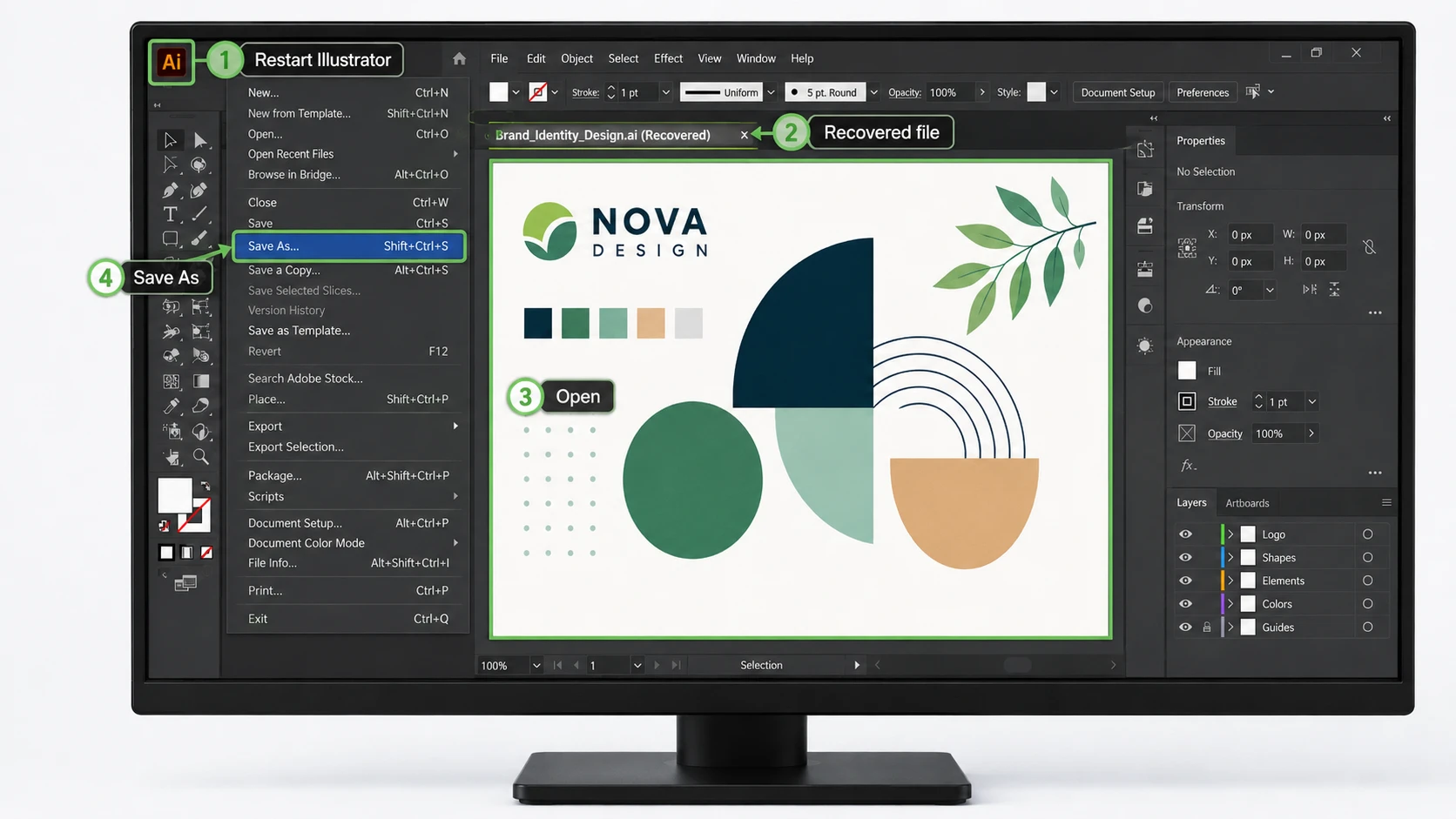
Si Illustrator se bloquea, reinícialo antes de intentar soluciones avanzadas. Es posible que Illustrator detecte datos de recuperación y vuelva a abrir el proyecto añadiendo la palabra “Recuperado” al nombre del archivo.
- Cierra cualquier proceso de Illustrator que se haya bloqueado.
- Reinicia Illustrator.
- Espera a que finalice el proceso de recuperación.
- Abre el documento marcado como Recuperado.
- Elija Archivo > Guardar como y crear una nueva copia.
Esta suele ser la forma más segura de Recuperar archivos de Illustrator tras un fallo del programa, ya que Illustrator utiliza sus propios datos de recuperación. No obstante, es posible que sigan faltando las modificaciones más recientes si el fallo se produjo antes del último punto de copia de seguridad.
Si no se vuelve a abrir nada, no des por hecho que el proyecto se ha perdido. En su lugar, comprueba la carpeta «DataRecovery» siguiendo el procedimiento que se indica a continuación.
Método 2: Recuperar archivos de Illustrator de la carpeta «DataRecovery»
Si no se inicia la recuperación automática, es posible que la carpeta «DataRecovery» de Illustrator siga conteniendo datos útiles para la recuperación.
Ubicación de los archivos de recuperación de Illustrator en Windows
Pulse Ganar + R, introduce %AppData%, y a continuación abre:
Adobe\Adobe Illustrator Configuración\\x64\DataRecovery
Busque .ai o .aid archivos. Si encuentras un proyecto que te parezca adecuado, ábrelo en Illustrator y guarda inmediatamente una nueva copia.
Ubicación de los archivos de recuperación de Illustrator en Mac
En el Finder, selecciona Ir > Ir a la carpeta, introduce ~/Biblioteca/, y ve a:
Preferencias/Adobe Illustrator Configuración//DataRecovery
Una vez más, abre cualquier archivo de recuperación disponible y guárdalo con un nuevo nombre.
Comprueba la versión de Illustrator antes de realizar la recuperación
No todas las versiones de Illustrator gestionan los datos de recuperación de la misma manera. Por ejemplo, las versiones de Illustrator 29.2 a 29.8 utilizan .aishm datos de recuperación, por lo que es posible que las instrucciones de recuperación manual más antiguas no funcionen como se esperaba. En Illustrator 30.0, Guardar en segundo plano también influye en mayor medida en el comportamiento de las copias de seguridad.
Por lo tanto, comprueba siempre cuál es exactamente tu versión de Illustrator antes de dar por hecho que los datos de recuperación no están disponibles.
Método 3: Recuperar archivos de Illustrator desde Creative Cloud
Si has guardado el proyecto como un documento de Creative Cloud, comprueba las herramientas en la nube de Adobe antes de buscar en el almacenamiento local.
Para recuperar un documento de la nube que se haya eliminado, abre Creative Cloud y ve a Archivos > Eliminados. Recupera el proyecto si sigue apareciendo ahí. Mientras tanto, si necesitas una versión anterior en lugar de un archivo eliminado, abre el documento de la nube en Illustrator y comprueba Archivo > Historial de versiones.
Este método puede ayudarte Recuperar archivos de Illustrator tras modificaciones accidentales, cambios no deseados o eliminaciones en la nube. Además, el historial de versiones puede resultar más útil que la recuperación del disco cuando se necesita una copia anterior conocida en lugar de los datos eliminados sin procesar.
Método 4: Recuperar archivos de Illustrator eliminados de la Papelera de reciclaje o de la Papelera
Si hace poco has eliminado un archivo guardado .ai archivo, comprueba primero el sistema operativo.
En Windows, abre Papelera de reciclaje, busca el archivo, haz clic con el botón derecho del ratón sobre él y selecciona Restaurar. En macOS, abre Basura, haz clic con el botón derecho del ratón en el archivo de Illustrator y selecciona Volver a poner.
Este método te ofrece la forma más rápida de Recuperar archivos de Illustrator tras un borrado normal. Sin embargo, esto no servirá de nada si has vaciado la Papelera de reciclaje o la Papelera, has utilizado el borrado definitivo o has formateado la unidad. En esos casos, recurre a las copias de seguridad o a la recuperación a nivel de almacenamiento.
Método 5: Recuperar archivos de Illustrator a partir de una copia de seguridad
Las copias de seguridad permiten restaurar proyectos eliminados o sobrescritos sin necesidad de escanear el almacenamiento sin procesar. En Windows, comprueba Historial de archivos o Versiones anteriores si las habías activado antes de que se perdieran. En macOS, utiliza La máquina del tiempo y vuelve a la carpeta que contenía originalmente el proyecto de Illustrator.
Las copias de seguridad funcionan especialmente bien con los archivos sobrescritos, ya que conservan copias anteriores conocidas. Por lo tanto, comprueba el historial de copias de seguridad antes de probar herramientas de nivel inferior.
Si guardas los archivos del proyecto en un servicio de almacenamiento en la nube, revisa también el historial de versiones de dicho servicio. En muchos casos reales, una copia de seguridad ofrece la forma más rápida y sencilla de Recuperar archivos de Illustrator sin correr el riesgo de que se produzcan más cambios en la unidad original.
Método 6: Recuperar archivos de Illustrator con Magic Data Recovery
Si un archivo guardado .ai Si un archivo desaparece tras un borrado definitivo, un formateo, la pérdida de una partición u otro problema lógico de almacenamiento, es posible que necesites una recuperación a nivel de almacenamiento.
Magic Data Recovery ofrece una opción práctica en Windows para esta situación. Es compatible con archivos gráficos de AI, dispositivos de almacenamiento habituales y miles de formatos de archivo más. Y lo que es más importante, analiza directamente el dispositivo de almacenamiento en lugar de basarse en la carpeta de recuperación de Illustrator.
Esa diferencia es importante. La función de recuperación automática de Adobe se centra en el trabajo no guardado tras un fallo del programa, mientras que Magic Data Recovery se centra en los archivos que en su momento existían en el almacenamiento y que posteriormente han desaparecido. Por lo tanto, resulta útil en aquellos casos en los que la Papelera de reciclaje, las copias de seguridad y las funciones de recuperación de Adobe ya no sirven de ayuda.
Paso 1: Descargar e instalar Magic Data Recovery
Descarga Magic Data Recovery e instálalo en una unidad distinta a aquella que contenía el archivo de Illustrator perdido. De este modo se reduce la probabilidad de que los datos de instalación sobrescriban los archivos recuperables .ai contenido.
Compatible con Windows 7/8/10/11 y Windows Server
Paso 2: Selecciona la unidad en la que se guardó el archivo de Illustrator
Inicia el programa. A continuación, desde la interfaz principal, selecciona la partición o el dispositivo de almacenamiento que contenía originalmente el proyecto de Illustrator que has perdido e inicia el análisis.

Paso 3: Escanea la unidad en busca de archivos de Illustrator perdidos
Magic Data Recovery inicia automáticamente un análisis avanzado y busca datos recuperables en la unidad seleccionada. Mientras tanto, los archivos recuperables van apareciendo progresivamente a medida que avanza el análisis.
Para obtener resultados más completos, deja que el análisis termine, sobre todo después de un formateo o de un borrado anterior.

Paso 4: Previsualizar y localizar el archivo de Illustrator
A continuación, utiliza la búsqueda por nombre de archivo, las rutas de acceso, los tipos de archivo o los filtros disponibles para localizar el proyecto .ai perdido. Cuando haya una vista previa disponible, comprueba el contenido antes de la recuperación para asegurarte de que has encontrado la versión correcta.
Este paso también te ayuda a evitar restaurar archivos innecesarios cuando un análisis arroja muchos resultados.

Paso 5: Guarda el archivo de Illustrator en una ubicación segura
Por último, selecciona el archivo de Illustrator que quieras recuperar y guárdalo en otra unidad o dispositivo de almacenamiento. No lo guardes de nuevo en la misma ubicación en la que desapareció, ya que los nuevos datos podrían sobrescribir otro contenido recuperable.
Una vez finalizada la recuperación, abre el archivo restaurado .ai Abre el archivo en Illustrator y guarda una nueva copia de trabajo.

Magic Data Recovery también ofrece hasta 500 MB de espacio de recuperación gratuito, para que puedas probar el proceso de recuperación antes de decidir si necesitas más capacidad.
Para los usuarios que intentan Recuperar archivos de Illustrator Tras un borrado definitivo o un formateo, este método resulta más eficaz que la función de recuperación automática, ya que actúa a nivel de almacenamiento. No obstante, no puede recrear un proyecto que Illustrator nunca haya guardado ni del que no se haya realizado una copia de seguridad.
En otras palabras, utiliza las herramientas integradas de Adobe para los trabajos no guardados y recurre a la recuperación de almacenamiento cuando sea necesario. Recuperar archivos de Illustrator que existía anteriormente en una unidad.
Método 7: Reparar un archivo de Illustrator dañado
A veces el .ai El archivo sigue existiendo, pero Illustrator no puede abrirlo. En ese caso, se trata de un problema de corrupción del archivo y no de su eliminación.
De Adobe Modo de recuperación de contenidos puede ayudar a reparar algunos documentos dañados. En primer lugar, haz una copia del archivo dañado. A continuación, activa la opción «Recuperación de contenido» en las preferencias de Illustrator, vuelve a abrir el documento con el atajo de recuperación correspondiente y busca en la misma carpeta una copia reparada cuyo nombre de archivo comience con un guión bajo.
Utiliza este método cuando el archivo exista pero no se pueda abrir. Por el contrario, utiliza la recuperación de archivos borrados cuando el archivo haya desaparecido realmente.
Por qué es posible que no consigas recuperar archivos de Illustrator
Incluso los mejores métodos de recuperación tienen sus límites. Es posible que Illustrator no haya creado datos de recuperación antes de que se produjera el fallo. Del mismo modo, los nuevos datos pueden sobrescribir un archivo eliminado .ai archivo.
Los SSD pueden dificultar la recuperación porque TRIM puede borrar bloques después de que el sistema operativo los haya marcado como libres. Además, un archivo dañado necesita ser reparado, en lugar de someterse a un análisis de archivos eliminados. Las diferencias entre versiones también pueden afectar a la ubicación y al formato de los datos de recuperación.
Por lo tanto, ninguna herramienta puede garantizar el éxito de la recuperación. Cuanto antes dejes de utilizar la unidad afectada y elijas el método adecuado, mayores serán tus posibilidades de recuperar datos útiles.
Cómo evitar volver a perder archivos de Illustrator
Después de Recuperar archivos de Illustrator, mejora tu rutina de copias de seguridad para que el próximo incidente cause menos trastornos.
En primer lugar, comprueba la configuración de gestión de archivos de Illustrator y asegúrate de que las funciones de recuperación o de guardado en segundo plano estén activadas. En las versiones más recientes, Guardar en segundo plano desempeña un papel importante en el funcionamiento de las copias de seguridad.
A continuación, guarda los proyectos importantes en al menos dos ubicaciones. Creative Cloud, Historial de archivos, Time Machine u otro sistema de copias de seguridad te proporcionan una segunda copia. Además, evita editar proyectos críticos directamente desde un dispositivo de almacenamiento extraíble inestable.
Por último, utiliza nombres de versión claros, como por ejemplo: Logo_v01.ai, Logo_v02.ai, y Logo_Final.ai. Este hábito facilita mucho volver a un diseño anterior sin tener que recurrir a una recuperación de emergencia.
Conclusión: La forma más segura de recuperar archivos de Illustrator
La mejor manera de Recuperar archivos de Illustrator Depende de cómo se haya perdido el proyecto. Tras un fallo del sistema, empieza por la «Recuperación automática» y la carpeta «DataRecovery». En el caso de proyectos almacenados en la nube o sobrescritos, comprueba el «Historial de versiones» y las copias de seguridad. Si el archivo sigue existiendo pero no se abre, prueba el «Modo de recuperación de contenido».
En caso de que se hayan eliminado de forma definitiva, formateado o perdido .ai archivos que en su día existieron en el sistema de almacenamiento, Magic Data Recovery es un siguiente paso muy práctico. Analiza la unidad subyacente, es compatible con archivos de IA, funciona con los dispositivos de almacenamiento habituales de Windows y ofrece hasta 500 MB de recuperación gratuita.
Lo más importante es utilizar primero la opción menos invasiva. Este enfoque ayuda a proteger los datos restantes y te ofrece la mejor recuperación de discos duros oportunidad de Recuperar archivos de Illustrator sin generar problemas adicionales.
Compatible con Windows 7/8/10/11 y Windows Server
Preguntas frecuentes sobre cómo recuperar archivos de Illustrator
¿Puede Illustrator recuperar un archivo sin guardar tras un fallo del programa?
Sí, siempre y cuando Illustrator haya creado datos de recuperación antes del fallo. Reinicia primero Illustrator y busca un documento marcado como “Recuperado”. Si no aparece nada, comprueba la carpeta «DataRecovery». Sin embargo, es posible que la versión recuperada no contenga tus últimas modificaciones, ya que Illustrator solo puede restaurar la información guardada durante su ciclo de recuperación más reciente.
¿Dónde se almacenan los archivos de recuperación de Illustrator en Windows?
Illustrator suele almacenar los datos de recuperación en la carpeta %AppData%\Adobe\Adobe Illustrator Settings\\x64\DataRecovery. Busca archivos con extensión .ai o .aid. Sin embargo, las versiones de Illustrator 29.2 a 29.8 utilizan datos de recuperación con extensión .aishm, por lo que el proceso de recuperación difiere del de versiones anteriores. Por lo tanto, comprueba tu versión antes de seguir tutoriales de recuperación más antiguos.
¿Puedo recuperar archivos de Illustrator que he borrado después de vaciar la Papelera de reciclaje?
Es posible. En primer lugar, deja de utilizar la unidad afectada, ya que los nuevos datos pueden sobrescribir el contenido de los archivos eliminados. A continuación, comprueba las copias de seguridad o analiza la unidad con una herramienta como Magic Data Recovery. La recuperación depende de si aún quedan datos .ai utilizables, por lo que ningún software de recuperación puede garantizar un resultado satisfactorio en todos los casos.
¿Puedo recuperar un archivo de Illustrator que se ha sobrescrito?
Empieza por el historial de versiones de Creative Cloud, el historial de archivos de Windows, las versiones anteriores, Time Machine u otra copia de seguridad. Estas opciones pueden proporcionarte una copia anterior conocida. El software de recuperación es menos fiable para los archivos sobrescritos, ya que los datos más recientes pueden haber ocupado ya los bloques de almacenamiento que contenían el proyecto original de Illustrator.
¿Por qué está vacía mi carpeta «DataRecovery» de Illustrator?
Es posible que Illustrator no haya creado datos de recuperación, que la configuración de recuperación estuviera desactivada o que el fallo se haya producido antes del siguiente punto de copia de seguridad. La versión de Illustrator también es importante. Por ejemplo, las versiones 29.2 a 29.8 utilizan datos de recuperación con la extensión .aishm, así que comprueba la versión exacta antes de dar por hecho que el proyecto se ha perdido.
¿Puede Magic Data Recovery recuperar archivos de Illustrator de una unidad formateada?
Puede analizar dispositivos de almacenamiento formateados en busca de archivos AI recuperables si aún quedan datos utilizables. Deja de utilizar el dispositivo, analízalo lo antes posible y guarda los archivos recuperados en otra ubicación. Sin embargo, la sobrescritura intensiva o la función TRIM de los SSD pueden reducir las posibilidades de recuperación, ya que esos procesos pueden eliminar los datos subyacentes que necesita el software de recuperación.
¿Puede un programa de recuperación recuperar un proyecto de Illustrator que nunca se ha guardado?
Normalmente no. El software de recuperación funciona mejor cuando el archivo ya existía previamente en el dispositivo de almacenamiento. Si nunca guardaste el proyecto e Illustrator nunca creó datos de recuperación, es posible que un escáner de disco no encuentre nada que restaurar. En ese caso, comprueba primero la función de recuperación automática de Illustrator y la carpeta «DataRecovery», en lugar de empezar por una recuperación a nivel del dispositivo de almacenamiento.

Vasilii es un especialista en recuperación de datos con unos 10 años de experiencia práctica en este campo. A lo largo de su carrera, ha resuelto con éxito miles de casos complejos relacionados con archivos borrados, unidades formateadas, particiones perdidas y sistemas de archivos RAW. Su experiencia abarca tanto métodos de recuperación manual con herramientas profesionales como editores hexadecimales como soluciones automatizadas avanzadas con software de recuperación. La misión de Vasilii es poner los conocimientos sobre recuperación de datos al alcance tanto de los profesionales informáticos como de los usuarios de a pie, ayudándoles a salvaguardar sus valiosos activos digitales.