
Che cos’è TiWorker.exe? È sicuro? Come risolvere il problema dell’elevato utilizzo della CPU
TiWorker.exe, visualizzato in Gestione attività come Lavoratore installatore di moduli Windows, è solitamente un processo legittimo di Windows che contribuisce all’installazione degli aggiornamenti e alla manutenzione dei componenti di sistema. Spesso si nota quando utilizza temporaneamente una grande quantità di risorse della CPU o di spazio su disco.
Brevi periodi di elevato utilizzo delle risorse sono solitamente normali quando Windows sta scaricando, installando o ripulendo gli aggiornamenti. Tuttavia, se TiWorker.exe continua a utilizzare un'elevata percentuale di CPU dopo un riavvio, compare quando Windows Update non mostra alcun progresso o viene eseguito da una cartella sospetta, è necessario procedere con ulteriori operazioni di risoluzione dei problemi.
Questa guida spiega a cosa serve TiWorker.exe, come verificare se è sicuro e come risolvere il problema dell'utilizzo elevato e persistente della CPU o del disco da parte di TiWorker.exe in Windows 11 e Windows 10.
Indice dei contenuti
Che cos'è TiWorker.exe?
TiWorker.exe è il file eseguibile alla base di Windows Modules Installer Worker, un componente di Windows che si occupa dell'installazione, della modifica e della gestione degli aggiornamenti di sistema e delle funzionalità opzionali di Windows.
Durante un aggiornamento, Windows potrebbe dover valutare i pacchetti, sostituire i file protetti, eliminare i componenti obsoleti o riparare l'archivio dei componenti. Queste operazioni possono richiedere notevoli risorse della CPU e del disco, motivo per cui TiWorker.exe a volte compare tra i primi posti nel Task Manager.
TiWorker.exe opera in collaborazione con altri componenti di manutenzione di Windows, tra cui TrustedInstaller.exe. Non si tratta di una normale applicazione di terze parti e la sua eliminazione potrebbe impedire a Windows di installare gli aggiornamenti o di riparare i componenti di sistema.
| Articolo | Risposta |
|---|---|
| Nome del processo | TiWorker.exe |
| Nome di Task Manager | Lavoratore installatore di moduli Windows |
| Editore | Microsoft |
| Funzione principale | Installa e gestisce gli aggiornamenti e i componenti di Windows |
| Di solito è sicuro? | Sì, se è firmato da Microsoft e si trova in una cartella di manutenzione di Windows |
| Può consumare molte risorse della CPU o del disco? | Sì, soprattutto durante gli aggiornamenti |
| Dovrebbe essere cancellato? | No |
TiWorker.exe è sicuro o è un virus?
Il file TiWorker.exe originale è un componente sicuro di Microsoft Windows. Tuttavia, il malware può utilizzare lo stesso nome di file per sembrare affidabile, quindi il nome del file da solo non è sufficiente per confermare se una copia in esecuzione sia legittima.
Verifica contemporaneamente la posizione del file, la firma digitale, l'attività di Windows Update e i risultati della scansione di sicurezza. Un elevato utilizzo della CPU, di per sé, non significa che TiWorker.exe sia infetto.
Verifica la posizione del file TiWorker.exe
- Stampa Ctrl + Shift + Esc per aprire il Task Manager.
- Seleziona il Dettagli scheda.
- Cliccare con il tasto destro del mouse TiWorker.exe.
- Selezionare Apri posizione del file.
Una copia attiva e legittima viene solitamente archiviata in una cartella di manutenzione di Windows con controllo delle versioni, al percorso:
C:\Windows\WinSxS\La cartella esatta può variare a seconda delle versioni di Windows e degli aggiornamenti dello stack di manutenzione. È opportuno verificare la presenza di un file TiWorker.exe salvato in AppData, Temp, Downloads, Startup o in una cartella di un’applicazione non correlata.
Verifica la sua firma digitale
Fai clic con il pulsante destro del mouse sul file, seleziona Proprietà, e apri il Firme digitali scheda. La firma deve essere valida e identificare Microsoft come firmatario.
È inoltre possibile verificare la firma in PowerShell:
$path = (Get-Process TiWorker -Azione in caso di errore Basta).Percorso
Get-AuthenticodeSignature -Percorso letterale $path |
Elenco dei formati Stato, Certificato del firmatario
Una firma Microsoft valida avvalora la conclusione che il file sia autentico. Microsoft descrive il comando per la verifica della firma nel proprio Documentazione su Get-AuthenticodeSignature.
Scansiona le copie sospette
Se il file è memorizzato al di fuori di una normale cartella di manutenzione di Windows, non presenta una firma Microsoft valida o è apparso in seguito a un download da una fonte non attendibile, esegui una scansione completa con Sicurezza di Windows.
Aperto Sicurezza di Windows > Protezione da virus e minacce > Opzioni di scansione, e selezionare Scansione completa o Scansione offline di Microsoft Defender. Non eliminare manualmente il file prima di aver verificato se sia dannoso.
Perché TiWorker.exe consuma così tanta CPU o spazio su disco?
TiWorker.exe potrebbe richiedere un utilizzo significativo delle risorse della CPU o del disco mentre Windows valuta, scarica, installa, sostituisce o ripulisce i componenti di sistema. Un picco temporaneo è solitamente normale quando Windows Update è in fase di esecuzione.
Un uso prolungato è più indicativo di un problema quando:
- Windows Update rimane allo stesso valore percentuale per molto tempo.
- Lo stesso aggiornamento fallisce ripetutamente.
- L'utilizzo elevato si ripristina dopo ogni riavvio.
- TiWorker.exe rimane attivo anche quando Windows Update non mostra alcuna attività di manutenzione.
- L'unità di sistema ha pochissimo spazio libero.
- DISM o SFC segnalano la presenza di file di sistema o componenti danneggiati.
- Il file eseguibile si trova in una posizione non prevista oppure presenta una firma non valida.
| Quello che vedi | Probabile significato | Azione consigliata |
|---|---|---|
| Lo stato di avanzamento di Windows Update sta cambiando | Normale attività di aggiornamento | Lascia che finisca |
| Windows richiede un riavvio | L'aggiornamento è in attesa di completamento | Salva il lavoro e riavvia |
| L'utilizzo della CPU o del disco rimane elevato senza alcun progresso | L'aggiornamento o la riparazione di un componente potrebbero essere bloccati | Esegui la procedura di risoluzione dei problemi |
| L'utilizzo elevato si ripresenta dopo ogni avvio | Possibile danneggiamento del componente "store" | Esegui DISM e SFC |
| La posizione del file o la firma risultano sospette | Possibile caso di malware che si spaccia per un altro programma | Esegui una scansione completa di sicurezza |
Come verificare se TiWorker.exe è normale o sospetto
Prima di applicare le correzioni, eseguire un rapido controllo.
Aprire Task Manager
Premere Ctrl + Shift + Esc, quindi trovare TiWorker.exe o Lavoratore installatore di moduli Windows.
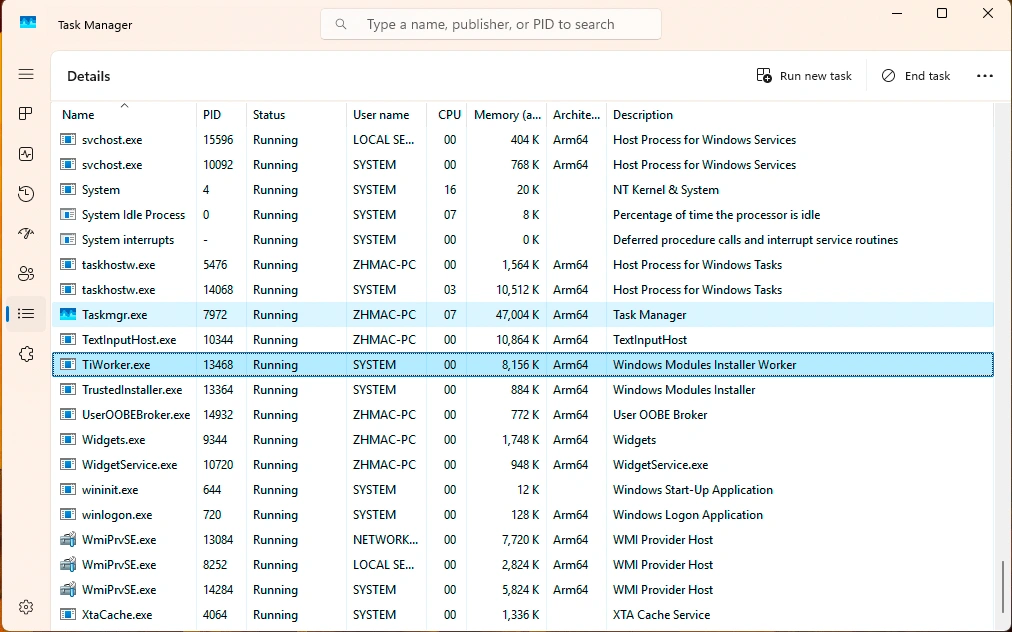
Guarda i tempi
Se l'utilizzo della CPU aumenta mentre Windows sta scaricando, installando o finalizzando gli aggiornamenti, è possibile che il processo si stia comportando normalmente. Un utilizzo elevato che si riduce dopo un po' è meno preoccupante.
Guarda la durata
Se il valore rimane insolitamente alto per un'ora o più, si ripete a ogni avvio o porta il sistema a bloccarsi, è bene considerarlo un problema di risoluzione dei problemi piuttosto che di normale manutenzione. Questo schema è comunemente evidenziato nelle guide orientate alla risoluzione dei problemi e nei casi di domande e risposte di Microsoft.
Eseguire una scansione di sicurezza, se necessario
Se il comportamento non è coerente con l'attività di aggiornamento, eseguire una scansione del sistema con Windows Security o un altro strumento antivirus affidabile. Si tratta di un'operazione di verifica ragionevole, non perché TiWorker.exe è normalmente un malware, ma poiché i nomi dei processi copiati si verificano.
Come risolvere il problema dell'elevato utilizzo della CPU e del disco da parte di TiWorker.exe
Soluzione 1: Verificare lo stato di avanzamento di Windows Update
Aperto Impostazioni > Windows Update e verificare se un aggiornamento è in fase di download, installazione, riprova o in attesa di un riavvio. Aprire inoltre Cronologia degli aggiornamenti e prendere nota di eventuali codici di errore ricorrenti.
Se la percentuale sta cambiando, lascia il computer collegato all'alimentazione e attendi che l'aggiornamento venga completato. Chiudere ripetutamente TiWorker.exe potrebbe indurre Windows a riavviare la stessa operazione di manutenzione.
Soluzione 2: Riavviare Windows
Se Windows Update richiede un riavvio, salva il lavoro e riavvia normalmente. Il riavvio consente di completare le operazioni di aggiornamento in sospeso e di eliminare uno stato di manutenzione temporaneo.
Una volta riavviato Windows, tornare a Impostazioni > Windows Update e verificare se l'aggiornamento è stato completato correttamente.
Soluzione 3: Liberare spazio sull'unità di sistema
Windows necessita di spazio libero per scaricare, decomprimere e preparare gli aggiornamenti. Vai su Impostazioni > Sistema > Spazio di archiviazione > Suggerimenti per la pulizia e elimina i file che non ti servono più.
Non eliminare manualmente i file dalla cartella WinSxS. Windows gestisce questo archivio dei componenti e l'eliminazione dei file in esso contenuti può compromettere gli aggiornamenti e le funzioni di riparazione del sistema.
Soluzione 4: Esegui lo strumento di risoluzione dei problemi di Windows Update
Su Windows 11:
- Aperto Impostazioni.
- Selezionare Sistema > Risoluzione dei problemi > Altre procedure di risoluzione dei problemi.
- Trova Aggiornamento di Windows e selezionare Correre.
- Al termine della procedura di risoluzione dei problemi, riavvia il computer.
- Verifica nuovamente la presenza di aggiornamenti.
Lo strumento di risoluzione dei problemi è in grado di individuare i problemi più comuni relativi al servizio di aggiornamento, al download e all'installazione che mantengono attivo il processo "Windows Modules Installer Worker".
Soluzione 5: Riparare Windows con DISM e SFC
Se l'elevato utilizzo della CPU da parte di TiWorker.exe persiste insieme ad aggiornamenti non riusciti o errori di sistema, riparare l'archivio dei componenti di Windows e i file di sistema protetti.
Aperto Terminale (Amministratore) o Prompt dei comandi (Admin) e eseguire:
DISM.exe /Online /Pulizia-Immagine /Ripristino SaluteAttendi che DISM abbia terminato l'operazione. Quindi esegui:
sfc /scannowNon chiudere la finestra prima che entrambe le operazioni siano state completate. Al termine, riavvia Windows e controlla nuovamente Windows Update.
Soluzione 6: reinstallare Windows tramite Windows Update
Se i metodi precedenti non funzionano, Windows 11 potrebbe offrire un'opzione di reinstallazione con riparazione:
- Aperto Impostazioni > Sistema > Ripristino.
- Trova Risolvi i problemi tramite Windows Update.
- Selezionare Reinstalla ora.
- Lascia il computer collegato all'alimentazione e segui le istruzioni visualizzate.
Questa opzione reinstalla la versione corrente di Windows e ripara i componenti di sistema, conservando al contempo le app installate, i file personali e le impostazioni. Esegui un backup dei file importanti prima di avviare qualsiasi operazione di riparazione significativa del sistema.
Nota su Windows 10: Microsoft ha terminato il supporto standard per Windows 10 il 14 ottobre 2025. Questi metodi di risoluzione dei problemi potrebbero ancora funzionare, ma gli utenti dovrebbero prendere in considerazione il passaggio a una versione di Windows ancora supportata.
È consigliabile disabilitare o eliminare TiWorker.exe?
No. Non è consigliabile disattivare definitivamente Windows Modules Installer, eliminare TiWorker.exe né scaricare un file eseguibile sostitutivo da un sito web di terze parti.
TiWorker.exe è necessario per la manutenzione dei componenti di Windows. La sua rimozione o la disattivazione permanente dei servizi correlati può impedire il corretto funzionamento degli aggiornamenti di sicurezza, delle funzionalità opzionali e delle riparazioni di sistema.
Evitare queste azioni:
- Non eliminare il file TiWorker.exe.
- Non disattivare definitivamente Windows Update.
- Non scaricare un file TiWorker.exe sostitutivo.
- Non eliminare manualmente i file dalla cartella WinSxS.
- Non svuotare sistematicamente la cartella SoftwareDistribution come prima misura correttiva.
- Non dare per scontato che un elevato utilizzo della CPU sia di per sé indice della presenza di malware.
Risolvi il problema dell'aggiornamento non riuscito o dell'archivio dei componenti danneggiato, invece di rimuovere il processo necessario a Windows.
Cosa succede se il computer si blocca completamente?
Questo è lo scenario del mondo reale che molti articoli saltano.
A volte TiWorker.exe Il carico correlato diventa così grave che il mouse smette di rispondere, le applicazioni si bloccano e il sistema non si spegne normalmente. Se il computer è completamente bloccato e non è possibile avviare la normale risoluzione dei problemi, potrebbe non esserci altra soluzione se non il riavvio manuale.
Ciò significa tenere premuto il pulsante di accensione per forzare lo spegnimento del computer, quindi riaccenderlo.
Questa dovrebbe essere l'ultima risorsa. Un riavvio forzato durante gli aggiornamenti o un'intensa attività del disco può interrompere il lavoro non salvato o lasciare i file in uno stato incompleto. La guida per la riparazione di Microsoft osserva inoltre che l'instabilità di Windows, i guasti agli aggiornamenti e il danneggiamento dei file spesso vanno di pari passo, motivo per cui i controlli dei file e i controlli di ripristino hanno senso dopo il ripristino del sistema.
Cosa succede se il blocco di TiWorker.exe causa la perdita di file?
Di norma, TiWorker.exe non elimina i file personali. Tuttavia, se il computer smette completamente di rispondere e lo si spegne forzatamente, Windows potrebbe interrompere un’operazione in corso di scrittura su un file, di salvataggio di un documento o di trasferimento.
Dopo il riavvio, controlla innanzitutto la funzione di recupero automatico dell’applicazione interessata, i “File recenti”, il Cestino, la Cronologia file, OneDrive ed eventuali backup disponibili. Ricorda che i software di recupero dati non sono in grado di ricreare il lavoro che esisteva solo in memoria e che non è mai stato salvato sul disco.
Se un file precedentemente salvato è stato eliminato, è scomparso dalla propria cartella o è diventato inaccessibile a causa di un errore del file system, smettere di scrivere nuovi dati sull'unità interessata. Nuove operazioni potrebbero sovrascrivere le informazioni recuperabili.
In questa situazione, Magic Data Recovery è in grado di eseguire una scansione dell'unità interessata alla ricerca di file persi a causa di cancellazione, formattazione o problemi logici del file system. Se possibile, installare il software su un'unità diversa e salvare i file recuperati in un'altra posizione di archiviazione.

Conclusione
TiWorker.exe è normalmente un componente legittimo di Windows responsabile dell'installazione e della gestione degli aggiornamenti. È normale che si verifichi un picco temporaneo nell'utilizzo della CPU o del disco mentre Windows Update è in esecuzione, ma picchi ripetuti nell'utilizzo delle risorse, aggiornamenti non riusciti, una posizione insolita del file o una firma non valida richiedono un'ulteriore analisi.
Inizia controllando Windows Update, riavviando il computer, liberando spazio sull'unità di sistema ed eseguendo lo Strumento di risoluzione dei problemi di Windows Update. Se il problema persiste, esegui DISM e poi SFC. Non disattivare in modo permanente Windows Modules Installer né eliminare TiWorker.exe.
Se uno spegnimento forzato comporta la perdita di un file salvato in precedenza, smettere di utilizzare l'unità interessata e seguire le istruzioni appropriate recupero dei file cancellati passaggi da compiere prima che i dati persi vengano sovrascritti.
Supporta Windows 7/8/10/11 e Windows Server
Domande frequenti
Che cos’è TiWorker.exe?
TiWorker.exe è un virus?
Dove si trova il file TiWorker.exe?
Perché TiWorker.exe utilizza così tanta CPU?
Perché TiWorker.exe occupa così tanto spazio sul disco?
Posso terminare TiWorker.exe in Task Manager?
Posso disattivare o eliminare TiWorker.exe?
Il blocco di TiWorker.exe può causare la perdita di dati?

Jason è uno specialista nel recupero dati e nell’assistenza tecnica con oltre 15 anni di esperienza sul campo. Ha lavorato a lungo a stretto contatto con gli utenti finali, risolvendo casi complessi di perdita di dati e fornendo soluzioni pratiche di recupero in caso di cancellazione accidentale, unità formattate, file system danneggiati, partizioni perse, guasti di sistema e altre emergenze di recupero. La sua competenza comprende anche il backup e il ripristino, la riparazione dei file e il ripristino di emergenza, con particolare attenzione a fornire indicazioni sicure, affidabili e tecnicamente accurate.