
What Is TiWorker.exe? Is It Safe? How to Fix High CPU Usage
TiWorker.exe, shown in Task Manager as Windows Modules Installer Worker, is normally a legitimate Windows process that helps install updates and maintain system components. It often becomes noticeable when it temporarily uses a large amount of CPU or disk space.
Short periods of high resource usage are usually normal while Windows is downloading, installing, or cleaning up updates. However, if TiWorker.exe keeps using high CPU after a restart, appears when Windows Update shows no progress, or runs from a suspicious folder, further troubleshooting is necessary.
This guide explains what TiWorker.exe does, how to determine whether it is safe, and how to fix persistent TiWorker.exe high CPU or disk usage in Windows 11 and Windows 10.
Table of Contents
What Is TiWorker.exe?
TiWorker.exe is the executable behind Windows Modules Installer Worker, a Windows component involved in installing, modifying, and maintaining system updates and optional Windows features.
During an update, Windows may need to evaluate packages, replace protected files, clean up older components, or repair the component store. These operations can require significant CPU and disk resources, which is why TiWorker.exe sometimes appears near the top of Task Manager.
TiWorker.exe works with other Windows servicing components, including TrustedInstaller.exe. It is not a normal third-party application, and deleting it can prevent Windows from installing updates or repairing system components.
| Item | Answer |
|---|---|
| Process name | TiWorker.exe |
| Task Manager name | Windows Modules Installer Worker |
| Publisher | Microsoft |
| Main function | Installs and maintains Windows updates and components |
| Is it normally safe? | Yes, if it is Microsoft-signed and located in a Windows servicing folder |
| Can it use high CPU or disk? | Yes, especially during updates |
| Should it be deleted? | No |
Is TiWorker.exe Safe or a Virus?
The genuine TiWorker.exe is a safe Microsoft Windows component. However, malware can use the same filename to appear trustworthy, so the filename alone cannot confirm whether a running copy is legitimate.
Check the file location, digital signature, Windows Update activity, and security scan results together. High CPU usage by itself does not mean that TiWorker.exe is infected.
Check the TiWorker.exe File Location
- Press Ctrl + Shift + Esc to open Task Manager.
- Select the Details tab.
- Right-click TiWorker.exe.
- Select Open file location.
A legitimate active copy is commonly stored in a versioned Windows servicing folder under:
C:\Windows\WinSxS\The exact folder can vary between Windows versions and servicing-stack updates. A TiWorker.exe file stored in AppData, Temp, Downloads, Startup, or an unrelated application folder should be investigated.
Verify Its Digital Signature
Right-click the file, select Properties, and open the Digital Signatures tab. The signature should be valid and identify Microsoft as the signer.
You can also check the signature in PowerShell:
$path = (Get-Process TiWorker -ErrorAction Stop).Path
Get-AuthenticodeSignature -LiteralPath $path |
Format-List Status, SignerCertificate
A valid Microsoft signature supports the conclusion that the file is legitimate. Microsoft documents the signature-checking command in its Get-AuthenticodeSignature documentation.
Scan Suspicious Copies
If the file is stored outside a normal Windows servicing folder, lacks a valid Microsoft signature, or appeared after an untrusted download, run a full scan with Windows Security.
Open Windows Security > Virus & threat protection > Scan options, and select Full scan or Microsoft Defender Offline scan. Do not manually delete the file before confirming whether it is malicious.
Why Does TiWorker.exe Use So Much CPU or Disk?
TiWorker.exe may use substantial CPU or disk resources while Windows evaluates, downloads, installs, replaces, or cleans up system components. A temporary spike is usually normal when Windows Update is actively making progress.
Persistent usage is more likely to indicate a problem when:
- Windows Update remains at the same percentage for a long time.
- The same update repeatedly fails.
- High usage returns after every restart.
- TiWorker.exe remains active when Windows Update shows no servicing activity.
- The system drive has very little free space.
- DISM or SFC reports component or system-file corruption.
- The executable has an unexpected location or invalid signature.
| What you see | Likely meaning | Recommended action |
|---|---|---|
| Windows Update progress is changing | Normal update activity | Let it finish |
| Windows requests a restart | Update is waiting to complete | Save work and restart |
| CPU or disk remains high with no progress | Update or component repair may be stuck | Run the troubleshooter |
| High usage returns after every boot | Possible component-store corruption | Run DISM and SFC |
| File location or signature is suspicious | Possible malware impersonation | Run a full security scan |
How to Check If TiWorker.exe Is Normal or Suspicious
Before applying fixes, do a quick check.
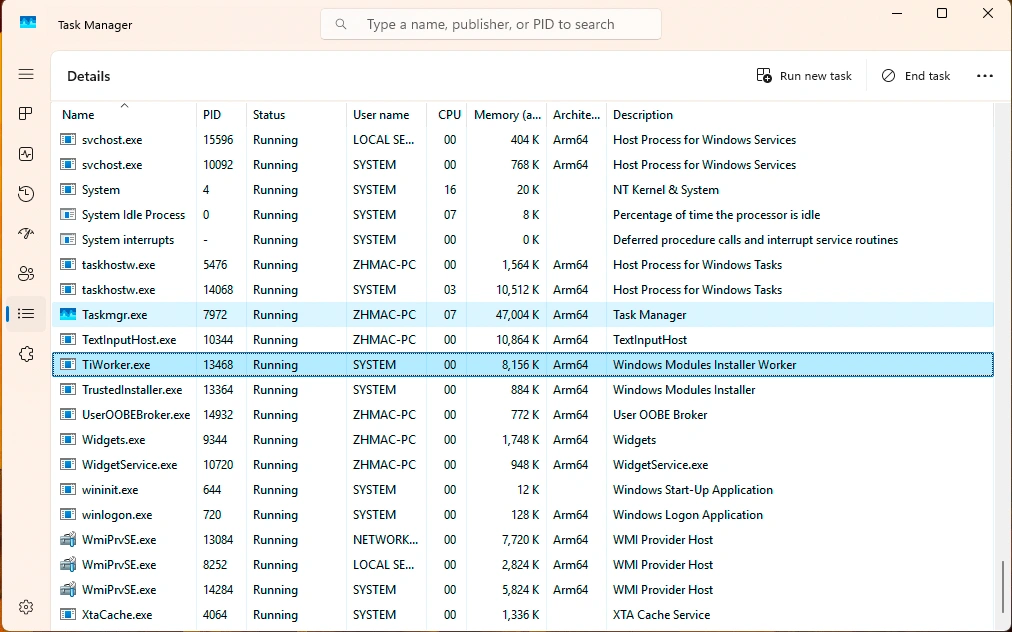
Open Task Manager
Press Ctrl + Shift + Esc, then find TiWorker.exe or Windows Modules Installer Worker.
Look at the timing
If CPU usage rises while Windows is downloading, installing, or finalizing updates, the process may be behaving normally. High usage that falls back after a while is less concerning.
Watch the duration
If it stays unusually high for an hour or longer, repeats every boot, or pushes the system close to freezing, treat it as a troubleshooting issue rather than normal maintenance. That pattern is commonly highlighted in fix-oriented guides and Microsoft Q&A cases.
Run a security scan if needed
If the behavior looks inconsistent with update activity, scan the system with Windows Security or another trusted antivirus tool. This is a reasonable verification step, not because TiWorker.exe is normally malware, but because copied process names do happen.
How to Fix TiWorker.exe High CPU and Disk Usage
Fix 1: Check Windows Update Progress
Open Settings > Windows Update and check whether an update is downloading, installing, retrying, or waiting for a restart. Also open Update history and note any repeated error code.
If the percentage is changing, keep the computer connected to power and allow the update to finish. Repeatedly ending TiWorker.exe may cause Windows to restart the same servicing work.
Fix 2: Restart Windows
If Windows Update requests a restart, save your work and restart normally. A restart can complete pending update operations and clear a temporary servicing state.
After Windows starts again, return to Settings > Windows Update and check whether the update completed successfully.
Fix 3: Free Up System Drive Space
Windows needs free space to download, unpack, and stage updates. Go to Settings > System > Storage > Cleanup recommendations and remove files you no longer need.
Do not manually delete files from the WinSxS folder. Windows manages this component store, and deleting files from it can damage updates and system repair functions.
Fix 4: Run the Windows Update Troubleshooter
On Windows 11:
- Open Settings.
- Select System > Troubleshoot > Other troubleshooters.
- Find Windows Update and select Run.
- Restart the computer after the troubleshooter finishes.
- Check for updates again.
The troubleshooter can identify common update-service, download, and installation problems that keep Windows Modules Installer Worker active.
Fix 5: Repair Windows with DISM and SFC
If TiWorker.exe high CPU usage continues alongside failed updates or system errors, repair the Windows component store and protected system files.
Open Terminal (Admin) or Command Prompt (Admin) and run:
DISM.exe /Online /Cleanup-Image /RestoreHealthWait until DISM finishes. Then run:
sfc /scannowDo not close the window before either operation completes. Restart Windows afterward and check Windows Update again.
Fix 6: Reinstall Windows Through Windows Update
If the previous methods fail, Windows 11 may provide a repair reinstall option:
- Open Settings > System > Recovery.
- Find Fix problems using Windows Update.
- Select Reinstall now.
- Keep the computer connected to power and follow the prompts.
This option reinstalls the current Windows version and repairs system components while preserving installed apps, personal files, and settings. Back up important files before beginning any major system repair.
Windows 10 note: Microsoft ended standard support for Windows 10 on October 14, 2025. These troubleshooting methods may still work, but users should consider moving to a supported Windows version.
Should You Disable or Delete TiWorker.exe?
No. You should not permanently disable Windows Modules Installer, delete TiWorker.exe, or download a replacement executable from a third-party website.
TiWorker.exe is required for Windows component servicing. Removing it or permanently disabling related services can prevent security updates, optional features, and system repairs from working correctly.
Avoid these actions:
- Do not delete TiWorker.exe.
- Do not permanently disable Windows Update.
- Do not download a replacement TiWorker.exe file.
- Do not manually delete files from WinSxS.
- Do not routinely clear SoftwareDistribution as the first fix.
- Do not assume high CPU usage alone means malware.
Address the failed update or corrupted component store instead of removing the process Windows needs.
What If the Computer Freezes Completely?
This is the real-world scenario many articles skip.
Sometimes TiWorker.exe related load becomes severe enough that the mouse stops responding, apps hang, and the system will not shut down normally. If the computer is completely frozen and you cannot start normal troubleshooting, you may have no practical option except a manual restart.
That means holding the power button to force the computer off, then turning it back on again.
This should be a last resort. A forced reboot during updates or heavy disk activity can interrupt unsaved work or leave files in an incomplete state. Microsoft’s repair guidance also notes that Windows instability, update failures, and file corruption often go together, which is why file checks and recovery checks make sense after the system comes back.
What If a TiWorker.exe Freeze Causes File Loss?
TiWorker.exe does not normally delete personal files. However, if the computer becomes completely unresponsive and you force it to shut down, Windows may interrupt an active file write, document save, or transfer operation.
After restarting, first check the affected application’s AutoRecover feature, Recent Files, the Recycle Bin, File History, OneDrive, and any available backups. Remember that data recovery software cannot recreate work that existed only in memory and was never saved to the drive.
If a file that was previously saved has been deleted, disappeared from its folder, or become inaccessible because of a file system error, stop writing new data to the affected drive. New activity may overwrite recoverable information.
In this situation, Magic Data Recovery can scan the affected drive for files lost through deletion, formatting, or logical file system problems. Install the software on a different drive when possible, and save recovered files to another storage location.

Conclusion
TiWorker.exe is normally a legitimate Windows component responsible for installing and maintaining updates. Temporary high CPU or disk usage is expected while Windows Update is making progress, but repeated resource spikes, failed updates, an unusual file location, or an invalid signature require further investigation.
Start by checking Windows Update, restarting the computer, freeing system-drive space, and running the Windows Update Troubleshooter. If the problem continues, run DISM followed by SFC. Do not permanently disable Windows Modules Installer or delete TiWorker.exe.
If a forced shutdown causes a previously saved file to disappear, stop using the affected drive and follow the appropriate deleted file recovery steps before the lost data is overwritten.
Supports Windows 7/8/10/11 and Windows Server
FAQs
What is TiWorker.exe?
Is TiWorker.exe a virus?
Where is TiWorker.exe located?
Why is TiWorker.exe using so much CPU?
Why does TiWorker.exe use so much disk?
Can I end TiWorker.exe in Task Manager?
Can I disable or delete TiWorker.exe?
Can a TiWorker.exe freeze cause data loss?

Jason is a data recovery and technical support specialist with over 15 years of hands-on experience. He has worked extensively with frontline users, troubleshooting difficult data loss cases and providing practical recovery solutions for accidental deletion, formatted drives, damaged file systems, lost partitions, system failures, and other recovery emergencies. His expertise also includes backup and restoration, file repair, and disaster recovery, with a strong emphasis on safe, reliable, and technically accurate guidance.