
Formato completo: Come funziona, possibilità di recupero dei dati e migliori pratiche

Indice dei contenuti
Introduzione
La formattazione di un dispositivo di archiviazione sembra semplice, ma la scelta fatta può influenzare in modo permanente i dati. Molti utenti scelgono Formato completo quando si risolvono errori del disco, si reinstalla un sistema operativo o si prepara un'unità per la rivendita. Tuttavia, pochi sanno bene cosa succede durante il processo o se i file possono essere recuperati in seguito.
Questa guida spiega Formato completo in un linguaggio semplice. Imparerete come funziona internamente, come utilizzarlo correttamente, come si confronta con Formato rapido, e quali sono le opzioni di recupero realistiche dopo la formattazione. Se la perdita di dati si è già verificata, questo articolo spiega anche quando un software di recupero dati come Magic Data Recovery può ancora essere utile e quando le aspettative dovrebbero rimanere conservative.
Che cos'è Formato completo?
È un metodo di formattazione del disco che prepara completamente un dispositivo di archiviazione per il riutilizzo, ricostruendo il file system e scansionando l'intera superficie del disco alla ricerca di errori.
A differenza di Formato rapido, Non si limita a ripristinare i metadati del file system, ma controlla ogni settore dell'unità e contrassegna i settori danneggiati come inutilizzabili. Controlla ogni settore dell'unità e contrassegna i settori danneggiati come inutilizzabili. Nei moderni sistemi Windows, scrive anche degli zeri nei settori accessibili, riducendo in modo significativo le possibilità di recupero dei dati.
Gli utenti applicano comunemente Formato completo quando:
- Correzione degli errori persistenti del disco
- Pulizia di un'unità prima della rivendita o dello smaltimento
- Preparazione di un'unità per l'installazione di un nuovo sistema operativo
- Verifica dello stato di salute del disco su unità vecchie o inaffidabili
A causa della sua profondità, il formato completo richiede molto più tempo e ha un impatto molto più forte sui dati esistenti.
Come il Formato Opere (Principio di formattazione spiegato)
Per capire perché recupero dati diventa difficile dopo Formato completo, è utile esaminare il processo passo dopo passo.
1. Reinizializzazione del file system
Il processo di formattazione ricostruisce la struttura del file system, come ad esempio NTFS o FAT32. Le tabelle dei file, gli indici e le mappature delle directory vengono ricreate da zero.
2. Scansione settore per settore
Il sistema analizza ogni settore del disco per rilevare gli errori fisici. Tutti i settori problematici vengono contrassegnati per impedirne l'uso futuro.
3. Sovrascrittura dei dati (scrittura zero)
Nelle versioni moderne di Windows, la formattazione scrive degli zeri su tutti i settori leggibili. Questa azione di sovrascrittura distrugge il contenuto originale dei dati invece di nasconderlo.
4. Convalida del disco
Il sistema operativo si assicura che il disco sia utilizzabile, stabile e privo di errori prima di completare il processo.
Grazie a questi passaggi, Formato completo è un'operazione di formattazione e di verifica.
Come eseguire una Formato completo In modo sicuro
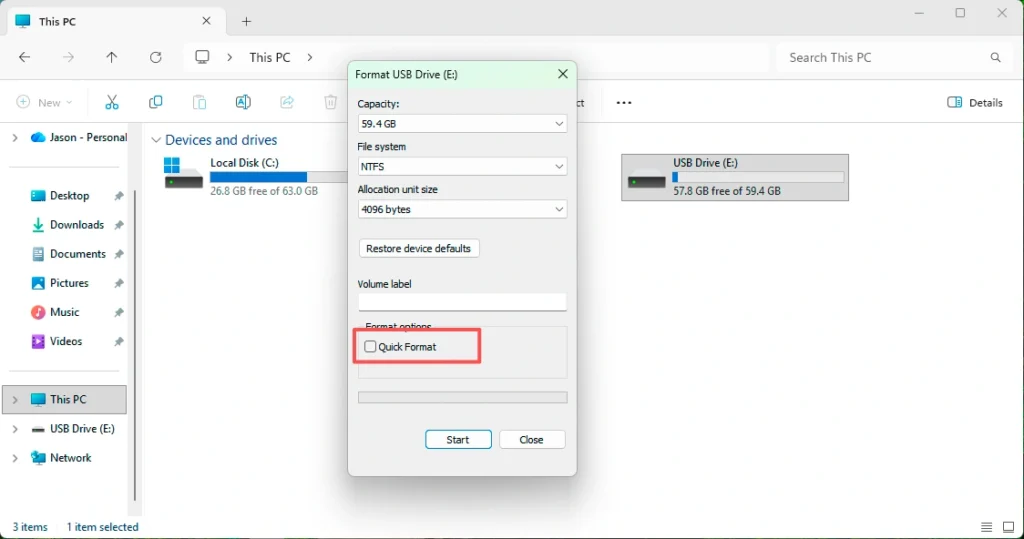
Formattazione in Gestione disco di Windows
- Aperto Gestione del disco
- Fare clic con il tasto destro del mouse sulla partizione di destinazione
- Selezionare “Formato”.”
- Deselezionare “Formato rapido”
- Scegliere un file system e avviare la formattazione
Formattare utilizzando il prompt dei comandi
- Utilizzare il
formatosenza il comando/qparametro - Questo costringe a una formattazione completa invece che rapida.
Le migliori pratiche prima della formattazione
- Scollegare gli altri dispositivi di archiviazione
- Ricontrollare la lettera di unità selezionata
- Evitare la formattazione se si sospettano problemi di perdita di dati nascosti.
Formato completo contro il formato rapido (tabella di confronto)
Caratteristica | Formato completo | Formato rapido |
Scansione dei settori del disco | Sì | No |
Scrive zeri | Sì (sistema operativo moderno) | No |
Rileva i settori danneggiati | Sì | No |
Tempo richiesto | Lungo | Molto breve |
Possibilità di recupero dati | Molto basso | Alto |
Uso consigliato | Pulizia del disco, rivendita | Riutilizzo veloce |
Questo confronto mostra perché Formato completo offre una maggiore rimozione dei dati ma minori possibilità di recupero.
Recuperabilità dei dati dopo Formato completo
I dati sono recuperabili dopo Formato completo?
Nella maggior parte dei casi, il recupero dei dati dopo la formattazione è estremamente difficile. Il processo di scrittura zero distrugge il contenuto dei file, non solo i loro riferimenti.
Tuttavia, un recupero limitato può essere ancora possibile in condizioni specifiche:
- La formattazione si è interrotta prematuramente
- Alcuni settori non sono stati sovrascritto
- I dati esistevano su un'altra partizione o unità esterna
Cosa si può ancora provare?
Sebbene le percentuali di successo rimangano basse, la scansione dell'unità con software di recupero dati professionale possono rilevare:
- Frammenti non scritti
- File memorizzati in partizioni non interessate
- Dati memorizzati nella cache su dischi esterni o secondari
Questo approccio non garantisce risultati, ma offre un'ultima possibilità prima di arrendersi.
Quando usare Magic Data Recovery Dopo Formato
Il problema principale che risolve
Gli utenti spesso si sentono impotenti dopo la formattazione, soprattutto quando i file critici scompaiono all'istante. Magic Data Recovery aiuta a scansionare i dispositivi di archiviazione a un livello profondo per individuare i resti di dati recuperabili.
Supporta Windows 7/8/10/11 e Windows Server
Vantaggi principali
- Scansione avanzata a livello di settore
- Supporto per unità formattate
- Anteprima prima del recupero
- Funzionamento in sola lettura per evitare ulteriori danni
Casi d'uso pratici
- Accidentale Formato completo sulla partizione sbagliata
- Perdita di dati durante la reinstallazione del sistema operativo
- Formattazione inattesa causata da errori del disco
Perché è più affidabile
A differenza degli strumenti di recupero di base, Magic Data Recovery si concentra sulla scansione sicura e sul rilevamento dell'integrità dei file. Non dichiara tassi di recupero irrealistici e funziona al meglio se utilizzato subito dopo la formattazione.
Se siete alla ricerca di una soluzione pratica dopo la formattazione, vale la pena provare Magic Data Recovery prima di concludere che i dati sono definitivamente persi.
Errori comuni da evitare
- Formattazione dell'unità sbagliata
- Riutilizzo del disco prima dei tentativi di ripristino
- Installazione del software di recupero sull'unità formattata
- Aspettarsi un recupero completo dopo la sovrascrittura di zero
Evitare questi errori migliora le probabilità di recupero, anche dopo il formato.
Conclusione
Formato completo è un'operazione potente ma irreversibile progettata per pulire e verificare completamente un dispositivo di archiviazione. Si differenzia in modo significativo da Formato rapido scansionando i settori e sovrascrivendo i dati, il che spiega il basso tasso di successo del recupero.
Sebbene il recupero dei dati dopo la formattazione rimanga una sfida, strumenti come Magic Data Recovery possono comunque aiutare a identificare frammenti non sovrascritti o dati memorizzati altrove. Per gli utenti che devono affrontare una formattazione accidentale, agire rapidamente e scegliere lo strumento giusto fa una differenza misurabile.
Se avete bisogno di un tentativo di recupero attento e professionale dopo la formattazione, Magic Data Recovery offre un'opzione affidabile e trasparente.
Supporta Windows 7/8/10/11 e Windows Server
Domande frequenti
Qual è il formato completo?
Quando fare il formato completo?
Vale la pena di acquistare un formato completo?
Il formato completo scrive degli zeri?
Quanto dura un formato completo?
Qual è il significato completo di formato?

Erin Smith è riconosciuta come una delle scrittrici più professionali di Amagicsoft. Negli ultimi 10 anni ha continuamente affinato le sue capacità di scrittura e ha aiutato milioni di lettori a risolvere i loro problemi tecnologici.