Vai al contenuto
icona del logo amagicsoft
  • Casa
  • Prodotti
    • Magic Data Recovery
    • Magic Recovery Key
  • Negozio
  • Blog
  • Di più
    • Informazioni su Amagicsoft
    • Contatto
    • Informativa sulla privacy
    • Termini
    • Contratto di licenza
    • Politica di rimborso
  • Italiano
    • English
    • 日本語
    • 한국어
    • Deutsch
    • Français
    • Español
    • 繁體中文
Recupero dei file di formato

How to Format NVMe in Windows 11 Safely

05.12.2025 Smith, Erin Commenti disabilitati su How to Format NVMe in Windows 11 Safely
How to Format NVMe in Windows 11 Safely
Formatting an NVMe SSD in Windows 11 is a common task, often triggered when users encounter slow performance, system errors, or need to prepare a drive for a fresh OS installation. If your NVMe drive appears as RAW, shows errors, or refuses to initialize, you may worry about data safety. The good news is—you can resolve these issues reliably. This guide explains how to format NVMe Windows 11 in a clear, step-by-step way, including standard Windows methods and a professional data-recovery-safe solution. You can download the Data Recovery Tool prima.
Scaricare Magic Data Recovery

Supporta Windows 7/8/10/11 e Windows Server

Indice dei contenuti

Why You May Need to Format an NVMe SSD on Windows 11

Before formatting, it helps to understand the situation. Users commonly experience:

① The NVMe drive showing as RAW in Disk Management

② Windows 11 asking to format before use

③ Slow read/write speeds due to corrupted file system

④ Switching between file systems (e.g., NTFS, exFAT) for compatibility

⑤ Preparing the NVMe as a bootable or storage drive

These scenarios typically point to a file system or partition structure issue. Formatting resolves it, but it can also erase data. If your files are important, do not panic—your data is not truly lost.

How to Format NVMe in Windows 11 Using Standard Windows Tools

Windows 11 includes built-in tools that let you format an NVMe drive quickly. Follow the method that best fits your situation.

Format NVMe via File Explorer

This method works when the drive is recognized normally.

Passi:

① Open Esplora file.

② Right-click your NVMe drive.

③ Selezionare Formato.

④ Choose NTFS, exFAT, o FAT32 (default NTFS for Windows).

⑤ Click Inizio to begin formatting.

Ideale per: simple reformatting, storage drives.

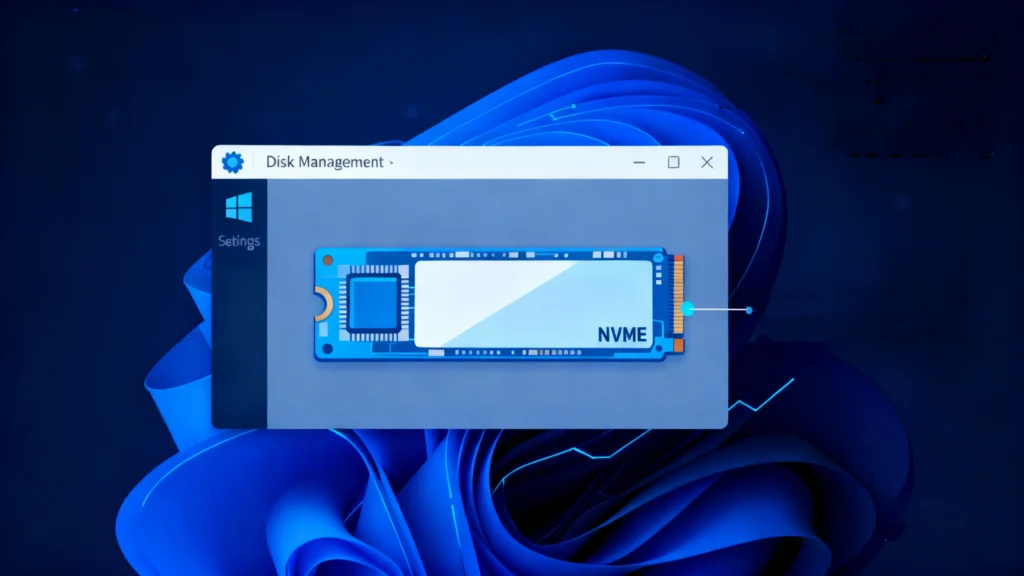
Format NVMe Using Disk Management

Use this if Windows detects the disk but not the partition.

Passi:

① Stampa Win + X, choose Gestione del disco.

② Locate your NVMe SSD.

③ Right-click the volume → Formato.

④ Set file system to NTFS and click OK.

If the disk is unallocated:

① Right-click the Non allocato space.

② Scegliere Nuovo volume semplice.

③ Follow the wizard to format.

Format NVMe via Diskpart (Advanced)

This is useful when the drive is corrupted or cannot be formatted through the GUI.

Passi:

① Stampa Win + S, tipo cmd, choose Eseguire come amministratore.

② Enter:

				
					diskpart
list disk
select disk X
clean
create partition primary
format fs=ntfs quick


③ Type exit.

Attenzione:clean removes all partitions.

What If Your Data Is Important?

Formatting always erases data, even when using formato rapido. If your NVMe contains important files but is inaccessible, RAW, or Windows keeps asking to format it, you should recuperare i dati prima you perform any formatting.

Magic Data Recovery offers a professional, read-only solution that protects your drive while retrieving files.

How to Recover Your NVMe Data Before Formatting (Step-by-Step)

Magic Data Recovery performs a non-destructive scan, allowing you to extract data safely before formatting your NVMe drive.

Processo di recupero passo dopo passo

①. Download and Install: Get Magic Data Recovery dal sito web ufficiale e installarlo sul computer.

Scaricare Magic Data Recovery

Supporta Windows 7/8/10/11 e Windows Server

②. Select the Drive: Avviare il software e scegliere l'unità da cui si sono persi i file.
Recover Your NVMe Data Before Formatting
③. Start the Scan: Fare clic su “Cerca dati persi” per iniziare. Verrà avviata prima una scansione rapida e poi una scansione profonda per trovare altri file persi.
Scan your lost files befor formatting NVME drive
④. Preview and Select: Sfogliare e visualizzare in anteprima i file trovati dopo la scansione.
Preview your file before Magic Data Recovery Recovering
⑤. Recover: Selezionate i file necessari e salvateli in una cartella di unità diverse (non quello da cui si sono persi i file).
Save all recovered files before Formatting  NVMe SSD Windows 11
You can also watch the video to learn about the usage steps of Magic Data Recovery.

Conclusione

Learning how to format NVMe Windows 11 helps you fix corrupted file systems, improve drive performance, and prepare the SSD for new installations. If your NVMe contains important data, always recover it first using a safe, professional tool.

To ensure your files remain accessible and secure, you can download Magic Data Recovery and restore your files safely before formatting.

Scaricare Magic Data Recovery

Supporta Windows 7/8/10/11 e Windows Server

How to Format NVMe Windows 11 FAQs

How do I format NVMe in Windows 11?

You can format an NVMe SSD in Windows 11 through File Explorer, Disk Management, or Diskpart. The simplest method is via File Explorer: right-click the NVMe drive, choose Format, select a file system such as NTFS, and confirm. If the drive is RAW or unallocated, you can use Disk Management to create a new volume before formatting.

How to fully format an NVMe?

To fully format an NVMe SSD, you can use Diskpart with the clean command. After opening Command Prompt as administrator, run Diskpart, select the NVMe disk, apply the clean operation, and create a new partition. This process removes all partitions and performs a complete reset of the drive structure.

How to initialize NVMe in Windows 11?

To initialize an NVMe SSD, open Disk Management, find the uninitialized NVMe drive, and select Initialize Disk when prompted. Choose GPT for modern systems. After initialization, create a new simple volume and format it with NTFS or another preferred file system.

How to wipe an M.2 SSD in Windows 11?

You can wipe an M.2 SSD using Diskpart. Open Command Prompt as administrator, launch Diskpart, select the disk, and run the clean command to remove all partitions. If you want a full wipe before reinstalling Windows, you may also delete partitions during Windows Setup.

Do NVMe drives need to be formatted?

Yes, a new NVMe SSD must be formatted before Windows 11 can store files on it. If it shows as RAW, unallocated, or uninitialized, you must initialize and format it in Disk Management. However, if the drive contains important data, recover the files first before formatting.

How to format SSD drive on Windows 11?

To format any SSD—including NVMe or SATA—open File Explorer, right-click the drive, choose Format, select NTFS or exFAT, and confirm. Alternatively, you can format the drive through Disk Management or Diskpart if it does not appear correctly in File Explorer.

How to fully wipe NVMe?

A complete wipe requires using Diskpart. Run Command Prompt as administrator, open Diskpart, select the NVMe disk, and use the clean command. This removes all partitions and resets the disk structure. For deeper erasure, some manufacturers provide NVMe Secure Erase tools.

Is F11 or F12 factory reset?

This depends on the computer manufacturer. Many systems use F11 to open the recovery environment for a factory reset, while others may use F12 for the boot menu. Check your device’s documentation to determine the correct key.

How to format NVMe SSD in BIOS?

Most BIOS interfaces cannot fully format a drive. However, you can format an NVMe SSD during the Windows installation setup accessed through BIOS boot options. After booting from a USB installer, delete existing partitions on the NVMe drive and create a new one, which formats it automatically.
  • Come
  • Magic Data Recovery
Smith, Erin

Erin Smith è riconosciuta come una delle scrittrici più professionali di Amagicsoft. Negli ultimi 10 anni ha continuamente affinato le sue capacità di scrittura e ha aiutato milioni di lettori a risolvere i loro problemi tecnologici.

Navigazione articoli

Precedente
Avanti

Ricerca

Categorie

  • Recupero di Bitlocker
  • Recupero dei file cancellati
  • Correzione del problema del disco
  • Recupero dei documenti
  • Recupero dei file di formato
  • Recupero del disco rigido
  • Recupero della chiave di licenza
  • Recupero dei file persi
  • Recupero della scheda di memoria
  • Notizie
  • Recupero password
  • Recupero foto
  • Recupero SSD
  • Recupero dell'unità USB
  • Guida per l'utente
  • Recupero video
  • Wiki
  • Correzione del problema di Windows

Messaggi recenti

  • recuperare i file cancellati da un'unità flash
    The Best Ways to Recover Deleted Files from a Flash Drive (2026 Guide)
  • recupero di file formattati gratis
    Recupero file unità formattata: Recuperare i dati in 3 passi
  • Unità SanDisk non riconosciuta Cause e soluzioni comprovate
    Unità SanDisk non riconosciuta? Cause e soluzioni

Tag

CHKDSK e Strumenti disco Riparazione del disco Risoluzione degli errori Come Magic Data Recovery Magic Recovery Key WiKi

Messaggi correlati

recuperare i file cancellati da un'unità flash
Recupero dei file cancellati

The Best Ways to Recover Deleted Files from a Flash Drive (2026 Guide)

01.01.2026 Jason Non ci sono ancora commenti

Losing important files from a flash drive can happen in seconds. A wrong click, an accidental format, or an unexpected error message may instantly make valuable data disappear. As a result, many users ask the same question: how can you recover deleted files from a flash drive safely and effectively? Unlike internal hard drives, USB […]

recupero di file formattati gratis
Recupero dei file di formato

Recupero file unità formattata: Recuperare i dati in 3 passi

31.12.2025 Jason Non ci sono ancora commenti

Rendersi conto di aver bisogno di una soluzione per il recupero dei file dall'unità formattata dopo un clic accidentale è un incubo per qualsiasi utente di computer. Fortunatamente, se si agisce rapidamente e si utilizzano gli strumenti professionali giusti, è molto probabile riuscire a recuperare i file da un'unità formattata. Mentre molte persone inizialmente cercano un metodo gratuito per il recupero dei file dall'unità formattata [...]

Guida completa al recupero dei dischi rigidi formattati
Recupero dei file di formato

Guida completa al recupero dei dischi rigidi formattati

31.12.2025 Vasilii Non ci sono ancora commenti

La formattazione accidentale di un disco rigido è una delle situazioni più stressanti per gli utenti di computer. Che si verifichi durante una reinstallazione del sistema, l'inizializzazione del disco o un semplice errore umano, il timore di una perdita permanente di dati è immediato. Fortunatamente, gli scenari di recupero di un disco rigido formattato non sono sempre senza speranza. In molti casi reali, gli utenti possono ancora ripristinare documenti, [...]

icona del logo amagicsoft

La nostra visione è quella di diventare un marchio di software e un fornitore di servizi di fama mondiale, in grado di offrire prodotti e servizi di alto livello ai nostri utenti.

Prodotti
  • Magic Data Recovery
  • Magic Recovery Key
Politica
  • Termini
  • Informativa sulla privacy
  • Politica di rimborso
  • Contratto di licenza
Azienda
  • Informazioni su Amagicsoft
  • Contatto
  • Negozio
Seguiteci

Copyright © 2025 Amagicsoft. Tutti i diritti riservati.

  • Termini
  • Informativa sulla privacy