Vai al contenuto
icona del logo amagicsoft
  • Casa
  • Prodotti
    • Magic Data Recovery
    • Magic Recovery Key
  • Negozio
  • Blog
  • Di più
    • Informazioni su Amagicsoft
    • Contatto
    • Informativa sulla privacy
    • Termini
    • Contratto di licenza
    • Politica di rimborso
  • Italiano
    • English
    • 日本語
    • 한국어
    • Deutsch
    • Français
    • Español
    • 繁體中文
Recupero password

Come trovare facilmente la password WiFi su Windows e Mac
05.12.2025 Smith, Erin Commenti disabilitati su How to Find WiFi Password on Windows & Mac Easily
Come trovare facilmente la password WiFi su Windows e Mac
When you need to reconnect a device or share your network, forgetting your Wi-Fi password can be frustrating. Many users look up how to find WiFi password, especially when the password exists only on one computer. This guide explains every reliable method, including Windows, macOS, and a professional tool for deeper recovery. You will learn both the built-in ways and a professional solution using Magic Recovery Key to recover WiFi passwords quickly and safely.
Scaricare Magic Recovery Key

Supporta Windows 7/8/10/11 e Windows Server

Indice dei contenuti

Why You May Need to Find Your WiFi Password

People often need to find your WiFi password after resetting the router, switching providers, replacing devices, or losing written notes. Although Windows and macOS store passwords, they are not visible by default. Fortunately, several built-in tools allow you to retrieve them safely.

Below are the most effective and secure approaches.

Built-in Methods to Find WiFi Password

These options use Windows and macOS native tools. They are reliable for users who still have access to a previously connected device.

1. Find WiFi Password on Windows

Windows stores all WiFi credentials in the system’s network configuration. Follow these steps:

Method A: Using Network & Sharing Center

① Open Pannello di controllo.

② Select Network and Internet.

③ Click Network and Sharing Center.

④ Next to your WiFi name, choose Wireless Properties.

⑤ Go to the Security scheda.

⑥ Check Show characters to reveal your WiFi password.

Method B: Using Command Prompt

This method is fast and works even if the network is not currently connected.

① Stampa Vincere + R, tipo cmd, and press Entrare.

② Type the following command:

netsh wlan show profiles

It will list all saved WiFi profiles.

③ Enter:

netsh wlan show profile "WiFi-Name" key=clear

④ The password appears under Key Content.

2. Find WiFi Password on macOS

Find WiFi Password on macOS

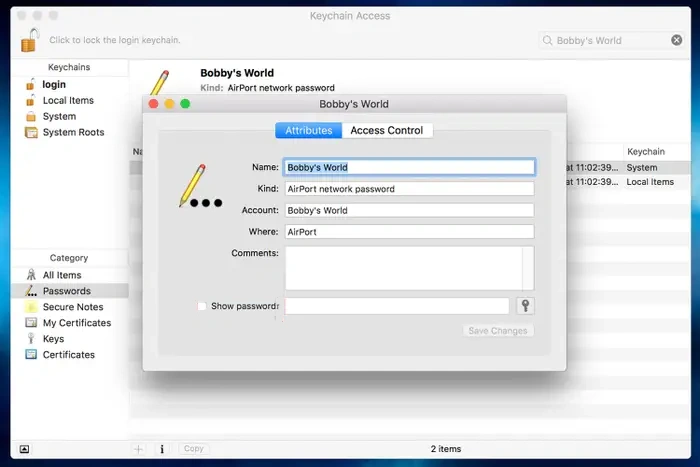
macOS stores WiFi credentials in Keychain Access.

① Open Keychain Access from Applications → Utilities.

② Search for your WiFi network name.

③ Double-click the network entry.

④ Check Show password.

⑤ Enter your macOS administrator password to reveal it.

Find WiFi Password Using Magic Recovery Key

If built-in tools fail, the Wi-Fi profile is missing, or the system refuses to display stored passwords, you may need a specialized solution. Magic Recovery Key helps users who search for how to find out WiFi password o where can I find my saved Wi-Fi passwords, especially when Windows profiles become hidden or corrupted.

Magic Recovery Key finds stored Wi-Fi passwords safely using a read-only process.

Steps to Recover WiFi Password with Magic Recovery Key

1. Scaricare e installare Magic Recovery Key da Amagicsoft.

Scaricare Magic Recovery Key

Supporta Windows 7/8/10/11 e Windows Server

2. Launch the software and Once the scan is completed, information about all the WiFi information on the current computer will be listed.
how to find wifi password using magic recovery key
3. You can select the information you need to copy or save.

Conclusione

Finding your Wi-Fi password is simple when using Windows or macOS native tools. If the network profile is missing, the system is corrupted, or you want a faster and more reliable method, Magic Recovery Key offers a complete solution. It is also useful for users searching for how to get WiFi password from a connected computer.

Scaricare Magic Recovery Key

Supporta Windows 7/8/10/11 e Windows Server

How to Find WiFi Password FAQs

1. Where can I see what my Wi-Fi password is?

You can view it on any device previously connected. Windows shows it under Wireless Properties, and macOS reveals it in Keychain Access. If the password is missing or hidden, Magic Recovery Key can extract stored Wi-Fi credentials safely.

2. Is it possible to see Wi-Fi passwords?

Yes. Systems like Windows, macOS, Android, and iOS store past Wi-Fi passwords. You can view them in system settings. If the saved profile has been deleted, Magic Recovery Key can scan and recover stored Wi-Fi keys.

3. How to find Wi-Fi password on iPhone?

On iOS 16+, open Settings → Wi-Fi → (i) → Password, then authenticate to view it. Older versions require checking the password on a Mac or PC that previously connected to the same Wi-Fi network.

4. How to join hidden Wi-Fi?

Enter the SSID, password, and security type manually in Wi-Fi settings. If you do not know the password, retrieve it from a previously connected computer using Magic Recovery Key or Windows built-in tools.

5. Is it OK to use public Wi-Fi?

Public Wi-Fi is safe for general browsing but not recommended for sensitive activities. Use HTTPS sites or a VPN to protect your data, as open networks expose traffic to higher security risks.

6. Can Wi-Fi owners see what you do on their Wi-Fi?

Wi-Fi owners can view connected devices, domains visited, and data usage. Encrypted content remains private. Using HTTPS or a VPN helps improve privacy on monitored networks.

7. Can I see who's connected to my Wi-Fi?

Yes. Log in to your router’s admin page and check the connected devices list. Unknown devices can be removed by changing the Wi-Fi password or enabling stronger encryption settings.

8. How to find Wi-Fi password to share from phone?

iPhone displays the password directly, and Android offers a sharable QR code. To view the text version, check the password on a connected Windows or macOS device or recover it using Magic Recovery Key.
  • Come
  • Magic Data Recovery
Smith, Erin

Erin Smith è riconosciuta come una delle scrittrici più professionali di Amagicsoft. Negli ultimi 10 anni ha continuamente affinato le sue capacità di scrittura e ha aiutato milioni di lettori a risolvere i loro problemi tecnologici.

Navigazione articoli

Precedente
Avanti

Ricerca

Categorie

  • Recupero di Bitlocker
  • Recupero dei file cancellati
  • Correzione del problema del disco
  • Recupero dei documenti
  • Recupero dei file di formato
  • Recupero del disco rigido
  • Recupero della chiave di licenza
  • Recupero dei file persi
  • Recupero della scheda di memoria
  • Notizie
  • Recupero password
  • Recupero foto
  • Recupero SSD
  • Recupero dell'unità USB
  • Guida per l'utente
  • Recupero video
  • Wiki
  • Correzione del problema di Windows

Messaggi recenti

  • recupero di file formattati gratis
    Recupero file unità formattata: Recuperare i dati in 3 passi
  • Unità SanDisk non riconosciuta Cause e soluzioni comprovate
    Unità SanDisk non riconosciuta? Cause e soluzioni
  • Risolvere il problema dell'unità disco esterna Seagate non riconosciuta
    Risolvere il problema dell'unità disco esterna Seagate non riconosciuta

Tag

CHKDSK e Strumenti disco Riparazione del disco Risoluzione degli errori Come Magic Data Recovery Magic Recovery Key WiKi

Messaggi correlati

recupero di file formattati gratis
Recupero dei file di formato

Recupero file unità formattata: Recuperare i dati in 3 passi

31.12.2025 Jason Non ci sono ancora commenti

Rendersi conto di aver bisogno di una soluzione per il recupero dei file dall'unità formattata dopo un clic accidentale è un incubo per qualsiasi utente di computer. Fortunatamente, se si agisce rapidamente e si utilizzano gli strumenti professionali giusti, è molto probabile riuscire a recuperare i file da un'unità formattata. Mentre molte persone inizialmente cercano un metodo gratuito per il recupero dei file dall'unità formattata [...]

Guida completa al recupero dei dischi rigidi formattati
Recupero dei file di formato

Guida completa al recupero dei dischi rigidi formattati

31.12.2025 Vasilii Non ci sono ancora commenti

La formattazione accidentale di un disco rigido è una delle situazioni più stressanti per gli utenti di computer. Che si verifichi durante una reinstallazione del sistema, l'inizializzazione del disco o un semplice errore umano, il timore di una perdita permanente di dati è immediato. Fortunatamente, gli scenari di recupero di un disco rigido formattato non sono sempre senza speranza. In molti casi reali, gli utenti possono ancora ripristinare documenti, [...]

Come recuperare i file eliminati su una scheda MicroSD
Recupero della scheda di memoria

Come recuperare i file eliminati su una scheda MicroSD

31.12.2025 Vasilii Non ci sono ancora commenti

L'eliminazione accidentale di file importanti dalla scheda MicroSD può essere un'esperienza frustrante. Che si tratti di foto, video, documenti o musica, la perdita di file essenziali può causare panico e stress. Se vi state chiedendo come recuperare i file cancellati dalla scheda MicroSD, non siete i soli. Molti utenti devono affrontare questo problema, ma la buona notizia è che spesso è [...]

icona del logo amagicsoft

La nostra visione è quella di diventare un marchio di software e un fornitore di servizi di fama mondiale, in grado di offrire prodotti e servizi di alto livello ai nostri utenti.

Prodotti
  • Magic Data Recovery
  • Magic Recovery Key
Politica
  • Termini
  • Informativa sulla privacy
  • Politica di rimborso
  • Contratto di licenza
Azienda
  • Informazioni su Amagicsoft
  • Contatto
  • Negozio
Seguiteci

Copyright © 2025 Amagicsoft. Tutti i diritti riservati.

  • Termini
  • Informativa sulla privacy