Vai al contenuto
icona del logo amagicsoft
  • Casa
  • Prodotti
    • Magic Data Recovery
    • Magic Recovery Key
  • Negozio
  • Blog
  • Di più
    • Informazioni su Amagicsoft
    • Contatto
    • Informativa sulla privacy
    • Termini
    • Contratto di licenza
    • Politica di rimborso
  • Italiano
    • English
    • 日本語
    • 한국어
    • Deutsch
    • Français
    • Español
    • 繁體中文
Recupero password

Come trovare le password su Chrome: Guida completa
05.12.2025 Smith, Erin Commenti disabilitati su How to Find Passwords on Chrome: Complete Guide
Come trovare le password su Chrome: Guida completa
For many users, forgetting a saved password happens at the worst possible moment—when you urgently need to log in or share an account. The good news is that Chrome stores credentials securely, and learning how to find passwords on Chrome o how to see saved passwords on Chrome is straightforward if you use the right methods. This guide covers built-in solutions and a professional recovery tool. We recommend using Magic Recovery Key software to find your passwords on Chrome.
Scaricare Magic Recovery Key

Supporta Windows 7/8/10/11 e Windows Server

Indice dei contenuti

Why Chrome Passwords Become Hard to Retrieve

Several situations can prevent users from viewing a saved password:

① You enabled Chrome Sync but changed your Google account credentials

② The computer was reset or the Chrome profile was deleted

③ The password was saved to Windows Credential Manager instead of Chrome

④ The browser does not show the password because the local profile is corrupted

Understanding the cause helps determine the best recovery path—whether through Chrome Settings or a professional password recovery tool.

Method 1: Use Chrome’s Built-In Password Manager

Use Chrome’s Built-In Password Manager

If Chrome is still installed and your profile is intact, this is the quickest and safest way.

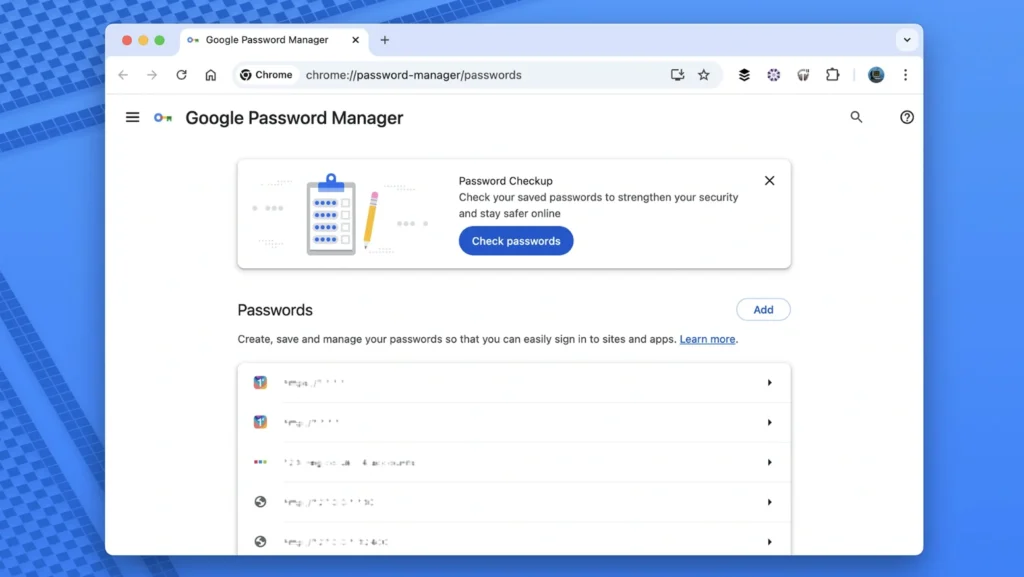
Steps to view saved passwords on Chrome

① Open Google Chrome.

② Click the three-dot menu in the top-right corner.

③ Selezionare Impostazioni.

④ Navigate to Autofill → Password Manager.

⑤ Under Saved Passwords, locate the website entry.

⑥ Click the eye icon beside the password.

⑦ Authenticate using your Windows or macOS login to reveal the password.

Chrome stores data inside an encrypted local database. As long as the profile still exists and your system password is correct, this method works reliably.

Method 2: Use Google Passwords

If you previously turned on Sync, the password is also available through Google Password Manager.

Steps

① Visit passwords.google.com.

② Sign in with your Google Account.

③ Select the website and click Show Password.

This method is helpful when switching to a new device or recovering a lost password that is synced across multiple platforms.

Method 3: Recover Chrome Passwords with Magic Recovery Key

Magic Recovery Key offers a professional method to retrieve Chrome passwords from damaged, deleted, or inaccessible user profiles. It scans the browser’s encrypted database and extracts recoverable credentials without modifying your files. It can also help anyone searching how to find saved passwords on Chrome o how to know password saved in Chrome.

Steps to recover Chrome passwords with Magic Recovery Key

① Download and install Magic Recovery Key.

Scaricare Magic Recovery Key

Supporta Windows 7/8/10/11 e Windows Server

② Launch the program and select Web Browser PassView.
Steps to recover Chrome passwords with Magic Recovery Key
③ View a list of recoverable passwords and export them securely.

Why this method works:

Chrome stores credentials inside an SQLite database with OS-level encryption. Magic Recovery Key reads the file directly—even if Chrome no longer opens—and reconstructs recoverable entries in a read-only environment.

This is the most effective solution for users who reformatted their system, lost access to their Chrome profile, or need professional-grade recovery.

Conclusione

Forgetting a saved login is frustrating, but recovering it is achievable once you understand how to find passwords on Chrome. Start with Chrome’s built-in Password Manager or Google Passwords—both free and efficient for intact profiles. If the browser is inaccessible or the data file is damaged, a professional tool provides the safest path to retrieve lost credentials.

If you cannot locate your Chrome passwords using built-in options, consider using Magic Recovery Key to safely scan and recover encrypted browser credentials. Downloading it now ensures you don’t lose important login information.

Scaricare Magic Recovery Key

Supporta Windows 7/8/10/11 e Windows Server

Find Passwords on Chrome FAQs

1. How do I find my stored passwords in Chrome?

Open Chrome → Settings → Autofill → Password Manager. Under Saved Passwords, choose the entry and click the eye icon, then authenticate. This is the quickest way to view stored Chrome passwords.

2. Where can I see my saved passwords?

Saved passwords appear inside Chrome’s Password Manager or online at passwords.google.com if Sync is enabled. Authenticate with your system login to reveal any stored password.

3. How do I see hidden passwords in Chrome?

Open Password Manager, select a saved login, and click the eye icon. Enter your device password to display the characters. Hidden passwords require system authentication for security.

4. How do I see my password on Google?

Visit passwords.google.com and sign in. Choose the website entry and click Show Password. This works on any device using the same Google account with Sync turned on.

5. How do I see all my saved passwords?

Go to Chrome Settings → Autofill → Password Manager. All saved credentials appear under Saved Passwords. Use the eye icon to reveal each one after confirming device authentication.

6. How to find passwords on Google Chrome?

Open Chrome → Settings → Autofill → Password Manager to view stored logins. If the profile is deleted or corrupted, Magic Recovery Key can scan Chrome’s encrypted “Login Data” file to recover entries.

7. Where can I find my saved passwords in Google?

Passwords synced with your Google Account are available at passwords.google.com. After signing in, select the target website and choose Show Password to reveal stored credentials.

8. Where are Chrome passwords stored?

Chrome saves passwords in an encrypted SQLite database called “Login Data” inside the user profile folder. They can be viewed through Password Manager or extracted with a recovery tool if the profile is damaged.
  • Come
  • Magic Recovery Key
Smith, Erin

Erin Smith è riconosciuta come una delle scrittrici più professionali di Amagicsoft. Negli ultimi 10 anni ha continuamente affinato le sue capacità di scrittura e ha aiutato milioni di lettori a risolvere i loro problemi tecnologici.

Navigazione articoli

Precedente
Avanti

Ricerca

Categorie

  • Recupero di Bitlocker
  • Recupero dei file cancellati
  • Correzione del problema del disco
  • Recupero dei documenti
  • Recupero dei file di formato
  • Recupero del disco rigido
  • Recupero della chiave di licenza
  • Recupero dei file persi
  • Recupero della scheda di memoria
  • Notizie
  • Recupero password
  • Recupero foto
  • Recupero SSD
  • Recupero dell'unità USB
  • Guida per l'utente
  • Recupero video
  • Wiki
  • Correzione del problema di Windows

Messaggi recenti

  • recupero di file formattati gratis
    Recupero file unità formattata: Recuperare i dati in 3 passi
  • Unità SanDisk non riconosciuta Cause e soluzioni comprovate
    Unità SanDisk non riconosciuta? Cause e soluzioni
  • Risolvere il problema dell'unità disco esterna Seagate non riconosciuta
    Risolvere il problema dell'unità disco esterna Seagate non riconosciuta

Tag

CHKDSK e Strumenti disco Riparazione del disco Risoluzione degli errori Come Magic Data Recovery Magic Recovery Key WiKi

Messaggi correlati

Come recuperare i file eliminati su una scheda MicroSD
Recupero della scheda di memoria

Come recuperare i file eliminati su una scheda MicroSD

31.12.2025 Vasilii Non ci sono ancora commenti

L'eliminazione accidentale di file importanti dalla scheda MicroSD può essere un'esperienza frustrante. Che si tratti di foto, video, documenti o musica, la perdita di file essenziali può causare panico e stress. Se vi state chiedendo come recuperare i file cancellati dalla scheda MicroSD, non siete i soli. Molti utenti devono affrontare questo problema, ma la buona notizia è che spesso è [...]

Il miglior software per il recupero di unità grezze
Recupero dei file di formato

Come eseguire il ripristino del disco rigido in formato raw

31.12.2025 Jason Non ci sono ancora commenti

Quando il sistema operativo non riconosce il file system (come NTFS o FAT32), contrassegna la partizione come RAW. Di conseguenza, non è possibile aprire i file, ma i dati sono ancora presenti sui piatti o sulle celle flash. Se si agisce rapidamente e si utilizzano i metodi giusti, il recupero di un disco rigido in formato raw è [...]

Guida su come recuperare i file eliminati del cestino
Recupero dei file cancellati

Come recuperare i file del cestino eliminati

30.12.2025 Vasilii Commenti disabilitati su How to Recover Deleted Recycle Bin Files

L'eliminazione accidentale dei file è uno degli scenari più comuni che scatenano il panico, soprattutto quando ci si accorge di aver eliminato definitivamente il Cestino. Che si tratti di documenti importanti, foto care o file di lavoro critici, la loro perdita può essere devastante. La buona notizia è che, anche dopo aver svuotato il Cestino, è possibile recuperare [...]

icona del logo amagicsoft

La nostra visione è quella di diventare un marchio di software e un fornitore di servizi di fama mondiale, in grado di offrire prodotti e servizi di alto livello ai nostri utenti.

Prodotti
  • Magic Data Recovery
  • Magic Recovery Key
Politica
  • Termini
  • Informativa sulla privacy
  • Politica di rimborso
  • Contratto di licenza
Azienda
  • Informazioni su Amagicsoft
  • Contatto
  • Negozio
Seguiteci

Copyright © 2025 Amagicsoft. Tutti i diritti riservati.

  • Termini
  • Informativa sulla privacy