
Trovare il codice prodotto di 3ds Max: Guida essenziale

Quando si installa o si reinstalla il software 3ds Max di Autodesk, un elemento cruciale è il file Codice prodotto di 3ds Max. Questo codice unico funge da licenza per il software, verificando che la copia di 3ds Max sia autentica. Senza un codice valido chiave di prodotto, Si possono incontrare limitazioni alle funzionalità del software o addirittura perdere completamente l'accesso al programma. In questa guida esploreremo vari metodi per trovare il tuo chiave di prodotto, assicurando un processo di installazione senza intoppi.
Supporta Windows 7/8/10/11 e Windows Server
Indice dei contenuti
Capire l'importanza del codice prodotto di 3ds Max
A Codice prodotto di 3ds Max non è solo una sequenza casuale di caratteri, ma è una parte fondamentale della licenza del software. Garantisce la conformità agli accordi di licenza Autodesk e serve come prova di acquisto. La sicurezza del codice prodotto protegge da potenziali frodi e dall'uso non autorizzato del software.
Metodi per trovare la chiave del prodotto
1. Usare Magic Recovery Key per trovare la chiave del prodotto
Il modo più semplice ed efficiente per ottenere la vostra Codice prodotto di 3ds Max è utilizzando Magic Recovery Key. Questo strumento consente di recuperare la chiave in pochi e semplici passaggi. Supporta l'estrazione di chiavi da diversi software attivati sul computer, tra cui Finestre, Ufficio, e naturalmente, 3ds Max.
Per utilizzare l'Magic Recovery Key:
- Scaricare e installare il software dal sito web ufficiale.
Supporta Windows 7/8/10/11 e Windows Server
- Eseguire il software e fare clic sulla scheda “Chiavi di registro” in “Locale”.”

- Visualizzate le chiavi di registro delle applicazioni e localizzate il vostro chiave di prodotto.
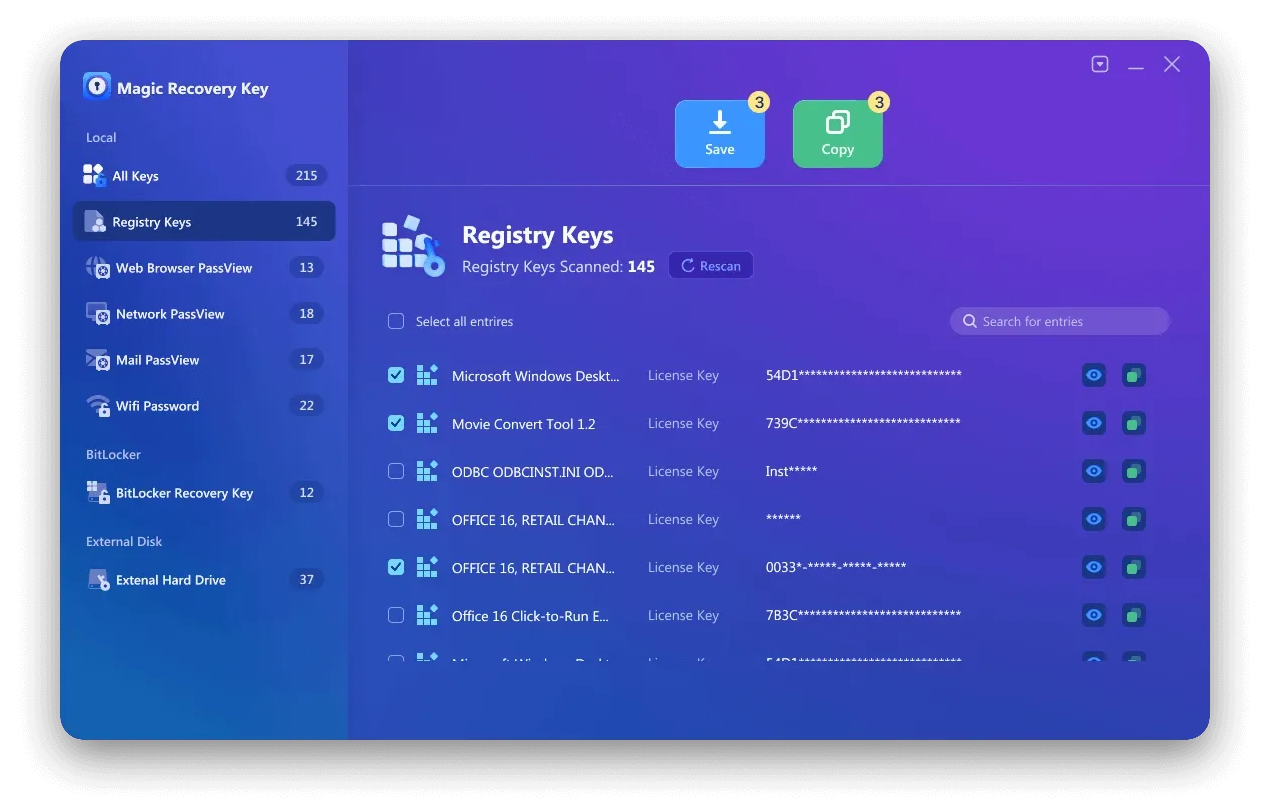
- Selezionare e copiare la chiave o salvarla per un uso futuro.
2. Ricerca nel registro per trovare il codice prodotto
Se si preferisce non utilizzare software di terze parti, è possibile cercare il proprio software chiave di prodotto nel Registro di sistema. Tuttavia, è necessario prestare attenzione quando si utilizza il Registro di sistema per evitare arresti anomali del computer. Se siete principianti, vi consigliamo di saltare questo metodo.
Per cercare nel Registro:
- Premere Windows + R per aprire la finestra di dialogo Esegui.
- Digitare “regedit” e fare clic su OK.
- Se necessario, confermare la richiesta.
- Passare al seguente percorso: HKEY_LOCAL_MACHINESOFTWAREAutodeskds MaxCurrent VersionRegistration (il percorso può variare a seconda della versione di 3ds Max).
- Nel pannello di destra, cercate un file chiamato “SERIAL” o simile, che dovrebbe contenere il vostro file Codice prodotto di 3ds Max.
3. Trovare il codice prodotto nell'account Autodesk
Il modo più semplice per trovare il codice prodotto di 3ds Max è attraverso il proprio account Autodesk. L'account funge da hub centrale per tutti i prodotti e le licenze Autodesk.
Per recuperare il codice prodotto tramite il proprio account Autodesk:
- Visita il sito Sito web di Autodesk e accedere con le proprie credenziali.
- Andate su “Tutti i prodotti e servizi”.”
- Cercate 3ds Max nell'elenco dei prodotti.
- Fare clic su “Visualizza dettagli” per visualizzare i propri dati chiave di prodotto e numero di serie.
4. Trovare il codice prodotto nell'e-mail di conferma
Un altro posto dove trovare il vostro chiave di prodotto si trova nell'e-mail di conferma ricevuta dopo l'acquisto del software. Questo messaggio di posta elettronica contiene in genere tutte le informazioni necessarie sull'acquisto, compresi il codice prodotto e il numero di serie.
Per individuare il codice prodotto nell'e-mail:
- Utilizzare la funzione di ricerca e-mail per cercare le e-mail di Autodesk.
- Verificate la presenza di un'e-mail con l'oggetto relativo al vostro acquisto.
- Individuare il chiave di prodotto elencati insieme ai dettagli dell'acquisto.
- Salvate questa e-mail in una cartella dedicata per riferimenti futuri.
5. Contattare l'assistenza Autodesk per ottenere il codice prodotto
Se non si riesce a trovare il codice prodotto di 3ds Max con i metodi sopra descritti, è possibile rivolgersi a Assistenza Autodesk può essere un'opzione valida. Possono aiutarvi a recuperare il vostro codice prodotto, a condizione che abbiate le informazioni necessarie per l'acquisto.
Per contattare l'assistenza Autodesk:
- Visitate la sezione di supporto sul sito Sito web di Autodesk.
- Inviate una richiesta di assistenza, fornendo i dettagli dell'acquisto e spiegando la vostra situazione.
- Siate pronti a verificare la vostra identità e la proprietà del software.
Conclusione
Trovare il codice prodotto di 3ds Max può sembrare un compito scoraggiante, ma i metodi di questa guida rendono il processo molto più semplice. Potete fare affidamento su Magic Recovery Key, Per trovare le informazioni necessarie, controllare il Registro, esaminare l'account Autodesk o cercare nei record di posta elettronica. Un'altra opzione è quella di contattare l'assistenza Autodesk se nessuno dei metodi locali funziona.
La sicurezza della chiave di prodotto garantisce che il software rimanga funzionante, con licenza e pienamente conforme.
Supporta Windows 7/8/10/11 e Windows Server
DOMANDE FREQUENTI: DOMANDE E RISPOSTE
Come posso trovare il mio codice prodotto di 3ds Max?
In quale punto del registro di Windows è memorizzato il codice prodotto?
Cosa devo fare se non riesco a recuperare il codice prodotto dal mio computer?

Erin Smith è riconosciuta come una delle scrittrici più professionali di Amagicsoft. Negli ultimi 10 anni ha continuamente affinato le sue capacità di scrittura e ha aiutato milioni di lettori a risolvere i loro problemi tecnologici.