
6 modi! Come trovare il codice prodotto di Microsoft Office
Stai cercando il tuo Codice prodotto di Microsoft Office? Il metodo corretto dipende dalla versione di Office che utilizzi, dalle modalità di acquisto e dal fatto che il codice sia già stato attivato.
Per le versioni precedenti di Microsoft Office, potresti comunque riuscire a recuperare il codice prodotto dal tuo computer, dalla ricevuta via e-mail o dalla confezione originale. Per Microsoft 365, Office 2024, Office 2021, Office 2019 e Office 2016, Microsoft spesso utilizza il tuo account Microsoft invece di mostrare il codice prodotto completo di 25 caratteri.
Questa guida spiega dove trovare il codice prodotto di Microsoft Office, cosa fare se non riesci a visualizzare il codice completo e come recuperare una chiave di Office smarrita da un PC vecchio o guasto.
Supporta Windows 7/8/10/11 e Windows Server
Indice dei contenuti
Risposta rapida: È ancora possibile trovare il codice prodotto completo di Microsoft Office?
Prima di provare ogni metodo, consulta la tabella qui sotto. Ti aiuterà a scegliere la soluzione migliore.
Versione per ufficio | È possibile visualizzare il codice prodotto completo? | Il modo migliore per ripristinare o reinstallare |
Microsoft 365 | Di solito no | Accedi con l'account Microsoft associato al tuo abbonamento |
Office 2024 | Di norma, viene accreditato sul conto dopo il riscatto | Accedi all'account Microsoft associato |
Office 2021 | Di solito in Office non viene visualizzata la legenda completa | Account Microsoft, cronologia ordini, scheda del prodotto o ricevuta |
Ufficio 2019 | Di solito in Office non viene visualizzata la legenda completa | Account Microsoft, ricevuta o ultimi 5 caratteri tramite CMD |
Ufficio 2016 | Dipende dal tipo di licenza | Account Microsoft, ricevuta, ultimi 5 caratteri del codice CMD o strumento di recupero |
Office 2013 | A volte recuperabile, a seconda del tipo di installazione | Scontrino, confezione del prodotto, account o strumento di recupero |
Office 2010 / 2007 / 2003 | Probabilmente più recuperabile | Confezione del prodotto, ricevuta via e-mail, vecchio PC o software per il recupero del codice prodotto |
Importante: Se il codice prodotto di Office è già stato attivato, di solito non è necessario inserirlo nuovamente. Spesso è possibile reinstallare o attivare Office effettuando l'accesso con lo stesso account Microsoft.
Che cos’è un codice prodotto di Microsoft Office?
A Codice prodotto di Microsoft Office è un codice di 25 caratteri utilizzato per attivare alcune versioni di Microsoft Office. Di solito ha questo aspetto:
XXXXX-XXXXX-XXXXX-XXXXX-XXXXX
Potrebbe essere necessario un codice prodotto nei seguenti casi:
- Installazione iniziale di Office
- Reinstallazione di Office dopo la sostituzione del computer
- Attivazione di Office dopo la reinstallazione di Windows
- Trasferimento di Office su un altro dispositivo
- Recupero di una licenza da un PC vecchio o guasto
- Verifica della licenza di Office utilizzata su un computer
Tuttavia, Microsoft ha modificato le modalità di attivazione per molte delle versioni più recenti. Per Microsoft 365 e molte versioni acquistabili una tantum, come Office 2024, Office 2021, Office 2019 e Office 2016, l'account Microsoft potrebbe essere più importante del codice prodotto stesso.
Codice prodotto di Microsoft Office vs Account Microsoft
Molti utenti cercano “codice prodotto Microsoft Office” perché Office richiede loro di attivarlo. Tuttavia, in molti casi la soluzione non consiste nel trovare il codice completo, bensì nell’accedere con l’account Microsoft corretto.
Ecco la differenza:
Articolo | Significato |
Codice prodotto | Un codice di 25 caratteri utilizzato per riscattare o attivare Office |
Account Microsoft | L'account associato alla tua licenza di Office dopo la riscossione |
Licenza digitale | Una licenza associata al tuo account o al tuo dispositivo |
Gli ultimi 5 caratteri | Una chiave parziale visualizzata dagli strumenti di Office o dal CMD per identificare la licenza installata |
Una volta attivato un codice prodotto, questo viene solitamente associato a un account Microsoft. Successivamente, è possibile reinstallare Office effettuando l'accesso a quell'account, anziché inserire nuovamente il codice prodotto.
Pertanto, prima di ricorrere a metodi di recupero avanzati, verifica sempre se la tua licenza di Office è già associata al tuo account Microsoft.
Metodo 1. Come trovare il codice prodotto di Microsoft Office tramite Magic Recovery Key
Seguite i passaggi dettagliati per trovare i codici prodotto di Microsoft Office:
Passo 1. Fare clic sulla scheda “chiavi di registro” sotto “Locale“.

Fase 2. Nel pannello di destra, visualizzate le chiavi di registro delle applicazioni. Magic Recovery Key visualizzerà tutte le chiavi del software installato. Selezionare e copiare i numeri di serie desiderati. Inoltre, è possibile fare clic su “Copia” o “Salva” per comodità.
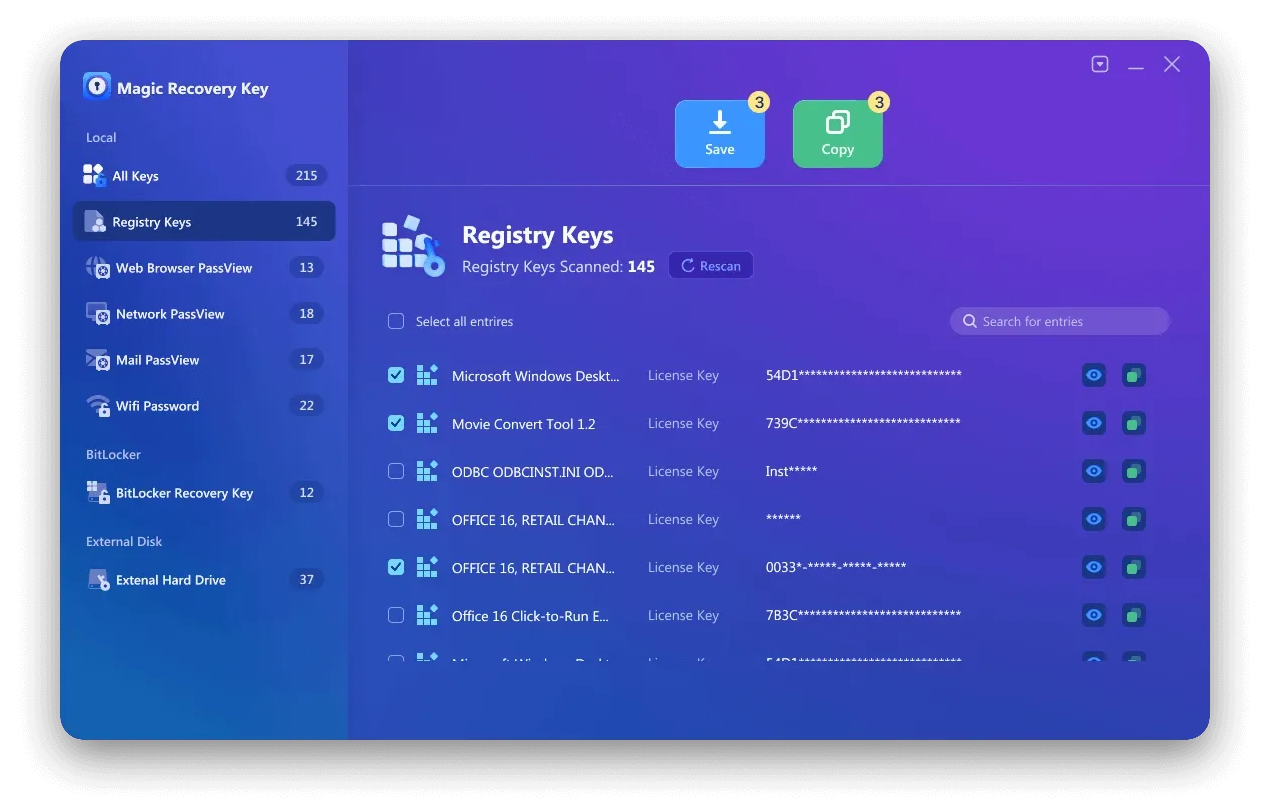
Volete utilizzare Magic Recovery Key per trovare il codice prodotto di Microsoft Office? Potete scaricarlo per utilizzarlo.
Supporta Windows 7/8/10/11 e Windows Server
Metodo 2. Eseguire il CMD per trovare il codice prodotto di Microsoft Office
Si applica a: Office 2013, Office 2016 o Office 2019
Questo metodo è efficace solo se gli ultimi cinque caratteri di un codice prodotto di 25 caratteri di Office 2019, Office 2016 o Office 2013 sono memorizzati sul computer. In tal caso, è possibile provare questo approccio per recuperare i codici prodotto Microsoft.
Passo 1. Digitare “CMD” nella casella di ricerca, fare clic con il tasto destro del mouse sul risultato del Prompt dei comandi e selezionare “Esegui come amministratore” per eseguirlo con privilegi amministrativi.
Fase 2. Digitare il seguente comando in base alle proprie esigenze.
					Office 2013 (32-bit)(Win32-bit): cscript “C:Program FilesMicrosoft OfficeOffice15OSPP.VBS” /dstatus
Office 2013 (32 bit)(Win64 bit): cscript “C:Program Files (x86)Microsoft OfficeOffice15OSPP.VBS” /dstatus
Office 2013 (64-bit)(Win64-bit): cscript “C:Program FilesMicrosoft OfficeOffice15OSPP.VBS” /dstatus
Fase 3. Dopo aver eseguito il comando appropriato o seguito i passaggi necessari, il codice prodotto di Microsoft Office dovrebbe apparire sullo schermo o nella posizione designata. Tenete presente che l'aspetto e il formato esatti potrebbero variare a seconda del metodo utilizzato per recuperarla.

Metodo 3. Aprire ProduKey per trovare il codice prodotto di Microsoft Office
Si applica a: Office 2003, Office 2007, Office 2010, Office 2013
Hai ragione quando dici che ProduKey è uno strumento semplice per trovare i codici prodotto, in particolare per i prodotti Microsoft precedenti a Office 2013. Ecco una descrizione più dettagliata di come utilizzare ProduKey per recuperare il codice prodotto di Microsoft Office:
Passo 1: Scaricare e decomprimere ProduKey
Navigare verso una fonte affidabile per scaricare il file ProduKey.zip.
Estrarre il contenuto del file zip in una cartella del computer.
Passo 2: Aprire ProduKey
Individuare il file produkey.exe all'interno della cartella estratta.
Fare doppio clic su produkey.exe per eseguire il programma.
Passo 3: Visualizza il codice prodotto
Una volta aperto, ProduKey esegue una scansione automatica del sistema alla ricerca dei codici prodotto dei software installati.
Scorrete l'elenco dei prodotti fino a trovare la vostra versione di Microsoft Office (ad esempio, Microsoft Office Professional Plus 2010).
Il codice prodotto della versione di Office in uso viene visualizzato nella colonna “Codice prodotto” accanto al nome del software.

Nota:
ProduKey visualizza solo i codici prodotto dei prodotti Microsoft e non supporta software non Microsoft.
Assicuratevi di scaricare ProduKey da una fonte affidabile per evitare potenziali rischi di malware.
Se si utilizza una versione più recente di Microsoft Office (2016, 2019 o 365), si consiglia di utilizzare Magic Recovery Key, poiché ProduKey potrebbe non essere in grado di recuperare le chiavi per queste
versioni.
Metodo 4. Trovare il codice prodotto di Microsoft Office tramite l'account Microsoft
Si applica a: Tutte le versioni di Microsoft Office
“Se avete registrato e attivato in precedenza la vostra copia di Microsoft Office 2010, 2013, 2016 o 2019, sarete lieti di sapere che Microsoft ha conservato il vostro codice prodotto originale e può visualizzarlo per voi”.”
Fase 1. Accedete al vostro account Microsoft.
Passo 2. Espandere la sezione delle informazioni sulla licenza per visualizzare il codice prodotto.

Nota: Tenete presente che la disponibilità di visualizzare i codici prodotto attraverso l'account Microsoft può dipendere da vari fattori, tra cui le modalità di acquisto e attivazione della licenza di Office. Alcuni tasti potrebbero non essere visualizzati direttamente nell'account, in particolare quelli legati ad account aziendali o didattici. In questi casi, potrebbe essere necessario contattare il reparto IT dell'organizzazione o utilizzare uno strumento di ricerca chiavi di terze parti, come Magic Recovery Key.
Metodo 5. Contattare l'assistenza per ottenere il codice prodotto di Microsoft Office
Se non si riesce a individuare il codice prodotto di Microsoft Office utilizzando uno dei metodi sopra descritti, l'ultima risorsa è contattare direttamente Microsoft. Prima di farlo, assicurarsi di avere una prova d'acquisto.
Se avete un problema con il vostro codice prodotto e avete bisogno di parlare con un rappresentante Microsoft, potete visitare la pagina contattateci. Qui avrete la possibilità di richiedere assistenza tramite l'applicazione “Get Help” o di contattare il supporto tramite il vostro browser.
Se sul dispositivo è installata l'app “Get Help”, aprendola si accede direttamente a una sessione di assistenza Microsoft rapida e gratuita. Questa app è disponibile per gli utenti di Windows 10.
In alternativa, anche l'assistenza tramite il browser è rapida e gratuita. Vi verrà presentato un agente virtuale che vi assisterà nella risoluzione del problema. È sufficiente seguire le istruzioni sullo schermo per ricevere l'aiuto di Microsoft.

Metodo 6. Attivazione di Microsoft Office tramite KMS (a scopo di prova)
In alcuni ambienti aziendali o di prova, Microsoft Office può essere attivato utilizzando KMS (Servizio di gestione delle chiavi) attivazione. KMS consente alle organizzazioni di attivare le installazioni di Office attraverso un server centralizzato, semplificando la gestione delle licenze su più dispositivi.
Come funziona l'attivazione del KMS
- Microsoft Office si connette a un server KMS locale o autorizzato.
- L'attivazione viene completata automaticamente senza l'inserimento manuale della chiave
- L'attivazione deve essere rinnovata periodicamente per rimanere valida.
Come attivarlo passo dopo passo
(1) Innanzitutto, è necessario scaricare i file di installazione di Office ProPlus dal sito web di Microsoft. Qui vengono forniti in prova solo Office 2019 e 2016.
(2) Al termine dell'installazione, scaricare lo strumento di installazione della versione VOL da cliccando qui. Una volta scaricato, fate doppio clic per eseguirlo e vedrete le seguenti informazioni.
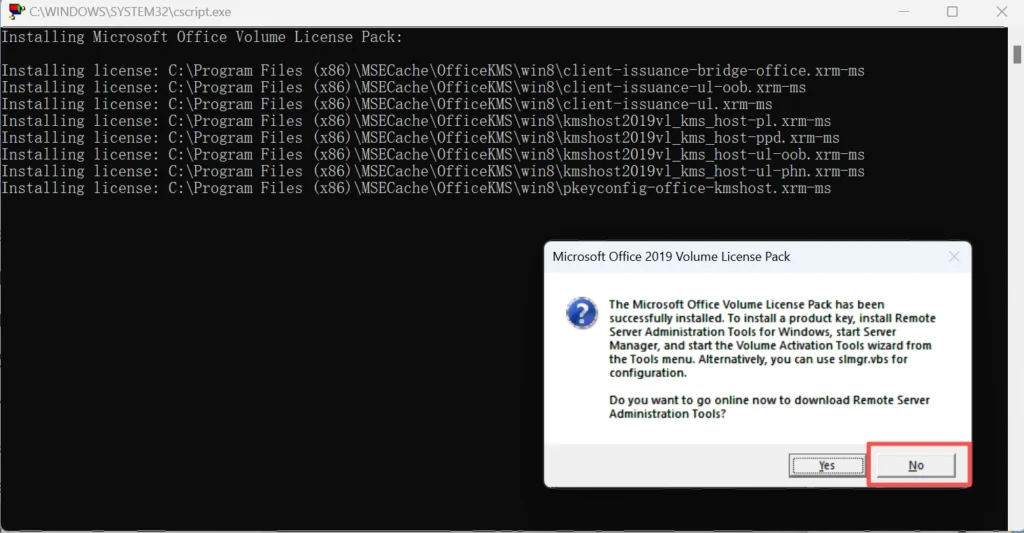
Nota: Durante il processo di installazione, se appare un prompt che chiede se scaricare Remote Server Administration Tools, fare clic su No.
(3) Scaricare il file di attivazione KMS condiviso da GitHub:
Informazioni sul file di attivazione KMS
					se esiste "%ProgramFiles%\Microsoft Office\Office16\ospp.vbs" cd /d "%ProgramFiles%\Microsoft Office\Office16"
if exist "%ProgramFiles(x86)%\Microsoft Office\Office16\ospp.vbs" cd /d "%ProgramFiles(x86)%\Microsoft Office\Office16"
cscript ospp.vbs /inpkey:XQNVK-8JYDB-WJ9W3-YJ8YR-WFG99
cscript ospp.vbs /sethst:kms1689.anan.cc
cscript ospp.vbs /setprt:1689
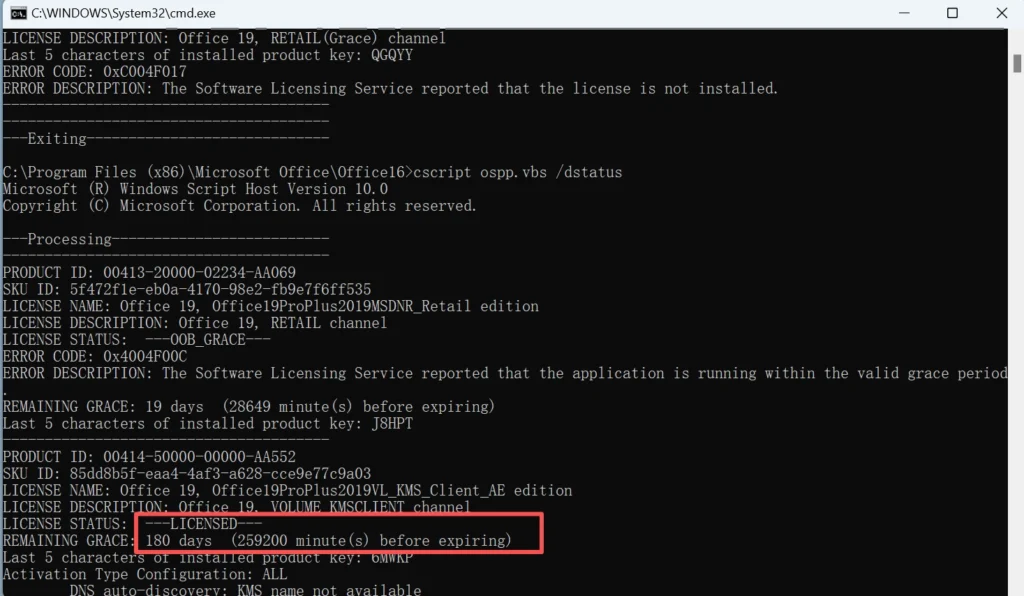
cscript ospp.vbs /act
cscript ospp.vbs /dstatus
L‘inpkey‘ indica la chiave di attivazione e il simbolo ‘sethst‘ indica l'indirizzo dell'host KMS. Se l'attivazione KMS scaricata non può essere utilizzata con successo, potrebbe essere necessario cambiare la chiave di attivazione o l'indirizzo del server di attivazione. Di seguito sono riportate alcune chiavi di attivazione e indirizzi di host KMS condivisi:
Chiave di attivazione di Office 2019
GRBR4-J4N3M-KTX9C-JM4PJ-J8HPT
NXVJY-X9T8G-Y6RWG-8VQ7V-PWHPT
W8W6K-3N7KK-PXB9H-8TD8W-BWTH9
3Q9NB-GJFJ8-RYVQY-BDGFJ-W46TG
CWGWB-4DN22-H6QV3-W9M3W-4VXGG
XNTT9-CWMM3-RM2YM-D7KB2-JB6DV
BHXN7-MQB36-MTHQ4-8MHKV-CYT97
3XJTG-YNBMY-TBH9M-CWB2Y-YWRHH
6TCQ3-NBBJ2-RTJCM-HFRKV-G6PQV
CGGR9-NQYC7-KRRGM-K4Y8J-XW3K7
Per la versione Others, è possibile ottenere la chiave da Sito Microsoft.
Indirizzo host KMS:
- kms.srv.crsoo.com
- cy2617.jios.org
- kms.digiboy.ir
- kms.cangshui.net
È inoltre possibile ottenere altri indirizzi di host KMS.
Come proteggere il codice prodotto di Microsoft Office
Una volta recuperato o individuato il codice prodotto di Microsoft Office, conservalo in un luogo sicuro.
Modi consigliati per conservare la chiave:
- Salvalo in un gestore di password
- Stampane una copia e conservala insieme alle ricevute d'acquisto
- Salva l'e-mail di conferma dell'ordine
- Scatta una foto della scheda con il codice prodotto
- Conserva la confezione originale del prodotto
- Registra quale account Microsoft è associato a Office
Non divulgare pubblicamente il tuo codice prodotto. Il codice prodotto potrebbe smettere di funzionare se utilizzato in modo improprio o condiviso con altri.
Conclusione
Recuperare o attivare il vostro Codice prodotto di Microsoft Office non è così complicato come potrebbe sembrare. A seconda della versione di Office e del metodo di licenza, il codice prodotto può essere memorizzato nel registro di sistema, collegato all'account Microsoft o gestito tramite strumenti di attivazione aziendali. Metodi come gli script del Prompt dei comandi, l'accesso all'account Microsoft e gli strumenti professionali per il recupero delle chiavi possono aiutare a recuperare la chiave di Office rapidamente.
Se il codice prodotto è salvato in locale ma è difficile da individuare manualmente, Magic Recovery Key offre un metodo semplice e affidabile per scansionare il sistema e recuperare automaticamente il codice prodotto di Microsoft Office. Scegliete il metodo più adatto alla vostra situazione per ripristinare l'accesso completo a Microsoft Office.
Supporta Windows 7/8/10/11 e Windows Server
Domande frequenti
Come posso trovare il mio codice prodotto di Microsoft Office?
Questi metodi funzionano per tutte le versioni di Office (Office 2013, 2016, 2019, 365)?
Cosa succede se non riesco a trovare il codice prodotto utilizzando uno dei metodi elencati?
È possibile trovare il codice prodotto di Microsoft Office nel registro di sistema?
Office 365 ha un codice prodotto tradizionale?
È possibile utilizzare lo stesso codice prodotto di Microsoft Office su più computer?
Cosa devo fare se ho perso il codice prodotto di Office dopo aver reinstallato Windows?
È possibile recuperare un codice prodotto di Office da un disco rigido danneggiato o vecchio?

Erin Smith è riconosciuta come una delle scrittrici più professionali di Amagicsoft. Negli ultimi 10 anni ha continuamente affinato le sue capacità di scrittura e ha aiutato milioni di lettori a risolvere i loro problemi tecnologici.