
exFAT 파일 시스템이란?
그리고 exFAT 파일 시스템 is a practical choice when you need to store large files on removable storage and use the same drive across different operating systems. It avoids FAT32’s 4 GB-per-file limit while keeping a simpler structure than NTFS. As a result, exFAT is common on USB flash drives, SDXC cards, external hard drives, and portable SSDs.
However, exFAT is not ideal for every storage task. It lacks some NTFS features, including journaling and advanced permissions. This guide explains what is exFAT, how it works, exFAT compatibility, exFAT vs FAT32, exFAT vs NTFS, and what to do if files disappear.
목차
exFAT 파일 시스템의 목적 및 설계 철학
exFAT는 특정 문제를 해결하기 위해 도입되었습니다: 기존 FAT 파일 시스템 는 단순하고 광범위하게 호환되었지만 최신 스토리지 요구사항에는 점점 더 적합하지 않게 되었습니다. FAT32 는 4GB보다 큰 파일을 저장할 수 없으므로 고해상도 동영상, 디스크 이미지 또는 시스템 백업에는 실용적이지 않습니다.
와 달리 NTFS, 저널링, 액세스 제어 목록, 복잡한 메타데이터 구조가 포함된 exFAT는 의도적으로 가볍습니다. 레거시 제약을 제거하면서 이동식 또는 플래시 기반 스토리지의 성능을 저하시킬 수 있는 오버헤드를 피할 수 있습니다.
Microsoft는 공식적으로 exFAT를 파일 시스템으로 문서화합니다. 쓰기 증폭과 메타데이터 복잡성을 최소화하는 것이 속도와 장치 수명 모두에 중요한 플래시 메모리 장치에 최적화되어 있습니다.
exFAT File System at a Glance
기능 | exFAT |
성명 | extensible File Allocation Table |
개발사 | 마이크로소프트 |
최상의 대상 | Removable storage and large cross-platform files |
FAT32 4 GB file limit | 아니요 |
저널링 | 아니요 |
Windows 지원 | 예 |
macOS support | 예 |
최신 리눅스 지원 | 예 |
일반적인 기기 | USB drives, SDXC cards, external HDDs, portable SSDs |
Best system-drive choice | 보통 아니요 |
요컨대, exFAT 파일 시스템 works best when portability and large-file support matter more than advanced file-system features.
exFAT 파일 시스템의 주요 기술적 특성
exFAT vs FAT32 vs NTFS: Which Is Best?
다음 중에서 선택 exFAT vs FAT32 그리고 exFAT vs NTFS depends on file size, device support, and operating-system requirements.
기능 | FAT32 | exFAT | NTFS |
Files over 4 GB | 아니요 | 예 | 예 |
Windows 읽기/쓰기 | 예 | 예 | 예 |
macOS 읽기/쓰기 | 예 | 예 | Native write support is more limited |
최신 리눅스 지원 | 예 | 예 | 예 |
저널링 | 아니요 | 아니요 | 예 |
NTFS-style permissions | 아니요 | 아니요 | 예 |
Older-device compatibility | Very strong | 다양 | 더 제한적 |
Cross-platform large files | 가난한 | Strong | Less convenient for Mac write access |
Windows system drive | 아니요 | 아니요 | 최선의 선택 |
Microsoft’s Windows documentation also distinguishes exFAT from NTFS in areas such as journaling, links, security, and other file-system functions.
Apple likewise notes that ExFAT is a Windows-compatible format, while macOS may read NTFS drives without providing the same native write capability.
exFAT vs FAT32
Choose FAT32 when maximum compatibility with older hardware matters and every file stays below 4 GB.
Choose exFAT when you need large-file support and the target devices support it.
For example, FAT32 may still make sense for an older car stereo or television. However, a modern portable drive containing large videos will usually work better with exFAT.
exFAT vs NTFS
Choose NTFS for Windows system disks, internal Windows-focused drives, permissions, and journaling.
Choose exFAT for removable storage that needs easy read/write access across Windows and macOS.
In simple terms, NTFS offers more advanced features, while exFAT focuses more on portability.
When Should You Use the exFAT File System?
그리고 exFAT 파일 시스템 is a good choice when:
- You need to transfer files larger than 4 GB.
- You move a portable SSD between Windows and macOS.
- You use an SDXC card in a device that officially supports exFAT.
- You store large videos, archives, project files, or backups.
- You do not need NTFS permissions or journaling.
For example, a videographer may use a portable SSD to move high-resolution footage between a Windows workstation and a MacBook.
FAT32 may fail because of the 4 GB limit. Meanwhile, NTFS can make native Mac write access less convenient. In that situation, exFAT provides a practical solution.
Another common example involves a large USB flash drive used for ISO files or video archives. If individual files exceed 4 GB, choosing FAT32 would create an unnecessary limitation.
exFAT 파일 시스템의 데이터 손실 위험
exFAT는 효율적이지만 저널링 기능이 없기 때문에 파일 시스템 변경에 대한 트랜잭션 기록을 유지하지 못합니다. 그 결과 부패에 취약한 원인입니다:
- 안전하지 않은 장치 제거
- 쓰기 작업 중 전력 손실
- 파일 시스템 변환 또는 서식 오류
- 할당 테이블의 논리적 손상
좋은 소식은 exFAT의 비교적 단순한 메타데이터 구조로 인해 저장 장치를 덮어쓰지 않았다면 데이터 복구가 가능한 경우가 많다는 점입니다.
exFAT 파일 시스템의 파일 저장 및 손실 방식
exFAT는 할당 테이블과 비트맵의 조합을 사용하여 사용 중인 클러스터와 사용 가능한 클러스터를 추적합니다. 파일이 삭제된 경우, 디렉터리 항목은 사용되지 않는 것으로 표시되지만 기본 데이터 클러스터는 덮어쓸 때까지 그대로 유지됩니다.
이 동작은 삭제된 파일이 즉시 파기되지 않음을 의미합니다. 포렌식 및 복구 관점에서 보면 다음과 같은 읽기 전용 스캔 도구를 사용할 수 있습니다. Magic Data Recovery 를 사용하여 클러스터 체인이 여전히 손상되지 않은 경우 데이터를 복구할 수 있습니다.
How to Format a Drive as exFAT
Formatting changes the file system and can erase access to existing data, so back up important files first.
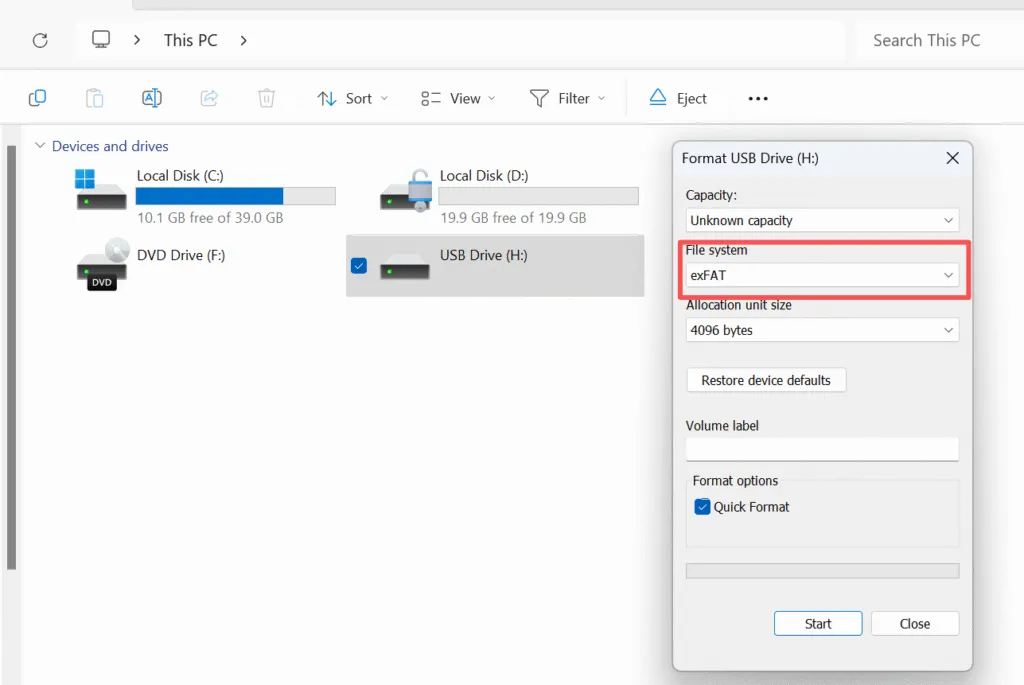
How to Format exFAT in Windows
- Connect the target USB drive, SD card, or external disk.
- 파일 탐색기를 엽니다.
- Right-click the correct drive and select 형식.
- 선택 exFAT under File system.
- Keep the default allocation unit size unless you have a specific requirement.
- 클릭 시작 를 클릭하고 확인합니다.
Windows supports exFAT through its standard formatting tools. Microsoft also recommends default allocation settings for general-purpose formatting unless a particular workload requires another value.
Always double-check the drive letter before clicking Start. Formatting the wrong drive can lead to serious data loss.
How to Format exFAT on macOS
- 디스크 유틸리티를 엽니다.
- Select the correct drive or volume.
- 클릭 Erase.
- 선택 exFAT.
- Select the appropriate partition scheme.
- Confirm the erase process.
Apple officially provides ExFAT as an option in Disk Utility for storage that needs Windows compatibility.
What Causes exFAT Data Loss?
An exFAT drive can lose access to files because of:
- 실수로 삭제
- 빠른 서식 지정
- 안전하지 않은 드라이브 제거
- Power loss during a write operation
- Damaged file-system metadata
- 분실 또는 액세스할 수 없는 파티션
- 멀웨어 또는 소프트웨어 오류
- Physical storage failure
A common mistake is continuing to copy files to the drive after data disappears.
New writes may overwrite storage areas that still contain recoverable file data. Therefore, stop using the affected device as soon as possible when important files go missing.
exFAT 드라이브에서 데이터를 복구하는 방법
exFAT 포맷된 장치에서 데이터가 손실되더라도 당황하지 마세요. 대부분의 경우 신속하게 대처하면 복구가 가능합니다.
단계별 접근 방식:
1. 장치 사용을 즉시 중지합니다.
계속 사용하면 복구 가능한 데이터를 덮어쓸 위험이 높아집니다.
2. 가능하면 장치를 읽기 전용 모드로 연결합니다.
운영 체제에서 파일 시스템을 복구하거나 포맷하라는 메시지를 표시하지 않도록 합니다.
3. 전문 복구 도구로 스캔
다음과 같은 도구 Magic Data Recovery 는 exFAT 할당 테이블을 분석하고 원본 미디어를 수정하지 않고 삭제된 파일을 안전하게 재구성하도록 설계되었습니다.
4. 복구 가능한 파일 미리보기
파일 미리 보기는 복원 전에 데이터 무결성을 확인하는 데 도움이 됩니다.
5. 다른 저장 위치로 복구
파일을 동일한 exFAT 장치로 다시 복원하지 마세요.
이 논리적이고 통제된 프로세스는 복구 성공을 극대화하는 동시에 추가 위험을 최소화합니다.
전문가적 관점
데이터 복구 관점에서 볼 때, exFAT는 다음보다 분석하기가 더 쉽습니다. NTFS 에 더 취약하지만 갑작스러운 중단 는 저널링 기능이 없기 때문입니다. 이러한 절충안은 사용자가 백업을 유지하고 안전한 제거 방법을 따른다면 휴대용 저장소에 대해 의도적으로 허용되는 것입니다.
장애가 발생하면 읽기 전용 모드로 작동하는 전문가급 복구 소프트웨어가 필수적입니다. Magic Data Recovery 는 exFAT 볼륨을 스캔하고 손실된 데이터를 안전하게 복원하는 신뢰할 수 있는 비파괴 솔루션으로 자리매김하고 있습니다.
결론
그리고 exFAT 파일 시스템 is one of the best choices for modern removable storage when you need large-file support and convenient Windows/macOS compatibility.
It works especially well for USB drives, SDXC cards, external HDDs, and portable SSDs.
사용 NTFS for Windows system drives, FAT32 for older-device compatibility, and exFAT when portability and large files are the priority.
If an exFAT drive has already lost files because of deletion, formatting, or file-system errors, stop writing new data to it.
Magic Data Recovery is worth considering because it supports exFAT, provides read-only scanning and file preview, and follows a straightforward scan-preview-recover workflow.
If you are looking for a more efficient solution for logical exFAT data loss, you can try Magic Data Recovery and scan the affected drive first to see what files remain recoverable.
Windows 7/8/10/11 및 Windows Server 지원
FAQ: exFAT 파일 시스템
exFAT는 좋은 파일 시스템인가요?
exFAT가 NTFS보다 낫나요?
exFAT 파일 시스템은 어떤 용도로 사용되나요?
exFAT는 FAT32와 동일한가요?
exFAT의 단점은 무엇인가요?
exFAT는 Windows에서 사용 가능한가요?
exFAT가 SSD에 좋은가요?
exFAT를 NTFS로 변경해도 안전한가요?

바실리는 이 분야에서 약 10년간 실무 경험을 쌓은 데이터 복구 전문가입니다. 그는 경력 전반에 걸쳐 삭제된 파일, 포맷된 드라이브, 손실된 파티션 및 RAW 파일 시스템과 관련된 수천 건의 복잡한 사례를 성공적으로 해결했습니다. 그의 전문 지식은 헥스 에디터와 같은 전문 도구를 사용한 수동 복구 방법과 복구 소프트웨어를 사용한 고급 자동화 솔루션을 모두 다룹니다. 바실리의 사명은 IT 전문가와 일반 사용자 모두에게 신뢰할 수 있는 데이터 복구 지식을 제공하여 소중한 디지털 자산을 보호할 수 있도록 돕는 것입니다.